1
Advanced Functions . 191
Home > Advanced Functions > Page Templates > Customizing the PDF Template
Customizing the PDF Template
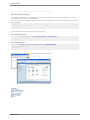
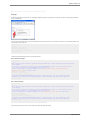
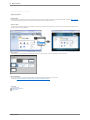
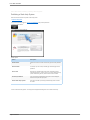
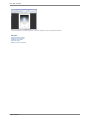
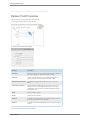
The look and feel of the PDF manual can be customized by editing the PDF Manual template. Follow the instructions below to edit the PDF template.
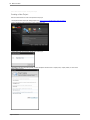
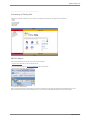
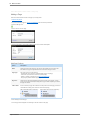
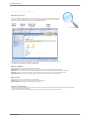
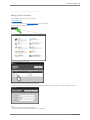
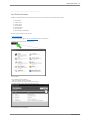
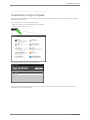
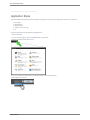
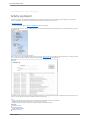
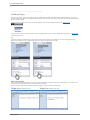
1. Open the Help System
2. If you are not already logged in, log in as an administrator with 'publish' permissions.
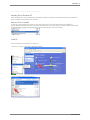
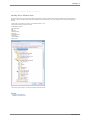
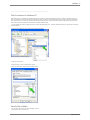
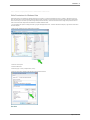
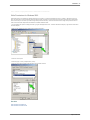
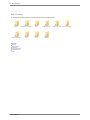
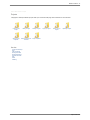
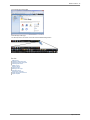
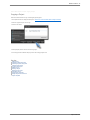
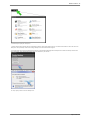
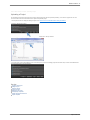
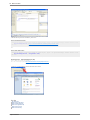
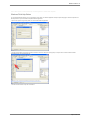
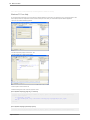
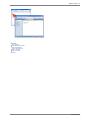
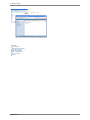
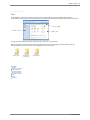
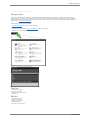
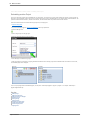
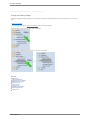
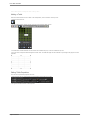
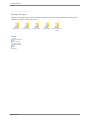
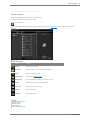
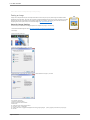
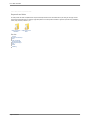
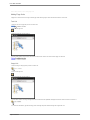
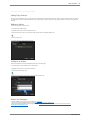
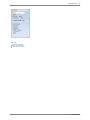
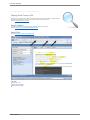
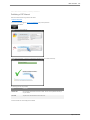
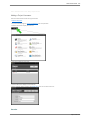
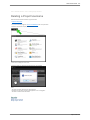
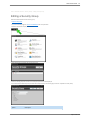
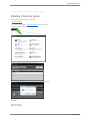
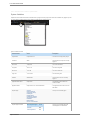
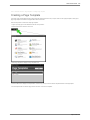
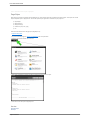
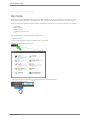
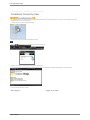
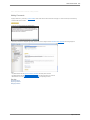
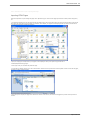
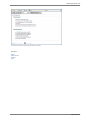
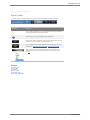
3. In the contents window, expand the 'Admin' node until the 'PDF template' pages are visible.
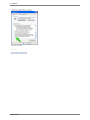
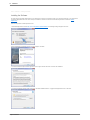
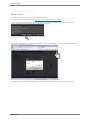
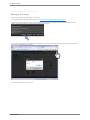
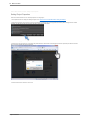
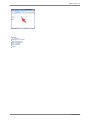
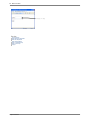
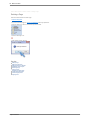
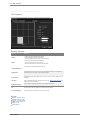
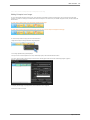
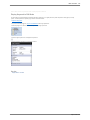
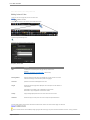
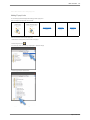
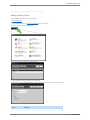
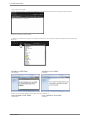
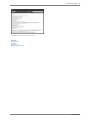
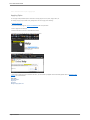
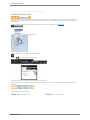
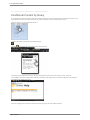
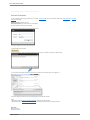
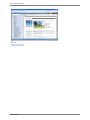
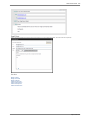
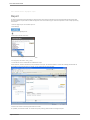
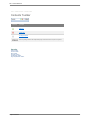
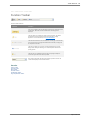
4. Select the PDF template page that you want to edit and click 'Edit Page'
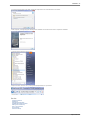
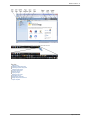
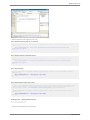
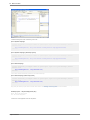
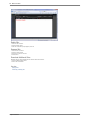
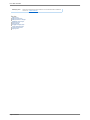
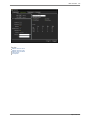
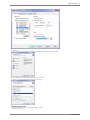
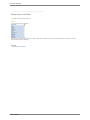
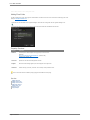
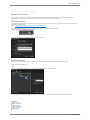
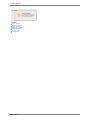
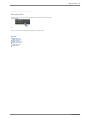
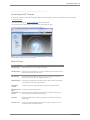
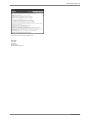
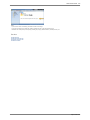
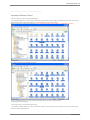
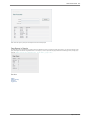
6. Edit the page as needed. Click 'Save' to save changes.
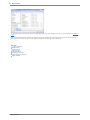
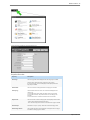
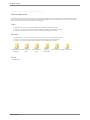
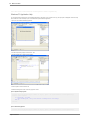
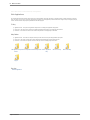
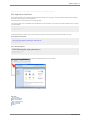
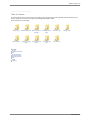
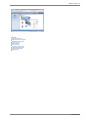
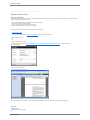
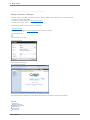
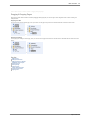
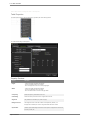
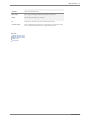
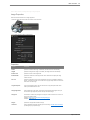
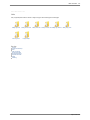
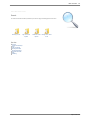
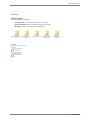
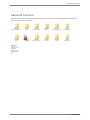
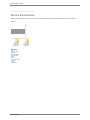
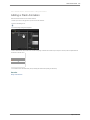
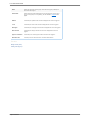
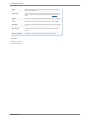
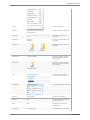
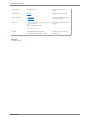
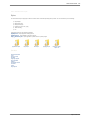
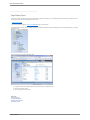
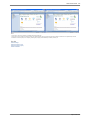
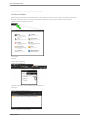
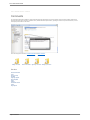
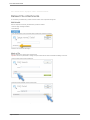
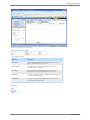
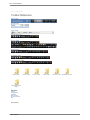
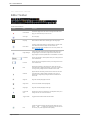
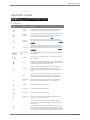
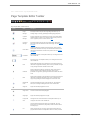
Default PDF Pages
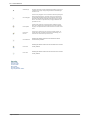
Page
Description
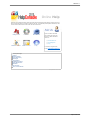
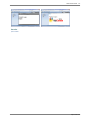
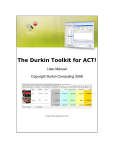
PDF Cover Page
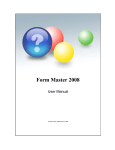
When printed, this is the outer cover page of the manual.
PDF Blank Page 1
This blank page is included after the cover page so that the title page always appears on the
right side when the reader opens the manual.
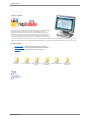
PDF Title Page
The title page normally introduces your product or service. You might include the author's
name, company name, company logo, copyright information, etc.
PDF Blank Page 2
This blank page is included after the title page so that the Table of contents always appears
on the right side when the reader opens the manual.
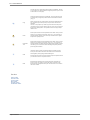
PDF Table of
Contents
The table of contents lists the pages included in the manual along with page numbers.
PDF Chapter Title
Page
This page is displayed before each chapter.
PDF Headers and
Footers
Determines what will be displayed at the top and bottom of the page. Normally the page
number, chapter name and the title of the help system.
PDF Index
Displays the keyword list for the help system. Readers can click a keyword to jump to the
associated page.
PDF Back Cover
The back cover usually just displays the product name or logo, with a tag line. You could
also include something like "Printed in Canada"
helpconsole 2010