1
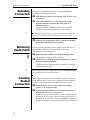
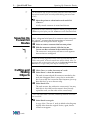
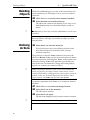
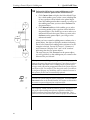
Guide
Legal Notices
Copyright © 1992 – 1999 by Honeywell, Inc.
This is version 5.2 of the DoME Guide.
Email: [email protected]
Web: www.htc.honeywell.com/dome
The information contained in this guide is subject to change without notice.
Neither Honeywell nor the developers of DoME make any warranty of any
kind with regard to this guide or its associated products, including but not
limited to the implied warranties of merchantability and fitness for a
particular purpose. Neither shall Honeywell nor the developers be liable for
errors contained herein, or direct, indirect, special, incidental, or
consequential damages in connection with the performance or use of this
guide or its associated products.
Permission is granted to make and distribute verbatim copies of this manual
provided the copyright notice and this permission notice are preserved on all
copies.
Permission is granted to copy and distribute modified versions of this
manual under the conditions for verbatim copying, provided that the entire
resulting derived work is distributed under the terms of a permission notice
identical to this one.
Trademarks
Interleaf is a registered trademark of Interleaf, Inc.
Macintosh is a registered trademark of Apple Computer, Inc.
Microsoft Windows 95, and Windows NT are trademarks of Microsoft Corp.
Microsoft and Windows are registered trademarks of Microsoft Corp.
VisualWorks ia a registered trademarks of ObjectShare, Inc.
FrameMaker, PostScript and Adobe are registered trademarks of Adobe
Systems Inc. Adobe also owns copyrights related to the PostScript language
and PostScript interpreter. The trademark PostScript is used herein only to
refer to material supplied by Adobe or to Adobe-defined programs written
in the PostScript language.
Solaris is a trademark of Sun Microsystems, Inc.
UNIX is a registered trademark of UNIX System Laboratories, Inc.
X Window System and X11 are trademarks of X Consortium, Inc.
Other products or services mentioned herein are identified by trademarks
designated by the companies that market those products or services. Make
inquiries concerning such trademarks directly to those companies.
Contents
Preface
About This Guide . . . . . . . . . . . . . . . . . . . . . . . . . . . . . . . . . vi
Revision History . . . . . . . . . . . . . . . . . . . . . . . . . . . . . . . . . . vii
Related Documents . . . . . . . . . . . . . . . . . . . . . . . . . . . . . . . . vii
Conventions Used in This Guide . . . . . . . . . . . . . . . . . . . viii
Appearance of Windows & Screen Elements. . . . . . . viii
Typographic Conventions. . . . . . . . . . . . . . . . . . . . . . . viii
The Mouse Button Dilemma. . . . . . . . . . . . . . . . . . . . . . ix
Mouse Button Operations . . . . . . . . . . . . . . . . . . . . . . . . . x
How to Get Started.... . . . . . . . . . . . . . . . . . . . . . . . . . . . . . . . x
How to Reach Us... . . . . . . . . . . . . . . . . . . . . . . . . . . . . . . . . xi
1...Introducing
DoME
. . In This Chapter . . . . . . . . . . . . . . . . . . . . . . . . . . . . . . . . . . 1
What is DoME? . . . . . . . . . . . . . . . . . . . . . . . . . . . . . . . . . . . . 2
A Brief Look at Model-Based Development. . . . . . . . . . 2
Model-Based Development Using DoME. . . . . . . . . . . . 3
DoME Features . . . . . . . . . . . . . . . . . . . . . . . . . . . . . . . . . . . . 4
DoME’s Common Notation Set . . . . . . . . . . . . . . . . . . . . . . . 5
Domain-Specific Notations . . . . . . . . . . . . . . . . . . . . . . . . . . 6
2...Quick DoME
Tour
. . In This Chapter . . . . . . . . . . . . . . . . . . . . . . . . . . . . . . . . . . 7
Entering the DoME . . . . . . . . . . . . . . . . . . . . . . . . . . . . . . . . . 8
Starting Your Tour Through the DoME . . . . . . . . . . . . . . . . 8
About the Launcher . . . . . . . . . . . . . . . . . . . . . . . . . . . . . . . . 9
Pop-Ups, Tooltips, Help & DoME Information . . . . . . . . 10
Creating a New Model . . . . . . . . . . . . . . . . . . . . . . . . . . . . . 11
Creating Nodes . . . . . . . . . . . . . . . . . . . . . . . . . . . . . . . . . . . 12
Renaming Objects . . . . . . . . . . . . . . . . . . . . . . . . . . . . . . . . . 13
Creating Connectors . . . . . . . . . . . . . . . . . . . . . . . . . . . . . . . 13
Moving Nodes . . . . . . . . . . . . . . . . . . . . . . . . . . . . . . . . . . . . 15
Selecting & Moving Multiple Objects. . . . . . . . . . . . . . . . . 16
Changing a Connector’s Endpoints . . . . . . . . . . . . . . . . . . 17
Routing Connectors. . . . . . . . . . . . . . . . . . . . . . . . . . . . . . . . 17
Rerouting Connectors . . . . . . . . . . . . . . . . . . . . . . . . . . . . . . 18
Removing Route Points . . . . . . . . . . . . . . . . . . . . . . . . . . . . 18
Creating Routed Connectors . . . . . . . . . . . . . . . . . . . . . . . . 18
Squaring Up Connector Routes. . . . . . . . . . . . . . . . . . . . . . 19
Cutting and Pasting Objects . . . . . . . . . . . . . . . . . . . . . . . . 19
Deleting Objects. . . . . . . . . . . . . . . . . . . . . . . . . . . . . . . . . . . 20
Undoing Actions . . . . . . . . . . . . . . . . . . . . . . . . . . . . . . . . . . 20
Creating a Parent Object & Subdiagram . . . . . . . . . . . . . . 21
Saving a Model . . . . . . . . . . . . . . . . . . . . . . . . . . . . . . . . . . . 23
Closing a Model. . . . . . . . . . . . . . . . . . . . . . . . . . . . . . . . . . . 23
Reopening a Saved Model . . . . . . . . . . . . . . . . . . . . . . . . . . 24
Printing with DoME . . . . . . . . . . . . . . . . . . . . . . . . . . . . . . . 24
Leaving the DoME. . . . . . . . . . . . . . . . . . . . . . . . . . . . . . . . . 24
Guide
i
. . . Contents
ii
3...DoMEwide
Features
. . In This Chapter . . . . . . . . . . . . . . . . . . . . . . . . . . . . . . . . . 25
DoME Keyboard Shortcuts. . . . . . . . . . . . . . . . . . . . . . . . . . 26
DoME Online Help . . . . . . . . . . . . . . . . . . . . . . . . . . . . . . . . 27
DoME Pop-Up Menus . . . . . . . . . . . . . . . . . . . . . . . . . . . . . . 28
DoME Launcher . . . . . . . . . . . . . . . . . . . . . . . . . . . . . . . . . . . 28
Open Models Browser. . . . . . . . . . . . . . . . . . . . . . . . . . . . . . 31
Model Editor Common Features . . . . . . . . . . . . . . . . . . . . . 32
Model Editor Title Bar . . . . . . . . . . . . . . . . . . . . . . . . . . . 33
Model Editor Menus. . . . . . . . . . . . . . . . . . . . . . . . . . . . . 33
Model Editor Standard Toolbar . . . . . . . . . . . . . . . . . . . 38
Model Editor Drawing Toolbar . . . . . . . . . . . . . . . . . . . 39
Model Editor Editing Pane . . . . . . . . . . . . . . . . . . . . . . . 41
Menus in Editing Pane . . . . . . . . . . . . . . . . . . . . . . . . . . . 41
Auto-Scrolling in the Editing Pane. . . . . . . . . . . . . . . . . 41
Model Editor Message Area . . . . . . . . . . . . . . . . . . . . . . 42
Model Editor Object Properties. . . . . . . . . . . . . . . . . . . . 42
DoME File Formats . . . . . . . . . . . . . . . . . . . . . . . . . . . . . . 42
Printing Models. . . . . . . . . . . . . . . . . . . . . . . . . . . . . . . . . 43
Working with Object Properties . . . . . . . . . . . . . . . . . . . . . 45
The DoME Property Inspector . . . . . . . . . . . . . . . . . . . . 45
The DoME Hierarchy Browser . . . . . . . . . . . . . . . . . . . . 49
Working with Diagram Overlays . . . . . . . . . . . . . . . . . . . . 51
Overlay Tips & Guidelines . . . . . . . . . . . . . . . . . . . . . . . 51
Overlay Tools. . . . . . . . . . . . . . . . . . . . . . . . . . . . . . . . . . . 52
Setting Your DoME Desktop Options. . . . . . . . . . . . . . . . . 55
Editing Options . . . . . . . . . . . . . . . . . . . . . . . . . . . . . . . . . 55
Font Options . . . . . . . . . . . . . . . . . . . . . . . . . . . . . . . . . . . 56
Miscellaneous Options . . . . . . . . . . . . . . . . . . . . . . . . . . . 56
Window Options . . . . . . . . . . . . . . . . . . . . . . . . . . . . . . . . 56
Zoom Options . . . . . . . . . . . . . . . . . . . . . . . . . . . . . . . . . . 57
4...DoME
Advanced
Features
. . In This Chapter . . . . . . . . . . . . . . . . . . . . . . . . . . . . . . . . . 59
The DoME Shelf . . . . . . . . . . . . . . . . . . . . . . . . . . . . . . . . . . . 60
Shelf Browser . . . . . . . . . . . . . . . . . . . . . . . . . . . . . . . . . . . 60
The DoME Data Dictionary . . . . . . . . . . . . . . . . . . . . . . . . . 62
Viewing & Editing Dictionary Items . . . . . . . . . . . . . . . 62
Hierarchical Decomposition in DoME Models . . . . . . . . . 64
Multiple Diagrams in a Single Model . . . . . . . . . . . . . . 64
Notations That Support Hierarchical Decomposition. 64
Parent Diagrams, Subdiagrams & Referenced Files . . 65
Parent Object Identifiers. . . . . . . . . . . . . . . . . . . . . . . . . . 65
Creating a Parent Object . . . . . . . . . . . . . . . . . . . . . . . . . 66
Creating Subdiagrams & File References . . . . . . . . . . . 66
Model Editor Window Menu . . . . . . . . . . . . . . . . . . . . . 67
Change Propagation . . . . . . . . . . . . . . . . . . . . . . . . . . . . . 67
Graph Labels . . . . . . . . . . . . . . . . . . . . . . . . . . . . . . . . . . . 67
Breaking Parent Object/Subdiagram Links . . . . . . . . . 67
Cause & Effect in Hierarchical Models . . . . . . . . . . . . . 68
Saving & Printing Hierarchical Models . . . . . . . . . . . . . 68
. . . Contents
DoME Start-Up Script Capability . . . . . . . . . . . . . . . . . . . . 69
5...Tips, Hints
& Work-Arounds
. . In This Chapter . . . . . . . . . . . . . . . . . . . . . . . . . . . . . . . . . 71
Optimizing DoME Memory & Speed . . . . . . . . . . . . . . . . . 72
Help with Help. . . . . . . . . . . . . . . . . . . . . . . . . . . . . . . . . . . . 72
Working Smart on Your Desktop . . . . . . . . . . . . . . . . . . . . 72
Working Smart on the Editing Pane . . . . . . . . . . . . . . . . . . 73
Naming, Saving & Managing Your Files . . . . . . . . . . . . . . 74
A...CoadYourdon
O-O Analysis
. . In This Appendix . . . . . . . . . . . . . . . . . . . . . . . . . . . . . .A-1
About Coad-Yourdon OOA . . . . . . . . . . . . . . . . . . . . . . . .A-2
The DoME CYOOA Model Editor. . . . . . . . . . . . . . . . . . .A-3
The Importance of Order in Model Creation . . . . . . . . . .A-3
C&O Node Properties & Appearance. . . . . . . . . . . . . . . .A-5
C&O Node Attribute Properties . . . . . . . . . . . . . . . . . . . .A-6
C&O Node Service Properties . . . . . . . . . . . . . . . . . . . . . .A-8
Using Enumeration Lists. . . . . . . . . . . . . . . . . . . . . . . . . . .A-9
Using DoME CYOOA Views . . . . . . . . . . . . . . . . . . . . . .A-11
Using Subject Lists . . . . . . . . . . . . . . . . . . . . . . . . . . . . . . .A-12
CYOOA Tools & Code Generators . . . . . . . . . . . . . . . . .A-14
B...Colbert
Methodology
. . In This Appendix . . . . . . . . . . . . . . . . . . . . . . . . . . . . . . B-1
About Colbert OOSD. . . . . . . . . . . . . . . . . . . . . . . . . . . . . . B-2
DoME’s Colbert Project Tool . . . . . . . . . . . . . . . . . . . . . . . B-2
Colbert OOSD Model Editors . . . . . . . . . . . . . . . . . . . . B-3
Object Inspector. . . . . . . . . . . . . . . . . . . . . . . . . . . . . . . . B-6
Colbert OOSD Projects & DoME’s Data Dictionary . B-7
Nonvisual Objects . . . . . . . . . . . . . . . . . . . . . . . . . . . . . . B-8
Colbert Object-Interaction Diagrams . . . . . . . . . . . . . . . B-10
Working with Objects. . . . . . . . . . . . . . . . . . . . . . . . . . B-10
OID Tools, Nodes & Connectors . . . . . . . . . . . . . . . . B-12
Hierarchical OID Diagrams . . . . . . . . . . . . . . . . . . . . . B-15
Colbert Object-Class Diagrams . . . . . . . . . . . . . . . . . . . . B-18
Working with Objects, Classes & Class Templates . B-18
OCD Tools, Nodes & Connectors . . . . . . . . . . . . . . . . B-20
Hierarchical OCD Diagrams . . . . . . . . . . . . . . . . . . . . B-22
Colbert Object-Oriented Statecharts . . . . . . . . . . . . . . . . B-24
Working with States . . . . . . . . . . . . . . . . . . . . . . . . . . . B-24
OOS Tools, Nodes & Connectors . . . . . . . . . . . . . . . . B-26
Hierarchical OOS Diagrams . . . . . . . . . . . . . . . . . . . . B-29
C...Data Flow
Diagram
. . In This Appendix . . . . . . . . . . . . . . . . . . . . . . . . . . . . . .C-1
About Data Flow Diagrams (DFD) . . . . . . . . . . . . . . . . . .C-2
The DoME DFD Model Editor . . . . . . . . . . . . . . . . . . . . . .C-2
Creating a Hierarchical DFD Model . . . . . . . . . . . . . . . . .C-3
D...ProtoDoME
. . In This Appendix . . . . . . . . . . . . . . . . . . . . . . . . . . . . . D-1
What is ProtoDoME? . . . . . . . . . . . . . . . . . . . . . . . . . . . . . .D-2
Guide
iii
. . . Contents
How ProtoDoME Works. . . . . . . . . . . . . . . . . . . . . . . . . . .D-2
Creating a New DoME Tool Specification . . . . . . . . . . . .D-3
Naming Your New Model Type . . . . . . . . . . . . . . . . . . . .D-4
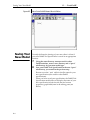
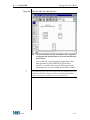
Viewing Your New Model Editor . . . . . . . . . . . . . . . . . . .D-5
Saving Your New Model. . . . . . . . . . . . . . . . . . . . . . . . . . .D-6
Developing Your New Model Type . . . . . . . . . . . . . . . . .D-8
Node Spec. . . . . . . . . . . . . . . . . . . . . . . . . . . . . . . . . . . . .D-8
Connector Spec . . . . . . . . . . . . . . . . . . . . . . . . . . . . . . .D-18
Connection Constraint . . . . . . . . . . . . . . . . . . . . . . . . .D-25
List Elements . . . . . . . . . . . . . . . . . . . . . . . . . . . . . . . . .D-26
Node Elements . . . . . . . . . . . . . . . . . . . . . . . . . . . . . . .D-30
Generic (Abstract) Spec . . . . . . . . . . . . . . . . . . . . . . . .D-31
Basic (Nonvisual) Class . . . . . . . . . . . . . . . . . . . . . . . .D-32
Property (Adding to a Class). . . . . . . . . . . . . . . . . . . .D-32
Menus . . . . . . . . . . . . . . . . . . . . . . . . . . . . . . . . . . . . . . .D-36
Custom Tool Buttons . . . . . . . . . . . . . . . . . . . . . . . . . .D-37
The Impact of Changes on Existing Models. . . . . . . . . .D-39
Modifications in DoME Tool Specs . . . . . . . . . . . . . .D-39
Deletions in DoME Tool Specs . . . . . . . . . . . . . . . . . .D-41
Creating Plug-in Model Types . . . . . . . . . . . . . . . . . . . . .D-42
Creating Plug-in Functions for Plug-in Models . . . .D-42
Alter Type Definitions Created by DoME. . . . . . . . .D-42
Registration Files. . . . . . . . . . . . . . . . . . . . . . . . . . . . . .D-43
E...MetaScribe
Glossary
Index
iv
. . In This Appendix . . . . . . . . . . . . . . . . . . . . . . . . . . . . . . E-1
About the MetaScribe System . . . . . . . . . . . . . . . . . . . . . . E-2
Using the MetaScribe Editor. . . . . . . . . . . . . . . . . . . . . . . . E-3
Word Template . . . . . . . . . . . . . . . . . . . . . . . . . . . . . . . . E-3
Expressions . . . . . . . . . . . . . . . . . . . . . . . . . . . . . . . . . . . E-4
Styles . . . . . . . . . . . . . . . . . . . . . . . . . . . . . . . . . . . . . . . . . E-4
Global Variables . . . . . . . . . . . . . . . . . . . . . . . . . . . . . . . E-6
User Interface. . . . . . . . . . . . . . . . . . . . . . . . . . . . . . . . . . E-6
Unsupported Features . . . . . . . . . . . . . . . . . . . . . . . . . . E-8
Output Formatters . . . . . . . . . . . . . . . . . . . . . . . . . . . . . . . . E-9
Creating a New Formatter . . . . . . . . . . . . . . . . . . . . . . . E-9
Information Model . . . . . . . . . . . . . . . . . . . . . . . . . . . . E-10
Integration with DoME . . . . . . . . . . . . . . . . . . . . . . . . . . . E-15
Adding a Document Specification . . . . . . . . . . . . . . . E-15
Adding an Output Formatter . . . . . . . . . . . . . . . . . . . E-16
Debugging. . . . . . . . . . . . . . . . . . . . . . . . . . . . . . . . . . . . . . E-17
Glossary . . . . . . . . . . . . . . . . . . . . . . . . . . . . . . . . . . . . . . . . E-18
Preface
This preface includes the following topics...
Guide
•
About this guide
•
Revision history
•
Related documents
•
Conventions used in this guide
•
How to get started
•
How to reach the DoME team
v
About This Guide
About This
Guide
Preface
Whether you are a new or experienced user, this guide is
designed to help you “turn on the lights” in the DoME—and
illuminate all the advanced technology available within this
unique, powerful domain modeling environment.
•
The numbered chapters acquaint you with the features
and functions of the DoME core tool-set, and show you
how to create new models, work with/navigate through
models, and save, print, and share your models. Advanced
tools, tips, hints, and work-arounds that will make your
life more pleasant in the DoME are also described.
•
The appendices describe some of the unique tools that
have been built on the DoME framework but are not
actually part of the core tool-set. Each appendix points out
the notational and domain-specific/methodological
differences between a specific tool and the DoME core.
Chapter 1
Introducing DoME —A brief discussion of modelbased development and the primary contributions
that DoME brings to the discipline
Chapter 2
Quick DoME Tour — An introductory tour
through DoME’s basic features, in a hands-on
tutorial format
Chapter 3
DoMEwide Features — Describes common
features available across all DoME tools, from
keyboard shortcuts and online help to model-editing
tools and user-configurable desktop options
Chapter 4
DoME Advanced Features — Describes the Shelf
(reuse repository), Data Dictionary, parent diagram/
subdiagram features in hierarchically decomposable
models, and DoME start-up script capability
Chapter 5
Tips, Hints & Work-Arounds — A friendly
gathering of tips, hints, shortcuts, and fixes
Appendix A Coad-Yourdon O-O Analysis — How to use
DoME’s extension to the Coad-Yourdon ObjectOriented Analysis notation (several code generators
available, including SQL)
Appendix B Colbert Methodology — How to use our Colbert
Project Tool with Object-Interaction Diagrams,
Object-Class Diagrams, and Object-Oriented
Statecharts (Harel-based)
Appendix C Data Flow Diagram — How to use DoME’s
graphic representation of a system’s information flow
Appendix D ProtoDome — How to create your own graphical
editors from DoME Tool Specifications
vi
Revision History
Preface
Revision
History
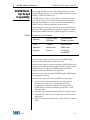
Table 1
Related
Documents
Table 1 describes the evolution of this document. When you
communicate with us, please identify the documentation and
software versions you are using.
DoME Guide Revision History
Publication
Number
Rev.
Date
Description
TRG-M99-001
A
1/99
Updated to DoME Version
5.2
TRG-M98-001
A
8/98
Updated to DoME Version
5.1
TRG-M97-001
A
4/97
Original manual updated
and reorganized to support
DoME version 5.0
This guide is your primary “how to” and reference for the
DoME core tool-set, as well as a few specialized tools in the
appendices. Other documentation supporting specialized
DoME capabilities and disciplines include...
DoME Extensions
Manual
Describes the DoME Projector/Alter extension languages, with
examples covering artifact generation (code, documents, test
cases), print engines, file formats, DoME client/server
interfaces (via RPC), and others. Also describes the complete
set of Alter primitives.
Alter
Programmer’s
Reference Manual
Technical description of Alter, DoME’s variant of the Scheme
extension language. A general-purpose programming
language, Alter can be used to write DoME code generators,
document generators, and a host of other specialized tools.
☞
Guide
If you can’t readily locate printed documentation on specific DoME
functions, be sure to check DoME online help for the information you
need or instructions on how to find it.
vii
Conventions Used in This Guide
Preface
Conventions
Used in This
Guide
Throughout DoME printed documentation and online help,
various conventions are used to identify technical terms,
computer-language constructs, mouse/keyboard operations,
and window/screen element appearance.
Appearance of
Windows &
Screen Elements
The desktop windows and screen elements shown in DoME
documentation depict what you would typically see in the
Microsoft Windows 95 or NT 4.0 (and up) environment. If you
are running DoME on a Macintosh or UNIX platform, your
actual DoME windows and screen elements will look different
with respect to the title bar, buttons, window appearance, and
various other desktop widgetry.
☞
Typographic
Conventions
Table 2
viii
The important point we’d like to make here is that DoME is platformindependent, and performs identically on UNIX, Macintosh, and all
flavors of Windows...regardless of the desktop decor and widgetry
used.
You will encounter various items distinguished by specific
fonts or symbols:
Formatting Conventions
Example
Description
dome_dir
Variable—Indicates an element
for which you must supply a value
~/model.dome
Literal text—Often used for file
path-names and operating
system commands
Transcript show:
‘Hello’.
Code fragments
<RETURN>, <ESC>,
<CTRL-C>, <SELECT>,
<OPERATE>
Key names/mouse button
names—Brackets and names are
not to be entered literally
APPLY, REVERT
FILE:NEW...
LAYOUT:CONNECTORS:
SWAP ENDS
Widgetry selections—Button or
menu selections are indicated by
name...submenus and options
are delimited by colons
☞
Notes, cautions, warnings—
Indicated by this symbol pointing
to the text
Conventions Used in This Guide
Preface
The Mouse
Button Dilemma
Since DoME runs under multiple platforms, we’re obliged to
deal with three distinct breeds of mice in a democratic
manner: the one-, two-, and three-button varieties.
From the perspective of a one-button mouse, for example, it
could be confusing (if not insulting) to refer to the <LEFT>,
<MIDDLE> and <RIGHT> buttons.
To bypass the potentially serious problem of button envy
between our three breeds of mice, we’ve decided to follow the
convention that ObjectShare uses in its documentation—to use
mouse button names that are generically descriptive:
<SELECT>, <OPERATE>, and <WINDOW>. Use the descriptions
below to identify your specific mouse button(s) name(s).
Table 3
Guide
Mouse Button Names
<SELECT>
Select a window, object, or menu item;
position the pointer or highlight text.
<OPERATE>
Bring up a menu of operations applicable to
the current view/area or selected object. In
certain modes, this button has special
functions, e.g., creating or going to a
subdiagram for a selected node or connector
in a hierarchically decomposable model.
<WINDOW>
When used in the title bar or toolbar, brings
up a menu of actions that can be performed
in any DoME window (except dialog boxes).
1
One-button mouse—The lone mouse button is <SELECT>. To
perform an <OPERATE> function, press the <OPTION> key
and click the mouse button. To perform a <WINDOW>
function, press the <COMMAND> key and click the mouse
button.
2
Right-handed two-button mouse—The left and right buttons
are <SELECT> and <OPERATE>, respectively. To perform a
<WINDOW> function, press the <CTRL> key and click the
<OPERATE> button simultaneously. (If you operate your
mouse left-handed, these buttons may be reversed.)
3
Right-handed three-button mouse—The correspondence is
from left to right: Left = <SELECT>; Middle = <OPERATE>;
Right = <WINDOW>. (If you operate your mouse lefthanded, these buttons may be reversed.)
ix
How to Get Started...
Mouse Button
Operations
Table 4
How to Get
Started...
Preface
The following table describes the actions you can perform
with your mouse buttons in the DoME environment.
Mouse Button Operations
When you see..
Do this...
Click or
Click <SELECT>
Press and release the <SELECT>
button.
Double-click
Press and release the <SELECT>
button twice in rapid succession
without moving the mouse pointer.
<SHIFT>-<CLICK>
<CTRL>-<CLICK>
<META>-<CLICK>
While holding down the <SHIFT>,
<CTRL>, or <META> key, press and
release the <SELECT> mouse button.
If you’re somewhat leery about wandering into the DoME
without all the lights on...
1
First, skim the introduction to DoME in Chapter 1, then
go to Chapter 2 for a quick DoME Tour.
These steps will guide you through DoME start-up, the
creation of a rudimentary Data Flow Diagram (DFD),
and DoME shutdown...introducing you to many of
DoME’s basic, most often-used features.
2
Go to Chapter 3, DoMEwide Features.
This chapter describes DoME keyboard shortcuts, popup menus, online help, and other features available in the
Launcher, Open Models Browser, and across all DoME
model editors and resident notations. A “skim-once, use
as a reference” type of chapter.
3
Go to Chapter 4, DoME Advanced Features.
This chapter covers the remaining features common to
several (but not all) DoME tools. The DoME Shelf (reuse
repository), Shelf Browser, Data Dictionary, parent
diagram/subdiagram features available in hierarchically
decomposable models, and DoME start-up script
capability are described.
4
With the lights now getting brighter, take a long step
into the specialized topics in the appendices and
related documents.
These supplements include the information you need to
turn on all the lights in the DoME. And don’t forget...
DoME is a highly interactive tool-set and, as with most
software, most often the best way to become proficient is to
try it all out!
x
How to Reach Us...
Preface
How to
Reach Us...
We’d love to get your feedback on the DoME software and
documentation. Feel free to drop us a note...
Email: [email protected]
Web: www.htc.honeywell.com/dome
With all communications please include the version number of
the software and/or documentation, as well as the type of
computer and operating system you are using.
Guide
xi
How to Reach Us...
xii
Preface
Introducing DoME
. . In This
Chapter
Guide
1
This chapter includes...
•
A brief discussion of model-based development and
DoME’s contributions to the discipline (page 2)
•
A summary of DoME’s features (page 4)
•
A list of standard notations and tools available with this
version of DoME (page 5)
1
What is DoME?
What is
DoME?
A Brief Look at
Model-Based
Development
1 . . . Introducing DoME
The Domain Modeling Environment (DoME) tool-set is an
extensible collection of integrated model-editing, metamodeling, and analysis tools supporting a Model-Based
Development approach to system/software engineering.
In the model-based development paradigm, a “model” serves
as the primary representation of a system under development.
This implies, among other things, that engineers should treat a
model as source code and rely upon (automatic) transformation
mechanisms to produce the object code.
In return, this approach requires that the model specification
tool(s) provide adequate expressive power to say all that need
be said and execute the translation steps in a transparent,
robust, and painless-to-the-user manner.
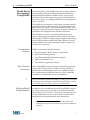
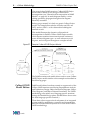
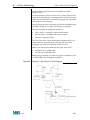
Model-based development fosters a division of labor in
engineering and clarifies the objectives for system/software
development. DoME supports this division of labor by
partitioning the engineering processes as shown below.
Figure 1
Model-Based Development
Component/
Infrastructure
Developers
Methodologists
Modeling
Languages,
Meta-Models,
Methodologies
Tool Specs,
Ontology,
Training
Product
Developers
System Models
Product Models,
V&V Models,
Configuration
Models
Processes,
Domain-Specific
Tools
2
Software
Artifacts,
Interface Specs,
Analysis Algorithms,
Generators
Component and
Infrastructure
Tools
1
Methodologists analyze modeling methods and build
model-authoring tools to support the capture and
management of domain-specific models.
2
Product Developers describe the product or system being
developed using formal modeling techniques and the
model-authoring tools developed by methodologists.
3
Component/Infrastructure Developers use their knowledge of
the target environment to a) develop model analysis
mechanisms that enhance model understanding, and b)
transform models into software artifacts (source code,
documentation, test cases), interface specs, analysis
algorithms, and generators (specialized back-ends).
What is DoME?
1 . . . Introducing DoME
Model-Based
Development
Using DoME
Since its beginnings, the DoME project has sought to enhance
the prototyping and production of graphical model-based
development environments. DoME focuses on the second
division of labor in the engineering process triad defined on
the previous page—providing powerful tools and support for
product developers.
The DoME tool-set supports a wide range of domain-specific
graphical notations. Currently, nearly a dozen resident tools
are included with DoME—and more than 40 have been used
in the past. Although each tool supports a specific notation, all
tools derive real strength from a common foundation.
This foundation consists of a multi-layered hierarchy of
classes supporting both graphical model semantics and user
interfacing. In addition to supporting multiple model-editing
tools, GrapE provides a framework from which new, robust,
domain-specific tools can be developed within a matter of a
few hours to a few days.
Foundational
Features
New Notation
Generation
☞
Arbitrary Model
Transformations
DoME’s foundational features include...
•
Domain-Specific “Model Syntax” Enforcement
•
Hierarchical Decomposition
•
User-Directed Model/Diagram Navigation
•
Alternative Model Views
•
User-Defined, Typed Annotations
Most of the DoME tool-set has been automatically generated
using DoME Tool Specifications. When working with these
specifications, methodologists first enter a graphical, highlevel specification of node and connector types, connection
constraints, and additional syntax and semantics.
Using ProtoDoME available with DoME 5.0 (and up), you can create
and run new tools directly from DoME Tool Specifications. (See the
ProtoDoME appendix in this guide for more information.)
In addition to the foundation layer and ProtoDoME, support
for component/infrastructure developers is enhanced with two
more tools: Projector and Alter.1 These tools are built into and
use the DoME infrastructure to assist in the extraction and
manipulation of data represented in the foundation.
1 The Projector/Alter extension system is described in the
DoME Extensions Manual and Alter Programmer’s Reference
Manual.
Guide
3
DoME Features
1 . . . Introducing DoME
Projector is a data flow-based graphical language; Alter is its
functional textual cousin. Together, they provide functionality
needed to write complex model transformations. Current uses
include document, code, and test case generation, simulation
and test execution, and model migration. (The end result of
the transformation is really up to your imagination.)
DoME
Features
DoME can be distinguished from ordinary drawing tools and
other applications of its type in many ways:
Domain-specific syntax rules enforced...
For example, our Petri Net model editor will not let you
connect one transition to another transition since Petri
Nets are bipartite.
Change impacts automatically propagated...
Changing a property of one visual object may affect the
appearance of one or more related objects. For example,
changing the name of a data flow in a parent Data Flow
Diagram (DFD) will automatically change the names of all
views of that flow in hierarchical subdiagrams.
DoME inherently supports reuse...
Some DoME notations may contain a reuse repository
called the “Shelf.” Items placed on the Shelf can be reused
with full traceability in subsequent diagrams.
Objects in hierarchical models can have multiple
subdiagrams...
In notations that provide this capability, the various
subdiagrams, or “implementations,” of parent objects are
resolved through the use of configuration identifiers.
Nodes can contain things...
Nodes can be adorned with other kinds of objects. For
example, Petri Net places can contain marks (tokens), and
Coad-Yourdon classes can contain lists of attributes and
services.
In some notations, entire hierarchical subdiagrams can be
contained and displayed from within a node or connector.
You can directly manipulate these items in various ways,
e.g., one common operation is to move them from one
node to another.
Node size automatically determined...
Node boundaries generally expand or shrink to fit the text
inside. This is a design decision for each specific notation,
which often results in cleaner, simpler interfaces.
4
DoME’s Common Notation Set
1 . . . Introducing DoME
Diagrams can interrelate...
Diagram components can refer to other components or
diagrams in separate models—either through hierarchy
relationships or more general cross-reference relationships.
DoME is highly extensible...
Because DoME’s foundation is Smalltalk, it has a great
deal of flexibility and growth potential. New editors based
on new visual grammars can be added in a matter of a few
hours or days. The ProtoDoME tool for modeling tool
developers can get you up and running with the prototype
of a new tool in just minutes. And the Projector/Alter
extension languages allow you to write new functions that
are tightly integrated with DoME.
Several export formats supported...
PostScript, Rich Text Format (RTF), Interleaf, and (Frame)
Maker Interchange Format (MIF) are supported for
documentation. And, for example, several software
generators (specialized back-ends) have been written for
the Coad-Yourdon tool that generate database schema code.
In fact, you can write additional functions for any DoME
tool.
DoME’s
Common
Notation Set
Guide
DoME currently supports several common notations, as well
as a few domain-specific notations. Those available in the
current DoME software release are...
•
Coad-Yourdon Object-Oriented Analysis
•
Colbert Object-Oriented Software Development Project
•
Data Flow Diagram (structured analysis)
•
Document Outline (2D “spider” diagrams)
•
DoME Tool Specification
•
IDEF-0 diagrams
•
Multi-Page Model
•
Petri Net Model
•
Projector Diagram (DoME visual programming system)
•
ProtoDoME Engine (with a sample “Roadmap” tool)
•
State-Transition Diagram
•
User-Defined Property Specification
5
Domain-Specific Notations
DomainSpecific
Notations
1 . . . Introducing DoME
DoME’s underlying GrapE infrastructure is a powerful
launch-point for the prototyping of new domain-specific
notations and general-purpose tools. Typical applications
include the areas of multimedia, computer-supported
cooperative work, and graphical languages.
All model-editing tools created in the DoME environment
have the same look-and-feel, and GrapE supports coupling
between models using different notations...including explicit
links across diagrams via hierarchical and arbitrary crossreferences.
6
Quick DoME Tour
. . In This
Chapter
2
This chapter tells you how to...
•
Enter the DoME (page 8)
•
Tour through DoME’s basic features (page 8)
•
Leave the DoME (page 24)
This chapter does not include detailed descriptions of all
DoME features and functions, but is designed to give you a
quick hands-on introduction to DoME’s intuitive look, feel,
and ease of use.
See other chapters, appendices, related documents, and
online help for detailed descriptions of specific DoME
features and operations.
☞
Guide
In this chapter we assume that you have already installed DoME.
7
Entering the DoME
Entering the
DoME
2 . . . Quick DoME Tour
DoME start-up differs from platform to platform...
Windows 95
or NT 4.0
Under Windows 95 or NT 4.0 (and up), the DoME installer
creates a pair of shortcuts for you—one in a new DoME folder
on the desktop, and another in the START menu on the taskbar.
Either double-click the desktop folder icon or select the DOME
option in the START menu. The banner screen appears, and
after a few moments both the DoME Launcher and DoME
Information window appear. You are now ready to begin your
tour (next page).
UNIX
To start DoME, you must know the directory where DoME
was installed. (We recommend that you install DoME in /usr/
local/dome.) If DoME was not installed in /usr/local/dome,
substitute the actual name of your DoME directory in the
following paragraph and any other references to that directory
in this guide.
To start DoME, type /usr/local/dome/bin/dome & at your
command prompt. If you plan to use DoME often, add the
directory /usr/local/dome/bin to your PATH environment
variable and simply type dome & to start DoME. (The “&”
puts DoME in the background so you can type more shell
commands after starting DoME.)
Either way, the banner screen appears and after a few
moments both the Launcher and DoME Information window
appear. You are now ready to begin your tour (next page).
Macintosh
Starting Your
Tour
Through the
DoME
8
To start DoME, first locate the DoME folder (the DoME
installer defaults to “DoME” on your main hard disk). Doubleclick the dome.im file, which displays the DoME icon. The
banner screen appears, and after a few moments both the
Launcher and DoME Information window appear. You are
now ready to begin your tour (next page).
To familiarize you with basic DoME features, the rest of this
chapter takes you through a set of steps you would typically
use to build a model with DoME. If you perform these steps
verbatim, you will create and modify a simple Data Flow
Diagram (DFD). (For more information on DFD, see the Data
Flow Diagram appendix in this guide.)
About the Launcher
2 . . . Quick DoME Tour
As discussed previously, DoME behaves identically across all
platforms, even though you will only see illustrations of
Windows 95/NT 4.0 (and up) screen elements and windows
in this guide. If you are not using Windows 95 or NT 4.0, the
appearance of your actual windows, icons, and desktop
widgetry will be different.
☞
About the
Launcher
Figure 2
You may generically apply the procedures in this chapter to other
DoME tools. If you follow these steps to create a model other than the
DFD example, simply “fill in the blanks” with information from the
chapter, appendix, related documentation, or online documentation
that describes the specific model you are using.
When you start DoME, the Launcher appears shortly after the
banner screen. The Launcher is your primary interface with
DoME features and functions, and you will use it to create/
open/save models, browse open models, view/set your
DoME desktop options, and perform other operations.
Introducing the DoME Launcher
Menu Bar
Toolbar
Create
new model
Open
existing model
Transcript
area shows
current status/
activity
FILE menu—Create a new model, open an existing model, save all
open models, view/open a recently-opened model, exit DoME
VIEW menu—Toggle the toolbar or transcript area on/off
TOOLS menu—Browse open models, open optional Alter Evaluator
or Alter/Projector Browser, view/change DoME desktop options,
reset tool caches
WINDOW menu—Bring a specific open model to the front, refresh all
open windows
HELP menu—Access online help or the DoME Information window
Guide
9
Pop-Ups, Tooltips, Help & DoME Information
Pop-Ups,
Tooltips,
Help & DoME
Information
2 . . . Quick DoME Tour
Before you get started, let’s try a few of the desktop features
available in the Launcher and other DoME windows...
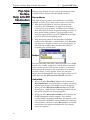
Pop-up Menus
Two types of pop-up menus are available in every DoME
window: a context-specific menu and a window control menu.
•
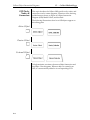
With the mouse pointer in the transcript area of the
Launcher, click <OPERATE> (see page ix) to display a
context-specific pop-up menu. As shown in the example,
these selections are useful for general editing functions. In
most model editing windows, a pop-up replica of the
menu bar appears when you click <OPERATE> in an open
space on the work area (editing pane).
•
With the mouse pointer in the menu bar or standard
toolbar of the Launcher or a model editor, click <WINDOW>
(see page ix) to display a window control pop-up menu. As
shown in the example, these selections are useful for
controlling the window itself.
Tooltips
To display the name (and often a brief description) of a DoME
button, icon, or other widget, first click the mouse anywhere
in the window (to return focus to the window, if necessary).
Then position the pointer on top of the object for a moment.
As shown above, a tooltip appears. When you move the
mouse, the tooltip disappears. (You may toggle tooltips on/off
under the Launcher TOOLS:OPTIONS:WINDOW selection.)
Online Help
10
•
When you select HELP:HELP TOPICS in the Launcher or
HELP:DOME HELP in a model editor, a window containing
indexed topical help on the DoME core tool-set appears.
When you select HELP:EDITOR HELP TOPICS in a DoME
model editor, a Help window containing detailed help on
the specific notation you are using appears.
•
When you select HELP:ABOUT DOME in the Launcher, the
DoME Information window appears. This window
contains DoME copyright information, descriptions of the
tools included with DoME, contact information, and terms
and conditions. (When you select HELP:ABOUT in a DoME
model editor, description information for the currently
active tool appears.)
Creating a New Model
2 . . . Quick DoME Tour
Creating a
New Model
Begin here to create a new model...
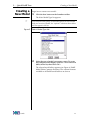
1
Click the NEW button on the Launcher toolbar.
The Select Model Type list appears.
☞
Figure 3
If the Projector/Alter and/or ProtoDoME options are not included
with your version of DoME, the “optional” selections shown below
will not appear in the list.
Select Model Type List
2
Select the type of model you want to create. To create
the example in this chapter, click DATA FLOW DIAGRAM
(DFD) in the list, then click <OK>.
The selected model editor appears (see Figure 4, DoME
Model Editor Common Features). The common features
available on all DoME model editors are shown.
Guide
11
Creating Nodes
Figure 4
2 . . . Quick DoME Tour
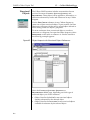
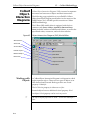
DoME Model Editor Common Features
Title Bar
Menu Bar
Standard Toolbar
Select/Move
Add bend
Remove bend
Note
Notation-specific
node tools
Notation-specific
connector tools
Drawing Toolbar
Graph Label
Message Area
Scrollbar
Editing Pane
Zoom
Progress Bring Launcher
Meter Area
to front
The basic look-and-feel of a typical DoME model editor is
much like any general-purpose drawing tool:
Creating
Nodes
•
The TITLE BAR and GRAPH LABEL display the name of the
diagram.
•
The MENU BAR gives you access to all model editor
functions.
•
The STANDARD TOOLBAR gives you quick access to several
often-used functions (also available in the menus).
•
The DRAWING TOOLBAR gives you quick access to objects
and tools you will use in the EDITING PANE.
•
The MESSAGE AREA displays window- or action-specific
information, including help messages.
When you first open a DoME model editor, you will likely
have at least one node already placed on the editing pane: the
graph label (see above). This node displays the name of the
diagram and provides access to other information about the
diagram.
Diagram entities typically include a variety of shapes, and are
classified as nodes or connectors. Most DoME model editors
display a single or double vertical row of buttons on the
drawing toolbar representing various node and connector
types. Creating a new node or connector on a diagram is a
simple select/move operation.
12
Renaming Objects
2 . . . Quick DoME Tour
3
Click the circle (Process) node on the drawing toolbar.
In a Data Flow Diagram (DFD), this shape represents a
“process.” Note that the button stays highlighted after
you select it. The drawing toolbar is a mode-driven
interface; i.e., you first select a new mode of operation,
then select the target of the operation.
4
Move the pointer over the editing pane.
As you move the pointer, it changes shape from an arrow
to a circle. (Typically, every tool used on a diagram has its
own button and pointer.)
5
Click <SELECT> with the pointer anywhere on the
editing pane.
A circular shape appears where you click the mouse
button, and the drawing toolbar mode switches back to
the arrow (Select/Move) tool.
The node you just created is automatically assigned the
name “newProcess”. All newly created objects are named
“new” concatenated with the type of the object created.
The four black selection markers around the node
indicate that the object is selected (has focus).
☞
Renaming
Objects
In most cases, the content of a node determines the size of the node on
the editing pane. You cannot (normally) use the selection markers to
change its size as with general-purpose drawing tools.
On a DoME editing pane, you have several ways to change the
“short” name of a selected object. The simplest and quickest
requires no mouse action...
6
With the “TBD” node you created still selected, press
<RETURN>.
A dialog box asks you to enter a new name for the node.
7
Type Process A and press <RETURN> again.
The dialog box disappears and the new name appears
inside the Process node. (Note that the size of the node
increases to accommodate the name.)
Creating
Connectors
Connectors are the second type of diagram entity used in
DoME models. Unlike nodes, you cannot create connectors
until nodes are in place. Each end of a connector must be
attached to a node.
8
Guide
Create another Process node (circle) on your Data Flow
Diagram and name it “Process B.”
13
Creating Connectors
2 . . . Quick DoME Tour
9
Select the uppermost connector tool (Data Flow
Connector) in the drawing toolbar and move the
pointer on top of “Process A.”
The pointer changes to cross-hairs for a Data Flow
Connector. Note that if you select the lower connector
tool (Control Flow Connector), the pointer becomes a
dimmed arrow.
10
Click <SELECT> and move the pointer around on the
editing pane.
The pointer itself does not change, but as you move the
pointer a thin line dynamically connects “Process A” to
the moving pointer (cross-hairs).
☞
☞
The first node you select when working with connectors is the origin
node. Interpretation of the specific notation used affects the meaning
of origin node vs. destination node, but for now you don’t have to
worry about that.
When creating connectors between nodes, you may use the auto-scroll
feature described under Step 16 to connect the destination endpoint.
11
Move the pointer on top of “Process B” and click
<SELECT>.
Exact positioning of the pointer on top of the destination
node is not necessary since DoME clips the connector at
the boundary of each endpoint node.
When you have selected the second node, the drawing
toolbar switches back to the arrow (Select/Move tool)
mode again and the connector is drawn from the origin
node to the destination node. An arrowhead on the
connector indicates connector direction.
☞
If you want to cancel connector creation in progress, press <ESC>
before you select the destination node.
12
☞
14
Name the new connector by pressing <RETURN> after
you click <SELECT> on the connector.
All named objects (except the graph label) can be renamed using this
method.
Moving Nodes
2 . . . Quick DoME Tour
Moving
Nodes
When nodes have been placed on a DoME diagram, they’re by
no means cast in concrete...
13
Make sure the arrow (Select/Move) tool at the top of the
drawing toolbar is selected.
This is the default mode when no other tool is selected.
14
Move the pointer on top of one of the Process nodes,
then click and hold <SELECT>.
Four selection markers appear around the node.
15
Hold <SELECT> and move the pointer around the
editing pane.
As you move the pointer, it will change from an arrow to
cross-hairs and you will see an outline of the node under
the pointer.
16
Keep holding <SELECT> and move the pointer against
(beyond) the diagram borders to the right or
downward.
DoME’s auto-scroll feature lets you dynamically move
nodes, connectors, or selected groups of objects outside
the limitations of the visible editing pane on large
diagrams. To move back to the original editing pane area,
simply move the selected object(s) toward the upper left
corner of the visible editing pane. The vertical/
horizontal scrollbars show your current location relative
to the original editing pane area.
17
Release <SELECT> when the pointer is located where
you want the node to move.
The node is redrawn in its new position, complete with
any connectors attached to other nodes. No matter how
you physically arrange objects on a diagram, DoME’s
object framework maintains all logical connection
information for you.
☞
☞
Guide
If you change your mind and want to return the node to its previous
location, use the EDIT:UNDO menu selection to “undo” your most
recent action. The node will return to its original location on the
editing pane.
Depending on your VIEW:GRID... setting, the editing pane grid may
be turned on. If so, you will not be able to move objects using the
mouse in increments less than the size of a grid section. You may,
however, incrementally move a node within a grid section by selecting
the node with the mouse, holding down the <CTRL> key, and pressing
the up, down, left, and right arrow keys.
15
Selecting & Moving Multiple Objects
2 . . . Quick DoME Tour
Selecting & You may select and move multiple nodes and connectors at
Moving the same time, as a group. One of two methods can be used:
Multiple First Method...
Objects 18 Picture a box around the group of objects you want to
select, then move the pointer to one of the corners.
This begins the process of “rubber-banding” around
several objects.
19
Press and hold the <SELECT> button, then drag the
pointer to the opposite corner, surrounding the group
of objects. Release the <SELECT> button.
All the objects you “rubber-banded” should now display
selection markers (see example).
20
Place the pointer just inside one of the selected objects,
then press and hold <SELECT> and move the outline to
the location on the editing pane where you want to
move the group.
21
Release <SELECT> to place the group of objects in the
new location.
Second Method...
Using the first method, you gathered a region of objects into a
group. Alternately, you may select individual objects and
collect them into a group.
18
Click <SELECT> with the pointer over a blank area in
the editing pane.
This deselects any currently selected objects.
19
Hold down the <SHIFT> key, then click <SELECT> on
multiple unrelated objects on the editing pane.
Each time you select a node, the current group of selected
objects expands.
☞
☞
16
20
Release the <SHIFT> key, then move the pointer just
inside one of the selected objects. Press and hold
<SELECT> and move the outline to the location on the
editing pane where you want to move the group.
21
Release <SELECT> to place the group of objects in the
new location.
As described in Step 16, you can move the group of objects beyond the
bounds of the currently visible editing pane area (auto-scrolling).
If you have selected too many nodes, you can use <SHIFT><SELECT> to deselect individual or rubber-banded groups of objects.
Changing a Connector’s Endpoints
2 . . . Quick DoME Tour
Changing a Once you have created a connector between two nodes, you
move either endpoint of the connector to a different node
Connector’s may
and still adhere to the requirements of the model notation.
Endpoints 22 Create another Process node named “Process C.”
23
Click <SELECT> on a connector that you have already
created.
When you click on the connector, registry marks
indicating the endpoints of the connector appear.
24
Click and hold the destination registry point, then
move the pointer around on the diagram.
You will see an outline of the connector move with the
pointer as you move toward the new destination.
☞
As described in Step 16, you can move the connector endpoint beyond
the bounds of the currently visible editing pane area.
25
Move the pointer on top of the “Process C” node and
release <SELECT>.
When you click <SELECT> again outside of the new
destination node, the registry points disappear and the
connector will be redrawn.
Routing
Connectors
After placing multiple nodes and connectors, you may want to
adjust connectors so they don’t overlap or otherwise get in the
way. All connectors support multiple route (inflection) points.
26
Select the ADD BEND tool.
The mouse pointer becomes a hand.
27
Hold <SELECT> and drag the pointer over a connector.
A new route point is created on the connector.
28
Continue to hold <SELECT> and move the pointer to the
route point location you want.
You will see approximately what the connector will look
like while you drag the route point.
☞
As described in Step 16, you can move the route point beyond the
bounds of the currently visible editing pane area (auto-scroll).
29
Release <SELECT> and click on the editing pane to
remove the selection markers from the connector.
The connector is redrawn with the new route point.
☞
Guide
If you want to cancel route creation in progress, press <ESC> any
time before you release <SELECT>.
17
Rerouting Connectors
Rerouting
Connectors
2 . . . Quick DoME Tour
Once you’ve created a route point, it’s often desirable to
reposition an existing route point.
30
With the SELECT/MOVE tool selected, click <SELECT> on
a connector.
31
Click and hold <SELECT> on a route point on the
selected connector and drag the route point to a
different location.
When you release <SELECT>, the connector will be
redrawn with the route point in its new location.
☞
As described in Step 16, you can move the route point beyond the
bounds of the currently visible editing pane area (auto-scroll).
32
Removing
Route Points
At this point, experiment a bit by creating a few more
connectors and multiple route points.
So you’re getting the hang of this, right? It looks like you’ve
created about a dozen or so route points in that one
connector...now what do you do?
33
Select the REMOVE BEND tool in the drawing toolbar.
The pointer becomes a small circled “X.”
34
Click <SELECT> with the pointer positioned on a route
point you want to eliminate.
The route point is deleted and the connector is redrawn
without the route point.
☞
If the editing pane starts to appear blurred, select WINDOW: REFRESH
from the menu bar to clear up the screen.
Creating Knowing that it’s a lot of work to create a connector and then
another tool to route it, we’ve added a feature that lets
Routed select
you create connectors and route them at the same time.
Connectors 35 Select the DATA FLOW CONNECTOR tool and click
<SELECT> on an origin node.
36
As you move the pointer over your first route point,
click either <SELECT> or <OPERATE>.
Whenever you click either button, a new route point will
be created. If you want to create a route point on top of a
node that is “in the way,” click on <OPERATE>, otherwise
DoME will assume you are trying to connect to the node.
18
Squaring Up Connector Routes
2 . . . Quick DoME Tour
☞
As described in Step 16, you can move connectors and route points
beyond the bounds of the currently visible editing pane area (autoscroll).
37
Move the pointer to a destination node and click
<SELECT>.
A fully routed connector is created and drawn.
☞
If you want to cancel connector creation or routing in progress, press
<ESC> any time before you click <SELECT> on the destination node.
Squaring Up Often, a diagram looks better if its connector routes are square.
“square,” we mean that the intersections of connector
Connector By
segments at the route points are 90° angles.
Routes 38 Select or create a connector that has route points.
39
With the connector selected, click the SQUARE
CONNECTOR ROUTE button in the standard toolbar.
The connector’s route points will move so all segment
intersections are orthogonal.
☞
If, after the routing algorithm is done, there are more than two colinear route points, all but the outside two will be deleted. Also, if a
connector has no route points and you use the SQUARE CONNECTOR
ROUTE tool, a single route point may be created for you.
Cutting and 40
Pasting 41
Objects
42
Click <SELECT> on the “Process A” node.
Select EDIT:CUT from the menu bar.
The node is removed and all connectors attached to the
node also disappear! Don’t worry, they’re retrievable...
but if you really don’t want the object anymore, just stop
here and don’t go on to the next step.
Select EDIT:PASTE.
The node returns, but without its connector(s). You may
think this is a bit odd, but the reason is that you only
copied the node, not the node and the connector(s).
☞
“Cut” only saves what is selected; transitively attached connectors
are not saved!
43
Select EDIT:PASTE again.
A copy of the “Process A” node is added to the diagram,
slightly offset from the original. Notice, again, that no
connectors reappear.
Guide
19
Deleting Objects
Deleting
Objects
2 . . . Quick DoME Tour
While CUT and PASTE give you some of the functionality you
need, sometimes you will simply want to toss out a node or
connector.
44
45
Click <SELECT> on a node with a connector attached.
Select EDIT:DELETE from the menu bar.
The object and connector are deleted. If you were to use
the PASTE function now, the deleted object would not
return.
☞
DELETE (and say Good-bye) and CUT (and PASTE) are not the same
operation!
But wait! There’s still hope if you delete an object you hold
near and dear...
Undoing 46
Actions
Select EDIT:UNDO from the menu bar.
If you have done nothing since deleting that last node,
note that the object does come back now, with any
attached connectors.
The good news is that the UNDO command can reverse the
effects of a DELETE. UNDO can also reverse the effects of almost
any other operation, including CUT, PASTE, node creation, and
connector routing. (UNDO is the operation you should have
used in the first case under the Cutting and Pasting Objects
topic if you wanted your connectors back.)
☞
UNDO is a powerful operation; in fact, it can reverse almost any
action you perform, even object creation! (Some actions, such as
cutting and discarding a subdiagram from a parent object, cannot be
undone. In this case, an actual diagram has been deleted.) Don’t
forget, however, that UNDO only remembers one action!
As another experiment with UNDO, try to change the name of
an object.
47
48
Click <SELECT> on a node and change its name.
Select EDIT:UNDO in the menu bar.
The old name is restored.
49
Select EDIT:UNDO again.
The old name disappears and your new name is restored.
☞
20
What you just performed was the undoing of a previous UNDO.
Creating a Parent Object & Subdiagram
2 . . . Quick DoME Tour
Creating a
Parent
Object &
Subdiagram
On the previous page, we briefly mentioned parent diagrams
and subdiagrams, which you probably don’t know about yet.
We won’t go into great detail here, but a brief introduction is
in order since several DoME notations feature this capability.
In DoME notations that support hierarchical decomposition,
e.g., Data Flow Diagrams, subdiagrams or “implementations”
of selected parent objects can be easily created. In a nutshell,
this feature gives you the ability to create and attach entire
(sub)diagrams, or a hierarchical series of subdiagrams, to
various parent nodes and connectors on a parent diagram.
Creating and accessing subdiagrams (or referenced files) from
a parent object is a simple process...
50
On your Data Flow Diagram, create at least one each of
the Note, Process, External, Store, and Boundary
objects. Connect several of these objects, if possible,
using both Data Flow and Control Flow connectors.
51
Click <OPERATE> on each node and connector type,
noting the results for each object.
On all object types other than the Process node and Data
Flow connector, a pop-up menu similar to the menu bar
appears. On the Process node and Data Flow connector,
however, you will see a single option: GO DOWN.
52
Click <OPERATE> on a Process node, then click the GO
DOWN option.
The Choose Implementation dialog box appears, giving
you a choice to create a new subdiagram or select a file
(model or diagram of any type) to reference from the
parent object.
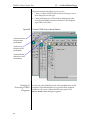
Figure 5
Guide
Choose Implementation Dialog Box
21
Creating a Parent Object & Subdiagram
53
2 . . . Quick DoME Tour
Perform the following to create subdiagrams or file
references linked to parent nodes and connectors...
•
Click CREATE NEW to display the Select Model Type
list, which enables you to create a new (sub)diagram
of any type that will be linked to the parent object.
Once the subdiagram has been created, you will go to
the subdiagram when you next select GO DOWN on
the parent object.
•
Click REFERENCE FILE, which enables you to select
an existing model of any type that will be linked to
the parent object. (The model you want to select as a
referenced file must be open.) When you next select
GO DOWN on the parent object, you will go to the
referenced model.
When you have created a subdiagram or reference for a
parent object, the object will display markers indicating
that it has a hierarchical subdiagram or reference. In the
example to the left, Process B, Process C, Connector 1,
and Connector 2 display “box” and “circle” markers
indicating that they are parent objects.
The next time you click GO DOWN on the parent object,
you will go directly to the subdiagram you created or the
reference file you selected.
☞
☞
☞
22
When you create a subdiagram, changes made will be propagated
between the parent diagram and subdiagram. If you choose to select a
reference file rather than create a subdiagram for a parent object,
changes made will not be propagated between the parent diagram
and reference file. For example, if you change the name of a connector
in the parent diagram, any boundary nodes or related connectors in
the reference file will not be automatically updated.
To return to a parent diagram from a subdiagram, click the PARENT
DIAGRAM button on the standard toolbar. You cannot use this method
to return to a parent diagram from a referenced file.
See Chapter 4, DoME Advanced Features, for more information on
the parent object/subdiagram/reference capabilities available in
DoME notations that support hierarchical decomposition. These
features are also described in DoME notation-specific documentation.
Saving a Model
2 . . . Quick DoME Tour
Saving a
Model
When you’re finished working with your model, save it to
disk...
54
Click the SAVE button on the standard toolbar.
Clicking this button will save a previously saved model
to its previously assigned file name (name displayed on
title bar and in graph label).
If you have not yet saved a model, a dialog box appears
that lets you specify where to save the model (see below).
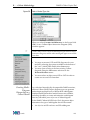
Figure 6
“Save As” Dialog Box
55
Select the directory (folder) where you want to save the
model.
Select a directory or folder where you want to save your
new model by selecting the appropriate icon in the SAVE
IN: list box or directory tree. When you select a directory,
it will appear in the SAVE IN: list box and the directory
tree will be updated.
56
Type or select the new model name in the FILE NAME:
list box and click <SAVE> or press <RETURN>.
When you save your model in a file, DoME also saves its
window size and position. When you reopen the model,
the window will appear on your desktop at the same size
and in the same location.
If a model has several diagrams being edited when the
last save occurred, DoME will reopen the model with the
same diagrams visible in editing windows.
Closing a
Model
Guide
57
Select FILE:CLOSE (single diagram only) or FILE:CLOSE
MODEL (all diagrams in this model).
In either case, if you haven’t saved your diagram or
model since making changes to it, DoME will ask if you
really want to close it.
23
Reopening a Saved Model
Reopening a
Saved
Model
2 . . . Quick DoME Tour
When a model has been saved in a file, you may reopen and
modify it as follows...
58
Click the standard toolbar OPEN button on the
Launcher or an open model editor window.
An “Open” dialog box similar to the “Save As” dialog
box appears.
59
Locate the file you want using the directory tree or list
boxes (LOOK IN, FILE NAME, FILES OF TYPE, TEXT OR
PROPERTY, LAST MODIFIED).
60
Click on the file name, then click <OPEN> or press
<RETURN>.
If the file you selected has an existing auto-save file, you
will be asked if the auto-save file should be loaded rather
than the last version of the file you saved manually.
Printing with
DoME
DoME supports many print formats, and allows you to extend
its print capabilities. PostScript output to either a file or
printer is the most common DoME print application.
61
In the model editor window you want to print, click the
PRINT button on the standard toolbar.
The “Print” dialog box appears. The DoME default is to
print the diagram on a single piece of paper.
62
63
Select a printer.
Click the <OK> button.
The diagram should be printing by the time you get to
the printer.
If the optional Projector/Alter extension language is included
with your version of DoME, you can extend DoME printing
options by implementing your own print engines. This
capability is quite useful, but requires a bit of programming
skill. (See the DoME Extensions Manual for more information.)
Leaving the
DoME
When you’re ready to leave the DoME after a work session,
shut down DoME by selecting FILE:EXIT in the Launcher
menu bar.
DoME will ask you to confirm that you want to exit. If any
unsaved models are open, you will be given the option to
either SAVE or DISCARD each model’s changes, or you may
CANCEL the shutdown to keep DoME running and continue
your session.
24
DoMEwide Features
. . In This
Chapter
☞
Guide
3
This chapter describes...
•
Keyboard shortcuts (page 26)
•
Online help & pop-up menus (page 27)
•
DoME Launcher (page 28)
•
Open Models Browser (page 31)
•
Model Editor common features (page 31)
•
Working with object properties (page 45)
•
Working with diagram overlays (page 51)
•
Setting your DoME desktop options (page 55)
Since you have already been introduced to the DoME basics in the
previous chapter, we assume that you know how to start DoME,
create, open, save, and close models, and exit DoME. This chapter is
descriptive rather than tutorial, and contains detailed descriptions of
common features and functions that exist across all DoME tools.
25
DoME Keyboard Shortcuts
DoME
Keyboard
Shortcuts
3 . . . DoMEwide Features
When you work with DoME menus and toolbars, you can use
keyboard shortcuts as well as mouse maneuvers to deftly
navigate your course...
Shortcuts for DoME Menu Selections
The sample menu below shows how two types of keyboard
shortcuts are indicated in DoME menus.
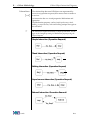
For the first type of shortcut, the underlined character (_) in a
selection indicates the key you can use to select an option. To
use this type of keyboard shortcut:
Figure 7
•
In Windows, hold down the <ALT> key and press the
shortcut key.
•
In the UNIX environment, hold down the <ALT> or
<CTRL> key (depends on your X-windows configuration)
and press the shortcut key.
•
In the Macintosh environment, hold down the <OPTION>
key and press the shortcut key.
Sample Keyboard Shortcuts for DoME Menus
Depending on your environment
(Windows, UNIX, Mac), hold down
the appropriate key and press:
N to create a new model
O to open an existing model
A to save all open models
F to open a recently opened file
X to exit DoME
For the second type of DoME menu shortcut, hold down the
<CTRL> key and press the appropriate key, e.g., <CTRL+O> to
open a model.
Shortcuts for Model Editor Drawing Toolbars
In any DoME model editor window, you can use shortcuts to
select tools, nodes, or connectors in the drawing toolbar.
Drawing toolbar shortcuts for each model editor are listed in
both the tooltips (underlined character) and DoME online help
for the specific notation you are using (HELP:EDITOR HELP
TOPICS:DRAWING TOOLBAR KEYBOARD SHORTCUTS).
☞
You may print the notation-specific lists of drawing toolbar keyboard
shortcuts in online help.
To select a tool or object in the drawing toolbar...
26
•
Press the appropriate shortcut key, or
•
Click the appropriate button in the drawing toolbar
DoME Online Help
3 . . . DoMEwide Features
DoME Online
Help
DoME includes the following types of online help...
Help Windows
•
When you select HELP:HELP TOPICS in the Launcher or
HELP:DOME HELP in a model editor, a window containing
topical help on DoMEwide functions appears.
•
When you select HELP:EDITOR HELP TOPICS in a model
editor, a notation-specific help window appears.
•
When you select HELP:ABOUT DOME in the Launcher, the
DoME Information window appears. This window
contains copyright information, brief descriptions of the
notations and tools included with DoME, contact
information, and terms and conditions. When you select
HELP:ABOUT in a model editor, description information for
the currently active tool appears.
Tooltip Help
In addition to help windows, DoME includes tooltip help...
☞
Figure 8
Guide
•
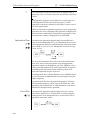
To display the name or function of a button or icon in a
window (see first example below), position the pointer on
top of the object for a few moments and a tooltip label
appears. When you move the pointer, the label disappears.
•
As shown in the second example, some objects in DoME
windows display brief descriptions or instructions using
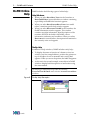
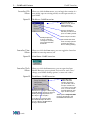
the same method.
You may toggle tooltip help on/off under the Launcher
TOOLS:OPTIONS:WINDOW menu selection (ACTIVE TOOLTIP HELP
checkbox).
Tooltip Help Examples
27
DoME Pop-Up Menus
DoME PopUp Menus
Figure 9
DoME
Launcher
Figure 10
3 . . . DoMEwide Features
Two pop-up menus are available in every primary DoME
window—a context-specific menu and a window control menu.
DoME Pop-Up Menus
•
In the editing pane or transcript area of a window, click
<OPERATE> (see page ix) to display a context-specific popup menu. As shown in the first example, these selections
are useful for general editing functions. In most diagram
windows, a replica of the menu bar appears.
•
In the menu bar or standard toolbar area, click <WINDOW>
(see page ix) to display a window control pop-up menu. As
shown in the second example, these selections are useful
for controlling the window itself.
The DoME Launcher, which appears immediately after the
banner screen when you start DoME, is your primary interface
with DoME tools, features, and functions. You will use the
Launcher to begin the creation of new models, open existing
models, save models, set your DoME desktop options, and
perform various other functions.
The DoME Launcher
The Menu Bar
gives you
access to dropdown menus
where you can
access all
DoME features
and functions.
The Progress
Meter Area
displays a
string describing
the current
action and a
round gauge.
Toolbar buttons give you
quick access to the
NEW and OPEN functions.
You may toggle the toolbar
on/off in the VIEW menu.
28
The Transcript area displays
current DoME status or
activity information, which
is useful if you have a
problem. You can toggle
this area on/off in the
VIEW menu.
DoME Launcher
3 . . . DoMEwide Features
Launcher File
Menu
Figure 11
When you click the FILE menu, you can begin the creation of a
new model, open an existing model, save all open models, or
quit DoME.
File Menu—DoME Launcher
Opens the SELECT
MODEL TYPE list, which
lists all notations
available in DoME.
Opens a dialog box
that lets you select and
open an existing model.
DoME prompts you
to save or discard
changes to currently
open models before
shutdown.
Launcher View
Menu
Figure 12
Launcher Tools
Menu
Figure 13
Lists models that have
been recently opened
and lets you select a
file for viewing/editing.
When you click the VIEW menu, you can toggle the Launcher
toolbar or transcript area on/off.
View Menu—DoME Launcher
When you click the TOOLS menu, you can open the Open
Models Browser, access optional Projector/Alter tools, view/
change your DoME desktop options, or reset tool caches.
Tools Menu—DoME Launcher
Permits you to change a wide range
of DoME desktop options to suit your
working habits and preferences.
(See topic in this chapter.)
Clears the tool caches so that
new DoME Tool Specifications
can be added to DoME without
having to restart DoME.
Guide
Saves all open models.
Opens the OPEN
MODELS BROWSER
window, which lets
you work with a list of
all open models. You
can create, open, edit,
save, or close models
from this window. (See
topic in this chapter.)
These optional Projector/Alter
tools are described in the
DoME Extensions Manual.
29
DoME Launcher
Launcher Window
Menu
Figure 14
3 . . . DoMEwide Features
When you click the WINDOW menu, you can bring a specific
model to the front or refresh all open windows.
Window Menu—DoME Launcher
Use this selection to display a list of
currently open DoME models and
bring a specific model to the front.
Graphics-intensive application windows often become
blurred or “dirty” during intense activity. Use this selection
to redraw the display.
☞
Launcher Help
Menu
Figure 15
When you select WINDOW:MODELS, DoME always lists the “top of
model” diagram only for parent diagram/subdiagram groups, even if
the “top of model” diagram is not currently open. If the diagram is not
currently open, DoME will open it when selected.
When you click the HELP menu, you can access DoMEwide
online help, notation-specific help, and the DoME Information
window.
Help Menu—DoME Launcher
Opens a HELP window where you
can access DoMEwide help on
functions that apply to all DoME
tools and notations, as well as
notation-specific help.
Opens the DOME INFORMATION window, which contains
DoME copyright information, brief descriptions of DoME
tools, contact information, and terms and conditions.
30
3 . . . DoMEwide Features
Open
Models
Browser
Open Models Browser
The DoME Open Models Browser helps you navigate between
and work with currently open models.
In addition to allowing you to create new models and open
existing models, the Open Models Browser lets you edit, save,
and close files.
To open the Open Models Browser, select TOOLS:BROWSE
OPEN MODELS in the Launcher menu bar.
Figure 16
Open Models Browser
From the FILE menu, you can begin to create a new model, open
an existing model, save all open models, close the browser, or view/
select a file from a list of recently opened models.
From the MODEL menu, you can edit, save, close, or hide the
currently selected model in the list.
Toolbar buttons can be used to create new models, open existing
models, or edit/save/close the currently selected model in the list.
Click a model in the list to select it, then click EDIT, SAVE, or
CLOSE.
☞
Guide
In the Open Models Browser, DoME always lists the “top of model”
diagram for a parent/subdiagram group, even if the “top of model”
diagram is not currently open. If the browser brings a subdiagram to
the front when you select a model and you want to edit/view its parent
or the “top of model” diagram, use the PARENT DIAGRAM button on
the model editor standard toolbar to access the diagram you want.
31
Model Editor Common Features
Model
Editor
Common
Features
☞
Figure 17
3 . . . DoMEwide Features
Although the illustration below shows a Data Flow Diagram
model editor, the editors for all DoME notations will always
appear similar.
Differences you will notice from notation to notation occur
primarily on the drawing toolbar, where notation-specific tools,
nodes, and connectors are available.
For detailed information on notation-specific tools and functions, see
the appendix, related documentation, or online help that applies to the
notation you are currently working with.
DoME Model Editor Common Features
Title Bar
Menu Bar
Standard Toolbar
Select/Move
Add bend
Remove bend
Note
Notation-specific
node tools
Notation-specific
connector tools
Drawing Toolbar
Graph Label
Message Area
Editing Pane
Scrollbar
Zoom
Progress
Meter Area
Bring Launcher
to front
The following pages describe the tools, features, and functions
common to all DoME model editors.
32
3 . . . DoMEwide Features
Model Editor
Title Bar
Model Editor Common Features
The title bar at the top of a model editor window displays the
name of the model (file) you are working with.
An asterisk (*) appears to the left of the name once you make
the first change to a diagram after creating or opening it,
indicating that you have unsaved changes. The asterisk
disappears when you save the diagram in an editable format.
Model Editor
Menus
You will find all DoME model editor functions listed in the
drop-down menus on the menu bar. Each DoME editor
supports a common set of menu options, and some editors
augment this set with notation-specific selections.
☞
All menu items have keyboard shortcuts. (See “DoME Keyboard
Shortcuts” on page 26.)
DoME model editor menu selections common to all notations
are listed and described on the following pages.
Model Editor File
Menu
The FILE menu includes the following selections:
New...
Create a new model (opens Select Model Type list).
Open...
Find/open an existing model (opens the Open dialog box).
Merge...
Read an existing model into an open window and add its contents to the
currently displayed model (opens the Request File dialog box).
Revert to Saved
Replace the currently displayed model with the last saved version.
Save
Save the currently displayed model (or a whole set of diagrams, if
hierarchical) in native (editable) DoME format under its current file name.
Save As...
Save a new model the first time, save a model under a different file name, or
save a model in a different format for exporting (opens the Save As dialog
box).
Print...
Print the visual aspect of the currently displayed diagram in one of the
following standard formats (opens the Print Options dialog box): SinglePage, Mosiac, Single-Page PostScript, Mosaic (wallpaper) PostScript,
Encapsulated PostScript (EPSF), (Frame)Maker Interchange Format (MIF),
XWD bitmap, GIF, or RTF. You may also specify whether or not hierarchical
subdiagrams should be printed at the same time.
Close
Close the currently displayed editing window.
Guide
33
Model Editor Common Features
3 . . . DoMEwide Features
Close Model
Close all editing windows associated with the currently displayed model (a
model can consist of multiple diagrams).
Hide Model
Unmap all editing windows for the currently displayed model, but do not
close the model. Use the Launcher WINDOW:MODELS selection to redisplay
(unhide) the model.
Model Editor Edit
Menu
The EDIT menu includes the following selections:
Undo
Un-do (cancel) the effects of the most recent editing operation, such as
movement, name changing, deletion, and so forth. Some operations cannot
be undone, e.g., cutting and discarding a subdiagram (breaking a parent
object/subdiagram link).
Cut
Remove the selected item(s) from the diagram and place them in the DoME
clipboard, from where they can be pasted.
Copy
Place a copy of the selected item(s) in the DoME clipboard, from where they
can be pasted. Does not remove the item(s) from the diagram.
Paste
Paste the contents of the DoME clipboard into the currently displayed
diagram.
Delete
Permanently delete the selected item(s). Be sure to note that you may undo a
Delete command.
Select All
Select all top-level objects in the currently displayed diagram. If some items
are already selected, DoME will select the next level of items within those
selected items. If, for example, nothing is initially selected, the first
application of SELECT ALL will select all nodes and connectors, but not the
name tags on the connectors. Applying SELECT ALL a second time selects the
connector name tags as well.
Find
Use this dialog box to search for an item or set of items. You can search for
text or TBDs (unset names, descriptions, rationales, traceability, properties).
When searching for text, you can specify a pattern using wildcards, and can
limit the search to names or properties within the entire model, parent
diagrams, or subdiagrams. When the search is complete, DoME reports the
item(s) that matched. You can then choose an item of interest and DoME will
select the item and scroll the appropriate diagram to position the item as
close to the center of the window as possible.
Cut Subdiagram
Use this selection to break (cut) the relationship between a parent object and
its subdiagram(s). You may choose to discard the subdiagram(s) or keep
them as independent (unlinked) models.
Color
This submenu contains the following commands...
Set Item Color...
Use this dialog box to set the color for one or more selected objects, and
set the color to be locked or unlocked. You may change the lock but
leave the colors alone (“as is”).
34
Model Editor Common Features
3 . . . DoMEwide Features
Rotate Item Color
Shift the colors of all non-black items according to the following
sequence: red to green to blue to cyan to magenta to yellow to black.
Reset Item Color
Set the color of all items on the diagram to black. Objects with locked
colors are not modified.
Properties
Use this selection to display the DoME Property Inspector for the selected
object (see topic on page 45).
Short Name...
Use this dialog box (Enter the new name) to rename the selected object. The
dialog box provides only a single line for the name string, but you can insert
line breaks by typing the backslash character (\) wherever you want a line
break. You can also display this dialog box by pressing the <INSERT> or
<RETURN> key with an object selected.
☞
Model Editor View
Menu
We recommend that you use brief descriptive names for objects,
especially circular nodes. Excessively long names entered into the
Short Name dialog box can drastically slow down DoME processing.
The VIEW menu includes the following selections:
Parent Diagram
Bring this subdiagram’s parent diagram to the front. If the parent diagram is
not open, DoME will open it. (You may also use the PARENT DIAGRAM button
on the standard toolbar to bring the parent diagram to the front.)
Subdiagram
Bring the selected object’s next lower subdiagram to the front.
Top of Model Diagram
Bring the top (root) diagram for this model to the front. If the top model
diagram is not open, DoME will open it.
Data Dictionary
Display the Data Dictionary window for this model (see page 62).
Hierarchy
Use the Hierarchy Browser to inspect the object hierarchy of a diagram or
multi-diagram model (see “The DoME Hierarchy Browser” on page 49).
Map
Large diagrams with many objects can make navigation difficult, and we’ve
found that a map can help. The Map window is a miniature display of your
diagram with a rectangle outlining the portion currently visible in the
editing pane (see below). You can adjust the view of your diagram editing
pane by dragging the rectangular outline in the Map window.
Figure 18
Guide
DoME Map
35
Model Editor Common Features
3 . . . DoMEwide Features
Overlays
See “Working with Diagram Overlays” on page 51 for more information on
overlays. This submenu has the following commands...
Create...
Use this selection to create a new overlay on the currently displayed
diagram.
Edit...
Use this selection to open the DoME Overlay Editor window for the
currently displayed diagram.
Display All
Deactivate all overlays so all objects will be visible on the currently
displayed diagram.
[Overlay Names]
Click to display a specific overlay.
Set Change Color...
Use this dialog box to set the color that DoME will use to mark changes on
the currently displayed diagram. When semantic changes are made to a
diagram item, e.g., its name is changed, DoME sets its color to the diagram's
current “delta color.” You can choose from eight colors, which correspond to
the eight colors commonly found in word processors.
Description Coloring
Toggles the description coloring (on/off). Description coloring is used to
show which objects have non-empty descriptions. To do this, DoME shows
objects that have descriptions as orange and those that don’t as black..
Normal (user-defined) coloring is temporarily suspended during
description coloring. You will not lose the colors (if any) you have
previously assigned to objects by using description coloring; the previous
colors will return when description coloring is turned off.
Grid...
Use this dialog box to set snap gridding for the currently displayed diagram.
Gridding has three states: off, on and hidden. Grid size is specified in pixels.
Standard Toolbar
Toggles the model editor standard toolbar (on/off).
Drawing Toolbar
Toggles the model editor drawing toolbar (on/off).
Message Area
Toggles the model editor message area at bottom of window (on/off).
Model Editor
Layout Menu
The LAYOUT menu includes the following selections:
Bring to Front
Bring selected object(s) in front of other objects on a diagram.
Send to Back
Send selected object(s) behind other objects on a diagram.
Connectors
This submenu contains the following commands...
Center Name
Select a connector and use this command to move the connector’s name
tag back to the default position (approximately at the connector’s
midpoint).
Square Route
Square up the bends (route points) in a selected connector (creates right
angles).
36
3 . . . DoMEwide Features
Model Editor Common Features
Swap Ends
Reverses the direction of a directed (arrow) connector.
Nodes
This submenu contains the following commands...
Align Lefts
Align the left edges of selected nodes.
Align Centers
Align the centers of selected nodes (vertically).
Align Rights
Align the right edges of selected nodes.
Align Tops
Align the top edges of selected nodes.
Align Middles
Align the middles of selected nodes (horizontally).
Align Bottoms
Align the bottom edges of selected nodes.
Distribute Horizontally
“Even out” the horizontal spacing between selected nodes.
Distribute Vertically
“Even out” the vertical spacing between selected nodes.
Flip Up/Down
Vertically “flip” (exchange placement) of selected nodes.
Flip Left/Right
Horizontally “flip” (exchange placement) of selected nodes.
Spread
Spread out (or contract) the space between all nodes and route points by a
factor you choose. This can be useful if a diagram is getting too crowded or
has become too spread out. This is different from ZOOM in that only
locations are affected; font and node sizes remain the same.
Model Editor Tools
Menu
The TOOLS menu includes the following selections:
Document Generator...
Open the Document Generator Settings window to configure and generate
documents for the currently displayed diagram. Output formats include
plain text, RTF, MIF, Interleaf ASCII, PostScript, and unformatted (SGML).
Alter Evaluator...
If your version of DoME includes the Projector/Alter option, use this
selection to open the Alter Evaluator window to write, test, and debug Alter
programs. When the window opens, the selected item is bound to the
symbol “self.” If no item is selected, the diagram itself is bound to the
symbol “self.” (See the DoME Extensions Manual and Alter Programmer’s
Reference Manual for detailed information.)
Plug-ins
This user-defined submenu allows you to select tools that have been defined
by you, another user, or your system administrator. Typical tools include a
node count utility, HTML maps, and so forth.
Guide
37
Model Editor Common Features
Model Editor
Window Menu
3 . . . DoMEwide Features
The WINDOW menu includes the following selections:
Windows
Lists all currently open diagrams in this model only (selectable). An asterisk
(*) precedes the name of each diagram that contains unsaved changes.
Reuse Window
Click this selection if you want to reuse this editing window to start a new
diagram rather than open a new window (check mark displayed when
active).
Refresh
Clear the entire window and redisplay everything. This function is useful if
the graphics have been corrupted or “blurred” for some reason, e.g.,
changing a connector's route over a wide area.
Refresh (Extensive)
DoME performs a regular refresh, and also verifies that all nodes and
connectors are placed correctly.
Model Editor Help
Menu
The HELP menu includes the following selections:
Editor Help Topics
Open a help window that contains notation-specific help for this model
editor. Includes a list of keyboard shortcuts you may use to select drawing
toolbar tools and objects on the currently displayed diagram.
DoME Help
Open a help window that contains information on common features and
functions available across all DoME tools and model editors. You may also
access notation-specific help from this window.
About
Displays DoME tool version and copyright information for the specific
notation you are using.
Model Editor
Standard Toolbar
Figure 19
The row of buttons just below the menu bar provides quick
access to some of the more often-used menu commands (see
previous topic for descriptions).
Model Editor Standard Toolbar Buttons
New (SELECT MODEL
TYPE list)
Open (OPEN dialog
box)
Bring
Launcher
to front
Save (SAVE AS
dialog box)
Print (PRINT OPTIONS
dialog box)
Parent Diagram
(bring to front)
Properties
Square Connector Route
(90 degree angle routes
on selected connector)
38
Adjust
Zoom
Set Item Color
Model Editor Common Features
3 . . . DoMEwide Features
Model Editor
Drawing Toolbar
The DoME model editor drawing toolbar for each notation is
unique, containing both common and specialized tools and
objects that simplify the creation and editing of models.
Selecting a tool or object
To select a tool or object, either...
•
Click <SELECT> on its button in the drawing toolbar, or
•
Type the shortcut key for the button (see HELP:EDITOR
HELP TOPICS:DRAWING TOOLBAR KEYBOARD SHORTCUTS
for a list of shortcuts, or view shortcuts in the tooltips)
When a tool or object is active, its button is highlighted in the
drawing toolbar. Only one tool can be selected at a time.
Creating Multiple Nodes
•
If you want to create several nodes of the same type, press
and hold the <SHIFT> key while you click <SELECT> on the
node button. This keeps the button selected after you have
created your first node on the editing pane.
•
If you want to have all nodes selected when you are
finished creating multiple nodes, press and hold the
<SHIFT> key as you create all nodes.
Model Editor Common Tools
The four tools nearest the top of the drawing toolbar are
shared by most DoME model editors (SELECT/MOVE, ADD
BEND, REMOVE BEND, NOTE).
SELECT/MOVE is active by default, and is used to select objects.
When you click <SELECT> on a node or connector with this
tool selected, registry marks appear on or around the object.
ADD BEND is used to create route points on connectors that
attach nodes. To create a route point, simply select this tool
and pass the pointer over the connector where you want to
create a route point while holding the <SELECT> button down.
When you release the button, the route point appears.
REMOVE BEND is used to remove route points from connectors.
With this tool selected, simply click <SELECT> on the route
point that you want to delete.
NOTE is primarily a communication device...
Guide
•
To start a note, select the NOTE tool and click <SELECT>
where you want the note positioned.
•
To change note contents, click <SELECT> on the note, then
click the PROPERTIES button on the standard toolbar to
display a multi-page inspector. You may edit note contents
(Description) as well as other information in this window.
39
Model Editor Common Features
3 . . . DoMEwide Features
Notation-Specific Tools
Each notation’s drawing toolbar contains a unique set of node,
connector, and element tools. Editing semantics are generally
consistent across all tools, with primary differences in how the
attributes are edited and how different node types connect.
Node Categories
DoME uses three categories of nodes: independent nodes,
dependent nodes, and accessories.
Independent nodes can be placed without constraint, while
dependent nodes must be connected to at least one other node
in order to exist. Accessories are similar to dependent nodes
except that they are considered “part of” their containing node
and always move with it.
•
Independent nodes are created in the usual manner, where a
newly created node is automatically selected (so you can
immediately edit its attributes).
•
When specifying a dependent node, you must specify the
node that the new node is to connect to after you select its
position. This means that you must have previously
created the target node. DoME prompts you to do this by
changing the mouse pointer to a “down arrow” and
waiting for you to click <SELECT> inside the target node.
(An examples of a dependent nodes the Coad-Yourdon
Gen/Spec.)
•
Accessories are components that “adorn” nodes; they don’t
affect the size of a node. (Projector operator ports and
Colbert class operations are examples of accessories.) They
are created just like other nodes except that you must click
<SELECT> on the node that you want to contain the
accessory.
Connector Tools
The minimum operation for creating a connector is to specify
the origin and destination nodes for the connector. (Some model
formalisms, such as IDEF-1x, do not attach importance to
connector direction.) Also, you may specify intermediate route
points when creating a new connector.
40
•
Unrouted connectors (shortest path)—Click <SELECT> first on
the origin node, then on the destination node. The
connector will be drawn between the nodes, properly
clipped to the edges of both nodes. To abort a connector
creation once you have started it, press the <ESC> key.
•
Routed connectors—Click <SELECT> first on the origin
node, then where you want intermediate routing points,
and finally on the destination node. To abort during the
Model Editor Common Features
3 . . . DoMEwide Features
connector creation process, press the <ESC> key.
Element Tools
Elements sit inside nodes. They are often displayed as textonly items in a list, such as a list of attributes in a CoadYourdon class.
To create a new element, first select the tool, then click
<SELECT> on the node that you want as the “container” for the
new element. By default, elements are named “TBD.”
Model Editor
Editing Pane
The standard toolbar, drawing toolbar, and message area can
be hidden to make more room for the editing pane (see bottom
of VIEW menu).
The editing pane is a plane that conceptually extends infinitely
to the right and downward (think of the origin as being in the
upper left corner).
As you add objects to a model, the scroll bars automatically
adjust so you can scroll over an area roughly twice the width
and height of your model. You can exploit the area to the left
and above the window as well. If you move a diagram item to
the left of or above the origin, the entire diagram will slide to
the right and/or down to accommodate the move.
As you move the mouse pointer into the editing pane, the
pointer adopts the shape of the currently selected tool. The
default tool is SELECT/MOVE (arrow).
The editing pane is initialized to show elements at “normal”
size. DoME itself places no limits on the number of nodes and
connectors you can put in a single diagram, and you can use
the scroll bars, ZOOM utility, VIEW:MAP, and auto-scrolling to
simplify navigation.
Menus in Editing
Pane
Every object has a pop-up menu that is specific to it with the
three default entries: Rename, Properties, and Go Down.
Menu entries that are not currently applicable are disabled.
Auto-Scrolling in
the Editing Pane
When you create a new node or connector, you are not
restricted to placing it in the visible portion of the diagram.
You may auto-scroll to a location outside the visible editing
pane.
Auto-Scrolling Nodes
When you select a node in the drawing toolbar, click
<SELECT> on a visible portion of the editing pane. The node
will appear on the pane with selection marks around it.
Guide
41
Model Editor Common Features
3 . . . DoMEwide Features
Click and hold <SELECT> on the node, then drag the node
beyond the border of the visible editing pane. The editing
pane will shift to keep the object you are moving in view.
When you reach the destination you want for the node, release
the mouse button(s).
☞
Select VIEW:MAP to control the area you are viewing in the editor.
Auto-Scrolling Connectors
When you select a connector in the drawing toolbar, click
<SELECT> on the origin node in the visible portion of the
editing pane. When you move the mouse pointer, you will see
an outline of the new connector move across the editing pane.
To attach the connector to a destination node located outside
the visible portion of the editing pane, simply move the mouse
pointer in the direction of the destination node. When the
destination node comes into view, click <SELECT> on the
destination node. The connector will appear.
☞
Model Editor
Message Area
☞
Model Editor
Object Properties
DoME File
Formats
42
Select VIEW:MAP to control the area you are viewing in the editor.
DoME displays informational messages in this area at the
bottom of the editing pane. As you move the mouse pointer
over various objects in the editing pane, DoME displays each
object’s type in the message area.
You may toggle this area on/off using VIEW:MESSAGE AREA.
Nearly every object you see in a DoME model has a set of
associated values you can edit called properties. Some of these
properties can affect the appearance of an object, e.g., Name,
while others can only be viewed or modified through a DoME
“inspector” window (see “Working with Object Properties” on
page 45).
If you want to save an existing model under its current
assigned name and format, simply click the SAVE button on
the standard toolbar. If you want to save a model under a
different name or in a different format, select FILE:SAVE AS.
The following disk file formats are available...
•
Editable format—Save a model in this format in order to
edit it again with DoME. The editable format is readable
ASCII, using a simple attribute-value pair approach. It
should be fairly easy to develop translators for it.
•
FM Spec. Document—Currently, this format is available
Model Editor Common Features
3 . . . DoMEwide Features
for Data Flow Diagram, Coad-Yourdon, and IDEF-0
models. DoME creates a (Frame)Maker Interchange File
(MIF) that can be imported into a Framemaker document
text flow. MIF format contains textual descriptions of all
the pertinent features of a model.
•
Printing Models
Figure 20
Hardcopy Formats
☞
Guide
Other special formats—Some DoME tools allow you to
export other types of files, e.g., for generating schema
definition code from a Coad-Yourdon model.
Selecting FILE:PRINT opens the Print dialog box that lets you
choose the type of printout you want and the printer you want
to send it to.
Print Dialog Box
Two hardcopy print formats are supported by DoME—single
page and mosaic:
•
Single page —The diagram is scaled down (if necessary) to
fit on a single 8.5" x 11" sheet of paper in portrait or
landscape orientation.
•
Mosaic —The number of sheets is governed by setting the
printout size. DoME uses 8.0" of the width of each page
and 10.5" of the height. Setting the size to 21" square (the
default) will produce a mosaic three sheets across and two
sheets down. There will be some overlap between pages to
help you line things up properly and make it easier to slice
off the edges (most laser printers now allow printing right
up to the edge of the paper).
Output from these formats is sent to the default printer under
Windows. In addition, both the Windows and UNIX platforms
support postscript versions of these formats.
43
Model Editor Common Features
Special Formats
Printer Names
(UNIX only)
3 . . . DoMEwide Features
Additional formats are available for integrating DoME models
into documents...
•
Encapsulated PostScript—Generates a form that can be
included in documents developed using word processors
such as LaTeX. The image is scaled to the size specified in
the SAVE AS dialog window. You can apply additional
scaling from within LaTeX.
•
Maker Interchange Format —Use this format if a diagram
will be used as a picture in a FrameMaker document. The
generated MIF file can be imported into an anchored
frame and subsequently edited. (There is currently no way
to re-export the model out of FrameMaker to be loaded
into DoME; it is a one-way transfer.)
•
XWD Bitmap—Writes a bitmap version of the diagram to
the named file in color X Window Dump format.
•
RTF—Writes a standard Rich Text Format version of the
model to the named file.
Under UNIX, you can tailor the Printer list in the PRINT
OPTIONS dialog box since the field is initialized with the
contents of your PRINTER environment variable.
DoME first looks in a file called “.domePrinters” in your home
directory for a list of printer names, e.g., csps2. If that file does
not exist, it looks for “/usr/local/dome/etc/printerList.” If
that file does not exist, it uses a trivial list consisting solely of
the printer “ps.”
44
Working with Object Properties
3 . . . DoMEwide Features
Working
with Object
Properties
Nearly every object you see in a DoME model has editable
properties. Most of these are not shown in the editing pane,
however.
As shown in the illustration below, common editable object
properties in DoME models include Name, Description,
Rationale, Traceability, Color, Cross References (X-Refs), and
Overlays. Depending on the specific notation you are working
with, other unique properties may be included.
The DoME
Property
Inspector
The DoME Property Inspector is the tool you will most often
use to view or modify the properties of an object1. It is invoked
by selecting an object on the editing pane and then clicking the
PROPERTIES button on the standard toolbar.
Object Property
Selection
To select an object property for inspection or editing, simply
select the appropriate tabbed page in the Property Inspector
window. The functions available on the Property Inspector are
described on the following pages.
Figure 21
DoME Property Inspector
1 As a convenience, you can modify the name of an object by
pressing <RETURN> on the selected object. Also, some enumeration properties can be updated by rotating them through
the available values using <CTRL>-<RETURN>.
Guide
45
Working with Object Properties
Title Bar
Menu Bar
Selections
3 . . . DoMEwide Features
The title bar displays the type of object selected (in Figure 21,
DoME Property Inspector, for example, a Data Flow Diagram
Process node has been selected).
The Property Inspector menu bar contains the following
selections...
FILE:CLOSE closes the Property Inspector.
EDIT:APPLY immediately applies (activates) all changes you
have made throughout the Property Inspector.
EDIT:REVERT returns all changed items in the Property
Inspector to their previous condition or state. No change to
any property in the inspector actually takes effect until you
specifically <APPLY> the changes. (This command causes the
inspector to discard any changes, re-read the values from the
object, and display them in the inspector.)
☞
DoME will warn you if you take some action that threatens to discard
un-applied property values.
VIEW:VIEW OBJECT opens, de-iconifies, or raises (brings to the
front) the diagram containing the selected object. The object is
centered within the diagram and selected.
VIEW:FREEZE INSPECTOR forces the inspector to remain editing
this object even if you select another object. (The inspector will
try to “‘follow you around” as you select objects in DoME
editing windows. The window will not actually move, but its
contents will change depending on the objects you are
selecting.) A check mark indicates that this option is selected
(active).
Editing Keys
46
Both the Windows and UNIX platforms define most of the
platform specific keyboard bindings as shown in the following
table:
Key
Windows
UNIX
Up Arrow
Up
Up
Down Arrow
Down
Down
Left Arrow
Left
Left
Right Arrow
Right
Right
Control Left Arrow
Left Word
Left Word
Control Right Arrow
Right Word
Right Word
Home
Begin of Line
Begin of Line
End
End of Line
End of Line
Working with Object Properties
3 . . . DoMEwide Features
Key
Windows
UNIX
Control Home
Begin of Text
Begin of Text
Control End
End of Text
End of Text
Page Up
Page Up
Page Up
Page Down
Page Down
Page Down
Backspace
Delete Left
Delete Left
Delete
Delete Right
Delete Right
Control Delete
Delete Word Right
Delete Word Right
Control a
Select All
Begin of Line
Control b
Left
Control c
Copy
Control d
Delete Right
Control e
End of Line
Control f
Find Dialog
Right
Control h
Replace Dialog
Replace Dialog
Control k
Delete to End of Line
Delete to End of Line
Control n
Down
Control o
Newline
Control p
Up
Control r
Replace
Control s
Guide
Replace
Find Dialog
Control t
Flip Characters
Flip Characters
Control v
Paste
Paste
Control x
Cut
Cut
Control y
Name Field (Short
Name)
Copy
Paste
Control z
Undo
Undo
F3
Find
Find
Esc b
Left Word
Esc d
Delete Word Right
Esc f
Right Word
Esc <
Begin of Text
Esc >
End of Text
The Name field immediately under the menu bar is used for
viewing/editing the object Short Name. This field has focus
when the window first opens up.
47
Working with Object Properties
☞
Name Page (Long
Name)
3 . . . DoMEwide Features
To quickly edit just the Short Name (displayed in the editing pane),
you may simply select the object and press <RETURN>.
If you want to give an object a long name (for example, on a
Note object), you can select the NAME tab in the inspector
window, fill in the text and click <APPLY>. You can include
new lines, blank lines, and tabs in a name on this page.
Description Page
Under the DESCRIPTION tab, you can view or edit object
Description properties just like the Long Name above.
Normally, these properties have no effect on the appearance of
an object.
Rationale Page
Under the RATIONALE tab, you can view or edit object
Rationale properties just like the Long Name and Description
properties above. Normally, these properties have no effect on
the appearance of an object.
Traceability Page
The TRACEABILITY tab page shows two properties: Anchor
and Uplink. These properties can be used to link your diagram
to external documents (such as a requirements document).
☞
Color Page
•
Uplink is a reference to the anchor of an external object,
e.g., a paragraph of text in a requirements document.
DoME doesn’t care how that external object’s anchor got
there or if it even exists, but your traceability report
generator may care!
•
Anchor should be set to a string unique to the object. In a
sense, it is the object’s name (for the purposes of
registering it in a traceability database).
Currently, DoME does not have a standard way of generating trace
data files, but you can write your own using DoME’s optional
Projector/Alter extension facility.
On the COLOR tab page, you can set the color of any visible
DoME object. Currently, eight colors are supported: black,
white, red, green, blue, cyan, magenta and yellow. These are
mapped accordingly when you print or export the graphics.
If you are using a color to indicate changes, DoME will
sometimes change the color of an object for you. To defeat this
feature for a specific object, lock the object’s color by checking
the FREEZE check box on this page.
48
3 . . . DoMEwide Features
Working with Object Properties
Cross References
(X-Refs) Page
Use the X-REFS tab page to set up, modify, or delete crossreferences between objects on diagrams. An easy to use set of
drop-down lists, text entry fields, and function buttons are
provided for working with cross-references.
Overlays Page
Use the OVERLAYS tab page to associate overlay information
with both diagrams and diagram objects. See “Working with
Diagram Overlays” on page 51 for information on overlays.
The DoME
Hierarchy
Browser
The Hierarchy Browser shown below is another tool you can
use to inspect and edit DoME models, diagrams, and objects.
Like the DoME Map (see page 35), this browser enables you to
“step back” and get an overall view of your work.
To display a graphic “tree” view of a model, simply select
VIEW:HIERARCHY from the menu bar of any model editor. To
display a full view of your model, select VIEW:SHOW ALL
LEVELS in the browser menu bar.
The Hierarchy Browser menu bar contains the following
selections...
FILE:PRINT prints the currently displayed hierarchy.
FILE:CLOSE closes the Hierarchy Browser.
EDIT:FOCUS raises (brings to the front) the diagram containing
the currently selected object in the browser tree.
EDIT:INSPECT invokes the Property Inspector for the currently
selected object in the browser tree.
The VIEW menu enables you to view the next level, all levels,
or the top level only in the tree. This menu also allows you to
select other hierarchies for viewing, if available.
Guide
49
Working with Object Properties
Figure 22
50
DoME Hierarchy Browser
3 . . . DoMEwide Features
3 . . . DoMEwide Features
Working
with
Diagram
Overlays
Working with Diagram Overlays
An overlay facility in DoME model editors allows you to select
and group objects so they can be selectively displayed. An
overlay is, in essence, a transparent sheet placed on the
background of a diagram. This sheet contains only those
objects that should be displayed when the overlay is active.
An overlay can have both direct and indirect overlay objects:
Overlay Tips &
Guidelines
Guide
•
A direct overlay object is explicitly specified.
•
An indirect overlay object is specified by a query. You can
only specify queries using the Overlay Editor (page 52).
When working with diagram overlays, observe these tips and
guidelines...
•
An overlay can be visually represented on a diagram by
using an overlay node (see example). An overlay node
displays the queries and objects included in an overlay,
and may be deleted without affecting the actual overlay.
•
Direct overlay objects listed on an overlay node have a
pop-up selection that allows you to select the object on a
diagram. Click <OPERATE> on the object name in the
overlay node, then click the GO TO selection.
•
You can remove nodes and connectors from an overlay
node by deleting their associated object from the overlay
node.
•
You may only delete an overlay by using the Overlay
Editor.
•
A node is visible from the model editor if the diagram has
no active overlays or if the node is an overlay object in at
least one of the active overlays.
•
A connector is visible in the model editor if the diagram
has no active overlays or if the connector and the
connector’s origin and destination nodes are overlay
objects in at least one of the active overlays.
•
Nodes and connectors may be moved between overlay
nodes by dragging the associated object from one overlay
node to another overlay node.
•
You can drag-and-drop a node directly on top of an
overlay node to add it to the overlay.
•
When an object is first created on a diagram, it is added to
all active overlays that do not indirectly contain the new
object.
•
If active overlays exist when a new overlay is created, the
new overlay is immediately added to the list of active
overlays.
51
Working with Diagram Overlays
Overlay Tools
Overlays Submenu
3 . . . DoMEwide Features
You can interact with the DoME overlay facility using these
tools, which are described on the following pages...
•
The VIEW:OVERLAYS submenu
•
The Overlay Inspector, accessed through the DoME
Property Inspector
•
The Overlay Editor
The VIEW:OVERLAYS submenu for a diagram allows you to
create new overlays, edit existing overlays, and specify which
overlays are currently active. If there are no active overlays, all
of the diagram’s objects are displayed.
This submenu contains the following selections...
CREATE... first lets you enter a name for the new overlay, and
then places an overlay object on the diagram.
EDIT... displays the Overlay Editor, which lists all overlays for
the diagram and lets you select and modify any overlay.
DISPLAY ALL displays the contents of all diagram overlays.
[OVERLAY NAME] lets you select and display one or more
overlays on the diagram.
Overlay Inspector
Similar to some functions available on the model editor VIEW:
OVERLAYS submenu, the Overlay Inspector allows you to view
and activate or deactivate the overlays on a diagram.
To access the Overlay Inspector, select the graph label on your
diagram and click the PROPERTIES button on the toolbar. When
the window appears), click the OVERLAYS tab (see example on
next page).
To activate one or more overlays on a diagram, click the
appropriate overlay name(s) in the list.
A check mark appears next to active overlays. Click <APPLY>
to immediately activate your changes.
Overlay Editor
☞
The DoME Overlay Editor allows you to create, delete, and
manipulate the overlays on a diagram.
Due to performance considerations, the Overlay Editor is a dialog
rather than a standard window. The Overlay Editor must be closed
before you can continue working with other DoME windows.
Open the Overlay Editor by selecting VIEW:OVERLAYS:EDIT in
the model editor (see example on next page).
52
3 . . . DoMEwide Features
Figure 23
Overlay Inspector
Figure 24
DoME Overlay Editor
Guide
Working with Diagram Overlays
53
Working with Diagram Overlays
3 . . . DoMEwide Features
The tools available on the Overlay Editor enable you to easily
add/remove any object to/from any number of overlays.
The Overlay Editor consists of an EDIT menu and three
regions...
☞
•
The Overlay list displays the existing overlays associated
with the model.
•
When you select a specific overlay, the Queries and Objects
lists are updated to reflect the overlay.
The DoME query mechanism is class-based, so those objects that are
instances of the selected classes are made visible when the overlay is
active. Those objects that are visible because of the query specification
are called indirect query objects.
Overlay Editor Edit Menu
The following functions can be performed from the Overlay
Editor EDIT menu...
Create
Creates a new overlay. A name is requested.
Delete
Deletes the selected overlay.
Rename
Renames the selected overlay.
Active
Activates or deactivates the selected overlay.
Visible Overlay Node
Creates or deletes the overlay node associated with the overlay.
54
3 . . . DoMEwide Features
Setting Your
DoME
Desktop
Options
Figure 25
☞
Editing Options
Setting Your DoME Desktop Options
DoME lets you tailor several aspects of the user interface to
your liking, including background color, use of screen realestate, zoom sizes, and so forth.
To view or change your DoME desktop options, select
TOOLS:OPTIONS... in the Launcher menu bar. To access each
category, simply select the appropriate tabbed page. DoME
options are listed and described on the following pages.
DoME Options Window
Modified DoME Options settings are saved in a file: UNIX,
“.domerc” in the home directory; Windows, in a file called
“prefs.dom” in your HOME directory or in the directory where you
installed DoME (usually C:\Program Files\DoME); Macintosh, in
the directory where you start DoME.
This page contains the following options...
Default Grid Size
Use this list box to turn editing pane gridding on, off, or hidden. Use the text
box to change the number of pixels between each grid line. (You can also
adjust gridding from any model editor VIEW menu.)
Default Change Color
Semantic changes to DoME objects are automatically colored according to
the current change color. This setting initializes a diagram window’s change
color, which can then be changed to some other color. If you don’t want item
colors to change in this way, select “As Is.”
Guide
55
Setting Your DoME Desktop Options
3 . . . DoMEwide Features
Propagate Deletions to Subviews
This currently applies only to Coad-Yourdon models. Use this list box to
determine whether deletions will always extend to subviews, never extend
to subviews, or prompt you whether you want to propagate the delete to
subviews or not.
Prompt for Name When Creating Objects
Check this box if you want DoME to prompt you for a name whenever you
create a new object in a diagram.
Square New Connectors
Check this box if you want DoME to automatically square connectors with
one or more route points when you first create them.
Auto Save
Use these fields to specify when auto-saves should be performed. Auto
saving can be specified to occur after a certain number of changes or after a
specified period of inactivity. By default, auto saving occurs after 15 changes
or 15 minutes of inactivity. The model is only auto saved if it was previously
saved.
Font Options
This page contains the following options...
Diagram Font
Use this list box to select the font that will be used to display text in
diagrams.
Text Editing Font
Use these list boxes to select the font and size that will be used for text
editing.
Miscellaneous
Options
This page contains the following options...
Save Launcher Position
Use this check box if you want DoME to remember the position of the
Launcher window and position it in the same place the next time you start
DoME.
Tool Directories
Use these fields to specify new tool directories that should be associated
with DoME. The directories are searched for DoME related files such as
DoME Tool Specifications, Alter files, and document registration files. A
tool directory is expected to follow the following layout: registration files are
placed in the ’etc’ directory, Alter files are placed in the ’lib’ directory, and
DoME Tool Specifications are placed in the ’specs’ directory.
Window Options
This page contains the following options...
Initial Window Parts
Check these boxes to display the standard toolbar, drawing toolbar, and
message area in all model editors.
Active Tooltip Help
Check this box if you want to display tooltips on all DoME windows.
Reuse Diagram Windows
Check this box if you want to reuse currently opened editing windows to
start new diagrams (rather than opening new windows each time).
56
3 . . . DoMEwide Features
Zoom Options
Setting Your DoME Desktop Options
This page contains the following options...
Initial Zoom Factor
The currently displayed scaling percentage will be the initial zoom factor.
Use the Zoom Steps list to select a new initial zoom factor.
Zoom Steps
Use this list to modify (Add/Remove/Change) the Zoom selections
available in model editor windows.
Guide
57
Setting Your DoME Desktop Options
58
3 . . . DoMEwide Features
DoME Advanced Features 4
. . In This
Chapter
☞
Guide
The features described in this chapter are common to
several (but not all) DoME tools...
•
DoME “Shelf” reuse repository and Shelf Browser
(page 60)
•
DoME Data Dictionary (page 62)
•
Hierarchical decomposition in DoME models (page 64)
•
DoME start-up script capability (page 69)
See chapter 3 for detailed descriptions of the common features and
functions that exist across all DoME tools.
59
The DoME Shelf
The DoME
Shelf
4 . . . DoME Advanced Features
The Shelf is a special utility you can use with DoME notations
that can generate and store reusable software components,
such as Projector Diagrams. Note: the Shelf facility is not
currently available to ProtoDoME-based models.
Using the Shelf Browser, you can create reusable software
component archetypes (objects with subdiagrams), store them
in the Shelf reuse repository, and use them as needed on
diagrams throughout your model.
Shelf Browser
To access the Shelf Browser from Projector...
•
Select VIEW:SHELF in the model editor menu bar. A
window similar to the following example appears (with
any existing archetype classes listed).
•
Select an existing archetype instance in your model, then
select VIEW:ARCHETYPE in the menu bar. A window
similar to the following example appears (with entries for
the selected archetype in all four list boxes).
Although the Shelf Browser looks somewhat different than a
typical model editor, you will create your shelf in much the
same way you work on a typical DoME diagram.
The only difference is that you will use four list boxes (Classes,
Archetypes, References, Implementations) and the Interface
editing pane in addition to the menu and toolbar functions
you normally use.
Figure 26
Shelf Browser
The following topics describe DoME Shelf Browser tools,
features, and functions.
60
4 . . . DoME Advanced Features
Shelf Browser
Menu Bar
Shelf Browser
Standard Toolbar
Shelf Browser
Classes List
☞
The DoME Shelf
Includes the same menu selections available in the model
editor where the Shelf is used (standard model editor options
plus specialized Shelf functions).
Includes the same functions available in the model editor
where the Shelf is used.
Displays a list of classes used to organize Shelf archetypes.
When you create a new archetype, it is automatically placed in
the currently selected class in the list. When you select a class
in the list, the archetypes included in that class appear in the
Archetypes list box.
Shelf archetypes can be organized by category as well as class. To view
or edit the category in which the currently selected archetype is
grouped (if any), use the <OPERATE> mouse button in the Class/
Category and Archetype panels of the shelf.
Shelf Browser
Archetypes List
When a class is selected in the Classes list, this list displays the
Shelf archetypes included in the selected class. When you
create a new archetype, it is automatically placed in the
currently selected class.
Shelf Browser
Drawing Toolbar
Except for the ADD BEND and REMOVE BEND tools, this toolbar
includes the same tools and objects available in the model
editor where the Shelf is used.
Shelf Browser
Interface Editing
Pane
Similar to the model editor editing pane, this work area is
used to view, select, or edit the currently selected archetype in
the Archetypes list. You can also create new archetypes in this
area using the tools in the drawing toolbar.
When you select an archetype object in this area, you can
invoke an inspector window for the archetype by clicking the
PROPERTIES button on the standard toolbar or selecting
EDIT:PROPERTIES in the menu bar. You can use this multi-page
tabbed window to view or edit archetype properties.
Shelf Browser
References List
Shelf Browser
Implementations
List
Guide
Displays archetype instances that have been created from the
currently selected archetype.
Displays archetype implementations that have been created
from the currently selected archetype.
61
The DoME Data Dictionary
Follow User
Navigation
Checkbox
☞
The DoME
Data
Dictionary
4 . . . DoME Advanced Features
Check this box to have the Shelf focus on the reference that
was most recently selected on a diagram.
For example, if you are working with a diagram that has a
reference on it and you would like to know what its archetype
is, you can open the Shelf, check the Follow User Navigation
checkbox, and then select the reference on the diagram. When
you return to the Shelf, it will be focused on the selected
reference (if it has an archetype).
It’s possible to open a Shelf Browser and then close all diagrams for
the model. All diagrams in the model will be directly accessible from
the Shelf Browser Implementations list except for the parent diagram.
(Double-click the diagram you want to open in the list.) You can open
the parent diagram by clicking the PARENT DIAGRAM button on the
Shelf Browser standard toolbar.
As you create and modify a model, DoME automatically
builds and updates a dictionary of model elements.
Access the Data Dictionary window for a currently open
model by selecting VIEW:DATA DICTIONARY in the model
editor menu bar.
A typical Data Dictionary window is shown on the next page.
Viewing &
Editing
Dictionary Items
62
The Data Dictionary contains an inventory of items found in
the currently open model, and can be used to inspect and
modify various aspects of an item’s state.
•
To look at or modify a specific item’s state, first select the
item type under the Data Dictionary VIEW menu, then
select the item in the list at the top of the window. Select
the appropriate tabbed page to access the information you
want to view or work with.
•
To “undo” the most recent change you have made in the
dictionary, select EDIT:UNDO/REDO in the Data Dictionary
menu bar.
•
To go directly to a specific item on its diagram in the
model, first select the item in the Data Dictionary list, then
select EDIT:FOCUS in the Data Dictionary menu bar. The
item’s diagram moves to the front with the Data
Dictionary item selected.
•
Select EDIT:DELETE in the Data Dictionary menu bar to
delete the currently selected item.
•
Select EDIT:FIND to locate text or unset item names,
descriptions, or properties in the Data Dictionary.
4 . . . DoME Advanced Features
☞
Figure 27
☞
☞
Guide
The DoME Data Dictionary
The Data Dictionary initially lists all items in the model at the time
the dictionary was opened. Edits performed with the dictionary open
are automatically updated as they occur.
Data Dictionary Window
The data dictionary will initially display the information for the
selected object. If the data dictionary is open while you select a
different object and then invoke the VIEW:DATA DICTIONARY menu
command, the data dictionary will switch to view the newly selected
object.
The data dictionary is not automatically updated as new objects are
created. To have the data dictioary update itself just reselect the
current type in the VIEW menu.
63
Hierarchical Decomposition in DoME Models
Hierarchical
Decomposition in DoME
Models
4 . . . DoME Advanced Features
In all DoME notations, various objects that can be placed on
diagrams can contain things such as detailed descriptions,
rationale, and lists of attributes. They can also be hidden or
displayed in diagram overlays, color-coded, and categorized.
The possibilities are practically endless, giving both your
imagination and skills the freedom they need to accomplish
your goals.
One of the most valuable features DoME offers is the ability to
create hierarchically decomposable models, which consist of
multiple interrelated diagrams. In this type of model, the
impacts of changes made on one diagram can be automatically
propagated throughout all diagrams in the entire model.
Multiple
Diagrams in a
Single Model
In hierarchically decomposable models, various objects
(nodes, connectors) on a diagram can actually contain another
diagram or series of diagrams. These subdiagrams, or
“implementations,” of parent objects are resolved through the
use of configuration identifiers.
Changing a property of one visual object may affect the
appearance of one or more related objects throughout a model.
For example, changing the name of a data flow in a parent
diagram will automatically change the names of all views of
that flow in hierarchical subdiagrams.
Notations That
Support
Hierarchical
Decomposition
☞
64
In this version of DoME, notations that support hierarchically
decomposable model structures include...
•
Colbert OOSD Project
•
Data Flow Diagram (DFD)
•
Document Outline
•
IDEF-0 Diagram
•
Multi-Page Model
•
Projector Diagram
•
ProtoDoME Model
•
State-Transition Diagram
See notation-specific documentation or online help for parent
diagram/subdiagram/reference file information that pertains to each
notation only.
4 . . . DoME Advanced Features
Parent
Diagrams,
Subdiagrams &
Referenced Files
Parent Object
Identifiers
Figure 28
Hierarchical Decomposition in DoME Models
When you work with hierarchically decomposable models,
you will need to know the following terms...
•
Parent Diagram—A diagram on which one or more parent
objects (nodes, connectors) reside
•
Parent Object—A node or connector that holds a
subdiagram or file (model) reference
•
Subdiagram—A diagram (in the same model) held by a
parent object (node, connector) on a parent diagram; this
subdiagram, in turn, can be the parent diagram for other
subdiagrams in the model, and so forth
•
Referenced File—A different model (of any type) linked to a
parent object (node, connector) on a parent diagram; a
model you want to select as a reference file must be open
when you set up the reference
The following example shows a parent diagram that contains
four parent objects: two nodes and two connectors.
•
Parent nodes are identified by a marker attached to the
inside of the parent object.
•
Parent connectors are identified by a box (rectangle)
surrounding the parent connector name.
Parent Object Identifiers on Parent Diagram
Parent Node
Identifier
Parent Connector
Identifier
Guide
65
Hierarchical Decomposition in DoME Models
Creating a Parent
Object
4 . . . DoME Advanced Features
Typically, not all types of nodes and connectors on a
hierarchically decomposable model can be used as parent
objects.
To determine whether a node or connector can be used as a
parent object, click <OPERATE> on the object.
Creating
Subdiagrams &
File References
Figure 29
•
If an object cannot be used as a parent object, a pop-up
menu similar to the menu bar appears.
•
If an object can be used as a parent object, you will see a
single selection appear on the object: GO DOWN.
When you click the GO DOWN selection, the following dialog
box appears.
Choose Implementation Dialog Box
The Choose Implementation dialog box gives you the choice
of creating a new subdiagram or selecting a reference file for
the parent object.
Perform the following to create subdiagrams and file
references linked to parent nodes and connectors...
Subdiagrams
66
Click CREATE NEW on the Choose Implementation dialog box
to display the Select Model Type list. From this list, you can
create a new (sub)diagram of selected types (notations) that
will be hierarchically linked to the parent object.
•
Once a subdiagram has been created, you will go directly
to the subdiagram when you select GO DOWN on the
parent object.
•
To return to the parent diagram, click the PARENT
DIAGRAM button on the model editor standard toolbar.
4 . . . DoME Advanced Features
Referenced Files
☞
Model Editor
Window Menu
Change
Propagation
Graph Labels
Breaking Parent
Object/
Subdiagram
Links
Guide
Hierarchical Decomposition in DoME Models
Click REFERENCE FILE on the Choose Implementation dialog
box to select an existing model that will be hierarchically
linked to the parent object.
The file (model) you want to reference from the parent object must be
open when you implement the reference.
•
Once a reference file link has been established, you will go
directly to the referenced file when you select GO DOWN on
the parent object.
•
Unlike subdiagrams, you will not be able to return to the
parent diagram by clicking the PARENT DIAGRAM button.
•
When you have created one or more subdiagrams for a
hierarchically decomposable model, all diagrams that
were open when you saved the model will re-open when
you load the model.
•
The WINDOW:WINDOWS selection in the model editor
menu bar will display the primary diagram plus all open
subdiagrams in the model.
•
Files (other models) referenced from a parent diagram will
not open when the parent diagram is opened, and will not
appear in the WINDOW:WINDOWS selection list.
•
In a hierarchically decomposable model, changes made
will be propagated between parent diagrams and
subdiagrams.
•
Changes made in a hierarchical model will not be
propagated between parent diagrams and referenced files.
•
In a hierarchical model, the top-level diagram’s graph
label is the name of the file in which the model is stored.
•
A subdiagram’s graph label is automatically set to the
name of the node or connector it corresponds to on its
parent diagram.
You may break a parent object/subdiagram link as follows...
•
Click <SELECT> on the parent object, then select EDIT:CUT
SUBDIAGRAM. The link between the two diagrams will be
broken, and you may choose to delete or keep the
subdiagram as a separate (top-level) model.
•
If you want to delete both a parent object and its related
subdiagram, click <SELECT> on the parent object, then
press the <DELETE> key. Click the <YES> button to confirm
the action.
67
Hierarchical Decomposition in DoME Models
Cause & Effect in
Hierarchical
Models
Table 5
Saving &
Printing
Hierarchical
Models
☞
68
4 . . . DoME Advanced Features
Once a parent diagram/subdiagram relationship has been
established, actions performed in the parent diagram
influence the subdiagram as follows...
Parent Diagram/Subdiagram Cause & Effect
Parent Diagram Action
Effect on Subdiagram
Connector added to node
with subdiagram
Connector boundary point
added
End of connector moved
from node with subdiagram
to another node with
subdiagram
Boundary point in previous
subdiagram removed;
boundary point added to new
connected subdiagram.
Connector removed from
node with subdiagram
Corresponding boundary
point in subdiagram removed
•
When you select the FILE:SAVE command a hierarchical
model, DoME saves the entire hierarchy (all parent
diagrams and subdiagrams), not just the diagram
displayed in the editing window.
•
When you select FILE:PRINT, DoME prints only the
currently displayed diagram in the model unless you
select the option to also print its subdiagrams.
See notation-specific documentation for more information on parent/
subdiagram/reference file relationships for a specific model type.
DoME Start-Up Script Capability
4 . . . DoME Advanced Features
DoME StartUp Script
Capability
By creating a DoME start-up script with the Projector/Alter
programming language, you can get DoME to perform a wide
variety of actions as it starts up.
A DoME start-up script is very similar to a Projector/Alter
user-defined function (see the Alter Programmer’s Reference
Manual). The difference is that it is executed immediately as
DoME starts up, and no arguments are passed to it.
DoME looks for a start-up script first in your home directory,
then in DoME’s home directory (a platform-specific location).
The filename DoME looks for is platform-specific as follows...
Table 6
Start-Up Script File Names
Platform
Start-up Script
File Name
Default DoME
“Home” Location
UNIX
.domeinit
/usr/local/dome
Macintosh
startup.dome
DoME folder
Windows
dome.ini
C:\Program
Files\DoMEa
a. Or wherever you installed DoME
If the start-up script is an Alter source file, DoME simply
executes all the expressions in the source file.
If the start-up script is a Projector program, DoME looks to see
if the program defines an entry point. If there is an entry point,
DoME executes it; otherwise, DoME merely installs the
operator definitions defined in the program.
If the start-up script is actually a DoME diagram, DoME opens
the diagram for editing.
Here are a few practical uses for a DoME start-up script...
Guide
•
Set the value of *dome-load-path* to a custom list of
directories (see the “load” command in the Alter
Programmer’s Reference Manual). This impacts how
DoME resolves relative pathnames given to the “load”
Alter primitive.
•
Pre-load some commonly used operations and procedures.
•
Establish RPC client-server connections with an external
application.
•
Open a model editor window for a new model of a certain
type.
69
DoME Start-Up Script Capability
70
4 . . . DoME Advanced Features
Tips, Hints
& Work-Arounds
. . In This
Chapter
5
This chapter includes a friendly gathering of tips, hints,
fixes, and work-arounds that will make your life in the
DoME more pleasant.
General topic areas include...
Guide
•
Optimizing DoME Memory & Speed
•
Help with Help
•
Working Smart on Your Desktop
•
Working Smart on the Editing Pane
•
Naming, Saving & Managing Your Files
71
Optimizing DoME Memory & Speed
Optimizing
DoME
Memory &
Speed
Help with
Help
Working
Smart on
Your
Desktop
72
5 . . . Tips, Hints & Work-Arounds
•
Go to the Launcher TOOLS:OPTIONS:WINDOW page and
select the REUSE DIAGRAM WINDOWS checkbox. Every time
you open a new window, DoME will “reuse” a currently
open window rather than open a new window.
•
If you don’t need them, shut off all remaining checkboxes
on the TOOLS:OPTIONS:WINDOW page (toolbars, message
area, tooltips).
•
Shut off the following Launcher TOOLS:OPTIONS:EDITING
page functions if you don’t need them: new object name
prompt, squaring of new connectors.
•
You can quickly access notation-specific help from the
Launcher by clicking HELP:HELP TOPICS and then clicking
the name of the notation on the opening page.
•
You may have more than one help window open, e.g., you
could have general, Data Flow Diagram, and Document
Outline help windows all open at the same time.
•
If you want to run DoME without opening help windows
often, e.g., drawing toolbar keyboard shortcuts, print the
information you need as you review online help topics.
•
When you want to open a model, check the Launcher
FILE:RECENT FILES list first to see if the model you want is
in the list.
•
To instantly minimize (iconify) all DoME open windows,
minimize the Launcher. All DoME windows will minimize
(iconify) along with the Launcher.
•
If you have several models open but are working on just
one, select FILE:HIDE MODEL for each model you don’t
want to close but want out of the way until later.
•
To redisplay a hidden model, select Launcher WINDOW:
MODELS and the name of the model.
•
To quickly bring a different model to the front, click the
RAISE LAUNCHER button and select WINDOW:MODELS and
the name of the model.
•
To quickly check a file location, size, type, or last saved
date/time, press <CTRL-O>. Press <ESC> to exit.
•
To quickly change your options (preferences) from any
editor, click the RAISE LAUNCHER button and select
TOOLS:OPTIONS.
5 . . . Tips, Hints & Work-Arounds
Working
Smart on
the Editing
Pane
Guide
Working Smart on the Editing Pane
•
Use hierarchical decomposition and overlays when
appropriate to “declutter” a diagram and provide a more
comprehensible structure to your model.
•
If you already know the names you want to use for new
objects on a diagram, speed up object creation by selecting
the PROMPT FOR NAME WHEN CREATING NEW OBJECTS
checkbox on the Launcher TOOLS:OPTIONS:EDITING page.
•
If you plan to square all connectors on a new diagram,
speed up diagram creation by selecting the SQUARE NEW
CONNECTORS checkbox on the Launcher TOOLS:OPTIONS:
EDITING page.
•
If you know how many objects of a specific type you want
to create on a diagram, hold down the <SHIFT> key when
you select the object in the drawing toolbar. DoME will
create a new object of that type each time you click
<SELECT> in the editing pane.
•
Press <ESC> to back out of a dialog box, menu, or
connector/route point creation or movement.
•
When you work on a large model, open both the
HIERARCHY BROWSER and MAP (VIEW menu) and move
them off to the side of your diagram on the desktop (so
they don’t get lost under the model). These tools will come
in handy when you want to shift the editing pane, focus on
a specific object on a specific diagram, or use the
PROPERTY INSPECTOR.
•
On large diagrams, try to develop a habit of using the
<OPERATE> menu rather than the menu bar to cut down
on your mouse mileage.
•
On large diagrams, experiment often with the ADJUST
ZOOM list box on the standard toolbar to enhance your
perspective.
•
If you’re not content with the selections in the ADJUST
ZOOM list box, you may concoct your own on the Launcher
TOOLS:OPTIONS:ZOOM page.
•
On large diagrams, use the editor LAYOUT:SPREAD
selection to shorten the distance between all your objects.
(Objects remain the same size.)
•
On large diagrams, click <OPERATE> on the name of the
object you want to select in the Overlay Node list. Select GO
TO to select (focus on) the object on the diagram.
•
If you want to make sure your diagram objects line up, use
the editor VIEW:GRID selection to restrict the positions of
nodes and connector route points.
•
If you use the grid often (but not always), use the editor
VIEW:GRID:GRID HIDDEN selection rather than GRID OFF.
73
Naming, Saving & Managing Your Files
Naming,
Saving &
Managing
Your Files
74
5 . . . Tips, Hints & Work-Arounds
•
If you want to run DoME with editor toolbars and tooltips
turned off, print HELP:EDITOR HELP TOPICS:DRAWING
TOOLBAR KEYBOARD SHORTCUTS for the notations you’ll be
working with.
•
To quickly return to a parent diagram from a referenced file
in a hierarchically decomposable model (clicking the
PARENT DIAGRAM button won’t work), click the RAISE
LAUNCHER button and then select WINDOW:MODELS and
the name of the model.
•
Before saving a model, select the editor WINDOW:REFRESH
(EXTENSIVE) function to make DoME verify correct node
and connector placement on your model.
•
As you work, save your files (models) often when you
know you want to keep the changes you’ve made. When
you’re finished with a model, make a backup of the file.
•
Plan your file (model) names and where you will store
models on disk before you get started. Use the FAVORITE
FILES and NEW FOLDER buttons on the SAVE AS dialog box
to set up your file management scheme.
•
When you are experimenting, shut off the AUTO SAVE
function (Launcher TOOLS:OPTIONS:EDITING page) by
entering zeroes in the two text fields. This way, you will
not be forced to save a model with changes you may not
want.
•
If you use the EDIT:UNDO selection too late but have saved
often, use the FILE:REVERT TO SAVED selection to abandon
the currently open model and replace it with the most
recently saved version.
Coad-Yourdon
O-O Analysis
. . In This
Appendix
Guide
A
This appendix includes the following topics...
•
About Coad-Yourdon Object-Oriented Analysis
(page A-2)
•
The DoME Coad-Yourdon OOA Editor (page A-3)
•
The importance of order in model creation (page A-3)
•
Class & Object node properties and appearance
(page A-5)
•
C&O node attribute properties (page A-6)
•
C&O node service properties (page A-8)
•
Using enumeration lists (page A-9)
•
Using DoME CYOOA views (page A-11)
•
Using subject lists (page A-12)
•
CYOOA tools and code generators (page A-14)
A-1
About Coad-Yourdon OOA
About
CoadYourdon
OOA
A . . . Coad-Yourdon O-O Analysis
This appendix assumes that you are familiar with the CoadYourdon Object-Oriented Analysis modeling notation and
semantics.1
An extension to the Coad-Yourdon OOA notation, DoME’s
CYOOA modeling tool supports typed attributes, services
with signatures, data flows between objects, and ordinality on
relationships and attributes (typically representing atomic
values such as integers, dates, or enumerations). Also, several
code generators are available, most notably SQL.
DoME supports the following Coad-Yourdon notations...
•
Class & Object (C&O), with attributes and services
•
Subjects (but only as self-contained boxes; not as outlines
around groups of C&O nodes)
•
Generalization/Specialization relationships (Gen/Spec)
•
Part/Whole relationships
•
Simple relationships
•
Messages
Also, DoME features a set of extensions in addition to the
“standard” Coad-Yourdon notations that support the
generation of database code and other export formats (see
page A-14 for export formats). Following is a list of some (but
not all) of the extensions available...
•
Attributes can be annotated with several properties,
including type, ordinality and initial (or default) value
•
Services can be annotated with return value and parameter
information
•
Relationships can be annotated with several properties,
including ordinality
•
A Data Flow connector type is available
•
Subjects can be used to dynamically restrict the set of nodes
and connectors that are visible
•
Diagrams can be graphically annotated with “issue” nodes
and links, which is a handy way to convey review
comments or keep track of limitations while developing a
model
These extensions, combined with the ability to generate
implementation code, give you a powerful set of specialized
tools you can use to evolve models during your project, using
them as up-to-date anchor points all the way through.
1 Peter Coad and Ed Yourdon, Object-Oriented Analysis, Second
Edition, Yourdon Press Computing Series, Prentice Hall Inc.,
1991.
A-2
A . . . Coad-Yourdon O-O Analysis
The DoME
CYOOA
Model Editor
Figure 30
The DoME CYOOA Model Editor
The DoME Coad-Yourdon OOA editor is equipped with the
four common tools (SELECT/MOVE, ADD BEND, REMOVE BEND,
NOTE) included with most model editors, as well as the
specialized nodes, connectors, and tools shown below.
DoME Coad-Yourdon Editor
Select/Move
Add bend
Class & Object
Note
Attribute
Remove bend
Service
Subject
Issue
Gen/Spec
Smart Connector
Part/Whole
Message Connector
Enumeration
Enumeration Constant
Data Flow
Connector
The
Importance
of Order in
Model
Creation
Before you get started with a CYOOA model, it’s important to
discuss a possible point of confusion:
There is only one correct order for creating Gen/Spec or Part/
Whole relationships in CYOOA models!
This order restriction is necessary in order to generate the
correct code when your model is compiled. The following
steps prescribe the acceptable order...
1
Select the CLASS & OBJECT node in the drawing toolbar
and place two nodes on the editing pane.
Place the nodes as shown in Figure 31, Gen/Spec or Part/
Whole Relationship Creation Order (first set of “Alpha”
and “Beta” nodes to the left).
Guide
A-3
The Importance of Order in Model Creation
Figure 31
A . . . Coad-Yourdon O-O Analysis
Gen/Spec or Part/Whole Relationship Creation Order
Destination
Destination
Origin
Origin
Step 1
2
Step 2
Step 3
Select the GEN/SPEC or PART/WHOLE node in the
drawing toolbar and place it between the “Alpha” and
“Beta” CLASS & OBJECT nodes.
DoME will prompt you (with a floating connector attached
to the mouse pointer) to select the link’s destination. Click
<SELECT> on the “Alpha” node as shown.
3
A-4
Complete the relationship between “Alpha” and
“Beta” by attaching a SMART CONNECTOR from the
“Beta” node to the GEN/SPEC or PART/WHOLE node
between “Alpha” and “Beta.”
•
If you later want to add another connection from, say, a
subclass to a GEN/SPEC node, you must put the connector’s
origin on the subclass and the destination on the node.
•
In like manner, if you want to add a link from a new part
to a PART/WHOLE triangle, place the origin of the connector
on the part class and the destination on the triangle node.
A . . . Coad-Yourdon O-O Analysis
C&O Node
Properties &
Appearance
Figure 32
C&O Node Properties & Appearance
The appearance of CLASS & OBJECT (C&O) nodes on CYOOA
diagrams varies, depending on how you set their properties.
The following illustration shows how C&O nodes appear with
various property settings (Figure 33, C&O Node Properties
Options). Each property can be set independently, so the
various aspects of node appearance can be combined.
C&O Node Appearance
No instantiability,
i.e., abstract
(no outer border)
External
declaration
(top corners
missing)
Instantiable once
(dimmed outer border)
No instantiability,
external declaration,
primitive (no outer
border, top corners
missing, bold inner
border)
Figure 33
Guide
Instantiable many
times, not primitive
(normal)
Instantiability TBD,
primitive (bold
inner border)
Instantiable many times,
external declaration,
primitive (top corners
missing, bold inner border)
C&O Node Properties Options
A-5
C&O Node Attribute Properties
Properties Page
A . . . Coad-Yourdon O-O Analysis
Instantiability
None means that the class represents an abstract class only; no
instances exist. One and Many mean the obvious.
Declaration
If External, then the class is described in detail in some other
model. Class&Objects declared external are not included in
generated code.
Primitive
If this box is checked, then the Class&Object appears as a valid
type for Attribute. This is a way to create relationships
without using a connector between the two objects.
Implementation
Page
C&O Node
Attribute
Properties
Properties Page
Source File
This allows you to associate a filename with the Class&Object
that can be used during artifact generation. For example, a
C++ code generator could place the code for each class in a
separate file.
Using the ATTRIBUTE tool on the drawing toolbar, you can
insert attributes into Class & Object (C&O) nodes on your
CYOOA diagrams.
C&O node attribute properties are accessed by clicking the
PROPERTIES button on the standard toolbar with an attribute
selected in a C&O node. Attribute properties are described in
the following paragraphs.
Ordinality (Low/High)
Attribute ordinality comes in two parts: low and high. The
ordinality specifies whether an attribute represents a single
value or a collection of values. For example, a low ordinality of
zero and a high ordinality of one indicates that the attribute is
a single (optional) value. A low ordinality of one and a high
ordinality of many says that the attribute represents a limitless
collection of values (but there must be at least one value).
Type
You can set an attribute as a basic type, an enumeration, or one
of the “primitive” classes in your model. Basic types are:
String—an unlimited sequence of characters
Symbol—a unique identifier commonly found in languages
like Lisp and Smalltalk, and in some databases
Integer—a platform-dependent quantity (CYOOA supports
large positive and negative integers, so you need to be careful
which values you pick if you intend to generate code.)
Float—a platform-dependent, single-precision quantity
A-6
A . . . Coad-Yourdon O-O Analysis
C&O Node Attribute Properties
Boolean—true or false
Date—a platform-dependent type (If you designate a date
attribute to have an initial value, it will be “creation date,”
which means the date when that instance of the class was
created by the target system.)
Time—a platform-dependent type (If you designate a time
attribute to have an initial value, it will be “creation time,”
which means the time when that instance of the class was
created by the target system. On some target systems, Time
may include the information present in Date.)
☞
You may control the display of attributes on your diagram using the
VIEW:ATTRIBUTES menu selection.
Initial Value
Specify that an attribute is to have an initial value by checking
the “Initialize” checkbox. You may then specify a type-specific
initial value for the attribute.
Implementation
Page
Memory Layout
This property applies only to collection attributes, and
designates the type of data structure to use for storing them.
The three options are:
Array—contiguous, indexable storage
Linked List—noncontiguous storage that may or may not be
indexable
Hash Table—noncontiguous, nonindexable, associative storage
Publicity
This property applies to data protection attributes: public,
private, and protected
Declaration Page
Unique/Not Unique
If an attribute is “duplicated” (not unique), its value can be set
to any value legal for its type. A “unique” attribute, however,
has restrictions on what values it can take. These restrictions
depend on whether the attribute is a single value or a
collection.
For a single-valued attribute, uniqueness means that its value
must be unique across all instances of the class it annotates. In
database terminology, it acts as a “key.”
For a collection attribute, e.g., one-to-many, uniqueness means
that the values in the collection must be unique within the
collection. Thus, a unique collection attribute is like a set.
Guide
A-7
C&O Node Service Properties
A . . . Coad-Yourdon O-O Analysis
Computed/Stored
The storage class for an attribute can be either stored or
computed. A stored attribute is generated as an instance
variable, slot, column or other direct storage mechanism that
the target has available. A computed attribute has no direct
storage, and is instead computed from other stored or
computed values. DoME may generate access stub methods
for computed attributes, depending on the target system.
Ordered/Unordered
Similar to the uniqueness property, an “unordered” attribute
has no restrictions on the values placed in it. The restrictions
on an “ordered” attribute depend on whether the attribute is a
single value or a collection. Some generators ignore this
property altogether.
An ordered, single-valued attribute acts like a sort field for the
class.
The values in an ordered collection attribute are guaranteed to
stay in the order in which they are inserted.
C&O Node
Service
Properties
Using the SERVICE tool on the drawing toolbar, you can insert
services into Class & Object (C&O) nodes on your CYOOA
diagrams.
C&O node service properties are accessed by clicking the
PROPERTIES button on the standard toolbar with a service
selected in a C&O node (see example below). Service
properties are described in the following paragraphs.
Return Type
You can set the return type of a service to be one of the basic
types (as described previously for attributes), an enumeration,
or one of the classes defined in your model.
Parameters
You can create an unlimited number of parameters for each
service in a C&O node.
Each parameter has a name and a type. You may create
parameters by using the ADD button (see below).
You may then modify a given parameter by selecting it in the
list, adjusting the values in the appropriate dialog widgets.
A-8
A . . . Coad-Yourdon O-O Analysis
Figure 34
Using Enumeration
Lists
Using Enumeration Lists
C&O Node Service Properties Page
In DoME CYOOA diagrams, enumerations are explicit lists of
values.
Enumeration nodes are not designed to be connected to
anything, but they may appear as types for attributes. To
create a new enumeration list, simply select the ENUMERATION
tool in the drawing toolbar and place it on the editing pane.
Enumeration constants may be added to enumeration lists by
selecting the ENUMERATION CONSTANT tool in the drawing
toolbar and placing one or more constants inside an
enumeration list node.
To view or edit the constants in an enumeration list, select a
constant in the list and then click the PROPERTIES button on
the standard toolbar (see below).
Guide
A-9
Using Enumeration Lists
Figure 35
A-10
A . . . Coad-Yourdon O-O Analysis
Enumeration Constant Properties
A . . . Coad-Yourdon O-O Analysis
Using DoME
CYOOA
Views
Using DoME CYOOA Views
Different from DoME overlays and parent diagram/subdiagram
relationships described in chapters 3 and 4, DoME CoadYourdon OOA views are actual copies of a diagram.
In DoME’s CYOOA notation...
Hierarchically decomposable parent diagram/subdiagram
capability is not available
Standard DoME overlays can be used to hide/display
specific groups of objects on a single diagram
CYOOA subject lists can be used to hide/display specific
types of objects on a single diagram (see next topic)
CYOOA views can be used to create and modify
dynamically linked copies of a diagram
The VIEW:VIEWS menu option contains five commands related
to CYOOA views...
Create View
Creates a linked copy of the displayed diagram and opens a
new editor window on it. The copy is called a “derived view.”
Changes to the original view such as renaming, deleting, and
adding are automatically propagated to the derived view, but
not vice versa. All changes to the derived view (except name
changes) affect only the derived view. You can create a
hierarchy of views.
Name View
Names the current view. This works for all Coad-Yourdon
diagrams, even if you haven’t created any derived views yet.
Each view can have a name, and it is advisable to give each
one a distinct name, since this makes navigating among them
with the GO TO VIEW command easier.
Go to View
Allows you to open a window on one of the derived views (if
any) or the original view. When you choose this command,
DoME pops up a list of currently defined views, with the
original view appearing first if you are currently working in a
derived view. (You can also use the WINDOW:WINDOWS
selection on the menu bar.)
Bring Item Into View
If you delete an item from a derived view (that was originally
copied from the original view) and later want to bring it back
into the derived view, you can bring a linked copy back into
the derived view by selecting the item in the original view and
then invoking this command in the derived view.
Kill View
Use this option if you either accidentally created a view or you
no longer need a view. You cannot kill a view that itself has
derived views; you must delete its derived views first.
Guide
A-11
Using Subject Lists
Using
Subject Lists
A . . . Coad-Yourdon O-O Analysis
CYOOA diagram subject lists are similar to standard DoME
overlays. When you create a subject list, you can selectively
hide information, e.g., a list of classes, without actually
altering a diagram. Each subject list may include one or more
object types, e.g., C&O, enumeration, or other subject nodes.
To create a subject list, first select the SUBJECT node in the
drawing toolbar and place it on the editing pane. Then click
<SELECT> on the new node and click the PROPERTIES button
on the standard toolbar to display a subject members editing
window (see below).
Figure 36
Subject Members View
You can alter the contents of a subject list as follows...
A-12
•
Directly edit the list of classes using the window shown
above. The list on the left side shows the objects that are
currently in the subject; the list on the right shows the
remainder of all objects in the model. You can move an
object type from one list to the other by simply clicking on
the name in the list. When you click the <APPLY> button,
the changes will be reflected in the subject.
•
Add classes while in the restricted view mode (or delete
them in either mode). If you are in hidden mode, any
nodes you add to the diagram will automatically be added
to the subject(s) you selected to enter hidden mode. If you
delete a node, it will be removed from all subjects in which
it appears, whether you are in hidden mode or not.
A . . . Coad-Yourdon O-O Analysis
•
Using Subject Lists
You can add a class to a subject by dragging the class over
the subject. The class will not move, but a reference to the
class will be added to the subject. You can delete classes
from the subject in a similar fashion: Select the name
reference in the subject and drag it outside of the subject.
DoME will ask if you really want to delete the item.
Two options are available in the VIEW:SUBJECT submenu...
Restrict View
This redisplays the diagram with only the members of the
selected subject(s) visible. Subjects can contain explicit
references to Class & Object nodes, as well as general
references to types of nodes and connectors.
For example, you can construct a subject that includes just the
inheritance structure of a diagram by making its members
“All Class&Objects,” “All Gen/Specs,” and “All Inheritance
Links.”
Nodes are visible only if they are members of at least one of
the restricting subjects. Connectors are visible only if their
endpoint nodes are visible and they are members of at least
one of the restricting subjects.
Subjects can be nested, i.e., one subject can refer to another.
Unrestrict View
This shows all nodes and connectors, regardless of their
subject membership.
Guide
A-13
CYOOA Tools & Code Generators
CYOOA
Tools &
Code
Generators
A . . . Coad-Yourdon O-O Analysis
DoME can be used to both design and implement your CoadYourdon OOA-based applications. Your choice of the actual
implementation environment determines the format in which
you need to save your models.
As you work on your Coad-Yourdon OOA diagrams in the
DoME environment, you can use the following specialized
tools to both aid in model development and tailor your model
specifically for your target environment...
TOOLS:PLUG-INS:NODE COUNT tells you how many
semantic nodes your diagram contains.
TOOLS:PLUG-INS:ALTER CODE (optional) generates Alter
code from your diagram for use in the DoME
environment.
TOOLS:PLUG-INS:FOXPRO SQL generates FoxPro SQL code
from your diagram.
TOOLS:PLUG-INS:CLOS CODE generates CLOS code from
your diagram, which contains complete class definition
macros for CLOS applications.
TOOLS:PLUG-INS:ACCESS SQL generates SQL code suitable
for defining tables in Access.
SAVE AS:FM SPEC. DOCUMENT generates a MIF file that can
be imported into a FrameMaker template
SAVE AS:C++ CODE generates class definitions for C++
source modules
☞
☞
A-14
When generating code, DoME defines the two sides of a Part/Whole
relationship as inverses, if the target system supports it. In addition
to the standard output formats and code generators already wired into
DoME, you can add your own generators using DoME’s optional
Projector/Alter programming environment.
Like other DoME models, Coad-Yourdon OOA models can also be
printed to files in specific formats including PostScript, XWD
bitmap, GIF, and RTF.
Colbert Methodology
. . In This
Appendix
Guide
B
This appendix includes the following topics...
•
About Colbert Object-Oriented Software Development
(OOSD) Methodology (page B-2)
•
DoME’s Colbert Project Tool (page B-2)
•
Colbert Object-Interaction Diagrams (page B-10)
•
Colbert Object-Class Diagrams (page B-18)
•
Colbert Object-Oriented Statecharts (page B-24)
B-1
About Colbert OOSD
About
Colbert
OOSD
B . . . Colbert Methodology
This appendix assumes that you are familiar with Colbert
Object-Oriented Software Development (OOSD)
methodology.1
Originally developed by Absolute Software, Inc., the Colbert
OOSD methodology includes a collection of notations
supporting objected-oriented analysis.
•
Object-Interaction Diagrams (OID) are used to represent the
nature and structure of objects and their interactions.
•
Object-Class Diagrams (OCD) are used to describe the
nature, structure, and operations of each object class, and
the relationships that exist between classes and between
objects and classes.
•
Object-Oriented Statecharts (OOS), object-oriented
renditions of Harel Statecharts, are used to describe the
dynamic behavior of an object or a class.
Those familiar with common COTS methodologies such as
OMT, Booch, ROSE, or UML should be immediately
comfortable with these notations.
DoME’s
Colbert
Project Tool
This topic describes DoME’s unique Colbert Project Tool, an
extension to the Colbert OOSD tool set. A DoME tool rather
than an actual part of the Colbert OOSD methodology, this
tool includes three model editors that support Colbert OID,
OCD, and OOS diagrams.
A DoME Colbert OOSD Project is simply a group of related
Colbert diagrams, i.e., Object-Interaction Diagrams, ObjectClass Diagrams, and Object-Oriented Statecharts. In the
DoME environment, this tool is used to describe an integrated
system model using the Colbert OOSD notation.
The DoME tool maintains consistency between the three
different views of a system. In multi-view models, various
editing operations propagate throughout the model as needed
to maintain consistency.
In addition to providing a means for integrating Colbert
diagrams into a coherent system model, the Colbert Project
Tool widens the scope of the DoME Data Dictionary to include
all dictionary information for multiple Colbert diagrams in a
single location (see page B-7).
1 For more information, contact Ed Colbert, ABS(S/W),
Absolute Software, Inc., 4593 Orchid Drive, Los Angeles, CA
90043-3320, (213) 293-0783, e-mail: [email protected].
B-2
DoME’s Colbert Project Tool
B . . . Colbert Methodology
Like several other DoME notations, Colbert OOSD Project
model editors adhere to the concept of hierarchical
decomposition (see “Hierarchical Decomposition in DoME
Models” on page 64). In multi-diagram models, various
editing operations propagate throughout the diagram
hierarchy as needed.
Before you get started, let’s look at a generic Colbert Project
model. The example shown below includes one OID, one
OCD, and two OOS’s—with a hierarchical subdiagram
attached to each.
This model illustrates the dynamics of hierarchical
decomposition in DoME’s Colbert OOSD Project models,
which features seamless interconnection and consistency
across all three diagram types—as well as between parent
diagrams, and subdiagrams throughout a complex model.
Figure 37
subdiagram
Sample Colbert OOSD Project Model
subdiagram
subdiagram
subdiagram
The DoME notations and model editors used to create Colbert
OOSD Project models similar to this example are described on
the following pages.
Colbert OOSD
Model Editors
DoME model editors have been created to support each of the
Colbert OOSD notations used during Requirements Analysis
and Preliminary Design: Object-Interaction Diagrams, ObjectClass Diagrams, and Object-Oriented Statecharts. The OOSD
methodology also makes use of language-specific notations
during the Detailed Design phase. (DoME editors do not exist
for these language-specific notations.)
These three editors support the development of an integrated
system model by maintaining constraints and dependencies
between the three different system views used in the Colbert
OOSD methodology.
Guide
B-3
DoME’s Colbert Project Tool
B . . . Colbert Methodology
With these three model editor types, you can...
Figure 38
•
Create a Colbert OOSD Project model consisting of one or
more diagrams of each type
•
Create multiple levels of hierarchical subdiagrams (like
several other DoME notations) attached to each diagram
type (OID, OCD, OOS)
Colbert OOSD Project Model Editors
Object-Interaction
Diagram (OID)
Model Editor
Object-Class
Diagram (OCD)
Model Editor
Object-Oriented
Statechart (OOS)
Model Editor
Creating &
Accessing Colbert
Diagrams
B-4
As with any other DoME notation, click the NEW button on the
Launcher, Open Models Browser, or model editor standard
toolbar to start a new Colbert OOSD Project model. The
SELECT MODEL TYPE dialog box appears.
DoME’s Colbert Project Tool
B . . . Colbert Methodology
Figure 39
Select Model Type List
When you select COLBERT OOSD PROJECT in the list and click
<OK>, a new Colbert Object-Interaction Diagram (OID)
window appears.
☞
Creating MultiDiagram
Hierarchies in a
Colbert Model
A new Colbert OOSD Project model always begins with an ObjectInteraction Diagram, and the other two diagram types are accessible
from there.
•
You may create new OCD and OOS diagrams for your
model by selecting the options available at the bottom of
the “root” (initial) OID model editor VIEW menu.
•
You may open or bring to the front existing Colbert
diagrams using the VIEW menu selections or the
WINDOW:WINDOWS menu.
•
You must select an object on an OID or OCD in order to
create or access an O-O Statechart.
As with other hierarchically decomposable DoME notations,
all three Colbert OOSD Project diagram types can generate
and maintain multiple levels of hierarchical subdiagrams.
Standard DoME hierarchical model features are available,
including the ability to create and maintain a subdiagram
from any allowable parent object on a Colbert diagram.
In the DoME Colbert OOSD Project Tool, the parent object
determines the type of subdiagram that will be created:
•
Guide
An object in an OID can have an OID subdiagram
B-5
DoME’s Colbert Project Tool
B . . . Colbert Methodology
•
A class in an OCD can have an OCD subdiagram
•
A state or orthogonal in an OOS can have an OOS
subdiagram
When you click the GO DOWN option after clicking <OPERATE>
on an object that can generate a hierarchical link to a
subdiagram, the appropriate type of subdiagram is created, if
necessary, and opened for editing.
For more information on parent diagrams, parent objects, and
subdiagrams, see “Hierarchical Decomposition in DoME
Models” on page 64.
Object Inspector
Like other DoME notations, the properties of Colbert OOSD
diagram entities, e.g., objects, classes, states, and so forth can
be viewed and edited in an Object Inspector window.
To access the inspector window for an object, click <SELECT>
on the object, then click the PROPERTIES button on the model
editor’s standard toolbar.
A window similar to the following example appears, where
you can view or edit a wide range of object properties.
Figure 40
B-6
Object Inspector Window
B . . . Colbert Methodology
Colbert OOSD
Projects &
DoME’s Data
Dictionary
DoME’s Colbert Project Tool
As you create and modify your Colbert OOSD Project models,
DoME automatically creates and maintains a data dictionary of
model elements. For most notations, DoME maintains a data
dictionary for a single diagram type. With the Colbert OOSD
Project, DoME maintains a data dictionary for all three
diagram types (OID, OCD, OOS), as well as any hierarchical
parent diagram/subdiagram relationships attached to each
Colbert diagram.
The dictionary maintains an inventory of items found in the
diagrams in a project, and can be used to inspect various
aspects of an item’s state as well as navigate the project.
To switch from one item to another in the Data Dictionary
window, click the VIEW menu and make a selection. You may
view or edit any item in the list at the top of the window by
selecting it and then accessing specific aspects of the item in
the tabbed pages.
Figure 41
Colbert OOSD Project Data Dictionary Window
For more information, see “The DoME Data Dictionary” on
page 62.
Guide
B-7
DoME’s Colbert Project Tool
Nonvisual
Objects
B . . . Colbert Methodology
The Colbert OOSD notation includes some entities that are
nonvisual in nature: CONCEPT, QUALITY, QUESTION, and
REQUIREMENT. These objects can be applied to, allocated to, or
otherwise referenced by nodes and connectors in any Colbert
diagram.
Use the EDIT:CREATE submenu in any Colbert diagram to
create one of these nonvisual objects. Upon creation, the Data
Dictionary will open with the newly created object selected to
allow editing of the new object’s properties.
To create a reference from a nonvisual object to a node or
connector on a diagram, first open the Object Inspector (select
PROPERTIES) on the node or connector. A window similar to
the following example appears.
Figure 42
Object Inspector for Nonvisual Object Reference
Select the CONCEPTS, QUALITIES, QUESTIONS, or
REQUIREMENTS tabbed page, depending on which type of
nonvisual object you wish to reference.
B-8
•
Objects listed in the IN USE list are nonvisual objects
already referenced by the selected object.
•
Objects listed in the AVAILABLE list are nonvisual objects
available for reference by the selected object.
B . . . Colbert Methodology
☞
Guide
DoME’s Colbert Project Tool
•
To reference a nonvisual object, select it in the AVAILABLE
list and click the << button. The object’s name will move
from the AVAILABLE list to the IN USE list. Click <APPLY> to
make this change effective.
•
To un-reference a nonvisual object, select it in the IN USE
list
and click the >> button. The object’s name will move from
the
IN USE list to the AVAILABLE list. Click <APPLY> to make
this change effective.
Applying an unanswered question (one without its RESPONSE
property filled in) to an object causes a “????” to appear in its name
label. Once the question is answered (RESPONSE property filled in),
the “????” is automatically removed from the object’s name label.
B-9
Colbert Object-Interaction Diagrams
Colbert
ObjectInteraction
Diagrams
B . . . Colbert Methodology
Colbert Object-Interaction Diagrams (OIDs) are used to represent
the nature and structure of objects and their interactions.
The following pages explain how to use DoME’s Colbert
Object-Interaction Diagram model editor in the context of the
DoME Project Tool, a DoME-specific extension to Colbert
OOSD methodology.
The Colbert OID model editor is equipped with the four
common tools (SELECT/MOVE, ADD BEND, REMOVE BEND,
NOTE) included with most DoME model editors, as well as the
specialized nodes, connectors, and tools shown below.
Figure 43
Object-Interaction Diagram (OID) Model Editor
Select/Move
Add bend
Active Object
Note
Passive Object
Remove bend
External Object
Data Flow
Interaction
Object Grant Flow
Object Give Flow
Error Flow
Working with
Objects
A Colbert Object-Interaction Diagram is a diagram in which
nodes represent objects. There are two types of objects in an
OID: Internal and External. Both types have one visual
property: IsMultiple.
The IsCollection property is either true or false.
Internal objects have an additional visual property: Kind.
An object’s Kind property can be active or passive.
☞
B-10
An object’s default properties are Kind = Active and IsMultiple =
false.
Colbert Object-Interaction Diagrams
B . . . Colbert Methodology
If you create an internal object of one kind and later decide to
change it to a different kind, modify its Kind property using
the Object Inspector. When you apply the change, the object’s
shape will change to reflect its new kind.
The size of an object can be determined automatically by its
name label size, or manually by selecting the object and
dragging one of the four selection markers in or out.
Before you get started, let’s look at a generic example of a
Colbert Object-Interaction Diagram...
Figure 44
Sample Colbert Object-Interaction Diagram
objects are
hierarchical
Guide
B-11
Colbert Object-Interaction Diagrams
OID Tools,
Nodes &
Connectors
B . . . Colbert Methodology
This topic describes the Colbert OID-specific tools, nodes, and
connectors used to create diagrams. Functions of the drawing
toolbar buttons shown on Figure 43, Object-Interaction
Diagram (OID) Model Editor, are described.
The following illustrations show how OID objects appear on
the editing pane.
Active Object
Passive Object
External Object
To help maintain consistency between Object-Interaction and
the Object-Class diagrams: When an object is created in an
OID, it is automatically added to its corresponding OCD.
B-12
B . . . Colbert Methodology
Interactions
Colbert Object-Interaction Diagrams
The relationships between OID objects are represented by
interactions (operation requests) that connect from a sender to
a receiver.
An interaction has two visual properties: Mechanism and
Operation.
The Mechanism property can be simple/synchronous, timed,
balking, or asynchronous, with each having unique line types as
shown below.
☞
An interaction’s default mechanism is simple/synchronous, and its
type can be changed by setting its Mechanism property using the
Object Inspector.
Simple Interaction (Operation Request)
Timed Interaction (Operation Request)
Balking Interaction (Operation Request)
Asynchronous Interaction (Operation Request)
External Interaction (Operation Request)
Guide
B-13
Colbert Object-Interaction Diagrams
☞
B . . . Colbert Methodology
An interaction to or from an external object is displayed using a
dashed line. This is an OOSD convention automatically enforced by
DoME
The Operation property can be either None or the name of a
valid operation for the receiver of the request. A valid
operation is one that is defined for the object’s class or one of
its class’s superclasses.
When an interaction’s Operation property is set to a particular
operation (not None), the name of the operation is displayed as
the interaction’s name label. If the Operation property is None,
the interaction’s name is displayed as its name label.
Information Flow
An interaction (operation request) may have attached to it
zero or more information flows. An information flow has two
visual properties: Direction and Mechanism. Direction can be
set to either In, Out, or In Out. Mechanism can be set to Copy,
Grant, or Give.
To create an information flow, select one of the information
flow tools, move the mouse pointer over the appropriate
operation request on the diagram, and click <SELECT>. Once
created, the information flow can be repositioned to improve
readability and will remain in that relative position if its
associated operation request is moved.
An information flow’s default Direction is In and Mechanism
is Give. Direction and Mechanism may be changed using the
Object Inspector.
An information flow has one nonvisual property: Parameter.
The Parameter property can be None or the name of a valid
parameter for its interaction. A valid parameter is one that is
defined for the interaction’s operation.
Error Flow
B-14
An interaction (operation request) may have zero or more
error flows attached to it. An error flow is created using the
same protocol as an information flow. An error flow has no
properties associated with it.
B . . . Colbert Methodology
Hierarchical OID
Diagrams
Colbert Object-Interaction Diagrams
Like other hierarchically decomposable notations (see
“Hierarchical Decomposition in DoME Models” on page 64),
Colbert Object-Interaction Diagrams are hierarchical in that an
OID internal object can maintain a subdiagram representing
an object’s internals.
An initial subdiagram will be created that consists of the
border of the parent object and interactions (operation
requests) attached to the parent object. The initial layout of
interactions to and from an object’s border in the subdiagram
are relative to their layout in the parent diagram. Their layout
within the subdiagram, however, is independent of their
layout within the parent diagram and may be repositioned to
improve readability.
To help maintain consistency between Object-Interaction and
the Object-Class diagrams, when a subdiagram is created for
an object in an OID, a subdiagram is also created for its class in
the corresponding OCD. If the object does not have a class in
the OCD, one is automatically created for it.
The following illustration shows the initial layout for “object
Parent’s” subdiagram. Note that once a subdiagram is created
for an object, its border is bold-faced.
Guide
B-15
Colbert Object-Interaction Diagrams
Figure 45
B . . . Colbert Methodology
Sample Hierarchical OID Diagram—Initial Layout
go up
go down
object
Parent’s
subdiagram
In the initial configuration of the subdiagram, note that
interactions (operation requests) attach to the object’s border
at a bar. This bar can be selected and moved around the border
to improve readability of the diagram.
Also, Interaction connectors can be attached to internal objects
in the subdiagram to represent bindings of an operation
request to an object’s implementation.
To move an operation request from the border to an internal
object, select the connector, grab the head/tail of the connector
with the mouse pointer, then drag it to the appropriate
internal object and release it.
B-16
Colbert Object-Interaction Diagrams
B . . . Colbert Methodology
In addition, operation requests may be drawn to/from the
border to internal objects, e.g., see the Initialize and Finalize
operation requests below.
The illustration below shows the six distinct binding patterns
permitted. Note that interactions that are connected to one of
the “contextual” objects (those without borders representing
objects in the parent diagram) must be originally created and
deleted in the parent diagram. The non-contextual end of the
connector can be changed but the contextual end cannot.
Figure 46
1
incoming connection attached to the border
2
incoming connection reattached to internal object
3
connection from border to internal object
4
outgoing connection from border to external object
5
outgoing connection from internal object to external object
6
outgoing connection from internal object to border
Permissible OID Binding Patterns
5
2
1
6
3
4
Guide
B-17
Colbert Object-Class Diagrams
Colbert
ObjectClass
Diagrams
B . . . Colbert Methodology
Colbert Object-Class Diagrams are used to describe the nature,
structure, and operations of each object class—and the
relationships that exist between classes and between objects
and classes.
The following pages explain how to use DoME’s Colbert
Object-Class Diagram (OCD) model editor in the context of
the DoME Project Tool, a DoME-specific extension to Colbert
OOSD methodology.
The Colbert OCD model editor is equipped with the four
common tools (SELECT/MOVE, ADD BEND, REMOVE BEND,
NOTE) included with most DoME model editors, as well as the
specialized nodes, connectors, and tools shown below.
Figure 47
Colbert Object-Class Diagram (OCD) Model Editor
Select/Move
Add bend
Active Class
Note
Remove bend
Passive Class
Active Object
External Class
Passive Object
Subclass of
Relation
External Object
Instance of Relation
Derived from
Relation
Use Relation
Class Association
Selected by Relation
Operation
Relation Parameter
Working with
Objects, Classes
& Class
Templates
In a Colbert Object-Class Diagram, one can draw four types of
entities: internal objects, external objects, internal classes, and
external classes. The DoME tool does not currently support
meta-classes or parameterized classes (class templates). Each
of these entity types has one visual property: IsMultiple.
An entity’s IsMultiple property can be true or false. An entity’s
default IsMultiple property is false. This property can be
changed using the Object Inspector. Doing so will change the
entity border’s appearance: false yields the normal border; true
creates a cascading appearance for the border.
B-18
Colbert Object-Class Diagrams
B . . . Colbert Methodology
Internal objects and classes have an additional visible
property: Kind.
An internal entity’s kind can be Active or Passive. Because the
shape of an internal entity is determined by its kind, the entity
creation tools described on the following pages are organized
with respect to this property.
Once an internal entity is created, its kind can be edited using
the Object Inspector; its shape will change accordingly.
Entities/externals are displayed as follows...
•
Active entity—rectangle with rounded corners
•
Passive entity—rectangle with square corners
•
External—trapezoid shape
The size of an entity can be determined automatically by its
name label size, or manually by selecting the entity and
dragging one of the four selection marks in or out.
Objects and classes have different line types for a node...
•
An Object has a solid border
•
A Class has a dashed border
Before you get started, let’s look at a generic example of what
a Colbert Object-Class Diagram looks like...
Figure 48
Sample Colbert Object-Class Diagram
Classes are
hierarchical
Guide
B-19
Colbert Object-Class Diagrams
OCD Tools,
Nodes &
Connectors
B . . . Colbert Methodology
This topic describes the Colbert OCD-specific tools, nodes,
and connectors used to create diagrams. Functions of the
drawing toolbar buttons shown on Figure 47, Colbert ObjectClass Diagram (OCD) Model Editor, are described.
The following illustrations summarize the various entity types
one can draw in a Colbert Object-Class Diagram.
☞
An external class template is not a legal entity in the Colbert
methodology, and DoME prohibits their creation.
Active Entities
Passive Entities
External Entities
Operations
☞
Classes can have operations attached to their border. An
operation has no visual properties.
An operation requested of or received by an external object is
displayed using a dashed line. (This is an OOSD convention
automatically enforced by DoME.)
To create an operation, select the OPERATION tool, move the
mouse pointer to the appropriate entity’s border, and click
<SELECT>. The operation will snap to the border at the closest
point from the mouse pointer.
Operations can be moved about the border of an entity by
selecting the operation and dragging it to the appropriate
location.
To help maintain consistency between Object-Class and
Object-Interaction diagrams, adding and removing operations
from a class changes the available operations for the
Operation property of interactions that represent requests
made of instances of the class and its subclasses.
B-20
B . . . Colbert Methodology
Colbert Object-Class Diagrams
To help maintain consistency between Object-Class Diagrams
and Object-Oriented Statecharts, adding and removing
operations from a class changes the available events for the
Event property of transitions in the behavior description of the
class or its subclasses.
Subdiagrams are used to describe containment, part-of, or
member-of relations.
This illustration shows the use of operations in Object-Class
Diagrams...
Entity Relations
You can describe six distinct entity relation types in Colbert
Object-Class Diagrams.
The following illustrations show the six distinct relation types
found in a Colbert Object-Class Diagram...
Subclass of Relation (Inherits)
Derived from Relation
Use Relation
A use relation can also exist from an operation to a class,
which specifies that the operation uses the class. (This is more
specific than saying that the whole class uses the class.)
Guide
B-21
Colbert Object-Class Diagrams
B . . . Colbert Methodology
Instance of Relation (destination should be object)
Class Association
Selected by Relation
Relation Parameter
Relations can have parameters attached to them that represent
parameter bindings in the receiving entity. Parameters have no
visual properties other than a Name label that can be edited
using the Object Inspector.
This example shows a relation with a parameter...
To create a parameter, select the RELATION PARAMETER tool,
move the mouse pointer to the appropriate relation, then click
<SELECT>. Its default position will overlay the relation and
can be selected and moved to improve the readability of the
diagram.
When a relation with an attached parameter is moved, the
parameter will move with the relation on the diagram. The
positioning policy may not be aesthetically pleasing in some
cases, requiring further repositioning of the parameter for
improved readability.
Hierarchical
OCD Diagrams
B-22
Like other hierarchically decomposable notations (see
“Hierarchical Decomposition in DoME Models” on page 64),
Colbert Object-Class Diagrams are hierarchical in that an OCD
internal class can maintain a subdiagram representing that
class’s internals. An initial subdiagram will be created
consisting of the border of the parent class and outgoing use
relations attached to the parent class.
B . . . Colbert Methodology
Colbert Object-Class Diagrams
To help maintain consistency between Object-Class and the
Object-Interaction diagrams, when a subdiagram is created for
a class in an OCD, a subdiagram is also created for each of its
instances in the corresponding OID.
The initial layout of relationships to and from an entity’s
border in the subdiagram are relative to their layout in the
parent diagram. Their layout within the subdiagram is
independent of their layout within the parent diagram,
however, and may be repositioned to improve readability.
This example shows the initial layout for “class
Active_Class’s” subdiagram. (Note that once a subdiagram is
created for a class, its border in the parent diagram becomes
bold-faced.)
Figure 49
Sample Hierarchical OCD Diagram—Initial Layout
go up
go down
In the initial configuration of the subdiagram, class relations
attach to the class’ border at a bar. This bar can be selected and
moved around the border to improve readability.
Also, relations can be attached to internal classes in the
subdiagram to represent bindings of a class’ relation to a class’
implementation. To move a relation from the border to an
internal entity, select the relation, grab the head/tail of the
relation with the mouse pointer, and then drag it to the
appropriate internal entity and release it.
Guide
B-23
Colbert Object-Oriented Statecharts
Colbert
ObjectOriented
Statecharts
B . . . Colbert Methodology
Colbert Object-Oriented Statecharts (object-oriented renditions
of Harel Statecharts) are used to describe the dynamic
behavior of an object or a class.
The following pages explain how to use DoME’s Colbert
Object-Oriented Statechart (OOS) model editor in the context
of the DoME Project Tool, a DoME-specific extension to
Colbert OOSD methodology.
The Colbert OOS model editor is equipped with the four
common tools (SELECT/MOVE, ADD BEND, REMOVE BEND,
NOTE) included with most DoME model editors, as well as the
specialized nodes, connectors, and tools shown below.
Figure 50
Colbert Object-Oriented Statechart Model Editor
Select/Move
Add bend
Basic State
Note
Remove bend
Operation State
History
Request State
Conditional
Selection
Termination
State
Initial State
Orthogonal
Join
Transition
Working with
States
Colbert O-O Statecharts include three types of states: Basic,
Operation, and Request. In DoME O-O Statecharts, the three
state types are actually represented by a single State node type
having the visual property Kind. Kind can be Basic, Operation,
or Request. The kind property can be set using the Object
Inspector.
For convenience, three separate tools are provided for creating
states. To create a state, first select the tool icon for the
appropriate state type, then place the mouse pointer at the
appropriate location on the diagram and click<SELECT>.
B-24
Colbert Object-Oriented Statecharts
B . . . Colbert Methodology
If you create a state of one kind and later decide to change it to
a different kind, modify its Kind property using the Object
Inspector. When you apply the change, the state’s shape will
change to reflect the new kind.
The size of a state can be determined automatically by its
name label size, or manually by selecting the state and
dragging one of the four selection marks in or out.
States potentially have two labels: Name and Activity. These
labels are represented as properties and may be edited using
the Object Inspector.
The Activity label is a string. Only non-empty Activity strings
are displayed, appearing below the state’s name separated by
a line.
Before you get started, let’s look at a generic example of a
Colbert O-O Statechart...
Figure 51
Sample Colbert Object-Oriented Statechart
States are
hierarchical
Guide
B-25
Colbert Object-Oriented Statecharts
OOS Tools,
Nodes &
Connectors
B . . . Colbert Methodology
This topic describes the Colbert OOS-specific tools, nodes, and
connectors used to create diagrams. Functions of the drawing
toolbar buttons shown on Figure 50, Colbert Object-Oriented
Statechart Model Editor, are described.
A state’s visual properties are summarized in the following
illustrations...
Basic State
Operation State
Request State
Termination State
Initial State Marker
In an O-O Statechart, a single state can be designated as the
initial state (or default entry state).
In DoME, the initial state can be marked by selecting this tool,
moving to the appropriate position in the O-O Statechart, and
clicking <SELECT>, which creates a black circular marker.
B-26
B . . . Colbert Methodology
Colbert Object-Oriented Statecharts
Next, move the mouse pointer over the initial state and click
<SELECT> again.
A connector from the marker to the initial state appears.
Orthogonal
Components
Orthogonal components represent behavior that can occur
simultaneously.
To create an orthogonal state, select the tool, place the mouse
pointer on the appropriate location of the subdiagram and
click <SELECT>.
An orthogonal state may be resized by selecting it and
dragging one of its four selection marks in or out.
Transitions
Connectors in an O-O Statechart represent transitions between
states. The label of a state transition consists of the triggering
event name, a guard test, and action...
These labels are represented as properties and may be edited
using the Object Inspector.
The guard test and action properties are strings.
The Event property can be None, or the name of a valid
operation for the class whose behavior is described by the
statechart. A valid operation is one that is defined for the class
or one of its class’s superclasses.
When a transition’s Event property is set to a particular
operation (not None), the name of the triggering event label is
the name of the operation. If the Event property is None, the
name of the triggering event label is the transition’s name.
Note that the condition appears below the event name in
brackets. The action appears below the line.
Guide
B-27
Colbert Object-Oriented Statecharts
State Entrances
☞
B . . . Colbert Methodology
In Colbert OOS diagrams, there are three ways to specify the
initial state of a substate: explicit transition to that state,
default initial state, i.e., indicated with the initial state marker
described above, and state entrances. The following
paragraphs describe state entrances.
The final topic in this appendix describing hierarchical states explains
how one defines explicit transitions to substates.
History
A history entrance is simply a circular node labeled with an
“H.” It has the single visual property Recursive, which can be
either true or false. When Recursive is true, the label changes to
H*.
As shown in this subdiagram, a state transition can be
attached to a history entrance...
Conditional
A conditional entrance is a circular node labeled with a “C.” It
has no other visual (or nonvisual) properties.
As shown below, a state transition can be attached to a
conditional entrance, and the conditional entrance can be
connected to multiple states in the subdiagram.
B-28
B . . . Colbert Methodology
Colbert Object-Oriented Statecharts
Selection
A selection entrance is simply a circular node labeled with an
“S.” It has no other visual (or nonvisual) properties.
As shown in this subdiagram, a state transition can be
attached to a selection entrance...
Hierarchical
OOS Diagrams
Like other hierarchical notations (see “Hierarchical
Decomposition in DoME Models” on page 64), Colbert O-O
Statecharts are hierarchical in that OOS states and orthogonals
can maintain subdiagrams representing their internals.
An initial subdiagram will be created consisting of the border
of the parent state and incoming and outgoing state
transitions. The initial layout of state transitions to and from a
state’s border in the subdiagram are relative to their layout in
the parent diagram. Their layout within the subdiagram,
however, is independent of their layout within the parent
diagram and may be repositioned to improve readability.
The following illustration shows the initial layout for
“State2’s” subdiagram. Note that once a subdiagram is created
for a state, its border is bold-faced.
In the initial configuration of the subdiagram, state transitions
attach to the object’s border at a bar. This bar can be selected
and moved around the border to improve readability.
Also, the state transition connectors can be attached to internal
states or state entrances. To move a state transition from the
border to an internal state, select the connector, grab the head/
tail of the connector with the mouse pointer, then drag it to the
appropriate internal state and release it.
Guide
B-29
Colbert Object-Oriented Statecharts
Figure 52
Sample Hierarchical OOS Diagram—Initial Layout
go up
B-30
B . . . Colbert Methodology
go down
Data Flow Diagram
. . In This
Appendix
Guide
C
This appendix includes the following topics...
•
About Data Flow Diagrams (DFD) (page C-2)
•
The DoME DFD Editor (page C-2)
•
Creating a hierarchical DFD model (page C-3)
C-1
About Data Flow Diagrams (DFD)
About Data
Flow
Diagrams
(DFD)
C . . . Data Flow Diagram
This appendix assumes that you are familiar with the standard
Structured Analysis (Data Flow Diagramming) notation and
semantics.
A Data Flow Diagram (DFD) enables you to graphically
represent a system’s information flow. Transformations are
applied to the information flow via Process nodes as the data
moves from inputs to outputs. Externals (data source, data
sink) and data Store nodes are used as the inputs and outputs,
while Data Flow connectors are used to represent information
flow.
DoME’s DFD model editor supports “standard” Structured
Analysis notation, including the concept of hierarchical
decomposition (see “Hierarchical Decomposition in DoME
Models” on page 64). In multi-diagram models, various
editing operations propagate throughout the diagram
hierarchy as needed, e.g., changing the name of a data store.
The example on the following pages illustrates the dynamics
of hierarchical decomposition in DoME DFD models, and
shows what DoME does to maintain consistency between
parent diagrams and subdiagrams throughout a model.
The DoME
DFD Model
Editor
Figure 53
Select/Move
Add bend
Remove bend
Note
Process
External
Store
Boundary
Data Flow
Connector
Control Flow
Connector
C-2
The DoME Data Flow Diagram editor is equipped with the
four common tools (SELECT/MOVE, ADD BEND, REMOVE BEND,
NOTE) included with most model editors, as well as the
specialized nodes, connectors, and tools shown below.
Data Flow Diagram Model Editor
C . . . Data Flow Diagram
Creating a
Hierarchical
DFD Model
Figure 54
Creating a Hierarchical DFD Model
To illustrate the process of creating a hierarchical DFD model,
we will use an automotive “cruise control” example that
begins with a top-level (VIEW:TOP OF MODEL DIAGRAM)
diagram containing an assortment of externals, data flows,
and control flows surrounding a process.
DFD “Cruise Control” Top-of-Model Diagram
To further develop the “cruise control” process, we will add a
DFD subdiagram to the model...
1
Click <Select> on the Cruise Control process node.
Selection marks appear around the process node.
2
Click <Operate> on the Cruise Control process node.
The GO DOWN selection appears.
3
Click <Select> on the GO DOWN selection.
The CHOOSE IMPLEMENTATION dialog box appears (see
the following example).
Guide
C-3
Creating a Hierarchical DFD Model
Figure 55
C . . . Data Flow Diagram
Choose Implementation Dialog Box
As described in “Parent Diagrams, Subdiagrams & Referenced
Files” on page 65, you can either create a new subdiagram or
select an existing (separate) model to reference at this point.
In this example, we will create a new DFD subdiagram to
further describe the "cruise control" process.
4
Click the CREATE NEW button.
A SELECT MODEL TYPE dialog box appears, which lists
the various types of models you may select from to create
the new subdiagram.
Figure 56
Select Model (Subdiagram) Type Dialog Box
5
Select DATA FLOW DIAGRAM (DFD) in the list and click
the <OK> button.
A new Data Flow Diagram editing window opens (see
the following example), which is directly attached to the
“CruiseControl.DFD” parent diagram. When you save
the model, this subdiagram will become an actual part of
the model.
C-4
Creating a Hierarchical DFD Model
C . . . Data Flow Diagram
Figure 57
DFD “Cruise Control” Subdiagram
Note that...
•
The new subdiagram has been automatically named
“Cruise Control,” which identifies the parent node it is
attached to on the parent diagram (CruiseControl.DFD).
•
Three automatically named boundary points have been
placed on the subdiagram, which correspond to the three
flow connectors (inputs) that enter the Cruise Control
process on the parent diagram: On, Off, and Activated.
•
The automatically named “Acceleration” boundary point
placed on the right side of the diagram corresponds to the
flow connector (output) that exits from the process node
on the parent diagram.
DoME keeps subdiagram and boundary point names tightly
linked to their parent counterparts, so if you change one or
more names in a diagram, the name changes are propagated to
all other components linked to it throughout the model.
To further illustrate DoME’s bookkeeping in hierarchical DFD
models, let’s say that sometime later, after developing our
“Cruise Control” subdiagram, we want to add another data
flow to the parent diagram.
Guide
6
Click <SELECT> on the EXTERNAL node type in the
drawing toolbar and create a new external named
"Speedometer" on the parent diagram.
7
Click <SELECT> on the Data Flow connector in the
drawing toolbar, then attach the connector from the
"Speedometer" node to the “Cruise Control” node.
C-5
Creating a Hierarchical DFD Model
Figure 58
C . . . Data Flow Diagram
Added “Speedometer” External on Parent Diagram
DoME automatically adds a new boundary point (“TBD”) to
the lower left area of the subdiagram (below), which
corresponds to the connector between “Speedometer” and
“Cruise Control” (above).
Figure 59
C-6
Added “TBD” Boundary Point on Subdiagram
ProtoDoME
. . In This
Appendix
Guide
D
This appendix includes the following topics...
•
What is ProtoDoME? (page D-2)
•
How ProtoDoME works (page D-2)
•
Creating a new DoME Tool Specification (page D-3)
•
Naming your new model type (page D-5)
•
Viewing your new model editor (page D-5)
•
Saving your new model (page D-6)
•
Developing your new model type (page D-8)
•
The impact of changes on existing models (page D-39)
•
Creating plug-in model types (page D-42)
D-1
What is ProtoDoME?
What is
ProtoDoME?
D . . . ProtoDoME
Supported by VisualWorks development tools, DoME has
always offered a great deal of flexibility in the prototyping and
production of graphical model-based development
environments. Using DoME as a powerful launch-point,
system designers and developers have been able to easily
prototype domain-specific notations and general-purpose
tools based on new visual grammars in a matter of a few hours
or days.
With DoME’s ProtoDoME option, you now have the ability to
design, build, and run new tools from within DoME, directly
from standard DoME Tool Specifications—without having to
“step outside” and use VisualWorks development resources to
finish the job.
Figure 60
DoME Tool Specifications & ProtoDoME
DoME Tool Specification
Language (DTSL) included
with all DoME packages
ProtoDoME
directly interprets and
runs new notations
and model editors from
standard DoME Tool
Specifications
How
ProtoDoME
Works
As described in this appendix, working with DoME Tool
Specifications and ProtoDoME is a simple process...
1
2
D-2
Define and begin to develop a new object model using the
graphical DoME Tool Specification Language (DTSL). Your
new notation can include object classes, properties, and
relationships, as well as new node and connector types,
unique object appearances, tool buttons, menus,
annotations, semantic relationships, and other elements.
During development, use ProtoDoME to directly interpret,
run, view, and make changes to your new model editor.
ProtoDoME is a dynamic Meta-CAD environment that
allows you to design, modify, and run new graphical
language systems on-the-fly by directly interpreting your
DTSL specifications. Your new graphical languages can
include textual, numeric, and symbolic annotations.
Creating a New DoME Tool Specification
D . . . ProtoDoME
Creating a
New DoME
Tool Specification
The process of building a new DoME tool begins with the
creation of a new DoME Tool Specification. In this specification,
you can implement classes, properties, relationships, and
connection constraints that will be used in your new notation
and model editor.
During this process, you can manipulate a wide range of
appearance properties to fine-tune the visual syntax for your
graphical language. Running both your specification and
model-in-progress simultaneously under ProtoDoME, you
will be able to immediately see the impact of your decisions
since ProtoDoME directly interprets your DoME Tool
Specifications and makes changes instantly.
Follow these steps to begin working on a new DoME Tool
Specification and model editor...
1
From the DoME Launcher or any DoME model editor,
click the NEW toolbar button.
2
Select DOME TOOL SPECIFICATION in the “Select Model
Type” list and click <OK>.
The model editor shown below appears. To facilitate
swifter creation of DoME Tool Specifications several
objects are automatically placed in the specification.
Figure 61
DoME Tool Specification Model Editor
Select/Move
Remove bend
Add bend
Gen/Spec
Note
Node Spec
Connector
Specification
List Element
Graph Handle
Accessory Part/Whole
List Element Part/Whole
Context Properties
(Graph Label)
Generic
(Abstract) Spec
Graph Spec
Basic Class Spec
Relationship Spec
Enumeration Spec
Enumeration Constant
Node Part/Whole
Node Specification
Property Spec
Service Spec
Smart Connector
Link Specification
Menu Spec
Menu Item Spec
Custom Tool Button
Guide
D-3
Naming Your New Model Type
D . . . ProtoDoME
Naming Your As shown in Figure 61, DoME Tool Specification Model Editor,
properties are displayed in the graph label located in the
New Model context
upper left corner of the editing pane.
Type 3 Click <SELECT> on the graph label, then click the
PROPERTIES button on the standard toolbar.
A property inspector window appears.
Figure 62
DoME Tool Specification Properties
4
In the inspector window, set MODEL TYPE NAME to a
descriptive string.
Model Type Name
This is the name of your new model type that will appear
in the DoME “Select Model Type” list (see “Creating
Plug-in Model Types” on page D-42). The other fields are
optional.
Class Prefix
The class prefix is used to prefix the specification names
in order to make them more unique. For example, if there
was a node spec named ‘Place’ in the example that is
D-4
Viewing Your New Model Editor
D . . . ProtoDoME
being developed then any alter method that needs to
reference the place type would reference it with the name
PetriNetPlace instead of just Place.
Load File
The load file is an alter file that is loaded when a model is
created or loaded. Typically, the file contains alter
functions that are used by the various custom methods of
the DoME Tool Specification.
Can Be Top Model
The can be top model property specifies whether users
are allowed to create models of this type via the DoME
“Select Model Type” list. Those DoME Tool
Specifications that are only going to be used as
subdiagrams will have this value set to false.
Tool Description
The tool description merely describes the tool at a very
high level to better inform an end user that may want to
make use of the tool.
5
Viewing Your
New Model
Editor
Click <APPLY> to implement your new model type
name.
ProtoDoME’s dynamic nature allows you to immediately
create a model based on the specification by simply selecting a
menu entry.
6
From the DoME Tool Specification model editor, select
the TOOLS:CREATE PROTODOME MODEL option.
The model editor for your (mostly empty) specification
will look like the following example.
Guide
D-5
Saving Your New Model
Figure 63
Saving Your
New Model
D . . . ProtoDoME
New ProtoDoME-Based Model Editor
To easily facilitate the sharing of your new editor it is best if
your new DoME Tool Specification is saved in an appropriate
location.
7
Using the same directory structure used for other
DoME notations, create a new directory and a “specs”
subdirectory for your new model type.
8
Save your DoME Tool Specification in the new “specs”
subdirectory you created in the previous step.
Be sure to use the “.met” suffix in the file name for your
new specification (also used for other DoME
specifications).
When you have saved your specification, the DoME Tool
Specification model editor will display the name of your
new specification in both the title bar and context
properties (graph label) area in the editing pane (see
below)
D-6
Saving Your New Model
D . . . ProtoDoME
Figure 64
Saved DoME Tool Specification
9
Use the information in the remainder of this appendix
to complete the specification for your new notation and
model editor.
As you add and change properties, appearances, and
other parameters in the DoME Tool Specification
window, you will be able to see the changes instantly
implemented in your new DoME model editor window.
☞
Guide
The following topics describe the properties and parameters you can
manipulate in order to have your new notation and model editor
appear and perform exactly the way you want them to.
D-7
Developing Your New Model Type
Developing
Your New
Model Type
Node Spec
D . . . ProtoDoME
The topics on the following pages tell you how to build and
modify your new DoME notations using the DoME Tool Spec
editor.
Click the NODE SPEC button on the DoME Tool Spec editor
drawing toolbar to begin creating a new node specification.
Three things will happen...
•
First, DoME will show the new node class.
•
Second, DoME will create a specification for an
instantiation button (Tool Palette).
•
Third, DoME will update any open editors for your
notation to include a new button. This new button allows
you to create instances of your new node class.
Your new node class uses defaults for its appearance and
semantics. We’ll cover how to change those in the following
topics.
Naming a
Node Class
Changing the name of the node specification also changes the
name of the instance button specification and the tooltip text
that DoME displays when you hold the mouse over the actual
instance button.
To change the name, select the node spec object and press
<RETURN>, just like you would to change the name of any
other object.
Appearance
Properties for Node
Specs
This topic describes the various properties that govern how
instances of a node class appear. In most cases, you can change
these properties even after you have created instances of the
node class, and DoME will update their appearance
accordingly. In other cases, you must close the model and
reopen it to see the new shape.
To view and/or modify the properties associated with a node
class, select the node and click on the PROPERTIES button on
the standard toolbar.
Name Position
The choices available for the position of the name and their
meanings are as follows:
None
The node will not have a label.
D-8
Developing Your New Model Type
D . . . ProtoDoME
Above
Centered above the border of the node.
Inside Top
Centered just inside the top of the node’s border. This is the
default.
Top Right
Right justified inside and at the top of the node.
Top Left
Left justified and inside at the top of the node.
Center
Centered both vertically and horizontally inside the node.
Inside bottom
Centered just inside at the bottom of the node’s border.
Below
Centered below the border of the node.
Relocatable
Let the user position the name (not supported for nodes).
Custom
An Alter method is supplied that indicates where to put the
name (default is Inside Top if the Alter method is missing or
raises an error).
Inherited
Use the setting defined on the node’s superclass (default is
Inside Top if there is no superclass).
Name Format
The name format capabilities are not presently implemented.
Node Shape
The choices available for the node shape and their meanings
are as follows:
Rectangular
A box. Corners can be rounded (see “Corners” on page D-11).
By adjusting the Eccentricity setting, you can give more or less
width to the node.
Guide
D-9
Developing Your New Model Type
D . . . ProtoDoME
Circular
Includes elliptical shapes, defined by an Eccentricity setting
(less than 1.0 makes the nodes narrow; greater than 1.0 makes
them wide). Circular nodes also have the ability to auto-wrap
their labels to minimize node size (see “Name Position”
below).
Polyline
If you select the Polyline node shape, there are seven
additional choices available: Rectangle (default), Diamond,
Parallelogram, Trapezoid, Triangle, Custom Style and Custom
Shape, If you select Custom Style, you need to supply an Alter
method that determines the shape to use, e.g., one of the above
choices. If you select Custom Shape, you must supply an Alter
method that returns a sequence of vertices normalized to a
unit square: lower left <0,0>, upper right <1,1>. (See Alter
method discussions below.)
Custom Rectangular
An Alter method must be supplied to execute drawing
commands to display the node (a regular box is displayed if
the method is missing). The shape is assumed to be basically
rectangular for the purpose of clipping connectors.
Custom Circular
An Alter method must be supplied to execute drawing
commands to display the node (an ellipse is displayed if the
method is missing). The shape is assumed to be basically
elliptical for the purpose of clipping connectors.
Inherited
The node class’ superclass provides the shape property. If
there is no superclass, the Rectangular setting is used.
Resizable
This specifies whether the user can interactively change the
size of the node.
Eccentricity
This specifies the aspect ratio that the node should have for
both rectangular and circular nodes. A value greater than 1.0
will make the node wider. A value less than 1.0 will make the
node taller.
D-10
Developing Your New Model Type
D . . . ProtoDoME
Corners
This applies only to “Rectangular” node shapes (see above).
The cornering may be fixed, custom, or inherited. If fixed,
model context has no effect on the appearance of the node’s
corners. If custom, model context may have an effect on the
corners. The observed effect is determined by an Alter method
(see below). If inherited, the node class’ superclass provides
the setting for the corner appearance.
The settings for the corner shape and their meanings are as
follows:
None
The node will have no corners either on the top or on the
bottom.
Square
The node will appear as a normal box.
Rounded
The corners will be rounded. The corner radius is determined
as a fraction of the node's size, according to the “Radius
Factor” setting.
Chorded
The corners will be diagonal lines (chords). The length of the
chord is determined as a fraction of the node's size, according
to the "Radius Factor" setting.
None on top
Like "None" except that rounded corners are used only for the
bottom of the node; the top is left cornerless.
Line Thickness (Width)
This determines the thickness of the line used to draw the
node’s outline. Units are pixels. You can choose from 1 to 4.
The thickness may be fixed, custom, or inherited. If fixed,
model context has no effect on the appearance of the node’s
line thickness. If custom, model context may have an effect on
the thickness. The observed effect is determined by an Alter
method (see below). If inherited, the node class’ superclass
provides the setting for the line thickness.
Border Count
A node can have between zero and three borders. A node with
zero borders shows the name only. A node with two or three
borders repeats the outline shape a few pixels further out each
time.
Guide
D-11
Developing Your New Model Type
D . . . ProtoDoME
The border count may be fixed, custom or inherited. If fixed,
model context has no effect on the dash pattern. If custom,
model context may have an effect on the border count. The
observed effect is determined by an Alter method (see below).
If inherited, the node class’ superclass provides the setting for
the dash pattern. A count of 1 is used in this case if the node
class has no superclass.
Dash Pattern
This determines the dash pattern used to draw the node’s
outline. The menu for the setting displays the different dash
patterns available.
The dash pattern may be fixed, custom, or inherited. If fixed,
model context has no effect on the appearance of the node’s
line dash pattern. If custom, model context may have an effect
on the dash pattern. The observed effect is determined by an
Alter method (see below). If inherited, the node class’
superclass provides the setting for the dash pattern.
Paint Pattern
This determines the paint pattern used to draw the node’s
outline. The choices are solid or 50% gray.
The paint pattern may also be fixed, custom or inherited. If
fixed, model context has no effect on the paint pattern. If
custom, model context may have an effect on the paint
pattern. The observed effect is controlled by an Alter method
(see below). If inherited, the node class’ superclass provides
the setting for the paint pattern. A solid pattern is used of the
node class does not have a superclass.
Declaration
Properties for Node
Specs
The declaration properties for a node class specify some of its
semantics.
Dependent
If this property is set to true, instances of this node class must
be attached with a connector to another node. The Gen/Spec
focus in DTSL is an example of a dependent node. When
creating an instance of a dependent node class, DoME will
immediately prompt the user for a node to connect it to. If the
user cancels the connect, the node instance is also removed.
Instantiable
If false, the user is not given a means for creating instances of
the node class; the instantiation button is removed. If true (the
default), an instantiation button specification is created.
D-12
Developing Your New Model Type
D . . . ProtoDoME
☞
If you have removed the instantiation button specification for a node
class, you can bring it back by toggling this setting from false to true.
External
This property specifies if the external class property should be
used. The node spec is displayed in gray if it is external.
External Class
The external class property allows a notation to use the classes
that are defined in other DoME notations. Set this property to
the external class you wish to reference.
Be a Boundary
Some nodes can act as “boundary nodes” in subdiagrams.
Boundary nodes illustrate the parent node’s interface as
determined by its incoming and outgoing connectors.
Boundary nodes are automatically created when a new
subdiagram is created, or a new connection is made to the
parent node. Boundary nodes are automatically deleted when
corresponding connections are removed from the parent node.
This is really only half of the specification for boundaries. The
other half is on the Connector Class Specification (see below).
That is where you select which boundary node will serve to
illustrate the interface for a particular class of connector.
Can Be An Archetype
If true then the node will behave like an archetype.
Subdiagram
Properties for Node
Specs
Subdiagrams
A node can be specified to not have a subdiagram, to have a
subdiagram that is restricted to a certain collection of model
types, or to have a subdiagram that can be any model type.
To create a subdiagram for an instance, double-click on the
instance or click <OPERATE> with the instance selected. Click
the GO DOWN option.
Alter Methods
for Node Specs
Guide
The following Alter methods may be supplied to customize
the appearance and behavior of a node class. You specify all
such methods as a body for a lambda expression that binds the
symbols listed in the property inspector to an instance of the
object and, possibly, other parameters, e.g., graphics context
for drawing lines.
D-13
Developing Your New Model Type
D . . . ProtoDoME
Object Label Text
The expression must return a string. DoME uses this string to
render the name (label) for the node. Typically this is some
enhancement to the name property of the node. For example,
(append (name self) “-thing”).
Creation Check
The expression must return a boolean value. If the expression
returns #f, creation of the node instance is aborted. Otherwise,
the node instance is created. The argument to the method is
the diagram that would contain the new node.
Creation Cleanup
This method is called immediately after the new node is
created. The expression may contain any actions you want.
The return value is ignored.
Deletion Check
The expression must return a boolean value. If the expression
returns #f, deletion is aborted. (If you want the user to be
notified of the reason, the method must do this; DoME will not
do this automatically). If the expression does not return #f, the
node is deleted.
Deletion Cleanup
This method is called immediately after the node is deleted.
The expression may contain any actions you want. The return
value is ignored.
Line Width
If the appearance property Line Width is set to CUSTOM, this
method governs the line width used to draw the outline of the
node. The method must return an integer greater than 0.
Line Style
If the appearance property Line Style is set to CUSTOM, this
method governs the dashing pattern used to draw the outline
of the node. The method must return one of the following
symbols: ’normal, ’simpledash, ’shortdash, ’longdash, ’dot,
’dashdot, ’dashdotdot, ’chain, or ’phantom.
Line Count
If the appearance property Count is set to CUSTOM, this
property governs the number of progressively bigger outlines
drawn for the node. The method must return an integer
between 0 and 3.
D-14
Developing Your New Model Type
D . . . ProtoDoME
Paint Pattern
If the appearance property Pattern is set to CUSTOM, this
property governs the paint pattern used to draw the outline of
the node. The method must return either ‘solid or ‘gray.
Name Position
If the appearance property Name Position is set to CUSTOM, this
method governs the position of the node’s name.
Node Shape
If the appearance property Shape is set to CUSTOM
RECTANGULAR or CUSTOM CIRCULAR, DoME calls this method
to draw the node shape. DoME first computes the bounds of
the node assuming a normal rectangular or circular shape.
Then it calls the method below (if provided) to make
adjustments. Finally, this method is called to perform the
actual rendering.
There are many occasions when DoME needs to display all or
part of a node, so the method should make no assumptions
about the state of the screen (or printer).
Node Bounds
If the appearance property Shape is CUSTOM RECTANGULAR or
CUSTOM CIRCULAR, DoME calls this method whenever it
needs to compute the size or position of the node. When this
method is called, DoME has already figured what the bounds
would be for a normal rectangular or elliptical node, so this
method can either start over from scratch, or simply make
adjustments.
Corner Type
If the appearance property Corner Style is set to CUSTOM, this
method governs the type of corner used for the rectangular
node. The method must return one of the following symbols:
’rounded, ’square, ’chorded, ’none or ’noneontop.
Corner Radius Factor
If the appearance property Corner Style is set to ROUNDED,
CHORDED or CUSTOM, this method governs the amount of the
corner used. The method must return a number between 0 and
0.5. This represents a fraction of the longest side. For example,
if the longer side of the node’s bounds is 100 pixels, a radius
factor of 0.35 yields a corner radius of 35 pixels.
Guide
D-15
Developing Your New Model Type
D . . . ProtoDoME
Polyline Style
If the Shape appearance property is set to Polyline, this
method specifies the specific polyline shape to use, and must
return one of the following symbols: ’trapezoid,
’parallelogram, ’default (rectangle), ’triangle, ’diamond,
’trapezoid, or ’parallelogram.
Polyline Point Array
If the shape of the node is designated as a custom polyline,
this method must return a list or vector of points (a point is a
pair of numbers (x . y)). The points are assumed to be
normalized to the unit square (<0,0> to <1,1>).
Eccentricity
If the appearance property Shape is Rectangular or Circular,
this method controls the aspect ratio of the node. The ratio is
width over height.
Changing an Icon,
Cursor & Shortcut
Key
An instantiation button is created for every instantiable node,
connector and list element class in the DoME Tool
Specification. Each button has icon, cursor shape, and shortcut
key properties that you can set with the property inspector.
To view the properties, click on the button specification
corresponding to the class and then click on the PROPERTIES
button. The inspector look something like this...
Figure 65
D-16
Icon, Cursor & Shortcut Key Properties
Developing Your New Model Type
D . . . ProtoDoME
Predefined Icons
To change an icon used for the button or the cursor, click on
the graphic next to the label “Icon:” or “Cursor:,” respectively.
DoME will show you a palette of predefined icons to choose
from. To select one from the palette, simply click on its picture
and click <OK>.
Custom Icons
If you would like to define a new icon that is not listed in the
palette of predefined icons, click on the ADD ICON in the icon
palette window. DoME will start the icon editor and focus it
on the button specification. After editing the bitmap to suit
your application, click <APPLY> in the bitmap editor to set the
button’s graphic.
Shortcut Keys
A shortcut key for an object instantiation button is a single
keyboard character that, when pressed, acts the same as
clicking the instantiation button.
To set the shortcut key property, simply type the character into
the KEY field. DoME shows the currently spoken for shortcut
keys in the list at the bottom of the property inspector.
Enabling Method
You can also supply an Alter method that controls whether the
button is enabled or disabled. When the button is disabled it
appears dimmed and the user is not allowed to activate it. The
Alter method must return either true (#t) to enable the button
or false (#f) to disable it. The graph being edited is passed in as
an argument to the method.
Guide
D-17
Developing Your New Model Type
Connector Spec
D . . . ProtoDoME
Select the CONNECTOR SPECIFICATION node in the drawing
toolbar to create a new connector specification.
Three things will happen:
•
First, DoME will show the new connector class.
•
Second, DoME will create a specification for an
instantiation button.
•
Third, DoME will update any open editors for your
notation to include a new button.
This new button allows you to attempt to create instances of
your new connector class.1 (See “Connection Constraint” on
page D-25.)
Your new connector class uses defaults for its appearance and
semantics. We’ll cover how to change those in the following
topics.
Renaming a
Connector Spec
Changing the name of the connector specification also changes
the name of the instance button specification and the tooltip
text that DoME displays when you hold the mouse over the
actual instance button. To change the name, click on the
connector specification and press <RETURN>, just like you
would to change the name of any other object.
Appearance
Properties for
Connector Specs
This topic describes the various properties that govern how
instances of a connector class appear. In most cases, you can
change these properties even after you have created instances
of the connector class, and DoME will update their appearance
accordingly. In other cases, you must close the model and
reopen it to see the new shape.
To view and/or modify the properties associated with a
connector class, select the connector and click on the
PROPERTIES button on the standard toolbar.
Label Presence
The choices for this property are:
Always
Every instance of the connector class will always have a name
(default is “new<Connector Spec Name>”). If the user deletes
the label object from a connector, that connector still has a
(zero length) name.
1 You will need to specify connection constraints before DoME
will allow you to create any instances of the connector.
D-18
Developing Your New Model Type
D . . . ProtoDoME
Sometimes
The presence of a label on an instance depends on the context,
as implemented by the connector specification’s Label
Presence Alter method (see below).
Never
Instances of the connector class will not have labels (their
names will always be empty strings).
Origin & Destination Head
The direction of a connector can be displayed with decorations
on both the origin side and the destination side. Two
properties govern each end. The default for the origin side is
no decoration. The default for the destination end is to always
show an arrow head.
Head Presence
The possible values are Never, Always, Editable, Custom,
Inherited.
Never
The connector will have no decoration on that end.
Always
The connector will always have a decoration on that end. The
decoration used is determined by the Type property below.
Editable
The user can determine whether a decoration is displayed or
not by adjusting a property. DoME will make this property
available through the property inspector. The head will be
displayed by default unless the ‘On By Default’ field is
toggled off.
Custom
The presence of a decoration is determined by an Alter
method (Origin Head Presence or Destination Head Presence;
see below).
Inherited
The presence of a decoration is determined by the superclass
of the connector. If the connector has no superclass, a default is
used (Never for the origin end, Always for the destination
end).
Guide
D-19
Developing Your New Model Type
D . . . ProtoDoME
Head Style
This property has meaning only if the Presence is set to
Always, Custom, or Editable. Its possible values are: Arrow,
Circle, Filled Circle, Square, Filled Square, Custom, and
Inherited. Appearances are as follows...
Arrow
Circle
Filled Circle
Square
Filled Square
If the decoration type is set to Custom, the decoration chosen
is determined by an Alter method (Origin Head Style or
Destination Head Style; see below).
If the decoration type is set to Inherited, the decoration type of
the connector’s superclass is used. If the connector has no
superclass, the decoration type defaults to Arrow.
Rounded Corners
If this box is checked, instances of the connector class will have
rounded bends. The curves are circular with a fixed radius,
rather than using a spline.
Line Thickness (Width)
This determines the thickness of the line used to draw the
connector. Units are pixels. You can choose from 1 to 4. The
thickness may be fixed, custom, or inherited. If fixed, model
context has no effect on the appearance of the connector’s line
thickness. If custom, model context may have an effect on the
thickness. The observed effect is determined by an Alter
method (see below). If inherited, the connector class’
superclass provides the setting for the line thickness.
Line Count
Connectors typically appear as a single, possibly bent, line
between two nodes. Increasing the count to two causes the
connector to be rendered as two parallel lines.
D-20
Developing Your New Model Type
D . . . ProtoDoME
Dash Pattern
This determines the dash pattern used to draw the connector.
The menu for the setting displays the different dash patterns
available. The dash pattern may be fixed, custom, or inherited.
If fixed, model context has no effect on the appearance of the
connector’s line dash pattern. If custom, model context may
have an effect on the dash pattern. The observed effect is
determined by an Alter method (see below). If inherited, the
connector class’ superclass provides the setting for the dash
pattern.
Paint Pattern
This determines the paint pattern used to draw the connector.
The choices are solid or 50% gray.
The paint pattern may also be fixed, custom or inherited. If
fixed, model context has no effect on the paint pattern. If
custom, model context may have an effect on the paint
pattern. The observed effect is controlled by an Alter method
(see below). If inherited, the connector class’ superclass
provides the setting for the dash pattern. A solid pattern is
used if the connector class does not have a superclass.
Declaration
Properties for
Connectors Specs
The declaration properties for a connector class specify some
of its semantics.
Instantiable
If false, the user is not given a means for creating instances of
the connector class; the instantiation button is removed. If true
(the default), an instantiation button specification is created.
☞
If you have removed the instantiation button specification for a
connector class, you can bring it back by toggling this setting from
false to true.
External
This property specifies if the external class property should be
used. The connector spec is displayed in gray if it is external.
External Class
The external class property allows a notation to use the classes
that are defined in other DoME notations. Set this property to
the external class you wish to reference.
Guide
D-21
Developing Your New Model Type
D . . . ProtoDoME
Boundary Node Class
Specifies the class of node that will serve to visualize the
interface for this connector class in a subdiagram. The menu
displays only those node classes that have been declared to Be
A Boundary. (See “Be a Boundary” on page D-13.)
For example, let’s say that you have defined a type of model
called Circuit with two node classes called Chip and Pin, and
one connector class called Wire. Chip has been declared as
hierarchical and Pin has been declared as a boundary class.
You then inspect the properties of the Wire class and specify its
Boundary Node Class to be Pin. A connection constraint
specifies that a Chip can be connected to another Chip with
one or more Wires.
In a Circuit model, the user creates two instances of Chip
(called “A” and “B”) and connects the first to the second with
an instance of Wire. The user then creates a subdiagram of
“A.” In the new subdiagram, the user sees an instance of Pin
on the right-hand side of the window representing the fact
that the parent Chip has an outgoing connection to a Wire.
In this example, the DoME tool specification would also need
to specify how Pins can be connected to other objects.
Subdiagram
Properties for
Connector Specs
Subdiagrams
A node can be specified to not have a subdiagram, to have a
subdiagram that is restricted to a certain collection of model
types, or to have a subdiagram that can be any model type.
To create a subdiagram for an instance, double-click on the
instance or click <OPERATE> with the instance selected. Click
the GO DOWN option.
Alter Methods
for Connector Specs
The following Alter methods may be supplied to customize
the appearance and behavior of a connector class. You specify
all such methods as a body for a lambda expression that binds
the symbols listed in the property inspector to an instance of
the object and, possibly, other parameters, e.g., graphics
context for drawing lines.
Label Presence
If this method returns #f, the connector does not display a
label. Otherwise a label is displayed.
Origin Head Presence
If this method returns #f, the connector does not display a
decoration on the origin end. Otherwise a decoration is
displayed.
D-22
Developing Your New Model Type
D . . . ProtoDoME
Origin Head Style
This method must return one of the following symbols: ‘arrow,
‘square, ‘circle, ‘filledsquare or ‘filledcircle.
Destination Head Presence
If this method returns #f, the connector does not display a
decoration on the destination end. Otherwise a decoration is
displayed.
Destination Head Style
This method must return one of the following symbols: ‘arrow,
‘square, ‘circle, ‘filledsquare or ‘filledcircle.
Object Label Text
The expression must return a string. DoME uses this string to
render the label for the connector. Typically this is some
enhancement to the name property of the connector. For
example (append (name self) “-thing”).
Creation Check
The expression must return a boolean value. If the expression
returns #f, creation of the connector instance is aborted.
Otherwise the connector instance is created. The argument to
the method is the diagram that would contain the new
connector.
Creation Cleanup
This method is called immediately after the new connector is
created. The expression may contain any actions you want.
The return value is ignored.
Deletion Check
The expression must return a boolean value. If the expression
returns #f, deletion is aborted. (If you want the user to be
notified of the reason, the method must do this; DoME will not
do this automatically). If the expression does not return #f, the
connector is deleted.
Deletion Cleanup
This method is called immediately after the connector is
deleted. The expression may contain any actions you want.
The return value is ignored.
Line Width
If the appearance property Line Width is set to CUSTOM, this
method governs the line width used to draw the connector.
The method must return an integer greater than 0.
Guide
D-23
Developing Your New Model Type
D . . . ProtoDoME
Line Style
If the appearance property Line Style is set to CUSTOM, this
method governs the dashing pattern used to draw the main
body of the connector. The method must return one of the
following symbols: ’normal, ’simpledash, ’shortdash,
’longdash, ’dot, ’dashdot, ’dashdotdot, ’chain, or ’phantom.
Line Count
If the appearance property Count is set to CUSTOM, this
property governs the number of parallel lines used to draw
the connector. The method must return an integer between 0
and 3.
Paint Pattern
If the appearance property Pattern is set to CUSTOM, this
property governs the paint pattern used to draw the body of
the connector. The method must return either ‘solid or ‘gray.
Changing an Icon,
Cursor & Shortcut
Key
D-24
Refer to the similarly named subsection in the Node Spec
section for details (page D-16).
Developing Your New Model Type
D . . . ProtoDoME
Connection
Constraint
To allow the user to create an instance of a connector, you need
to specify connection constraints for it. Connection constraints
cumulatively determine how the connectors can be used to
link nodes together. Each constraint specifies, for a particular
class of connector, what type of node can be at each end of the
connector, and how many such connections are allowed.
Origin & Destination Type
The objects connected to the origin and destination ends of the
connection constraint indicate the classes of objects that are
valid starting and ending points for the specified connector
class. For example, if the constraint’s connection class is Wire
and the constraint connects the Chip node class to the Pin
node class, Wires can be used to connect Chips to Pins.
Properties for
Connection
Constraints
Connection Class
This property specifies the class of connector that the
constraint applies to.
Connection Ordinality
Occasionally, you may want to restrict the number of
connections of a certain class that can emanate or enter certain
nodes.
The Ordinality properties on a connection constraint let you set
such limits as follows...
Guide
Origin
Ordinality
Destination
Ordinality
1
1
1
2
1
many
2
1
2
2
Pattern
D-25
Developing Your New Model Type
D . . . ProtoDoME
2
many
many
many
Reflexive
Reflexivity is the ability to connect a node to itself. If this
property is true, the user will be able to create such a loop with
the indicated class of connector. Otherwise, reflexive
connections will be disallowed.
List Elements
D-26
A list element is one kind of object that appears inside of a
node. List elements appear, as their name implies, in list form,
that is, one above another. A node can contain multiple lists,
each one appearing as a separate group within the node. Here
are some examples...
D . . . ProtoDoME
Developing Your New Model Type
If there is more than one list, their visual order (top to bottom)
is the same as their left-to-right order in the specification. In
the third example shown above, the “list1” list appears above
the “list2” list.
It’s possible to have more than one type of object in a given
list. To specify this, simply connect the other types to the list’s
hub like this...
Guide
D-27
Developing Your New Model Type
Creating the List
Element Part/
Whole Node
D . . . ProtoDoME
The first step in specifying a list/element relationship is to
create an “element hub.” Select the LIST ELEMENT PART/
WHOLE tool in the drawing toolbar, then drop it below the
node class that will be the container. As soon as you drop it,
DoME will prompt you to connect it to the container class.
Once you have created the element hub, you can connect the
list element class(es) to the hub (the connector must go from
the list element class to the element hub).
Naming the Part/
Whole Link
Can a List Element
be Contained by
More than One
Class?
Declaration
Properties for List
Elements
Each list element relationship for a container class must have a
name that is different from the other list element relationships
for that container class.
It’s possible to use a list element class in more than one
container class, like this...
The declaration properties for a list element class specify some
of its semantics.
Instantiable
If false, the user is not given a means for creating instances of
the list element class; the instantiation button is removed. If
true (the default), an instantiation button specification is
created.
☞
If you have removed the instantiation button specification for a node
class, you can bring it back by toggling this setting from false to true.
External
This property specifies if the external class property should be
used. The list element is displayed in gray if it is external.
D-28
Developing Your New Model Type
D . . . ProtoDoME
External Class
The external class property allows a notation to use the classes
that are defined in other DoME notations. Set this property to
the external class you wish to reference.
Subdiagram
Properties for List
Elements
Subdiagrams
A list element can be specified to not have a subdiagram, to
have a subdiagram that is restricted to a certain collection of
model types, or to have a subdiagram that can be any model
type.
To create a subdiagram for an instance , double-click on the
instance or click <OPERATE> with the instance selected. Click
the GO DOWN option.
Alter Methods
for List Elements
The following Alter methods may be supplied to customize
the appearance and behavior of a list element. You specify all
such methods as a body for a lambda expression that binds the
symbols listed in the property inspector to an instance of the
object and, possibly, other parameters, e.g., graphics context
for drawing lines.
Object Label Text
The expression must return a string. DoME uses this string to
render the name (label) for the instance. Typically this is some
enhancement to the name property of the instance. For
example, (append (name self) “-thing”).
Creation Check
The expression must return a boolean value. If the expression
returns #f, creation of the instance is aborted. Otherwise, the
instance is created. The argument to the method is the
diagram that would contain the new instance.
Creation Cleanup
This method is called immediately after the new instance is
created. The expression may contain any actions you want.
The return value is ignored.
Deletion Check
The expression must return a boolean value. If the expression
returns #f, deletion is aborted. (If you want the user to be
notified of the reason, the method must do this; DoME will not
do this automatically). If the expression does not return #f, the
node is deleted.
Guide
D-29
Developing Your New Model Type
D . . . ProtoDoME
Deletion Cleanup
This method is called immediately after the instance is
deleted. The expression may contain any actions you want.
The return value is ignored.
Node Elements
A node element is a kind of object that is contained inside of a
node with a location specified by the user. Such a containment
relationship is specified using the “element” hub (triangle
with an “e” in it). This is the same object used for list element
relationships described in “List Elements” on page D-26.
The first step in specifying a node element relationship is to
create the “element hub.” Click on the button, then drop the
hub below the node class that will be the container. As soon as
you drop it, DoME will prompt you to connect it to the
container class.
Once you have created the element hub, you can connect the
component class(es) to the hub (the connector must go from
the component class to the hub).
☞
DoME won’t let you mix nodes and list elements in the same
container class like this...
Can’t do this!
Can a Node
Element be
Contained by More
than One Class?
D-30
Yes, it’s possible to use a node class in more than one container
class, like this...
Developing Your New Model Type
D . . . ProtoDoME
Instantiating the
Node Type on its
Container
Drag & Drop
Features of
Component Nodes
Generic
(Abstract) Spec
Creating a node within a node is just like any other kind of
node creation. Click on the creation button for the class, then
drop the cursor inside the container. DoME will create the new
instance inside of it. This will probably cause DoME to
recalculate the outline of the container node to make room for
the new element.
While list elements can be moved between containers by
simply dragging them, node components do not behave this
way. Instead, dragging a node outside of its container will
cause the container to expand its boundaries to keep the
component.
A generic (abstract) spec can be used to specify properties and
relationships that you want inherited by both nodes and
connectors (properties are described in detail on page D-32).
Normally, a node specification can only be a subclass of one
other node specification, and a connector specification can
only be a subclass of one other connector specification (single
inheritance and within the same kind).
ProtoDoME does not create tool buttons for generics, since it’s
impossible to create instances of them; they are purely abstract
superclasses. A generic must have at least one concrete
subclass (node, connector, list element, or basic object) in order
to contribute semantics.
Multiple generics can be inherited by a single class. Here’s an
example of this...
Gravitational
Habitational
mass : Number
population : Number
Planet
Guide
D-31
Developing Your New Model Type
Basic
(Nonvisual)
Class
D . . . ProtoDoME
A basic class specifies an object that will not have a
visualization except through property inspectors. Since there
is no user interface (i.e., no creation buttons) associated with
such classes, they must be created with Alter methods.
As with nodes, connectors and list elements, basic classes may
participate in their own class hierarchy, and can inherit
property and relationship definitions from generics.
Basic classes usually serve as complex data structures
contained by nodes, connectors or list elements.
Property (Adding
to a Class)
Properties are variously called “slots, attributes, instance
variables, characteristics,” or even “properties” in other objectoriented systems. They are essentially buckets for data. The
DoME Tool Specification language permits properties to be
added to node, connector, list element, generic, and basic
classes. Each property has a type (defining the set of valid
values), default value, and some visualization properties.2
To add a property to a class, select the PROPERTY SPEC tool and
click on the class to hold the new property. The property’s
properties can be modified with the object inspector.
Property Name
☞
Each property needs to have a name that is unique among all
of the classes in its ancestry (its superclass chain). This is
because a class inherits all of the properties from its
superclasses. Property names can be duplicated between
classes that have to subclass or superclass relationship to one
another, either directly or transitively.
The name of a property can be anything you want it to be, but be
aware that ProtoDoME removes spaces and changes capitalization
when using the property name internally. Here’s what it does to
capitalization: the first word is all lowercase; subsequent words are
capitalized only in the first letter. So “Angular Momentum” becomes
“angularMomentum” to Alter/Projector code.
2 When describing a meta-language like the DoME Tool
Specification Language, some recursion of terminology is
inevitable, though unfortunate.
D-32
Developing Your New Model Type
D . . . ProtoDoME
Property Type
ProtoDoME supports several primitive data types, as well as
enumeration and user-defined types (Basic classes).
Primitive Types
ProtoDoME supports the following primitive types...
Type
Valid Values
User Interface
Boolean
Simple true or false
Either a menu or a
check box
Number
Both integers and
floating point numbers
A numeric input
field
Numerical
Range
Same as Number
A numeric input
field with a slider,
based on the lower
bound, upper
bound, and
increment
String
Any string of
characters, of any
length. In Alter, two
strings may be equal?
but not eq?
A string input field
whose height is
one line of text
Long String
Same as String
A string input field
whose height can
be specified
Symbol
Like a String, but two
symbols that are equal?
are also eq? in Alter
Same as String
Filename
A string that is a valid
file name for the host
String input field
plus a “browse”
button
Enumeration
User-defined
A menu
Enumerations
Enumerations are user-defined types with an explicit set of
symbolic values.
Enumeration constants have a display name and a symbolic
value. ProtoDoME munges the display name to come up with
the symbolic name: It removes all spaces and capitalizes the
first letter of each word except the first. This is relevant if you
are writing Projector/Alter programs that operate on the
models.
Guide
D-33
Developing Your New Model Type
D . . . ProtoDoME
Object
This is a “none of the above” type. Properties of type Object
can be used to hold instances of Basic classes, as well as any of
the primitive types. Unfortunately, ProtoDoME does not have
a generic user interface that would allow users to examine and
set such properties manually, so the only way to manipulate
them is with Projector/Alter.
Collections
Any property can be declared to be a collection of some
primitive type rather than just a single value. There are three
kinds of collections that ProtoDoME supports: ordered, sorted
and sets. Ordered collections maintain the ordering of their
elements as members are added and removed. Sorted
collections insert new elements into their proper place in the
sort ordering (determined by the “>” operation). Sets permit
only one instance of any given member, but inserting or
removing a member may change the order of the entire set.
ProtoDoME adjusts the inspector user interface for collection
properties accordingly.
Interface
Characteristics
Each property definition has a set of user-interface related
settings. DoME uses this information when constructing a
widget (or group of widgets) to permit the user to modify an
instance of the property, such as in the object inspector.
Widget Label
By default, ProtoDoME munges the property’s name to come
up with a label to affix to the widget. Sometimes this is
acceptable, sometimes not. DTSL gives you a way to override
the default.
Property Categories
Properties can be grouped into categories, with each category
given a separate “page” in the inspector. You can define as
many categories as you like. By default, properties are in the
category called “Properties.”
☞
Categories are inherited from property definitions in the superclass
chain.
If you want a property to be hidden from the user, with no
user interface access for editing, specify a category of “None.”
You still have access to this property via Projector/Alter.
D-34
Developing Your New Model Type
D . . . ProtoDoME
Property (Partial) Ordering
Normally, ProtoDoME will present a set of properties in
alphabetical order in the inspector. You can override this
ordering. For each property, specify which other property it is
to come after. This constitutes a partial ordering of the
properties. If you delete a property designated as another’s
predecessor, the remaining property will be placed as close to
alphabetically as possible.
Sheet Build
This must be set to Dynamic for ProtoDoME.
Text Widget Height
If the property is of type Long String, DTSL allows you to
specify the height of the text editing widget in lines. The
default is 5.
Property
Constraints
Local Value Has Priority
This value is used in conjunction with archetypes. By default
any changes to a property are made directly to the requested
object. If this is set to false and the object has an archetype then
the change is made to the object’s archetype rather than to the
requested object.
Dependence
If a property is of type Object and instances of the property
may point to nodes, connectors, list elements or basic objects,
you probably want to check this box. Doing so instructs
ProtoDoME to automatically clear any such property whose
referent goes away.
Visual Impact
If the property has an impact on how the object appears, check
this box. This prompts ProtoDoME to update the object’s
visual appearance when the property’s value changes.
Transient
If the property is transient then the value is never saved when
the model is saved.
Read-Only
Declaring a property to be read-only disables the user
interface widget for the property, but still displays the
property’s value to the user. A read-only property can still be
modified with Projector/Alter.
Guide
D-35
Developing Your New Model Type
D . . . ProtoDoME
Unsettability (Can Be TBD)
In some cases, it’s preferable to allow a property to have no
value (i.e., nil) rather than supply a default value. DoME often
indicates this with “TBD.”
Default Value
Once you have specified a property’s type, you can also
specify a default value. New instances of the property will
automatically have this value.
☞
For a user’s model, DoME does not save to disk properties that have
not been explicitly set by the user. This means that a property
instance’s value may appear to change “spontaneously” if the
property’s default value is changed.
For example, Fred creates a DTSL specification with boolean property
“inLine” in node class “Block.” The default value of “inLine” is false.
Frieta creates a model of this type with two instances of Block. She
leaves one alone but changes the inLine property of the other to true.
Then she saves the model and closes it. Subsequently, Fred changes
the default value of the inLine property to true. When Frieta loads her
model the next time, both instances will show a value of true for the
inLine property.
Alter Methods
for Properties
The following Alter methods may be supplied to control the
behavior of setting a property. You specify all such methods as
a body for a lambda expression that binds the symbols listed
in the property inspector to an instance of the object and,
possibly, other parameters.
Guard Condition
The expression must return a boolean value. If the expression
returns #f then the set property operation is prevented from
happening.
Post Action
This method is called immediately after the set property
operation is completed. The expression may contain any
actions you want. The return value is ignored.
Menus
D-36
Menus and submenus can be added to the standard DoME
user interface for ProtoDoME models. You can add items to
existing menus or add entries to the pop-up menus on model
objects.
D . . . ProtoDoME
Developing Your New Model Type
If you want to add one or more items to an existing DoME
menu, create a new Menu object in your DTSL specification
and set its name to be the same as one of the existing menus in
the standard DoME menu bar (e.g., “Edit”). The items you
create inside this Menu object will be added to the end of the
standard DoME menu.
If you want to add entries to the pop-up menu for a particular
class of object, set that class’s Menu property to the desired
menu specification.
Adding Menu
Items
Drop new menu items into the appropriate Menu objects.
ProtoDoME uses the menu item’s name to construct the user
interface label for the actual menu entry.
The menu item’s Alter method is passed the argument called
object. If the menu item is installed in the menu bar, the
argument is the window’s graph. If the menu item is installed
in the pop-up menu, the object associated with the mouse click
is passed as the argument.
Some typical menu commands operate on the set of currently
selected items. You can retrieve this set by executing the
expression
(select (components object)
(lambda (x) (get-property “isSelected” x)))
If a menu is used as a pop-up menu, the enabling methods on
the items can be used to enable and disable individual menu
commands depending on the context. They are passed a single
argument just as with the action method.
Creating a
Submenu
If you want a menu item to be implemented as a submenu,
first create the submenu in the same way as you create any
other menu: Create a Menu object and fill it with Menu Items.
Then drag that Menu object on top of the parent Menu object.
The DTSL editor will create a submenu reference in the parent
menu.
Custom Tool
Buttons
DoME automatically creates buttons on the toolbar for
creating the various kinds of objects you define in the DoME
Tool Specification. With the custom tool button, you can add
buttons to the tool bar that have essentially arbitrary behavior.
Guide
D-37
Developing Your New Model Type
D . . . ProtoDoME
Custom tool buttons are just like the automatically created
ones except that they have an additional Action Alter method.
This method is executed whenever the user applies the button
(selects the button and then clicks somewhere in the editing
area). The lambda expressions are evaluated in the context of
an environment in which the symbol the-graph is bound to the
window’s graph model, and the symbol location is bound to
the point where the user clicked in the editing area (the point
(0 . 0) is the upper left hand corner of the editing area).
D-38
D . . . ProtoDoME
The Impact
of Changes
on Existing
Models
The Impact of Changes on Existing Models
ProtoDoME is a very dynamic environment, enabling you to
immediately see the impact of changes to your DTSL
specification in an editor for a model instance.
Additions to a DTSL spec are immediately propagated to all
open model instances and their user interfaces (except,
perhaps, the object inspectors).
Other kinds of changes to a DTSL spec are not dealt with quite
so automatically. The following topic describes these
limitations and how they affect the instance models and their
user interfaces.
There are two sorts of changes: modifications to existing items,
and the removal (deletion) of items.
Modifications in
DoME Tool
Specs
Keep the following points in mind when you make changes in
your DoME Tool Specifications...
Changing an Icon
or Cursor
When you change the properties of a creation or custom
button, ProtoDoME automatically updates the user interfaces
of any windows that are open on that type of model. This also
happens if you move the buttons around, or add or remove
columns from the toolbar specification.
Renaming a Class
ProtoDoME does not use the name of a class except to present
information through the generated user interface. However,
you may have written Projector/Alter code that makes
reference to the name of the class, so keep this in mind.
Otherwise, go ahead and change the name of your classes as
much as you like.
Renaming a
Property
Whereas ProtoDoME does not use class names internally, it
does use property names. If you save a ProtoDoME model
with an instance of property “cost” set to 5 and then change
the name to “material” in the DTSL specification, ProtoDoME
preserves the model’s “cost” property instance while making
available the new property definition.
The old property cannot be edited (or even viewed) except
through Projector/Alter code. The new property, however,
assuming it has a valid type, will have a user interface in the
object inspector.
Changing an
Appearance
Property on a Node
or Connector
Guide
ProtoDoME automatically updates the display of nodes and
connectors if their appearance properties are changed, e.g.,
shape, line width, dash pattern.
D-39
The Impact of Changes on Existing Models
Changing the
Declaration of a
Class
D . . . ProtoDoME
Subdiagrams
Specifying that a class can have subdiagrams enables it to be
hierarchically decomposed. Specifying that is does not have
subdiagrams disables hierarchical decomposition, but it does
not delete any subdiagrams that have already been created for
instances of that class.
Instantiation
By default, new node, connector and list item classes are
declared as instantiable, that is, the user has a means of
directly creating them. Setting the “Instantiable” property to
false removes any button that may have been present for that
class (and, transitively, updates the user interfaces for open
models of that type). ProtoDoME does not, however, remove
instances that may have been previously created.
External
If you change the declaration of a class from not external
(default) to external, in effect the name as seen by Projector/
Alter programs changes. This is because the programmatic
name consists of the class name prefixed by either the UI Class
Prefix (Graph objects) or the Element Prefix (everything else).
Changing an Alter
Method
Changes to Alter methods take effect immediately, although
you may need to manually request DoME to refresh the
window if the method affects the appearance of the object.
Changes to
Properties
Most changes to properties must be done very carefully.
Changes that do not affect the semantics of a property, e.g.,
increasing the height of a Long String property’s widget, can
be done with impunity.
Type Declaration
Changing the type of a property, say, from Number to String,
can cause problems. If you had set any of the property’s
instances prior to the type change, those old values are not
visible through the inspector. New values will conform to the
new type.
Constraints
Changes to Has Initial Value, Initial Value, Read Only, Has
Visual Effects and Local Value Has Priority take effect
immediately, except that object inspectors that are already
open on the affected property instances are not updated. You
should close them and reopen them.
Changes to Register Dependence affect only new property
instances created after the change.
D-40
The Impact of Changes on Existing Models
D . . . ProtoDoME
Widget Layout
Any changes to widget layout take effect immediately, but
open object inspectors are not updated automatically. You
should close and reopen any object inspector windows that
are displaying one or more of the affected properties.
Menus
Deletions in
DoME Tool
Specs
All changes to menu specifications take effect immediately.
Keep the following points in mind when you delete items
from your DoME Tool Specifications...
Deleting a Class
Specification
If you delete a class specification from a DTSL model,
ProtoDoME does not remove instances of the class from open
models. It will remove the creation button (if any) from the
toolbar specification and, hence, the button instances from the
corresponding user interfaces. Any existing instances of the
class will remain in the model, but their properties (if any) will
not be accessible from the object inspector. (They can,
however, be accessed from Alter.)
Deleting a
Connection
Constraint
Deletion of a connection constraint will prevent the connection
class from being used in that way in the future, but it does not
cause the automatic removal of connections that, because of
the constraint removal, are consequently in violation of the
remaining constraints.
Deleting a Menu or
Menu Item
Guide
All deletions of menu or menu item specifications take effect
immediately.
D-41
Creating Plug-in Model Types
Creating
Plug-in
Model Types
D . . . ProtoDoME
It’s possible to arrange things so that DoME automatically lists
some of your DTSL specifications in the “Select Model Type”
list when you click the standard toolbar NEW button.
This is the most common way to publish a new model type for
DoME users, and makes it most convenient to use the model
type. Such DTSL specifications are called “Plug-In” model
types. All you need to do is place the DTSL specification in the
‘specs’ directory of an existing tool directory or a new tool
directory.
If you place the tool specification in a new tool directory that
was not placed under the location where DoME was installed
then you will need to inform DoME about it. To do this you
must open the options pane from the DoME Launcher (page
D-55) and add the directory to the Tool Directories list.
If you place the tool specification in an existing tool directory
then you will need to select the Tools->Reset Tool Caches from
the DoME Launcher for DoME to know about the new tool.
Creating Plug-in
Functions for
Plug-in Models
Once you have created a plug-in model type, you can add
plug-in analysis function generators. This is done exactly the
same way as for other DoME models.
First, create a ‘lib’ and ‘etc’ directory in the tool directory that
contains the ‘specs’ directory.
In the ‘lib’ directory, place the Projector/Alter code that
implements the analysis functions. In the ‘etc’ directory place
the registration file called “function.dom” that defines the
linkages between the user interface and the implementation
code.
Alter Type
Definitions
Created by
DoME
ProtoDoME automatically creates Alter object types that you
can use for defining methods in your Projector/Alter code.
The type names are derived from the class names in the DTSL
specification and its context properties.
For example, if you have a node class specification called
“Operator” and the Class Prefix context property is set to
“Control,” the generated Alter class will be called
“controloperator.” (Case is not significant in Projector/Alter.)
These object types can be used as arguments to add-method and
other primitives that require Alter types.
Here is an example that may clarify a few things.
Let’s say you have a node specification called “Block” in a
DoME Tool Specification, and that you have created an
instance of Block in another window (via ProtoDoME). You
can do the following:
D-42
Creating Plug-in Model Types
D . . . ProtoDoME
1
2
3
Select the instance and in that window invoke
TOOLS:ALTER EVALUATOR menu command. This brings up
an alter evaluator with the symbol “self” bound to the new
instance.
If you type self in the Input pane and hit RETURN, you will
see something like #<value:TBD<Block>> in the Output
pane.
If you have set the Class Prefix in the DoME Tool
Specification to, say, “ABC”, then the expression (get-type
self) returns abcblock. The symbol abcblock has been bound
to an Alter type that represents the type of the model
object. You can use this type to define methods, and to
create new instances. To continue the example, typing
(new-in abcblock (container self) ‘(300 . 250))
4
5
Registration Files
will create a new instance of Block in the same graph as the
original instance, and at the given x-y coordinates (y=0 is
at the top of the window).
Any properties on the Block instance must be retrieved
with the get-property Alter primitive, and set with the setproperty! primitive. Attempting to manipulate instance
variables on the Alter type will not work.
Typing (get-property “specification” self) will return the
actual node specification (“Block” itself). This can also be
used with the new-in primitive, but this is rare since it is
harder for the Alter programmer to get a hold of it.
The “function.dom” registration file specifies the information
about the plug-in functions. It is exactly like the other
registration files in DoME’s “tools/*/etc” directories.
The “graphType” property must match the DTSL
specification’s “Model Type Name” property. (Click on the
DTSL spec’s context node (graph label) and edit its
properties.) This is an example file...
[DoMEUserFunctionList
[DoMEUserFunctionSpec
functionName: ‘&Execute MI-Net...’!
graphType: ‘Mixed Initiative Model’!
sourceFile: ‘execution.alt’!
]
[DoMEUserFunctionSpec
functionName: ‘&Save MI-Net Marking...’!
graphType: ‘Mixed Initiative Model’!
sourceFile: ‘savemarks.alt’!
]
]
Guide
D-43
Creating Plug-in Model Types
D-44
D . . . ProtoDoME
MetaScribe
. . In This
Appendix
Guide
E
This appendix includes the following topics...
•
About the MetaScribe System (page E-2)
•
Using the MetaScribe Editor (page E-3)
•
Output Formatters (page E-9)
•
Integration with DoME (page E-15)
•
Debugging (page E-17)
E-1
About the MetaScribe System
About the
MetaScribe
System
Figure 66
1 . . . MetaScribe
The MetaScribe document generation system is an extension to
DoME that makes it quick and easy to create new kinds of
documents. In addition, the creation of a new kind of document is
very intuitive since its editor, called the MetaScribe Editor, is
implemented upon a well known word processor and the word
processor document, called the document specification, is very
similar to the generated document. There are two components to a
MetaScribe based document generator as shown in Figure 66: the
document specification and the output formatter.
MetaScribe Document Generation System
MetaScribe
Editor
Document
Specification
Output
Formatter
DoME
Document
A document specification appears to be similar to any other word
processor document except that there are certain paragraphs
contained in it that are used by DoME to produce a generated
document. One of these special paragraphs supports looping across
the objects in a model and repeatedly generating the paragraphs that
are within the loop’s scope. All of the special paragraphs are
described in the Using the MetaScribe Editor section. Another
difference is that there are expressions that retrieve information from
the DoME model embedded within the text of the document.
An output formatter describes how to transform a processed
document specification into output that may be used by a specific
tool. One output formatter that is included with DoME produces a
FrameMaker based document. Details for defining an output
formatter are described in the Output Formatters section.
After a document specification and output formatter have been
created they are associated with DoME as described in the
Integration with DoME section. Users can then use the standard
document generation dialog to generate MetaScribe based
documents such as reports or source code.
When DoME generates a document, it interprets the special
paragraphs in the document specification as programming language
constructs and performs the desired actions. It then feeds the
produced paragraphs to the output formatter which writes the
paragraphs out in the desired format. The Debugging section
describes what can be done to fix problems with defective document
specifications and output formatters.
E-2
1 . . . MetaScribe
Using the
MetaScribe
Editor
Using the MetaScribe Editor
The MetaScribe editor was implemented by extending the Microsoft
Word word processor. The editor is therefore very similar in
functionality and appearance to a traditional word processor where
the user enters text and specifies the paragraph style that describes
how the text should be displayed. The paragraph styles can be
unlimited in appearance, from a simple paragraph style that displays
exactly what the user has typed, to a highly specialized paragraph
style such as a bulleted list or a numeric bold heading. The user can
also specify page layout information as well as character
information.
In addition to the traditional word processing paragraph styles, there
are several, called MetaScribe styles, which are tightly coupled to the
unique capabilities that the MetaScribe system provides. A
paragraph that uses a MetaScribe style is called a MetaScribe
statement. The MetaScribe statements control which normal
paragraphs are output to the generated document.
The editor also supports embedding expressions directly within the
text. When DoME generates a document, it evaluates each
expression and replaces it with the result. The example shown in
Figure 67 is a very simple document specification that outputs the
names of the nodes in a model.
Figure 67
Simple MetaScribe Document Specification
The (name ms-model) model contains the nodes:
For aNode in (nodes ms-model) Loop
(name aNode)
End Loop
This example would produce a document containing text similar to
the following text:
The Airplane model contains the nodes:
Glider
Ultra-light
Jet
Word Template
Guide
A Word document template, which is installed into the default
Microsoft Word directory when DoME is installed, contains the
MetaScribe related capabilities including the MetaScribe styles,
menus, and toolbar. This template can be specified as the base
template from which to create new documents. If an existing
document needs to have the MetaScribe template associated with it
then attach the template to the document from the dialog opened by
Tools-> Templates and Add-ins menu. The “Automatically update
document styles” box must be checked otherwise the required
MetaScribe paragraphs styles are not imported. The template, named
MetaScribe.dot, may be found in either the Microsoft Word directory
or the {dome-home}/tools/metascribe/templates directory.
E-3
Using the MetaScribe Editor
+
Expressions
1 . . . MetaScribe
The user is warned when opening a document specification since the
MetaScribe template defines several macros. Be sure to select
“Enable Macros” when loading the document otherwise the
MetaScribe menu and toolbar capabilities will be unavailable.
Expressions are used to access information from the model and are
specified using the Alter extension language. Expressions that are in
regular paragraphs have the result of the evaluated expression placed
directly into the generated document. Expressions that are in
MetaScribe statements are used in rendering of the generated
document.
+
Expressions are implemented in Microsoft Word via the fill-in field
object. Alter code that is outside the fill-in field is treated as regular
text to be placed into the generated document unless the code is part
of a Function statement.
+
To easily recognize expressions within a document set the Field
Shading option to Always from the View page of the dialog which is
opened by selecting the Tools-> Options... menu.
Styles
There are seven MetaScribe styles defined to support the MetaScribe
system. MetaScribe statements produce no output to be placed in a
generated document instead they control the generation of the
document. These styles include:
•
MS Assignment: An assignment statement assigns a variable
the result of evaluating an expression. The variable, which is an
Alter identifier with global scope, can then be used in other
expressions. This paragraph style uses a fixed blue font. The
assignment statement has the following syntax:
Set <aVariable> to {anExpression}
•
MS Comment: A comment statement captures a comment in the
document specification. This paragraph style uses a non-fixed
red font.
•
MS Conditional: A conditional statement has its expression
evaluated and if it is true then the paragraphs within its scope are
produced. Each conditional statement must have a matching end
statement. This paragraph style uses a fixed blue font. The
conditional statement has the following syntax:
If {anExpression} Then
•
E-4
MS End: An end statement terminates the scope of a
conditional, file, or loop statement. The text that is specified is
optional but typically would be If, File, or Loop. This paragraph
style uses a fixed blue font. The end statement has the following
1 . . . MetaScribe
Using the MetaScribe Editor
syntax:
End [text]
•
MS File: A file statement sends the paragraphs produced within
its scope to the file with the name returned from the evaluated
expression. The file statement is typically used in those
document specifications that must produce more than one
document. A file statement is not required in a document
specification and if no file statement is present then it is assumed
that the output will all go to the single file specified by the
document generation dialog. Each file statement must have a
matching end statement. This paragraph style uses a fixed blue
font. The file statement has the following syntax:
File {anExpression}
•
MS Function: A function statement typically defines a new
Alter function that may be called from an expression in the
document specification though any valid Alter expression may
be specified in a function statement. Function statements may
appear anywhere in the document specification and are specified
using Alter. This paragraph style uses a fixed black font.
+
Care must be taken when defining new functions. Each function
statement must be a complete Alter expression.
+
Users are recommended to define all functions in a separate file that
may be loaded via an Alter require procedure specified from a
Function statement. The Alter code in that file may then be edited by
an editor that supports Scheme.
•
MS Loop: A loop statement loops through a collection and
repeatedly produces the paragraphs that are within its scope.
Each pass through the loop updates the variable, which is an
Alter identifier, to the next value in the collection. If the optional
“Metered <text>” is specified then a dialog is displayed showing
the <text> and the progress of the loop. Each loop statement
must have a matching end statement. This paragraph style uses a
fixed blue font. The loop statement has the following syntax:
For <aVariable> in {anExpression} Loop [Metered <text>]
+
Guide
The paragraph and character information for the MetaScribe styles
can be customized in any manner the user desires. As long as the
names of the MetaScribe styles remain unchanged, the MetaScribe
system will work as described. For instance, if a smaller font is
desired for comments then just change the font for the MS Comment
paragraph style.
E-5
Using the MetaScribe Editor
Global Variables
1 . . . MetaScribe
The MetaScribe system defines three global variables that may be
used in expressions or function statements.
•
ms-model - This variable (a graphmodel) is a reference to the
model being operated upon.
•
ms-settings - This variable (a metascribegeneratorsettings) is a
reference to the settings that were specified from the generation
dialog. The following properties may be accessed to get the
settings information:
•
• filename
• directory
• scope => ‘current, ‘subdiagrams, ‘hierarchy
• outputType => ‘directory, ‘file, ‘window
ms-errors - This variable (a list-type) is used for collecting
analysis errors that are displayed after the document generator
finishes. It is initially an empty list that the document
specification may modify by adding new associations. Refer to
the display-errors Alter procedure for further details about the
list. The following two examples show how to add an error to the
error list. The second example places the errors into the list in
reverse order. An Assignment statement near the end of the
document specification is used to reverse the order of the list
before displaying the errors to the user.
• Example 1:
(set! ms-errors (append ms-errors (list (list msmodel "The model has no name specified."))))
• Example 2:
(set! ms-errors (cons (list ms-model "The model has
no name specified.") ms-errors))
Set ms-errors to (reverse ms-errors)
User Interface
MetaScribe Menu
The MetaScribe editor extends the Microsoft Word user interface
with one new menu, one modified menu, and one new toolbar.
The METASCRIBE menu includes the following selections:
Save Intermediate
Save the document specification to a previously specified file in a representation
that can be processed by the DoME document generator. The document
specification is checked for syntax errors before being saved.
Save Intermediate As...
Request a filename from the user and then perform the Save Intermediate menu
action.
Insert Expression...
Insert an expression at the current cursor location.
Insert Statement
This submenu contains the following commands...
E-6
1 . . . MetaScribe
Using the MetaScribe Editor
Assignment
Insert an assignment statement on the line following the cursor. The inserted
statement contains the text:
Set aVariable to {anExpression}
Comment
Insert a comment statement on the line following the cursor.
Conditional
Insert a conditional statement on the line following the cursor. The inserted
statement contains the text:
If {anExpression} Then
End
Insert an end statement on the line following the cursor. The inserted statement
contains the text:
End
File
Insert a file statement on the line following the cursor. The inserted statement
contains the text:
File {anExpression}
Function
Insert a function statement on the line following the cursor.
Loop
Insert a loop statement on the line following the cursor. The inserted statement
contains the text:
For aVariable in {anExpression} Loop
Check Syntax
Check the syntax of the document specification and display a list of errors. The
following errors are detected:
•
•
•
•
•
•
Statements that are missing a matching End statement
Extra End statements
Incorrect syntax for Assignment, Conditional, File, and Loop statements
Nested File statements
Output producing paragraphs outside the scope of a File statement
Expressions within Function statements
View Error List
Redisplay the list of syntax or document generation errors.
View Document Generation Errors...
Display a list of document generation errors after requesting a filename from the
user and loading the errors from the specified file.
Select All In Scope
Highlight all of the paragraphs that are in the same scope as the cursor.
Help Menu
The HELP menu is extended with the following selection:
MetaScribe Help
Display the on-line help.
Guide
E-7
Using the MetaScribe Editor
MetaScribe Toolbar
1 . . . MetaScribe
There METASCRIBE toolbar includes the following buttons from left
to right:
Save Intermediate
Insert Expression...
Insert Statement
Check Syntax
View Error List
Unsupported
Features
The word processor capabilities listed below are not currently
supported with this version of the MetaScribe system.
• Cross-References – References from one part of the document to
another.
• Figures/Graphics/Frames – Non-text based information.
• Footnotes – Comments at the bottom of a page.
• Page Headers and Footers – Information displayed at the top and
bottom of every page.
• Page Numbering – Specification of page numbers including
numbering style and location.
• Paragraph Borders/Shading – Various graphic information
associated with a paragraph style.
• Tables – An orderly arrangement of information with optional
headers and dividers.
• Variables – Information that is displayed based on some computed
value such as the current page number or the date.
E-8
1 . . . MetaScribe
Output
Formatters
Output Formatters
Although it is conceivable that DoME may have hundreds of
document specifications available for use, there may only be a few
output formatters. For instance, if a user creates a new document
specification and wants to be able to produce a document that can be
understood by FrameMaker then they do not need to create a new
FrameMaker based output formatter since one already exists and can
be used without change. As time goes on new output formatters for
other tools will be created and made available by default with
DoME.
DoME currently supports a couple of output formatters:
•
Maker Interchange Format (MIF) [ms-mif-formatter.alt] which
is used by Adobe FrameMaker.
•
Unformatted Text [ms-text-formatter.alt] which can be used to
produce source code or any plain text file.
These general use MetaScribe output formatters can be found in the
{dome-home}/tools/metascribe/formatters directory.
Before creating a new formatter, the formatters directory should be
searched to see if one that satisfies the new formatter’s requirements
already exists. If a formatter does not exist then you have two
options: use an existing formatter as the basis for the new formatter
or create the new formatter from scratch.
Creating a New
Formatter
Guide
A formatter is an Alter source code file that defines a formatter type
along with three required procedures and returns the formatter type
as the final statement in the file. Most formatters can just specialize
the ms-formatter type which is defined in the ms-formatter.alt file.
The three procedures that must be implemented are:
•
(start-file formatter document-specification filename) - This
routine should open the output file for writing and output any
necessary header information. The ms-formatter routine opens
the output file and sets the instance variable named ‘port’ to the
output port.
•
(end-file formatter document-specification) - This routine should
output any necessary trailer information and then close the
output file. The ms-formatter routine closes the output file and
sets the instance variable named ‘port’ to nil.
•
(write-paragraph formatter paragraph) - This routine should
output the contents of the paragraph as well as any paragraph
specific formatting. The rendered-content procedure should be
used to access the text of each segment of a paragraph rather
than getting the content property. The ms-formatter routine does
nothing.
E-9
Output Formatters
1 . . . MetaScribe
It is suggested that new formatters require the metascribe.alt file
since it defines appropriately named accessor routines for retrieving
information from the document specification. The following section
describes the MetaScribe information model in detail.
Information
Model
+
The domain model shown in Figure 68 captures the information
contained in a document specification and is the information
understood by the document generator. A document specification is
made up of a collection of paragraphs where each paragraph is made
up of a collection of text and expression segments. Each segment can
have a global character style associated with it that can be overridden
to make the appearance of the segment even more specific. Each
paragraph has a paragraph style associated with it that can be
overridden to make the appearance of the paragraph even more
specific. The document also has page layout information associated
with it. This section describes each object type and its attributes in
detail.
Accessor routines for the entire information model are contained in
the {dome-home}/tools/metascribe/lib/metascribe.alt file.
• Assignment Statement - The MetaScribe assignment statement.
• Auto Number Counter - An auto-number counter specifies
information about how the counter is incremented and displayed.
• Display - Specifies whether the counter should be displayed as
part of the paragraph number.
• Prefix - A string that is used to prefix the paragraph counter
number.
• Start Value - The initial number to use for the first paragraph.
• Style - The numbering style to use for the paragraph counter
number.
• Suffix - A string that is appended to the paragraph counter
number.
• Type - The kind of counter. It’s either assigned a new value,
increments itself by one, maintains its value, or is a text
constant.
• Auto Number Type - Used to specify the type of the auto number
counter.
• Character Style - Captures all relevant information to completely
describe a reusable font.
• Name - The name of the character style.
• Specification - The details of the character style.
• Character Specification - Captures all relevant information to
completely describe a font.
• Case - The capitalization style applied.
• Color - The color of the characters.
• Family - The font family used to describe the font such as
Courier or Times.
• Position - The position of the text.
E-10
1 . . . MetaScribe
Output Formatters
•
•
•
•
•
•
Figure 68
Posture - The posture of the font.
Size - The font size in points.
Strike Through - Display in strike through style.
Underline - Display in underline style.
Variation - The compactness of the font as a percentage.
Weight - The intensity of the font.
MetaScribe Information Model
Paragraph Alignment
MetaScribe.cy
Page Specification
Document Specification
Page
Layout
Paragraph
Styles
Center
Justified
Left
Right
Bottom Margin : Float
Columns : Integer
Height : Float
Landscape : Boolean
Left Margin : Float
Right Margin : Float
Top Margin : Float
Width : Float
Paragraph Placement
Anywhere
Column Top
Left Page Top
Page Top
Right Page Top
Next
Paragraph
Style
Paragraphs
Tab Alignment
Paragraph Specification
Paragraph Style
Specification
Name : String
Paragraph
Paragraph Tag
Paragraph Override
Alignment : Paragraph Alignment
First Indent : Float
Hyphenate : Boolean
Keep with Next : Boolean
Keep with Previous : Boolean
Left Indent : Float
Orphan Lines : Integer
Placement : Paragraph Placement
Right Indent : Float
Space Above : Float
Space Below : Float
Space Between : Float
Widow Lines : Integer
Tab Stop
Tab
Stops
Alignment : Tab Alignment
Leader : String
Position : Float
Center
Decimal
Left
Right
Font Case
Paragraph Number
Numbering
Lowercase
Normal
Small Capitals
Uppercase
Label : String
Font Position
Normal
Subscript
Superscript
Segments
Font
Counters
Font Posture
Character Style
Character
Styles
Specification
Name : String
Character Specification
Case : Font Case
Family : String
Position : Font Position
Posture : Font Posture
Size : Integer
Strike Through : Boolean
Underline : Boolean
Variation : Float
Weight : Font Weight
Segment
Character Tag
Character Override
Text
Color
Font
Italic
Normal
Auto Number Counter
Display : Boolean
Prefix : String
Start Value : Integer
Style : Numbering Style
Suffix : String
Type : Auto Number Type
Font Weight
Bold
Extra-Bold
Extra-Light
Light
Medium
Semi-Bold
Semi-Light
Ultra-Bold
Ultra-Light
Content : String
Color
Colors
Black : Float
Cyan : Float
Magenta : Float
Name : String
Yellow : Float
Expression
Auto Number Type
Assign
Increment
Maintain
Text
Numbering Style
Assignment
Comment
Conditional
End
File
Function
Loop
Arabic
Lowercase Alphabetical
Lowercase Roman
Uppercase Alphabetical
Uppercase Roman
• Color - A color is used to describe the color of a font.
• Black - Percentage of black.
• Cyan - Percentage of cyan.
• Magenta - Percentage of magenta.
• Name - The name of the color.
• Yellow - Percentage of yellow.
Guide
E-11
Output Formatters
1 . . . MetaScribe
• Comment Statement - The MetaScribe comment statement.
• Conditional Statement - The MetaScribe conditional statement.
• Document Specification - A container of all of the information
that is used to describe a document.
• Character Styles - The collection of character styles that may
be used as font descriptions.
• Colors - The collection of colors that may be used as font
colors.
• Page Layout - Specification of how the pages of the document
are laid out.
• Paragraph Styles - The collection of paragraph styles that may
be used as paragraph tags.
• Paragraphs - The collection of paragraphs that make up the
document.
• End Statement - The MetaScribe end statement.
• Expression - A request for some data from the model being
operated upon.
• File Statement - The MetaScribe file statement.
• Font Case - Describes how characters should be displayed with
respect to the case of the character set.
• Font Position - Position used to distinguish the text.
• Font Posture - Describes how characters should be displayed
with respect to the angle of the character set.
• Font Weight - Describes how intense the characters should be
displayed.
• Function Statement - The MetaScribe function statement.
• Loop Statement - The MetaScribe loop statement.
• Numbering Style - Numbering style describes how various
numbers should be displayed.
• Page Specification - The page specification specifies information
about how the pages are laid out.
• Bottom Margin - The number of inches between the bottom of
the page and the text at the bottom of the page.
• Columns - The number of columns on each page.
• Height - The number of inches between the top and bottom of
the page.
• Landscape - Specifies that landscape format should be used.
• Left Margin - The number of inches between the left side of
the page and the text at the left side of the page.
• Right Margin - The number of inches between the right side of
the page and the text at the right side of the page.
• Top Margin - The number of inches between the top of the
page and the text at the top of the page.
• Width - The number of inches between the left and right sides
of the page.
• Paragraph - A paragraph is a portion of a document specification
that may span one or more lines.
• Paragraph Override - Changes made to the global paragraph
style that cause the paragraph to be displayed in a more unique
manner.
E-12
1 . . . MetaScribe
Output Formatters
•
•
•
•
•
•
Guide
• Paragraph Tag - The paragraph style that describes how the
paragraph should be displayed to the user.
• Segments - A paragraph in made up of a collection of
segments where each segment can be uniquely displayed, such
as bold or underlined.
Paragraph Alignment - Possible alignment positions.
Paragraph Number - The numbering that is used to show that the
paragraphs are numbered.
• Counters - The counters used by the paragraph number.
• Font - The font used for the numbering text.
• Label - An identifier used to associate counters with different
paragraphs.
Paragraph Placement - Describes where a paragraph should start
in the document.
Paragraph Style - The paragraph style captures all relevant
information to completely describe a reusable paragraph tag.
• Name - The name given to the paragraph style.
• Next Paragraph Style - The paragraph style to use for the next
paragraph.
• Specification - The details of the paragraph style.
Paragraph Specification - Captures all relevant information to
completely format a paragraph.
• Alignment - The alignment of the paragraph.
• First Indent - A length in inches specifying how far the first
line of the paragraph should be indented from the left margin
in addition to the left indent.
• Font - The font used when presenting characters.
• Hyphenate - Specifies that hyphenation should be performed.
• Keep with Next - Keep this paragraph with the next paragraph/
column when crossing page boundaries.
• Keep with Previous - Keep this paragraph with the previous
paragraph/column when crossing page boundaries.
• Left Indent - A length in inches specifying how far the
paragraph should be indented from the left margin.
• Numbering - The numbering used for the paragraph.
• Orphan Lines - The minimum number of lines of the
paragraph that shall be kept together at the end of a page.
• Placement - The location where the paragraph should begin.
• Right Indent - A length in inches specifying how far the
paragraph should be indented from the right margin.
• Space Above - The spacing placed above the paragraph.
• Space Below - The spacing placed below the paragraph.
• Space Between - The spacing placed between lines in the
paragraph.
• Tab Stops - The tab stops associated with the paragraph.
• Widow Lines - The minimum number of lines of the paragraph
that shall be kept together at the beginning of a page.
Segment - A segment is a portion of a paragraph that may have
unique character display information.
• Character Override - Changes made to the global character
style that cause the segment to be displayed in a yet more
E-13
Output Formatters
1 . . . MetaScribe
unique manner.
• Character Tag - Information that describes how the segment
should be displayed to the user.
• Tab Alignment - The tab alignment is used to describe where the
text should be positioned with respect to the tab stop location.
• Tab Stop - Describes the position of a tab stop.
• Alignment - The alignment of the tab stop.
• Leader - The string to be repeated from the last text to the tab
location.
• Position - The distance in inches from the left margin to the
tab location.
• Text - Text is a kind of segment that is made up of the characters
that the user types in.
• Content - The characters making up the text.
E-14
1 . . . MetaScribe
Integration with DoME
Integration
with DoME
+
Adding a
Document
Specification
The DoME document generation dialog was extended to support
MetaScribe based document specifications and output formats. The
user selects the Tools->Document Generator... menu entry to open
the document generator dialog from which the document to be
produced is selected and the settings that are to be used during
document generation are specified. New document specifications
and output formatters must be associated with DoME in order for
users to be able to use them. The following sections describe this
process.
DoME searches the {dome-home}/tools/*/etc directories for the
generator description and formatter description files at start up.
In order for DoME to recognize the existence of a MetaScribe based
document generator you must create a generator description file,
named “document.dom”, and place it in one of the locations DoME
searches. A generator description file describes one or more
generators and has the following form:
[DoMESGMLDocList generatorspec . . .]
Where generatorspec looks like:
[DoMEMetaScribeGeneratorSpec
functionName: ’menu-string’!
graphType: #symbol!
outputTypes: [OrderedCollection ’#symbol’*!]
sourceFile: ’pathname’!
]
where
functionName is a string that is used to form an entry
in the GENERATOR menu of the document generator dialog.
graphType
is a symbol representing one of the
DoME graph model types. This document specification will appear in the
GENERATOR menu of the document
generator dialog of those editors that
are editing graphs of this type.
outputTypes
is a collection of symbols describing
where a document can be output. Valid
values are #directory, #file, and #window.
sourceFile
is a string giving the filename of the
intermediate document specification
file. DoME recursively searches
through the {dome-home}/tools/*/lib
directories for this file.
Guide
E-15
Integration with DoME
1 . . . MetaScribe
An example generator description file would be:
[DoMESGMLDocList
[MetaScribeGeneratorSpec
functionName: ’Graph Summary’!
graphType: #GraphModel!
outputTypes: [OrderedCollection #file!]
sourceFile: ’summary.mds’!
]
]
Adding an Output
Formatter
In order for DoME to recognize the existence of an output formatter
you must create a formatter description file, named “dformats.dom”,
and place it in one of the locations DoME searches. A formatter
description file describes one or more formatters and has the
following form:
[DoMEDocumentFormatList formatspec . . .]
Where formatspec looks like:
[DoMEDocumentFormatSpec
fileSuffix: ’string’!
formatName: ’menu-string’!
sourceFile: ’pathname’!
]
where
fileSuffix
formatName
sourceFile
is a string appended to the filename
specified from the document generator
dialog.
is a string that is used to form the entry
in the FORMAT menu of the document
generator dialog.
is a string giving the filename of the
output formatter’s definition file.
DoME recursively searches through
the {dome-home}/tools/*/lib directories for this file.
An example formatter description file would be:
[DoMEDocumentFormatList
[MetaScribeFormatSpec
fileSuffix: ’mif’!
formatName: ’Maker Interchange Format (mif)’!
sourceFile: ’ms-mif-formatter.alt’!
]
]
+
E-16
Care should be exercised so that the formatName does not conflict
with the formatName of existing formatters.
1 . . . MetaScribe
Debugging
Debugging
+
The document generator can produce an internal processing error if a
document specification or output formatter has a syntax or semantic
error. An example of this kind of error would be a loop statement
whose expression fails to return a list. If and when an internal
processing error is encountered, the generation is terminated and the
user is notified with a dialog stating the problem. If the problem is
associated with the document specification then the user is asked if
they want the errors written to a file that may be read via the View
Document Generation Errors menu available from the MetaScribe
Editor. This file will allow the user to pin point the problem in the
document specification.
An internal processing error should only be encountered by those
developing new document specifications or new output formatters. A
fully tested document specification or output formatter should never
produce this kind of error.
To simplify debugging it is recommended that a new document
specification and a new output formatter not be debugged at the same
time. It may be very difficult to determine which one has the
problem when an internal processing error is encountered.
Guide
E-17
Glossary
1 . . . MetaScribe
Glossary
E-18
•
Document - A product generated from DoME such as a design
document or source code.
•
Document Generator - A subsystem of DoME that produces a
document given a document specification, an output format, and
a model.
•
Document Specification - A description of the appearance,
content, and structure of a document which can be edited by the
MetaScribe Editor.
•
Formatter - A subsystem of the document generator that
translates output from the renderer into tool specific output.
•
MetaScribe Statement - A paragraph that uses a MetaScribe
style.
•
MetaScribe Style - A paragraph style that provides MetaScribe’s
unique capabilities. These include the Assignment, Comment,
Conditional, End, File, Function, and Loop paragraph styles.
•
Output Format - A representation of a document that can be
understood by a specific tool. Examples of output formats
include Interleaf ASCII format (IAF), FrameMaker Maker
Interchange Format (MIF), and Rich Text Format (RTF).
•
Paragraph Style - Information that describes how a paragraph
should be displayed.
•
Product Developer - Someone who uses DoME to produce a
customer deliverable.
•
Renderer - A subsystem of the document generator that
processes the document specification intermediate
representation and passes the results to the formatter.
•
Tool Infrastructure Developer - A user that builds and integrates
new functionality into a tool used by a product developer.
Glossary
A
Accessory
Attached to a node or connector, will not affect the object’s
size or shape. Click <SELECT> on the accessory icon in the
drawing toolbar, then click <SELECT> directly (“drop” it) on
the object that you want to contain the accessory.
Alter
See Projector/Alter
Archetype
Object (node) type designated as a reusable component in
the DoME Shelf. Classes are used to organize archetypes.
Artifacts
Code, documents, test cases, and so forth created by a
generator.
Auto-scroll
The ability to move an object or group of objects beyond the
visible bounds of the editing pane.
B
Back-end
See Generator
Bipartite
A class of formal diagram that always contains exactly two
types of nodes. Any given node cannot be connected to
another of the same type.
Boundary points
In hierarchical models, indicate entrance and exit points to
and from parent diagrams and subdiagrams.
C
Clipboard, DoME
A designated area in memory that contains the most
recently “copied” or “cut” text or graphical object(s). Unlike
the “clipboard” used in other environments, e.g., Windows,
text and graphics in the DoME clipboard can only be
accessed from within the DoME environment.
Configuration identifiers
If a hierarchical model can support more than one
subdiagram per node or connector, each subdiagram can be
assigned one or more configuration identifiers. Identifiers
are essentially names used consistently throughout a
hierarchy to organize diagrams in groups, or configurations.
Guide
Glossary-1
Glossary
Connector
In DoME models, used to attach one node to another. May be
directional.
Coupling, diagram
Explicit connections between diagrams. These connections are
maintained by DoME and, while not necessarily visible, can be
navigated and changed.
Cross-reference relationships
Non-hierarchical general relationships where diagram
components can refer to other components or diagrams in the
same or separate models.
D
Data dictionary
Contains an inventory of items found in the currently open
model. Can be used to inspect and modify various aspects of
an item’s state.
Default
An original setting or state that remains active until changed
by the user.
Destination node
When one node is connected to another, the node where the
connection ends.
Diagram semantics
The concepts codified by a particular user-drafted diagram,
i.e., the space of potential concepts induced by the nodes and
connectors of a particular class of diagrams, e.g., Data Flow
Diagrams.
Dialog box
A window where action is required in order to exit the
window.
Domain modeling environment
Integrated model-editing, meta-modeling, and analysis tools
supporting a model-based development approach to system/
software engineering.
Domain-specific model
A model adhering to the structure and semantics of a specific
modeling technique, methodology, or discipline.
Domain-specific syntax rules
A set of rules that discriminates, on the basis of appearance
only, between what is and is not a valid diagram for a
particular class of diagram.
E
Glossary-2
Element
Often displayed as text-only items in a list, elements sit inside
nodes, e.g., a list of attributes in an IDEF-1x entity.
Glossary
Endpoint
Either the origin or destination end of a connector attaching two
nodes together.
Extension language
A programming language used to create specialized functions
that can be integrated with the core of a software application.
F
G
File, reference
See Reference file
Generator
Sometimes referred to as “back-ends,” DoME generators can
produce specialized output directly from the contents of a
diagram or collection of diagrams. Typical generator products
include software, data definitions for databases, and word
processor document inserts. DoME’s optional Projector/Alter
programming language can be used to write code generators,
document generators, and other specialized tools.
GIF
Graphics Interchange Format
GrapE (Graph Environment)
DoME foundation consisting of a multi-layered hierarchy of
classes supporting both graphical model semantics and user
interfacing, built on VisualWorks.
Graph label
Node containing the name of a diagram (initially located in
upper left corner of editing pane). In a hierarchical model, the
top-level diagram’s graph label is the name of the file where
the model is stored. A subdiagram’s graph label is
automatically set to the name of the node or connector it
corresponds to on its parent diagram.
Graphical notation
See Notation, graphical
H
Guide
Hierarchical decomposition
Various types of objects (nodes, connectors) in a hierarchically
decomposable model can contain another diagram or
hierarchical series of diagrams. These subdiagrams, or
“implementations,” of parent objects are resolved through the
use of configuration identifiers.
Glossary-3
Glossary
Hierarchical model
One or more diagrams can be “embedded” in a parent object
(node or connector) on another diagram. The embedded
diagram is called the subdiagram, and the diagram containing
it is called the parent diagram. A subdiagram is typically not
visible when viewing the parent. To see it, you must “go
down,” which creates a new window for the subdiagram.
HTML
HyperText Markup Language. A standardized language used
primarily to create and maintain Internet documents and web
pages.
M
Meta-model
A description of a class of models. In DoME, this is done with
the DoME Tool Specification Language (DTSL).
Minimize/Maximize
To iconify or de-iconify the window(s) for a currently running
application in a window-based desktop environment.
N
Node
A graphical object representing an entity or process on a
diagram. Independent nodes can be placed without constraint,
while dependent nodes must be connected to at least one other
node. Accessories are similar to dependent nodes except that
they are considered “part of” their containing node and
always move with it.
Also see Accessory
Notation, graphical
A language where lexical elements are nodes and connectors,
and where syntax governs how those lexical elements are
combined.
O
Ontology
Branch of metaphysics dealing with the nature of being. In the
context of DoME, the term is used as a noun and refers to a
specification of a conceptualization.
Origin node
When one node is connected to another, the node where the
connection begins.
Orthogonal
Relating to right angles, e.g., using DoME’s SQUARE
CONNECTOR ROUTE tool.
P
Glossary-4
Parent diagram
See Hierarchical model
Glossary
Parent object
See Hierarchical model
Projector/Alter
DoME’s optional variant of the Scheme extension language, a
general-purpose programming language that can be used to
write DoME code generators, document generators, and other
specialized tools.
Propagation
The process of “spreading out” or disseminating, e.g., certain
changes on a parent diagram are also made on a hierarchical
subdiagram.
ProtoDoME
DoME’s optional tool that can interpret and run DoME Tool
Specifications.
Q
Query
The DoME query mechanism is class-based, so objects that are
instances of selected classes are made visible when an overlay
is active. Objects made visible by a query specification are
called indirect query objects.
R
Reference file
An existing model linked from a parent object in a hierarchical
model.
Refresh
This command “redraws” the currently displayed diagram to
increase clarity. The “extensive” refresh command redraws
diagrams and checks the integrity of all nodes and connectors.
Reuse, software
DoME provides the ability to reuse both active windows and
software objects (artifacts).
Reuse repository
DoME’s Shelf can be used by some notations to generate and
store reusable software components.
Route point
The location of a “bend” in a connector (for aesthetic reasons).
RPC
Remote Procedure Call. A tool integration mechanism
supported by Projector/Alter.
RTF
Rich Text Format
Rubber-banding
Clicking and dragging the mouse pointer around a group of
objects to select them.
Guide
Glossary-5
Glossary
S
Schema
A description of a set of types and their interrelationships. A
relational database schema defines a set of tables and their
keys.
Semantics, diagram
See Diagram semantics
Shelf
DoME reuse repository for object archetypes.
Shortcut
Keyboard key combination used to perform a specific action.
Software reuse
See Reuse, software
Specification, model
In the DoME environment, every notation requires a
specification that dictates the set of rules required to
implement the methodology.
SQL
Standardized Query Language. A programming language
used primarily to facilitate cross-application and crossplatform database access.
Subdiagram
See Hierarchical model
T
Target format
Format of the output produced by a generator (back-end).
Target medium
Storage device used to store the generated output, and tools
(other than DoME) used to process the generated output, e.g.,
C++ compiler for generated C++ data structures.
Toggle
Turn a switch on or off, e.g., add or remove a check mark in a
checkbox.
Top of model diagram
The “root,” or original, diagram in a hierarchical model.
Glossary-6
W
Widget
Tool, button, list, or other user-interface device used to
perform a task in a window-based desktop environment.
X
XWD
X Window Dump format
Index
Symbols
"Esc" key 14, 17, 19, 73
"Operate" mouse button ix, 73
"Select" mouse button ix, x
"Window" mouse button ix
*dome-load-path* 69
A
about this guide vi
above D-9
abstract (generic) specification D-31
accessories, node 40
Add Bend tool 17
Alter vii, 3, 5, 69
description 4
Evaluator 9
primitives vii
Programmer’s Reference Manual vii
types in ProtoDoME D-42
Alter methods
connector specifications D-22
node specifications D-13, D-29
properties D-36
Alter/Projector Browser 9
annotations 3
archetypes 61
implementations 61
instances 61
artifact generation vii, 2
attributes 4
auto-saving models 24
auto-scroll 14, 15, 16, 17, 18, 19
B
back-end see generators 5
basic class specification D-32
below D-9
bending, connector 17
bipartite 4
bitmap, XWD 44
border count (node specification) D-11
boundary
node
class
(connector
property) D-22
Guide
boundary nodes D-13
bounds method D-15
browser
Alter/Projector 9
Hierarchy 73
Open Models 9, 31
Shelf 60
button
enabling and disabling D-17
buttons
custom D-37
mouse ix, x
C
can be an archetype D-13
categories 61
categories of properties D-34
center D-9
change propagation 4
chorded node corners D-11
classes 4, 61
client/server
connections 69
interfaces vii
Coad-Yourdon OOA 5, A-1
altering subject list contents A-12
attributes 4
bring item into view A-11
C&O node attributes A-6
C&O node properties & appearance
A-5
C&O node services A-8
class and object node A-5
classes 4
create view A-11
description A-2
enumeration constants A-10
enumeration lists A-10
gen/spec A-3
generator 5
go to view A-11
importance of order in model creation
A-3
kill view A-11
model editor A-3
Index-1
Index
name view A-11
overview A-2
part/whole A-3
properties window A-12
schema code, database 5
services 4
subject lists A-12
tools & code generators A-14
views A-11
Views menu A-11
code
generators vii
object 2
source 2
Colbert OOSD Project 5, B-1
Data Dictionary B-7
generic model B-3
hierarchical decomposition B-5, B-15,
B-22, B-29
object inspector B-6
Object-Class Diagram B-18
Object-Interaction Diagram B-10
Object-Oriented Statecharts B-24
OID binding patterns B-17
collection types D-34
component/infrastructure developers
2,
3
computer-supported cooperative work 6
configuration identifier 4
connection class D-25
connection constraints D-25
connector
Add Bend tool 17
bending 17
changing endpoints 17
creating 13
naming 14
Remove Bend tool 17
renaming 13
rerouting 18
routing 17
selection 12, 14
tools 14, 40
connector head properties D-19
connector specification
alter methods D-22
conventions viii
corner
connector specification D-20
radius
Index-2
alter method D-15
style D-11
alter method D-15
creating a subdiagram 21
creation check method
connector specification D-23
node specification D-14, D-29
creation cleanup method
connector specification D-23
node specification D-14, D-29
cross-references 5
custom button specifications D-37
custom icons and cursors D-17
cutting and pasting, objects 19
D
dash pattern
alter method for nodes D-14
connector specification D-21
node specification D-12
Data Dictionary 62
Colbert OOSD Project B-7
Data Flow Diagram 4, 5, 8, C-1
description C-2
example C-3
hierarchical decomposition C-3
model editor C-2
overview C-2
declaration properties
connector specifications D-21
node specification D-12
default value D-36
deleting objects 20
deletion check method
connector specification D-23
node specification D-14, D-29
deletion cleanup method
connector specification D-23
node specification D-14, D-30
dependent
node specification property D-12
properties D-35
destination head
presence method D-23
style method D-23
diagram printing 24
disabling
buttons D-17
menu items D-37
Index
document generators vii
Document Outline 5
domain modeling environment vi, 2
DoME
client/server interfaces vii
core tool-set vi, 3
Data Dictionary 62, B-7
description 1
exiting 24
Extensions Manual vii, 24
features 4, 7
getting started x
help vii, 9, 10, 27, 30, 72
home location 69
Information window 9, 10, 30
Launcher 9, 28
Map View 35
memory 72
options settings 9
overview 1
quick tour 7
Shelf 4
shutdown 24
speed 72
starting 8
start-up script 69
Tool Specification 3, 5, D-1
DoME Tool Specification 3, 5, D-1
".met" suffix D-6
Alter methods
connectors D-22
nodes D-13, D-29
Alter methods properties D-36
Alter type definitions created by DoME
D-42
basic (nonvisual) class D-32
can be top model D-5
class prefix D-4
connection constraints D-25
connector specification D-18
context properties D-4
creating new D-3
creating plug-in model types D-42
deletions D-41
description D-2
enumeration constants D-33
enumerations D-33
generic (abstract) specification D-31
icon, cursor & shortcut key D-16, D-
24
Guide
impact of changes on existing models
D-39
interface characteristics D-34
Language (DTSL) D-2
list elements D-26
load file D-5
menus & menu items D-37
model editor D-3
model type name D-4
modifications D-39
naming new model type D-4
node element specification D-30
node specification D-8
overview D-2
primitive types D-33
property (adding to a class) D-32
property constraints D-35
registration files D-43
tool description D-5
viewing new editor D-5
drag and drop D-31
drawing toolbar 12, 32, 39
DTSL see DoME Tool Specification
Language D-2
E
eccentricity
node shape method D-16
property D-10
editing pane 12, 32, 41
grid 15, 73
element tools 41
enabling
buttons D-17
menu items D-37
encapsulated PostScript 44
engineering processes 2
engines, print vii
enumerations D-33
Evaluator, Alter 9
Extensions Manual, DoME vii, 24
external D-13, D-28
connector specification D-21
external class D-13, D-21, D-29
F
features, DoME 4, 7
file
Index-3
Index
auto-saving 24
formats vii, 42
naming 74
opening 24
printing 43
saving 23, 42, 74
Follow User Nagivation checkbox 62
FrameMaker 5
G
gen/spec, Coad-Yourdon OOA A-3
generators 2, 5
code vii
generic specification D-31
getting started x
glossary of terms Glossary-1
Go Down selection 22
GrapE 3, 6
graph label 12, 32, D-4
graphical languages 3, 6
gray
connector line pattern D-21
node line pattern D-12
grid, editing pane 15, 73
guard condition D-36
guide
contents vi
conventions used viii
description vi
publication number vii
related documents vii
revision history vii
version vii
window/screen appearance viii
H
head style D-20
help vii, 9, 10, 27, 30, 72
hide model 72
hierarchical decomposition 3, 4, 5, 21, 64
Hierarchy Browser 73
home location, DoME 69
how to get started x
tool button D-16
IDEF-0 Diagram 5
IDEF-1x Diagram 5
inside bottom D-9
inside top D-9
instantiable
connector specification D-21
list element specification D-28
node specification D-12
interface specifications 2
Interleaf 5
K
keyboard shortcuts
DoME menus 26, E-3
drawing toolbar 26
L
label presence D-18, D-22
label text
connector specification D-23
label text method
node specification D-14, D-29
Launcher 9, 28
File menu 29
Help menu 30
Tools menu 29
transcript area 9
Window menu 30
line count D-20, D-24
line count method D-14
line style
alter method
connector D-24
nodes D-14
connector specification D-21
node specification D-12
line width
alter method
connector D-23
nodes D-14
connector specification D-20
node specification D-11
local value has prioerity D-35
I
icon
predefined D-17
Index-4
M
Macintosh viii, 8
Index
Maker Interchange Format (MIF) 5, 44
Map View, DoME 35, 73
mark 4
markers, parent object 22
menu bar 28
menu item specifications D-37
menu specifications D-36
creating submenus D-37
menus, Model Editor 33
menus, pop-up 28
message area 12, 32, 42
Meta-CAD D-2
meta-modeling 2
methodologists 2, 3
MIF see Maker Interchange Format 5
model
auto-saving 24
closing 23
create new 11
hierarchical 21
opening 24
printing 24
saving 23
syntax enforcement 3
Model Editor
common features 12, 32
common tools 39
drawing toolbar 39
editing pane 41
File menu 33
Help menu 38
Layout menu 36
Map View 35
menus 33
message area 42
notation-specific tools 40
standard toolbar 38
Tools menu 37
View menu 35
Window menu 38
model-based software development 2
mosaic PostScript 43
mouse buttons ix, x
multimedia 6
Multi-Page Model 5
multiple objects, working with 16
N
name position D-8
Guide
alter method D-15
node
accessories 40
boundaries 4
categories 40
creating 12
dependent 40
destination 14
independent 40
moving 15
objects contained within 4
origin 14
renaming 13
selecting multiple 16
selection 12, 13
size 4, 13
node corner shape D-11
node shape (DoME Tool Specification) D-
9
node shape method D-15
Node specification D-8
non-visual class specification D-32
O
object
code 2
cutting and pasting 19
deleting 20
properties 42
Open Models Browser 9, 31
options settings, DoME 9
ordering properties D-35
ordinality (of connection constraint) D-25
origin head
presence method D-22
style method D-23
overlay node 73
P
paint pattern D-12
alter method
connectors D-24
nodes D-15
connector specification D-21
parent
diagram 21, 64
object 21
parent object
Index-5
Index
markers 22
reference file 22, 67
part/whole, Coad-Yourdon OOA A-3
Petri Net Model 4, 5
bipartite 4
plug-in registration files D-43
polyline D-10
polyline point array method D-16
polyline style
alter method D-16
property D-10
pop-up menus 10, 28, D-37
position of node name D-8
post action D-36
PostScript 5
encapsulated 44
mosaic 43
printing 43
presence, of connector head D-19
primitive types D-33
print engines vii
printer names, UNIX 44
printing 24, 43
engines vii
printer names 44
product developers 2, 3
Programmer’s Reference Manual, Alter
R
Raise Launcher button 72, 74
read-only properties D-35
recent files list 72
reference file, parent object 22, 67, 74
reflexivity (of connection constraint) D-26
refresh 9, 18, 74
registration files D-43
related documents vii
relocatable D-9
Remove Bend tool 17, 18
resizable
property D-10
reuse, software 4
Rich Text Format (RTF) 5, 44
rounded
connectors D-20
rounded node corners D-11
route point
adding 17, 18
moving 18
removing 18
square 19
RPC vii, 69
RTF see Rich Text Format 5
rubber-banding 16
vii
Projector vii, 3, 5, 69
description 4
Diagram 5, 60
properties 45
categories D-34
default value D-36
object 42
ordering D-35
specifications D-32
text widget height D-35
widget label D-34
ProtoDoME 3, 5, D-1
Create ProtoDoME Model option D-5
description D-2
Model 5
overview D-2
publication number vii
Q
quick tour, DoME 7
Index-6
S
save as 23
saving a model 23, 42, 68, 74
schema code 5
Scheme extension language vii
scrollbars 32
Select/Move tool 13, 15
services 4
shape
alter method D-15
property D-9
sheet build D-35
Shelf 4, 60
Browser 60
Follow User Navigation checkbox 62
shortcut keys D-17
shortcuts, keyboard 26, E-3
Smalltalk 5
software reuse 4
source code 2
spread 73
Index
square new connectors 73
square node corners D-11
standard toolbar 12, 38
starting DoME 8
start-up script 69
State-Transition Diagram 5
subdiagram 4, 64
creating 21
cutting 20
deleting 20
subdiagrams D-13, D-22, D-29
submenu specifications D-37
top right D-9
transcript area, Launcher 9, 28
transient D-35
U
undo 15, 20, 62
UNIX viii, 8
printer names 44
unsettability D-36
User-Defined Property Specification 5
V
T
visual impact D-35
terms, glossary of Glossary-1
text height D-35
tips, hints & work-arounds 71
token 4
tool
Add Bend 17
Remove Bend 18
Select/Move 13, 15
tool button icons D-16
toolbar 28
drawing 12
standard 12
tooltips 10, 27
top left D-9
Guide
W
widget label D-34
Windows viii, 8, 9
working with multiple objects 16
X
XWD bitmap 44
Z
Zoom 32, 73
Index-7