1
PowerLogic™ PM5500 series
Time and timekeeping
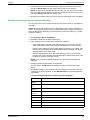
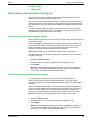
Configuring time and time synchronization using the webpages
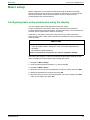
You can configure time and time synchronization using the webpages.
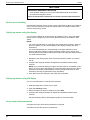
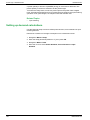
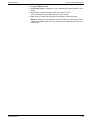
1. Log in to the meter webpages using Product Master or Web Master credentials.
2. Click Settings > Date/Time Settings.
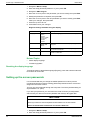
3. Click Yes beside Enable Network Time Synchronization if you want to use an
SNTP server to synchronize the meter’s clock.
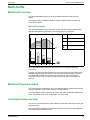
a. Set the Poll Interval to specify how often the meter synchronizes over SNTP.
b. Enter the IP address for the Primary and Secondary SNTP servers.
NOTE: Last Successful Time Synchronization displays the date and time of the
last synchronization over SNTP and the IP address of the server that sent the
signal.
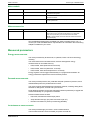
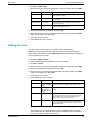
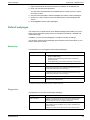
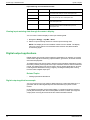
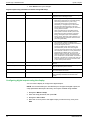
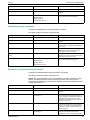
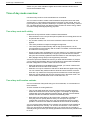
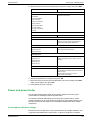
4. Enter the meter’s clock settings.
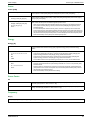
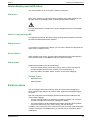
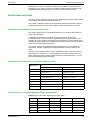
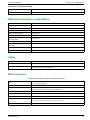
Parameter
Values
Description
Time Zone Offset
UTC, UTC+/-H
Select UTC to display the current time in UTC
(Greenwich Mean Time zone).
To display local time, set this parameter to the
UTC offset for your local time. For example, to
display the local standard time in San
Fransisco on the meter, select UTC-8.
NOTE: You must either enable automatic
daylight savings time adjustment or manually
update this setting to account for daylight
savings time.
HRB1684301-03
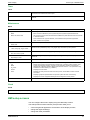
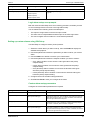
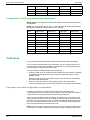
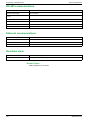
Enable Automatic
Daylight Savings
Time Adjustment
Yes, No
Set this to Yes to automatically update the time
to account for daylight savings time then enter
the start and end date and time for daylight
savings time.
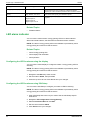
Daylight Savings
Time Begins /
Daylight Savings
Time Ends
—
Select the start and end date and time for
daylight savings time in the meter’s location.
61