1
User’s Manual
802.11b/g/n Wireless
Outdoor Access Point
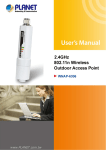
WNAP-6308
www.PLANET.com.tw
Copyright
Copyright 2014 by PLANET Technology Corp. All rights reserved. No part of this publication may
be reproduced, transmitted, transcribed, stored in a retrieval system, or translated into any language
or computer language, in any form or by any means, electronic, mechanical, magnetic, optical,
chemical, manual or otherwise, without the prior written permission of PLANET.
PLANET makes no representations or warranties, either expressed or implied, with respect to the
contents hereof and specifically disclaims any warranties, merchantability or fitness for any
particular purpose. Any software described in this manual is sold or licensed "as is". Should the
programs prove defective following their purchase, the buyer (and not this company, its distributor,
or its dealer) assumes the entire cost of all necessary servicing, repair, and any incidental or
consequential damages resulting from any defect in the software. Further, this company reserves
the right to revise this publication and to make changes from time to time in the contents hereof
without obligation to notify any person of such revision or changes.
All brand and product names mentioned in this manual are trademarks and/or registered trademarks
of their respective holders.
Federal Communication Commission Interference Statement
This equipment has been tested and found to comply with the limits for a Class A digital device,
pursuant to part 15 of the FCC Rules. These limits are designed to provide reasonable
protection against harmful interference when the equipment is operated in a commercial
environment. This equipment generates, uses, and can radiate radio frequency energy and, if not
installed and used in accordance with the instruction manual, may cause harmful interference to
radio communications. Operation of this equipment in a residential area is likely to cause harmful
interference in which case the user will be required to correct the interference at his/her own
expense. Any changes or modifications not expressly approved by PLANET could void the user’s
authority to operate this equipment under the rules and regulations of the FCC.
FCC Caution:
To assure continued compliance, (example-use only shielded interface cables when connecting to
computer or peripheral devices) any changes or modifications not expressly approved by the party
responsible for compliance could void the user’s authority to operate the equipment.
This device complies with Part 15 of the FCC Rules. Operation is subject to the Following two
conditions:
(1) This device may not cause harmful interference
(2) This Device must accept any interference received, including interference that may cause
undesired operation.
Federal Communication Commission (FCC) Radiation Exposure Statement
This equipment complies with FCC radiation exposure set forth for an uncontrolled environment. In
order to avoid the possibility of exceeding the FCC radio frequency exposure limits, human proximity
to the antenna shall not be less than 20 cm (8 inches) during normal operation.
II
CE Mark Warning
This is a Class B product. In a domestic environment, this product may cause radio interference, in
which case the user may be required to take adequate measures.
Energy Saving Note of the Device
This power required device does not support Standby mode operation.
For energy saving, please remove the DC-plug to disconnect the device from the power circuit.
Without remove the DC-plug, the device still consuming power from the power circuit. In the view of
Saving the Energy and reduce the unnecessary power consuming, it is strongly suggested to
remove the DC-plug for the device if this device is not intended to be active.
R&TTE Compliance Statement
This equipment complies with all the requirements of DIRECTIVE 1999/5/CE OF THE EUROPEAN
PARLIAMENT AND THE COUNCIL OF 9 March 1999 on radio equipment and telecommunication
terminal Equipment and the mutual recognition of their conformity (R&TTE).
The R&TTE Directive repeals and replaces in the directive 98/13/EEC (Telecommunications
Terminal Equipment and Satellite Earth Station Equipment) As of April 8, 2000.
Safety
This equipment is designed with the utmost care for the safety of those who install and use it.
However, special attention must be paid to the dangers of electric shock and static electricity when
working with electrical equipment. All guidelines of this and of the computer manufacture must
therefore be allowed at all times to ensure the safe use of the equipment.
WEEE regulation
To avoid the potential effects on the environment and human health as a result of the
presence of hazardous substances in electrical and electronic equipment, end users of
electrical and electronic equipment should understand the meaning of the crossed-out
wheeled bin symbol. Do not dispose of WEEE as unsorted municipal waste and have to
collect such WEEE separately.
III
Revision
User’s Manual for PLANET 802.11b/g/n Wireless Outdoor Access Point
Model: WNAP-6308
Rev: 1.0 (February, 2014)
Part No. EM-WNAP-6308_v1.0 (2081-E10570-000)
IV
CONTENTS
Chapter 1. Product Introduction .......................................................................................................... 1
1.1
Package Contents ...............................................................................................................1
1.2
Product Description............................................................................................................2
1.3
Product Features................................................................................................................. 5
1.4
Product Specifications ....................................................................................................... 6
Chapter 2. Hardware Installation ......................................................................................................... 9
2.1
Hardware Description ......................................................................................................... 9
2.1.1
The Top/Bottom Panel .............................................................................................. 9
2.1.2
The Side Panel .......................................................................................................10
Chapter 3. Connecting to the AP ....................................................................................................... 11
3.1
Preparation before Installation ........................................................................................ 11
3.1.1
Professional Installation Required .......................................................................... 11
3.1.2
Safety Precautions.................................................................................................. 11
3.2
Installation Precautions.................................................................................................... 11
3.3
Installing the AP ................................................................................................................13
Chapter 4. Quick Installation Guide ..................................................................................................15
4.1
Manual Network Setup - TCP/IP Configuration ..............................................................15
4.1.1
4.2
Configuring the IP Address Manually .....................................................................15
Starting Setup in the Web UI ............................................................................................18
Chapter 5.Configuring the AP...........................................................................................................21
5.1
Status..................................................................................................................................21
5.2
Easy Setup .........................................................................................................................25
5.3
Advanced ...........................................................................................................................25
5.3.1
Advanced - Management........................................................................................26
5.3.1.1.
Web Interface Settings (Password)................................................................................ 26
5.3.1.2.
Firmware Upgrade ......................................................................................................... 27
5.3.1.3.
Configuration.................................................................................................................. 28
5.3.1.4.
Load Factory Defaults .................................................................................................... 28
5.3.1.5.
Reboot System .............................................................................................................. 29
5.3.1.6.
Scheduling Reboot......................................................................................................... 29
5.3.2
Advanced – Advanced Settings..............................................................................30
5.3.2.1.
Time Zone Settings ........................................................................................................ 30
5.3.2.2.
DDNS Settings............................................................................................................... 31
5.3.2.3.
UPNP Settings ............................................................................................................... 33
5.3.2.4.
SNMP Settings............................................................................................................... 34
5.3.3
Advanced – Operation Mode..................................................................................35
5.3.3.1.
AP Router (AP+Router) ................................................................................................. 35
5.3.3.2.
AP Bridge (AP+WDS) .................................................................................................... 36
V
5.4
5.5
5.3.3.3.
Client Router (WISP) ..................................................................................................... 37
5.3.3.4.
Client Bridge (Slave AP Bridge) ..................................................................................... 41
5.3.4
Advanced – System Log.........................................................................................41
5.3.5
Advanced – Tools ...................................................................................................42
5.3.5.1.
Ping................................................................................................................................ 42
5.3.5.2.
Traceroute...................................................................................................................... 43
5.3.5.3.
Throughput..................................................................................................................... 44
Firewall Settings................................................................................................................44
5.4.1
MAC/IP/Port Filtering ..............................................................................................44
5.4.2
Virtual Server ..........................................................................................................46
5.4.3
DMZ ........................................................................................................................47
5.4.4
Firewall....................................................................................................................48
5.4.5
QoS.........................................................................................................................49
5.4.6
Content Filtering .....................................................................................................50
5.4.6.1.
Webs URL Filter Settings ............................................................................................... 51
5.4.6.2.
Web Host Filter Settings ................................................................................................ 51
Network Settings...............................................................................................................51
5.5.1
5.5.1.1.
Static (Fixed IP).............................................................................................................. 52
5.5.1.2.
Cable/Dynamic IP (DHCP)............................................................................................. 53
5.5.1.3.
PPPoE (ADSL)............................................................................................................... 54
5.5.1.4.
IPSEC ............................................................................................................................ 54
5.5.1.5.
PPTP ............................................................................................................................. 58
5.5.1.6.
L2TP .............................................................................................................................. 59
5.5.2
5.6
LAN .........................................................................................................................60
5.5.2.1.
DHCP Server ................................................................................................................. 61
5.5.2.2.
DHCP Relay................................................................................................................... 61
5.5.3
VLAN.......................................................................................................................62
5.5.4
Advanced Routing ..................................................................................................63
5.5.5
IPv6.........................................................................................................................64
Wireless Settings ..............................................................................................................65
5.6.1
5.7
WAN........................................................................................................................51
Basic .......................................................................................................................65
5.6.1.1.
Wireless Mode – Access Point....................................................................................... 66
5.6.1.2.
Wireless Mode – WDS Access Point ............................................................................. 68
5.6.1.3.
Wireless Mode – WDS Repeater ................................................................................... 70
5.6.1.4.
Wireless Mode – WDS Client......................................................................................... 72
5.6.2
Profile Settings........................................................................................................74
5.6.3
Advanced................................................................................................................76
5.6.4
Access Control........................................................................................................77
Logout ................................................................................................................................78
Chapter 6. Quick Connection to a Wireless Network ......................................................................79
VI
6.1
Windows XP (Wireless Zero Configuration)...................................................................79
6.2
Windows 7 (WLAN AutoConfig).......................................................................................81
6.3
Mac OS X 10.x....................................................................................................................84
6.4
iPhone / iPod Touch / iPad ...............................................................................................86
Appendix A: Planet Smart Discovery Utility.....................................................................................90
Appendix B: Troubleshooting............................................................................................................91
Appendix C: Specifications................................................................................................................93
VII
FIGURE
FIGURE 2-1 APPEARANCE .......................................................................................................................... 9
FIGURE 2-2 TOP / BOTTOM PANEL .............................................................................................................9
FIGURE 2-3 THE LED INDICATOR .............................................................................................................10
FIGURE 3-1 CONNECT THE ANTENNA ........................................................................................................13
FIGURE 3-2 CONNECT THE ETHERNET CABLE ............................................................................................13
FIGURE 3-3 CONNECT THE POE INJECTOR ................................................................................................14
FIGURE 3-4 POLE MOUNTING ...................................................................................................................14
FIGURE 4-1 TCP/IP SETTING ...................................................................................................................16
FIGURE 4-2 WINDOWS START MENU ........................................................................................................17
FIGURE 4-3 SUCCESSFUL RESULT OF PING COMMAND ...............................................................................17
FIGURE 4-4 FAILED RESULT OF PING COMMAND ........................................................................................18
FIGURE 4-5 LOGIN BY DEFAULT IP ADDRESS ..............................................................................................18
FIGURE 4-6 LOGIN WINDOW.....................................................................................................................19
FIGURE 4-7 WNAP-6308 WEB UI SCREENSHOT ......................................................................................19
FIGURE 4-8 CHOOSE OPERATION MODE ...................................................................................................20
FIGURE 4-9 CONFIGURE WIRELESS SETTINGS ..........................................................................................20
FIGURE 5-1 MAIN MENU ..........................................................................................................................21
FIGURE 5-2 STATUS .................................................................................................................................21
FIGURE 5-3 STATISTICS ...........................................................................................................................23
FIGURE 5-4 DHCP CLIENT LIST ...............................................................................................................24
FIGURE 5-5 STATION LIST ........................................................................................................................24
FIGURE 5-6 EASY SETUP .........................................................................................................................25
FIGURE 5-7 ADVANCED MENU ..................................................................................................................25
FIGURE 5-8 WEB INTERFACE SETTINGS ....................................................................................................26
FIGURE 5-9 FIRMWARE UPGRADE ............................................................................................................27
FIGURE 5-10 CONFIGURATION BACKUP/RESTORE .....................................................................................28
FIGURE 5-11 LOAD FACTORY DEFAULTS ...................................................................................................28
FIGURE 5-12 REBOOT SYSTEM ................................................................................................................29
FIGURE 5-13 SCHEDULING REBOOT .........................................................................................................29
FIGURE 5-14 TIME ZONE SETTINGS ..........................................................................................................30
FIGURE 5-15 DDNS SETTINGS ................................................................................................................31
FIGURE 5-16 PLANET DDNS SETTINGS ....................................................................................................32
FIGURE 5-17 REMOTE MANAGEMENT ACCESS SETTING ............................................................................32
FIGURE 5-18 WAN - STATIC .....................................................................................................................32
FIGURE 5-19 REMOTE LOGIN THROUGH DDNS DOMAIN ............................................................................32
FIGURE 5-20 PLANET DDNS – MY DEVICE ...............................................................................................33
FIGURE 5-21 UPNP SETTINGS .................................................................................................................33
FIGURE 5-22 UPNP – NETWORK LOCATION ..............................................................................................34
FIGURE 5-23 SNMP SETTINGS ................................................................................................................34
FIGURE 5-24 TOPOLOGY – AP ROUTER MODE ..........................................................................................35
FIGURE 5-25 OPERATION MODE – AP ROUTER .........................................................................................36
FIGURE 5-26 TOPOLOGY – WDS REPEATER MODE ...................................................................................36
FIGURE 5-27 OPERATION MODE – AP BRIDGE ..........................................................................................37
VIII
FIGURE 5-28 TOPOLOGY – CLIENT ROUTER (WISP) MODE .......................................................................37
FIGURE 5-29 OPERATION MODE – CLIENT ROUTER ...................................................................................37
FIGURE 5-30 WISP STEP-1 .....................................................................................................................38
FIGURE 5-31 WISP STEP-2 .....................................................................................................................38
FIGURE 5-32 WISP STEP-3 .....................................................................................................................39
FIGURE 5-33 WISP STEP-4 .....................................................................................................................39
FIGURE 5-34 WISP STEP-5 .....................................................................................................................40
FIGURE 5-35 WISP STEP-6 .....................................................................................................................40
FIGURE 5-36 WISP STEP-7 .....................................................................................................................40
FIGURE 5-37 TOPOLOGY – CLIENT BRIDGE MODE .....................................................................................41
FIGURE 5-38 OPERATION MODE – CLIENT BRIDGE ....................................................................................41
FIGURE 5-39 SYSTEM LOG ......................................................................................................................42
FIGURE 5-40 PING...................................................................................................................................43
FIGURE 5-41 TRACEROUTE ......................................................................................................................43
FIGURE 5-42 SPEED TEST .......................................................................................................................44
FIGURE 5-43 MAC/IP/PORT FILTERING ....................................................................................................45
FIGURE 5-44 VIRTUAL SERVER ................................................................................................................46
FIGURE 5-45 DMZ ..................................................................................................................................47
FIGURE 5-46 NAT OPTION .......................................................................................................................48
FIGURE 5-47 QOS...................................................................................................................................49
FIGURE 5-48 WEBS URL FILTER SETTINGS ..............................................................................................51
FIGURE 5-49 WEBS HOST FILTER SETTINGS .............................................................................................51
FIGURE 5-50 WAN - STATIC IP ................................................................................................................52
FIGURE 5-51 WAN - DYNAMIC IP .............................................................................................................53
FIGURE 5-52 WAN - PPPOE ...................................................................................................................54
FIGURE 5-53 WAN - IPSEC .....................................................................................................................55
FIGURE 5-54 WAN – IPV4 (IPSEC CONNECTION TYPE) ............................................................................55
FIGURE 5-55 WAN – PPTP.....................................................................................................................58
FIGURE 5-56 WAN – L2TP......................................................................................................................59
FIGURE 5-57 LAN SETUP ........................................................................................................................60
FIGURE 5-58 DHCP SERVER ...................................................................................................................61
FIGURE 5-59 DHCP RELAY .....................................................................................................................61
FIGURE 5-60 VLAN.................................................................................................................................62
FIGURE 5-61 ADVANCED ROUTING ...........................................................................................................63
FIGURE 5-62 IPV6...................................................................................................................................64
FIGURE 5-63 WIRELESS MODE - AP .........................................................................................................66
FIGURE 5-64 WIRELESS MODE – WDS AP...............................................................................................68
FIGURE 5-65 WIRELESS MODE – WDS REPEATER....................................................................................70
FIGURE 5-66 WIRELESS MODE – WDS CLIENT .........................................................................................72
FIGURE 5-67 CLIENT BRIDGE – PROFILE SETTINGS ...................................................................................74
FIGURE 5-68 WIRELESS SETTINGS – ADVANCED .......................................................................................76
FIGURE 5-69 WIRELESS SETTINGS – ACCESS CONTROL ...........................................................................78
FIGURE 5-70 LOGOUT..............................................................................................................................78
FIGURE 6-1 WIRELESS ZERO CONFIGURATION ..........................................................................................79
FIGURE 6-2 VIEW AVAILABLE WIRELESS NETWORKS .................................................................................79
IX
FIGURE 6-3 CHOOSE A WIRELESS NETWORK .............................................................................................80
FIGURE 6-4 ENTER THE ENCRYPTION KEY .................................................................................................80
FIGURE 6-5 WIRELESS NETWORK CONNECTED .........................................................................................81
FIGURE 6-6 WLAN AUTOCONFIG .............................................................................................................81
FIGURE 6-7 WLAN AUTOCONFIG WINDOW ...............................................................................................82
FIGURE 6-8 WLAN AUTOCONFIG – TYPE THE NETWORK SECURITY KEY .....................................................83
FIGURE 6-9 WLAN AUTOCONFIG – CONNECTING ......................................................................................83
FIGURE 6-10 WLAN AUTOCONFIG – CONNECTED ....................................................................................84
FIGURE 6-11 THE AIRPORT NETWORK CONNECTION ICON .........................................................................84
FIGURE 6-12 THE AIRPORT NETWORK CONNECTION MENU .......................................................................85
FIGURE 6-13 THE AIRPORT NETWORK CONNECTION – ENTER PASSWORD ..................................................85
FIGURE 6-14 THE AIRPORT NETWORK CONNECTION – CONNECTED ...........................................................86
FIGURE 6-15 THE WI-FI SETTINGS IN IPHONE/IPOD TOUCH/IPAD ...............................................................86
FIGURE 6-16 GENERAL SETTINGS ............................................................................................................87
FIGURE 6-17 GENERAL SETTINGS – NOT CONNECTED ..............................................................................87
FIGURE 6-18 GENERAL SETTINGS – WI-FI ON ..........................................................................................88
FIGURE 6-19 GENERAL SETTINGS – ENTER PASSWORD .............................................................................88
FIGURE 6-20 GENERAL SETTINGS – WI-FI NETWORK CONNECTED ............................................................89
X
Chapter 1. Product Introduction
1.1 Package Contents
Thank you for choosing PLANET WNAP-6308. Before installing the AP, please verify the contents inside the
package box.
WNAP-6308
Quick Installation Guide
CD-ROM
(User Manual included)
Plastic Strap x 2
PoE Injector & Power Cord
*Straps received could be in
white or black.
If there is any item missing or damaged, please contact the seller immediately.
-1-
User Manual of WNAP-6308
1.2 Product Description
High Power Outdoor Wireless Coverage
PLANET Technology Corp. provides a wireless solution that can be easily attached directly to the antenna,
which has more flexibility to extending outdoor wireless coverage, the Wireless Outdoor Access Point -WNAP-6308. Adopting the IEEE 802.11n advanced MIMO technology, it provides reliable wireless network
coverage, and incredible improvement in the wireless performance. As an IEEE 802.11b/g/n compliant wireless
device, the WNAP-6308 is able to give stable and efficient wireless performance for outdoor application, while
designed with IEEE 802.11n standard and 1T1R MIMO technology, it makes it possible to deliver three times
faster data rate up to 150Mbps than the normal 802.11g wireless device. With the built-in N-type antenna
connector, it can directly connect with various and high gain antennas, thus it can easily cover widely range and
deliver much farther wireless connection over 10Km. For WNAP-6308 is optionally following products available:
ANT-OM8, ANT-OM15, ANT-FP9, ANT-FP18, ANT-SE18, ANT-YG13, ANT-YG20, and ANT-GR21.
Multiple Operating & Wireless Modes
The WNAP-6308 supports multiple types of wireless communication connectivity (AP, Client CPE, WDS PtP,
WDS PtMP and Repeater) allowing for various application requirements and thus it gives users more
comprehensive experience when accessing through Wireless LAN. It helps users to easily build a wireless
-2-
User Manual of WNAP-6308
network and extend the wireless range of the existing wireless network. The WNAP-6308 also supports WISP
mode, so CPE users could easily connect to Internet via WISP provider or connect to a wired network.
AP-Router Mode
N
WDS Repeater Mode
N
N
Internet
WAN
Client
PWR
N
802.11 b/g/n Access
001101010
N
LAN
Point
Internet
N
N
LAN
LAN
PWR
802.11 b/g/n Access
802.11 b/g/n Access
Point
Point
PWR
Cable/xDSL
Modem
Clients
WNAP-6308
AP Router Mode
WDS Repeater Mode
WDS Bridge-PTP Mode
WNAP-6308 Switch
Clients
WDS Bridge-PtMP Mode
N
N
Client
Client
Client
Client
LAN
LAN
LAN
PWR
PWR
PWR
LAN
Point
N
802.11 b/g/n Access
Point
N
N
802.11 b/g/n Access
802.11 b/g/n Access
802.11 b/g/n Access
Point
Point
PWR
N
LAN
802.11 b/g/n Access
Point
PWR
WNAP-6308
WNAP-6308
Switch
Switch
Client Router Mode (WISP)
Internet
WNAP-6308
Client Bridge Mode
IP Camera
Clients
Internet
N
Point
Point
N
802.11 b/g/n Access
N
LAN
PWR
N
802.11 b/g/n Access
LAN
PWR
Wireless AP/Router
Wireless Internet
Service Provider
WISP Mode
Switch
Bridge - PtMP Mode
Bridge - PtP Mode
WNAP-6308
Switch
Client Bridge Mode
WNAP-6308
Switch
100Base-TX UTP
N
2.4GHz 802.11n
Advanced Security and Management
In aspect of security, besides 64/128- bit WEP encryption, the WNAP-6308 integrates WPA / WPA2, WPA-PSK /
WPA2-PSK and 802.1x authority to secure and protect your wireless LAN. The wireless MAC filtering and SSID
broadcast control consolidate the wireless network security and prevent unauthorized wireless connection.
Furthermore, with the Dual-SSID feature you can set up two different wireless networks, the WNAP-6308 can
therefore serve as a virtual access point for segmented networks tailored to any office or industrial need. With
the SNMP-based management interface, the WNAP-6308 is convenient to be managed and configured
remotely.
Highly Reliable Outdoor Device
The WNAP-6308 is perfectly suitable to be installed in outdoor environments and exposed locations. Rated to
operate at the temperature from -35 to 65 degrees C and adopted IP55 and outdoor UV Stabilized Enclosure,
the WNAP-6308 can perform normally under rigorous weather conditions including heavy rain and wind. With
-3-
User Manual of WNAP-6308
the proprietary Power over Ethernet (PoE) design, the WNAP-6308 can be easily installed in the areas where
power outlets are not available. It is the best way to use the WNAP-6308 to build outdoor wireless access
applications between buildings on campuses, business, rural areas, etc.
Easy Plug-n-Link
To accomplish the concept of Plug-n-Link through an easy way for outdoor wireless network deployment, the
WNAP-6308 comes with a built-in N-Type antenna connector, which is most commonly adapted with outdoor
antenna. Therefore, it is easier to install via directly plugging into the mounted antenna, faster than constructing
the wireless link even though a user who has never experienced in deploying a wireless network. Moreover, by
using the straps through the extra ring design on the casing can fasten the WNAP-6308 to prevent from shaking
or dropping caused by strong winds and earthquakes.
-4-
User Manual of WNAP-6308
1.3 Product Features
Industrial Compliant Wireless LAN & LAN
Compliant with IEEE 802.11n wireless technology capable of up to 150Mbps data rate
Backward compatible with 802.11b/g standard
Equipped with 10/100Mbps RJ-45 Ports for LAN & WAN, Auto MDI/ MDI-X supported
Fixed-network Broadband Router
Supported connection types: Dynamic IP/ Static IP/ PPPoE/ PPTP/ L2TP / IPSec
Supports Virtual Server, DMZ for various networking applications
Supports DHCP Server, UPnP, Dynamic DNS
RF Interface Characteristics
Built-in N-Type Male Antenna Connector
High Output Power Up to 200mW with multiple adjustable transmit power control
Outdoor Environmental Characteristics
IP55 Enclosure, UV resistance
Passive Power Over Ethernet Design
Operating Temperature: -35~65 degrees C
Multiple Operation & Wireless Mode
Multiple Operation Modes: Bridge, Gateway, WISP
Multiple Wireless Modes: AP, Client CPE(WISP), WDS PtP, WDS PtMP, Repeater
Supports Dual-SSID to allow users to access different networks through a single AP
Supports WMM (Wi-Fi Multimedia)
Secure Network Connection
Supports Software Wi-Fi Protected Setup (WPS)
Advanced security: 64/128-bit WEP, WPA/WPA2, WPA-PSK/WPA2-PSK(TKIP/AES), and 802.1x
Authentication
Supports NAT firewall features, with SPI function to protect against DoS attacks.
Supports IP / Protocol-based access control and MAC Filtering
Easy Installation & Management
Web-based UI and Quick Setup Wizard for easy configuration
Remote Management allows configuration from a remote site
SNMP-based management interface
System status monitoring includes DHCP Client, System Log
-5-
User Manual of WNAP-6308
1.4 Product Specifications
Product
WNAP-6308
2.4GHz 150Mbps 802.11n Wireless Outdoor Access Point
Hardware Specifications
IEEE 802.11b/g/n Wireless LAN
IEEE 802.11i Wireless Security
Standard
IEEE 802.3 10Base-T Ethernet
IEEE 802.3u 100Base-TX Ethernet
IEEE 802.3x Flow Control
32 Mbytes DDR SDRAM
Memory
8 Mbytes Flash
Wireless IEEE 802.11b/g/n, 1T1R
Interface
LAN/WAN: 1 x 10/100Base-TX, Auto-MDI / MDIX
Antenna
Built-in N-Type (Male) Antenna Connector
Wireless RF Specifications
Wireless Technology
IEEE 802.11b/g
IEEE 802.11n
IEEE 802.11b: 11, 5.5, 2 and 1Mbps
Data Rate
IEEE 802.11g: 54, 48, 36, 24, 18, 12, 9 and 6Mbps
IEEE 802.11n (20MHz): up to 72Mbps
IEEE 802.11n (40MHz): up to 150Mbps
Media Access Control
CSMA / CA
Modulation
Transmission/Emission Type: DSSS / OFDM
Data modulation type: OFDM with BPSK, QPSK, 16-QAM, 64-QAM,
DBPSK, DQPSK, CCK
Frequency Band
2.412GHz ~ 2.484GHz
Operating Channel
America/ FCC: 2.414~2.462GHz (11 Channels)
Europe/ ETSI: 2.412~2.472GHz (13 Channels)
Japan/ TELEC: 2.412~2.484GHz (14 Channels)
RF Output Power (Max.)
Receiver Sensitivity
Output Power Control
IEEE 802.11b/g: 23 ± 1.5dBm
IEEE 802.11n: 23 ± 1.5dBm
IEEE 802.11b/g: -95dBm
IEEE 802.11n: -91dBm
3~23dBm
Software Features
LAN
Built-in DHCP server supporting static IP address distributing
Supports 802.1d STP (Spanning Tree)
Static IP
Dynamic IP
WAN
PPPoE
PPTP
L2TP
-6-
User Manual of WNAP-6308
IPSec
Bridge
Operating Mode
Gateway
WISP
NAT firewall with SPI (Stateful Packet Inspection)
Firewall
Built-in NAT server supporting Virtual Server and DMZ
Built-in firewall with Port / IP address / MAC / URL filtering
AP
Client
Wireless Mode
WDS PTP
WDS PTMP
WDS Repeater (AP+WDS)
Channel Width
Wireless Isolation
Encryption Type
20MHz / 40MHz
Enables isolation of each connected wireless client from communicating with
each other mutually.
64/128-bits WEP, WPA, WPA-PSK, WPA2, WPA2-PSK, 802.1X
Provides wireless LAN ACL (Access Control List) filtering
Wireless Security
Wireless MAC address filtering
Supports WPS (Wi-Fi Protected Setup )
Enable / Disable SSID Broadcast
Multiple SSID
Up to 2
Max. Wireless Client
20
Max. WDS AP
8
Max. Wired Client
30
WMM
Supports Wi-Fi Multimedia
QoS
Supports Quality of Service for bandwidth control
NTP
Network Time Management
Management
Web UI, DHCP Client, Configuration Backup & Restore, Dynamic DNS, SNMP
Diagnostic tool
System Log, Ping Watchdog
Mechanical & Power
IP Rate
IP55
Material
Outdoor UV Stabilized Enclosure
Dimensions (Φ x H)
45 x 169 mm
Weight
128kg
Installation
Pole mounting
LAN
Power Requirements
12~24V DC, Passive PoE
Pin 4,5 VDC+
Pin 7,8 VDC-
Power Consumption
1.5W
Environment & Certification
Operation Temperature
-35 ~ 65 degrees C
Operating Humidity
5 ~ 90% non-condensing
-7-
User Manual of WNAP-6308
Regulatory
CE / FCC/ RoHS
Accessory
Passive PoE injector & Power Cord x 1
Standard Accessories
Plastic Strap x 2
Quick Installation Guide x 1
CD (User’s Manual, Quick Installation Guide) x 1
-8-
User Manual of WNAP-6308
Chapter 2. Hardware Installation
Please follow the instructions below to connect the WNAP-6308 to the existing network devices and your
computers.
2.1 Hardware Description
Dimensions: 45 x 169 mm (Φ x H)
Figure 2-1 Appearance
2.1.1 The Top / Bottom Panel
The t o p a n d t h e bottom panels provide the physical connectors connected to the antenna, power injector
and any other network device. Figure 2-2 shows the top and the bottom panels of the WNAP-6308.
Top & Bottom Panel
Bottom View
Top View
PoE
Reset
Reset Button
LAN(Passive PoE)
Pin4,5(+);Pin7,8(-)
N-Type (Male)
Antenna Connector
Figure 2-2 Top / Bottom Panel
Object
PoE (LAN Port)
Description
10/100Mbps RJ-45 port , Auto MDI/ MDI-X & Passive PoE supported.
(Pin 4,5 VDC+; Pin 7,8 VDC-)
-9-
User Manual of WNAP-6308
Connect this port to the xDSL modem in router mode.
Connect this port to the network equipment in bridge mode.
N-Type Male Antenna Connector.
N-Type (Male)
Connect N-Type (M) Antenna Connector with 2.4GHz Outdoor Antenna
Antenna Connector
directly or through the N-male (male pin) to N-female (female pin) cable.
Planet supplied RF cable Model No.: WL-MF-0.6 or WL-N-10.
Push continually the reset button about 15 seconds to reset the
Reset
configuration parameters to factory defaults.
2.1.2 The Side Panel
The side panel provides the LED indicators of system status and signal strength when connected to the remote
AP. Figure 2-3 shows the side panel of the WNAP-6308.
LED Indicator
Figure 2-3 The LED Indicator
LED
Status
Indication
Power
On
System On
Off
System Off
On
Port linked.
Off
No link.
Blinking
Data is transmitting or receiving on the LAN interface.
LED1
On
The Signal Strength reaches the value
LED2
On
The Signal Strength reaches the value
LED3
On
The Signal Strength reaches the value
LED4
On
The Signal Strength reaches the value
LAN
Signal Indicator
-10-
User Manual of WNAP-6308
Chapter 3. Connecting to the AP
3.1 Preparation before Installation
3.1.1 Professional Installation Required
Please seek assistance from a professional installer who is well trained in the RF installation and
knowledgeable in the local regulations.
3.1.2 Safety Precautions
1.
To keep you safe and install the hardware properly, please read and follow these safety precautions.
2.
If you are installing the WNAP-6308 for the first time, for your safety as well as others’, please seek
assistance from a professional installer who has received safety training on the hazards involved.
3.
Keep safety as well as performance in mind when selecting your installation site, especially where there
are electric power and phone lines.
4.
When installing the WNAP-6308, please note the following things:
Do not use a metal ladder;
Do not work on a wet or windy day;
Wear shoes with rubber soles and heels, rubber gloves, long sleeved shirt or jacket.
5.
When the system is operational, avoid standing directly in front of it. Strong RF fields are present when
the transmitter is on.
3.2 Installation Precautions
Users MUST use a proper and well-installed surge arrestor and grounding kit with the WNAP-6308;
otherwise, a random lightning could easily cause fatal damage to the WNAP-6308. EMD (Lightning)
DAMAGE IS NOT COVERED UNDER WARRANTY.
Users MUST use the “Power cord and PoE Injector” shipped in the box with the WNAP-6308. Use of
other options will cause damage to the WNAP-6308.
Users MUST power off the WNAP-6308 first before connecting the external antennas to it; otherwise,
damage might be caused to the WNAP-6308 itself.
The Antenna is required, and must be purchased separately.
-11-
User Manual of WNAP-6308
OUTDOOR INSTALLATION WARNING
!
IMPORTANT SAFETY PRECAUTIONS:
LIVES MAY BE AT RISK! Carefully observe these instructions and any special instructions that are included with the
equipment you are installing.
CONTACTING POWER LINES CAN BE LETHAL. Make sure no power
lines are anywhere where possible contact can be made. Antennas,
masts, towers, guy wires or cables may lean or fall and contact these
lines. People may be injured or killed if they are touching or holding any
part of equipment when it contacts electric lines. Make sure there is NO
possibility that equipment or personnel can come in contact directly or
indirectly with power lines.
Assume all overhead lines are power lines.
The horizontal distance from a tower, mast or antenna to the nearest power line should be at least twice the total length of
the mast/antenna combination. This will ensure that the mast will not contact power if it falls either during installation or later.
TO AVOID FALLING, USE SAFE PROCEDURES WHEN WORKING AT HEIGHTS ABOVE GROUND.
Select equipment locations that will allow safe, simple equipment installation.
Don’t work alone. A friend or co-worker can save your life if an accident happens.
Use approved non-conducting lasers and other safety equipment. Make sure all equipment is in good repair.
If a tower or mast begins falling, don’t attempt to catch it. Stand back and let it fall.
If anything such as a wire or mast does come in contact with a power line, DON’T TOUCH IT OR ATTEMPT TO
MOVE IT. Instead, save your life by calling the power company.
Don’t attempt to erect antennas or towers on windy days.
MAKE SURE ALL TOWERS AND MASTS ARE SECURELY GROUNDED, AND ELECTRICAL CABLES CONNECTED
TO ANTENNAS HAVE LIGHTNING ARRESTORS. This will help prevent fire damage or human injury in case of lightning,
static build-up, or short circuit within equipment connected to the antenna.
The base of the antenna mast or tower must be connected directly to the building protective ground or to one or
more approved grounding rods, using 10 AWG ground wire and corrosion-resistant connectors.
Refer to the National Electrical Code for grounding details.
IF A PERSON COMES IN CONTACT WITH ELECTRICAL POWER, AND CANNOT MOVE:
DON’T TOUCH THAT PERSON, OR YOU MAY BE ELECTROCUTED.
Use a non-conductive dry board, stick or rope to push or drag them so they no longer are in contact with electrical
power.
Once they are no longer contacting electrical power, administer CPR if you are certified, and make sure that emergency
medical aid has been requested.
-12-
User Manual of WNAP-6308
3.3 Installing the AP
Please install the AP according to the following steps. Don't forget to pull out the power plug and keep your
hands dry.
Step 1. Connect the Antenna to the top of the WNAP-6308.
Figure 3-1 Connect the Antenna
Step 2. (1) Open the bottom of the WNAP-6308.
(2) Plug the RJ-45 Ethernet cable into the LAN port through the Cap and Gasket. Then seal the
bottom of the WNAP-6308 with the Cap and Gasket.
Figure 3-2 Connect the Ethernet cable
-13-
User Manual of WNAP-6308
Step 3. Take out the power cord and PoE injector. Plug the power cord into the DC port and plug the other
side of the RJ-45 cable like Step 2 into the POE port of the PoE injector.
Ethernet Cable
Data
Switch
PC
LAN
WNAP-6308
802.11 b/g/n Access Point
PWR
24V PoE Injector
3
Power
PoE Port
Ethernet Cable
Data In
PoE
Data +Power
2
PoE Out
1
24V PoE Injector
Figure 3-3 Connect the PoE injector
Step 4. Pole Mounting:
Place the straps through the slots on the sides of the WNAP-6308 and then around the pole. Tighten the straps
to secure the WNAP-6308.
Figure 3-4 Pole Mounting
-14-
User Manual of WNAP-6308
Chapter 4. Quick Installation Guide
This chapter shows you how to configure the basic functions of your AP using Easy Setup within minutes.
A computer with wired Ethernet connection to the Wireless AP is required for the first-time
configuration.
4.1 Manual Network Setup - TCP/IP Configuration
The default IP address of the WNAP-6308 is 192.168.1.1. And the default Subnet Mask is 255.255.255.0.
These values can be changed as you desire. In this guide, we use all the default values for description.
Connect the WNAP-6308 with your PC by an Ethernet cable plugging in the LAN port of the PoE injector on one
side and in the LAN port of the PC on the other side. Please power on the WNAP-6308 by PoE from PoE
injector or PoE switch.
In the following sections, we’ll introduce how to install and configure the TCP/IP correctly in Windows 7. And
the procedures in other operating systems are similar. First, make sure your Ethernet Adapter is working, and
refer to the Ethernet adapter manual if needed.
4.1.1 Configuring the IP Address Manually
Summary:
Set up the TCP/IP Protocol for your PC.
Configure the network parameters. The IP address is 192.168.1.xxx ("xxx" is any number from 2 to
254), Subnet Mask is 255.255.255.0, and Gateway is 192.168.1.1 (The AP's default IP address)
1
Select Use the following IP address radio button.
2
If the AP's LAN IP address is 192.168.1.1, enter IP address 192.168.1.x (x is from 2 to 254), and Subnet
mask 255.255.255.0.
3
Select Use the following DNS server addresses radio button. In the Preferred DNS Server field, you
can enter the DNS server IP address which has been provided by your ISP
-15-
User Manual of WNAP-6308
Figure 4-1 TCP/IP Setting
Now click OK to save your settings.
Now, you can run the Ping command in the command prompt to verify the network connection between your
PC and the AP. The following example is in Windows 7 OS. Please follow the steps below:
1.
Click on Start > Run.
2.
Type “cmd” in the Search box.
-16-
User Manual of WNAP-6308
Figure 4-2 Windows Start Menu
3.
Open a command prompt, and type ping 192.168.1.1, and then press Enter.
If the result displayed is similar to Figure 4-3, it means the connection between your PC and the AP
has been established well.
Figure 4-3 Successful result of Ping command
If the result displayed is similar to Figure 4-4, it means the connection between your PC and the AP
has failed.
-17-
User Manual of WNAP-6308
Figure 4-4 Failed result of Ping command
If the address is 0.0.0.0, check your adapter installation, security settings, and the settings on your AP. Some
firewall software programs may block a DHCP request on newly installed adapters.
4.2 Starting Setup in the Web UI
It is easy to configure and manage the WNAP-6308 with the web browser.
Step 1.
To access the configuration page, open a web-browser and enter the default IP address
http://192.168.1.1 in the web address field of the browser.
Figure 4-5 Login by default IP address
After a moment, a login window will appear. Enter admin for the User Name and Password, both in lower case
letters. Then click the OK button or press the Enter key.
-18-
User Manual of WNAP-6308
Figure 4-6 Login Window
Default IP Address: 192.168.1.1
Default User name: admin
Default Password: admin
If the above screen does not pop up, it may mean that your web-browser has been set to a
proxy. Go to Tools menu>Internet Options>Connections>LAN Settings, in the screen
that appears, cancel the Using Proxy checkbox, and click OK to finish it.
After entering the username and password, the Status page screen appears as Figure 4-8
Figure 4-7 WNAP-6308 Web UI Screenshot
Step 2.
Go to “Easy Setup” to choose an Operation Mode. Please refer to the instructions in the next chapter
for configuring the other Operation Mode.
-19-
User Manual of WNAP-6308
Figure 4-8 Choose Operation Mode
Step 3.
Please enter the SSID, configure your Encryption Settings, Pre-Shared Key, etc. Then click Done
button to make the configuration take effect immediately.
Figure 4-9 Configure Wireless Settings
-20-
User Manual of WNAP-6308
Chapter 5. Configuring the AP
This chapter delivers a detailed presentation of AP’s functionalities and features under 3 main menus (Status,
Easy Setup, and Advanced) below, allowing you to manage the AP with ease.
Figure 5-1 Main Menu
5.1 Status
On this page, you can view information about the current running status of the WNAP-6308, including WAN
interface, LAN interface, wireless interface, and firmware version information.
Status
This section allows you to view the AP’s system info listed below:
Figure 5-2 Status
-21-
User Manual of WNAP-6308
Object
Description
Internet Configuration
Connected Type
Displays current Internet connection type.
Disconnected: Indicates that the Ethernet cable from your
ISP side is / is not correctly connected to the WAN port on
the AP or the AP is not logically connected to your ISP.
Connected Status
Connecting: Indicates that the WAN port is correctly
connected and is requesting an IP address from your ISP.
Connected: Indicates that the AP has been connected to
your ISP.
WAN IP
Displays WAN IP address.
Subnet Mask
Displays WAN subnet mask.
Default Gateway
Displays WAN gateway address.
Primary Domain Name
Server
Secondary Domain
Name Server
MAC Address
Displays WAN DNS address.
Displays WAN DNS address.
Displays AP’s WAN MAC address.
LAN Configuration
LAN IP Address
Displays LAN IP address.
LAN Netmask
Displays LAN subnet mask.
MAC Address
Displays AP’s LAN MAC address.
System Info
Firmware Version
Displays current F/W version.
System Time
Displays the System Time.
Operation Mode
Displays current Operation Mode.
Wireless MAC Address
Displays AP’s Wireless MAC address.
Statistics
-22-
User Manual of WNAP-6308
This section allows you to view the AP’s statistics listed below:
Figure 5-3 Statistics
Object
Description
Memory
Memory Left/
Memory Total
Displays the retain memory and total memory.
WAN/LAN
WAN Rx packets
Displays the real-time packets received from WAN port.
WAN Rx bytes
Displays the real-time bytes received from WAN port.
WAN Tx packets
Displays the real-time packets transmitted from WAN port.
WAN Tx bytes
Displays the real-time bytes transmitted from WAN port.
LAN Rx packets
Displays the real-time packets received from LAN port.
LAN Rx bytes
Displays the real-time bytes received from LAN port.
LAN Tx packets
Displays the real-time packets transmitted from LAN port.
LAN Tx bytes
Displays the real-time bytes transmitted from LAN port.
DHCP Clients
-23-
User Manual of WNAP-6308
This section displays a DHCP dynamic client list, which includes MAC address, IP address, and lease time info.
Figure 5-4 DHCP Client List
Object
Description
MAC address
Displays MAC address of a given host.
IP Address
Expires in
Displays IP address(es) that client(s) obtained from the DHCP
server.
Remaining time for a corresponding IP address lease.
Station List
This section allows you to view the Station List. The Station List submenu is only available in AP mode.
Figure 5-5 Station List
Object
Description
MAC address
Displays MAC address of a connected client.
Rate
Displays connection speed of a connected client.
Expires in
Displays the signal strength of a connected client.
-24-
User Manual of WNAP-6308
5.2 Easy Setup
The Easy Setup helps you configure the basic functions of your AP within minutes.
Please refer to the Step 2 in the section “4.2 Starting Setup in the Web UI” for the detailed procedure.
Figure 5-6 Easy Setup
5.3 Advanced
“Advanced” includes the following four submenus (Advanced, Firewall Settings, Network Settings, and
Wireless Settings). Clicking any of them enters corresponding interface for configuration. Below explains, in
details, each such feature.
Figure 5-7 Advanced Menu
-25-
User Manual of WNAP-6308
5.3.1 Advanced - Management
This section allows you to manage the Wireless AP.
5.3.1.1. Web Interface Settings (Password)
Figure 5-8 Web Interface Settings
Object
Description
User Name
Display the User Name info.
Password
Enter the new password that you prefer for login.
Re-enter to confirm
Re-enter the new password to confirm.
If you change the login password, you must enter the new one in the next login.
-26-
User Manual of WNAP-6308
5.3.1.2. Firmware Upgrade
Figure 5-9 Firmware Upgrade
Click the “Browse…” button to select the new firmware for upgrading.
Object
Description
Software Version
Display the current Software Version info.
Location
Click the “Browse…” button to select the new firmware in this field.
Upload
Click the “Upload” button to upgrade the new firmware.
!
IMPORTANT SAFETY PRECAUTIONS:
Do Not Turn off the power or close the browser during upgrade process!
-27-
User Manual of WNAP-6308
5.3.1.3. Configuration
Figure 5-10 Configuration Backup/Restore
Click the “Export” button to back up the configuration of the Wireless AP, and click “Import” to restore the
configuration.
Object
Description
Export
Click the “Export” button to back up the configuration.
Browse…
Import
Click the “Browse…” button to select the configuration file in this
field for restoring settings.
Click the “Import” button to restore the configuration.
5.3.1.4. Load Factory Defaults
Figure 5-11 Load Factory Defaults
Click the “Load Default” button to reset it to factory default settings.
-28-
User Manual of WNAP-6308
5.3.1.5. Reboot System
Figure 5-12 Reboot System
Click the “Reboot Now!” button to restart the Wireless AP.
5.3.1.6. Scheduling Reboot
Figure 5-13 Scheduling Reboot
Select “Enable” to configure the system auto reboot according to the Duration Time (Time interval).
Object
Description
Enable Scheduling
Enable: select it to enable the Scheduling Reboot.
Reboot
Duration Time
(hh:mm)
Disable: select it to disable the Scheduling Reboot.
Configure the particular time interval for the system auto reboot.
hh: means hours
mm: means minutes
-29-
User Manual of WNAP-6308
5.3.2 Advanced – Advanced Settings
This section allows you to configure advanced settings of the Wireless AP.
5.3.2.1. Time Zone Settings
Figure 5-14 Time Zone Settings
The page includes the following fields:
Object
Description
Current Time
Display the current time.
Sync with host
Click it to sync your PC’s time to the device.
Time Zone
Select your current time zone.
SNTP Server
Configure your SNTP Server.
SNTP Synchronization
Determines a time length when device periodically updates its
(minutes)
time and date info from Internet.
-30-
User Manual of WNAP-6308
5.3.2.2. DDNS Settings
Figure 5-15 DDNS Settings
The page includes the following fields:
Object
Description
Dynamic DNS Provider
Select your Dynamic DNS Provider.
Host Name
Enter the host name or domain name provided by your DDNS
service provider.
User Name
Enter the name of your DDNS account.
Password
Password: Enter the password of the DDNS account.
Example of Planet DDNS Settings:
Please go to http://www.planetddns.com/ to register a Planet DDNS account.
Please refer to the FAQ (http://www.planetddns.com/index.php/faq) on how to register a free account.
Please refer to the procedure listed as follows to configure using Planet DDNS service.
Step 1. Select “planetddns.com” to choose Planet DDNS service.
Step 2. Configure the DDNS account that has been registered on Planet DDNS website.
Host Name: Enter your DDNS host (format: xxx.planetddns.com, xxx is the registered domain name)
User Name: Enter your DDNS account
Password: Enter your DDNS account’s password
-31-
User Manual of WNAP-6308
Figure 5-16 Planet DDNS Settings
Step 3. Go to “Advanced-> Firewall Settings-> Firewall” to allow remote access from WAN port.
Figure 5-17 Remote Management Access Setting
Step 4. Go to “Advanced-> Network Settings-> WAN” to configure WAN Connection using Static (Fixed IP).
Figure 5-18 WAN - Static
Step 5. Apply the settings, and connect your WAN port of the Wireless AP to the internet by Ethernet cable.
Step 6.
In a remote computer, enter the DDNS host name as the figure is shown below. Then, you should be
able to login the WNAP-6308 remotely.
Please remember to enter the remote management port number that you have configured in Step 3.
Figure 5-19 Remote Login through DDNS domain
-32-
User Manual of WNAP-6308
You can go to My Devices page of Planet DDNS website to check if the “Last Connection IP” is displayed.
This indicates your DDNS service is working properly.
Figure 5-20 Planet DDNS – My Device
5.3.2.3. UPNP Settings
Select “Enable” to enable the UPNP function.
Figure 5-21 UPnP Settings
In the computer connected with the WNAP-6308, go to “Network” to check whether the WNAP-6308 is
displayed on the list.
Double-click it to logon the Web UI of the WNAP-6308.
-33-
User Manual of WNAP-6308
Figure 5-22 UPnP – Network Location
5.3.2.4. SNMP Settings
Enabling SNMP function will allow the network management station to retrieve statistics and status from the
SNMP Agent in the device.
Figure 5-23 SNMP Settings
The page includes the following fields:
Object
SNMP Settings
Description
Choose Enable to open this function if you want to have
remote control through SNMPv1/v2 agent.
-34-
User Manual of WNAP-6308
Choose Disable to close this function.
Enter the community name that allows Read-Only access to
Get Community
the Device's SNMP information. The community name can be
considered a group password. The default setting is public.
Enter the community name that allows Read/Write access to
Set Community
the Device's SNMP information. The community name can be
considered a group password. The default setting is private.
5.3.3 Advanced – Operation Mode
There are 4 operation modes (AP Router, AP Bridge, Client Router, Client Bridge) that can be configured to
meet various applications.
5.3.3.1. AP Router (AP+Router)
In the Access Point Mode with Router Function, the WNAP-6308 acts as a central connection point, which
wireless clients can connect to. The DHCP & NAT is enabled, so the clients are wirelessly connected to the
WNAP-6308 that can share the internet connection by connecting the WNAP-6308 to a DSL/cable modem.
Figure 5-24 Topology – AP Router Mode
1. Connect the LAN port of the WNAP-6308 to the POE port of the PoE Injector over an Ethernet cable.
2. Connect the DSL/cable modem to the WAN port of the WNAP-6308.
-35-
User Manual of WNAP-6308
3. Plug one end of the power cord into the PoE Injector, and the other end in electrical socket.
4. Go to “Advanced-> Operation Mode” to configure it in AP Router Mode.
Figure 5-25 Operation Mode – AP Router
In this mode, the LAN2 of the WNAP-6308 works as the WAN port.
To configure the Wireless Settings of AP Router Mode, please refer to the section 5.6 Wireless Settings.
5.3.3.2. AP Bridge (AP+WDS)
In the Access Point mode with WDS function, the WNAP-6308 functions like a central connection for any
stations or clients. Stations and clients must configure the same SSID and Security Password to associate
within the range. The WNAP-6308 supports 2 different SSIDs to separate different clients at the same time.
Figure 5-26 Topology – WDS Repeater Mode
1. Connect the LAN port of the WNAP-6308 to the POE port of the PoE Injector over an Ethernet cable.
2. Connect the PC to the LAN port of the PoE Injector over an Ethernet cable.
3. Plug one end of the power cord into the PoE Injector, and the other end in electrical socket.
4. Go to “Advanced-> Operation Mode” to configure it to AP Bridge mode.
-36-
User Manual of WNAP-6308
Figure 5-27 Operation Mode – AP Bridge
In this mode, the wireless interface of the WNAP-6308 works as the WAN port.
To configure the Wireless Settings of AP Bridge Mode, please refer to the section 5.6 Wireless Settings.
5.3.3.3. Client Router (WISP)
In the Client Router mode, the WNAP-6308 has DHCP Server built inside that allows many LANs automatically
generate an IP address to share the same Internet. Connect an AP/WISP wirelessly and connect to LANs via
wired. The Client Router mode acts completely opposite to the AP Router mode.
Figure 5-28 Topology – Client Router (WISP) Mode
1. Connect the LAN port of WNAP-6308 to the POE port of the PoE Injector over an Ethernet cable.
2. Connect the PC to the LAN port of the PoE Injector over an Ethernet cable.
3. Plug one end of the power cord into the PoE Injector, and the other end in electrical socket.
4. Go to “Advanced-> Operation Mode” to configure it to Client Router mode.
Figure 5-29 Operation Mode – Client Router
-37-
User Manual of WNAP-6308
WISP Setup Procedure:
Step 1. Go to Advanced-> Wireless Settings-> Profile Settings.
Figure 5-30 WISP Step-1
Step 2. Click “Site Survey” to discover the Wireless Internet Service Provider.
Step 3. Select the WISP’s AP, and the click “Select”.
Figure 5-31 WISP Step-2
Step 4. Enter the Passphrase, and then click “Add” to add this setting to the profile.
-38-
User Manual of WNAP-6308
Figure 5-32 WISP Step-3
Step 5. The profile should be listed on the Profile List as the figure is shown below.
Figure 5-33 WISP Step-4
Step 6. Go to “Advanced-> Network Settings-> LAN” to enable DHCP Server.
-39-
User Manual of WNAP-6308
Figure 5-34 WISP Step-5
Step 7. Go to “Advanced-> Network Settings-> WAN” to configure the WAN Connection.
Figure 5-35 WISP Step-6
Step 8. Configure the wired client’s TCP/IP setting to “Obtain an IP address automatically”.
Figure 5-36 WISP Step-7
-40-
User Manual of WNAP-6308
After getting the IP assigned by the WNAP-6308, ping the DNS server to check whether internet connection is
reachable.
5.3.3.4. Client Bridge (Slave AP Bridge)
In the Client Bridge mode, the WNAP-6308 functions like a wireless adapter. Connect to an Access Point
wirelessly and surf Internet whenever you want. Using Site Survey to scan all the Access Points within the
range and configure its SSID and Security Password to associate with it.
Figure 5-37 Topology – Client Bridge Mode
1. Connect the LAN port of WNAP-6308 to the POE port of the PoE Injector over an Ethernet cable.
2. Connect the PC to the LAN port of the PoE Injector over an Ethernet cable.
3. Plug one end of the power cord into the PoE Injector, and the other end in electrical socket.
4. Go to “Advanced-> Operation Mode” to configure it to Client Bridge mode.
Figure 5-38 Operation Mode – Client Bridge
To configure the Wireless Settings of Client Bridge Mode, please refer to the section 5.6 Wireless Settings.
5.3.4 Advanced – System Log
Choose menu “Advanced-> System Log” to view the logs of the Wireless AP.
-41-
User Manual of WNAP-6308
Click “Refresh” to update the system log.
Click “Clear” to erase the current system log.
Figure 5-39 System Log
5.3.5 Advanced – Tools
The Tools included Ping, Traceroute, and Throughput can help user diagnostic the network connection.
5.3.5.1. Ping
Ping is a network tool used to test whether a particular host is reachable across an IP network.
Enter the IP, Ping Count, and click “Start” to diagnostic your internet connection.
-42-
User Manual of WNAP-6308
Figure 5-40 Ping
5.3.5.2. Traceroute
Traceroute is a computer network diagnostic tool for displaying the route (path) and measuring transit delays of
packets across an Internet Protocol (IP) network. It can help identify connection problems.
Enter the IP or Host Name, and click “Start” to diagnostic your internet connection.
Figure 5-41 Traceroute
-43-
5.3.5.3. Throughput
Click “VISIT THE SITE TO TEST SPEED” button to go to http://www.speedtest.net/ to test the Internet
connection speed.
Figure 5-42 Speed Test
5.4 Firewall Settings
5.4.1 MAC/IP/Port Filtering
-44-
User Manual of WNAP-6308
Figure 5-43 MAC/IP/Port Filtering
The page includes the following fields:
Object
Description
MAC/IP/Port Filtering
Select Enable to enable the MAC/IP/Port Filtering function.
Default Policy
Select a policy for filtering rule.
MAC Address
Destination IP address
(DIP)
Source IP address
(SIP)
Protocol
Destination Port Range
Source Port Range
Fill in the MAC address of source NIC, to restrict data
transmission.
Fill in the IP address of destination, to restrict data
transmission.
Fill in the IP address of source, to restrict data transmission.
Select the protocol that you want to restrict. There are four
options: None, TCP, UDP and ICMP.
Fill in the start-port and end-port number of destination, to
restrict data transmission.
Fill in the start-port and end-port number of source, to restrict
data transmission.
Action
Select Accept or Drop to specify the action of filtering policies.
Comment
Make a comment for the filtering policy.
-45-
User Manual of WNAP-6308
5.4.2 Virtual Server
Figure 5-44 Virtual Server
-46-
User Manual of WNAP-6308
The page includes the following fields:
Object
Description
Virtual Server
Select Enable to enable the Virtual Server function.
To forward data packets coming from WAN to a specific IP
IP address
address that hosted in local network behind the NAT firewall, fill
in the IP address.
To forward data packets coming from WAN to a specific IP
Private Port
address that hosted in local network behind the NAT firewall, fill
in the private port.
To forward data packets coming from WAN to a specific IP
Public Port
address that hosted in local network behind the NAT firewall, fill
in the public port.
Protocol
Comment
The protocol used for this application, either TCP, UDP, or
TCP&UDP (all protocols are supported by the Device.).
Make a comment to help identify the setting.
5.4.3 DMZ
Figure 5-45 DMZ
The page includes the following fields:
Object
Description
DMZ Settings
Select Enable to enable the DMZ function.
DMZ IP Address
To support DMZ in your firewall design, fill in the IP address of
DMZ host that can be accessed from the WAN interface.
-47-
User Manual of WNAP-6308
5.4.4 Firewall
Figure 5-46 NAT Option
The page includes the following fields:
Object
Remote Management
(via WAN)
Remote Management
Port
Description
Select Deny or Allow for remote management function.
Configure the port for remote management.
Ping from WAN Filter
Select Deny or Allow for Ping permit from WAN.
SPI Firewall
Select Disable or Enable for SPI firewall function.
Enable it to let the LAN devices connect to the Internet.
All computers must be assigned with a public IP address to get
Network Address
Translation
connected to the Internet without NAT. However, Internet Service
Providers only provide very few IP addresses to every user.
Therefore it is necessary to use NAT to share a single public IP
address to multiple computers on local network, so everyone can get
-48-
User Manual of WNAP-6308
connected to the Internet.
PPPoE Passthrough
Enable it to allow Multiple PPP connections on remote hosts.
5.4.5 QoS
Quality of Service provides an efficient way for clients on the network to share the bandwidth with a promised
quality of Internet service. Without QoS, all computers and devices on the network will compete with each other
to get the bandwidth, and some applications which require guaranteed bandwidth (like video streaming and
network telephone) will be affected. With this function, you can limit the maximum bandwidth or give a
guaranteed bandwidth for a specific computer, to avoid such unpleasing result from happening.
Figure 5-47 QoS
-49-
User Manual of WNAP-6308
The page includes the following fields:
Object
Description
QoS Setup
Select Enable to enable the QoS function.
Upload Bandwidth
Download Bandwidth
Target
Set the limit of total upload bandwidth in kbits. To disable
upload bandwidth limitation, input ‘0’ here.
Set the limit of total download bandwidth in kbits. To disable
download bandwidth limitation, input ‘0’ here.
Set the target of QoS rule.
Specify the local (source) IP address that will be affected by
this rule. Please input the starting IP address in the left field,
Source IP
and input the end IP address in the right field to define a range
of IP addresses, or just input the IP address in the left field to
define a single IP address.
Specify the remote (destination) IP address that will be affected
by this rule. Please input the starting IP address in the left field,
Destination IP
and input the end IP address in the right field to define a range
of IP addresses, or just input the IP address in the left field to
define a single IP address.
Application
Select the pre-defined application for this rule.
Please select the protocol type of this rule. If you don’t know
Protocol
what protocol your application uses, please try ‘TCP’ first, and
switch to ‘UDP’ if this rule doesn’t seems to work.
Ports
Fill out the ports for this rule.
Number of Bytes
Fill out the maximum number of bytes for this rule.
5.4.6 Content Filtering
There are two types (Webs URL Filter Settings and Web Host Filter Settings) of content filtering.
-50-
User Manual of WNAP-6308
5.4.6.1. Webs URL Filter Settings
The Webs URL Filter option allows you to set up a list of Web sites you would like to deny through your network.
Please enter a URL for filtering.
Figure 5-48 Webs URL Filter Settings
5.4.6.2. Web Host Filter Settings
The Web Host Filter option allows you to set up a list of keywords you would like to deny through your network.
Please enter a Host (keyword) for filtering.
Figure 5-49 Webs Host Filter Settings
5.5 Network Settings
5.5.1 WAN
There are 5 submenus under the Network menu: WAN, LAN, VLAN, Advanced Routing and IPv6. Click any
of them, and you will be able to configure the corresponding function.
-51-
User Manual of WNAP-6308
WAN Connection Types:
5.5.1.1. Static (Fixed IP)
If your ISP provides a static or fixed IP Address, Subnet Mask, Gateway and DNS setting, select Static (Fixed
IP). The Static IP settings page will appear as the figure is shown below.
Figure 5-50 WAN - Static IP
The page includes the following fields:
Object
Description
WAN Connections
Select Static (Fixed IP) from the list.
IP Address
Subnet Mask
Default Gateway
Enter the IP address in dotted-decimal notation provided by
your ISP.
Enter the subnet Mask in dotted-decimal notation provided by
your ISP, usually is 255.255.255.0
(Optional) Enter the gateway IP address in dotted-decimal
notation provided by your ISP.
-52-
User Manual of WNAP-6308
Primary DNS Server
Secondary DNS Server
(Optional) Enter the DNS IP address in dotted-decimal notation
provided by your ISP.
(Optional) Enter another DNS IP address in dotted-decimal
notation provided by your ISP.
5.5.1.2. Cable/Dynamic IP (DHCP)
If your ISP provides the DHCP service, please choose Cable/Dynamic IP (DHCP) type, and the AP Router will
automatically obtain IP parameters from your ISP. You can see the page as shown below.
Figure 5-51 WAN - Dynamic IP
The page includes the following fields:
Object
Description
WAN Connections
Select Cable/Dynamic IP (DHCP) from the list.
Host Name
This option specifies the Host Name of the AP Router.
Primary DNS Server
Secondary DNS Server
(Optional) Enter the DNS IP address in dotted-decimal notation
provided by your ISP.
(Optional) Enter another DNS IP address in dotted-decimal
notation provided by your ISP.
-53-
User Manual of WNAP-6308
5.5.1.3. PPPoE (ADSL)
If local ISP provides a PPPoE connection, choose PPPoE (ADSL) and fill the necessary parameters below.
Figure 5-52 WAN - PPPoE
The page includes the following fields:
Object
Description
WAN Connections
Select PPPoE (ADSL) from the list.
Host Name
This option specifies the Host Name of the AP Router.
User Name / Password
Enter the User Name and Password provided by your ISP.
These fields are case-sensitive.
Verify Password
Enter the same password entered above for the confirmation.
Operation Mode
Keep Alive: Being constantly connected.
Keep Alive Mode
MTU
Primary DNS Server
Secondary DNS Server
Set up the redial period after the disconnection.
The default setting is "60 seconds".
Please input the MTU value of your network connection here. If
you don’t know, please keep the default value.
(Optional) Enter the DNS IP address in dotted-decimal notation
provided by your ISP.
(Optional) Enter another DNS IP address in dotted-decimal
notation provided by your ISP.
5.5.1.4. IPSEC
If your ISP provides IPSEC connection, please select IPSEC. And enter the following parameters.
-54-
User Manual of WNAP-6308
Figure 5-53 WAN - IPSec
Figure 5-54 WAN – IPv4 (IPSec Connection Type)
The page includes the following fields:
Object
Description
WAN Connections
Select IPSEC from the list.
Primary DNS Server
Secondary DNS Server
(Optional) Enter the DNS IP address in dotted-decimal notation provided
by your ISP.
(Optional) Enter another DNS IP address in dotted-decimal notation
provided by your ISP.
-55-
User Manual of WNAP-6308
Connection address
family
IPSec Operation Mode
For an IPSec connection, all host addresses must be of the same
Address Family (IPv4 and IPv6 use different Address Families).
Select the IPSec Operation mode from the drop-down list.
This field allows you to set the connection type to any of the following:
Select Tunnel to specify a Host to Host, Host to Subnet (Road
Warrior), or Subnet to Subnet Tunnel. This is by far the most common
connection type.
Select Transport to specify a Host to Host Transport mode tunnel. This
connection type is much less common, and would generally only be used
if you are attempting to establish and IPSec connection to another host
which specifically requires this mode.
IPSec Connection Type
Select Passthrough to disable IPSec processing on packets associated
with the tunnel. We can't imagine a scenario where you would use this
connection type. I mean seriously, if you don't allow IPSec to process the
packets then you don't really have a tunnel, right? Still, the underlying
protocol supports this mode, and so here we are.
Select Drop to cause the kernel to drop IPSec packets associated with
the tunnel.
Select Reject to cause the kernel to reject IPSec packets associated with
the tunnel.
Perfect Forward Secrecy (PFS)—PFS ensures that a given IPSec SA
key was not derived from any other secret, like some other keys. In other
words, if someone breaks a key, PFS ensures that the attacker is not
able to derive any other key. If PFS is not enabled, someone can
potentially break the IKE SA secret key, copy all the IPSec protected
data, and then use knowledge of the IKE SA secret in order to
compromise the IPSec SAs setup by this IKE SA. With PFS, breaking
PFS|DH Group
IKE does not give an attacker immediate access to IPSec. The attacker
needs to break each IPSec SA individually.
Diffie-Hellman (DH) key exchange protocol allows two parties without any
initial shared secret to create one securely. The following Modular
Exponential (MODP) and Elliptic Curve (EC2N) Diffie-Hellman (also
known as "Oakley") Groups are supported:
Diffie-Hellman Group
Name
Reference
Group 1
768 bit MODP group
RFC 2409
-56-
User Manual of WNAP-6308
IPSec Authentication
Group 2
1024 bits MODP group
RFC 2409
Group 3
EC2N group on GP(2^155)
RFC 2409
Group 4
EC2N group on GP(2^185)
RFC 2409
Group 5
1536 bits MODP group
RFC 3526
The AP supports SHA1 & MD5 authentication algorithms.
The AP supports DES, 3DES, AES, Blowfish, Twofish, Camellia
Encryption methods.
DES - 56-bit DES-CBC encryption algorithm
3DES - 168-bit DES encryption algorithm
IPSec Encryption
AES - 128, 192 and 256-bit key AES-CBC encryption algorithm
Blowfish - a symmetric block cipher that can be used as a drop-in
replacement for DES or IDEA. It takes a variable-length key, from 32 bits
to 448 bits.
Twofish - Twofish has a 128-bit block size, a key size ranging from 128 to
256 bits, and is optimized for 32-bit CPUs.
Camellia - 128, 192 and 256-bit key Camellia encryption algorithm
SA connection Life
Time
IKE Key Tries
Local IP Address
Peer IP Address
Local Subnet
Peer Subnet
Local Gateway
Peer Gateway
IPSec Tunnel Name
This value describes the timeframe in hours for which the IKE SA is valid
and when the next rekeying should take place.
The field is used to specify the retry times of IKE Key.
This field is used to configure the IP address of the Untangle server on
the network configured in the Local Network field.
This field should contain the public IP address of the host to which the
IPSec VPN will be connected.
This field is used to configure the local network that will be reachable
from hosts on the other side of the IPSec VPN.
This field is used to configure the remote network that will be reachable
from hosts on the local side of the IPSec VPN.
This field is used to configure the Gateway of the Untangle server on the
network configured in the Local Network field.
This field should contain the public Gateway of the host to which the
IPSec VPN will be connected.
This field should contain a short name or description.
This field should contain the shared secret or PSK (pre-shared key) that
is used to authenticate the connection, and must be the same on both
IPSec Secret Key
sides of the tunnel for the connection to be successful. Because the PSK
is actually used as the encryption key for the session, using long strings
of a random nature will provide the highest level of security.
-57-
User Manual of WNAP-6308
Lifetime settings determine when a new key is generated. Any time a key
lifetime is reached, the associated SA is also renegotiated. The process
of generating new keys at intervals is called dynamic rekeying or key
IPSec Key Life time
regeneration. Lifetimes allow you to force the generation of a new key
after a specific interval. For example, if the communication takes 12
hours and you specify the key lifetime as 1 hour, 12 keys will be
generated (one every 1 hour) during the exchange.
NAT Traversal also known as UDP encapsulation allows traffic to get to
NAT Traversal
the specified destination when a device does not have a public address.
This is usually the case if your ISP is doing NAT, or the external interface
of your firewall is connected to a device that has NAT enabled.
Perfect Forward
Secrets
IPSec Compression
IPSec Conn. Keep
Alive
IPSec Tunnel UP
Select the checkbox to enable PFS (Perfect Forward Secrets).
Select the checkbox to enable compression of content on the connection.
When the firewall is located behind a NAT device, it sends keep alive
packets to maintain the connection. You can also force it to send keep
alive packets for all NAT-T connections.
This field indicates the IPSec Tunnel is UP and running.
5.5.1.5. PPTP
If your ISP provides PPTP connection, please select PPTP. And enter the following parameters.
Figure 5-55 WAN – PPTP
-58-
User Manual of WNAP-6308
The page includes the following fields:
Object
Description
WAN Connections
Select PPTP from the list.
Server IP
Enter the IP address of the PPTP server.
User Name / Password
Enter the User Name and Password provided by your ISP.
These fields are case-sensitive.
Static IP/ Dynamic IP: Choose either as you are given by your
Address Mode
ISP and If you choose static IP and enter the domain name,
you should also enter the DNS assigned by your ISP. And click
the Save button.
IP Address
Subnet Mask
Operation Mode
Keep Alive Mode
Primary DNS Server
Secondary DNS Server
Enter the User Name and Password provided by your ISP.
These fields are case-sensitive.
Enter the subnet Mask in dotted-decimal notation provided by
your ISP, usually is 255.255.255.0
Keep Alive: Being constantly connected.
Set up the redial period after the disconnection.
The default setting is "60 seconds".
(Optional) Enter the DNS IP address in dotted-decimal notation
provided by your ISP.
(Optional) Enter another DNS IP address in dotted-decimal
notation provided by your ISP.
5.5.1.6. L2TP
If your ISP provides L2TP connection, please select L2TP and enter the following parameters.
Figure 5-56 WAN – L2TP
-59-
User Manual of WNAP-6308
The page includes the following fields:
Object
Description
WAN Connections
Select L2TP from the list.
Server IP
Enter the IP address of the L2TP server.
User Name / Password
Enter the User Name and Password provided by your ISP.
These fields are case-sensitive.
Static IP/ Dynamic IP: Choose either as you are given by your
Address Mode
ISP and If you choose static IP and enter the domain name,
you should also enter the DNS assigned by your ISP. And click
the Save button.
IP Address
Subnet Mask
Operation Mode
Keep Alive Mode
Primary DNS Server
Secondary DNS Server
Enter the User Name and Password provided by your ISP.
These fields are case-sensitive.
Enter the subnet Mask in dotted-decimal notation provided by
your ISP, usually is 255.255.255.0
Keep Alive: Being constantly connected.
Set up the redial period after the disconnection.
The default setting is "60 seconds".
(Optional) Enter the DNS IP address in dotted-decimal notation
provided by your ISP.
(Optional) Enter another DNS IP address in dotted-decimal
notation provided by your ISP.
5.5.2 LAN
Figure 5-57 LAN Setup
The page includes the following fields:
Object
Description
-60-
User Manual of WNAP-6308
MAC Address
IP Address
Subnet Mask
Display the LAN port MAC address of the Wireless AP.
The Wireless AP’s LAN IP.
The default is 192.168.1.1. You can change it according to your need.
Enter the subnet mask of the LAN IP.
5.5.2.1. DHCP Server
Figure 5-58 DHCP Server
The page includes the following fields:
Object
Description
DHCP Server
Select DHCP Server to enable DHCP server feature.
Local Domain Name
(Optional)
(Optional) Input the domain name of your network.
Start IP Address
Enter the starting IP address for the DHCP server’s IP assignment.
End IP Address
Enter the ending IP address for the DHCP server’s IP assignment.
The length of time for the IP address lease. Configuring a proper
Lease Time
lease time improves the efficiency for the DHCP server to reclaim
disused IP addresses.
To benefit from the DHCP server feature, you must set all LAN PCs to DHCP clients by selecting the “Obtain an
IP Address Automatically” radio buttons thereon.
5.5.2.2. DHCP Relay
Figure 5-59 DHCP Relay
-61-
User Manual of WNAP-6308
The page includes the following fields:
Object
Description
DHCP Server
Select DHCP Relay to enable DHCP relay feature.
A DHCP relay agent is any host that forwards DHCP packets
DHCP Relay
between clients and servers.
Configure the IP address of DHCP Relay host.
5.5.3 VLAN
Figure 5-60 VLAN
The page includes the following fields:
Object
Description
VLAN Setup
Check this box to enable the VLAN function.
Management VLAN ID
Configure a specified VLAN to be the management VLAN.
-62-
User Manual of WNAP-6308
Enable Management
VLAN ID
Check this box to enable the Management VLAN function.
The ID of a VLAN. Only in the same VLAN can a wireless PC and a
wired PC communicate with each other. The value can be between 1
VLAN ID
and 4095. If the VLAN function is enabled, when AP forwards
packets, the packets out from the LAN port will be added with an
IEEE 802.1Q VLAN Tag, whose VLAN ID is just the ID of the VLAN
where the sender belongs.
5.5.4 Advanced Routing
Figure 5-61 Advanced Routing
-63-
User Manual of WNAP-6308
The page includes the following fields:
Object
Description
Destination
The IP address of packets that can be routed.
Type
Defines the type of destination. ( Host: Signal IP address / Net: Portion
of Network )
Gateway
Defines the packets destination next hop
Interface
Select interface to which a static routing subnet is to be applied
Comment
Help identify the routing
Dynamic Routing
Protocol
Enable or disable the RIP (Routing Information Protocol) for the
WAN or LAN interface.
It supports RIP v1 and v2.
5.5.5 IPv6
Use this section to configure your IPv6 Connection type. If you are unsure of your connection method, please
contact your Internet Service Provider.
Figure 5-62 IPv6
-64-
User Manual of WNAP-6308
The page includes the following fields:
Object
Description
Choose the mode to be used by the AP/Router to the IPv6 Internet.
IPv6 Connection Mode
There are 7 connection modes available:
Static, SLAAC, DHCPv6, 6to4 Tunnel, 6in4 Tunnel, PPPoE, and
Pass Through.
DNS Address Server
Setting
Prefix Delegation
Setting
LAN IPv6 Address
Setting
Enter the IPv6 Primary DNS & IPv6 Secondary DNS to this section.
Enter the IPv6 Prefix Delegation information provided by your
Internet Service Provider (ISP).
Use this section to configure the internal network settings of your
AP/Router. If you change the LAN IPv6 Address here, you may need
to adjust your PC network settings to access the network again.
IPv6 offers two types of autoconfiguration: Stateful (DHCPv6) &
Stateless (RADVD).
Stateful (DHCPv6):
This type of configuration is suitable for small organizations and
LAN Address Auto
configuration
individuals. It allows each host to determine its address from the
contents of received user advertisements. It makes use of the IEEE
EUI-64 standard to define the network ID portion of the address.
Stateless(RADVD):
With Stateless Autoconfiguration, a host gains an address via an
interface automatically "leasing" an address and does not require the
establishment of a server to delve out address space.
5.6 Wireless Settings
You could configure the minimum number of Wireless settings for communication, such as Network Name
(SSID) and Channel. The Access Point can be set simply with only the minimum setting items.
5.6.1 Basic
-65-
User Manual of WNAP-6308
5.6.1.1. Wireless Mode – Access Point
Figure 5-63 Wireless Mode - AP
The page includes the following fields:
Object
Description
Click to select Wireless Mode from pull down menu.
There are 4 options available:
Access Point:
This mode allows wireless clients or Stations(STA) to access
WDS Access Point:
This mode enables the wireless interconnection of Access Point in an
Wireless Mode
IEEE802.11 network .and accept wireless clients at the same time.
WDS Repeater:
Set to this mode to enable the wireless access point repeat the signal
of root access point using WDS.
WDS Client:
Set to this mode to enable wireless client using WDS to connect to
the WDS Access Point.
Multiple SSID
There is one more SSID available. Select the checkbox to enable it,
-66-
User Manual of WNAP-6308
enter the descriptive names that you want to use.
Country Code
Frequency (Channel)
Site Survey
Network Mode
Set your country code by clicking the “Set Country Code”.
Set the channel you would like to use. The channel range will be
changed by selecting different domain.
Click “Site Survey” button to observe the signal of remote sites.
Select the operating channel width to WiFi 11gn (mixed), HT20 or
HT40MHz.
An extension channel is a secondary channel used to bond with the
Extension Channel
primary channel to increase this range to 40MHz. Bonded channels
allow for greater bandwidth on the local network.
To decrease the chances of data retransmission at long distance, the
Distance
IEEE 802.11b/g/n Wireless Outdoor CPE can automatically adjust
proper ACK timeout value by specifying distance of the two nodes.
ACK/CTS Timeout settings are for long distance links. It is important
to tweak settings to achieve the optimal result based on requirement.
ACK/CTS Timeout
The device’s default settings should be sufficient for most
applications.
The value is auto determined by distance between the radios, data
rate of average environment.
It is the wireless network name. The SSID can be 32 bytes long.
Network Name (SSID)
User can use the default SSID or change it.
The default SSID is WNAP-6308.
WPS Choice
Enable it to use WPS associating with AP or Client device.
Encryption Settings
Select the encryption type that you would like to use.
WPA Algorithms
Select the WPA Algorithms that you would like to use.
Key Renewal Interval
The key renewal time is the period of time that the AP uses the same
(Seconds)
Pre-Shared Key
key before a new one is generated.
Data encryption and key are required for wireless authentication.
-67-
User Manual of WNAP-6308
5.6.1.2. Wireless Mode – WDS Access Point
Figure 5-64 Wireless Mode – WDS AP
The page includes the following fields:
Object
Description
Click to select Wireless Mode from pull down menu.
There are 4 options available:
Access Point:
This mode allows wireless clients or Stations(STA) to access
WDS Access Point:
This mode enables the wireless interconnection of Access Point in an
Wireless Mode
IEEE802.11 network .and accept wireless clients at the same time.
WDS Repeater:
Set to this mode to enable the wireless access point repeat the signal
of root access point using WDS.
WDS Client:
Set to this mode to enable wireless client using WDS to connect to
the WDS Access Point.
Country Code
Frequency (Channel)
Set your country code by clicking the “Set Country Code”.
Set the channel you would like to use. The channel range will be
changed by selecting different domain.
-68-
User Manual of WNAP-6308
Site Survey
Network Mode
Click “Site Survey” button to observe the signal of remote sites.
Select the operating channel width to WiFi 11gn (mixed), HT20 or
HT40MHz.
An extension channel is a secondary channel used to bond with the
Extension Channel
primary channel to increase this range to 40MHz. Bonded channels
allow for greater bandwidth on the local network.
To decrease the chances of data retransmission at long distance, the
Distance
IEEE 802.11b/g/n Wireless Outdoor CPE can automatically adjust
proper ACK timeout value by specifying distance of the two nodes.
ACK/CTS Timeout settings are for long distance links. It is important
to tweak settings to achieve the optimal result based on requirement.
ACK/CTS Timeout
The device’s default settings should be sufficient for most
applications.
The value is auto determined by distance between the radios, data
rate of average environment.
It is the wireless network name. The SSID can be 32 bytes long.
Network Name (SSID)
User can use the default SSID or change it.
The default SSID is WNAP-6308.
Encryption Settings
Select the encryption type that you would like to use.
WPA Algorithms
Select the WPA Algorithms that you would like to use.
Key Renewal Interval
The key renewal time is the period of time that the AP uses the same
(Seconds)
Pre-Shared Key
key before a new one is generated.
Data encryption and key are required for wireless authentication.
-69-
User Manual of WNAP-6308
5.6.1.3. Wireless Mode – WDS Repeater
Figure 5-65 Wireless Mode – WDS Repeater
The page includes the following fields:
Object
Description
Click to select Wireless Mode from pull down menu.
There are 4 options available:
Access Point:
This mode allows wireless clients or Stations(STA) to access
WDS Access Point:
This mode enables the wireless interconnection of Access Point in an
Wireless Mode
IEEE802.11 network .and accept wireless clients at the same time.
WDS Repeater:
Set to this mode to enable the wireless access point repeat the signal
of root access point using WDS.
WDS Client:
Set to this mode to enable wireless client using WDS to connect to
the WDS Access Point.
Root AP MAC Address
(optional)
Country Code
Fill out the Root AP’s MAC Address enable it to connect to the Root
AP using WDS.
Set your country code by clicking the “Set Country Code”.
-70-
User Manual of WNAP-6308
Frequency (Channel)
Site Survey
Network Mode
Set the channel you would like to use. The channel range will be
changed by selecting different domain.
Click “Site Survey” button to observe the signal of remote sites.
Select the operating channel width to WiFi 11gn (mixed), HT20 or
HT40MHz.
An extension channel is a secondary channel used to bond with the
Extension Channel
primary channel to increase this range to 40MHz. Bonded channels
allow for greater bandwidth on the local network.
To decrease the chances of data retransmission at long distance, the
Distance
IEEE 802.11b/g/n Wireless Outdoor CPE can automatically adjust
proper ACK timeout value by specifying distance of the two nodes.
ACK/CTS Timeout settings are for long distance links. It is important
to tweak settings to achieve the optimal result based on requirement.
ACK/CTS Timeout
The device’s default settings should be sufficient for most
applications.
The value is auto determined by distance between the radios, data
rate of average environment.
It is the wireless network name of itself. The SSID can be 32 bytes
Network Name (SSID)
long.
User can use the default SSID or change it.
The default SSID is WNAP-6308.
It is the wireless network name of Root AP.
Root AP SSID
The SSID must be the same with Root AP so that the connection can
be established successfully.
Encryption Settings
Select the encryption type that you would like to use.
WPA Algorithms
Select the WPA Algorithms that you would like to use.
Key Renewal Interval
The key renewal time is the period of time that the AP uses the same
(Seconds)
Pre-Shared Key
key before a new one is generated.
Data encryption and key are required for wireless authentication.
-71-
User Manual of WNAP-6308
5.6.1.4. Wireless Mode – WDS Client
Figure 5-66 Wireless Mode – WDS Client
The page includes the following fields:
Object
Description
Click to select Wireless Mode from pull down menu.
There are 4 options available:
Access Point:
This mode allows wireless clients or Stations(STA) to access
WDS Access Point:
This mode enables the wireless interconnection of Access Point in an
Wireless Mode
IEEE802.11 network .and accept wireless clients at the same time.
WDS Repeater:
Set to this mode to enable the wireless access point repeat the signal
of root access point using WDS.
WDS Client:
Set to this mode to enable wireless client using WDS to connect to
the WDS Access Point.
Root AP MAC Address
(optional)
Country Code
Fill out the Root AP’s MAC Address enable it to connect to the Root
AP using WDS.
Set your country code by clicking the “Set Country Code”.
-72-
User Manual of WNAP-6308
Frequency (Channel)
Network Mode
Set the channel you would like to use. The channel range will be
changed by selecting different domain.
Select the operating channel width to WiFi 11gn (mixed), HT20 or
HT40MHz.
An extension channel is a secondary channel used to bond with the
Extension Channel
primary channel to increase this range to 40MHz. Bonded channels
allow for greater bandwidth on the local network.
To decrease the chances of data retransmission at long distance, the
Distance
IEEE 802.11b/g/n Wireless Outdoor CPE can automatically adjust
proper ACK timeout value by specifying distance of the two nodes.
ACK/CTS Timeout settings are for long distance links. It is important
to tweak settings to achieve the optimal result based on requirement.
ACK/CTS Timeout
The device’s default settings should be sufficient for most
applications.
The value is auto determined by distance between the radios, data
rate of average environment.
It is the wireless network name of Root AP.
Root AP SSID
The SSID must be the same with Root AP so that the connection can
be established successfully.
Click “Scan” to site survey the Root AP.
Encryption Settings
Select the encryption type that you would like to use.
WPA Algorithms
Select the WPA Algorithms that you would like to use.
Key Renewal Interval
The key renewal time is the period of time that the AP uses the same
(Seconds)
Pre-Shared Key
key before a new one is generated.
Data encryption and key are required for wireless authentication.
-73-
User Manual of WNAP-6308
5.6.2 Profile Settings
In Client Bridge and Client Router operation modes, please go to “Advanced-> Wireless Settings-> Profile
Settings” to configure the wireless client function to connect with the wireless AP.
Figure 5-67 Client Bridge – Profile Settings
The page includes the following fields:
Object
Profile Name
Description
Fill out the Root AP’s MAC Address enabling it to connect to the Root
AP using WDS.
Set the Network Type that you would like to use.
Infrastructure:
Infrastructure networks consist of the networked devices and the
wireless access point or wireless router. Each device must connect to
Network Type
the access point before having access to other computers on the
network.
Ad-hoc:
In an ad hoc network, each device's network adapter directly
communicates with other devices.
-74-
User Manual of WNAP-6308
SSID
It is the wireless network name of Root AP.
BSSID (optional)
Indicate the Basic Service Set ID of the associated AP
Encryption Settings
Select the encryption type that you would like to use.
To decrease the chances of data retransmission at long distance, the
Distance
IEEE 802.11b/g/n Wireless Outdoor CPE can automatically adjust
proper ACK timeout value by specifying distance of the two nodes.
ACK/CTS Timeout settings are for long distance links. It is important
to tweak settings to achieve the optimal result based on requirement.
ACK/CTS Timeout
The device’s default settings should be sufficient for most
applications.
The value is auto determined by distance between the radios, data
rate of average environment.
RTS/CTS (Request to Send / Clear to Send) is the optional
RTS/CTS
mechanism used by the 802.11 wireless networking protocol to
reduce frame collisions introduced by the hidden node problem.
You can enter a setting ranging from 0 to 2347 bytes.
The fragmentation threshold determines the size at which packets
Fragmentation
Threshold
are fragmented (sent as several pieces instead of as one block). Use
a low setting in areas where communication is poor or where there is
a great deal of radio interference. This function will help you to
improve the network performance.
WDS Client
Check it to enable WDS Client function.
-75-
User Manual of WNAP-6308
5.6.3 Advanced
Figure 5-68 Wireless Settings – Advanced
The page includes the following fields:
Object
Description
Wireless On/Off
Click this button to switch the Wireless Radio On or Off.
AP MAC Address
Display the AP MAC Address of wireless interface.
In a packet-based communications network, packet aggregation is
Packet Aggregate
the process of joining multiple packets together into a single
transmission unit, in order to reduce the overhead associated with
each transmission.
WMM function can guarantee the packets with high-priority
WMM
messages
being
transmitted
preferentially.
It
is
strongly
recommended enabled.
TX Power
Beacon Interval
You can limit the Transmit Power of the Device through this field.
The default value is 23dBm, and the minimum TX Power is 3dBm.
The beacons are the packets sent by the Device to synchronize a
wireless network. Beacon Interval value determines the time
-76-
User Manual of WNAP-6308
interval of the beacons. You can specify a value between 20-1000
milliseconds. The default value is 100.
This value determines the interval of the Delivery Traffic Indication
DTIM
Message (DTIM). You can specify the value between 1-255
Beacon Intervals. The default value is 1, which indicates the DTIM
Interval is the same as Beacon Interval.
The RTS/CTS mechanism is widely used in wireless networks in
RTS/CTS
order to avoid packet collisions and, thus, achieve high
throughput.
This value is the maximum size determining whether packets will
Fragmentation Threshold
be fragmented. Setting the Fragmentation Threshold too low may
result in poor network performance since excessive packets. 2346
is the default setting and is recommended.
Station Control (SSID I)
Fill out the Station Control value of SSID I.
Station Control (SSID II)
Fill out the Station Control value of SSID II.
Isolate all connected wireless stations so that wireless stations
Wireless Isolate
cannot access each other through WLAN. This function will be
disabled if WDS/Bridge is enabled.
Set the AP to the external LED lights and wireless signal strength
Thresholds, dbm
received correspondence, when the AP receives the wireless
signal,
according
to
the
wireless
signal
strength,
the
corresponding LED will be lit.
5.6.4 Access Control
Choose menu “Advanced-> Wireless Settings-> Access Control” to configure the filtering rules for the clients
who would like to associate with Wireless AP.
-77-
User Manual of WNAP-6308
Figure 5-69 Wireless Settings – Access Control
The page includes the following fields:
Object
SSID
Description
Select the SSID which you would like to configure access
control.
Allow Listed: allow the packets not specified by any access
Access Control Mode
control policy to pass through the AP Router.
Deny Listed: deny the packets not specified by any access
control policy to pass through the AP Router.
MAC Address
Current Access
Control List
Configure the MAC Address to apply the access control.
Display the current Access Control List.
5.7 Logout
Select “Logout”, and then click “Yes” to logout the system.
Figure 5-70 Logout
-78-
User Manual of WNAP-6308
Chapter 6. Quick Connection to a Wireless Network
6.1
Windows XP (Wireless Zero Configuration)
Step 1: Right-click on the wireless network icon displayed in the system tray
Figure 6-1 Wireless Zero Configuration
Step 2: Select [View Available Wireless Networks]
Figure 6-2 View Available Wireless Networks
Step 3: Highlight and select the wireless network (SSID) to connect
(1) Select SSID [PLANET]
(2) Click the [Connect] button
-79-
User Manual of WNAP-6308
Figure 6-3 Choose a wireless network
Step 4: Enter the encryption key of the Wireless AP
(1) The Wireless Network Connection box will appear
(2) Enter the encryption key that is configured in Section 5.6.2
(3) Click the [Connect] button
Figure 6-4 Enter the encryption key
Step 5: Check if “Connected” is displayed
-80-
User Manual of WNAP-6308
Figure 6-5 Wireless Network Connected
Some laptops are equipped with a “Wireless ON/OFF” switch for the internal wireless LAN.
Make sure the hardware wireless switch is switched to “ON” position.
6.2 Windows 7 (WLAN AutoConfig)
WLAN AutoConfig service is built-in in Windows 7 that can be used to detect and connect to wireless network.
This built-in wireless network connection tool is similar to wireless zero configuration tool in Windows XP.
Step 1: Right-click on the network icon displayed in the system tray
Figure 6-6 WLAN AutoConfig
Step 2: Highlight and select the wireless network (SSID) to connect
-81-
User Manual of WNAP-6308
(1) Select SSID [PLANET]
(2) Click the [Connect] button
Figure 6-7 WLAN AutoConfig window
If you will be connecting to this Wireless AP in the future, check [Connect automatically].
Step 4: Enter the encryption key of the Wireless AP
(1) The Connect to a Network box will appear
(2) Enter the encryption key that is configured in Section 5.6.2
(3) Click the [OK] button
-82-
User Manual of WNAP-6308
Figure 6-8 WLAN AutoConfig – type the network security key
Figure 6-9 WLAN AutoConfig – connecting
Step 5: Check if “Connected” is displayed
-83-
User Manual of WNAP-6308
Figure 6-10 WLAN AutoConfig – Connected
6.3 Mac OS X 10.x
Step 1: Right-click on the network icon displayed in the system tray
The AirPort Network Connection menu will appear
Figure 6-11 The AirPort Network Connection icon
Step 2: Highlight and select the wireless network (SSID) to connect
(1) Select and SSID [PLANET]
(2) Double-click on the selected SSID
-84-
User Manual of WNAP-6308
Figure 6-12 The AirPort Network Connection menu
Step 4: Enter the encryption key of the Wireless AP
(1) Enter the encryption key that is configured in Section 5.6.2
(2) Click the [OK] button
Figure 6-13 The AirPort Network Connection – enter password
If you will connect this Wireless AP in the future, check [Remember this
network].
Step 5: Check if the AirPort is connected to the selected wireless network.
If “Yes”, then there will be a “check” symbol in the front of the SSID.
-85-
User Manual of WNAP-6308
Figure 6-14 The AirPort Network Connection – connected
6.4 iPhone / iPod Touch / iPad
Step 1: Tap the [Settings] icon displayed in the home screen
Figure 6-15 The Wi-Fi Settings in iPhone/iPod Touch/iPad
Step 2: Check Wi-Fi setting and select the available wireless network
(1) Tap [General] \ [Network]
(2) Tap [Wi-Fi]
If this is the first time to connect to the Wireless AP, it should show “Not Connected”.
-86-
User Manual of WNAP-6308
Figure 6-16 General Settings
Figure 6-17 General Settings – Not Connected
Step 3: Tap the target wireless network (SSID) in “Choose a Network…”
(1) Turn on Wi-Fi by tapping “Wi-Fi”
(2) Select SSID [PLANET]
-87-
User Manual of WNAP-6308
Figure 6-18 General Settings – Wi-Fi On
Step 4: Enter the encryption key of the Wireless AP
(1) The password input screen will be displayed
(2) Enter the encryption key that is configured in Section 5.6.2
(3) Tap the [Join] button
Figure 6-19 General Settings – Enter password
-88-
User Manual of WNAP-6308
Step 5: Check if the iDevice is connected to the selected wireless network.
If “Yes”, then there will be a “check” symbol in the front of the SSID.
Figure 6-20 General Settings – Wi-Fi Network Connected
-89-
User Manual of WNAP-6308
Appendix A: Planet Smart Discovery Utility
To easily list the device in your Ethernet environment, the Smart Discovery Utility from user’s manual CD-ROM
is an ideal solution.
The following installation instructions guide you to running the Smart Discovery Utility.
Step 1: Deposit the Planet Smart Discovery Utility in the administrator PC.
Step 2: Run this utility.
Step 3: Click “Refresh” button for current connected devices in the discovery list as shown in the following
screen.
Step 4: Navigate to the device, and then click “Connect to Device” button to connect to its Web configuration
page.
1. Before connecting to device, please ensure your network adapter has been configured to the
IP address in the same subnet.
2. The fields in white background can be modified directly, and then you can apply the new
setting by clicking the “Update Device” button.
-90-
User Manual of WNAP-6308
Appendix B: Troubleshooting
If you found the AP is working improperly or stop responding to you, please read this troubleshooting first before
contacting the Planet Tech Support for help,. Some problems can be solved by yourself within very short time.
Scenario
Solution
The AP is not responding to me when
a. Please check the connection of the power cord and the
Ethernet cable of this AP. All cords and cables should be
I want to access it by web browser.
correctly and firmly inserted to the AP.
b. If all LEDs on this AP are off, please check the status of
power adapter, and make sure it is correctly powered.
c.
You must use the same IP address section which AP
uses.
d. Are you using MAC or IP address filter? Try to connect
the AP by another computer and see if it works; if not,
please reset the AP to the factory default settings
(pressing ‘reset’ button for over 10 seconds).
e. Set your computer to static IP address, and see if the
Planet Smart Discovery can find the AP or not.
f.
If you did a firmware upgrade and this happens, contact
the Planet Tech Support for help.
g. If all the solutions above don’t work, contact the Planet
Tech Support for help.
I can’t get connected to the Internet.
a. Check the Internet connection status from the router that
connected with the AP.
b. Please be patient, sometimes Internet is just that slow.
c.
If you connect a computer to Internet directly before, try
to do that again, and check if you can get connected to
Internet with your computer directly attached to the
device provided by your Internet service provider.
d. Check PPPoE / L2TP / PPTP user ID and password in
your router again.
e. Call your Internet service provider and check if there’s
something wrong with their service.
f.
If you just can’t connect to one or more website, but you
can still use other internet services, please check
URL/Keyword filter.
g. Try to reset the AP and try again later.
h. Reset the device provided by your Internet service
provider, too.
i.
Try to use IP address instead of hostname. If you can
use IP address to communicate with a remote server,
but can’t use hostname, please check DNS setting.
I can’t locate my AP by my wireless
a. ‘Broadcast ESSID’ set to off?
-91-
User Manual of WNAP-6308
device.
b. The antenna is properly secured.
c.
Are you too far from your AP? Try to get closer.
d. Please remember that you have to input ESSID on your
wireless client manually, if ESSID broadcast is disabled.
File download is very slow or breaks
a. Are you using QoS function? Try to disable it and try
again.
frequently.
b. Internet is slow sometimes, being patient.
c.
Try to reset the AP and see if it’s better after that.
d. Try to know what computers do on your local network. If
someone’s transferring big files, other people will think
Internet is really slow.
e. If this never happens before, call you Internet service
provider to know if there is something wrong with their
network.
I can’t log into the web management
a. Make sure you’re connecting to the correct IP address of
the AP!
interface; the password is wrong.
b. Password is case-sensitive. Make sure the ‘Caps Lock’
light is not illuminated.
c.
The AP becomes hot
If you really forget the password, do a hard reset.
a. This is not a malfunction, if you can keep your hand on
the AP’s case.
b. If you smell something wrong or see the smoke coming
out from AP or A/C power adapter, please disconnect
the AP and A/C power adapter from utility power (make
sure it’s safe before you’re doing this!), and call your
dealer of purchase for help.
-92-
User Manual of WNAP-6308
Appendix C: Specifications
Product
WNAP-6308
2.4GHz 150Mbps 802.11n Wireless Outdoor Access Point
Hardware Specifications
IEEE 802.11b/g/n Wireless LAN
IEEE 802.11i Wireless Security
Standard
IEEE 802.3 10Base-T Ethernet
IEEE 802.3u 100Base-TX Ethernet
IEEE 802.3x Flow Control
32 Mbytes DDR SDRAM
Memory
8 Mbytes Flash
Wireless IEEE 802.11b/g/n, 1T1R
Interface
LAN/WAN: 1 x 10/100Base-TX, Auto-MDI / MDIX
Antenna
Built-in N-Type (Male) Antenna Connector
Wireless RF Specifications
Wireless Technology
IEEE 802.11b/g
IEEE 802.11n
IEEE 802.11b: 11, 5.5, 2 and 1Mbps
Data Rate
IEEE 802.11g: 54, 48, 36, 24, 18, 12, 9 and 6Mbps
IEEE 802.11n (20MHz): up to 72Mbps
IEEE 802.11n (40MHz): up to 150Mbps
Media Access Control
CSMA / CA
Modulation
Transmission/Emission Type: DSSS / OFDM
Data modulation type: OFDM with BPSK, QPSK, 16-QAM, 64-QAM,
DBPSK, DQPSK, CCK
Frequency Band
2.412GHz ~ 2.484GHz
Operating Channel
America/ FCC: 2.414~2.462GHz (11 Channels)
Europe/ ETSI: 2.412~2.472GHz (13 Channels)
Japan/ TELEC: 2.412~2.484GHz (14 Channels)
RF Output Power (Max.)
Receiver Sensitivity
Output Power Control
IEEE 802.11b/g: 23 ± 1.5dBm
IEEE 802.11n: 23 ± 1.5dBm
IEEE 802.11b/g: -95dBm
IEEE 802.11n: -91dBm
3~23dBm
Software Features
LAN
Built-in DHCP server supporting static IP address distributing
Supports 802.1d STP (Spanning Tree)
Static IP
WAN
Dynamic IP
PPPoE
-93-
User Manual of WNAP-6308
PPTP
L2TP
IPSec
Bridge
Operating Mode
Gateway
WISP
NAT firewall with SPI (Stateful Packet Inspection)
Firewall
Built-in NAT server supporting Virtual Server and DMZ
Built-in firewall with Port / IP address / MAC / URL filtering
AP
Client
Wireless Mode
WDS PTP
WDS PTMP
WDS Repeater (AP+WDS)
Channel Width
Wireless Isolation
Encryption Type
20MHz / 40MHz
Enables isolation of each connected wireless client from communicating with
each other mutually.
64/128-bits WEP, WPA, WPA-PSK, WPA2, WPA2-PSK, 802.1X
Provides wireless LAN ACL (Access Control List) filtering
Wireless Security
Wireless MAC address filtering
Supports WPS (Wi-Fi Protected Setup )
Enable / Disable SSID Broadcast
Multiple SSID
Up to 2
Max. Wireless Client
20
Max. WDS AP
8
Max. Wired Client
30
WMM
Supports Wi-Fi Multimedia
QoS
Supports Quality of Service for bandwidth control
NTP
Network Time Management
Management
Web UI, DHCP Client, Configuration Backup & Restore, Dynamic DNS, SNMP
Diagnostic Tool
System Log, Ping Watchdog
Mechanical & Power
IP Rate
IP55
Material
Outdoor UV Stabilized Enclosure
Dimensions (Φ x H)
45 x 169 mm
Weight
128kg
Installation
Pole mounting
LAN
Power Requirements
12~24V DC, Passive PoE
Pin 4,5 VDC+
Pin 7,8 VDC-
Power Consumption
1.5W
Environment & Certification
-94-
User Manual of WNAP-6308
Operation Temperature
-35 ~ 65 degrees C
Operating Humidity
5 ~ 90% non-condensing
Regulatory
CE / FCC/ RoHS
Accessory
Passive PoE Injector & Power Cord x 1
Standard Accessories
Plastic Strap x 2
Quick Installation Guide x 1
CD (User’s Manual, Quick Installation Guide) x 1
-95-
EC Declaration of Conformity
For the following equipment:
*Type of Product
:
2.4GHz 802.11n Wireless Outdoor Access Point
*Model Number
:
WNAP-6308
* Produced by:
Manufacturer’s Name :
Manufacturer’s Address:
Planet Technology Corp.
10F., No.96, Minquan Rd., Xindian Dist.,
New Taipei City 231, Taiwan (R.O.C.)
is herewith confirmed to comply with the requirements set out in the Council Directive on the
Approximation of the Laws of the Member States relating to 1999/5/EC R&TTE. For the
evaluation regarding the R&TTE the following standards were applied:
EN 60950-1
EN 300 328 V1.8.1
EN 301 489-1 V1.9.2
EN 301 489-17 V2.2.1
(2006 + A11: 2009 + A1:2010+A12:2011)
(2014-12-31)
(2011-09)
(2012-09)
Responsible for marking this declaration if the:
Manufacturer
Authorized representative established within the EU
Authorized representative established within the EU (if applicable):
Company Name:
Planet Technology Corp.
Company Address:
10F., No.96, Minquan Rd., Xindian Dist., New Taipei City 231, Taiwan (R.O.C.)
Person responsible for making this declaration
Name, Surname
Kent Kang
Position / Title :
Product Manager
Taiwan
Place
28th Feb., 2014
Date
Legal Signature
PLANET TECHNOLOGY CORPORATION
e-mail: [email protected]
http://www.planet.com.tw
10F., No.96, Minquan Rd., Xindian Dist., New Taipei City, Taiwan, R.O.C. Tel:886-2-2219-9518 Fax:886-2-2219-9528
EC Declaration of Conformity
English
Hereby, PLANET Technology Corporation,
declares that this 802.11b/g/n Wireless Outdoor
Access Point is in compliance with the essential
requirements and other relevant provisions of
Directive 1999/5/EC.
Lietuviškai
Šiuo PLANET Technology Corporation,, skelbia,
kad 802.11b/g/n Wireless Outdoor Access Point
tenkina visus svarbiausius 1999/5/EC direktyvos
reikalavimus ir kitas svarbias nuostatas.
Česky
Společnost PLANET Technology Corporation,
tímto prohlašuje, že tato 802.11b/g/n Wireless
Outdoor Access Point splňuje základní
požadavky a další příslušná ustanovení směrnice
1999/5/EC.
Magyar
A gyártó PLANET Technology Corporation, kijelenti,
hogy ez a 802.11b/g/n Wireless Outdoor Access
Point megfelel az 1999/5/EK irányelv
alapkövetelményeinek és a kapcsolódó
rendelkezéseknek.
Dansk
PLANET Technology Corporation, erklærer
herved, at følgende udstyr 802.11b/g/n Wireless
Outdoor Access Point overholder de væsentlige
krav og øvrige relevante krav i direktiv 1999/5/EF
Malti
Hawnhekk, PLANET Technology Corporation,
jiddikjara li dan 802.11b/g/n Wireless Outdoor
Access Point jikkonforma mal-ħtiġijiet essenzjali u
ma provvedimenti oħrajn relevanti li hemm
fid-Dirrettiva 1999/5/EC
Deutsch
Hiermit erklärt PLANET Technology Corporation,
dass sich dieses Gerät 802.11b/g/n Wireless
Outdoor Access Point in Übereinstimmung mit
den grundlegenden Anforderungen und den
anderen relevanten
Nederlands
Hierbij verklaart , PLANET Technology orporation,
dat 802.11b/g/n Wireless Outdoor Access Point in
overeenstemming is met de essentiële eisen en de
andere relevante bepalingen van richtlijn 1999/5/EG
Vorschriften der Richtlinie 1999/5/EG befindet".
(BMWi)
Eestikeeles
Käesolevaga kinnitab PLANET Technology
Corporation, et see 802.11b/g/n Wireless
Outdoor Access Point vastab Euroopa Nõukogu
direktiivi 1999/5/EC põhinõuetele ja muudele
olulistele tingimustele.
Polski
Niniejszym firma PLANET Technology Corporation,
oświadcza, że 802.11b/g/n Wireless Outdoor
Access Point spełnia wszystkie istotne wymogi i
klauzule zawarte w dokumencie „Directive
1999/5/EC”.
Ελληνικά
ΜΕ ΤΗΝ ΠΑΡΟΥΣΑ , PLANET Technology
Corporation, ΔΗΛΩΝΕΙ ΟΤΙ ΑΥΤΟ 802.11b/g/n
Wireless Outdoor Access Point
ΣΥΜΜΟΡΦΩΝΕΤΑΙ ΠΡΟΣ ΤΙΣ ΟΥΣΙΩΔΕΙΣ
ΑΠΑΙΤΗΣΕΙΣ ΚΑΙ ΤΙΣ ΛΟΙΠΕΣ
Português
PLANET Technology Corporation, declara que este
802.11b/g/n Wireless Outdoor Access Point está
conforme com os requisitos essenciais e outras
disposições da Directiva 1999/5/CE.
Slovensky
Výrobca PLANET Technology Corporation, týmto
deklaruje, že táto 802.11b/g/n Wireless Outdoor
Access Point je v súlade so základnými
požiadavkami a ďalšími relevantnými predpismi
smernice 1999/5/EC.
ΣΧΕΤΙΚΕΣ ΔΙΑΤΑΞΕΙΣ ΤΗΣ ΟΔΗΓΙΑΣ 1999/5/ΕΚ
Español
Por medio de la presente, PLANET Technology
Corporation, declara que 802.11b/g/n Wireless
Outdoor Access Point cumple con los requisitos
esenciales y cualesquiera otras disposiciones
aplicables o exigibles de
la Directiva 1999/5/CE
Français
Par la présente, PLANET Technology
Corporation, déclare que les appareils du
802.11b/g/n Wireless Outdoor Access Point sont
conformes aux exigences essentielles et aux
autres dispositions pertinentes de la directive
1999/5/CE
Slovensko
PLANET Technology Corporation, s tem potrjuje,
da je ta 802.11b/g/n Wireless Outdoor Access
Point skladen/a z osnovnimi zahtevami in ustreznimi
določili Direktive 1999/5/EC.
Italiano
Con la presente , PLANET Technology
Corporation, dichiara che questo 802.11b/g/n
Wireless Outdoor Access Point è conforme ai
requisiti essenziali ed alle altre disposizioni
pertinenti stabilite dalla direttiva
Suomi
PLANET Technology Corporation, vakuuttaa täten
että 802.11b/g/n Wireless Outdoor Access Point
tyyppinen laite on direktiivin 1999/5/EY oleellisten
vaatimusten ja sitä koskevien direktiivin muiden
ehtojen mukainen.
Svenska
Härmed intygar, PLANET Technology Corporation,
att denna 802.11b/g/n Wireless Outdoor Access
Point står i överensstämmelse med de väsentliga
egenskapskrav och övriga relevanta bestämmelser
som framgår av direktiv 1999/5/EG.
1999/5/CE.
Latviski
Ar šo PLANET Technology Corporation,
apliecina, ka šī 802.11b/g/n Wireless Outdoor
Access Point atbilst Direktīvas 1999/5/EK
pamatprasībām un citiem atbilstošiem
noteikumiem.