1
3. Radio Operation
1. BAND BUTTON
In RADIO mode, press the BAND button on the remote controller or on the front panel to
select your desired radio band of FM1, FM2, FM3, AM1 and AM2, and the word means which
band is selected will be displayed on the small monitor of the front panel.
2. TUNE/SEEK UP/DOWN BUTTONS
In RADIO mode:
1) Long press the UP/DN button on the front panel or the >>|/ |<< button on the remote controller
to automatically search up/down for a available station from the current frequency.
2) Briefly press the UP/DN button on the front panel or the >>| / |<< button on the remote controller
to manually search up or down with step by step for your desired station from the current
frequency.
3. APS BUTTON
In RADIO mode:
1) When long pressing the APS button, the radio searches from the lowest frequency and checks
the signal strength level until 1 cycle search is finished. And then the 6 strongest stations are
preset to the corresponding preset number memory bank. The AS operation is implemented in
the each bank of the selected band. When the AS operation is finished, it will resume broadcasting on the M1.(It can store 3x6 stations for FM and 2x6 stations for AM in all)
2) When briefly pressing the APS button on the front panel or the remote controller, the radio
searches for each preset station from the M1. When the field strength level is more than the
threshold level of the stop level, the radio is holding at that preset number for few seconds with
releasing mute, and then searches again. After finishing a circle of searching, it will stop
searching on the M1.
NOTE: In FM band, FM1,FM2,FM3 is checked one at a time.
In AM band, AM1, AM2 is checked one at a time.
4. PRESET STATION [ 1-6 ] BUTTONS
In RADIO mode:
1) To memorize the current frequency on the current band, long press any one of the six preset
buttons (1-6) .
2) To recall the preset memory on the current band, press one of the preset buttons [1-6] .
3. During JPEG playback, press one of the >/</^/v buttons to change the angle of
viewing picture that is displaying as follows:
>: 90 deg cw; <: 90deg ccw; ^:UP<-->DOWN; v: LEFT<-->RIGHT
During JPEG playback, press the PROG button to change the mode of refresh picture.
During JPEG playback, press the STOP button to stop playing and return to the root
menu.
* During JPEG playback, the following buttons are not available: SLOW-FWD,
SUBTITLE, TITLE, ANGLE, STEP, AUDIO, RDM, INT and A-B.
* In JPEG mode,the other operations are same as ones in MP3/WMA mode.
4.23 Operation about file style of video
1. The root menu is displayed on TV when beginning to switch on DISC mode, then it will
automatically play the first file.
During playback, press the STOP button to stop playing and return to the root menu.
2. When displaying the root menu, press the direction buttons to select your desired
FOLDER or file, then press the OK or PLAY button to open the FOLDER, or play the
selected file.
When displaying the root menu, you can also use the number buttons to select the
serial number of the file and play the file.
* The ANGLE, PROG, RDM, INT and TITLE/PBC button are not valid.
* The other functions are same as ones in DVD disc; but the RPT function is same as
one in MP3/WMA.
4.24 ESP and ID3 Function
There is ESP function for all formats of discs.
In MP3/WMA mode, during playback, the information of the file name, folder name,
song s title, artist and album will be scrolling on the LCD display. As long as the
current playing MP3 music contains relevant ID3 tag information in version 1.0/2.0
format, the 3 items underlined above will be scrolling on the LCD display; otherwise,
they will not.
4.25 USB and MMC/SD Reader Operation
Power on the unit, then insert the USB storage or MMC/SD Card(firstly flip down the
front panel), and then the monitor will display the root menu of the USB storage or
MMC/SD Card.
All the operations are same as ones of the corresponding format.
When you want to pull out the Card, firstly push it, and then pull it out.
5. STEREO/MONO BUTTON
Press the ST button on the remote controller to select the STEREO or MONO sound mode for
FM band.
6. LOC BUTTON
1) In RADIO mode, when the signal of the distance radio station are very weak and the receiving
effect is bad during tuning, check whether there is the word LOC on LCD. If there is the word
LOC on LCD, press this button to turn off the LOC function, then tune again for the distance
radio station;
2) In RADIO mode, when the signal of the local radio station are too strong to lead that the
interference to the receiving effect during tuning, press this button to turn on the LOC function
to display the word LOC on LCD, then tune again for the local radio station.
PDF created with FinePrint pdfFactory trial version http://www.pdffactory.com
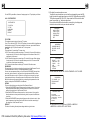
4.26 The DVD System Menu Setup Operation
1. Press the SETUP button on the remote controller to access the DVD System Menu on
the monitor.
2. There are 6 setup pages in all for the System Menu. Press the > or < button to select
an desired setup page.
3. Press the ^ or v button to select an setup item in the selected setup page.
4. Press the > button to enter the setup item. Then press the v or ^ button to select a
desired mode of the setup item, finally press the OK button to confirm it.
* Press the < button to return to the upper level.
* Press the SETUP button again or use the direction buttons to highlight the item of the
EXIT SETUP and then press the OK button to exit the System Menu.