1
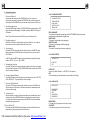
4.12Playback in Scan Mode
4.2 Pause Playback
1. In the state of VCD(PBC OFF)/CD disc playing, press the INT button to play
the previous 15 seconds part of each track on the disc. Press the INT button
again to resume normal playback.
In the state of DVD/VCD/CD/MP3/WMA disc playing, press the PAUSE
button on IR remote controller to pause the playback, press the PLAY
button to resume normal playback.
2. In the state of DVD/MP3/WMA disc playing, the INT button is not available.
4 .3 Stop Playback
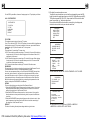
4.13 Playback from a specified chapter/track or a specified time
1. In the state of DVD disc playing, press the SEARCH button to display a
interface and highlight the title item, then use the number buttons to input
the serial number of the title; use the direction buttons to highlight the chapter
item, then use the number buttons to input the serial number of the chapter;
you can still use the direction buttons to highlight the time item, then use the
number buttons to input the desired time to start playback; finally press the
OK or PLAY button to play the selected chapter or play from the selected time.
2. In the state of VCD/MP3/WMA/CD disc playing, press the SEARCH button to
display a interface and highlight the track item, then use the number buttons
to input the serial number of the track; you can still use the direction buttons
to highlight the time item, then use the number buttons to input the desired
time to start playback; finally press the OK or PLAY button to play the selected
track or play from the selected time.
In the state of DVD/VCD/MP3/WMA/CD disc playing, press the STOP button
once to pause the playback, then press the PLAY button to resume the normal
playback; press the STOP button twice to full stop the playback, then press
the PLAY button to start playback from the beginning of the first chapter/track.
4 .4 Select Chapter/Track with the UP/DN or the >>| / |<< Button
Press the UP/DN button on the front panel or the >>| / |<< button on the
remote controller during playback to select the next or last chapter/track to
playback.
Note: Press the UP/DN or the >>|/|<< button multiple times to advance
multiple chapters/tracks forward or backward.
4 .5 Select Chapter/Track with the Number Buttons
In the state of DVD/VCD(PBC OFF)/MP3/WMA/CD disc playing, press one
of the 1~9 and the 0/10 number buttons to directly select and play the 1st to
10th track/chapter (the 0/10 button is used as the 10 button).
If you want to play the track/chapter that s serial number is bigger than 10,
use the 10+, 1~9 and 0/10 button. For example 1, to play the 13th track/
chapter, firstly press the 10+ button once, then press the 3 button. For
example 2, to play the 34th track/chapter, firstly press the 10+ button for 3
times, then press the 4 button.(the 0/10 button is used as the 0 button)
Note: long pressing the +10 or -10 button can play the next 10 or last 10
chapter/track(only for MP3/WMA).
4.14 Playback in Random
In the state of DVD/VCD(PBC OFF)/MP3/WMA/CD disc playing, press the
RDM button to switch between RANDOM (ON)/RANDOM OFF. When in
RANDOM (ON) mode, it will play in random.
4.15 Playback in Different Angle
1. In the state of VCD/MP3/WMA/CD disc playing, the ANGLE button on the
IR remote controller is not available.
2. In the state of DVD disc playing, press the ANGLE button repeatedly on
the IR remote controller to view in different angle.(This function is only
for the DVD discs with ANGLE function)
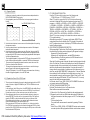
4.16 Playback in Zoom Mode
In DVD/VCD mode, during playback, press the ZOOM button continuously
to enlarge a certain area of the images on the screen with these multiples:
PDF created with FinePrint pdfFactory trial version http://www.pdffactory.com
4 .6 Select Chapter/Track with the Root/PBC Menu (If the disc includes the
root/PBC menu)
1.
2.
3.
In the state of DVD disc playing
Press the TITLE button on the remote controller to display the title list.
Press the direction buttons to select your desired title, and then press the OK
or PLAY button to open the root menu of the selected title.
Press the direction buttons to select your desired chapter, finally press the
OK or PLAY button to play the selected chapter.
During playback, pressing the MENU button can directly display the root
menu of the title that is playing.