1
IMPORTANT BLUETOOTH® INFORMATION (WITH NAVIGATION)
IMPORTANT KIA NAVIGATION INFORMATION
FOR OPTIMA VEHICLES
Please keep for easy future reference (See Kia.com/Owners for FAQs, or reference your Digital Navigation System User’s
Manual for additional information)
PHONE PAIRING QUICK REFERENCE
Vehicle must be safely parked. Vehicles with automatic transmissions must be in “P” or Park.
For manual transmissions, make sure the vehicle is in neutral and the parking brake is on.
Turn off other Bluetooth® devices to pair and connect.
NOTE: Vehicle MUST be in “P” or Park.
Enable Bluetooth® on the phone
- Turn Bluetooth® on (Process can vary by phone)
Press the “PHONE” button below the navigation screen
Select the “Settings” button on the screen
Select the “Pairings” button on the screen
Select the “Add To” button on the screen
Select Bluetooth® ”Search” on the phone:
- Select “search for Bluetooth® devices” (or “find”, “discovery”, “connect”, etc.)
- Phone will display vehicle name
- Select the vehicle name and press OK/enter on the phone
Enter the 4 digit pairing passkey in your phone and press OK (or “send”, “enter”, “done”,etc.)
Note: Some phones will ask you to accept the connection before proceeding
Note: This may take a few minutes and radio may play during the wait
NOTE: During the pairing process, some phones may require you to check an option so that accepting
the connection request will not be required each time.
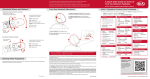
Steering Wheel Controls
TALK Button
User Action
Option 1: Press the “Receive Call” button (displays
the phone screen with number key pad).
User Action
(push to
display the
phone screen
with number
key pad, or to
answer an
incoming call)
HOW TO PLACE A CALL
There are two ways to place a call
RECEIVE CALL
Button
(push to display the
phone screen with
number key pad,
or to answer an
incoming call)
END CALL
Button
Option 2: Press the “Talk button” (system will beep to
indicate it is ready for call placement, will not
offer call prompts)
BLUETOOTH® AUDIO ADAPTATION (Driver’s voice)
For users with accents, this option improves performance
of voice recognition to a particular user’s voice.
User Action
Press “Talk” Button
Say, “Speaker Adaptation”
Follow on-screen prompts
NOTE: When using Voice Recognition, some
phones reverse the names in the contact list from
{First Name, Last Name} to {Last Name, First Name}.
Please keep for easy future reference (See Kia.com/Owners for FAQs, or reference your Digital Navigation
System User’s Manual for additional information)
NAVIGATION SYSTEM QUICK REFERENCE
At start up, the screen will show a caution screen for you to be aware of the need to pay attention while driving. The first time you use the
system, you should select your choice of the 3 different languages to use for the display. It may take a few seconds, but when the letters are
dark, press the “Agree” button on the screen.
User Action
The map will display. After two minutes or less, the traffic icon on the left side of the screen will change to a bright yellow color (if in an area with
traffic information) indicating that you are getting the traffic data. Pressing on the traffic icon on the screen will show a list of the traffic incidents
within 50 miles of your location.
To plan a destination, press the “DEST” button below the navigation screen.
Select the correct state for the destination if not already correct. Kia recommends selecting the city next for faster look up of an address. Then select the
street information, number first, then the street name (or number).
The system will show on the map the destination based on information provided. If it is correct, press the “Set as Destination” screen button. The system
will plan the recommended route to quickly get you to your destination.
The “Alternative Route” screen button will allow you to choose between the following options: Recommended, Minimize Freeway, Shortest, and
Minimize Toll Roads.
After selecting your preferred route or the default (recommended) route, press the “Start Guidance” screen button. Guidance begins as soon as you are
on a recognized roadway.
NOTE: If experiencing difficulty using Voice
Recognition to place a call, be sure you are using
the actual full contact name as entered in your
phone book, not a casual or nick-name (i.e., if
name was entered as “Robert Smith”, say “Call
Robert Smith” not “Call Bob Smith”).
Map
Voice
NOTE: Phonebook transfer upload time varies by
phone model and with number of phonebook
entries.
Setup
Menu
Destination
Menu
Route
Menu
Always check the Owner’s Manual for complete operating information
11/2010
Part Number UT110-KU-005
IMPORTANT BLUETOOTH® INFORMATION (WITH NAVIGATION)
IMPORTANT KIA NAVIGATION INFORMATION
FOR OPTIMA VEHICLES
Please keep for easy future reference (See Kia.com/Owners for FAQs, or reference your Digital Navigation System User’s
Manual for additional information)
PHONE PAIRING QUICK REFERENCE
Vehicle must be safely parked. Vehicles with automatic transmissions must be in “P” or Park.
For manual transmissions, make sure the vehicle is in neutral and the parking brake is on.
Turn off other Bluetooth® devices to pair and connect.
NOTE: Vehicle MUST be in “P” or Park.
Enable Bluetooth® on the phone
- Turn Bluetooth® on (Process can vary by phone)
Press the “PHONE” button below the navigation screen
Select the “Settings” button on the screen
Select the “Pairings” button on the screen
Select the “Add To” button on the screen
Select Bluetooth® ”Search” on the phone:
- Select “search for Bluetooth® devices” (or “find”, “discovery”, “connect”, etc.)
- Phone will display vehicle name
- Select the vehicle name and press OK/enter on the phone
Enter the 4 digit pairing passkey in your phone and press OK (or “send”, “enter”, “done”,etc.)
Note: Some phones will ask you to accept the connection before proceeding
Note: This may take a few minutes and radio may play during the wait
NOTE: During the pairing process, some phones may require you to check an option so that accepting
the connection request will not be required each time.
Steering Wheel Controls
TALK Button
User Action
Option 1: Press the “Receive Call” button (displays
the phone screen with number key pad).
User Action
(push to
display the
phone screen
with number
key pad, or to
answer an
incoming call)
HOW TO PLACE A CALL
There are two ways to place a call
RECEIVE CALL
Button
(push to display the
phone screen with
number key pad,
or to answer an
incoming call)
END CALL
Button
Option 2: Press the “Talk button” (system will beep to
indicate it is ready for call placement, will not
offer call prompts)
BLUETOOTH® AUDIO ADAPTATION (Driver’s voice)
For users with accents, this option improves performance
of voice recognition to a particular user’s voice.
User Action
Press “Talk” Button
Say, “Speaker Adaptation”
Follow on-screen prompts
NOTE: When using Voice Recognition, some
phones reverse the names in the contact list from
{First Name, Last Name} to {Last Name, First Name}.
Please keep for easy future reference (See Kia.com/Owners for FAQs, or reference your Digital Navigation
System User’s Manual for additional information)
NAVIGATION SYSTEM QUICK REFERENCE
At start up, the screen will show a caution screen for you to be aware of the need to pay attention while driving. The first time you use the
system, you should select your choice of the 3 different languages to use for the display. It may take a few seconds, but when the letters are
dark, press the “Agree” button on the screen.
User Action
The map will display. After two minutes or less, the traffic icon on the left side of the screen will change to a bright yellow color (if in an area with
traffic information) indicating that you are getting the traffic data. Pressing on the traffic icon on the screen will show a list of the traffic incidents
within 50 miles of your location.
To plan a destination, press the “DEST” button below the navigation screen.
Select the correct state for the destination if not already correct. Kia recommends selecting the city next for faster look up of an address. Then select the
street information, number first, then the street name (or number).
The system will show on the map the destination based on information provided. If it is correct, press the “Set as Destination” screen button. The system
will plan the recommended route to quickly get you to your destination.
The “Alternative Route” screen button will allow you to choose between the following options: Recommended, Minimize Freeway, Shortest, and
Minimize Toll Roads.
After selecting your preferred route or the default (recommended) route, press the “Start Guidance” screen button. Guidance begins as soon as you are
on a recognized roadway.
NOTE: If experiencing difficulty using Voice
Recognition to place a call, be sure you are using
the actual full contact name as entered in your
phone book, not a casual or nick-name (i.e., if
name was entered as “Robert Smith”, say “Call
Robert Smith” not “Call Bob Smith”).
Map
Voice
NOTE: Phonebook transfer upload time varies by
phone model and with number of phonebook
entries.
Setup
Menu
Destination
Menu
Route
Menu
Always check the Owner’s Manual for complete operating information
11/2010
Part Number UT110-KU-005