1
•
•
•
•
•
The backlight will remain on while this feature is
enabled, you can simply press the on/off button again
to disable this feature.
You may now connect your device to the USB port or
your 8.4v device to the main DC out port.
The powergorilla main DC out port will only output
8.4v while this feature is enabled.
To lock the voltage to prevent selecting the wrong voltage,
please leave the selected voltage for 30 seconds. The LCD
screen on the powergorilla will flash and voltage can only
be changed by turning the powergorilla off and on. The
powergorilla may also auto-detect when a device is
connected and lock the voltage.
You can charge your device via the USB and DC OUT at
the same time. The DC will output 8.4v when the USB
permanent on feature is activated.
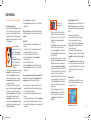
Checking the charge levels
1
•
3
2
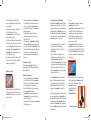
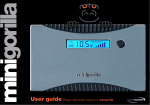
When the battery symbol in the middle (1) flashes, this
indicates that there is less than 10% power left in the
powergorilla. The battery symbol does not represent the
amount of power left.
10
AW_powergorilla_User_guide_2012.indd 10-11
•
•
•
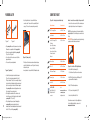
The level of charge remaining in your powergorilla is shown
by the vertical bars in the bottom right hand corner of the
blue LCD screen (2). A fully charged powergorilla will be
denoted by six solid vertical bars. As the six bar decreases,
available power decreases. The USB symbol (3) is permanently shown allowing
simultaneous charging of a laptop/notebook/netbook
and your USB 5v device.
The true battery level of the powergorilla will be displayed
when the powergorilla is being recharged. When charging
a device such as a laptop from the powergorilla, the battery
level indicator will display the true amount of power available
for that device. If you connect an alternative device with
a lower power requirement, the level of available power
may increase.
Recharging the powergorilla
You can recharge the powergorilla via the AC/mains
transformer supplied, or the AC/mains transformer supplied
with your laptop/netbook. Supplied 16v AC/mains charger
• Connect the AC/mains transformer to the powergorilla
into the DC IN socket on the top left of the powergorilla.
• The blue LCD screen will illuminate and the vertical bars on
the bottom right increases as it is being charged.
• When the last sixth vertical bar is no longer flickering, this
means the powergorilla is fully charged.
• The powergorilla charges fully in approximately 5 hours.
The powergorilla will have a deeper cycle charge if left
connected longer (6-8 hours).
• Always disconnect AC/mains charger when the powergorilla
is fully charged or not in use.
Your own laptop/netbook’s AC/mains adaptor
When charging the powergorilla from a third party AC/mains
charger, please ensure it is rated at 15v to 30v – any AC/mains
charger outside of this range will not be compatible and may
invalidate your warranty. The powergorilla will auto-detect
the voltage input from the mains charger used and display the
nearest voltage on the LCD screen (rounded up or down to the
nearest available voltage option: 16v, 19v, or 24v).
• Select the right angle tip from Tip pack 1 and connect
it to your laptop/netbook’s AC/mains adaptor.
• Insert the tip into the DC IN socket on the top left of
the powergorilla.
• Plug into the AC/mains socket and turn power on.
Charging will commence. Please see page 8 – Set-up –
Charging the powergorilla for further details.
• You can charge your powergorilla, and have it connected
to your laptop/notebook and also charging your mobile via
the USB port all at the same time. BUT you can only
charge the powergorilla with your laptop’s own AC/mains
charger in order for this to work. When the powergorilla is connected to the mains by the
supplied 16v AC/mains charger, and is also charging a
notebook simultaneously, the output voltage will be predetermined by the input voltage (e.g. In this case, if a 16v
charger is used, the powergorilla will only output 16v).
If your device requires lower voltage, disconnect from the mains
and continue charging the device with the powergorilla. If your
device requires higher voltage, you will need to use your laptop’s
AC/mains charger to charge the powergorilla and your device
at the same time. The powergorilla can also be charged from
the optional solargorilla solar panel and the 16v in-car charger
(both not included).
Solar Power
• The powergorilla can be charged via the sun using the
solargorilla solar panel (not included).
• The powergorilla is equipped with Maximum Power Point
Tracking (MPPT) technology. This maximises the solar
panels efficiency for any given weather condition and
protects the battery from over-charging or excessive
discharging. In low light conditions, this technology
improves efficiency by up to 60%.
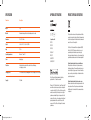
• The powergorilla will automatically detect when the
solargorilla solar charger is connected and the symbol
below will be displayed. This will disable the DC OUT port
and USB on the powergorilla. The internal circuits will also
turn off to improve charging efficiency and reduce charge
times from solar.
•
•
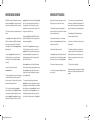
Select the L52D tip and connect it to the 2m charging
cable both supplied with the solargorilla and insert the
tip into the DC IN of the powergorilla. Place the
solargorilla panel in the sun.
For further information on the
solargorilla please visit
www.powertraveller.com
solargorilla charging powergorilla
11
05/07/2012 14:29