1
Using powergorilla
Please read the following before using the powergorilla
Set-up – Charging the powergorilla
• Unpack all contents of box and familiarise yourself with each item. Please refer to the contents section (page 6).
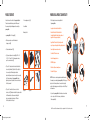
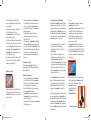
• Connect the 16v AC/mains adaptor (1) and Fig 8 lead
(2) together, choosing the correct interchangeable mains
head (3) for the appropriate AC/mains socket i.e. UK head for UK AC/mains socket.
8
• Connect the cable from the
transformer into the DC IN socket on
the top left of the powergorilla.
1
• Plug into the AC/mains socket and
turn power on.
• The powergorilla will turn on and
2
the blue LCD illuminates briefly.
3
The backlight will switch off to
conserve power.
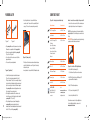
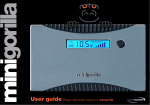
• LCD screen shows the voltage input at 16v when using the
powergorilla’s 16v own AC/mains. It also shows the
charge left in the powergorilla by the vertical bar on
the right. This could be between three to four bars as
the powergorilla is pre-charged to approximately 60%. It
will provide you instant power.
• The vertical bars scroll left to right as the charging
commences. It is advisable to recharge the powergorilla
until all six bars become static which shows it is fully
charged. The powergorilla turns itself off the instant the
AC/mains charger is disconnected. However, the
powergorilla remains on while it is still connected. • You can also recharge the powergorilla with your laptop’s
own supplied AC/mains transformer. Please see page 11 –
Recharging the powergorilla.
AW_powergorilla_User_guide_2012.indd 8-9
• Turn the powergorilla on – see Turning On/Off
• When the powergorilla does not turn on, connect it to the AC/mains
charger to reset it.
NOTE: the powergorilla can be recharged via the AC/mains transformer
supplied with your laptop/netbook – please see page 11 – Recharging the
powergorilla.
Turning On/Off
• Press the black On/Off button on the powergorilla for 3 seconds
to activate.
•Once activated the blue LCD screen will illuminate and after a short
time the backlight will switch off to conserve power.
• To re-activate the backlight tap the black On/Off button.
•If not in use, after approximately 1 minute, the powergorilla will
automatically turn itself off.
• Hold the On/Off button to re-activate.
• To turn the powergorilla off, press the On/Off button for 3 seconds.
• When the powergorilla does not turn on, connect it to the AC/mains
charger to reset it.
How to power your laptop/notebook/netbook/camcorder/radio receiver
Ensure the AC/mains is disconnected from the powergorilla and that the
powergorilla remains switched-off while you follow these steps.
• Remove the 80cm connection cable from ‘Tip pack 1’ and select the
correct straight tip that is compatible with your laptop/netbook (please
refer to the compatibility chart on page 13).
• Connect the connection cable to the appropriate tip and insert into
your device.
• Connect the other end of the cable into the DC OUT of the powergorilla.
•Check the voltage your laptop/netbook requires, this can be found on
the transformer of the AC/mains adaptor or the user guide supplied with
your equipment.
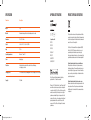
Look for O/P: DC 16v –
voltage required is 16v
•
•
•
•
•
Lightly press the On/Off button to cycle through the
voltage options to match your device’s requirements.
The choices are 8.4v, 9.5v, 12v, 16v, 19v. and 24v. ‘88’
features enhanced solar charging and permanent
USB ON option.
The powergorilla will auto-save your last voltage setting
for your convenience, however, you must always
disconnect the powergorilla from your device before
turning the powergorilla back on and ensure the correct
voltage is still selected.
When charging your 8.4v device via the DC out port, you
may experience the powergorilla turning off prematurely.
This happens when the device is not drawing enough
power from the powergorilla and the powergorilla is not
able to detect the device is still attached so it shuts itself
off. Disconnect the cable from the DC OUT socket. Press
button to select DC output voltage until ‘88’ (see
Permanent USB ON) is displayed on the LCD screen, this
will lock into permanent ON. Connect your device to the
DC OUT. The powergorilla main DC out port will only
output 8.4v while this feature is enabled. You can now
charge your device.
When you finish charging/powering, turn off the
powergorilla by holding down on the On/Off button
for a few seconds and disconnect the cable. Or the
powergorilla will turn itself off when the device is
fully charged. Charging 5v digital devices via USB
The powergorilla will also power your iPad, iPhone, iPod, PDS,
MP3/MP4’s, hand-held gaming devices, sat-nav’s/GPS, smart
phones, mobile/cell phones and many other devices using the 5v
USB port.
•
•
•
•
•
•
Turn unit on via the On/Off black button.
Select the retractable USB cable tip from ‘Tip pack 2’
and connect the appropriate tip for your device.
Insert the USB into the USB port of the powergorilla.
The powergorilla will stop charging the device when
the device is fully charged.
The USB port does not have a switchable voltage –
therefore you do not need to select the correct voltage as the
powergorilla will automatically recognise the standard USB
5 volts.
The powergorilla may turn itself off when charging a device
via the USB. Disconnect the cable from the USB port. Press
the button until ‘88’ is displayed on the LCD screen, this will
lock USB into permanent ON. Connect your device to the
USB port.
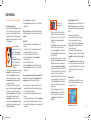
Permanent USB ON
• Disconnect all cables from the USB and DC out socket.
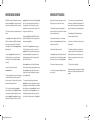
• Press on/off button repeatedly until the logo below is
displayed on the LCD screen.
‘88’ will appear on the LCD Screen
9
05/07/2012 14:29