1
10
Mobile Viewer
10
HREP2 Mobile Remote Viewer Overview
You can use the HREP2 smart mobile remote viewer to monitor the network on a remote site
and play the monitoring video anytime, anywhere.
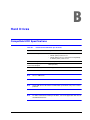
HREP2 Mobile Viewer Specification
Minimum / Recommended Specification
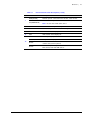
Table 10-1
Device
Android Phone
Device
iPhone/iPad
Mobile System Requirements
Minimum Specification
Recommended Specification
Processor: 800 MHz or higher
Processor: 1 GHz or higher
Flash: 512 MB or higher
Flash: 512 MB
RAM: 512 MB or higher
RAM: 512 MB
SD Card: 4 GB or higher
SD Card: 16 GB or higher
OS: 2.0 or higher
OS: 2.1 or higher
Supported Models
Recommended Specifications
iPhone 3G
iPhone 3GS or higher
iPhone OS 3.1.2 or higher
iPhone OS 3.2 or higher
iPad 2
iOS 4.3 or higher
iPad 3 with Retina display
iOS 4.3 or higher
iPod Touch 3rd Generation
800-15802 - A - 12/2013