1
3500-5400-6200-6600-8200-BOG-Aug12-K.15.11.book Page 5 Friday, November 16, 2012 8:34 AM
Getting Started
Login Banners
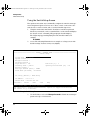
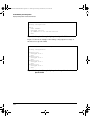
Configuring and Displaying a Non-Default Banner
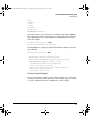
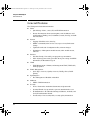
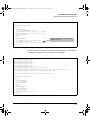
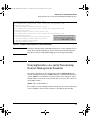
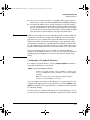
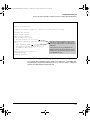
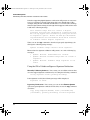
You can enable or disable banner operation using either the switch’s CLI or
an SNMP application. The steps include:
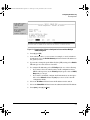
1.
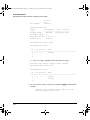
Enable non-default banner operation and define the endpoint delimiter
for the banner.
2.
Enter the desired banner text, including any specific line breaks you
want.
3.
Enter the endpoint delimiter.
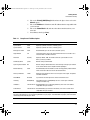
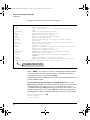
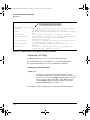
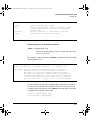
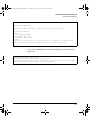
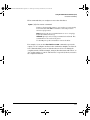
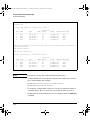
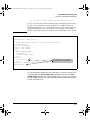
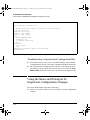
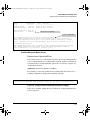
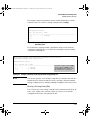
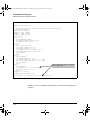
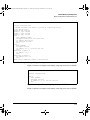
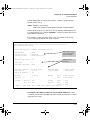
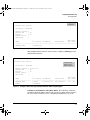
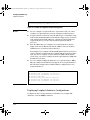
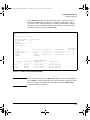
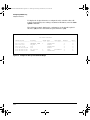
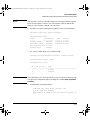
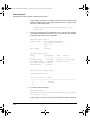
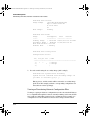
Use show banner motd to display the current banner status.
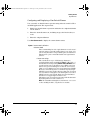
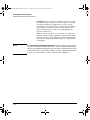
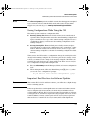
Syntax: banner motd < delimiter >
no banner motd
This command defines the single character used to terminate the banner text and enables banner text input. You
can use any character except a blank space as a delimiter.
The no form of the command disables the login banner
feature.
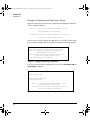
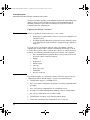
< banner-text-string >
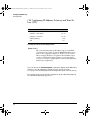
The switch allows up to 3070 banner characters,
including blank spaces and CR-LF ([Enter]). (The tilde “ ~“
and the delimiter defined by banner motd <delimiter> are
not allowed as part of the banner text.) While entering
banner text, you can backspace to edit the current line
(that is, a line that has not been terminated by a CR-LF.)
However, terminating a line in a banner by entering a
CR-LF prevents any further editing of that line. To edit a
line in a banner entry after terminating the line with a
CR-LF requires entering the delimiter described above
and then re-configuring new banner text.
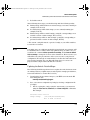
The banner text string must terminate with the character
defined by banner motd < delimiter >.
Note: In redundant management, the banner is not seen
on the standby module, only the active module.
1-5