1
Version 1.0a
Profiling Software User Manual
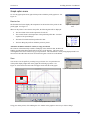
Adjusting the appearance of the profile graph
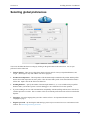
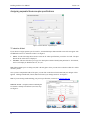
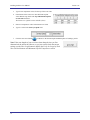
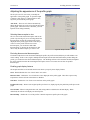
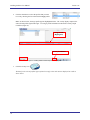
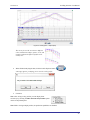
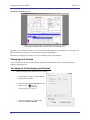
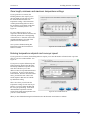
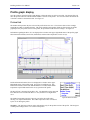
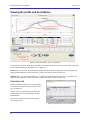
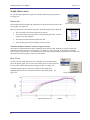
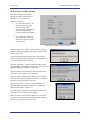
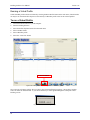
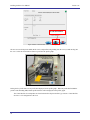
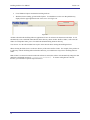
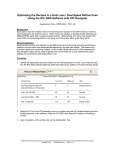
The Graph Controller screen lets you modify the
appearance of the profile graph. To open the Graph
Controller, click on the TC column header or click,
anywhere just outside the profile graph.
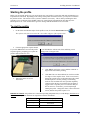
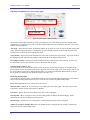
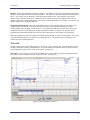
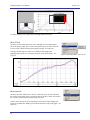
Auto Scale – The Auto Scale feature automatically
adjusts the X and Y axis scales to fit all of the data in the
profile graph. When the feature is disabled, you must
input the scale settings manually.
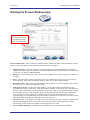
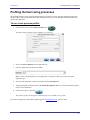
Selecting thermocouples to view
The TCs section lists the thermocouples used for the
profile. By selecting All you are selecting that all the
thermocouples used for the original profile will be
displayed on the profile graph. In the event that you
wish to view the profile without one or more
thermocouples, you can deselect individual
thermocouples, or deselect the All check box, and
choose only the thermocouples you wish to view.
Figure 23: Graph Controller
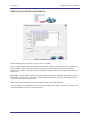
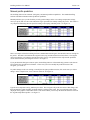
Excluding disconnected thermocouples
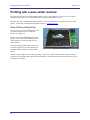
If a thermocouple has become disconnected during the profile, the profile results (PWI) may be affected due to an
erratic reading. In the event a single or multiple thermocouples become disconnected from the product during the
profile, you can deselect the affected thermocouple(s). The Profiling Software will recalculate the PWI, and update
the profile statistics based on the remaining thermocouples selected. You must select at least one product
thermocouple.
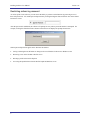
Enabling graph display features
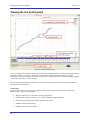
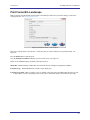
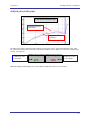
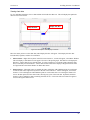
The Graph Controller screen includes check boxes that let you specify these display features:
Grid – Enables/disables the view of the X and Y-Axis scales.
Reference lines – Enables the view of Reference Lines displayed on the profile graph. These lines represent any
temperatures referenced in the selected Process Window.
Zone lines – Enables the view for the oven zone lines on the profile graph.
Predicted TCs only – Removes the original profile plot form view, displaying only the prediction profile plot on the
graph.
Zero decimal – When viewing the Pointer tool, this setting enables or disables the decimal display. When
unchecked, the software will display one decimal point.
Internal temp – Enables the view of the profiler’s internal temperature profile plot on the graph.
25