1
Installation Guide
The second:
• Set the time interval of the desired archive period by the date and time
fields at the bottom of the window!
•
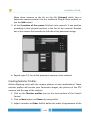
Move the mouse pointer over the desired camera picture(s) and select them by clicking the
little icon in the upper left corner of the picture! The border becomes blue and the little icon
can be seen if a picture is selected.
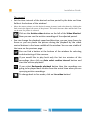
• Click on the Archive video button on the left of the Video Monitor!
Now you can see the archive recordings of the adjusted period.
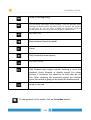
• You can change the playback speed and direction, you can jump frame by
frame or you can pause the picture during the playback by the video
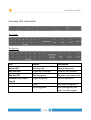
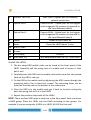
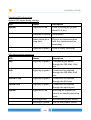
control buttons in the lower middle of the window. You can see a table of
the icons on the previous page.
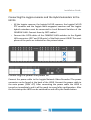
You can find a button at the bottom of the window for selecting
and deselecting all the cameras.
If you would like to play back only the last ten minutes of the
recordings, then click on Auto select archive interval button and
start the archive playback!
If you select Backwards playback button then the recordings are
going to be played back reverse from the actual time when you are
querying archive recordings.
To change back to live mode, click on Live video button!
75/80