1
12
FINAL CUT PRO 2: Instructor Manual
EXERCISE 7: IMPORTING FILES
Instructor Note: Remember to demonstrate first, then allow the users to complete on their own, following
the steps in their User Manuals.
Steps:
1.
Choose FILE from the menu bar
2.
Choose Import > Import File
3.
Select desired file from hard drive
4.
Click Open to import file
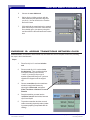
Imported files will appear in the Browser
EXERCISE 8: LOG AND CAPTURE WINDOW
Instructor Note: Remember to demonstrate first, then allow the users to complete on their own, following
the steps in their User Manuals.
Steps:
1.
Make sure DVCam is connected, turned on and rewound or cued
2.
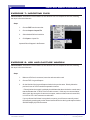
Choose FILE > Log and Capture
3.
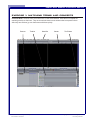
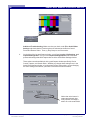
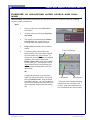
On the left side of the Log and Capture window is the preview area. Directly below the
preview is a set of VCR controls that operate the camera.
** Directly below the controls is a display that indicates that there the device control status
that should state that “VTR OK” if there is device control. If this says “no communication”
either check the connection of camera to computer, make sure that camera is turned ON,
is in VCR or VTR- -NOT camera or record mode!
If you try this and it still doesn’t recognize the camera, you will have to manually control
the camera by pressing play on the camera itself-at which time the log and capture window
SHOULD display clip from the camera
File name: FinalCutPro_Instructor.pmd
Last modified: 06/04/02
Copyright Arizona Board of Regents, 2002
University of Arizona