1
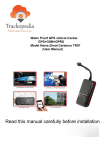
TR06N Quick Start Guide Thank you for purchasing our vehicle tracking device. We aim to make it as simple as possible to get you started. Here is some useful information you need to know. The tracking device is inserted with an o2 sim card and is currently set to work with the o2 sim card. The sim card/network can be changed at any time. More details are available in the user manual. The tracker uses around 15-‐38MB data a month when sending GPS information to our platform for tracking purposes every 10 seconds. The o2 sim card will allow up to 100 MB data a month for £3/month on a pay as you go basis. The sim card does not currently have any credit. The sim card can be topped up enough to cover 12 months. You can top up from £10 -‐ £30 at a time by calling 08456 062 277 or top up online, you can also set up auto top up from the link below: http://www.o2.co.uk/topup The sim card is automatically activated when the initial credit is purchased. The sim card is a standard pay and go sim, please call o2 on 0844 809 0222 to change the plan/tariff to cover 100 MB data for £3 a month. If you set up the SMS functions on the tracker, each message you receive from the tracker to your mobile will cost 12 pence and this cost will be deducted from your credit on the sim card. Please therefore ensure you have enough credit for both data usage and text messaging. You will not be charged for the tracker to receive messages. To keep the cost down, we have left it to our customers to top up, activate the sim and change the data plan rather than having an expensive annual subscription to include all charges and handling fees. Tracking companies generally charge an annual subscription fee starting from £120 up to £400. We only charge a modest £20 as an annual fee to cover the cost of our platform maintenance (the website you use to track your vehicle). There is no contract for the maintenance. Access to our tracking platform will shut down if the annual £20 maintenance fee is not paid up in advance. The first year’s maintenance fee is free. Please place the device under the dash, indicator lights facing upwards. Please do not place the tracker under metal. More information is in the user manual. The tracker can be connected in two different ways. Quick connection requires just the red and black to be connected appropriately to a constant live power source and earth. This will enable you to track but not able you to power off the vehicle. If you wish to use the cut-‐off and re instating power via mobile phone or via website, the device must be connected to the ignition by an auto electrician. More details and the wiring diagram are in user manual. The on/off switch is located on the side of the tracking device. Please open the flap and switch the device on. Please allow 5-‐10 minutes for the sim card to acquire network reception and for the GPS to acquire satellite positioning. The device is now ready to track your vehicle. Logging on to our platform to track your vehicle: Please log on to: www.gpsgreat.com User name: last four digits of the IMEI number on the back of the tracking device Password: The o2 sim number. You can find the number on o2 booklet with the top up card. You are advised to log in to your personal portal and change the password. The change password icon is situated on the top right corner on the portal. If you wish to change the user name or the name the tracker displays (target name), please contact us via e mail, we are more than happy to make the changes for you. More information is available on our tracker demo video. Please go to www.navigationmaster.com/support For support, please e mail [email protected] For customers who have had the tracking device wired to the ignition to be able to send and receive text messages to and from your mobile please follow the instructions below. The system needs to know your mobile number. Please also save the tracking device sim number on your mobile. First you must set up an SOS number, then a centre number. +44 prefix must be used. Add specific number To set an SOS number you will need to set up the device via SMS Please send the following text message to the tracker sim card SOS,A,(your mobile phone number)# Example: it should look like this: SOS,A,+447860123456# If set successfully, you will receive the following reply via SMS: SOSnumber: (your mobile phone number) Set the center number If you want to cut-‐off/restore power by SMS command, you will first have to set a center (main) number. Only the center number can send the cut-‐off/restore power command to the device. You can set your own mobile number as the center number. The command format for setting the center number is: CENTER,A,(your mobile phone number)# Example: it should look like this: CENTER,A,+447860123456# If set successfully, you will receive an “OK” message in reply. Power cut-‐off Via SMS Send the following text message to the tracker sim card. RELAY,1# After the command is carried out, it will reply “Cut off the fuel supply: Success!”. If the command was not successful, it will reply with the reason for its failure. Restoring power Via SMS Send the following text message to the tracker sim card: RELAY,0# After the command is carried out, it will receive “restore fuel supply: success!” Checking location: Via phone: Dial the number of the device via your land-line telephone or mobile, and press “2” according to the voice instructions, the device will send a location message automatically. Details are in user manual. Note: The location SMS from device will only send to a mobile phone or telephone with SMS function. It cannot be sent to a land-line telephone without SMS capabilities. Via SMS: (SMS cost applies) SMS “WHERE#”, to the SIM number of tracker. The device will send a location message automatically. You can get the coordinates. Example: Lat:N22.571285,Lon:E113.877115,Course:42.20,Speed:0.0740,DateTime:1308-22 22:28:51 SMS “URL#”, to the SIM number of the tracker. The device will send a location Google Map link. Example: <Date Time:13-08-22 23:42:51> http://maps.google.com/maps?q=N22.571490,E113.877103 Via platform Go to the platform website to check your vehicle location. How to set up speed alarm warning: (SMS cost applies) To set speed alarm function, please send the following command to the device: “SPEED,time,speed#” (the range of time is 1-10mins,the unit of the speed is “km/h”) For example: If you send the command “SPEED, 3, 60#”, it will reply: “Over speed: 60km/h ; duration is 3min”, which means if the speed of the vehicle exceeds 60km/h for more than 3mins, it will send alarm message to SOS specific number: Eg: Over speed Alarm! Date Time: 13-08-22 23:42:51,http://maps.google.com/maps?q=N22.571490,E113.877103 To close the over set speed alarm function, SMS:”SPEED,0,0#” Web based tracking (this should be the preferred method to minimise costs to you) The GPRS web based tracking platform allows real time tracking with the latest Google maps. There are many functions you can use on your web portal. There is a playback function which allows you to view where the vehicle has been for the last 60 days.