1
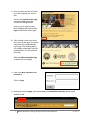
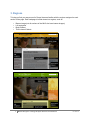
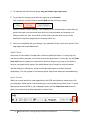
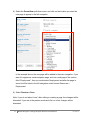
C. To make the text editor window larger, drag the bottom right edge corner.
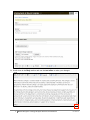
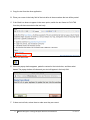
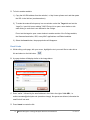
D. To preview your change, scroll down the page and select Preview.
This is optional; you may chose to select SAVE and then review your page.
Use the “Preview” feature carefully. Your changes will not automatically be saved after you
preview the page; you must select save after you have previewed your changes or all
changes will be lost. Also, do not click on links while in preview mode, as you will be
directed off the preview page and your changes will be lost.
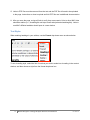
E. Once you are satisfied with your change, if you selected Preview, scroll to the bottom of the
page again and hit the Save button.
Spell Check
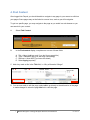
At this time, the text editor in Drupal does not have a spellcheck feature. You may copy text
from the text editor and paste it into Word and use that spell check. If you do this, use the Paste
from word feature to paste your content from Word into Drupal or you may end up with the
fonts on your page looking messy. See details below (Input Format) for more information.
We offer training in Siteimprove, a web tool that provides reports on broken links and
misspellings. You may register for this training online: https://www.mtholyoke.edu/web/training
Input Format
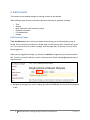
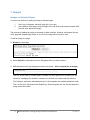
When you cut and paste from other applications, the HTML produced may cause havoc with
your web page, which results in fonts showing up in your content that you don’t want. To avoid
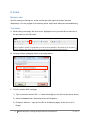
adding fonts and bad HTML to your webpages, always use the Paste from word feature to
paste your content from another application, such as Word.
10
Mount Holyoke College Drupal Basics User Manual
07/29/13