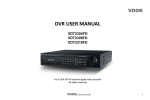
1
For H.264 4/8/16 digital video recorder All rights reserved DVR User Manual 2 of the power must be verified before using. If not in use for a long time, pull out the plug from the socket z Do not install this device near any heat sources such as radiators, heat registers, stoves or other device that produce heat z Do not install this device near water. Clean only with a dry cloth z Do not block any ventilation openings. And ensure well ventilation around the machine z Do not power off the DVR at normal recording condition! The correct operation to shut off DVR is to stop recording firstly, and then select “shut-down” button at the right of the menu bar to exit, and finally to cut off the power. z This machine is indoor using equipment. Do not expose the machine in rain or moist environment. In case any solid or liquid get into the machine’s case, please cut off the power supply immediately, and ask for qualified technicians to check the machine before restart z Refer all servicing to qualified service personnel. No any parts repaired by yourself without technical aid or approval. z This manual is suitable for 4/8/16-channel digital video recorders. All examples and pictures used in the manual are from 16-channel DVR. z This device should be operated only from the type of power source indicated on the marking label. The voltage z We do not warrant all the content is correct. The contents of this manual are subject to change without notice z Please read this user manual carefully to ensure that you can use the device correctly and safely CAUTION Digital Video Recorder User Manual 4 3 2 1 3 4.1 Basic configuration.................................................................................................................................................................................................28 Main menu setup guide.............................................................................................................................................................................................26 3.3.1 Live playback ...............................................................................................................................................................................................25 3.3 Live preview ...........................................................................................................................................................................................................24 3.2 Login ......................................................................................................................................................................................................................23 3.1.2 Power off......................................................................................................................................................................................................23 3.1.1 Power on......................................................................................................................................................................................................22 3.1 Power On/Off .........................................................................................................................................................................................................22 Basic Function Instruction .........................................................................................................................................................................................22 2.5.2 Use Mouse...................................................................................................................................................................................................20 2.5.1 Connect Mouse............................................................................................................................................................................................20 2.5 Control with Mouse ................................................................................................................................................................................................20 2.4 Remote Controller..................................................................................................................................................................................................18 2.3.1 Rear Panel Interface ....................................................................................................................................................................................13 2.3 Rear Panel Instructions..........................................................................................................................................................................................13 2.2 Front Panel Descriptions........................................................................................................................................................................................11 2.1.2 Install DVD Writer ........................................................................................................................................................................................11 2.1.1 Install Hard Drive .........................................................................................................................................................................................10 2.1 Install Hard Drive &DVD Writer ..............................................................................................................................................................................10 Hardware Installation ...................................................................................................................................................................................................10 1.2 Main Features ..........................................................................................................................................................................................................7 1.1 DVR Introduction......................................................................................................................................................................................................7 Introduction ..................................................................................................................................................................................................................7 Table of Contents Digital Video Recorder User Manual 4 4.6 Network configuration ............................................................................................................................................................................................54 4.5.5 Alarm out......................................................................................................................................................................................................53 4.5.4 Other alarm ..................................................................................................................................................................................................52 4.5.3 Video loss ....................................................................................................................................................................................................51 4.5.2 Motion ..........................................................................................................................................................................................................48 4.5.1 Sensor .........................................................................................................................................................................................................45 4.5 Alarm configuration ................................................................................................................................................................................................44 4.4.3 Sensor .........................................................................................................................................................................................................44 4.4.2 Motion ..........................................................................................................................................................................................................43 4.4.1 Schedule......................................................................................................................................................................................................42 4.4 Schedule configuration...........................................................................................................................................................................................41 4.3.5 Recycle record .............................................................................................................................................................................................41 4.3.4 Stamp...........................................................................................................................................................................................................40 4.3.3 Time .............................................................................................................................................................................................................39 4.3.2 Record stream .............................................................................................................................................................................................38 4.3.1 Enable..........................................................................................................................................................................................................36 4.3 Record configuration ..............................................................................................................................................................................................36 4.2.4 Mask ............................................................................................................................................................................................................34 4.2.3 SPOT ...........................................................................................................................................................................................................34 4.2.2 Main monitor ................................................................................................................................................................................................33 4.2.1 Live ..............................................................................................................................................................................................................31 4.2 Live configuration...................................................................................................................................................................................................31 4.1.3 DST..............................................................................................................................................................................................................30 4.1.2 Time & date..................................................................................................................................................................................................29 4.1.1 System.........................................................................................................................................................................................................28 Digital Video Recorder User Manual 6 5 5 6.1.9 Logoff...........................................................................................................................................................................................................80 6.1.8 Upgrade .......................................................................................................................................................................................................80 6.1.7 Disk management ........................................................................................................................................................................................79 6.1.6 Manual alarm ...............................................................................................................................................................................................79 6.1.5 Online information........................................................................................................................................................................................78 6.1.4 Network information .....................................................................................................................................................................................77 6.1.3 Log information ............................................................................................................................................................................................76 6.1.2 Event information .........................................................................................................................................................................................76 6.1.1 System information ......................................................................................................................................................................................75 6.1 Check system information......................................................................................................................................................................................75 Manage DVR.............................................................................................................................................................................................................75 5.4 Backup ...................................................................................................................................................................................................................73 5.3 File management ...................................................................................................................................................................................................72 5.2 Event search ..........................................................................................................................................................................................................71 5.1 Time search ...........................................................................................................................................................................................................70 Record search & playback and backup.....................................................................................................................................................................70 4.9.2 Import/Export ...............................................................................................................................................................................................69 4.9.1 Reset ...........................................................................................................................................................................................................69 4.9 Advanced ...............................................................................................................................................................................................................68 4.8 P.T.Z configuration..................................................................................................................................................................................................63 4.7 User management configuration ............................................................................................................................................................................61 4.6.4 Other settings...............................................................................................................................................................................................58 4.6.3 Email............................................................................................................................................................................................................57 4.6.2 Sub stream ..................................................................................................................................................................................................55 4.6.1 Network........................................................................................................................................................................................................54 Digital Video Recorder User Manual 8 7 6 Appendix A FAQ………………………………………………………………………………………………………………..……..116 Appendix B Calculate Recording Capacity…………………………………..…………………………………………..………...122 Appendix C Compatible Devices……………………….……………………………………………………………………….…..123 Appendix D 4-CH DVR Specifications……………………………………………………………………………………….….….124 Appendix E 8-CH DVR Specifications……………………………………….……………………………………………………..125 Appendix F 16-CH DVR Specifications……………………………………………………………………………………………..126 8.4 The installation & operation methods for Android mobile clients ..........................................................................................................................109 8.3 The operation method for iPhone mobile clients ..................................................................................................................................................103 8.2 By Phones with Symbian .....................................................................................................................................................................................100 8.1 By Phones with Windows mobile ...........................................................................................................................................................................97 Mobile Surveillance ...................................................................................................................................................................................................97 Remote Information Search ..................................................................................................................................................................................96 7.5 Remote Management.............................................................................................................................................................................................96 7.4 Remote System configuration ................................................................................................................................................................................95 7.3.2 Remote backup............................................................................................................................................................................................94 7.3.1 Remote playback .........................................................................................................................................................................................88 7.3 Remote playback & backup ...................................................................................................................................................................................88 7.2 The remote live preview interface as below: ..........................................................................................................................................................84 7.1.2 On WAN.......................................................................................................................................................................................................83 7.1.1 On LAN ........................................................................................................................................................................................................81 7.1 Accessing DVR ......................................................................................................................................................................................................81 Remote Surveillance .................................................................................................................................................................................................81 Digital Video Recorder User Manual Introduction RECORD MEDIA x Support four SATA HDDs to record for a longer time without any limitation LIVE SURVEILLANCE x Support HD VGA output x Support channel security by hiding live display x Display the local record state and basic information x Support USB to make full control COMPRESSION FORMAT x Standard H.264 compression with low bit rate and better image quality 1.2 Main Features 7 This model DVR (Digital Video Recorder) is designed specially for CCTV system. It adopts high performance video processing chips and embedded Linux system. Meanwhile, it utilizes many most advanced technologies, such as standard H.264 with low bit rate, Dual stream, SATA interface, VGA output mouse supported, IE browser supported with full remote control, mobile view(by phones), etc., which ensure its powerful functions and high stability. Due to these distinctive characteristics, it is widely used in banks, telecommunication, transportation, factories, warehouse, and irrigation and so on. 1.1 DVR Introduction 1 Digital Video Recorder User Manual PTZ CONTROL x Support various PTZ protocols ALARM x 4 channel alarm output and 4/8/16 channel alarm input available x Support schedule for motion detection and sensor alarm x Support pre-recording and post recording x Support linked channels recording once motion or alarm triggered on certain channel x Support linked PTZ preset ˈauto cruise and track of the corresponding channel RECORD & PLAYBACK x Record modes: Manual, Schedule, Motion detection and Sensor alarm recording x Support recycle after HDD full x Resolution, frame rate and picture quality are adjustable x 128MB for every video file packaging x 4/8/16audio channels available x Two record search mode: time search and event search x Support 1/4 screen playback simultaneously x Support deleting and locking the recorded files one by one x Support remote playback in Network Client through LAN or internet BACKUP x Support USB 2.0 devices to backup x Support built-in SATA DVD writer to backup x Support saving recorded files with AVI standard format to a remote computer through internet Digital Video Recorder User Manual 8 Support 128 PTZ presets and 8 auto cruise tracks Support remote PTZ control through internet NETWORK x Support TCP/IP, DHCP, PPPoE, DDNS protocol x Support IE browser to do remote view x Support setup client connection amount x Support dual stream. Network stream is adjustable independently to fit the network bandwidth and environment. x Support picture snap and color adjustment in remote live x Support remote time and event search, and channel playback with picture snap x Support remote PTZ control with preset and auto cruise x Support remote full menu setup, changing all the DVR parameters remotely x Support mobile surveillance by smart phones , symbian, WinCE, Iphone or Gphone, 3G network available x Support CMS to manage multi devices on internet 9 SECURITY x Customize user right: log search, system setup, two way audio, file management, disk management, remote login, live view, manual record, playback, PTZ control and remote live view x Support 1 administrator and 15 users. x Support event log recording and checking, events unlimited x x Digital Video Recorder User Manual Hardware Installation Step3: Screw the HDD Note: For the convenience to install, please connect the power and data cables firstly, and then screw to fix. Fig 2.1 Connect HDD 10 2.1.1 Install Hard Drive Notice: 1. This series support four SATA hard drives or support three SATA hard drives plus one DVD writer. Please use the hard drive the manufacturers recommend specially for security and safe field. 2. Please calculate HDD capacity according to the recording setting. Please refer to “Appendix B Calculate Recording Capacity”. Step1: Unscrew and Open the top cover Step2: Connect the power and data cables. Place the HDD onto the bottom case as below. 2.1 Install Hard Drive &DVD Writer Notice: Check the unit and the accessories after getting the DVR. Please disconnect the power before being connected to other devices. Don't hot plug in/out 2 Digital Video Recorder User Manual 1 Work state indicator Power HDD Net Backup Power indicator, when connection , the light is blue When HDD is writing and reading , the light is blue When access to network , the light is blue When backup files and data, the light is blue Notice: The front panel descriptions are only for reference; please make the object as the standard. Type Item Name Description 2.2 Front Panel Descriptions Step3: Screw the DVD writer. Fig 2.2 Connect the DVD Writer 11 2.1.2 Install DVD Writer Notice: 1. The writers must be the compatible devices we recommend. Please refer to “Appendix C Compatible Devices” 2. This device is only for backup Step1: Unscrew and Open the top cover Step2: Connect the power and data cables. Place the DVD writer onto the bottom case as below. Digital Video Recorder User Manual 5 4 3 2 Item USB Input button Digital button Compound button Type USB port Direction button Multi-screen Enter button 0/10+ 1-9 MENU INFO BACKUP SEARCH P.T.Z./ - AUDIO/+ Play REC Name Description Change screen display mode like1/4/9/16 channel Confirm selection To connect external USB devices like USB flash, USB HDD for backup or update firmware; or connect to USB mouse Change direction to select items Rewind Fast forward Input number 1-9 or choose camera Input number0, 10 and the above number together with other digital keys Stop/Esc Play/Pause When playing video, the light is blue When recording, the light is blue 1. Control voice 2. Increase the value in setup 1. Enter PTZ mode in live 2. Decrease the value in setup Enter menu in live Check recording data Enter backup mode in live Enter search mode Record manually Digital Video Recorder User Manual 12 Video out Video in E-SATA LOOP OUT Spot out Audio out MIC IN HDMI port 5 6 7 8 Name 1 2 3 4 Item Connect to monitor Video input channels from 1-4 Connect to HDD for backup For outputting 1-4ch image independently Connect to monitor as an AUX output channel by channel. Only video display, no menu show Audio output, connect to the sound box Talk Connect to high-definition display device Description Fig 2.3 Rear Panel for 4-ch 2.3.1 Rear Panel Interface The rear Panel interface for 4-ch is shown as Fig 2.3: 2.3 Rear Panel Instructions Digital Video Recorder User Manual 13 USB port LAN ALARM IN ALARM OUT P/Z K/B GND FAN POWER INPUT POWER SWITCH 11 12 13 14 15 16 17 18 19 Switch on/off VGA output, connect to monitor 4 CH Audio input To connect external USB devices like USB flash, USB HDD for backup or update firmware; or connect to USB mouse Network port Connect to external sensor1-4 4ch relay output. Connect to external alarm. Connect to speed dome Connect to keyboard Grounding For cooling the device AC 110Vor 110V Description Tab 2.1 Definitions of Front Panel Buttons The rear Panel interface for 8-ch is shown as Fig 2.4: 20 VGA port Audio in Name 9 10 Item Digital Video Recorder User Manual 14 Video out Video in E-SATA LOOP OUT Spot out Audio out MIC IN HDMI port VGA port Audio in 5 6 7 8 9 10 Name 1 2 3 4 Item Connect to monitor Video input channels from 1-8 Connect to HDD for backup For outputting 1-8ch image independently Connect to monitor as an AUX output channel by channel. Only video display, no menu show Audio output, connect to the sound box Talk Connect to high-definition display device VGA output, connect to monitor 8 CH Audio input Description Fig 2.4 Rear Panel for 8-ch Digital Video Recorder User Manual 15 USB port Name To connect external USB devices like USB flash, USB HDD for backup or update firmware; or connect to USB mouse Network port Connect to external sensor1-8 4ch relay output. Connect to external alarm. Connect to speed dome Connect to keyboard Grounding For cooling the device AC 110Vor 110V Description Fig 2.5 Rear Panel for 16-ch LAN ALARM IN ALARM OUT P/Z K/B GND FAN POWER INPUT POWER 20 Switch on/off SWITCH Tab 2.2 Definitions of Front Panel Buttons The rear Panel interface for 16-ch is shown as Fig 2.5: 12 13 14 15 16 17 18 19 11 Item Digital Video Recorder User Manual 16 Audio out MIC IN HDMI port VGA port Audio in USB port LAN ALARM IN ALARM OUT P/Z K/B GND FAN POWER INPUT POWER Switch on/off SWITCH Tab 2.3 Definitions of Rear Panel Buttons 6 7 8 9 10 11 12 13 14 15 16 17 18 19 20 Spot out 5 Connect to monitor Video input channels from 1-16 Connect to HDD for backup For outputting 1-16ch image independently Connect to monitor as an AUX output channel by channel. Only video display, no menu show Audio output, connect to the sound box Talk Connect to high-definition display device VGA output, connect to monitor 16 CH Audio input To connect external USB devices like USB flash, USB HDD for backup or update firmware; or connect to USB mouse Network port Connect to external sensor1-16 4ch relay output. Connect to external alarm. Connect to speed dome Connect to keyboard Grounding For cooling the device AC 110Vor 110V Description Video out Video in E-SATA LOOP OUT Name 1 2 3 4 Item Digital Video Recorder User Manual 17 Fig 2.6 Remote Controller It uses two AAA size batteries and works after loading batteries as following: Step1: Open the battery cover of the Remote Controller Step2: Place batteries. Please take care the poles (+ and -) Step3: Replace the battery cover Notice: Frequently defect checking as following 1. Check batteries poles 2. Check the remaining charge in the batteries 3. Check IR controller sensor is mask If it still doesn't work, Please change a new remote controller to try, or contact your dealers The interface of remote controller is shown in Fig2.6 Remote Controller. 2.4 Remote Controller Digital Video Recorder User Manual 18 INFOR Button REC Button Digital Button Multi Screen Button SEARCH Button MENU Button ENTER Button Direction Button +/- Button Playback Control Button AUDIO Button Auto Dwell Button BACKUP Button PTZ Control Button 2 3 4 5 6 7 8 9 10 12 13 14 15 Soft switch off to stop firmware running. Do it before power off. Get information about the DVR like firmware version, HDD information To record manually Input digital or choose camera To choose multi screen display mode To enter search mode To enter menu To confirm the choice or setup Move cursor in setup or pan/title PTZ To increase or decrease the value in setup To control playback, Fast forward/rewind/stop/single frame play To enable audio output in live mode To enter auto dwell mode To enter backup mode To control PTZ camera: Move camera/ZOOM/FOCUS/IRIS/SPEED control Function 19 Operation processes with remote controller to control multi-DVR The device ID of the DVR is 0. When use of remote controller to control single DVR, it’s not necessarily to reset the device ID, user can do operation directly; when control multiple DVR with remote controller, please refer to below steps: Step1: Activate remote controller to control DVR: enable DVR: turn the IR sensor of the remote controller to the IR receiver that on the front panel, press the number key 8 twice, then input device ID (Range from: 0-65535; the default device ID is 0.) with other digital number: 0-9, after that, press ENTER button to confirm. 11 Power Button Name 1 Item Digital Video Recorder User Manual 20 In setup: Click left button to enter. Click right button to cancel setup, or return to the previous. If want to input the value, move cursor to the blank and click. An input window will appear as Fig2.7. It supports digitals, letters and symbols input. 2.5.2 Use Mouse The structure of the main menu is shown in Fig 2.6 Remote Controller. In live: Double-click left button on one camera to be full screen display. Double-click again to return to the previous screen display. Click right button to show the control bar at the bottom of the screen as Fig 2.6 Remote Controller. Here are all control and setup. Click right mouse again to hide the control bar. 2.5.1 Connect Mouse It supports USB mouse through the ports on the rear panel, please refer to Fig 2.6 Remote Controller. Notice: If mouse is not detected or doesn't work, check below steps: 1. Make sure the mouse plugs in the USB mouse port not the USB port 2. Change a mouse to try 2.5 Control with Mouse Digital Video Recorder User Manual Step2: User can check the device ID by enter into System configurationÆBasic configurationÆdevice ID. User also can set other DVRs with the same device ID. For more convenient to operate, we don’t recommend user to set the device ID too long. Step3: Cancel controller to control DVR: turn the IR sensor of the remote controller to the IR receiver that on the front panel, press the number key 8 twice, then input the device ID that needs to be cancelled from controlling, press ENTER button to confirm. After that, the DVR will not be controlled by remote controller. In PTZ control: Click left button to choose the buttons to control the PTZ. Click right button to return to live. Notice: Mouse is the default tool in all the operation below unless Exceptional indication. In backup: Click left button to choose the options. Click right button to return to previous picture. In playback: Click left button to choose the options. Click right button to return to live mode. 21 Fig 2.7 Digital Numbers and Letters Input Window Users can change some value by the wheel, such as time. Move cursor onto the value, and roll the wheel when the value blinks. It supports mouse drag. I.e. Set motion detection area: click customized, hold left button and drag to set motion detection area. Set schedule: hold left button and drag to set schedule time Digital Video Recorder User Manual Basic Function Instruction 22 After the device power on, if there is no menu or only has live image display, user can long press ESC button to switch. Notice: this serial device can only display menu on VGA monitor or BNC monitor at one time, if there is live image 3.1.1 Power on Step1: connect with the source power; switch on the power button near the power port on the rear panel Step2: the device will be loaded, and the power indicator will display blue Step3: before start, a WIZZARD dialogue box will be pop-up (refer to below picture) and show some information about time zone and time setup. 3.1 Power On/Off Before you power on the unit, please make sure all the connection is good. 3 Digital Video Recorder User Manual Fig 3-1 Login 23 3.2 Login User can login and logout the DVR system. User cannot do any other operations except changing the multi-screen display once logout. Step1: enter into Menu, then select “System Shut Down” icon, the Shut down window will appear Step2: click OK, the unit will power off after a while. Step3: disconnect the power 3.1.2 Power off User can power off the device by using remote controllerkeyboard and mouse. By remote controller: Step1: press Power button, the Shut down window will appear, click OK, the unit will power off after a while. Step2: disconnect the power By keyboard and mouse: display without menu display, please check up whether other device has menu display firstly, or long press ESC key to wait for login dialog box to appear. Long press ESC key can switch the output between BNC and VGA. Digital Video Recorder User Manual Fig 3-2 live preview interface The explanation of symbol in the live preview interface: Symbol Meaning Symbol Meaning Green Manual record or time record Red Alarm record Figure Move event Yellow Motion detection record icon 3.3 Live preview 24 Notice: the default user name and password is “admin” and 123456ā The concrete operation steps for change password, add or delete user please refer to Fig 3.7 User management configuration for more details. Digital Video Recorder User Manual Click Play screen. Fig 3-3 live playback 25 button to playback the record. Refer to Figure3-3. User can do concrete operation by click the buttons on 3.3.1 Live playback Digital Video Recorder User Manual Main menu setup guide 26 Take 8-channel DVR for example: user can tick off 8 channels form 1-ch to 16-ch at random to display the live pictures. Then click button to confirm the setting. Click Menu button, the interface will pop-up as Fig 4-2; press MENU button on the front panel or operate with remote controller also can display the main menu. Click the Fig 4-1 main menu toolbar icon beside the screen display mode, a channel select dialog will appear as below: Click right mouse or press ESC button on the front panel, the control bar will display on the bottom of the screen, refer to Fig 4-1: 4 Digital Video Recorder User Manual Fig 4-2 Main Menu Click Setup icon will pop-up the configuration menu: Digital Video Recorder User Manual 27 Fig 4-3 basic configuration-basic 4.1.1 System Step1: enter into system configurationÆbasic configurationÆsystem; refer to Fig 4-3: 4.1 Basic configuration Basic configuration includes three sub menus: systemdate& time and DST. Digital Video Recorder User Manual 28 4.1.2 Time & date Step1: enter into system configurationÆbasic configurationÆtime & date; refer to Fig 4-4: 29 Step2: in this interface user can setup the device name, device ID, video format, max network users, VGA resolution and language. The definitions for every parameters display as below: Device name: the name of the device. It may display on the client end or CMS that help user to recognize the device remotely. Video format: two modes: PAL and NTSC. User can select the video format according to that of camera. Password check: enable this option, user needs to input user name and password can do corresponding operations with the relevant right in system configuration. Show time: display time in live. Show wizard: tick off this item, there will display an opening wizard with time zone and time setup information Max network uses: set the max user amount of network connection VGA resolution: the resolution of live display interface, range from: VGA800*600VGA1024*768VGA1280*1024and CVBS Note When switch between VGA and CVBS will change the menu output mode, please connect to relevant monitor. Language: setup the menu language. Note: after changed the language and video output, the device needs to login again. Digital Video Recorder User Manual 4.1.3 DST Step1: enter into system configurationÆbasic configurationÆDST; refer to Fig 4-5: 30 Fig 4-4 basic configuration-time & date Step2: set the date format, time format, time zone in this interface; tick off “sync time with NTP server” to refresh NTP server date; user also can adjust system date manually Step3: click “default” button to resort default setting; click “apply” button to save the setting; click “exit” button to exit current interface. Digital Video Recorder User Manual 4.2.1 Live In this interface, user can setup camera name, adjust colors: brightness, hue, saturation and contrast. 4.2 Live configuration Live configuration includes four submenus: live, main monitor, SPOT and mask. 31 Fig 4-5 basic configuration-DST Step2: in this interface, enable daylight saving time, time offset, mode, start & end month/week/date, etc. Step3: click “default” button to resort default setting; click “apply” button to save the setting; click “exit” button to exit current interface. Digital Video Recorder User Manual Fig 4-6 live configurationÆlive Step2: tick off camera name; click “setting” button, a window will pop-up as Fig 4-7: Step1: enter into system configurationÆlive configurationÆlive; refer to Fig 4-6: Digital Video Recorder User Manual 32 button to setup the previous channel groups of 33 dwell picture, click button to set the latter channel groups of dwell picture. Step5: click “default” button to resort default setting; click “apply” button to save the setting; click “exit” button to exit current Step4: selected the split mode, then setup current picture group. Click Fig 4-8 live configuration-main monitor Step2: select split mode: 1ϧ12ϧ22ϧ33ϧ34ϧ4 and channel Step3: dwell time: the time interval for a certain dwell picture display switching to next dwell picture display 4.2.2 Main monitor Step1: enter into system configurationÆlive configurationÆmain monitor; refer to Fig 4-8: Fig 4-7 live-color adjustment Step3: in this interface, user can adjust brightness, hue, saturation and contrast in live; click “default” button to resort default setting, click “OK” button to save the setting. Step4: user can setup all channels with same parameters, tick off “all”, then do relevant setup. Step5: click “default” button to resort default setting; click “apply” button to save the setting; click “exit” button to exit current interface. Digital Video Recorder User Manual button to setup the previous channel groups of 4.2.4 Mask User can setup private mask area on the live image picture, max threes areas. 34 dwell picture, click button to set the latter channel groups of dwell picture. Step5: click “default” button to resort default setting; click “apply” button to save the setting; click “exit” button to exit current interface Step4: selected the split mode, then setup current picture group. Click Fig 4-9 live configuration-SPOT Step2: select split mode: 1ϧ1and channel Step3: dwell time: the time interval for a certain dwell picture display switching to next dwell picture display 4.2.3 SPOT Step1: enter into system configurationÆlive configurationÆSPOT; refer to Fig 4-9: interface. Digital Video Recorder User Manual 35 Fig 4-10 live configuration-mask Setup mask area: click Setting button, enter into live image to press left mouse and drag mouse to set mask area, refer to below picture. Click Apply button to save the setting. Delete mask area: select a certain mask area, click left mouse to delete that mask area, click Apply button to save the setting. Digital Video Recorder User Manual 4.3.1 Enable Step1: enter into system configurationÆrecord configurationÆenable; refer to Fig 4-11: 4.3 Record configuration Record configuration includes five sub menus: enable, record bit rate, time, recycle record and stamp. Live image mask area Setup mask area Digital Video Recorder User Manual 36 Parameter Record Audio Definitions and descriptions of Record: Meaning Record switch of every channels Enable live record audio 37 Fig 4-11 record configuration-enable Step2: tick off record, audio and record time Step3: user can setup all channels with same parameters, tick off “all”, then to do relevant setup. Step4: click “default” button to resort default setting; click “apply” button to save the setting; click “exit” button to exit current interface. Digital Video Recorder User Manual 38 Fig 4-12 record configuration-record bit rate Step2: setup rate, resolution, quality, encode and max bit stream Step3: user can setup all channels with same parameters, tick off “All”, then to do relevant setup. Step4: click “default” button to resort default setting; click “apply” button to save the setting; click “exit” button to exit current interface. Note: if the rate value set is over high the maximum resources of the device, the value will be adjusted automatically. Definitions and descriptions of Record stream: 4.3.2 Record stream Step1: enter into system configurationÆrecord configurationÆrecord bit rate; refer to Fig 4-12: Digital Video Recorder User Manual Meaning Range from: 1-30ాNTSCి1-25(PAL) Support CIF and D1 The quality of recorded images. The higher the value is, the clearer the recorded image is. Six options: lowest, lower, low, medium, higher and highest. VBR and CBR Range from: 64 Kbps128 Kbps256 Kbps512 Kbps768 Kbps1Mbps2 Mbps Fig 4-13 record configuration-time 4.3.3 Time Step1: enter into system configurationÆrecord configurationÆ time; refer to Fig 4-13: Encode Max bit stream Parameter Rate Resolution Quality Digital Video Recorder User Manual 39 Fig 4-14 record configuration-stamp Step2: tick off camera name, time stamp; click Set button, user can use cursor to drag the camera name and time stamp in 40 4.3.4 Stamp StampUser can overlap the channel name and time stamp on video. Step1: enter into system configurationÆ record configurationÆ stamp; refer to Fig 4-14: Pre-alarm record time: the record time before event happen i.e. record time before motion detection or sensor alarm is triggered. Post-alarm record: set the post recording time after the alarm is finished, five options: 10s15s20s30s and 60s. Expire time: the hold time of saved records. If the set date is overdue, the record files will be deleted automatically. Step2: user can setup all channels with same parameters, tick off “all”, then to do relevant setup. Step3: click “default” button to resort default setting; click “apply” button to save the setting; click “exit” button to exit current interface. Digital Video Recorder User Manual 4.4 Schedule configuration Schedule configuration includes three sub menus: schedule, motion and alarm. 41 4.3.5 Recycle record Step1: enter into system configurationÆrecord configurationÆrecycle record; Step2: tick off recycle record, the recycle record function will enable, it will cover the earlier recorded files and keep recoding when HDD is full; if disenable this function, it will stop recording when HDD is full. Step3: click “default” button to resort default setting; click “apply” button to save the setting; click “exit” button to exit current interface. Before drag after drag Step3: user can setup all channels with same parameters, tick off “all”, then to do relevant setup. Step4: click “default” button to resort default setting; click “apply” button to save the setting; click “exit” button to exit current interface. random positions, refer to below Figures: Digital Video Recorder User Manual Fig 4-15 schedule configuration-schedule Step2: select channel, double-click and a dialog box will pop-up as Fig 4-16, user can edit week schedule: 42 4.4.1 Schedule The volume means the seven days of a week from Monday to Sunday, the row means 24 hours of a day. Click the grid to do relevant setup. Blue means checked area, gray means unchecked area. Step1: enter into system configurationÆschedule configurationÆschedule; refer to Fig 4-15: Digital Video Recorder User Manual 43 Fig 4-17 schedule configuration-motion Step2: the setup steps of motion are familiar with schedule; user can refer to 4.4.1 Schedule for details. Note: the default schedule of motion detection is full-selected, that is, the color of schedule setting interface is 4.4.2 Motion Step1: enter into system configurationÆschedule configurationÆmotion; refer to Fig 4-17: Fig 4-16 schedule-week schedule ķ Click “add” button to add a certain day schedule; click “delete” button to delete the selected schedule; Copy: user can copy the specify schedule to other dates. Click “OK” button to save the setting, click “Exit” button to exit current interface. ĸ User can apply the schedule setting of certain channel to other or all channels, just only select channel and click “Copy” button. Step3: click “default” button to resort default setting; click “apply” button to save the setting; click “exit” button to exit current interface. Digital Video Recorder User Manual 4.5 Alarm configuration Alarm configuration includes five sub menus: sensor, motion, video loss, other alarm and alarm out. Fig 4-18 schedule configuration-sensor 4.4.3 Sensor Step1: enter into system configurationÆschedule configurationÆalarm; refer to Fig 4-18: Step2: the setup steps of alarm are familiar with schedule; user can refer to 4.4.1 Schedule for details. Note: the default schedule of sensor is full-selected, that is, the color of schedule setting interface is blue. blue. Digital Video Recorder User Manual 44 ĸ Alarm handling Step1: enter into system configurationÆalarm configurationÆsensorÆalarm handling; refer to Fig 4-20: 45 Fig 4-19 alarm configuration-sensor-basic Step2: enable sensor alarm, set the alarm type according to triggered alarm type. Two option: NO and NC. Step3: user can setup all channels with same parameters, tick off “all”, then to do relevant setup. Step4: click “default” button to resort default setting; click “apply” button to save the setting; click “exit” button to exit current interface. 4.5.1 Sensor Sensor includes three sub menus: basic, alarm handling and schedule. ķ Basic Step1: enter into system configurationÆalarm configurationÆsensorÆbasic; refer to Fig 4-19: Digital Video Recorder User Manual Fig 4-21 alarm handling-trigger Step3: tick off Buzzer, there will be triggered buzzer alarm out; Full screen alarm: when triggered alarm, there will pop up full screen alarm; Fig 4-20 alarm configuration-sensor-alarm handling Step2: select hold time, click Trigger button, and a dialog box will pop-up as Fig 4-21: Digital Video Recorder User Manual 46 Fig 4-22 sensor-schedule 47 Email: tick of this function, when an alarm trigged, a notification email will be sent to user’s designed email box including trigger events, time, snap pictures, device name, ID camera name etc. To alarm out: tick off the channel, there will be triggered alarm out in the designated channel. Click OK button to save the setting; click Exit button to exit the current interface. To record: tick off recoding channels, it will record the camera when alarm triggered. Click OK button to save the setting; click Exit button to exit the current interface. To P.T.Z: set linked preset and cruise for alarm. User can select any channel and multi channels as linked channels. Click OK button to save the setting; click Exit button to exit the current interface. Step4: user can setup all channels with same parameters, tick off “all”, then to do relevant setup. Step5: click “default” button to resort default setting; click “apply” button to save the setting; click “exit” button to exit current interface. Ĺ Schedule Step1: enter into system configurationÆalarm configurationÆsensorÆschedule; refer to Fig 4-22: Digital Video Recorder User Manual 48 Fig 4-23 alarm configuration-motion Step2: enable motion alarm, set alarm hold time which means time interval between two adjacent detective motions. If there is other motion detected during the interval period which is considered continuous movement; otherwise, it will be considered that those two adjacent detective motions are two different motion events. Click Trigger button, a dialog box will pop-up: 4.5.2 Motion Motion includes two sub menus: motion and schedule. ķ Motion Step1: enter into system configurationÆalarm configurationÆmotion; refer to Fig 4-23: Step2: the setup steps of sensor schedule are familiar with schedule; user can refer to 4.4.1 Schedule for details. Note: the default schedule of sensor is full-selected, that is, the color of schedule setting interface is blue. Digital Video Recorder User Manual icon, set the whole area as detection area; click icon, the icon, to save the setting; click icon, exit current interface. 49 icon, user can test whether the sensitivity value and motion area are suitable accordinglyాrefer to following pictureి; Click set detection area will be cleared; click its value according to the practical conditions; click Fig 4-24 motion-area Step5: in the Area interface, user can drag slide bar to set the sensitivity value (1-8), the default value is 4. The higher the value is the higher sensitivity you get. Due to the sensitivity is influenced by color and time (day or night), user can adjust Step3: the setup steps of motion trigger are familiar with alarm handling; user can refer to Chapter 4.5.1 Sensor Æalarm handling for more details. Step4: click Area button, a dialog box will pop-up as Fig 4-24: Digital Video Recorder User Manual Fig3-25 alarm configuration-schedule Step2: the setup steps of alarm schedule are familiar with schedule; user can refer to 4.4.1 Schedule for details. 50 Note: when user drag mouse to set motion detection area, they have to click icon to clear all set detection area firstly, and then make the operation. Step6: user can setup all channels with same parameters, tick off “all”, then to do relevant setup. Step7: click “default” button to resort default setting; click “apply” button to save the setting; click “exit” button to exit current interface. ĸ Schedule Step1: enter into system configurationÆalarm configurationÆschedule; refer to Fig 4-25: Digital Video Recorder User Manual 51 Fig 4-26 alarm configuration-video loss Step2: the setup steps of video loss trigger are familiar with alarm handling; user can refer to Chapter 4.5.1 Sensor Æalarm handling for more details. Step3: user can setup all channels with same parameters, tick off “all”, then to do relevant setup. Step4: click “default” button to resort default setting; click “apply” button to save the setting; click “exit” button to exit current interface. 4.5.3 Video loss Step1: enter into system configurationÆalarm configurationÆvideo loss; refer to Fig 4-26: Digital Video Recorder User Manual 52 Fig4-27 other alarm Step 2: Disk Full: If the disk is full, the device will auto send an email to users designated mailbox to notify the conflict details. IP conflict: if there is an IP address conflict within the same network, the device will auto send an email to users designated mailbox to notify the conflict details. Disconnect: if the disconnect happen, the device will auto send disconnection information to users designated mailbox. Step3: the setup steps of Buzzer, Email, To Alarm Out are familiar with alarm handling; user can refer to Chapter 4.5.1 Sensor Æalarm handling for more details. Step 4: select a hard disk in the pull down list box, when the disk capacity is lower than that value, there will appear some text information on the lower right of the live image. Step 5: click “default” button to resort default setting; click “apply” button to save the setting; click “exit” button to exit current interface. 4.5.4 Other alarm Step1: enter into system configurationÆother alarm; refer to Fig 4-27: Digital Video Recorder User Manual Fig 4-28 system configuration-alarm out Step2: in this interface, set relay alarm out name, select hold time which means the interval time between the two adjacent alarms. Step3: user can setup all channels with same parameters, tick off “all”, then to do relevant setup. Step4: click “default” button to resort default setting; click “apply” button to save the setting; click “exit” button to exit current interface. ĸ Schedule Step1: enter into system configurationÆschedule; Step2: the setup steps of alarm out schedule are familiar with schedule; user can refer to 4.4.1 Schedule for details. Note: the default schedule of motion detection is full-selected, that is, the color of schedule setting interface is blue. Ĺ Buzzer Step1: enter into system configurationÆbuzzer; Step2: tick off Buzzer, set buzzer alarm hold time 53 4.5.5 Alarm out Alarm out includes three sub menus: alarm out, schedule and buzzer ķ Alarm out Step1: enter into system configurationÆalarm out; refer to Fig 4-28: Digital Video Recorder User Manual 54 Fig 4-29 network configuration-network Step2: HTTP port: the default value is 80. If the value changed, user needs to add the port number when typing IP address 4.6.1 Network Step1: enter into system configurationÆnetwork configurationÆnetwork; refer to Fig4-29: 4.6 Network configuration Network configuration includes two submenus: network and network stream. Digital Video Recorder User Manual 4.6.2 Sub stream Step1: enter into system configurationÆnetwork configurationÆsub stream; refer to Fig 4-30: Definitions and descriptions of network: Parameter Meaning FPS Range from: 1-25 Resolution Support CIF and D1 Quality The quality of the clients’ image. The higher the value is, the clearer the record image. Six options: lowest, lower, low, medium, higher and highest. Encode VBR and CBR Range from: 64 Kbps128 Kbps256 Kbps512 Kbps768 Kbps1Mbps2 Max bit rate Mbps 55 in IE address blank .i.e. set HTTP port to 82, IP address: http://192.168.0.25, user needs to input that address: http://192.168.0.25:82 into IE browser. Server port: communication port Step3: Tick off the "Obtain IP address automatically", the device will distribute IP address, subnet mask, gateway IP and DDNS service; Step4: enable PPPOE, user can directly connect the DVR to internet via ADSL, then input the user name and password; click TEST button to test the effectively of relevant information. Digital Video Recorder User Manual 56 Fig 4-30 network configuration-sub stream Step2: select fps, resolution, quality, encode and max bit rate Step3: user can setup all channels with same parameters, tick off “all”, then to do relevant setup. Step4: click “default” button to resort default setting; click “apply” button to save the setting; click “exit” button to exit current interface. Note: After selecting Resolution and Fps, the rest fps will be shown. Definitions and descriptions of Sub stream: Parameter Meaning FPS Range from: 1-25 Resolution Support CIF and D1 Digital Video Recorder User Manual The quality of the clients’ image. The higher the value is, the clearer the record image. Six options: lowest, lower, low, medium, higher and highest. VBR and CBR Range from: 64 Kbps128 Kbps256 Kbps512 Kbps768 Kbps1Mbps2 Mbps Fig 4-31 network configuration-email SMTP Server/Port: the name and port number of SMTP server. 4.6.3 Email Step1: enter into system configurationÆnetwork configurationÆemail; refer to Fig 4-31: Encode Max bit rate Quality Digital Video Recorder User Manual 57 58 Fig 4-32 network configuration-other settings STEP2: click “default” button to resort default setting; click “apply” button to save the setting; click “exit” button to exit 4.6.4 Other settings Step1: enable DDNS server: user needs to input user nameూ password and host domain name of the registered website, click TEST to test the effectively of relevant information. Tick off “This server requires a secure connection (SSL)”; user can setup mail servers (such as Gmail) according to actual needs, Send address/password: sender’s email address/password Receive address: receiver’s email address. Here user can add at least three mail addresses. Click TEST button to test the valid of the mailbox. Attaching image amount: user can attach at most three images at one time. Snap Time Interval(s): User can select snap time interval. Digital Video Recorder User Manual Domain name Registration ాTake www.dyndns.com for exampleి After user fill in the blank, click “Add to cart”, Dynamic DNS Hosts dialog box will be displayed. 59 Note: Users can self-define the hostname, username and password. Input www.dyndns.com in the IE address bar, user can access the domain name registration interface. Click “Sign up Free” and then select the first picture, click “Sign up” to register. For example: Hostname is “abc.dyndns.tv. The picture is shown as follows: 1ౄ current interface. Note: The domain name server that selected by user is a banding domain name of DVR. User should logon the website which provided by the server supplier to register a user name and password firstly, and then apply a domain name on line for the server. After the successful apply, user can access the server from the IE client by inputting that domain name. Digital Video Recorder User Manual 60 According to the above registration, username is “bcd”. According to the above registration, password is “123456” 3ౄ Application Connect DVR to the Network Client. ķ Enter into Basic configuration, tick off DDNS, select “Dyndns” at the DDNS Sever pull down list box and input user name and password. ĸ Enter into configuration interface of the router, map the server port and IP address. Click Save button to save the setting Ĺ Login IE browser and input registered domain name “www.abc.dyndns.tv”, connect to DVR client. Note: If the value changed, user needs to add the port number when typing IP address in IE address blank .i.e. set ా2ి Username and password According to the domain name registration of “DDNS”ూthe domain name for DVR is “www. abc.dyndns.tv” ా1ి Domain name Click” Create Account” button to create user account. 2ౄ DVR Setting Then create user account. For example, the username is “bcd”, password is “123456”. Digital Video Recorder User Manual Fig 4-33 user management configuration Step2: click Add button, a dialog box will pop-up as Fig 4-34: 4.7 User management configuration Step1: enter into system configurationÆuser management configuration; refer to Fig 4-33: 61 HTTP port to 82, IP address: http://192.168.0.25, user needs to input that address: http://192.168.0.25:82 into IE browser. Definitions and descriptions of network configuration: DDNS server DDNS server Website provided by dynamic domain name supplier. The optional: www.dns2p.net ూ www.meibu.com ూ www.dyndns.comandwww.no-ip.com User name User name for log in the website of domain name supplier Password Password for log in the website of domain name supplier Host domain The domain name user registered at the supplier’s website. Update interval The interval time of upgrading DVR IP address Digital Video Recorder User Manual 62 Fig 4-34 add-general ķ General: Input user name, password; select user type: normal and advance, input the MAC address of the PC; click OK button, this user will be added into the user list box; click Exit button to exit the current interface. Note: when the default value of binding PC MAC address is 0, the user is not bind with the specify computer; the, the user can log in DVR on the binding computer after set the specific binding MAC address. ĸ Authority: Step1: enter into Add userÆauthority; refer to Fig 4-35: Digital Video Recorder User Manual 4.8 P.T.Z configuration P.T.Z configuration includes two submenus: serial port and advance ᐭ Serial port Step1: enter into system configurationÆP.T.Z configurationÆserial port; refer to Fig 4-36: 63 Fig 4-35 add user-authority Step2: In the authority interface, assign the definite operation right for that user. Step3: in the user management interface, click Setup button to modify user name, user type and binding PC MAC address. Step4: select the user that user wants to delete in the user list box, then click Delete button to delete this user. Step5: click Change password button to modify the password; click Exit button to exit the current interface. Digital Video Recorder User Manual Definitions and descriptions of serial port: Parameter Meaning Address The address of the PTZ device Baud rate of the PTZ device. Range form: 11030060012002400 Baud rate 64 Fig 4-36 P.T.Z configuration-serial port Step2: tick off Enable, setup the value of address, baud rate and protocol according to the settings of the speed dome. Step3: user can setup all channels with same parameters, tick off “all”, then to do relevant setup. Step4: click “default” button to resort default setting; click “apply” button to save the setting; click “exit” button to exit current interface. Digital Video Recorder User Manual Fig 4-37 P.T.Z configuration-advance Step2: in the Advance interface, click preset “Setting” button, a dialog box will pop-up as Fig 4-38: ᐮ Advance Step1: enter into system configurationÆ P.T.Z configurationÆadvance; refer to Fig 4-37: Protocol 4800960019200348005760011520023040046080021600. Communication protocol of the PTZ device. Range from: NULL PELCOPPELCOD LILINMINKINGNEONSTARVIDODSCP VISCASAMSUNGRM110HY Digital Video Recorder User Manual 65 icon to exit the current interface. to hide the tool bar, right-key can remerge it; click d. in the preset interface, click OK button to save the setting; click Exit button to exit current interface. c. select the serial number of the preset point, set the preset name. Click Save button to save the settings, click 66 icon Fig4-39 preset set-setting b. user can control the dome rotates up, up left, down, right down, left , left down, right and up right and stop rotating; adjust the rotate speed and the value of zoom, focus and iris of the dome; Fig 4-38 advance-preset setting a. in the preset set interface, click Setting button, a dialog will pop-up as Fig 4-39: Digital Video Recorder User Manual Fig 4-41 cruise set-modify cruise line 67 Fig 4-40 cruise set a. click Add button to add cruise line in the list box (max 8 cruise line can be added); select a cruise line, click Setup button, a dialog box will pop-up as Fig 4-41: Digital Video Recorder User Manual Step3: in the Advance interface, click cruise “Setting” button, a dialog box will pop-up as Fig 4-40: to set the speed and time of preset point; select a preset point, click Delete icon to delete that 4.9 Advanced Advanced configuration includes two submenus: reset and import/export. 68 b. click icon to hide the tool bar, right-key can remerge it; click icon to exit the current interface. Step5: in the Advance interface, click “default” button to resort default setting; click “apply” button to save the setting; click “exit” button to exit current interface. Fig 4-42 track set a. user can control the dome rotates up, up left, down, right down, left, left down, right and up right and stop rotating; adjust the rotate speed and the value of zoom, focus and iris of the dome; click Start Record button to record the move track of PTZ, click this button again can stop record; click Start track button to play recorded track, click this button again can stop play. preset point; click Modify icon to modify the setting of a preset point. User can click those icons to adjust the position of preset point. Click Preview button to preview the cruise line, click OK button to save the setting, click Exit button to exit current interface. c. select a preset point in the cruise line list box, click Delete button to delete that cruise line; click Clear all button to clear all cruise line from the list box; click OK button to save the setting; click Exit button to exit current interface. Step4: in the Advance interface, click track “Set” button, a dialog box will pop-up as Fig 4-42: b. click Add icon Digital Video Recorder User Manual 69 Fig 4-43 Import/Export User can export the data files into mobile storage devices as backup function, and then import specified data files from mobile storage device to DVR. 4.9.2 Import/Export 4.9.1 Reset Reset all settings the device will reboot. Digital Video Recorder User Manual Record search & playback and backup Step4: click Play button to playback record; click the relevant buttons on the screen to do operation: 70 Fig 5-1 Search configuration-time search Step2: select channel, screen display mode, the highlight date in the calendar means have record data Step3: select a date, press Search button, click the time grid to set the play start time or input play record time manually. The selected time match the blue grid. Note: the vertical column means hours, horizontal column means channels. Search configuration includes three submenus: time search, event search and file management. 5.1 Time search Step1: enter into Search configurationÆtime search; refer to Fig 5-1: 5 Digital Video Recorder User Manual Fig 5-2 Search configuration-event search Step2: click Search button, the searched event information will displayed in the event list box, user can select date, channel, 71 5.2 Event search Step1: enter into Search configurationÆevent search; refer to Fig 5-2: Playback buttons Note: when the monitor resolution is VGA800*600, the time search interface will appear a hide button, click this button, the whole interface can be expanded. Digital Video Recorder User Manual 72 Fig 5-3 Search configuration-file management Step2: click Search button, the searched files will be displayed in the file list box, user can select date, channels accordingly. ķ Lock: checked a file, click Lock button to lock this file, after that, that file will not be deleted or covered. ĸ Unlock: checked a locked file, click Lock button to unlock this file 5.3 File management Step1: enter into Search configurationÆfile management; refer to Fig 5-3: tick off Motion, Sensor or All accordingly. Step3: double check a certain record file to playback. Note: when the monitor resolution is VGA800*600, the event search interface will appear a hide button, click this button, the whole interface can be expanded. Digital Video Recorder User Manual 73 Fig 5-4 backup configuration Step2: set the start & end time, select channels, click Search button, the searched data will be displayed in the data backup 5.4 Backup This unit supports backup by built-in SATA DVD Writer with USB Flash, through the USB port on the front panel. User also can make backup by IE browser via internet. Refer to 7.3.2 Remote backup. Step1: enter into backup configuration; refer to Fig 5-4: Ĺ Delete: checked an unlocked file, click Delete button to delete this file. Step3: tick off “All” button; user can lock/unlock or delete all files in the file management column. Step4: double click an unlocked item to playback. Note: when the monitor resolution is VGA800*600, the file management interface will appear a hide button, click this button, the whole interface can be expanded. Digital Video Recorder User Manual 74 Fig 5-5 backup information Step4: in the backup information interface, user can check the relevant information of backup files, storage type, save file type, etc. click Start button to starting backup. Note: when the monitor resolution is VGA800*600, the file management interface will appear a hide button, click this button, the whole interface can be expanded. list box Step3: checked a data file or tick off “All” to select all data files , click Backup button, a dialog box will pop-up as Fig 5-5: Digital Video Recorder User Manual Manage DVR Fig 6-1 system information 6.1.1 System information In this interface, user can check the hardware version, MCU version, kernel version, device ID, etc. refer to Fig 6-1: 6.1 Check system information Check system information includes five submenus: system, event, log, network and online user. 6 Digital Video Recorder User Manual 75 6.1.3 Log information In this interface, user can check relevant log information according to set date; refer to Fig 6-3: Fig 6-2 event information Note: if there are overlapping files, a “+” character will show behind the channel ID. 6.1.2 Event information In this interface, user can check record events according to set date; refer to Fig 6-2: Digital Video Recorder User Manual 76 6.1.4 Network information In this interface, user can check relevant parameters of network; refer to Fig 6-4: Fig 6-3 log information User can export the data files into mobile storage devices as backup function. Digital Video Recorder User Manual 77 78 6.1.5 Online information In this interface, user can check the details of the current connection of online users; refer to Fig 6-5: Refresh: refresh the current interface. Disconnect: the administrator authorized to disconnect the client terminal, that PC will not be able to access the device within five minutes. Fig 6-4 network information Digital Video Recorder User Manual 6.1.7 Disk management Step1: enter into disk management interface; refer to Fig 5-7: Fig 6-6 manual alarm 6.1.6 Manual alarm In this interface, user can check the relevant parameters of manual alarm; refer to Fig 6-6: Fig 6-5 online information Digital Video Recorder User Manual 79 icon to enter into user name and password to re-login. 80 6.1.9 Logoff Click Log off icon, a log off dialogue box will popup, click OK button, the device will log off. If user wants to log in again, click 6.1.8 Upgrade At present, it only supports USB update. Get the firmware from your vendor when there is a new firmware version, and make sure it is corresponding with the DVR. User can check the USB information in Disk management. Fig 6-7 disk management Note: please format the hard disk before record. If not being formatted, it will show the status of the disk-free space, and total space show OM at the bottom of screen. Step2: click Refresh button to refresh the disk information of the list box; set the property of the disk then click Apply button to save the setting Step3: checked a hard disk, click Format button to star format. Note: all recorded files in the hard disk will be lost after formatted. Digital Video Recorder User Manual Remote Surveillance 81 7.1.1 On LAN Step1: Input IP address, Subnet, Gateway. If using DHCP, please enable DHCP in both the DVR and router. Enter Menu—Information—Network, and user can check the network configuration of DVR. Step2: Enter Video to set network video parameters like resolution, frame rate etc. Step3: Open IE browser on a computer on the same LAN. Input the IP address of the DVR in IE address blank and enter. Step4: IE will download ActiveX automatically. Then a window pops up and asks for user name and password. Step5: Input name and password correctly, and enter. It will show the picture as below. 7.1 Accessing DVR If making remote view, the DVR must connect with LAN or internet. Then enable network server in the unit. Please refer to 4.6 Network Configuration. This unit supports IE browser, not any client software installed. In addition, it supports XP and Vista. 7 Digital Video Recorder User Manual 82 Fig 7.1 View with IE browser Notice: If HTTP port is not 80, other number instead, need add the port number after IP address. For example, set HTTP port as 82, need input IP address like 192.168.0.25:82. User name and password here are the same with that used on the DVR. The default is admin and 123456. Digital Video Recorder User Manual 83 2. Connect the DVR to internet directly. Step1: Input IP address, Subnet, Gateway gotten from your ISP. If using ADSL, please input user name and password, and click OK. The DVR will connect the server and show “connection succeeds”. Step2: The following steps are the same as STEP4-7 of the connection way above. 7.1.2 On WAN There are two ways that the DVR is connected to internet. 1. Connect the DVR to internet through a router or virtual server. Step1: Input IP address, Subnet, Gateway. If using DHCP, please enable DHCP in both the DVR and router. Step2: Enter Video to set network video parameters like resolution, frame rate etc. Step3: Forward IP address and port number in Virtual Server setup of the router or virtual server. Close firewall. Notice: Forwarding block may be different in different routers and server, please check your router manual. If users want to utilize dynamic domain name, need apply for a domain name in a DDNS server supported by the DVR or router. Then add to the DVR or router. Now this unit only supportswww.dns2p.com ూ www.88IP.net ూwww.meibu.com ూwww.dyndns.comూandwww,no-ip.com About the router, please check in the router manual. Step5: Open IE browser, input IP address, or dynamic domain name and enter. If HTTP port is not 80, add the port number after IP address or domain name. Step6: IE will download ActiveX automatically. Then a window pops up and asks for user name and password. Step7: Input name and password correctly, and enter to view. Notice: If you cannot download and install ActiveX, please refer to Appendix A FAQ Q7. Digital Video Recorder User Manual Symbol and function Definitions: Fig 7-2 Remote live preview interface 7.2 The remote live preview interface as below: Digital Video Recorder User Manual 84 Channel indicator Snapping picture Bidirectional talk PTZ control ᐱ ᐴ ᐷ ᐮ Start manual record Playback Master/sub stream status Screen display mode ᐲ ᐵ ᐯ Start IE record Color Volume Color adjustment: 85 icon, the system will automatically capture pictures and save those pictures in the computer. Click “Snap” User should set up the save path for those picture in the Remote Preview interfaceÆConfigurationÆLocal configuration. Fig 7-3 Channel select dialog Take 8-channel DVR for example: user can tick off channels form 1-ch to 16-ch at random to display the live pictures, 8 channels can be selected at most. Then click OK button to confirm the setting. Snap pictures Note: click button to record manual and the record file will be saved in user’s PC. Screen display mode: Click the icon beside the screen display mode, channel select dialog will appear as below: ᐰ ᐳ ᐶ ᐭ Digital Video Recorder User Manual 'Iris' button. Click button near 'Iris' button to increase light of the 86 PTZ control Please connect speed dome to the device via RS485 firstly, make sure the protocol of the speed dome is supported by the device and set the relative parameters manually. User can control the dome up, down, right, left or stop rotating on Control Center, adjust rotation speed, Iris and zoom, focus on the dome, and set the presets, etc. Buttons definition: Buttons Description means the dome rotate up. means the dome rotate up left. means the dome rotate up right means the dome rotate down. means the dome rotate left down. means the dome rotate right down. means the dome rotate left. means the dome rotate right. means the dome stop rotating. Drag the scroll bar to adjust rotating speed of the dome. Drag the scroll bar to adjust the contrast of channel Drag the scroll bar to adjust the saturation of channel Drag the scroll bar to adjust the hue of channel Click this button to recover the default value of brightness, contrast, saturation and hue. Save the adjustment Drag the slide bar to adjust Brightness, Contrast, Hue, and Saturation. Click Default to reset them to original value. Description Buttons Drag the scroll bar to adjust the brightness of channel Digital Video Recorder User Manual button near 'Focus' button to have long focus. 87 Fig 7-4 right key sub menu Stream: this DVR supports master stream and sub stream. Master stream has higher frame rate, max 25FPSాPALి/30 FPSాNTSCిfor every channel, but it needs higher network bandwidth simultaneously; second stream has low frame rate, Click the right mouse on the live interface, a pull-down menu will appear as below Auto scan Select and do auto cruise Track Click button near 'Focus' button to have short focus. Go to the Preset 'Focus' button. Click picture of this camera. Click button near 'Zoom' button to zoom out the locale picture of this camera. button near 'Zoom' button to zoom in the locale button near 'Iris' button to decrease light of the dome. 'Zoom' button. Click dome. Click Digital Video Recorder User Manual 88 button to enter into record playback interface, refer to Fig 7-5: Click Select the record date and channels; double-click the file name in the record file list box, user can play that file and preview the picture. 7.3.1 Remote playback 7.3 Remote playback & backup max 6FPS ాPALి/7FPSాNTSCి for every channel, it requires low network bandwidth. Therefore, users can select the stream according to their bandwidth. All to master/sub stream: set all channel to master stream or sub stream. Enable audio: enable or disenable audio Full screen: the live preview picture will display with full screen, the tool bar will be hided; double click left mouse or click right mouse to return Zoom in: Single channel large screen electronic amplification Left click the channel which needs to amplify; Click the right mouse, select Zoom in button and then click the left mouse to amplify the image. Press left mouse to drug the cursor, user can view the image. Double-click the left mouse to exit. Click the right mouse to return to the main interface. Digital Video Recorder User Manual Fig 7-5 Play record file interface This DVR supports remote time search, event search and file management. By Time Search: Step1: Enter into SearchÆtime search; refer to Fig 7-6: Digital Video Recorder User Manual 89 90 Fig 7-6 time search interface Step2: click “Search” button. The record data will be displayed in the data information list box; the highlight date in the area ᐮ means have record data, click those data; select the record channels in areaᐯ Step3: User can set the data playing time and display mode in the areaᐭ as required Step4: Select certain item from the data information list box, click “play” button to playback Step5: Click the relevant buttons in the interface; user can do some operations such as: FF, pause, change channel mode, Digital Video Recorder User Manual Fig 7-7 Time search playback By Event Search: Step1: Enter into SearchÆevent search; refer to Fig 7-8: research, etc. refer to Fig 7-7: Digital Video Recorder User Manual 91 92 Fig 7-8 event search interface Step2: click the highlight date and select record channels and then tick off the event type: motion and sensor, click “search” button Step3: the events will be display in the event list box, double-click certain item to playback File Management Step1: Enter into SearchÆfile management; refer to Fig 7-9: Digital Video Recorder User Manual Fig 7-9 file management interface Lock: select certain file item in the file list box, click “Lock” button to lock this file that ca not be deleted or overlaid Unlock: select a locked file, click “unlock” button to unlock this file Delete: select an unlock file, click “delete” button to delete this file from file list Digital Video Recorder User Manual 93 Fig 7-10 remote backup interface Step1: select channels, set the start and end time, then click “search’ button, the file information will be displayed in the file list box Step2: select backup files, click “browse” button to set the save path, and then click “backup” button to start backup. The backup files will be saved on user’s PC. 94 7.3.2 Remote backup Click Backup button to enter into backup interface, refers to Fig 7-10: Digital Video Recorder User Manual Fig 7-11 remote menu setup The sub menu lists and the options in every item are similar with those on the DVR. Please refer to Chapter 3 Main Menu Setup Guide for more details. Click “Apply” button to save above settings; click “default” button will recover the original settings. 95 7.4 Remote System configuration User can remote setup the parameters of the device. Functions of remote configurations include: basic configuration, live configuration, record configuration, schedule configuration, alarm configuration, network configuration, PTZ configuration and user configuration. User should firstly select an item in the menu list on the left, and then setup the relative parameters. When one user setup parameters of a certain item, others cannot setup this one. Click Config to enter into the below interface refer to Fig 7-11: Digital Video Recorder User Manual Fig 7-12 Remote information search 96 Remote Information Search The system will automatically record the working condition and operation process during the period of work. User can view information, such as username, IP address and so on. Enter into INFOLog, user can set the start time to view the log record as follows: . 7.5 Remote Management Digital Video Recorder User Manual Mobile Surveillance Step2Click on the software name. A dialog box pops up: 97 Step1 Firstly activate the network access on mobile phone and then run “Internet Explorer”. Input the server’s address and the connection is built up shown as below: 8.1 By Phones with Windows mobile This DVR supports mobile surveillance by Iphone, Gphone or smart phones with Windows mobile and symbian OS. At the same time, it supports 3G network. We tested Dopod D600 (WM5) and Dopod S1 (WM6), which work fine with the DVR. It wants to make mobile surveillance, need first enable network service on the DVR, and refer to Chapter 4.6 Network configuration. The below is the use instructions on mobile client end for two OS. 8 Digital Video Recorder User Manual Step3Click “Yes” to start downloading and installing: Step4PCam will be opened automatically after installed Digital Video Recorder User Manual 98 Step6Camera 1 is the default channel after login. Change the channel in rolling-down menu of “Channel”: 99 Step5Input the server’s address, ID and password respectively in the columns of “Server”, “User” and “Password”, and click “Go” to log on the server. It will show the picture if access successfully. Digital Video Recorder User Manual Step4A security windows will pop up after downloading and ask if install the package. Click YES to install. Step5A Scam shortcut icon appears on the system menu after finished. Step3A welcome window will pop up and requires a package. Click the software name to download 100 Notice: User name and password here are the same with that used on the DVR. The default is admin and 123456. 8.2 By Phones with Symbian Please use the smart phones with symbian version supported by this unit. Step1Firstly enable the network access on mobile phone. Then run Web browser. Step2Input the DVR server’s IP address in a new-built bookmark. Click this bookmark to connect to the DVR. Digital Video Recorder User Manual Step7Click System setting--->Login Setting to enter login interface. Step6Run Scam program. It will enter a function interface. Live view: to do mobile live view Image view: to check the pictures snapped in live view System setting: Login setting and Alarm setting. Help: function indication and help Digital Video Recorder User Manual 101 102 Notice: User name and password here are the same with that used on the DVR. The default is admin and 123456. Step10In Live View, users can do snapshot, change channels and control PTZ. Step8Input the server’s address, ID and password respectively. Then save. Notice: About Access point, there may be different access points in different countries or from service providers. Step9Enter Live View, it will connect the server and display pictures. Digital Video Recorder User Manual Step 2: Enable “search” search box 103 function to search גSuperCam”, the required programs will be displayed on the top of 8.3 The operation method for iPhone mobile clients At present, the software only supports version of iPhone os2.2 and above, if phone firmware lower than this version please upgrade it. Below is the operation method for iPhone mobile clients: Step1Enter into App Store function of iPhone Digital Video Recorder User Manual 104 Step 4: Enter into iTunes Store password, click גOKדwill display below interface Note: if it was the first time for user to operate please enter into user ID; if there is no Store account, user need to apply one. Step 3: Click SuperCam, enter into “introduce” interface and click FREE”, it will change into גINSTALLד Digital Video Recorder User Manual 105 Step 6: Click גSystem settingד, enter into login interface. Enter into server’s IP address (or domain name), user’s ID and password. Click Back to save. Step 5: Just be patient to download and install. After installed, SuperCam icon will display. Click this icon, a function interface will appear Digital Video Recorder User Manual picture. Click to delete the current picture. or 106 to switch to next or previous to capture picture. Step 8: On function interface, click Image View to view the captured picture. Click Step 7: Click Live View, the default Cam1 picture will be displayed. Click Digital Video Recorder User Manual Pic1 Pic2 Pic3 3 PTZ Control buttons: Item Buttons 1 1. : Switch channels only) (pic4) Long Focus pan Short 4 Item 2 : Picture snap. Explanations 2. : Lighter Zoom in Explanations Darker Zoom out 107 PTZ control (if server camera is PTZ Camera Buttons 3. Live View After successfully installed SuperCam software, Click on System Setting (Pic 1), and then input Server IP address or Domain, User name and password to log in (Pic 2). If connected successfully, it will go to Live View of CH1 as default (Pic 3), please choose other desired channels from channel button underneath. Meanwhile, please note below functions: Iphone help Digital Video Recorder User Manual 4 Item 1 Image View 5 Buttons Explanations Previous picture The last picture Focus return to live 5 Pic 4 Item Buttons 2 Delete 6 Pic 5 Explanations Item Next Picture 3 Digital Video Recorder User Manual Buttons Explanations The first Picture Search Pictures, search page as Pic 5 108 Step 3: press “Install” button Step 1: run Google Market program Step 4: click “OK” button Step 2: search”SuperCam” 8.4 The installation & operation methods for Android mobile clients Software Installation Digital Video Recorder User Manual 109 110 Enter into server’s IP address (or domain name), user’s ID and password. Click “Remember server” to save the setting; click button can quick input saved server address, user name and password. Step 5: user can view the download and install process in notifications; finished download, the software will install automatically. Login Digital Video Recorder User Manual Live view ௴Log௵ ௴Live௵ ௴Playback௵ Main menu playback record file log record live view ௴Server List௵ ௴Settings௵ ௴Image௵ ాFig 2ి ௴Help௵ ௴Logoff௵ device list software setting ాFig 1ి ௴Information௵ image view Digital Video Recorder User Manual software help center logoff and return to login interface device information view 111 Image view Group Mark 1 Return Downward rotates the PTZ Rightward rotates the PTZ Zoom In/Focus In/Iris Add Select the preset point Full screen Upward rotates the PTZ Leftward rotates the PTZ Stop rotates the PTZ Zoom Out/Focus Out/Iris Sub Set the cruise line Live audio talk Preset record Snap Channel status PTZ, click to switch to Fig 2 interface Mark 2 Switch channels Current viewing channel Digital Video Recorder User Manual 112 Config interface Server list stop Return to record file interface (Fig 3) Full screen ాFig 4ి Play/pause ాFig 3ి Click the record file (Fig 3) to playback (Fig 4) Record playback Digital Video Recorder User Manual 113 Remove all recorder files before Video clip size Reserved disk space Path Storage setting Alarm setting button to change path. reserved SDCard disk space, when the disk space is less than setup value, the video will be stopped Single video size. When the video size is greater than setup value, change another video files delete all current video files Tick off Sound Alarmూwhen Video Loss/Sensor/Motion happenూtrigger sound alarm; Tick off Vibrate Alarm, when Video Loss/Sensor/Motion happenూtrigger vibrate alarm User can setup the relevant parameters of mobile video. This function can be valid only insert SD card. Save path for mobile video files, the default catalog is /SDCard/. Click Digital Video Recorder User Manual 114 Device ID: the current connection device ID Software version: The current connection device software version Build date: the current connection device build date Software version: The current use of mobile phone software version Software build date: the current use of mobile phone software version Information view Digital Video Recorder User Manual 115 FAQ Q4. Cannot find HDD a. The power of the adapter is not enough. Please change an adapter to try. b. Connection problem. Please check the power and data cables. c. The HDD is damaged. Change a new one. Q3. Why are no images displayed on parts or all of the channels of the DVR? a. Connection problem. Please check the cable and the ports of camera and DVR. b. Camera problem. Please check the cameras. c. The video format of the DVR is different from that of the cameras. Please change DVR system format. Q2. The indicator of the DVR lights, but no output. Why? a. The power of the adapter is not enough. Please remove the HDD or change an adapter to try. b. The video format of the DVR is different from that of the monitor. c. Connection problem. Please check the cable and the ports of monitor and DVR. Q2. There is not menu output or only has live image display a. Check up whether other devices can display menu or long press ESC key to wait for login dialog box to appear. Q1. Why the DVR cannot start after connected to the power? a. The adapter has been damaged. Please change an adapter b. The power of the adapter is not enough. Please remove the HDD to check c. Hardware problem Appendix A Digital Video Recorder User Manual 116 a. IE browser blocks activeX. Please do setup following below. ķ Open IE browser. Click Tools-----Internet Options…. Q7. Cannot download ActiveX control. a. wait 1-2 minutes after mouse connected. b. Not detected. Plug/unplug several times. c. The mouse is incompatible. Please change a mouse. Q6. Cannot use mouse. 117 Q5. Cannot record a. Don't format HDD. Please format it manually first. b. Don't enable record function or incorrect setup. Please refer to Chapter 5 Record search & playback and backup. c. HDD is full and not enables recycle function. Please refer to 4.3 Record configuration. Chang a new HDD or enable recycle. d. The HDD is damaged. Change a new one. Digital Video Recorder User Manual Fig7-2 118 Q8: How to deal with when DVR starts, it displays “please wait…”all the time First possible reason: hard-disk cable and data cable are not well connected. Solution: Please check the connection of hard-disk cable and data cable and make sure they are well connected; If still not Fig7-1 ᐮ select Security------Custom LevelĂ.Refer to Fig 7-1 ᐯ Enable all the sub options under ĀActiveX controls and plug-insā refer to Fig 7-2 ᐰ Then click ok to finish setup. b. Other plug-ins or anti-virus block activeX. Please uninstall or close them. Digital Video Recorder User Manual 119 Q11: Why is the hard disk used in a DVR identified a new hard disk if directly used to another same type DVR? And why must we format it again? When DVR only uses one hard disk, the hard disk removed from one to another same type DVR can work normally without format. However, when a DVR adds to a new hard disk, it will identify the hard disk as a new one and inquire whether to format no matter whether this hard disk used or not in another same type DVR before. In this condition, it can be used normally after formatted according to the guide; if two or more hard disks used in different DVRs, when used in another DVR with the same type, they will be identified to be two or more new hard disks, and all of them need to format. In general, please do not try using more disks removed from different DVRs into another one in case the data lose. Q12: What are the minimum configurations of PC for clients connecting? Q10: How to upgrade when added new functions or revised software After getting the upgraded software from manufacturer, please copy it into U disk, and then select “upgrade” in the menu. If upgrading the kernel procedure, please refer to the following method: firstly insert U disk into DVR, and then input “adwsws” in the password of system login and the system will upgrade kernel procedure automatically. After finished, please restart DVR to achieve. Notice: Do not power off in the system upgrading process! Otherwise, it may cause that DVR cannot start. Q9: How to input password and digital numbers The method to input password and digital numbers is to click the box behind password or items needing to input by numbers, and then the small keyboard will appear. Please select number or letter to input (the initial password is 123456), or you can use the digital keys in the front panel, or the digital keys on the remote controller. working, please unplug them and then try re-plugging again; Second possible reason: It is forced to stop because hard disk has disabled track which causes the system checking hard disk cannot skip Solution: Change another new hard disk or reformat the broken one Digital Video Recorder User Manual Parameters Intel Celeron 2.4G Intel 845 80G 512M NVIDIA GeForce MX440/FX5200 ATIRADEON 7500/X300 Windows 2000(SP4 above) /Windows XP(SP2 above) /VISTA 9.0 120 Q14: How to handle the situation when codec Control is blocked to install in the VISTA or Win7 system? If user gets this problem, may have two ways to fix it: a. Enter Control PanelÆUser Account and Family Safety Æ User Account Control(refer to below picture); click Turn User Q13: What are the PC configurations for 16-ch real time product with fully open channel mainstream? PC Module Parameters CPU Intel Core(TM)2 Duo CPU E4600 Motherboard G31/P31 chip HDD 80G RAM 1GB VGA GMA3100/NVIDIA GeForce 8400/ ATI RADEON HD3450 OS Windows 2000(SP4 above) /Windows XP(SP2 above) VISTA DirectX 9.0 OS DirectX PC Module CPU Motherboard HDD RAM VGA Digital Video Recorder User Manual b. Right click IE browser (refer to Fig 14-2), select Run as administrator to run browser. Account on or off. Cancel Use User Account Control (UAC) to help protect your computer. Digital Video Recorder User Manual 121 Calculate Recording Capacity 122 Users can calculate the size of hard disk according to the saving time and DVR recording settings. The DVR uses fixed video bit rate. The below are the details at different settings. Frame Rate Video Video Quality Bit Rate (kbps) Used Space(MB/h) Resolution Totally(FPS) Format Highest 1024 450 Higher 768 337.5 NTSC CIF 30 Medium 512 225 Lower 384 168.75 Lowest 256 112.5 Highest 1024 450 Higher 768 337.5 PAL CIF 25 Medium 512 225 Lower 384 168.75 Lowest 256 112.5 The calculation format is: Total Recording capacity =Used space per hour (MB/h)(coverage rate of hard disk) × recording time (hour) ×channel numbers For instance, one customer uses PAL cameras, set resolution to CIF, video quality to Lowest, frame rate to 25 fps for enabling total 16 channels. He wants the unit to record continuously in a month. Below is the calculation: Total Recoding capacity =112.5 (mb/h) X 24(hours/day) X30(days) X16(channels)= 1296000(MB)= 1296(GB) Therefore, customers just install one SATA HDD with 1000GB plus one SATA HDD with 320GB, it can almost record for one month. Appendix B Digital Video Recorder User Manual Capacity 512MB, 1G, 2GB 4GB 2GB 2GB 1GB 4GB Tab C.1 Compatible USB drive Compatible Devices 2. Compatible SATA CD/DVD writers after test Brand Model TECLAST GH22NP20/TL-22XD BENQ DW220S-0K4 LITEON DH—20A6S01C LITEON DH-20A4P02C SAMSUNG TS-H653B Tab C.1 Compatible CD/DVD writers 1. Compatible USB drive after test. Brand SSK Netac Kingston Aigo Smatter vider SanDisk Appendix C Digital Video Recorder User Manual 123 30W 100FPS (PAL), 120FPS (NTSC) 100/25FPS (PAL), 120/30FPS (NTSC) RCA X4 RCA X1 NO or NC 4CH 4CH Manual / Sensor /Timer / Motion detection Pentaplex RJ45 (LAN, INTERNET) YES RS485, USB2.0 x 2(one for backup, another for USB mouse) SATA x 3+DVD-RW x 1 or SATA x4 YES AC 220V or 110V 0ఁ-50ఁ 10%-90% Standard H.264 Baseline Composite1.0V p-p/75 BNC×2 , VGAX1 Composite1.0V p-p/75 BNC×4 1280*1024 /1024*768/ 800*600 352*288/704*576 (PAL), 352*240/704*480(NTSC) 4-CH Specifications Average Operating Power ాExcluding HDDి Display Frame Rate Record Frame Rate Audio input Audio output Alarm input Alarm output: Record Mode Simplex/Duplex/Triplex Network Interface PTZ control Communication interface Disk info Remote controller Power supply Temperature Humidity Compression format Video output Video input VGA Resolution Record Resolution Appendix D Digital Video Recorder User Manual 124 30W 200FPS (PAL), 240FPS (NTSC) 200/50FPS (PAL), 240/60FPS (NTSC) RCA X8 RCA X1 NO or NC 8CH 4CH Manual / Sensor /Timer / Motion detection Pentaplex RJ45 (LAN, INTERNET) YES RS485, USB2.0 x 2(one for backup, another for USB mouse) SATA x 3+DVD-RW x 1 or SATA x 4 YES AC 220V or 110V 0ఁ-50ఁ 10%-90% Standard H.264 Baseline Composite1.0V p-p/75 BNC×2 , VGAX1 Composite1.0V p-p/75 BNC×8 1280*1024 /1024*768/ 800*600 352*288/704*576 (PAL), 352*240/704*480(NTSC) 8-CH Specifications Average Operating Power ాExcluding HDDి Display Frame Rate Record Frame Rate Audio input Audio output Alarm input Alarm output: Record Mode Simplex/Duplex/Triplex Network Interface PTZ control Communication interface Disk info Remote controller Power supply Temperature Humidity Compression format Video output Video input VGA Resolution Record Resolution Appendix E Digital Video Recorder User Manual 125 30W 400FPS (PAL), 480FPS (NTSC) 400/100FPS (PAL), 480/120FPS (NTSC) RCA X16 RCA X1 NO or NC 16CH 4CH Manual / Sensor /Timer / Motion detection Pentaplex RJ45 (LAN, INTERNET) YES RS485, USB2.0 x 2(one for backup, another for USB mouse) SATA x 3+DVD-RW x 1 or SATA x 4 YES AC 220V or 110V 0ఁ-50ఁ 10%-90% Standard H.264 Baseline Composite1.0V p-p/75 BNC×2, VGAX1 Composite1.0V p-p/75 BNC×16 1280*1024 /1024*768/ 800*600 352*288/704*576 (PAL), 352*240/704*480(NTSC) 16-CH Specifications Average Operating Power ాExcluding HDDి Display Frame Rate Record Frame Rate Audio Input Audio output Alarm Input Alarm output: Record Mode Simplex/Duplex/Triplex Network Interface PTZ control Communication interface Disk info Remote controller Power Supply Temperature Humidity Compression format Video output Video Input VGA Resolution Record Resolution Appendix F Digital Video Recorder User Manual 126