1
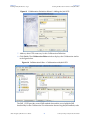
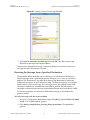
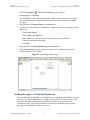
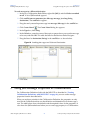
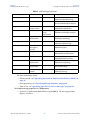
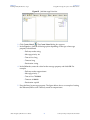
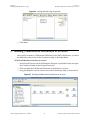
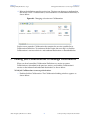
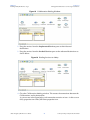
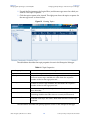
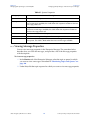
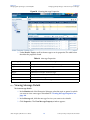
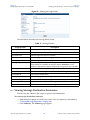
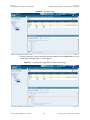
Chapter 4 Installing Third-Party and SRE JMS IQ Manager Support To be able to design ICAN Projects with third-party message servers such as WebSphere JMS and WebLogic JMS, you must install separate .sar files. If you do not install these files, the options to create third-party message servers will be unavailable in the Enterprise Designer. If you need to connect to an SRE JMS IQ Manager, you must also upload a separate .sar file to be able to design your Project in Enterprise Designer with the SRE JMS IQ Manager. This chapter describes how you install message server .sar files. What’s in This Chapter “Installing Message Server .sar Files” on page 38 “Additional Instructions for WebLogic” on page 39 4.1 Installing Message Server .sar Files During the eGate Integrator installation process, the Enterprise Manager, a web-based application, is used to select and upload products as .sar files from the eGate installation CD-ROM to the Repository. To install message server .sar files For details for the steps below, refer to the SeeBeyond ICAN Suite Installation Guide. 1 Install and start the Repository. 2 Upload license.sar to the Repository. 3 Upload eGate.sar and other product .sar files to the Repository. 4 Download components (such as Enterprise Designer and Logical Host). 5 Click any Browse button on the Enterprise Manager Upload page and upload the following files: To use WebLogic JMS, upload weblogic.sar and weblogicjmsmessageserver.sar. eGate Integrator JMS Reference Guide 38 SeeBeyond Proprietary and Confidential