1
BACKING UP YOUR PC
Ed Schwartz
January 2012
Why should you back up?
• Do you have any data that can’t be easily recreated?
• If you PC crashes do you want to be back online in
minutes instead of hours?
• It’s only a matter of time before you have a hardware
failure or malware attack.
Backup “musts”
• It must be easy
• Let’s face it, if it’s not easy or automated you won’t do it.
• It must be performed regularly
• If you create data or email regularly you better put it in a safe place
• It must be secure
• It should be backed up and stored away from the PC
• It must be backed up in more than one place
• Online companies go out of business
• External hard drives, CDs and DVDs do fail
Some Definitions
• Data backup
• This backs up the stuff you create, i.e., documents, pictures, videos
and music. Also Favorites, email and on and on.
• Entire hard drive or image backup
• This backs up Windows and your installed programs (everything)
• Hard drive image
• An image is a complete bit-for-bit copy of your hard drive
• Types of backup
• Local – backup to external hard drive or DVD
• Online – use an Internet service
• Network – use a NAS box (Networked Attached Storage)
What should you use?
• Tools built into Windows 7
• They’re good but there are better tools
• 3rd party tools
• Tools for backing up data
• Tools for backing up entire hard drive
Backup strategy
• Backup your data often
• Backup your hard drive periodically
• Why should you do this?
• If your PC crashes you can be back on the air in 10 to 20 minutes.
Otherwise, it’s hours if at all.
• If you backup your data weekly, the most you’ll lose is a week’s
worth of data
Restoring
• When you restore your entire hard drive, you go back in
time to last backup.
• That’s why you have to backup data frequently.
• After restoring the hard drive you must restore recent data
• Example
• You backup your hard drive Sept 1st
• March 1st your PC crashes
• If you restore just your hard drive, all data created since Sept 1st is
lost. If you backup your data frequently, then nothing is lost.
Compressed versus Uncompressed backups
• Hard drive backups are usually compressed
• Data backups should be uncompressed
• Allows individual files and folders to be restored at any time
• Windows Backup uses compression. Individual file restoration not
possible
What do you need?
• External hard drive - $89 and up
• Hard drive backup software - $49 or the free Macrium
•
•
•
•
Reflect or Paragon programs
Or – just use Windows 7 Backup
Data backup program - $50 for the best paid one or good
free one, Back4Sure at http://www.ukrebs-software.de/
Some time to do it
Is it worth it?
• Only you can answer this.
What do PC manufacturers provide?
• Usually they don’t provide a Windows installation
disc.
• They often provide recovery media.
• This recovers your PC to the “as bought” condition.
• All data and stuff you added is gone.
• Not a pleasant way to go.
• They also may provide recovery software
• Usually on a hidden partition.
• Call your manufacturer
Check your work
• Make a trial data backup with just a few files
• Navigate to the drive where you backed up
• Make sure the files are really there
• Make sure you can restore the files or folders to the
original location
What tools should you use?
• Hard drive backup software (imaging program)
• Acronis True Image Home Edition – currently $49
• Paragon Disk Manager Free
• Data backup
• Back4Sure free software
• Genie Backup Home Addition – currently $49
• Software bundled with external hard drive
• It may or may not do what you want
• External hard drive
• Western Digital or Seagate
• Should buy USB 3.0
Windows Backup tools – part 1
• See online tutorial on Windows 7 Backup at
•
•
•
•
•
http://windowssecrets.com/top-story/build-a-completewindows-7-safety-net/
Make sure you have an external hard drive connected
Click Start and type Backup and select Backup and
Restore
Choose to create system image on the left or backup files
on the right
Remember – you have to create a system repair disk to
boot your PC prior to restoring an image
See next slide
Windows
Backup tools –
part 2
After viewing or printing
the instructions from the
online tutorial you’re set
to go.
Windows Backup tools – part 3
Online backup services
• There are several good services
• Some are free up to 5 gigabytes
• Examples
• Carbonite*, Mozy*, Sugarsync** (my favorite)
• DropBox* (different then the above)
• TimelineCloud at www.timelinecloud.com
• Read reviews at http://bit.ly/backupsites
• More reviews at http://bit.ly/backupsites2
Note
* indicates that I’ve tried it
** indicates my current backup solution
How much online storage do you need?
• This is what Mozy Home says about 50 GB ($5.99 per
month)
• 6,250,000 text emails plus
• 7,500 photos plus
• 8,500 music files, and
• 1,000 videos
• Your results may vary
• Misc. stats
• A full 8 gig memory card can hold 8 gigabytes (surprise)
• 1000 MP3 songs require 4 gigabytes
• 10,000 Word or Excel files require 1 gigabyte
• It’s the videos that require a lot of storage
• If you shoot RAW photos, they require 5 times that of JPGs
Online companies
Online FAQ
Other devices you should know about
• ClickFree Transformer at http://www.clickfree.com/
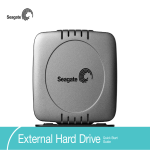
• Seagate Replica at http://www.seagate.com/replica/
• Back in a Flash at http://www.backinaflash.com/
• Rebit external drive at http://rebit.com/
• Network Attached Storage (NAS) at http://bit.ly/nasbox2
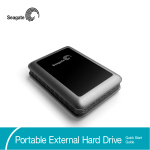
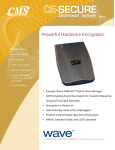
• CMS Backup System at http://www.cmsproducts.com
• Caution – do a thorough review online before purchasing.
Are backup programs difficult to learn?
• It takes a little effort and a possible Tech Support call
• Of course you have to suffer a little bit but only once
• The suffering is much worse when you loose precious
data or photos or have to reinstall Windows
Email choice makes a difference
• If you use Internet mail such as Outlook, Outlook Express
or Windows Live Mail you will have to backup Address
Book and email messages.
• If you use Web mail you don’t need to backup your email,
ever. Gmail or Yahoo are examples.
Various media types
• Assume you have 4 Giga Bytes memory cards to backup
Media type
Number
of cards
Cost/Card
CD
0.2
$1.00 (need 5 CDs)
DVD
1
$.50
DVD Dual Layer
2
$.251
Blu-ray Disc
6
$.202
500 GB External Drive
125
$.603,4
1.
2.
3.
4.
All disc costs based on Amazon prices
Blu-ray writer costs $69 to $89 dollars
External hard drive costs $69 to $89 dollars
You pay for convenience and speed
How to tell how much data you have
• Navigate to a folder you want to backup
• Right-click it and select Properties
• You will be shown the size of the folder and its subfolders
as shown below. In this case it’s 3 GB
What I did with new PC
• Bought new HP desktop PC
• Backed up entire PC with Shadow Protect imaging
software to external hard drive (storagecraft.com)
• Could have used Windows 7 Backup – just click Start and type
backup and select Backup and Restore at the top.
• I also created a set of Restore DVDs using the HP
program. I will never use these.
What I did cont.
• Repartitioned my hard drive
• I then set up my desktop, installed Antivirus software
• Next, I installed all my programs
• Then, I made another backup
• I was now ready to use my PC knowing that I could
restore it at any time
• I clicked Start and entered diskmgmt.msc to examine my
hard drive
• Saw Recovery partition – see Figure 4.
What else I did
• Found out that pressing F11 key during startup opened
HP Recovery Manager. This allows me to restore PC to
factory conditions. I hope to never use this.
Backup Figure 1
• Figure 1 – I selected Backup and Restore and on the next
window, I selected Create a system image. Save image to
external hard drive.
Backup Figure 2
• Figure 2 - I clicked Start, All Programs, HP, Recovery
Manager. Your PC may vary.
Backup Figure 3
• HP Recovery bootup
Backup Figure 4
• Clicked Start – and entered diskmgmt.msc.
Notice that my
hard drive is
partitioned into
two drives, C and
D
Recovering data from a crashed PC
• Method 1
• Connect hard drive directly to another PC
• Search Google for IDE/SATA USB Adapter less than $20
• Method 2
• Use a recovery CD
• Paragon Rescue Kit Free at http://www.paragon-software.com/home/rk-
express/download.html
• LiveCD from www.livecd.com for $79.95
• Requires use of external hard drive to save data
Consequences of not backing up
• Precious data could be lost forever
• You may have to reinstall Windows, see link here
• You may have to restore PC to original condition and
perform the following (several hours)
• Restore data
• Install and update Anti Virus
• Update Windows
• Install all of your applications
• Install any utilities such as Adobe Reader, etc.
• Redo any Windows settings
• Setup your email
Warning
• Here’s what Microsoft states
• When you restore your computer from a Windows Complete PC Backup image, it is a complete
restoration. You can't choose individual items to restore, and all of your current programs,
system settings, and files are replaced. No fun.
• This is also true if you use manufacturer’s Recovery Media
• But – if your image is recent since you created it yourself – no problem
Obtaining the free Paragon Backup part 1
• Download Paragon Backup & Recovery Free from
http://www.paragon-software.com/home/br-free/
• The download file is named Br_free.msi
• After downloading the file, double click it to install the
software. Be sure to click the Register button and you will
then register the software, it’s free. You will then get an
email with the registration data.
• Next, run the program and click the Advanced button in
the lower left
Obtaining the free Paragon Backup part 2
• Select Tools, Recovery Media Builder as shown below to
create the bootable Recovery CD.
• Place a blank CD in your CD player/burner and follow the
instructions
• Put the CD in a safe place
Obtaining the free Paragon Backup part 3
• To create an image of your hard drive boot from the
Recovery CD
• Select Backup and on the next window select your C drive
and click Next.
Obtaining the free Paragon Backup part 4
• You’ll then be asked to select a backup drive where you
can choose a location on your external hard drive.
• If you should ever need to restore your PC, boot from the
recovery CD and choose Restore.
• The help manual is available at Paragon’s web site.
Select User Manual on the left.
• Should you need help, call Paragon at 1-888-347-5462.
Start with the Sales department before asking for Tech
Support.
Advanced - Making backup/restore easier
• Repartition your hard drive so that you have a C drive and
a D drive (it may be a letter other than D)
• Now store all data on that partition including
• Pictures, documents, etc.
• Email if appropriate (Windows Live Mail or Outlook)
• iTunes library
• Any other similar data
• This will leave all of the data alone if you need to restore
your hard drive.
• Also, you can backup and restore images or data on the
D drive in addition to external hard drives.
My biased opinion
• Don’t use the Dell Data Safe or Dell Backup or HP’s programs
• Don’t worry about creating Restore Media (CDs and DVDs)
• After you get your PC running you’ll create a backup image with the
Paragon software or other imaging software. All you need to get
started is a blank CD, imaging software and an external hard drive.
• Do this at least every 3 months. You can discard image files that are 6
months old.
• Back up your data to the same external hard drive weekly with
Back4Sure available at http://www.ukrebs-software.de/ for free.
• You’re now safely backed up.
One example of what can go wrong
• You own an iPad and have downloaded several or many
•
•
•
•
apps
Your hard crashes
You haven’t moved the iTunes to your D drive
You have a lot of work to do to get back to where you
were
No so if iTunes is moved to another drive
Conclusions part 1
• If you have anything worth saving – back it up
• It doesn’t matter how – just do something
• The only safe backup is at least 3 copies
• External hard drives do fail, so do CDs and DVDs
• One local backup and one online backup makes sense.
Redundancy is the key.
Conclusions part 2
• Purchase an external hard drive
• Get your PC the way you want it
• Create a disk image
• Use Windows 7 tool or Acronis True Image or Paragon Free
• Backup your data
• Use Windows Backup or use free Back4Sure
• Consider online backup for free for double protection
• Partition your hard drive for maximum flexibility
Resources
• Go to my web site at www.edwardns.com
• Click Courses, Windows 7
• See section labeled Backing up and Recovery
• On-line article at http://bit.ly/backingup7
• Free backup software at http://bit.ly/freebackupsw
• Free paragon program at http://bit.ly/paragonfree
• How to build a Windows safety net at http://bit.ly/w7safetynet
• Checklist for backing up at http://edwardns.com/blog/checklist-for-
backing-up
• Backup Windows Live Mail at http://bit.ly/bulivemail
• Best free CD/DVD burning software at http://cdburnerxp.se/en/home
• Cybercafe backup article at http://bit.ly/scbackup