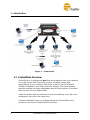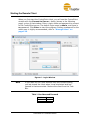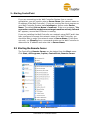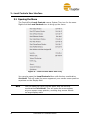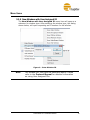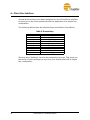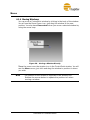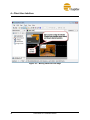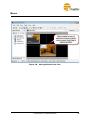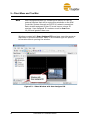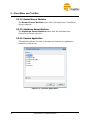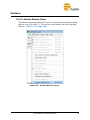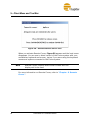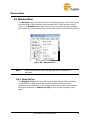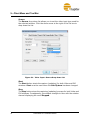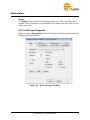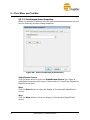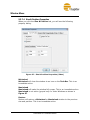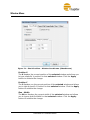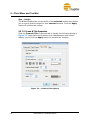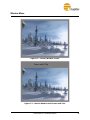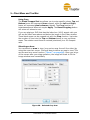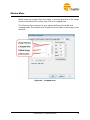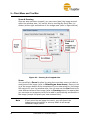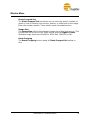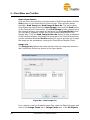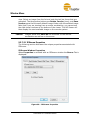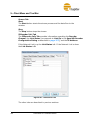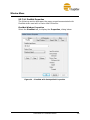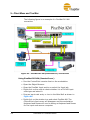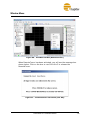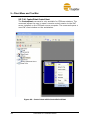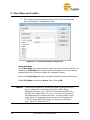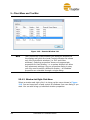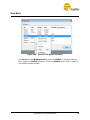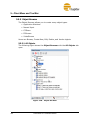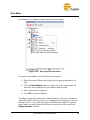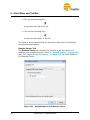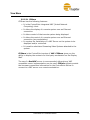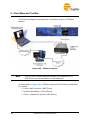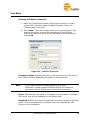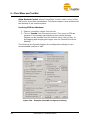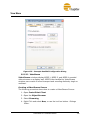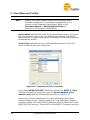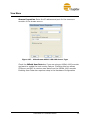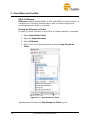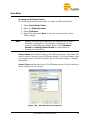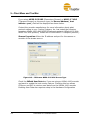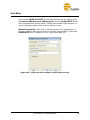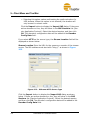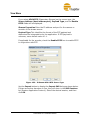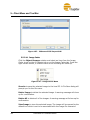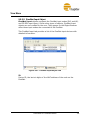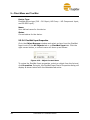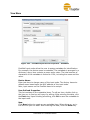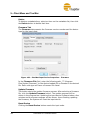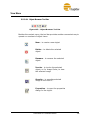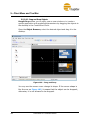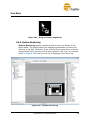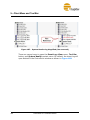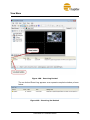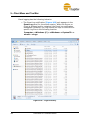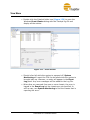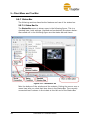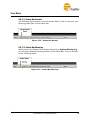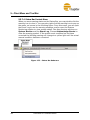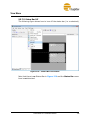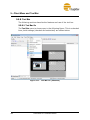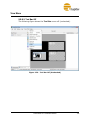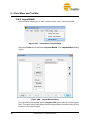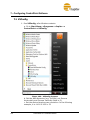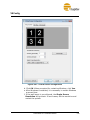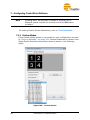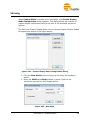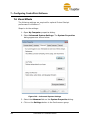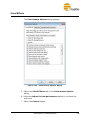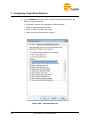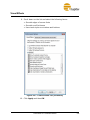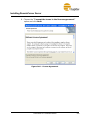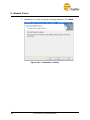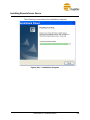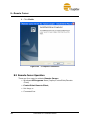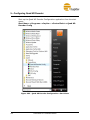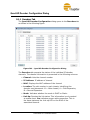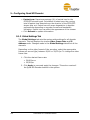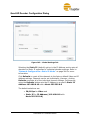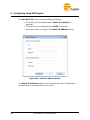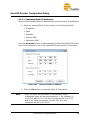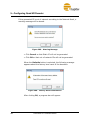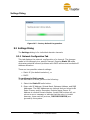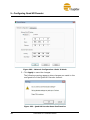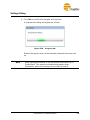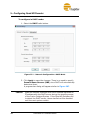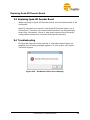
1
Jupiter Systems ControlPoint Software Manual 2.11 March 28, 2013 A-FC0-000-00, Rev. Q Copyright Copyright Copyright © 2013 Jupiter Systems. This document is copyrighted with all rights reserved. Notice of Regulatory Compliance Note: This equipment has been tested and found to comply with the limits for a Class A digital device, pursuant to Part 15 of the FCC rules. These limits are designed to provide reasonable protection against harmful interference when the equipment is operated in a commercial environment. This equipment generates, uses, and can radiate radio frequency (RF) energy and, if not installed and used in accordance with the instructions, may cause harmful interference to radio communications. Operation of this equipment in a residential area is likely to cause harmful interference in which case users will be required to correct the interference at their expense. The user is cautioned that changes or modifications not expressly approved by Jupiter Systems can void the user’s authority to operate this equipment. The entire risk of the use or the result of the use of this Hardware and Software and documentation remains with the User. Information in this document is subject to change without notice. No part of this document may be reproduced, transmitted, transcribed, stored in a retrieval system, or translated into any language in any form or by any means, electronic or mechanical, including photocopying without express written permission of Jupiter Systems. See also “Statement of Limited Warranty” on page v. Note: This product is intended for use on the following power systems: TN, IT (for Norway). Acknowledgements Jupiter Systems®, Jupiter logo®, and PixelNet® are registered trademarks of Jupiter Systems. Fusion Catalyst™, SVS-8™, and ControlPoint™ are trademarks of Jupiter Systems. All non-Jupiter brands and names are the property of their respective owners. Jupiter Systems 31015 Huntwood Avenue Hayward, CA 94544-7007 510-675-1000 (v) 510-675-1001 (f) [email protected] [email protected] 510-675-1007 (v) ControlPoint 2.11 Software Manual iii Warranty Statement of Limited Warranty FOR JUPITER FUSION CATALYST DISPLAY WALL CONTROLLERS and PIXELNET HARDWARE Jupiter Systems warrants that the Fusion Catalyst Display Wall Controllers sold by Jupiter are free from defects in material and workmanship and will perform in accordance with the product specification for a period of 24 months from the date of shipment from Jupiter Systems. This warranty is in effect whether the product was purchased directly from Jupiter or through an authorized Jupiter distributor. Any product becoming defective within the time period specified will be repaired or replaced, at Jupiter’s option and at Jupiter’s factory or authorized repair center. The defective product must be returned to Jupiter or to the Jupiter authorized repair center at the expense of the customer. Expense for the return shipment of the product to the customer within the U.S. will be borne by Jupiter. Products returned to Jupiter must have a Return Merchandise Authorization (RMA) number. To obtain an RMA number contact the Jupiter repair service center at the phone number listed on the Copyright page. PRODUCTS SHIPPED TO JUPITER WITHOUT A RETURN AUTHORIZATION NUMBER WILL NOT BE ACCEPTED. JUPITER’S TOTAL LIABILITY UNDER THIS WARRANTY SHALL BE LIMITED TO THE REPAIR OR REPLACEMENT OF THE DEFECTIVE PRODUCT OR, AT JUPITER’S OPTION, RETURN OF THE PRODUCT TO JUPITER FOR A REFUND OF THE FULL PURCHASE PRICE. THE ABOVE WARRANTY IS THE ONLY WARRANTY APPLICABLE TO JUPITER’S PRODUCTS AND IS THE CUSTOMER’S SOLE AND EXCLUSIVE REMEDY FOR ANY DEFECT IN THE PRODUCTS. Jupiter does not warrant the product for fitness for any particular purpose or application. Jupiter has no liability for statements of functionality, performance, or configurability beyond the written product specification for the specific Jupiter product. Jupiter shall not be held liable for incidental, indirect, consequential, general or special damages resulting from the use or the inability to use or the failure of a Jupiter product used in any application. No warranty, including this warranty, shall apply to any Jupiter products that have been modified in any way, by any organization other than the Jupiter factory. The warranty is void for products that have been subjected to misuse, improper maintenance, negligence, and/ or damage by excessive current, temperature, or accident. Jupiter neither assumes nor authorizes any representative or other person to assume for Jupiter any other warranty or liability in connection with the sale or shipment of Jupiter products. Jupiter reserves the right to make changes or improvements in its products without incurring any obligation to similarly alter products previously purchased. ControlPoint 2.11 Software Manual v Warranty Software Warranty and Special Provisions Limited Warranty Jupiter Systems warrants that the SOFTWARE will perform substantially in accordance with the accompanying written materials for a period of ninety (90) days from the date of sale. Any implied warranties on the SOFTWARE are limited to ninety (90) days. Customer Remedies Jupiter Systems’ entire liability and your exclusive remedy shall be, at Jupiter Systems’ option, either (a) return of the price paid, or (b) repair or replacement of the SOFTWARE that does not meet this Limited Warranty and which is returned to Jupiter Systems with a copy of your receipt or purchase order number. This Limited Warranty is void if failure of the SOFTWARE has resulted from accident, abuse, or misapplication. Any replacement SOFTWARE will be warranted for the remainder of the original warranty period or thirty (30) days, whichever is longer. No Other Warranties To the maximum extent permitted by applicable law, Jupiter Systems disclaims all other warranties, either expressed or implied, including but not limited to implied warranties of merchantability and fitness for a particular purpose, with regard to the SOFTWARE and the accompanying written materials. No Liability for Consequential Damages To the maximum extent permitted by applicable law, in no event shall Jupiter Systems or its suppliers be liable for any damages whatsoever (including without limitation, special, incidental, consequential, or indirect damages for personal injury, loss of business, profits, business interruption, loss of business information, or any other pecuniary loss) arising out of the use of or inability to use this product, even if Jupiter Systems has been advised of the possibility of such damages. In any case, Jupiter Systems’ entire liability under any provision of this agreement shall be limited to the amount actually paid by you for the SOFTWARE. vi ControlPoint 2.11 Software Manual License Agreement Software License Agreement Please review the following terms and conditions before installing or using the software supplied. By opening the software package or by installing the software or by using the installed software, you indicate your acceptance of such terms and conditions. In the event you do not agree to these terms and conditions, you may not use the software, and should promptly contact Jupiter Systems. This Software License Agreement (the Agreement) grants you a non-exclusive license to use the software supplied to you by Jupiter Systems (JUPITER), including software that may be owned by third parties and licensed to Jupiter, with the right to distribute and sublicense, which software (the Software) may be supplied to you on removable media, and/or as part of the equipment supplied by JUPITER. The Agreement also imposes certain restrictions on your use of the Software. You may use the Software only on the equipment with which or for which it was supplied. For internal backup purposes, you may make copies of the Software on removable media but you may not use a copy on another piece of equipment and you may not transfer these copies to any other party. You may not make any other copies of the Software and you may not make any other copies of the written materials accompanying the Software and/or the equipment supplied by JUPITER. You may not sublicense any rights granted in the Agreement. You may not transfer the Software, except upon: (i) a transfer of this License Agreement; (ii) a transfer of the JUPITER hardware equipment with which the Software was supplied; (iii) your providing the transferee with a copy of this Agreement; (iv) the transferee accepting the terms and conditions of the Agreement. If you transfer the Software to another party, you must at the same time either transfer all copies whether in printed or computer readable form to the same party or destroy any copies not transferred. Include all modifications and portions of the Software contained or merged into other programs. You must also reproduce and include the copyright notice on any copy. You agree to comply with all laws of the United States regarding the export and/or re-export of the software. All intellectual property rights in the Software and user documentation are owned by JUPITER and/or its licensors and are protected by United States copyright laws, other applicable copyright laws, other applicable proprietary rights laws (including but not limited to trade secret laws) and international treaty provisions. YOU MAY NOT USE, COPY, MODIFY OR TRANSFER THE SOFTWARE OR ANY COPY THEREOF, IN WHOLE OR PART, EXCEPT AS EXPRESSLY PROVIDED FOR IN THIS AGREEMENT. TO THE EXTENT PERMITTED BY APPLICABLE LAW, YOU MAY NOT DECOMPILE, REVERSE ENGINEER, OR DISASSEMBLE THE SOFTWARE, IN WHOLE OR IN PART. IF YOU TRANSFER POSSESSION OF THE SOFTWARE, ANY COPY OR ANY PORTION THEREOF, TO ANOTHER PARTY, YOUR LICENSE IS AUTOMATICALLY TERMINATED. ControlPoint 2.11 Software Manual vii License Agreement JUPITER retains ownership of the Software (except those portions that may be owned by third parties which retain the ownership thereof) and no rights are granted to you other than a license to use on the terms expressly set forth in the Agreement. As defined in FAR section 2.101, DFAR section 252.227-7014(a)(1) and DFAR section 252.2277014(a)(5) or other foreign government regulations regulating the use of commercial software by such government or otherwise, all software and accompanying documentation provided in connection with this Agreement are “commercial items”, “commercial computer software” and/or “commercial computer software documentation”. Consistent with DFAR section 227.7202, FAR section 12.212, and other applicable foreign government regulation, any use, modification, reproduction, release, performance, display, disclosure or distribution thereof by or for the U.S. or other foreign government shall be governed solely by the terms of this Agreement and shall be prohibited, except to the extent expressly permitted by the terms of this Agreement. You shall ensure that each copy used or possessed by or for the government is labeled to reflect the foregoing. Upon any violation of any of the provisions of the Agreement, your rights to use the Software shall automatically terminate and you shall be obligated to return the Software to JUPITER or to destroy all copies of the Software. If you destroy such Software, you agree to send JUPITER written notification of such destruction. This Agreement shall be governed by California law, other than its provisions concerning the applicability of laws of other jurisdictions. The only warranties are those specifically granted by JUPITER pursuant to its Standard Terms and Conditions of Sale, which are expressly incorporated herein. The liability of JUPITER, and its licensors, is specifically limited as set forth in these Standard Terms and Conditions of Sale. YOU ACKNOWLEDGE THAT YOU HAVE READ THIS AGREEMENT, UNDERSTAND IT, AND AGREE TO BE BOUND BY ITS TERMS AND CONDITIONS; YOU FURTHER AGREE IT IS THE COMPLETE AND EXCLUSIVE STATEMENT OF THE AGREEMENT BETWEEN US WHICH SUPERSEDES ANY PROPOSAL OR PRIOR AGREEMENT, ORAL OR WRITTEN AND BY ANY OTHER COMMUNICATIONS BETWEEN US RELATING TO THE SUBJECT MATTER OF THIS AGREEMENT. viii ControlPoint 2.11 Software Manual License Agreement Open Source Software Notice This product contains software that is subject to the following GNU General Public License version 3. You can obtain a copy of the license from: http://www.gnu.org/licenses/ VLC media player executable: http://www.videolan.org/vlc/download-sources.html This program is free software: you can redistribute it and/or modify it under the terms of the GNU General Public License as published by the Free Software Foundation, either version 3 of the License, or (at your option) any later version. This program is distributed in the hope that it will be useful, but WITHOUT ANY WARRANTY; without even the implied warranty of MERCHANTABILITY or FITNESS FOR A PARTICULAR PURPOSE. The source is available for a charge covering the cost of providing the distribution, such as the cost of media, shipping, and handling upon e-mail request to Jupiter Systems at [email protected]. THERE IS NO WARRANTY FOR THE PROGRAM, TO THE EXTENT PERMITTED BY APPLICABLE LAW. EXCEPT WHEN OTHERWISE STATED IN WRITING THE COPYRIGHT HOLDERS AND/OR OTHER PARTIES PROVIDE THE PROGRAM "AS IS" WITHOUT WARRANTY OF ANY KIND, EITHER EXPRESSED OR IMPLIED, INCLUDING, BUT NOT LIMITED TO, THE IMPLIED WARRANTIES OF MERCHANTABILITY AND FITNESS FOR A PARTICULAR PURPOSE. THE ENTIRE RISK AS TO THE QUALITY AND PERFORMANCE OF THE PROGRAM IS WITH YOU. SHOULD THE PROGRAM PROVE DEFECTIVE, YOU ASSUME THE COST OF ALL NECESSARY SERVICING, REPAIR OR CORRECTION. IN NO EVENT UNLESS REQUIRED BY APPLICABLE LAW OR AGREED TO IN WRITING WILL ANY COPYRIGHT HOLDER, OR ANY OTHER PARTY WHO MODIFIES AND/OR CONVEYS THE PROGRAM AS PERMITTED ABOVE, BE LIABLE TO YOU FOR DAMAGES, INCLUDING ANY GENERAL, SPECIAL, INCIDENTAL OR CONSEQUENTIAL DAMAGES ARISING OUT OF THE USE OR INABILITY TO USE THE PROGRAM (INCLUDING BUT NOT LIMITED TO LOSS OF DATA OR DATA BEING RENDERED INACCURATE OR LOSSES SUSTAINED BY YOU OR THIRD PARTIES OR A FAILURE OF THE PROGRAM TO OPERATE WITH ANY OTHER PROGRAMS), EVEN IF SUCH HOLDER OR OTHER PARTY HAS BEEN ADVISED OF THE POSSIBILITY OF SUCH DAMAGES. ControlPoint 2.11 Software Manual ix Using this Manual Using this Manual Introduction Chapter titles are at the top of every page to assist you in finding sections. The Table of Contents is a section, chapter, and heading outline of the manual; whereas, the comprehensive index at the end of the manual guides you through a search of subjects, figures, and tables. Note and Caution This manual uses three special entries to get your attention: • Note • Caution • Warning These entries are listed in their ascending order of importance. The examples shown are found throughout this manual. Note Notes are entries that bring your attention to specific items that you must see, read, and understand before continuing. Caution Cautions are entries that alert you to items that may cause the system to not operate properly. For instance, tasks that were either done out of sequence or not supposed to be done at all may cause the system to malfunction. Cautions also alert you about physical connections that can cause the system to not operate properly. Warning Warnings are entries that bring to your attention items that may physically damage the system. ControlPoint 2.11 Software Manual xi Table of Contents Copyright . . . . . . . . . . . . . . . . . . . . . . . . . . . . . . . . . . . . . . . . iii Warranty . . . . . . . . . . . . . . . . . . . . . . . . . . . . . . . . . . . . . . . . . v Using this Manual . . . . . . . . . . . . . . . . . . . . . . . . . . . . . . . . . . ix Chapter 1. Introduction . . . . . . . . . . . . . . . . . . . . . . . . . . . . . 1 1.1 ControlPoint Overview . . . . . . . . . . . . . . . . . . . . . . . . . . . . . . . . . . . . . . . . . . 2 1.1.1 System Windows Awareness and Control . . . . . . . . . . . . . . . . . . . . 3 1.1.2 The Properties Dialog-Box . . . . . . . . . . . . . . . . . . . . . . . . . . . . . . . 3 1.1.3 Window Properties in the Status-Bar . . . . . . . . . . . . . . . . . . . . . . . . 3 1.1.4 System Health in the Status-Bar . . . . . . . . . . . . . . . . . . . . . . . . . . . 3 1.2 What ControlPoint Does . . . . . . . . . . . . . . . . . . . . . . . . . . . . . . . . . . . . . . . . . 5 Chapter 2. Starting ControlPoint . . . . . . . . . . . . . . . . . . . . . . 7 2.1 Starting the Local Controls . . . . . . . . . . . . . . . . . . . . . . . . . . . . . . . . . . . . . . . 8 2.2 Starting the Remote Client . . . . . . . . . . . . . . . . . . . . . . . . . . . . . . . . . . . . . . 10 2.3 Starting the Remote Cursor . . . . . . . . . . . . . . . . . . . . . . . . . . . . . . . . . . . . . . 12 Chapter 3. Local Controls User Interface . . . . . . . . . . . . . . 15 3.1 Opening the Menu . . . . . . . . . . . . . . . . . . . . . . . . . . . . . . . . . . . . . . . . . . . . 16 3.2 Menu Items . . . . . . . . . . . . . . . . . . . . . . . . . . . . . . . . . . . . . . . . . . . . . . . . . . 17 3.2.1 New Video Window . . . . . . . . . . . . . . . . . . . . . . . . . . . . . . . . . . 17 3.2.2 New DVI Capture Window . . . . . . . . . . . . . . . . . . . . . . . . . . . . . . 17 3.2.3 New CPShare Window . . . . . . . . . . . . . . . . . . . . . . . . . . . . . . . . . 17 3.2.4 New IPStream Window . . . . . . . . . . . . . . . . . . . . . . . . . . . . . . . . . 17 3.2.5 New VideoStream Window . . . . . . . . . . . . . . . . . . . . . . . . . . . . . . 17 3.2.6 New Web Window . . . . . . . . . . . . . . . . . . . . . . . . . . . . . . . . . . . . . 18 ControlPoint 2.11 Software Manual xiii Contents 3.2.7 New PictureViewer Window . . . . . . . . . . . . . . . . . . . . . . . . . . . . . 18 3.2.8 New PixelNet Window . . . . . . . . . . . . . . . . . . . . . . . . . . . . . . . . . 18 3.2.9 New Window with User Assigned ID . . . . . . . . . . . . . . . . . . . . . . 19 3.2.10 Layouts . . . . . . . . . . . . . . . . . . . . . . . . . . . . . . . . . . . . . . . . . . . . . 20 3.2.11 Window List . . . . . . . . . . . . . . . . . . . . . . . . . . . . . . . . . . . . . . . . 24 3.2.12 Close all Windows . . . . . . . . . . . . . . . . . . . . . . . . . . . . . . . . . . . . 26 3.2.13 Quit Server . . . . . . . . . . . . . . . . . . . . . . . . . . . . . . . . . . . . . . . . . . 26 3.3 Opening Window Properties in Local Controls . . . . . . . . . . . . . . . . . . . . . . 27 Chapter 4. Client User Interface . . . . . . . . . . . . . . . . . . . . . 29 4.1 Menus . . . . . . . . . . . . . . . . . . . . . . . . . . . . . . . . . . . . . . . . . . . . . . . . . . . . . . 30 4.1.1 Menu Appearance . . . . . . . . . . . . . . . . . . . . . . . . . . . . . . . . . . . . . 30 4.1.2 Background Context Menu . . . . . . . . . . . . . . . . . . . . . . . . . . . . . . 32 4.1.3 Menu Structure and Shortcut Keys . . . . . . . . . . . . . . . . . . . . . . . . 34 4.1.4 Moving Windows . . . . . . . . . . . . . . . . . . . . . . . . . . . . . . . . . . . . . 37 4.1.5 Sizing Windows . . . . . . . . . . . . . . . . . . . . . . . . . . . . . . . . . . . . . . . 40 4.1.6 Menu Selection . . . . . . . . . . . . . . . . . . . . . . . . . . . . . . . . . . . . . . . 42 4.1.7 Window Menu . . . . . . . . . . . . . . . . . . . . . . . . . . . . . . . . . . . . . . . . 42 4.1.8 Window Icon . . . . . . . . . . . . . . . . . . . . . . . . . . . . . . . . . . . . . . . . . 44 4.2 Opening Window Properties . . . . . . . . . . . . . . . . . . . . . . . . . . . . . . . . . . . . 45 4.3 Selecting Windows . . . . . . . . . . . . . . . . . . . . . . . . . . . . . . . . . . . . . . . . . . . . 49 Chapter 5. Client Menu and Tool Bar . . . . . . . . . . . . . . . . . . 51 5.1 File Menu . . . . . . . . . . . . . . . . . . . . . . . . . . . . . . . . . . . . . . . . . . . . . . . . . . . 52 5.1.1 Connect to . . . . . . . . . . . . . . . . . . . . . . . . . . . . . . . . . . . . . . . . . . . 53 5.1.2 Disconnect . . . . . . . . . . . . . . . . . . . . . . . . . . . . . . . . . . . . . . . . . . . 54 5.1.3 Open Connection . . . . . . . . . . . . . . . . . . . . . . . . . . . . . . . . . . . . . . 55 5.1.4 Save (Connection) As . . . . . . . . . . . . . . . . . . . . . . . . . . . . . . . . . . 57 5.1.5 Exit . . . . . . . . . . . . . . . . . . . . . . . . . . . . . . . . . . . . . . . . . . . . . . . . . 57 5.2 Wall Menu . . . . . . . . . . . . . . . . . . . . . . . . . . . . . . . . . . . . . . . . . . . . . . . . . . 58 5.2.1 New Video Window . . . . . . . . . . . . . . . . . . . . . . . . . . . . . . . . . . . 58 5.2.2 New DVI Capture Window . . . . . . . . . . . . . . . . . . . . . . . . . . . . . . 59 5.2.3 New CPShare Window . . . . . . . . . . . . . . . . . . . . . . . . . . . . . . . . . 59 5.2.4 New VideoStream Window . . . . . . . . . . . . . . . . . . . . . . . . . . . . . . 59 5.2.5 New IPStream Window . . . . . . . . . . . . . . . . . . . . . . . . . . . . . . . . . 59 5.2.6 New Web Window . . . . . . . . . . . . . . . . . . . . . . . . . . . . . . . . . . . . . 59 5.2.7 New PictureViewer Window . . . . . . . . . . . . . . . . . . . . . . . . . . . . . 60 5.2.8 New PixelNet Window . . . . . . . . . . . . . . . . . . . . . . . . . . . . . . . . . 60 5.2.9 New Window with User-Assigned ID . . . . . . . . . . . . . . . . . . . . . . 60 5.2.10 Event Scheduler . . . . . . . . . . . . . . . . . . . . . . . . . . . . . . . . . . . . . . 63 5.2.11 Synchronize . . . . . . . . . . . . . . . . . . . . . . . . . . . . . . . . . . . . . . . . . 65 xiv ControlPoint 2.11 Software Manual Contents 5.3 5.4 5.5 5.6 5.7 5.8 5.9 5.2.12 Close all Windows . . . . . . . . . . . . . . . . . . . . . . . . . . . . . . . . . . . . 65 5.2.13 Close Server . . . . . . . . . . . . . . . . . . . . . . . . . . . . . . . . . . . . . . . . . 65 5.2.14 Restart Server Machine . . . . . . . . . . . . . . . . . . . . . . . . . . . . . . . . 66 5.2.15 Shutdown Server Machine . . . . . . . . . . . . . . . . . . . . . . . . . . . . . 66 5.2.16 Execute Application . . . . . . . . . . . . . . . . . . . . . . . . . . . . . . . . . . . 66 5.2.17 Activate Remote Cursor . . . . . . . . . . . . . . . . . . . . . . . . . . . . . . . 67 Window Menu . . . . . . . . . . . . . . . . . . . . . . . . . . . . . . . . . . . . . . . . . . . . . . . 69 5.3.1 Bring On Top . . . . . . . . . . . . . . . . . . . . . . . . . . . . . . . . . . . . . . . . . 69 5.3.2 Send to Back . . . . . . . . . . . . . . . . . . . . . . . . . . . . . . . . . . . . . . . . . 70 5.3.3 Restore . . . . . . . . . . . . . . . . . . . . . . . . . . . . . . . . . . . . . . . . . . . . . . 70 5.3.4 Minimize . . . . . . . . . . . . . . . . . . . . . . . . . . . . . . . . . . . . . . . . . . . . 70 5.3.5 Maximize . . . . . . . . . . . . . . . . . . . . . . . . . . . . . . . . . . . . . . . . . . . . 70 5.3.6 Close (Window) . . . . . . . . . . . . . . . . . . . . . . . . . . . . . . . . . . . . . . . 70 5.3.7 Properties . . . . . . . . . . . . . . . . . . . . . . . . . . . . . . . . . . . . . . . . . . . . 71 User Menu . . . . . . . . . . . . . . . . . . . . . . . . . . . . . . . . . . . . . . . . . . . . . . . . . . 125 5.4.1 Change Password . . . . . . . . . . . . . . . . . . . . . . . . . . . . . . . . . . . . 125 5.4.2 Manage Users . . . . . . . . . . . . . . . . . . . . . . . . . . . . . . . . . . . . . . . 126 View Menu . . . . . . . . . . . . . . . . . . . . . . . . . . . . . . . . . . . . . . . . . . . . . . . . . 128 5.5.1 Wall View . . . . . . . . . . . . . . . . . . . . . . . . . . . . . . . . . . . . . . . . . 129 5.5.2 Layouts . . . . . . . . . . . . . . . . . . . . . . . . . . . . . . . . . . . . . . . . . . . . . 130 5.5.3 Window Properties . . . . . . . . . . . . . . . . . . . . . . . . . . . . . . . . . . . 136 5.5.4 Window List . . . . . . . . . . . . . . . . . . . . . . . . . . . . . . . . . . . . . . . . 136 5.5.5 Object Browser . . . . . . . . . . . . . . . . . . . . . . . . . . . . . . . . . . . . . . 140 5.5.6 System Monitoring . . . . . . . . . . . . . . . . . . . . . . . . . . . . . . . . . . . 187 5.5.7 Status Bar . . . . . . . . . . . . . . . . . . . . . . . . . . . . . . . . . . . . . . . . . . . 192 5.5.8 Tool Bar . . . . . . . . . . . . . . . . . . . . . . . . . . . . . . . . . . . . . . . . . . . . 196 5.5.9 Options . . . . . . . . . . . . . . . . . . . . . . . . . . . . . . . . . . . . . . . . . . . . . 198 Tools Menu . . . . . . . . . . . . . . . . . . . . . . . . . . . . . . . . . . . . . . . . . . . . . . . . . 200 5.6.1 Control VNC Host . . . . . . . . . . . . . . . . . . . . . . . . . . . . . . . . . . . . 200 5.6.2 Screen Test Pattern . . . . . . . . . . . . . . . . . . . . . . . . . . . . . . . . . . . 201 5.6.3 Layout Batch . . . . . . . . . . . . . . . . . . . . . . . . . . . . . . . . . . . . . . . 206 Help and About . . . . . . . . . . . . . . . . . . . . . . . . . . . . . . . . . . . . . . . . . . . . . . 208 5.7.1 Server Info . . . . . . . . . . . . . . . . . . . . . . . . . . . . . . . . . . . . . . . . . . 209 5.7.2 About . . . . . . . . . . . . . . . . . . . . . . . . . . . . . . . . . . . . . . . . . . . . . . 211 Tool Bar . . . . . . . . . . . . . . . . . . . . . . . . . . . . . . . . . . . . . . . . . . . . . . . . . . . 211 Tool Bar Icon Definitions . . . . . . . . . . . . . . . . . . . . . . . . . . . . . . . . . . . . . . 213 Chapter 6. System Restore . . . . . . . . . . . . . . . . . . . . . . . . 215 6.1 Restoring the Fusion Catalyst Display Wall Processor . . . . . . . . . . . . . . . 215 6.2 Procedure . . . . . . . . . . . . . . . . . . . . . . . . . . . . . . . . . . . . . . . . . . . . . . . . . . 216 ControlPoint 2.11 Software Manual xv Contents Chapter 7. Configuring ControlPoint Software . . . . . . . . . 217 7.1 VSConfig . . . . . . . . . . . . . . . . . . . . . . . . . . . . . . . . . . . . . . . . . . . . . . . . . . 218 7.1.1 Custom Modes . . . . . . . . . . . . . . . . . . . . . . . . . . . . . . . . . . . . . . 220 7.2 Factory Defaults . . . . . . . . . . . . . . . . . . . . . . . . . . . . . . . . . . . . . . . . . . . . . 231 7.2.1 SD Video Tab . . . . . . . . . . . . . . . . . . . . . . . . . . . . . . . . . . . . . . . 231 7.3 Advanced Tab . . . . . . . . . . . . . . . . . . . . . . . . . . . . . . . . . . . . . . . . . . . . . . . 232 7.4 Device Map . . . . . . . . . . . . . . . . . . . . . . . . . . . . . . . . . . . . . . . . . . . . . . . . 234 7.5 System Recovery . . . . . . . . . . . . . . . . . . . . . . . . . . . . . . . . . . . . . . . . . . . . 235 7.6 Visual Effects . . . . . . . . . . . . . . . . . . . . . . . . . . . . . . . . . . . . . . . . . . . . . . . 238 7.7 Uninstalling ControlPoint . . . . . . . . . . . . . . . . . . . . . . . . . . . . . . . . . . . . . . 242 7.8 Updating ControlPoint . . . . . . . . . . . . . . . . . . . . . . . . . . . . . . . . . . . . . . . 245 7.9 Installing RemoteClient . . . . . . . . . . . . . . . . . . . . . . . . . . . . . . . . . . . . . . . 252 Chapter 8. Remote Cursor . . . . . . . . . . . . . . . . . . . . . . . . . 259 8.1 8.2 8.3 8.4 8.5 8.6 8.7 Introduction to Remote Cursor . . . . . . . . . . . . . . . . . . . . . . . . . . . . . . . . . 259 Installing RemoteCursor Server . . . . . . . . . . . . . . . . . . . . . . . . . . . . . . . . . 260 Remote Cursor Operation . . . . . . . . . . . . . . . . . . . . . . . . . . . . . . . . . . . . . . 266 Remote Cursor Icon and Context Menu . . . . . . . . . . . . . . . . . . . . . . . . . . . 270 Remote Cursor Login . . . . . . . . . . . . . . . . . . . . . . . . . . . . . . . . . . . . . . . . . 271 Multiple Connections . . . . . . . . . . . . . . . . . . . . . . . . . . . . . . . . . . . . . . . . . 272 Features and Limitations . . . . . . . . . . . . . . . . . . . . . . . . . . . . . . . . . . . . . . . 273 Chapter 9. Configuring Quad HD Decoder . . . . . . . . . . . . . 275 9.1 Quad HD Decoder Configuration Dialog . . . . . . . . . . . . . . . . . . . . . . . . . . 275 9.1.1 Decoders Tab . . . . . . . . . . . . . . . . . . . . . . . . . . . . . . . . . . . . . . . . 277 9.1.2 Global Settings Tab . . . . . . . . . . . . . . . . . . . . . . . . . . . . . . . . . . . 278 9.2 Settings Dialog . . . . . . . . . . . . . . . . . . . . . . . . . . . . . . . . . . . . . . . . . . . . . . 283 9.2.1 Network Configuration Tab . . . . . . . . . . . . . . . . . . . . . . . . . . . . . 283 9.3 Replacing Quad HD Decoder Board . . . . . . . . . . . . . . . . . . . . . . . . . . . . . 287 9.4 Troubleshooting . . . . . . . . . . . . . . . . . . . . . . . . . . . . . . . . . . . . . . . . . . . . . 287 Index of Figures . . . . . . . . . . . . . . . . . . . . . . . . . . . . . . . . . 289 Index of Tables . . . . . . . . . . . . . . . . . . . . . . . . . . . . . . . . . . 299 Index . . . . . . . . . . . . . . . . . . . . . . . . . . . . . . . . . . . . . . . . . . 301 xvi ControlPoint 2.11 Software Manual Chapter 1—Introduction 1. Introduction ControlPoint™ (CP) gives you the capability of controlling all Display Wall windows from a single interface that can be used both locally and remotely. The remote or local control capabilities of ControlPoint allow you to control your Display Wall from the desktop of the Display Controller itself, as well as from remote consoles in your display room. ControlPoint 2.11 Software Manual 1 1—Introduction Figure 1 - ControlPoint 1.1 ControlPoint Overview ControlPoint is a client/server pair that work together over your network (or locally on the Wall Controller) to allow complete control and manipulation of your windows. The server is part of the ControlPoint Software installed on your Wall Controller System. The client software must be installed on every workstation that will have control of windows that are open on your Display Wall. A Wall Controller may be connected to and controlled by more than one workstation, but not at the same time. A single workstation may run multiple instances of ControlPoint and connect to and control multiple Wall Controllers. 2 ControlPoint 2.11 Software Manual ControlPoint Overview The current screen configuration of all open windows is saved when the system goes through normal shut down procedures. Upon restarting, this configuration will be loaded and all windows will be re-opened. 1.1.1 System Windows Awareness and Control ControlPoint tracks all open windows. The user can move, resize, minimize, restore, and change the order of all system windows. 1.1.2 The Properties Dialog-Box The dialog-box features Apply and Cancel buttons outside the property pages. These buttons apply to whatever page is currently active. Switching pages automatically attempts to apply the changes, but should it fail, the page remains active and in edit mode. You can leave the page by either successfully applying the changes or canceling the edits (with the Cancel button). Some controls are immediate so that the user does not have to click the Apply button to apply changes from that control. Most of the spin controls, radio buttons and list-boxes are controls that can be immediately applied. Edit boxes set the dialog in edit mode when you start typing. You can then switch between edit controls and entering data, completing the transaction by clicking the Apply button. If you click on an immediate apply control while in edit mode the dialog-box will try to apply the changes you have made up to that point. 1.1.3 Window Properties in the Status-Bar The status-bar displays basic attributes of the currently selected window – the window title, window type (Video, DVI or System), the position, size, and the window ID. 1.1.4 System Health in the Status-Bar The status-bar displays the current system health (status). The status is derived from the system monitoring state and the alarms in the event log. • Green – normal operation • Yellow – warning • Red – failure, immediate attention is needed. When a new condition occurs with higher severity than the current status, the icon will blink. Once the event is acknowledged, the icon will become solid. ControlPoint 2.11 Software Manual 3 1—Introduction Double clicking on the icon acknowledges the new events. Right mouseclick on the icon brings up a menu, which can activate the event log, the system monitoring dialog, or acknowledge the new events. 4 ControlPoint 2.11 Software Manual What ControlPoint Does 1.2 What ControlPoint Does ControlPoint displays a simulated copy of your Display Wall on your remote system, or on the Display Wall if used locally. By moving and sizing the window icons of your DVI and Video windows within the ControlPoint window, you control the size and position of the selected window on the display wall. ControlPoint allows full control over such parameters as channels, image balance, start, stop, and freeze, titling of window frame (if used), as well as their size and position. ControlPoint also lets you control add, delete, and hide your windows. ControlPoint incorporates both login security, as well as user level security. Figure 2 - ControlPoint Connection ControlPoint 2.11 Software Manual 5 Chapter 2—Starting ControlPoint 2. Starting ControlPoint ControlPoint can be operated in two ways: From the Local Controls or from a Client. The icon in the System Tray is for the Local Controls. By default, start the ControlPoint Server manually. The Client may also be run locally on the Wall Controller System. Install the Client on a Windows system (workstation) in order to use it remotely. Note ControlPoint Server is located in: C:\Program Files (x86)\Jupiter\ControlPoint\CPServer.exe ControlPoint Client is located in: C:\Program Files (x86)\Jupiter\ControlPoint\CPClient.exe ControlPoint 2.11 Software Manual 7 2—Starting ControlPoint 2.1 Starting the Local Controls The Local Controls is started automatically when you start (or restart) the Server. The icon in the System Tray is for the Local Controls. Figure 3 - Tray Icons 8 ControlPoint 2.11 Software Manual Starting the Local Controls Right click on the ControlPoint Local Controls icon in the System Tray to bring up the Local Controls menu. Figure 4 - Local Controls Menu The items in the Local Controls Menu are discussed in following sections. ControlPoint 2.11 Software Manual 9 2—Starting ControlPoint 2.2 Starting the Remote Client The ControlPoint Remote Client can be started from the Start menu. Click Start, All Programs, Jupiter, ControlPoint, Remote Client. You may also start the Remote Client and run it locally. Figure 5 - ControlPoint Menu 10 ControlPoint 2.11 Software Manual Starting the Remote Client When you first start the ControlPoint client, you will see the ControlPoint window with the Connect to Server… dialog (shown in the following page) on top of that window. Enter a login name and password to connect to the ControlPoint server. The default login name is admin, and there is no password. Click Enter to start the program. Setting a password for the admin user is highly recommended; refer to “Manage Users” on page 126. Figure 6 - Login Window Note If you start the CP Client and see only this Connect dialog, you last closed the client when it was minimized and has opened in that same state. Restore the client from the Task Bar. Table 1: User Name and Password User Name Password admin (none) ControlPoint 2.11 Software Manual 11 2—Starting ControlPoint If you are connecting to the Wall Controller System from a remote workstation, you will need to enter a Server Name (the network name or IP address of the Wall Controller). If you are running the client program on your Wall Controller System leave localhost as shown under Server Name. The default Server Name is localhost. If the error message, "No connection could be made because target machine actively refused it." appears, ensure that CPServer is running. If you are installing the Wall Controller on a network using DHCP and it has been configured to accept the network name of the Wall Controller, you should be able to enter this network name in Server Name. If this does not work, run IPconfig from a command window on the Wall Controller to determine its IP address and enter this in Server Name. 2.3 Starting the Remote Cursor The ControlPoint Remote Cursor can be started from the Start menu. Click Start, All Programs, Jupiter, ControlPoint, Remote Cursor. Figure 7 - Start RemoteCursor 12 ControlPoint 2.11 Software Manual Starting the Remote Cursor Remote Cursor will allow you to use your local (remote Windows system) mouse and keyboard to remotely control the display as if they were the keyboard and mouse of the display Wall Controller itself. There are four ways to activate Remote Cursor: • Windows All Programs Menu (Jupiter/ControlPoint/Remote Client) • ControlPoint Remote Client, • Hot keys, or • Command line. For more information on Remote Cursor, refer to “Remote Cursor” on page 259. ControlPoint 2.11 Software Manual 13 Chapter 3—Local Controls User Interface 3. Local Controls User Interface There are two separate user interfaces in ControlPoint, one for the Local Controls and one for the Client. This section covers the Local Controls user interface, the following sections cover the Client user interface. ControlPoint 2.11 Software Manual 15 3—Local Controls User Interface 3.1 Opening the Menu The ControlPoint Local Controls uses a System Tray icon for its menu. Right-click the Local Controls icon to bring up the menu. Figure 8 - Local Controls Menu with Tray You can also open the Local Controls Menu with the key combination Ctrl+Alt+M. This will make the menu appear at your mouse cursor position anywhere on the Display Wall. Note 16 You can open the Local Controls Menu with the Hot Key combination Ctrl+Alt+M. This will make the menu appear at your mouse cursor position, avoiding long mouse travels on large display walls. ControlPoint 2.11 Software Manual Menu Items 3.2 Menu Items The Local Controls has a simple menu as shown in “Local Controls Menu with Tray” on page 16. The items in this menu will be described in the following sections. Note also, the keyboard commands associated with menu items. 3.2.1 New Video Window Clicking the New Video Window menu item (or pressing Ctrl+Alt+V) will open a Video window on the desktop at position (0, 0). Video windows will always open in their native size. It is left to the operator to scale the Video window to the size needed. 3.2.2 New DVI Capture Window Clicking the New DVI Capture Window menu item (or pressing Ctrl+Alt+R) will open a DVI window on the desktop at position (0,0). DVI windows will always be open at a default size of 640x480. It is left to the operator to set the DVI window to the size needed. 3.2.3 New CPShare Window Clicking the New CPShare Window menu item (or pressing Ctrl+Alt+P) will immediately open a CPShare window on the desktop at position (0,0). Note that this window will not have content until a CPShare object is created and selected for this window. Please refer to All Objects for detailed information. 3.2.4 New IPStream Window Clicking the New IPStream Window menu item (or pressing Ctrl+Alt+I) will open an IPStream window on the desktop at position (0,0). This window will not have content until an IPStream object is created and selected for this window. 3.2.5 New VideoStream Window Clicking the New VideoStream Window menu item (or pressing Ctrl+Alt+S) will open a VideoStream window on the desktop at position (0,0). This window will not have content until a VideoStream object is created and selected for this window. VideoStream windows cannot be overlapped; therefore, when opening a VideoStream window, the system will automatically find a suitable place large enough for the window. ControlPoint 2.11 Software Manual 17 3—Local Controls User Interface 3.2.6 New Web Window Clicking the New Web Window menu item (or pressing Ctrl+Alt+B) will immediately open a Web window on the desktop at position (0,0). Note that this window will not have content until a Web window object is created and selected into this window. Please refer to All Objects for detailed information. 3.2.7 New PictureViewer Window Clicking the New PictureViewer Window menu item (or pressing Ctrl+Alt+T) will immediately open a PictureViewer window on the desktop at position (0,0). Note that this window will not have content until a path to an image to be displayed has been entered. The window properties will open along with the window, allowing you to enter the path. Please refer to All Objects for detailed information. 3.2.8 New PixelNet Window Clicking the New PixelNet Window menu item (or pressing Ctrl+Alt+N) will immediately open a PixelNet window on the desktop at position (0,0). Note that this window will not have content until a PixelNet input source is entered for this window. Please refer to All Objects for detailed information. 18 ControlPoint 2.11 Software Manual Menu Items 3.2.9 New Window with User Assigned ID The New Window with User-Assigned ID menu item will open as a submenu for window type. After selecting the window type, the dialog shown below, will open requesting an ID number for the window. Figure 9 - Enter Window ID Note The window will then open as described above. Please refer to the Protocol Manual for detailed information on using User Assigned IDs. ControlPoint 2.11 Software Manual 19 3—Local Controls User Interface 3.2.10 Layouts Clicking the Layouts menu item (or pressing Ctrl+Alt+L) will open the Layouts dialog shown below. Figure 10 - Local Controls Layouts Dialog From the dialog you can Apply a Layout selected from the Available Layouts list, Save a Layout, Delete a selected Layout, Assign a HotKey to a saved layout, or Close the dialog. Enter a Layout Name to save a new layout or select one to resave. Note You must enable "Show Hidden Files..." option under Folder Options in your system to see any files used in ControlPoint. For example, layouts are saved in C:\Program Data\ControlPoint\ServerDataFiles\layouts Refer to “5.2.10.2 Layout Event Properties” for more information. Note 20 Layouts can also be used to restrict permissions for viewing certain parts of the wall for selected users. ControlPoint 2.11 Software Manual Menu Items 3.2.10.1 Delete Layout Select a layout from Available Layouts and click the Delete button to remove a layout from the list. You will get a confirmation dialog (shown below). Notice that the title bar indicates that you are using the Local UI (User Interface). Figure 11 - Delete Layout Confirmation 3.2.10.2 Save Layout Select a layout from the Available Layouts list or enter a name in the Layout Name box and click the Save button to save your layout. If you attempt to save a layout with the same name as an existing layout, or resave an existing layout, you will get the confirmation dialog show in the following figure. Figure 12 - Save Layout Confirmation Layouts are saved with an xml extension on the file. This makes it a simple task to create layouts and copy them to several systems. ControlPoint 2.11 Software Manual 21 3—Local Controls User Interface 3.2.10.3 Assign Hot Key Select a layout from the Available Layouts list and click the Assign Hot Key… button to bring up the Assign Hot Key dialog. Figure 13 - Assign Hot Key Dialog Figure 13 shows the default dialog for assigning a hot key to selected layout. Notice that the input box says None. If you click OK now, you will clear the Hot Keys assigned to the selected layout. To assign a Hot Key press the keys that you want to use to activate the selected layout. The keystroke combination will show in the input box as you press them. This is shown in the following figure. Figure 14 - Hot Key Assigned Click OK to lock in the assigned Hot Key. 22 ControlPoint 2.11 Software Manual Menu Items The following figure shows the Layout List with the illustrated layout showing the assigned hot key, Alt+F5. Figure 15 - Hot Key Showing in Layout List 3.2.10.4 Close Layout The Close button closes the Layouts dialog. 3.2.10.5 Apply Layout Select a layout from the Available Layouts list and click the Apply button to apply that layout. All existing windows and property boxes will be closed before the new layout is opened. ControlPoint 2.11 Software Manual 23 3—Local Controls User Interface 3.2.11 Window List Clicking the Window List menu item (or pressing Ctrl+Alt+W) will open the Window List dialog shown below. Figure 16 - Window List Note The Local Controls Window List will display only ControlPoint Windows (e.g., DVI or Video windows) and Windows stuff. Selecting a window in the Window List will also show the corresponding window in the wall mimic as selected. Conversely, selecting a window in the mimic will show the window in the Window List as selected. 24 ControlPoint 2.11 Software Manual Menu Items 3.2.11.1 Window List Right Click Menu Select a window and right-click it to bring up the menu shown in Figure 17. You can keep track of and control all windows from one dialog if you wish. You can also bring up individual window properties. Figure 17 - Window List Right-Click Menu ControlPoint 2.11 Software Manual 25 3—Local Controls User Interface 3.2.12 Close all Windows Clicking the Close all Windows menu item will close open windows on the desk top. • Only windows that have a system menu can be closed with ControlPoint Delete Window. This excludes menus, tool tip pop-ups, and other temporary pop-up windows. • Only ControlPoint windows will be closed • Only applications registered as objects and run by that object will be closed. Close All Windows will display the following confirmation dialog. Figure 18 - Close All Windows Confirmation 3.2.13 Quit Server Clicking the Quit Server menu item closes the actual ControlPoint Server process running on the system and ends the connection with the remote system. If selected, you will get the close server confirmation shown in the figure below. You can restart the server through the Start menu (refer to "Figure 5 - ControlPoint Menu"). Figure 19 - Quit Server Confirmation 26 ControlPoint 2.11 Software Manual Opening Window Properties in Local Controls Note Quitting the server will close all ControlPoint windows on the Display Wall. 3.3 Opening Window Properties in Local Controls When working with the Local Controls on the Wall Controller System, you can open the properties for any window on the desktop by double clicking the image area of the respective window. You can also open Properties by right-clicking the window image and selecting Properties from the menu or by right-clicking the window in the Window List and selecting Properties from the menu. Figure 20 - Open Window Property ControlPoint 2.11 Software Manual 27 3—Local Controls User Interface Please refer to “Properties” on page 71 for information on using window properties. 28 Note When working within the Local Interface, open separate Properties for each window. Note The values for X and W must be specified as even pixels, whereas, Y and H can accommodate both even and odd values. ControlPoint 2.11 Software Manual Chapter 4—Client User Interface 4. Client User Interface When you first run the ControlPoint Client, you will see a window similar to the one shown in the figure below. There are several ways to view the ControlPoint window (refer to “Window Menu” on page 42 for more information on setting up how you view your ControlPoint window). The ControlPoint window displays a scaled image of your Display Wall. Figure 21 - The ControlPoint Window ControlPoint 2.11 Software Manual 29 4—Client User Interface In the wall mimic area, note the dotted line splitting the window; this indicates that the system is set for four displays. The mimic area shows a display wall scaled into the ControlPoint window. The window icons are also scaled and show the relative size and position of the actual windows on the Display Wall. The user can simplify control of windows by titling them with meaningful names. 4.1 Menus There are five viewable menu areas within the ControlPoint Client • Menu Bar • Tool Bar • Wall Mimic background context • Window context • Status Bar context 4.1.1 Menu Appearance Menus are context sensitive and reflect whether a window icon is selected or not. In the following figure, the display reads No Window Properties because no window is selected. Figure 22 - No Window Selected Properties 30 ControlPoint 2.11 Software Manual Menus In Figure 23, you see that a window has been selected and most of the menu items are now active. Clicking on a window icon will select it. All items shown in the Window menu will be performed on the selected window. Figure 23 - Selected Item Menu Note All Window menu items are performed upon the selected window only. When no window is selected, the Window menu item will be removed from the Menu Bar. ControlPoint 2.11 Software Manual 31 4—Client User Interface 4.1.2 Background Context Menu Right-clicking on the ControlPoint window background will bring up the menu shown in the figure below. You can create new windows easily, as well as show the Window List. These items are explained in the following sections. Figure 24 - Background Context Menu 32 ControlPoint 2.11 Software Manual Menus 4.1.2.1 Drawing a Window When you select to draw a window, you will get a cross-hair cursor as shown in the following figure. You may now draw your window by clicking the mouse and dragging the box that is formed to the size you wish. The box size is scaled and the size is relative to the size of your ControlPoint window. Release the mouse button (stop the drag operation) when you get to the window size you desire. Figure 25 - Draw Video Window Once you have created the window, you can size it precisely with the Placement Properties or by adjusting the size of the window with the sizing handles on the window icon in the ControlPoint window. Refer to “Sizing Windows” on page 40 for more details. ControlPoint 2.11 Software Manual 33 4—Client User Interface 4.1.3 Menu Structure and Shortcut Keys The following tables show the menu structure for ControlPoint. You can also use the Table of Contents or the Index (Menu) to see the structure of the menus used in the ControlPoint client. Note In the following tables, Bold titles indicate sub-menus to follow and “>” indicates a sub-menu item. Table 2: ControlPoint Menu Structure File Wall Window User Connect to… New Video Window Bring on Top Change Password Disconnect... New DVI Capture Window Sent to Back Manage Users Open Connection New CPShare Window Restore Save As… New IPStream Window Exit New VideoStream Window Minimize New Web Window Close New PictureViewer Window Properties… New Window w/ User ID > Video Window > DVI Capture Window > CPShare Window > VideoStream Window > IPStream Window > Web Window > PictureViewer Window Event Scheduler… Synchronize Close All Windows Close Server 34 ControlPoint 2.11 Software Manual Menus File Wall Window User Restart Server Machine Shutdown Server Machine Execute Application… Activate Remote Cursor Table 3: ControlPoint Tools, View, and Help Menu Structure Tools Control VNC Host Screen Test Pattern Layout Batch View Wall View > Wall Aspect Ratio > Scale to Fit > Scale to 100% > Hide Mouse Pointer Layouts Window Properties. Window List Object Browser System Monitoring Event Log Status Bar Toolbar Toggle Grid Options… Help Server Info … About CPClient Table 4: Context Menus Context Background Draw Live Video Window Draw DVI Capture Window Draw CPShare Window Draw VideoStream Window Draw Web Window Draw PictureViewer Window Window List Enable Grid Context Window Icon Wall > Draw Live Video Window > Draw DVI Capture Window > Draw CPShare Window > Draw VideoStream Window > Draw Web Window > Draw PictureViewer Window > Window List > Enable Grid Bring on Top Sent to Back Restore Minimize Close Properties… ControlPoint 2.11 Software Manual 35 4—Client User Interface Several shortcut keys have been designed into the ControlPoint interface to allow you to do some operations with the application of a simple key combination. The following table shows the shortcut keys used within ControlPoint. Table 5: Shortcut Keys Key Combination Ctrl+Alt+M Ctrl+Alt+V Ctrl+Alt+R Ctrl+Alt+P Ctrl+Alt+S Ctrl+Alt+B Ctrl+Alt+T Ctrl+Alt+L Ctrl+Alt+W Ctrl+Alt+C Function Pops up local menu at cursor Opens new Video Window Opens new DVI Window Opens new CPShare Window Opens new VideoStream Window Opens new Web Window Opens new PictureViewer Window Opens the Layout dialog Opens the Window List dialog Remote Cursor Toggle Shortcut keys (HotKeys) can also be assigned to Layouts. This gives you the ability to open and apply a layout to your Display Wall with a simple key combination. 36 ControlPoint 2.11 Software Manual Menus 4.1.4 Moving Windows You can move a ControlPoint window by clicking in the body of the window. You will see the Move Cursor icon; just drag the window to the new position. You also have fine control when you move a selected window by using the arrow keys. Figure 26 - Moving a Window Directly Move the cursor over the window icon in the ControlPoint window. You will see the Move cursor, just click and drag the window to position it where you wish. Note The position of the window is reported in the window icon. Release the mouse button to update the position info when moving a window. ControlPoint 2.11 Software Manual 37 4—Client User Interface Figure 27 - Moving Window from Edge 38 ControlPoint 2.11 Software Manual Menus Figure 28 - Moving Window from Icon ControlPoint 2.11 Software Manual 39 4—Client User Interface 4.1.5 Sizing Windows You can size a ControlPoint windows by moving the mouse cursor to a size handle on the window and acquiring the size cursor. Figure 29 - Sizing a Window Directly Note 40 The size of the window reported in the window icon. Release the mouse button to update the size info when sizing a window. ControlPoint 2.11 Software Manual Menus Figure 30 - Sizing from Corner Figure 31 - Sizing a Window with ControlPoint ControlPoint 2.11 Software Manual 41 4—Client User Interface 4.1.6 Menu Selection You can open the Window menu in two ways. Click the Window menu item to pop open the window menu or right-click on the window icon. 4.1.7 Window Menu The Window menu is context sensitive. The menu depends on the type of window that is selected. The following figures show three examples of the Window menus. Figure 32 - CPShare Window Menu Bar Selection 42 ControlPoint 2.11 Software Manual Menus Figure 33 - Web Window Menu Bar Selection Figure 34 - Video Window Menu Bar Selection ControlPoint 2.11 Software Manual 43 4—Client User Interface 4.1.8 Window Icon The following figure shows an example of the Window menu by rightclicking the window icon. Figure 35 - Right-Click Window Icon Selection 44 ControlPoint 2.11 Software Manual Opening Window Properties 4.2 Opening Window Properties To open the properties dialog for a window, either right-click the window icon or open the Window menu item and select Properties at the bottom of the menu as shown in the figure below. Figure 36 - Select Properties Menu Hint Once you have opened a Properties dialog, you need only select a different window icon to change to that window’s Properties. You need not open another set of Properties as described above. ControlPoint 2.11 Software Manual 45 4—Client User Interface The three figures below show the opening Properties default Source page when opening properties for the respective window type, or with no window selected. Figure 37 - Default Property Page (Video) 46 ControlPoint 2.11 Software Manual Opening Window Properties Figure 38 - Default Property Page (DVI) ControlPoint 2.11 Software Manual 47 4—Client User Interface Figure 39 - Default Property Page (No Window Selected) 48 ControlPoint 2.11 Software Manual Selecting Windows 4.3 Selecting Windows The following figure illustrates the difference between window icons that are selected and window icons that are not selected. You need only click on a window icon to select it. A window must be selected for menu operations to be performed upon it. Note that the Web Window icon is not selected and the Video Window icon is selected. Figure 40 - Selecting Windows Note Once you have opened a Properties dialog, you need only select a different window icon to change to that window’s properties. ControlPoint 2.11 Software Manual 49 Chapter 5—Client Menu and Tool Bar 5. Client Menu and Tool Bar The following figure shows the ControlPoint menu bar. All items in the menu bar and all sub-menus are described in the following sections. Figure 41 - The Menu Bar ControlPoint 2.11 Software Manual 51 5—Client Menu and Tool Bar 5.1 File Menu The File menu is shown in the figure below. Sub-menu items are described in following sections and refer to this primary menu figure. Figure 42 - File Menu 52 ControlPoint 2.11 Software Manual File Menu 5.1.1 Connect to When you click on the Connect to… menu item you will see the dialog shown below. This item is provided to allow you to select the server you wish to connect to, as you may have more than one. Enter the name of the Jupiter Wall Controller. You can find this name by going to the Wall Controller, right-clicking My Computer, selecting Properties, and then the Network Identification tab. Look to the right of Full Computer Name – this is what you want to type into Server Name in the dialog box shown below. Use localhost (default) as shown in Figure 43 if you are going to control your windows locally on the Wall Controller System. A workstation may connect to more than one Wall Controller System. A Wall Controller may be controlled by more than one remote workstation. Figure 43 - Connect to… Dialog You will be required to enter a User Name and Password. These log-in parameters refer to the ControlPoint Server and NOT the Windows system to which you are connecting. ControlPoint keeps its own username/password list. The user-name/password given to you by the ControlPoint administrator may not be the same as those given to you for the Windows OS itself. The default login is admin (User Name) with no password. ControlPoint 2.11 Software Manual 53 5—Client Menu and Tool Bar 5.1.2 Disconnect Click Disconnect and you will be immediately disconnected from the server to which you have been connected. There is no confirmation dialog, disconnect is unconditional and absolute. Figure 44 - Disconnect Menu Item Figure 45 - Disconnect Warning 54 ControlPoint 2.11 Software Manual File Menu Figure 46 - Appearance of Window after Disconnect Figure 46 shows the disconnected status and has no scaled wall mimic. 5.1.3 Open Connection The Open Connection… menu item allows you to open a previously saved connection (refer to Save (Connection) As... in the following page). Figure 47 - Open Connection…Menu item ControlPoint 2.11 Software Manual 55 5—Client Menu and Tool Bar You will see the dialog shown below. Select a connection and click the Open button to open that connection. Figure 48 - Open Connection 56 ControlPoint 2.11 Software Manual File Menu 5.1.4 Save (Connection) As The Save As menu item allows you to save a connection. This action saves the User Name and Server Name (refer to Figure 43) as a file. The password is never saved. Figure 49 - Save (Connection) As…Dialog The Save Connection option saves you from having to remember Login names and Server name and their combinations. With a simple Connection Name like Joe-Server1, you can open the proper user name and server name, and then just enter your password. 5.1.5 Exit The Exit menu item will terminate the ControlPoint Client application, but leave any opened windows still open and operating on the Display Wall. This is the same as clicking the X button in the upper right corner. ControlPoint 2.11 Software Manual 57 5—Client Menu and Tool Bar 5.2 Wall Menu The Wall menu is shown open in the figure below. Sub-menu items are described in following sections and refer to this primary menu figure. Figure 50 - ControlPoint Wall Menu 5.2.1 New Video Window Clicking the New Video Window menu item (or pressing Ctrl+Alt+V) will open a Video window on the desktop at position (0,0). Video windows will always be open in their native size (e.g. NTSC = 640x480). The operator can scale the video window to the size needed. Video windows can be overlapped. 58 ControlPoint 2.11 Software Manual Wall Menu 5.2.2 New DVI Capture Window Clicking the New DVI Capture Window menu item (or pressing Ctrl+Alt+R) will immediately open a DVI window on the desktop at position (0, 0). DVI windows will always open at a default size of 640x480. The operator can set the DVI window to a desired size if needed. 5.2.3 New CPShare Window Clicking the New CPShare Window menu item (or pressing Ctrl+Alt+P) will immediately open a CPShare window on the desktop at position (0,0). Note that this window will not have content until a CPShare object is created and selected for this window. Please refer to ControlPoint Objects for detailed information. 5.2.4 New VideoStream Window Clicking the New VideoStream Window menu item (or pressing Ctrl+Alt+S) will immediately open a VideoStream window on the desktop at position (0,0). This window will not have content until a VideoStream object is created and selected for this window. VideoStream windows cannot be overlapped. When opening a VideoStream window, the system will automatically find a suitable place large enough for the window. 5.2.5 New IPStream Window Clicking the New IPStream Window menu item (or pressing Ctrl+Alt+I) will open an IPStream window on the desktop at position (0,0). This window will not have content until an IPStream object is created and selected for this window. 5.2.6 New Web Window Clicking the New Web Window menu item (or pressing Ctrl+Alt+B) will immediately open a Web window on the desktop at position (0,0). Note that this window will not have content until a Web window object is created and selected into this window. Please refer to ControlPoint Objects for detailed information. ControlPoint 2.11 Software Manual 59 5—Client Menu and Tool Bar 5.2.7 New PictureViewer Window Clicking the New PictureViewer Window menu item (or pressing Ctrl+Alt+T) will immediately open an image window on the desktop at position (0,0). Note that this window will not have content until a path to an image to be displayed has been entered. The window properties will open along with the window, allowing you to enter the path. Please refer to ControlPoint Objects for detailed information. 5.2.8 New PixelNet Window Clicking the New PixelNet Window menu item (or pressing Ctrl+Alt+F) will immediately open a PixelNet window on the desktop at position (0,0). Note that this window will not have content until a PixelNet input source is entered for this window. Please refer to All Objects for detailed information. 5.2.9 New Window with User-Assigned ID The New Window with User-Assigned ID menu item (Figure 51) has seven sub-menu items: one for creating a new Video Window, DVI Capture Window, CPShare Window, VideoStream Window, Web Window, or the PictureViewer Window. The main purpose of the User-Assigned Window ID is for control of the Wall Controller System by serial devices, such as Touch Panel controllers (i.e. AMX or Crestron) through either a serial (RS232) or Ethernet connection. The instructions used by the Touch Panel to control the display wall will address the window by its unique ID number. All windows have a unique ID number. Windows opened manually through the menus or by the hot keys are referred to as ad hoc. Ad hoc Windows have ID numbers generated by the server (Server Assigned ID) and are always greater than 10,000. User-Assigned ID numbers will always be greater than 0 and less than 10,000. 60 ControlPoint 2.11 Software Manual Wall Menu Figure 51 - New Window with User-Assigned ID Menu Selection When you click one of the choices from the New Window with UserAssigned ID menu, you will be asked for a window ID, as shown in the figure below. Enter the ID number by the convention used by your organization and click OK. Figure 52 - Window ID Number Entry The User-Assigned window ID numbers must be unique and less than 10,000. An error message will be displayed if you attempt to create a Window ID Number that is the same as one already being used (not a unique number) Control of displayed windows by the a serial device or third party external program will must be by addressing the window through its ID number. ControlPoint 2.11 Software Manual 61 5—Client Menu and Tool Bar Note User-Assigned Window ID numbers are mainly for use by external devices that will be controlling windows on the Wall Controller System through an RS232 or network connection. Each window assigned a User ID must have a unique ID number. User-Assigned ID numbers must be less than 10,000 and greater than zero. Windows created with User Assigned ID numbers open the same as described in previous sections. Refer to the window type for specific information about opening the window. Figure 53 - Video Window with User Assigned ID 62 ControlPoint 2.11 Software Manual Wall Menu 5.2.10 Event Scheduler You can schedule layouts changes or execute third-party applications on a time schedule. Applications run through the ControlPoint Scheduler must be registered as Application Objects. Refer to the section on Objects for detailed information about Application Objects. 5.2.10.1 Scheduling a New Event To schedule a new event, open click the New Layout or New Application button, or open the context menu a blank area of the window. Figure 54 - Event Scheduler New Layout opens a new layout event dialog and New Application opens a new third-party application event dialog. All events have a unique event name and are triggered at the selected time. To edit an event, select the event from the event list and open Properties... from the context menu or double click the entry in the even list. ControlPoint 2.11 Software Manual 63 5—Client Menu and Tool Bar 5.2.10.2 Layout Event Properties When a new layout event is created or an existing event is open to edit, the event control opens as shown below. Figure 55 - Layout Event Properties Event Name specifies the name of the event object. Event object names must be unique. This field is enabled for editing when creating a new object and disabled when editing the properties of an existing object. ControlPoint automatically suggests a unique name when a new object is created. Run Event selects the type of schedule for the users. The choices are Weekly (repetitive schedule on the selected week-days, starting at a given time) or Once (one-time trigger at the specified date and time). Start Time specifies the trigger start time. Start Date specifies the date for the event (this field is only enabled for one-time triggers.) 64 ControlPoint 2.11 Software Manual Wall Menu Week Day specifies the weekdays on which a repetitive, weekly schedule will run. Mark the check-box for desired days for the event. Layout Name defines the layout to be applied when the event is triggered. Select a predefined layout from the drop-down list. Enabled specifies the event is enabled or disabled. 5.2.11 Synchronize The Synchronize menu item synchronizes the ControlPoint client with the ControlPoint Server. When saving changes in the Security Editor, the changes must also be saved in ControlPoint Client using the Synchronize menu item. Only then does the Client inherit all the changes in the Editor. 5.2.12 Close all Windows The Close All Windows menu item will close all ControlPoint windows on the desktop. 5.2.13 Close Server The Close Server menu item closes the CPServer process and closes the connection with any open ControlPoint Clients. Close Server also closes all ControlPoint windows open on the desktop. If selected, you will get the close server confirmation shown in the figure below. You can restart the server through the Start menu (refer to Figure 5). Figure 56 - Close Server Confirmation ControlPoint 2.11 Software Manual 65 5—Client Menu and Tool Bar 5.2.14 Restart Server Machine The Restart Server Machine menu item will restart the ControlPoint Server machine. 5.2.15 Shutdown Server Machine The Shutdown Server Machine menu item will shutdown the ControlPoint Server machine. 5.2.16 Execute Application This selection allows the user to browse and execute an application installed on the server. Figure 57 - Execute Application 66 ControlPoint 2.11 Software Manual Wall Menu 5.2.17 Activate Remote Cursor This selection activates Remote Cursor; it can also be activated pressing the hot keys (Ctrl+Atl+C). This hot key combination can be configured. Refer to “Options” on page 198. Figure 58 - Activate Remote Cursor ControlPoint 2.11 Software Manual 67 5—Client Menu and Tool Bar Figure 59 - Activate Remote Cursor Icon When you activate Remote Cursor, Figure 59 appears and the local cursor disappears. You are now in direct control of the Fusion system with your workstation keyboard and mouse, just as if you were using the keyboard mouse and system connected to the Fusion system. Note Remote Cursor requires direct visual contact with the display wall to be used. For more information on Remote Cursor, refer to "Chapter 8. Remote Cursor". 68 ControlPoint 2.11 Software Manual Window Menu 5.3 Window Menu The Window menu is shown open in the following figure. Sub-menu items are described in the following sections and refer to this primary menu figure. The Window menu may also be open by right-clicking a window icon within the ControlPoint Client window as shown in the following figure. Figure 60 - Window Menu Note The Window menu item only appears when a window is selected. 5.3.1 Bring On Top The Bring on Top menu item will pop a window above other windows. ControlPoint will always put the selected window above all other ControlPoint windows but is not guaranteed to do so with other windows that have been set for Always on top, or won’t allow changes in the stack. ControlPoint 2.11 Software Manual 69 5—Client Menu and Tool Bar 5.3.2 Send to Back The Send to Back menu item will send a window below all other windows. ControlPoint will always put the selected window behind all other ControlPoint windows but is not guaranteed to do so with other windows that have been set for Always on top, or won’t allow changes in the stack. 5.3.3 Restore The Restore menu item restores a window that has been Minimized to the Task Bar or has been Maximized, to its previous size. This is a standard Windows operation. 5.3.4 Minimize The Minimize menu item removes a window from the desktop and leaves it on the Task Bar. You can use the Restore item (above) if you have not selected another item. Click the Task Bar button to restore Minimized windows. This is a standard Windows operation. 5.3.5 Maximize The Maximize menu item expands a window to full screen size. Use the Restore item (above) to return the window to its original size. This is a standard Windows operation. You can also Restore a window by rightclicking on the window image itself and selecting Restore. You cannot Maximize Video and Steaming Video Windows. 5.3.6 Close (Window) The Close item will delete the currently selected window. If no window is selected, this operation will be grayed out (de-activated). There is no confirmation dialog associated with the Close operation – it will be deleted immediately and permanently. 70 ControlPoint 2.11 Software Manual Window Menu 5.3.7 Properties The Properties… menu item will bring up the properties for the selected window. Figure 61 - Selecting Window Properties When Properties is selected, the tabs presented within the properties will differ depending on the type of window selected. These differences can be seen in the following pages describing the different window Properties pages. • Video Window • DVI Capture Window • CPShare Window • Web Window • PictureViewer Window • IPStream Window • PixelNet Window ControlPoint 2.11 Software Manual 71 5—Client Menu and Tool Bar 5.3.7.1 Video Source Properties When you select Properties with a Video window selected, you will see the following property dialog displayed. Figure 62 - Video Source Properties—Source Tab Channel The Channel spinner allows you to select the input channel. The input Channel refers to the physical input connector number on the chassis Rear Panel (Refer to the Hardware Manual of the related Fusion system for more information). Changing the channel activates immediately. Sub-System The Sub-System radio buttons allow you to select the type of you wish to display in the selected window. Changing the type of window from Video to DVI Capture or from DVI Capture to Video will require you to restart the window (Start button). 72 ControlPoint 2.11 Software Manual Window Menu Note Changing the Sub-System type of a window from Video to DVI Capture or from DVI Capture to Video will require you to use the Start button to restart the capture process for the window. Format The Format drop-down list allows you to set the video format used for input for the selected window. Click the down arrow at the right of the list box to drop down the list. Figure 63 - Format Drop-down List ControlPoint 2.11 Software Manual 73 5—Client Menu and Tool Bar Source The Source drop-down list allows you to set the video input type used for the selected window. Click the down arrow at the right of the list box to drop down the list. Figure 64 - Video Input—Source Drop-down List Start The Start button starts the capture (updating) for both Video and DVI windows. Start must be used when the Sub-System has been changed. Stop The Stop button stops the capturing (updating) process for both Video and DVI windows. Consequently, the window changes to blue with the window channel displaying the word Stopped. 74 ControlPoint 2.11 Software Manual Window Menu Pause The Pause button acts like the pause button on a VCR, it will stop the update of the information in the window, but display the last video or DVI frame captured. 5.3.7.2 DVI Source Properties When you select Properties with a DVI selected, you will see the following property dialog displayed. Figure 65 - Source Properties (DVI) ControlPoint 2.11 Software Manual 75 5—Client Menu and Tool Bar 5.3.7.3 VideoStream Source Properties When you selected Properties with a VideoStream window selected you will see the following property dialog displayed. Figure 66 - Source Properties (VideoStream) VideoStream Source Click the down arrow to open the VideoStream Source list. Select a predefined streaming video source. Please refer to ControlPoint Objects for detailed information. Start Click the Start button to start the display of the selected VideoStream source. Stop Click the Stop button to stop the display of the selected VideoStream source. 76 ControlPoint 2.11 Software Manual Window Menu 5.3.7.4 Size & Position Properties When you click the Size & Position tab, you will see the following property dialog. Figure 67 - Size & Position Properties (Video) Minimized Minimized will close the window to an icon on the Task Bar. This is an immediate action. Maximized Maximized will make the window full screen. This is an immediate action. Maximized is not active (grayed out) for Video Windows as shown in Figure 67. Restore Restore will restore a Minimized or Maximized window to the previous size and position. This is an immediate action. ControlPoint 2.11 Software Manual 77 5—Client Menu and Tool Bar Always On Top ControlPoint maintains two separate Z-order stacks of windows – top-most and non-top. Windows from the top-most stack are always on top of nontop windows. Normal windows, as created by Windows or ControlPoint, are placed into the non-top stack. To promote a window to the top-most stack, check the Always On Top check-box. This effectively puts the window on top of all non-top windows. Bring on top and Send to back commands work relative to the stack of the window. For example, Bring on top for a non-top window will put the window on the top of the non-top stack, but still it will be below all topmost windows. Respectively, Send to back for a top-most window puts the window to the Bottom of the top-most stack, but still above all non-top windows. 78 ControlPoint 2.11 Software Manual Window Menu Interior and Windows Coordinates Interior Coordinates define the interior (image area) of the window. Window Coordinates define the exterior of the window, the total window rectangle including the title frame. Figure 68 - Interior and Windows Coordinates ControlPoint 2.11 Software Manual 79 5—Client Menu and Tool Bar Size & Position - Interior Coordinates Interior Coordinates define the interior (image area) of the window. Click on the Interior Coordinates tab to enter the position and size for the selected window. The coordinate set (X, Y) define the position of the image from the upper left corner of that image. The size (W, H) is the image size without the window frame and title. Figure 69 - Size & Position – Interior Coordinates (Video) Image SizeCustom The Image SizeCustom button allows you to select a specific size for your window from a set of predefined sizes based on the standard size of that window. When you click the Image Size button, you will see the list shown below. As you select a desired size, the system will apply the new setting automatically. 80 ControlPoint 2.11 Software Manual Window Menu Figure 70 - Size & Position – Image SizeCustom Table 6: Video Window Size by Format Half Normal 2x 4x 8x NTSC 320X240 640X480 1280X960 2560X1920 5120X3840 PAL 384X288 768X576 1536X1152 3072X2304 6144X4608 Note The Predefined Sizes are scaled from the original image. The size of the image is dependent upon the type of signal, video format for Video and the source resolution for DVI. Also, no image can be scaled larger than the available desktop area. ControlPoint 2.11 Software Manual 81 5—Client Menu and Tool Bar Position X The X box displays the current position of the selected window and allows you to type a specific X position for that selected window. Click the Apply button to activate the change. Position Y The Y box displays the current position of the selected window and allows you to type a specific Y Position for that selected window. Click the Apply button to activate the change. Size - Width The W box displays the current width of the selected window and allows you to type a specific Width for that selected window. Click the Apply button to activate the change. Size – Height The H box displays the current width of the selected window and allows you to type a specific Height for that selected window. Click the Apply button to activate the change. Lock Aspect Ratio Lock Aspect Ratio forces the window to preserve its current aspect ratio when resized; it locks the aspect ratio of the interior (the image portion). Note, that when this is enabled, the current aspect ratio of the window at the time of the operation is used and preserved from then on. Lock Aspect Ratio preserves the destination window aspect ratio, not the aspect ratio of the source signal. To lock the aspect ratio to the source signal, uncheck Lock Aspect Ratio, select Normal or Half Size, then select Lock Aspect Ratio. Note Selecting Lock Aspect Ratio locks the current aspect ratio (even if incorrect). Select Normal, then lock aspect ratio, and then set the size of your window. Size & Position - Window Coordinates Click on the Window Coordinates tab to view the position and size for the selected window. The Coordinate set (X, Y) control the position of the window relative to the top left corner of the window. This will include the Frame and Tile if one is applied. If no Frame is applied, the Internal and Window Coordinates will be the same. The size of the window is controlled by the W (width) and H (height) of the window including the frame. 82 ControlPoint 2.11 Software Manual Window Menu Figure 71 - Size & Position – Window Coordinates (VideoStream) Position X The X displays the current position of the selected window and allows you to type a specific X position for that selected window. Click the Apply button to activate the change. Position Y The Y displays you the current position of the selected window and allows you to type a specific Y Position for that selected window. Click the Apply button to activate the change. Size - Width The W box displays the current width of the selected window and allows you to type a specific Width for that selected window. Click the Apply button to activate the change. ControlPoint 2.11 Software Manual 83 5—Client Menu and Tool Bar Size – Height The H box displays the current width of the selected window and allows you to type a specific Height for that selected window. Click the Apply button to activate the change. 5.3.7.5 Frame & Title Properties Click the Frame & Title Properties tab to display the following dialog in Figure 72. Note that some functions are instantaneous while others require you to click the Apply button to activate the changes. Figure 72 - Frame & Title Options 84 ControlPoint 2.11 Software Manual Window Menu Figure 73 - Default Window Frame Figure 74 - Default Window with Frame and Title ControlPoint 2.11 Software Manual 85 5—Client Menu and Tool Bar Show Frame & Title Check this box to display the Frame and Title on the window. Uncheck this box to disable the frame and title for the window. Figure 73 shows a window with a default Frame. Figure 74 shows a window with a default Frame and Title. Title Text Type in the desired text for the window title. Title Bar Options Select a desired font name for the title text. Show Title Text Check this box to display the Title on the window. Font Select a desired font name for the title text. Font Size Select a desired font size for the title text. 86 ControlPoint 2.11 Software Manual Window Menu Text Alignment Click the buttons to set the text alignment on the title bar. Table 7: Text Alignment Left Justified Horizontal Center Justified Right Justified Top Justified Vertical Center Justified Bottom Justified Text Color Click on the arrow to select a desired color for the title text. You will see a drop down dialog for color selection. Title Bar Minimum Height Select a desired number of pixels for the minimum height of the title bar. If the selected font size is larger than the minimum height of the title bar the title bar will adjust to accommodate the larger text. Title on top of the window Sets the title bar on the top of the selected window. ControlPoint 2.11 Software Manual 87 5—Client Menu and Tool Bar Title at bottom of the window Sets the title bar at the bottom of the selected window. Frame Options Width Select the width of the frame. Figure 75 - Frame Options - Color Apply Note that some functions are instantaneous while others require you to click the Apply button to activate the changes. 88 ControlPoint 2.11 Software Manual Window Menu 5.3.7.6 Image Quality Properties Selecting the Image Quality Properties tab displays one of the following three property dialogs. The Figure 76 is for a Video window; Figure 77 is for a DVI window, and Figure 78 is for a Streaming window. Figure 76 - Image Quality Properties (Video) ControlPoint 2.11 Software Manual 89 5—Client Menu and Tool Bar Figure 77 - Image Quality Properties (DVI) 90 ControlPoint 2.11 Software Manual Window Menu Figure 78 - Image Quality Properties (VideoStream) Brightness Set the desired image brightness by clicking on and selecting the Brightness slider control. Brightness can be set from –100 to +100%. Brightness changes the image from a very bright image on one end to a very dark on the other end. Contrast Set the desired image Contrast by clicking on and selecting the Contrast slider control. Contrast can be set from 0 to 200%. Contrast changes the difference between the lightest and darkest areas of your image from a washed out to a very harsh image. Hue Set the desired image hue by clicking on and selecting the Hue slider control. Hue can be set from –180 to +180 degrees. Hue changes the color balance of your image from green on one end to purple on the other end. Adjust Hue for the best skin tones if you are viewing people, or the most natural looking image. Hue is not supported under the PAL format, is not available as an option for DVI windows, and is not available from VideoStream decoders. ControlPoint 2.11 Software Manual 91 5—Client Menu and Tool Bar Saturation Set the desired image saturation by clicking on and selecting the Saturation slider control. Saturation can be set from 0 to 200. Saturation changes your image from no color (black and white) to very saturated colors. Set the saturation for a normal representation of your image. Skin tone, if available, is a good reference. Saturation is not available as an option for DVI windows. Normal The Normal button will load basic control default values as shown in the Default column of the following table. Table 8: Image Quality Values 92 Parameter Min. Default Max. Brightness -100% 0 +100% Contrast 0% 100 200% Hue -180° 0° +180° Saturation 0% 100 200% ControlPoint 2.11 Software Manual Window Menu 5.3.7.7 Crop Properties Selecting the Crop Properties tab, displays the following property dialog. The Crop property allows you to crop (remove) areas from Video, DVI, and VideoStream images, zoom into that image, and pan around to view all areas of an image. Areas can be cropped separately from the top, each side, and the bottom of the image. A specific area of the image can be selected by drawing a box around it. You can then pan to see all areas of that image (zoom/pan). Figure 79 - Cropping Properties for Video and DVI Some DVD players will show two or three lines of non-video data at the top of the screen. This changing color pattern of data can be distracting. You can crop these lines out by entering the number of lines into the Top box. ControlPoint 2.11 Software Manual 93 5—Client Menu and Tool Bar Using Crop The Pixels Cropped Out box allows you to enter specific values. Top and Bottom boxes will represent lines cropped, while the Left and Right, boxes will represent pixel columns cropped. The Crop function is instantaneous and does not require Apply. The Reset Cropping button will return all values to zero. If you are playing a DVD that has the letter-box (16:9) aspect ratio you will see the black area above and below the image in the Video window. These black areas can be cropped out with the Crop function. Just enter the number of lines into the Top and Bottom boxes to crop out those areas. The window must them be resized (stretched) to a 16:9 aspect ratio. Selecting an Area You can select an area to view (crop out an area from all four sides) by using the cross hair cursor. Click and drag to define an area to view. This can be used as a zoom function (“Zoom ” on page 96). Once you let go of the mouse after your drag operation, the image will scale to fill the image window area immediately. Figure 80 - Selected Crop Area 94 ControlPoint 2.11 Software Manual Window Menu When areas are cropped from the image, a medium gray box in the image screen area defines the visible area from the cropped area. The following figure shows the gray square defining the visible and cropped areas. Areas have been cropped from all sides of the image in this example. Figure 81 - Cropped Area ControlPoint 2.11 Software Manual 95 5—Client Menu and Tool Bar Zoom & Panning Once an area has been cropped, you can move (pan) the image around within the window area. You can do this by moving the Scroll Bars (or sliders) at the right and bottom of the image area (refer to figure below) Figure 82 - Panning the Cropped Area Zoom You can affect a Zoom function by using the cross hair cursor to select a small area of the image (refer to Selecting an Area above). Once you let go of the mouse button at the completion of your area selection, the image will scale to fill your the window area. You can now use the Pan function to view different areas of the image (refer to Panning above) be aware that you can zoom an image too much to be able to see anything worthwhile in the image (except the pixels you have zoomed into). Note 96 If you zoom into an image too much, you will distort the image beyond the ability to see any detail at all except individual image pixels. ControlPoint 2.11 Software Manual Window Menu Pixels Cropped Out The Pixels Cropped Out box allows you to enter the specific number of pixels or lines to remove from the top, bottom, or either side of the image. Enter the number needed. These entries cause immediate action. Image Size The Image Size reflects the standard image size of the input source. This is either the DVI source or the Video source specified Signal Format. Standard image sizes are 640x480 for NTSC and 768x576 for PAL. Reset Cropping The Reset Cropping button resets all Pixels Cropped Out values to zero. ControlPoint 2.11 Software Manual 97 5—Client Menu and Tool Bar 5.3.7.8 Timing Properties Click the Timing tab, to display the following property dialog. Figure 83 - Timing Properties Note 98 Vertical timing (height) is expressed in lines, while horizontal timing (width) is expressed in pixels. All timing is based on standard VESA timing charts. ControlPoint 2.11 Software Manual Window Menu Note Adjusting the Horizontal Total will change the Pixel Clock. Pixel Clock is defined as: PIXEL_CLOCK = VERTICAL_REFRESH * VERTICAL_TOTAL * HORIZONTAL_TOTAL Considerable image quality may be gained by adjusting these controls. Adjust the image to fill the window fully and then adjust the Phase to adjust for image quality. All controls require clicking the Apply button to activate the change. Vertical – Total The Vertical Total parameter adjusts the total vertical timing. Vertical Total includes both the visible pixels and the retrace (or blanking) time. Vertical – Offset Vertical Offset has a range of from 1 to 200 and has the effect of positioning the screen image vertically within the DVI window. This control allows you to move the image up and down within the window. Vertical – Height The Height parameter adjusts the displayed number of lines. The Height parameter usually will not need to be adjusted, except for an unusual signal. Height has a range of from 1 to 1200. Adjustment above the automatic setting (i.e. 640x480) will try to display lines (i.e. 480 + (n)) that may not be available to be displayed. In most cases, you will display blank lines in the blanking or sync area of the signal. Horizontal – Total The Horizontal Total parameter adjusts the total number of pixels in a line. Horizontal Total includes both the visible pixels and the retrace (or blanking) time. Horizontal – Offset Horizontal Offset has a range of from 1 to 1600 and has the affect of positioning the screen image horizontally within the DVI window. This control allows you to move the image back and forth sideways within the window. Horizontal – Width The Width parameter adjusts the displayed number of pixels. The Width parameter usually will not need to be adjusted, except for an unusual signal or image shape. Width has a range of from 1 to1600. Adjustment above the automatic setting (i.e. 640x480) will try to display pixels (i.e. ControlPoint 2.11 Software Manual 99 5—Client Menu and Tool Bar 640 + (n)) that may not be available to be displayed. In most cases, you will display blank pixels in the blanking or sync area of the signal. The purpose of this adjustment is to fill the window with the graphics information. Sync Type Sync Type shows you what type of sync pulse is detected either automatically or when the Detect Timing button is used. You will generally never need to set the sync type. Sync types are shown below: On H pin - Sync on Horizontal pin On Green - Sync on Green Separate - Horizontal on H pin, Vertical on V pin On V Pin - Sync on Vertical pin The table below shows on what connector pin you will find the sync signal for the various sync types shown. DVI cables can be purchased with 3, 4 or 5 BNC connectors for sync on green, sync on H or V, and separate sync types (respectively). All except Separate are composite sync types. Refer to the Hardware Manual of the relevant Fusion system for pinout information about the VGA or DVI-I connectors. Table 9: Sync Type Separate On Green On H pin On V pin H Sync H pin G pin H pin V pin V Sync V pin G Pin H pin V pin Phase Phase adjusts the sample time on the pixel clock. Phase has a range of from 0 to 31. Use Phase to adjust the quality of your captured image. A phase image should be displayed on the source system for this adjustment. Vertical Refresh Vertical Refresh sets your scan rate. This setting has a range of from 0 to 120 Hz. You will usually not need to set this, as it is set from the input signal. Polarity The Negative VSync Polarity (vertical sync) check box sets the polarity of the vertical sync pulse to a negative value. This check box will be checked automatically if the software detects a negative sync pulse. 100 ControlPoint 2.11 Software Manual Window Menu The Negative HSync Polarity (horizontal sync) check box sets the polarity of the horizontal sync pulse to a negative value. This check box will be checked automatically if the software detects a negative sync pulse. Auto Detect The Auto Detect check box allows you to enable or disable automatic detecting of the RGB Timing signals from the source computer. With the Auto Detect feature enabled, the software will attempt to auto-detect the DVI source timing parameters for a selected DVI window when switching among external signal sources or if the current incoming signal should change or not be readable for a short period of time. Disabling the Auto Detect feature will force the software to apply the currently selected timing to the window regardless of any changes in, or loss of, the source signal. Disabling the Auto Detect feature preserves user-set adjustments when losing or switching between external signal sources. You can always do a one- time click of the Detect Timing button to force a detection of the current incoming signal timing, but the system will not poll. Once the timing is set, it is not changed automatically, regardless what you do with the input signals. Detect Timing Clicking the Detect Timing button re-samples the input signal on the currently selected channel and set the timing parameters as best it can. In many cases, this is all that is needed to insure a properly adjusted image in your DVI window. You can always return to default values with this button if you decide not keep any adjustment changes you have made. ControlPoint 2.11 Software Manual 101 5—Client Menu and Tool Bar 5.3.7.9 CPShare Properties Connection Tab When you open a new CPShare window or select Properties from a CPShare window, the following dialog will be displayed. Figure 84 - CPShare Properties Select a previously configured CPShare object from the CPShare Connection drop down list. Refer to “Object Browser” on page 140 for detailed information. 102 ControlPoint 2.11 Software Manual Window Menu 5.3.7.10 Web Window Properties When you open a new Web window or select Properties from an existing Web window, the following dialog is displayed. This allows you to input a URL to be displayed in the window. Figure 85 - Properties (Web Window) Note Web Window uses Internet Explorer HTML rendering engine, hence Internet Explorer is the recommended browser. URL Address Enter the URL address for the site or web page you wish to display. Click Apply. Get URL Clicking the Get URL button obtains the current URL address from the Web Window. The result will show in the URL Address edit box. Keep Alive Check this box to set the Web Window Keep Alive state ControlPoint 2.11 Software Manual 103 5—Client Menu and Tool Bar Keep Alive instructs ControlPoint not to close the window when the layout is changed. The default action will close all windows in a layout when the layout changes. Keep Alive for web windows is typically used to avoid the login required every time you open a browser to a page that requires authentication. In this case, the web window stays open when you change to a different layout. 5.3.7.11 PictureViewer Properties When you open a new PictureViewer window or select Properties from an existing PictureViewer window, the following dialog is displayed. This allows you to enter a path to an image on the Wall Controller that will fill the window. Figure 86 - PictureViewer Properties 104 ControlPoint 2.11 Software Manual Window Menu File Name To display an image on the Display Wall, enter a path to an image file stored on the ControlPoint Server. Click the Apply button to show the image. Browse Button Select the Browse button to step through your folders to an image saved on the Wall Controller. Text Mode Select the Text Mode check box and enter the desired text in the Text field. Click Apply to apply the text. Scroll Select the Scroll check box. The text in the Text field will scroll immediately. 5.3.7.12 Other (Grab) Properties Select the Other tab to display the dialog shown below: Figure 87 - Properties (Other) ControlPoint 2.11 Software Manual 105 5—Client Menu and Tool Bar Down Arrow Button Click the Down Arrow button to set the state of Grab Image button and the Grab button on the ControlPoint Client tool bar. There are two states available: Grab Image and Grab Image & Save As. The action taken here affects the state of both the Grab Image button and the Grab button on the ControlPoint Client toolbar. Click Grab Image to take a snap shot of the selected window; the image will be saved on the ControlPoint server. You can take a snapshot (Grab) any of the windows displayed on the Display Wall. Click the Grab Image & Save As button to take a snapshot of the selected window; the image will be saved on the ControlPoint server, and the standard Windows Save As dialog will open to prompt you to save the image on the workstation running the ControlPoint Remote Client. Image List The Image List displays the name and the time the image was saved on the ControlPoint Server, as shown in the figure below. Figure 88 - Grab Image List If you want to view the Grabbed image files, open the Object Browser and click on the Image Cache tab or Image Cache item in the All Objects 106 ControlPoint 2.11 Software Manual Window Menu view. Select an image from the list and note the tool bar items that are activated. The three active buttons are Delete, Invoke (view), and Save. Invoke opens the Microsoft default Image Viewer with the selected image. Note that if you are viewing from a remote workstation, you cannot use the slide show functions at the bottom of the viewer. The MS Viewer will then display the next available image on the remote system. Caution Images saved with Save As will be saved on the remote workstation as well as on the server. 5.3.7.13 IPStream Properties The following section discusses the unique properties associated with IPStream. IPStream Window Properties When Properties is selected with an IPStream window the Source Tab is displayed: Figure 89 - IPStream Properties ControlPoint 2.11 Software Manual 107 5—Client Menu and Tool Bar Source Tab Start The Start button starts the stream process and the data flow to the window. Stop The Stop button stops the stream. IPDecoder Info Tab The IPDecoder Info Tab provides information regarding the Decoder Channel, the Link Status (corresponds to Link Up in the Quad HD Decoder Configuration Dialog as described in page 277), and the IP Address. If the Network Link is up the Link Status is 1. If the Network Link is down the Link Status is 0. Figure 90 - IPDecoder Info The other tabs are described in previous sections. 108 ControlPoint 2.11 Software Manual Window Menu 5.3.7.14 PixelNet Properties The following section discusses the many properties associated with PixelNet when used with a Fusion Wall Controller. PixelNet Window Properties Select the PixelNet tab, to display the Properties, dialog below: Figure 91 - PixelNet with CatalystLink Properties ControlPoint 2.11 Software Manual 109 5—Client Menu and Tool Bar PixelNet Input Name This PixelNet Input Name associates the selected Input Nodes with the window. From the drop-down list, select the desired Input Node to be displayed in the window. Refresh Type Refresh Type is enabled for PixelNet windows and selects the window update class. The possible choices are: Maximum speed - the window is refreshed as fast as possible. Fast - the window is refreshed at a maximum of 30 fps. Medium - the window is refreshed at a maximum of 15 fps. Slow - the window is refreshed at a maximum of 2 fps. By setting the maximum update rate to Slow for windows that are mostly static, the user can optimize the system resources and free up bandwidth for other more critical or graphically intense windows that require a faster update rate. Start The Start button starts the input capture process and the data flow to the window. Stop The Stop button stops the input capture process and the data flow to the window. Pause The Pause button pauses the capture process, freezing the current image in the window. Input Device Info Input Device Info displays several items of information about the node. These should be self explanatory. 110 ControlPoint 2.11 Software Manual Window Menu PixelNet with Timing Properties Select the Timing tab, to display the Properties, dialog below: These properties are always read only. Figure 92 - PixelNet with Timing Properties Vertical – Total The Vertical Total parameter adjusts the total vertical timing. Vertical Total includes both the visible pixels and the retrace (or blanking) time. Vertical – Offset Vertical Offset has a range of from 1 to 200 and has the effect of positioning the screen image vertically within the RGB window. This control allows you to move the image up and down within the window. Vertical – Height The Height parameter adjusts the displayed number of lines. The Height parameter usually will not need to be adjusted, except for an unusual signal. Height has a range of from 1 to 1200. Adjustment above the automatic setting (i.e. 640x480) will try to display lines (i.e. 480 + (n)) that may not be available to be displayed. In most cases, you will display blank lines in the blanking or sync area of the signal. ControlPoint 2.11 Software Manual 111 5—Client Menu and Tool Bar Horizontal – Total The Horizontal Total parameter adjusts the total number of pixels in a line. Horizontal Total includes both the visible pixels and the retrace (or blanking) time. Horizontal – Offset Horizontal Offset has a range of from 1 to 1600 and has the affect of positioning the screen image horizontally within the RGB window. This control allows you to move the image back and forth sideways within the window. Horizontal – Width The Width parameter adjusts the displayed number of pixels. The Width parameter usually will not need to be adjusted, except for an unusual signal or image shape. Width has a range of from 1 to1600. Adjustment above the automatic setting (i.e. 640x480) will try to display pixels (i.e. 640 + (n)) that may not be available to be displayed. In most cases, you will display blank pixels in the blanking or sync area of the signal. The purpose of this adjustment is to fill the window with the graphics information. Sync Type Sync Type shows you what type of sync pulse is detected either automatically or when the Detect Timing button is used. You will generally never need to set the sync type. Sync types are shown below: Separate - Horizontal on H pin, Vertical on V pin On Green - Sync on Green On H pin - Sync on Horizontal pin On V Pin - Sync on Vertical pin Vertical Refresh Vertical Refresh sets your scan rate. This setting has a range of from 0 to 120 Hz. You will usually not need to set this, as it is set from the input signal. Polarity The Negative VSync Polarity (vertical sync) check box sets the polarity of the vertical sync pulse to a negative value. This check box will be checked automatically if the software detects a negative sync pulse. The Negative HSync Polarity (horizontal sync) check box sets the polarity of the horizontal sync pulse to a negative value. This check box will be checked automatically if the software detects a negative sync pulse. 112 ControlPoint 2.11 Software Manual Window Menu Auto Detect The Auto Detect check box allows you to enable or disable automatic detecting of the RGB timing signals from the source computer. With the Auto Detect feature enabled, the software will attempt to auto-detect the RGB source timing parameters for a selected RGB window when switching among external signal sources or if the current incoming signal should change or not be readable for a short period of time. Disabling the Auto Detect feature will force the software to apply the currently selected timing to the window regardless of any changes in, or loss of, the source signal. Disabling the Auto Detect feature preserves user-set adjustments when losing or switching between external signal sources. You can always do a one-time click of the Detect Timing button to force a detection of the current incoming signal timing, but the system will not poll. Once the timing is set, it is not changed automatically, regardless what you do with the input signals. Detect Timing Clicking the Detect Timing button re-samples the input signal on the currently selected channel and set the timing parameters as best it can. In many cases, this is all that is needed to insure a properly adjusted image in your RGB window. You can always return to default values with this button if you decide not keep any adjustment changes you have made. Save as Default Save Default saves the current settings in the node. Clear Default Clear Default clears the settings saved in the node. ControlPoint 2.11 Software Manual 113 5—Client Menu and Tool Bar All Parameters Properties Select the All Parameters tab to display the dialog shown below. Figure 93 - PixelNet Window Properties – All Parameters This properties page displays all of the parameters associated with the PixelNet Input window. To modify the values, select the desired parameter, change the value, and click Apply. 114 ControlPoint 2.11 Software Manual Window Menu Table 10: PixelNet Parameters Parameter Name DVI Input HD Input Notes SIGNALVALID R R 1 = Valid Input Signal AUTO DETECT ENABLED W W 1 = Attempt to find signal timing when a signal change is detected. ACTIVE INTERFACE R R 1 = Node Interface in use IMAGE WIDTH R R Pixels IMAGE HEIGHT R R Lines PHASE W W -180 - +180 Degrees H TOTAL W R Pixels V TOTAL R R Lines H ACTIVE W R Pixels V ACTIVE W R Lines H OFFSET W R Pixels V OFFSET W R Lines SYNC TYPE R R 2 = Composite 1 = Separate 0 = Sync on green H SYNC POLARITY R R 1 = Negative polarity V SYNC POLARITY R R 1 = Negative polarity H SYNC RATE R R In CentiHz V SYNC RATE R R In CentiHz OFFSET_M W W -100 - +100 percent OFFSET_R W W -100 - +100 percent OFFSET_G W W -100 - +100 percent OFFSET_B W W -100 - +100 percent GAIN_M W W 0 - +200 percent ControlPoint 2.11 Software Manual 115 5—Client Menu and Tool Bar Table 10: PixelNet Parameters GAIN_R W W 0 - +200 percent GAIN_G W W 0 - +200 percent GAIN_B W W 0 - +200 percent Table Legend W = Writable Parameters R = Read-Only Parameters 5.3.7.15 PixelNet DVI KM (RemoteCursor) PixelNet KM (RemoteCursor) allows you to control a DVI source attached to a PixelNet Input Node. The following are the requirements for setting up the input DVI KM node: • RemoteCursor requires the PixelNet DVI KM input node. SDI or HD input nodes do not have this functionality • A USB cable (A to B) connection between the source and the PixelNet DVI KM node (the USB connection acts as the standard USB Keyboard-Mouse for the source system). Note The USB cable must not be more than five meters long. Jupiter Systems does not provide the USB cable. A standard PixelNet Configuration: • 48-port PixelNet Switch (this is a special switch that cannot be used on a standard Ethernet Network) • CatalystLink board installed in the Fusion Wall Controller • At least two CAT 6 cables to connect the DVI KM input node to the switch and two CAT 6 cables to connect the switch to the CatalystLink board • Standard Ethernet connection between a workstation running ControlPoint client and the Fusion Wall Controller • An open USB port on the source computer 116 ControlPoint 2.11 Software Manual Window Menu • A display input connection between the source and the PixelNet DVI KM input node (as shown in the figure below): Figure 94 - Display Input Connection 5— RemoteCursor Connectivity Connections required for using the PixelNet DVI KM RemoteCursor: • Connect two CAT 6 cables between the CatalystLink board and the PixelNet switch. • Connect two CAT 6 cables between the PixelNet input node and the PixelNet switch. • Connect a USB cable between the source computer and the PixelNet input node. • Connect your source computer (VGA or Digital) to the SIGNAL IN connector on the PixelNet input node. • Connect the Fusion Wall Controller to a standard Ethernet network. • Install the ControlPoint software on a workstation. Refer to the Installation section of the User’s Manual for detailed information. • Connect the workstation to a standard Ethernet network. ControlPoint 2.11 Software Manual 117 5—Client Menu and Tool Bar The following figure is an example of a PixelNet DVI KM connection Figure 95 - PixelNet DVI KM (RemoteCursor) Connections Using PixelNet DVI KM (RemoteCursor) • Run the ControlPoint remote client on the workstation. • Open the Object Browser. • Open the PixelNet Input section or select the Input tab. • Right-click on the node to check whether it is a DVI KM input node type and select it. • Drag an input node entry or icon to the Main Wall as shown in Figure 96. • Right-click on the window icon and select PixelNet KM. The ControlPoint client cursor will disappear and the workstation Keyboard and Mouse will now be acting as Keyboard and Mouse for the input node source computer. 118 ControlPoint 2.11 Software Manual Window Menu Figure 96 - PixelNet DVI KM (RemoteCursor) When RemoteCursor has been activated, you will see the message box shown below. Click on the box or use Ctrl+Alt+C to release the RemoteCursor. Figure 97 - RemoteCursor Activation (DVI KM) ControlPoint 2.11 Software Manual 119 5—Client Menu and Tool Bar 5.3.7.16 ControlPoint Control Host The ControlHost command is only available for CPShare windows. The command allows the user to open a remote control session to the VNC server installed on the CPShare source computer. The command opens a new VNC client window on the workstation. Figure 98 - Control Host within ControlPoint Client 120 ControlPoint 2.11 Software Manual Window Menu Note A VNC server must be installed on the host computer being displayed and controlled 5.3.7.17 DVI Capture Remote Cursor DVI Remote Cursor allows you to control the source system for a DVI Capture window. The DVI Capture Remote Cursor feature requires that you install the Remote Cursor Server. Installing DVI Capture Remote Cursor The Remote Cursor Server software can be installed from the Remote Cursor Server CD. Follow the instructions in the Install Wizard. Using DVI Capture Remote Cursor In order to use the DVI Remote Cursor, you need to have direct visual contact with the DVI window. The source for this DVI window is the computer controlled by the Remote Cursor. There are two ways to use DVI Remote Cursor: • Working on the Fusion Wall Controller using the directly connected keyboard and mouse (refer to Figure 99). • Controlling the wall using ControlPoint client on a workstation (refer to Figure 100). You can use Remote Cursor on any DVI source that has the server installed. 1. Select the DVI Window. 2. Open the context menu (by right-clicking). 3. Select Remote Cursor. Refer to Figure 100. (If the Remote Cursor menu item is disabled, enable it before proceeding.) The ControlPoint client cursor will disappear and the workstation Keyboard and Mouse will now be acting as Keyboard and Mouse for the DVI source computer (which means the DVI Window on the wall reflects the active cursor). ControlPoint 2.11 Software Manual 121 5—Client Menu and Tool Bar Figure 99 - DVI Capture Context Window—DVI Remote Cursor Figure 100 - DVI Remote Cursor (using CP from workstation) 122 ControlPoint 2.11 Software Manual Window Menu When Remote Cursor has been activated, you will see the message box shown below. Click on the box or use Ctrl+Alt+C to release the Remote Cursor. Figure 101 - Remote Cursor Activation (DVI) Enabling Remote Cursor If your connection to the Remote Cursor was disabled for some reason, you can enable the connection by performing the following: 1. With the DVI Capture selected, click Properties from the Window menu. 2. Select the DVI Remote Cursor tab. The following screen will appear. ControlPoint 2.11 Software Manual 123 5—Client Menu and Tool Bar Figure 102 - Enabling Remote Cursor 3. Enter the name or the IP address of the remote system being controlled. 4. Click Apply. The Remote Cursor has been enabled. If you return to the DVI Capture and use the context menu, you will see the Remote Cursor menu item active (refer to Figure 99) and not grayed out/disabled like before. 124 ControlPoint 2.11 Software Manual User Menu 5.4 User Menu The User menu allows you to select Change Password or Manage Users. Figure 103 - User Menu 5.4.1 Change Password The Change Password menu item gives you the Change User Password dialog shown below. Enter your old password to change to a new one. Enter the new password and then enter it again to confirm it. Click OK to accept the changes. Figure 104 - Change Password Dialog ControlPoint 2.11 Software Manual 125 5—Client Menu and Tool Bar 5.4.2 Manage Users The Manage Users menu item brings up the User Manager dialog shown below. Figure 105 - Manage User’s Dialog This dialog allows you to add users who will be able to log into ControlPoint and control DVI and Video windows on the Display Wall. You may Add, and Delete users, set or change passwords and set the user Level. The User Level drop down list is shown in Figure 106. 126 ControlPoint 2.11 Software Manual User Menu Figure 106 - User Levels You may give a user one of three user levels: • Administrator • User Level 1 • Disabled Administrator allows the user to do everything including manage users. User Level 1 allows the user to do everything except manage users. The Level drop-down list also allows you to disable the user by selecting Disabled from the list. A Disabled user will not be able to connect to the server. ControlPoint 2.11 Software Manual 127 5—Client Menu and Tool Bar 5.5 View Menu The View menu options open secondary windows. The secondary window options are described in the following sections. Figure 107 - View Menu 128 ControlPoint 2.11 Software Manual View Menu 5.5.1 Wall View The Wall View menu items allow you to select how the ControlPoint wall mimic is displayed. These options are described in the following: Figure 108 - Wall View Menu 5.5.1.1 Wall Aspect Ratio The Wall Aspect Ratio menu item sets the scaled window image to (mimic) the same height/width ratio as that of your Display Wall. This is the default setting. Window icons within the ControlPoint window will scale appropriately to the size of the scaled window image. As shown above, the wall image is scaled within the ControlPoint window. ControlPoint 2.11 Software Manual 129 5—Client Menu and Tool Bar 5.5.1.2 Scale to Fit The Scale to Fit menu item sets the Wall mimic to fill the available ControlPoint window space. All window icons will scale proportionately within the new window shape. 5.5.1.3 Scale to 100% The Scale to 100% menu item expands your scaled window image to the size of your Display Wall. This function expands the desktop image within the ControlPoint window to 100% of the actual wall-display area. If you have a 4x3 display wall at 1024x768, this whole area (4096x2304) will be represented in the window and you will have to scroll around that desktop within the ControlPoint window. Window icons will be shown as full size. 5.5.1.4 Hide Mouse Pointer The Hide Mouse Pointer menu item, when selected, toggles the Show/ Hide setting and hides the mouse pointer on the server system. 5.5.2 Layouts This section describes the different functions of the Layout dialog box. Figure 109 - Layout Dialog 130 ControlPoint 2.11 Software Manual View Menu A Layout consists of a file with all settings (e.g. properties) for all existing windows that have been created on the Display Wall. Saving a layout will save all windows, with their positions, sizes, proper channels, and all other settings that were made to those windows’ parameters. A series of windows must first be created on the Display Wall by opening windows, sizing, and placing them where desired, with setting any parameters for these windows. Then, the layout must be saved using a name of your choice. It is recommended that the layout name reflect its use or function (i.e. Day-Shift or Night-Shift, NOC-left, NOC-Right, PowerPoint Presentation, Console1, Console2). 5.5.2.1 Delete Layout The Delete Layout button will delete the selected layout. Figure 110 - Delete Layout Dialog ControlPoint 2.11 Software Manual 131 5—Client Menu and Tool Bar When you try to delete a layout, after you click Delete you will get a confirmation dialog (shown below). Figure 111 - Delete Layout Confirmation 5.5.2.2 Save Layout The Save Layout button allows you to save the current layout. Either select a layout name to write over (overwrite) or enter a new layout name in the Name box. When saved, the new name will be added to the Available Layouts list for deleting, updating, or opening. You will get a confirmation dialog if you try to overwrite an existing Layout file (shown below). Figure 112 - Overwrite Confirmation 132 ControlPoint 2.11 Software Manual View Menu 5.5.2.3 Assign Hot Key Select a layout from the Available Layouts list and click the Assign Hot Key… button to bring up the Assign Hot Key dialog. Figure 113 - Assign Hot Key Dialog Figure 113 shows the default dialog for assigning a hot key to an existing layout. Notice that the input box says None. If you click OK now you will clear any existing Hot Keys assigned to the selected layout. 1. To assign a Hot Key, press the keys that you want to use to activate the selected layout and they will appear in the input box as you type them. This is shown in Figure 114. Figure 114 - Hot Key Assigned 2. Click OK to lock in the assigned Hot Key. ControlPoint 2.11 Software Manual 133 5—Client Menu and Tool Bar 3. The following figure shows the Layout List with the illustrated layout showing the assigned hot key. Figure 115 - Hot Key Showing in Layout List Using Hot Keys Use of Hot Keys is a simple process. Once the layout has been saved, it is added to the Hot Keys file. Anyone at any workstation can now use the assigned Hot Key to load and apply the respective layout. Refer to the Hot Keys features and implementation sections that follow. Delete Hot Keys by selecting None, then clicking OK. Caution 134 Care should be taken to create Hot Keys by using an option key or option key combination (Alt, Ctrl, Shift) when assigning Hot Keys, e.g., Alt+key. This means do NOT set a Hot Key to a single key (1-0 or a-z). You will not be able to use these keys for normal text entry. To avoid collision with other keys, it is suggested that you use the Function keys (F1-F12) along with option keys to create your Hot Keys (e.g., Alt+F3 or Shift+Alt+F7). ControlPoint 2.11 Software Manual View Menu Hot Key Features • Users can assign Hot Keys to layout names from the Layouts dialog-box in both the Client and Local Controls. • Hot Keys are system-wide for Local Controls (this means, the Local Controls will always react to Hot Keys presses regardless of the currently active application). • Hot Keys are saved on the server. This means that you can use the same Hot Key from any active ControlPoint Client to activate a specific layout. 5.5.2.4 Close Layout Click the Close button to close the Layout dialog. ControlPoint 2.11 Software Manual 135 5—Client Menu and Tool Bar 5.5.2.5 Apply Layout The Available Layouts section allows you to select and load a previously saved layout (refer to “Save Layout ” on page 132). Select a layout from the Available Layouts list and click the Apply button to apply that layout. All existing windows and property boxes will be closed before the new layout is opened. You can also apply a layout by double clicking the layout entry in the Available Layouts list. Figure 116 - Apply Layout 5.5.3 Window Properties Selecting Window Properties opens the properties for the selected window. 5.5.4 Window List The Window List is displayed in two different formats depending on whether you open it from the Local Controls or the remote client. 136 ControlPoint 2.11 Software Manual View Menu 5.5.4.1 Local Controls Window List The Local Controls Window List shows only ControlPoint windows. Figure 117 - Local Controls Window List Right-click on a window in the Window List to bring up the Window Menu. This is the same menu as shown in the Window menu item or by right-clicking on the window icon in the ControlPoint window. 5.5.4.2 Client Window List The Client Window List menu item brings up the dialog shown in Figure 118. Note that the two of the entries are (Windows) System windows. ControlPoint 2.11 Software Manual 137 5—Client Menu and Tool Bar Figure 118 - Remote Window List Note The ControlPoint Client Window List shows all windows on the display wall while the Local Controls Window list shows only the ControlPoint windows (i.e. DVI and Video windows). Selecting properties shows only appropriate properties for that window, i.e. a system window will allow only placement settings. Once a properties dialog is open you only need to select a different window – all windows’ properties are viewable through a single dialog. 5.5.4.3 .Window List Right-Click Menu Select a window and right-click it to bring up the menu shown in Figure 119. You can keep track of and control all windows from one dialog if you wish. You can also bring up individual window properties. 138 ControlPoint 2.11 Software Manual View Menu Figure 119 - Window List Right Click Menu You must use the Window List to return to Visible, a window that has been made not Visible (Hidden). Click the Visible menu item to make a not-visible window visible. ControlPoint 2.11 Software Manual 139 5—Client Menu and Tool Bar 5.5.5 Object Browser The Object Browser allows you to create many object types. • Application Windows • Named Input • CPShare • IPStream • VideoStream Users can Browse, Create New, Edit, Delete, and Invoke objects. 5.5.5.1 All Objects The following figure shows the Object Browser with the All Objects tab open. Figure 120 - Object Browser 140 ControlPoint 2.11 Software Manual View Menu An example of an Object context menu is shown below: Figure 121 - All Objects Context Menu To create a new Object, use the following procedure: 1. Select the type of Object by clicking on the appropriate tab or list title. 2. Click the New Object button or right-click in the open space. At this time, the properties for the chosen Object opens. 3. Edit properties as necessary. 4. Click OK to save the Object. The Object right-click menus are context sensitive. Users can invoke an object by double-clicking on the icon, dragging-and-dropping the icon on the wall-mimic, or by right-clicking and invoking the object. All context menu items can also be performed from the tool bar at the top of the Object Browser window. ControlPoint 2.11 Software Manual 141 5—Client Menu and Tool Bar 5.5.5.2 Application Objects Overview • Require prior setup and running of the application. • Allow you to open and close applications with layouts. • Allow you to drag and drop objects on the desktop to open applications from the Object Browser. • Can be invoked manually from the Object Browser • Allow you to keep applications alive between layout changes. • ControlPoint owns applications registered as objects. --Will close with Close All Windows and with layout change. --Must be run as object, not ‘ad-hoc’ to be owned. • Applications run by Scheduler must be registered as objects. • Can be used as a short cut to run a program – easier than menu item Creating an Application Object registers it in ControlPoint. ControlPoint owns applications registered as objects. Application windows will close with the Close All Windows menu item and with layout changes. When running application from the scheduler, they must be run as objects, not ad-hoc, to be owned by ControlPoint. Creating Application Objects 1. Run the desired application on the Wall Controller 2. Run the CPClient either locally or remotely on a workstation. 3. Open the Object Browser and select the Application tab. 4. Select the application’s icon in the Wall Mimic - NOT the application window itself. 5. Click the New Object button or right-click within Applications and select New. 6. The properties dialog for the new object opens. The Name, Window Descriptor, Application Target, and Work Directory are derived from the Application information within Windows. 7. Click OK to close the properties and save the object. 142 ControlPoint 2.11 Software Manual View Menu Using the Application Object You can invoke Application Objects interactively or save them as Application windows in a layout. ControlPoint recognizes windows by their window descriptor. The window descriptor specifies the window title, the window class, and the process name. The window descriptor is a signature that uniquely identifies an open window on the Windows Desktop. The Window Descriptor contains information about how the window is created. ControlPoint will automatically include application windows when the user saves them in layouts. Figure 122 - Application Window Properties ControlPoint 2.11 Software Manual 143 5—Client Menu and Tool Bar The following is an example of Application Properties: Figure 123 - Application Window Properties Object Name specifies the name of the Application Window object. This must be a unique name. References to this object are made by this name. The object name must be a valid Windows file name and cannot contain the ‘*?|<>\/’ characters. Descriptor specifies a unique signature from Windows that identifies the window within ControlPoint. ControlPoint uses this information to find an open window on the desktop. The window descriptor consists of three fields: window title, window class, and the process name. These fields are separated with the pipe character (‘|’). Wild-cards can be used in any of the descriptor fields. When ControlPoint creates an application window, it assigns a servergenerated window ID. If you want to set a user-assigned window ID, select the Create with User-assigned Window ID check-box and type in the window ID number in the adjacent box. As in all User Assigned Window ID’s this must be a unique number greater than 1 and less than 10,000. 144 ControlPoint 2.11 Software Manual View Menu Target specifies the path to start the application and the parameters to be using when executable failed. If not passed fully from Windows, these parameters need to be manually entered. Refer to the Command Line Editing of the application. Work Directory specifies the path to the folder where the application data is stored. Timeout specifies the maximum amount of time the ControlPoint server will take to find a window descriptor after the application has started. You will receive the following error message when the server cannot identify the window as defined by the Window Descriptor within the specified Timeout time. Figure 124 - Window Unidentified Error Check the window descriptor or increase the timeout to avoid this error. Keep Alive instructs ControlPoint not to close the application window when the layout is changed. All applications will close by default when layouts change. Applications that need to stay open and preserve data should be marked as Keep Alive. 5.5.5.3 Named Inputs Named Inputs provide the ability to predefine a set of window properties specific given source. Hence the name Named Inputs – the name of the input source (i.e. Parking Lot Camera, Front Door, Joe’s Computer, Server 27). Named Inputs can be applied only to Video and DVI Windows. A Named Input is a predefined template with input capture parameters, as well as additional actions needed to display that input in a window ControlPoint 2.11 Software Manual 145 5—Client Menu and Tool Bar The Named Input contains information used to define the window (either Video or DVI Capture). This information includes the input channel, the video format, video source, RGB Timing parameters, and all properties associated with a window, dependent upon the type of window. The Named Input may contain a list of applications or utilities that may control external hardware affecting the input to the selected window. A window is defined by its properties. A Named Input is a set of specifically adjusted properties. When the Named Input is called, those properties now replace the properties previously defining the window. The window is now defined by the properties in the Named Input. Creating a Named Input Use the procedure listed below to create a Named Input. Named Input Procedure (DVI input example) 1. Open a DVI window and fill with desired source. 2. Open Window Properties: Make adjustments as necessary for this window’s source: - Place window and size it as needed - might be RGB Timing for a specifically difficult source - might be special cropping for a series of same systems - could be just the object to be called from external control - could be for control of an external switch - any and all window properties 3. Open ControlPoint Client (either locally or remotely) if not already open - Open the Object Browser - Select Named Inputs 4. Select the created/adjusted window mimic icon in the ControlPoint Client GUI 5. Right click in the Object Browser Input window - Select New – you will see properties similar to your Window Properties - Take care to not get these properties confused with Window Properties 6. It will automatically save in C:\ProgramData\ControlPoint\ServerDataFiles\inputs when you close the INPUT property windows. 146 ControlPoint 2.11 Software Manual View Menu The figure below is a typical display of Named Input properties. Figure 125 - Named Input for video window ControlPoint 2.11 Software Manual 147 5—Client Menu and Tool Bar Using Named Inputs Use a Named Input under the following conditions: • You need to set special properties for a specific (Named) Video or DVI input source – usually due to needed adjustments – any property • You need specific adjustments for a group of sources • You need window properties without using a layout for the purpose • You need to set window properties from a touch panel (may require two outputs – one to Fusion System and one to matrix switch. • You need to open DVI windows very quickly without AutoDetect analyzing the signal which takes several seconds – Named Input is ‘immediate’. You need to use serial output to control external device (e.g. matrix) without need for touch panel (serial output utility), or execute another such controlling application (not meant for general application execution – use menu item or Application Object.) Named Inputs can be used to set only the Properties seen in the Named Input. These Property pages are Channel, Image Quality, Cropping, RGB Timing, and Execute (Figure 126). Note that Size and Position and Frame and Title are not part of the Named Input’s Properties. These are part of the properties for the window into which the Named Input will load. The window will either have already been open manually or part of a layout where the Named Input is applied. 148 ControlPoint 2.11 Software Manual View Menu Editing a Named Input Select Properties from the context menu of the selected Named Input to open the Named Input Object properties. The following figure shows typical Named Input properties. Figure 126 - Named Input Properties Input Name specifies the name of the input object. The object will be referenced by this name when applying it to ControlPoint windows. The name must be unique for Named Input objects and be a valid Windows file name (characters ‘*?|<>\/’ are not allowed). Window Title specifies the title of the ControlPoint window when the named input is applied. Leave this field blank if title override is not desirable. To set a blank title, enter a space character in the edit-box. Channel Tab Sub-System (Video or DVI) defines the type of window. The selected channel number refers to the physical input channel. If channel 0 is specified, the currently selected channel in the ControlPoint window will be preserved when the named input is applied. ControlPoint 2.11 Software Manual 149 5—Client Menu and Tool Bar Video Signal for Video specifies the video format, NTSC PAL etc. The Source defines either Composite or S-Video. Image Quality Tab The Image Quality page controls the brightness, contrast, hue, and saturation parameters for the input signal. Figure 127 - Named Input Image Quality For DVI capture, only brightness and contrast are available. Use the sliders to change the parameters. 150 ControlPoint 2.11 Software Manual View Menu Cropping Tab The Cropping tab presents the following page containing the controls to adjust the cropping source image. Figure 128 - Named Input Cropping The values specify the number of lines cropped from the top and bottom of the image. It also specifies the width and height of the image. If you don’t want cropping, set all values to zero. ControlPoint 2.11 Software Manual 151 5—Client Menu and Tool Bar Timing Tab The Timing tab contains the controls to set timing parameters for a DVI source. Figure 129 - Named Input Timing Clear Don’t set custom timing if you need to explicitly specify timing parameters for signal. Enable Auto-detect activates the timing auto-detection feature of ControlPoint for the DVI input. It can be used independently from the custom timing settings. 152 ControlPoint 2.11 Software Manual View Menu Execute Tab The Execute tab lets the user define a list of applications to be executed in order when the named input is selected into a window. Figure 130 - Named Input Execute • Click on the following icon: to add a new command-line to execute. • Click on the following icon: to delete an entry from the list. ControlPoint 2.11 Software Manual 153 5—Client Menu and Tool Bar • Click on the following icon: to move an item up in the list. • Click on the following icon: to move an item down in the list. The order of the list determines the execution order when ControlPoint executes the applications. Remote Cursor Tab The Remote Cursor tab contains the controls to set the name or IP Address for a remote computer. Refer to “Named Inputs” on page 145 and “DVI Capture Remote Cursor ” on page 121 for more details on DVI Remote Cursor. Figure 131 - Named Input for DVI Remote Cursor 154 ControlPoint 2.11 Software Manual View Menu 5.5.5.3.1 CPShare CPShare has the following features: • It is the ControlPoint integrated VNC (Virtual Network Computing) client. • It allows the display of a remote system over an Ethernet connection. • It allows control of that remote system being displayed • It allows the control of a remote system over an Ethernet connection (any workstation). • It requires the installation of a VNC Server on the system to be displayed and/or controlled. • It is used to administer Streaming Video Systems attached to the system. CPShare is the ControlPoint version of VNC. CPShare gives you the ability to display the content of a third party workstation on the Display Wall. The use of a RealVNC server is recommended, although any VNC compatible server implementation can be used. CPShare objects provide the necessary connection information for the ControlPoint Server to connect to a VNC server on a remote workstation. ControlPoint 2.11 Software Manual 155 5—Client Menu and Tool Bar The following diagram illustrates the connections used in a CPShare session. Figure 132 - CPShare Diagram Note The use of a CPShare session requires the installation of a VNC Server on the workstation to be displayed. As illustrated in Figure 132, CPShare requires the following connections to function: • Fusion Wall Controller (VNC Client) • Remote Workstation (ControlPoint) • Source (displayed) System (VNC Server) 156 ControlPoint 2.11 Software Manual View Menu Creating a CPShare Connection 1. Open the ControlPoint Remote Client either remotely or locally on the Wall Controller. Open the Object Browser. Select the CPShare page or list item. 2. Select New… from the context menu or the tool bar button. This opens a dialog-box to enter the parameters of the CPShare connection. Specify the connection parameters and the save by clicking OK. Figure 133 - CPShare Properties Connection Name specifies the name of the connection and the title of the CPShare window displaying the image for the connection. Note If you need multiple windows displaying the same connection, create separate CPShare objects with different connection names, but the same connection parameters. Server specifies the host name or IP address of a workstation running a VNC server that will be displayed on the Display Wall. Password specifies the optional password required to connect to the VNC server. This is the password you entered when you installed the VNC Server on the workstation. ControlPoint 2.11 Software Manual 157 5—Client Menu and Tool Bar Allow Remote Control allows ControlPoint clients to take control of the VNC server from their workstations. This feature opens a new window with the desktop of the remote system. Invoking CPShare Windows 1. Select a connection object from the list. 2. Click on Invoke from the context menu. This opens a CPShare window on the display wall displaying the remote desktop. Objects can be invoked from the context menu, the tool bar, or by dragging and dropping the object onto the ControlPoint mimic desktop. The following two figures illustrate the configuration dialogs for two recommended versions of VNC. Figure 134 - Example UltraVNC Configuration Dialog 158 ControlPoint 2.11 Software Manual View Menu Figure 135 - Example RealVNC Configuration Dialog 5.5.5.3.2 VideoStream VideoStream windows display MPEG 1, MPEG 2, and MPEG 4 encoded video streams on a display wall. MPEG video handled by VideoStream windows can consist of mixed transport and encoding methods, single or multicast. Creating a VideoStream Source The following procedure shows how to create a VideoStream Source: 1. Open ControlPoint Client 2. Open the Object Browser 3. Select Streaming 4. Right Click and select New, or use the tool bar button. -Dialogs follow. ControlPoint 2.11 Software Manual 159 5—Client Menu and Tool Bar Note Setting up a Video Stream requires both Hardware and a Software configuration. The software configuration is the creation of the Streaming Video Object. Refer to the Hardware Manual or Getting Started Guide for instructions on Hardware Configuration. Source Name specifies the name of the VideoStream source. This name will used to select a source for your VideoStream window. The Source Name must be a unique name and will be used by the ControlPoint Server to address the stream. Source Type specifies the type of the VideoStream source. Click the arrow to select a type from the list box. Figure 136 - VideoStream Source Properties If you select MPEG-2 ES UDP (Elementary Stream) or MPEG-2 T UDP (Transport Stream) as the source type, the Source Address (host address: port) field will be displayed as shown in Figure 137. Contact the encoder manufacturer for more information about what protocol setting to use. (Jupiter Systems, Inc. has tested the following encoders: VBrick 4200 with MPEG-2 Transport protocol, iMPath 4100 with MPEG-2 ES UDP protocol, Teleste IPE301 with MPEG-2 Transport protocol.) 160 ControlPoint 2.11 Software Manual View Menu Stream Properties. Enter the IP address and port for the camera or encoder of the stream source. Figure 137 - VideoStream MPEG-2 ES UDP Source Type Check the iMPath User Data box if you are using an iMPath 4100 encoder and want to enable the text overlay feature. Checking this box allows CPServer and SVS to retrieve user data from the iMPath 4100 encoder. Enabling User Data also requires setup in the Hardware Configuration ControlPoint 2.11 Software Manual 161 5—Client Menu and Tool Bar If you select MPEG-2 ES RTP (Elementary Stream) as the source type, the Source Address (host address:port) and the Enable RTCP fields will be displayed as shown below. Contact the encoder manufacturer for more information about what protocol setting to use. Stream Properties Enter the IP address and port for the camera or encoder of the stream source. If your encoder supports RTCP, check the Enable RTCP box to enable RTCP in conjunction with RTP. Figure 138 - VideoStream Source MPEG-2 ES RTP Source Type 162 ControlPoint 2.11 Software Manual View Menu If you select MPEG-4 ES RTP (Elementary Stream) as the source type, the Source Address (host address:port), Decoder Config Data and the Enable RTCP fields will be displayed. Enter the decoder’s configuration data in the Decoder Config Data field. If you are not familiar with the Decoder Config Data, you can try to use the Import feature to obtain the information from the active VideoStream decoders. Stream Properties Enter the IP address and port for the camera or encoder of the stream source. If applicable for the encoder, check the Enable RTCP box to enable RTCP in conjunction with RTP. Figure 139 - VideoStream MPEG-4 ES RTP Source Type ControlPoint 2.11 Software Manual 163 5—Client Menu and Tool Bar If you select MPEG-4 T RTP (Elementary Stream) as the source type, the Source Address (host address:port), Decoder Config Data and the Enable RTCP fields will be displayed. Enter the decoder’s configuration data in the Decoder Config Data field. If you are not familiar with the Decoder Config Data, you can try to use the Import feature to obtain the information from the active VideoStream decoders. Stream Properties Enter the IP address and port for the camera or encoder of the stream source. Payload Type This identifies the format of the RTP payload and determines its interpretation by the application. If RTP payload is unknown, use a default value of -1. If applicable for the encoder, check the Enable RTCP box to enable RTCP in conjunction with RTP. Figure 140 - VideoStream MPEG-4 T RTP Source Type 164 ControlPoint 2.11 Software Manual View Menu If you select MPEG-4 ES UDP (Elementary Stream) as the source type, the Source Address ( host address : port ) field will be displayed as shown below. Contact the encoder manufacturer for more information about what protocol setting to use. Stream Properties Enter the IP address and port for the camera or encoder of the stream source. Figure 141 - VideoStream MPEG-4 ES UDP Source Type ControlPoint 2.11 Software Manual 165 5—Client Menu and Tool Bar If you select RTSP as the source type, the Stream Location field will be displayed as shown below. Stream Location Enter the URL for the camera or encoder of the stream source. The URL address must start with “rtsp://” as shown in Figure 142. Network Protocol When RTSP is the source type, the Network Protocol section will display as shown below. RTSP can be received over three network protocol options: • UDP • TCP/IP • HTTP Figure 142 - VideoStream RTSP Source Type Click the Import button to display the Import SAP dialog. If there are active decoders on line, they will show in the SAP Sessions list (Session Application Protocol). Select the desired session, and then click OK. The decoder’s configuration data will be added to the Decoder Config Data field. 166 ControlPoint 2.11 Software Manual View Menu If you select HTTP as the source type, the Stream Location field will be displayed as shown below. Stream Location Enter the URL for the camera or encoder of the stream source. The URL address must start with “http://” as shown in Figure 143. Figure 143 - VideoStream HTTP Source Type Click the Import button to display the Import SAP dialog as shown below. If there are active decoders on line, they will show in the SAP Sessions list (Session Application Protocol). Select the desired session, and then click OK. The decoder’s configuration data will be added to the Decoder Config Data field. ControlPoint 2.11 Software Manual 167 5—Client Menu and Tool Bar If you select H264 RTP (Elementary Stream) as the source type, the Source Address (host address:port), Payload Type, and the Enable RTCP fields will be displayed. Stream Properties Enter the IP address and port for the camera or encoder of the stream source. Payload Type This identifies the format of the RTP payload and determines its interpretation by the application. If RTP payload is unknown, use a default value of -1. If applicable for the encoder, check the Enable RTCP box to enable RTCP in conjunction with RTP. Figure 144 - VideoStream H264 RTP Source Type Use the Import button to display the Import SAP dialog as shown below. If there are active decoders on line, they will show in the SAP Sessions list (Session Application Protocol). Select the desired session, and then click OK. 168 ControlPoint 2.11 Software Manual View Menu Figure 145 - VideoStream RTSP Import SAP Press the Show Detail button to display the SDP Message Data (Session Description Protocol) dialog as shown below. The dialog shows the detailed information of the selected SAP session. Figure 146 - Example of SDP Message Data ControlPoint 2.11 Software Manual 169 5—Client Menu and Tool Bar 5.5.5.4 IPStream IPStream windows display MPEG, H.264, and MJPEG encoded streams on a display wall. IPStream windows can consist of mixed transport and encoding methods, single or multicast. Playing an IPStream on Client In order to review a stream on the Client, a software decoder is available. 1. Open ControlPoint Client 2. Open the Object Browser 3. Select IPStream 4. Right-Click on the desired stream and select Play Stream on Client. Figure 147 - Play Stream on Client VideoStreams also have the Play Stream on Client option. 170 ControlPoint 2.11 Software Manual View Menu Creating an IPStream Source The following procedure shows how to create an IPStream Source: 1. Open ControlPoint Client 2. Open the Object Browser 3. Select IPStream 4. Right Click and select New, or use the tool bar button. Then follow dialogs. Note Setting up an IPStream requires both Hardware along with a Software configuration. The software configuration is the creation of the IPStream Object. Refer to the Hardware Manual or Getting Started Guide for instructions on Hardware Configuration. Source Name specifies the name of the IPStream source. This name will used to select a source for your IPStream window. The Source Name must be a unique name and will be used by the ControlPoint Server to address the stream. Source Type specifies the type of the IPStream source. Click the arrow to select a type from the list box. Figure 148 - IPStream Source Properties ControlPoint 2.11 Software Manual 171 5—Client Menu and Tool Bar If you select MPEG-2 ES UDP (Elementary Stream) or MPEG-2 T UDP (Transport Stream) as the source type, the Source Address ( host address : port ) field will be displayed as shown below. Contact the encoder manufacturer for more information about what protocol setting to use. (Jupiter Systems, Inc. has tested the following encoders: VBrick 4200 with MPEG-2 Transport protocol, iMPath 4100 with MPEG-2 ES UDP protocol, Teleste IPE301 with MPEG-2 Transport protocol.) Stream Properties—Enter the IP address and port for the camera or encoder of the stream source. Figure 149 - IPStream MPEG-2 ES UDP Source Type Check the iMPath User Data box if you are using an iMPath 4100 encoder and want to enable the text overlay feature. Checking this box allows CPServer and SVS to retrieve user data from the iMPath 4100 encoder. Enabling User Data also requires setup in the Hardware Configuration 172 ControlPoint 2.11 Software Manual View Menu If you select MPEG-2 ES RTP (Elementary Stream) as the source type, the Source Address (host address:port) and the Enable RTCP fields will be displayed as shown below. Contact the encoder manufacturer for more information about what protocol setting to use. Stream Properties—Enter the IP address and port for the camera or encoder of the stream source. If your encoder supports RTCP, check the Enable RTCP box to enable RTCP in conjunction with RTP. Figure 150 - IPStream Source MPEG-2 ES RTP Source Type ControlPoint 2.11 Software Manual 173 5—Client Menu and Tool Bar If you select MPEG-4 ES RTP (Elementary Stream) as the source type, the Source Address (host address:port), Decoder Config Data and the Enable RTCP fields will be displayed. Enter the decoder’s configuration data in the Decoder Config Data field. If you are not familiar with the Decoder Config Data, you can try to use the Import feature to obtain the information from the active IPStream decoders. Stream Properties—Enter the IP address and port for the camera or encoder of the stream source. If applicable for the encoder, check the Enable RTCP box to enable RTCP in conjunction with RTP. Figure 151 - IPStream MPEG-4 ES RTP Source Type 174 ControlPoint 2.11 Software Manual View Menu If you select MPEG-4 T RTP (Elementary Stream) as the source type, the Source Address (host address:port), Decoder Config Data and the Enable RTCP fields will be displayed. Enter the decoder’s configuration data in the Decoder Config Data field. If you are not familiar with the Decoder Config Data, you can try to use the Import feature to obtain the information from the active IPStream decoders. Stream Properties Enter the IP address and port for the camera or encoder of the stream source. Payload Type This identifies the format of the RTP payload and determines its interpretation by the application. If RTP payload is unknown, use a default value of -1. If applicable for the encoder, check the Enable RTCP box to enable RTCP in conjunction with RTP. Figure 152 - IPStream MPEG-4 T RTP Source Type ControlPoint 2.11 Software Manual 175 5—Client Menu and Tool Bar If you select MPEG-4 ES UDP (Elementary Stream) as the source type, the Source Address ( host address : port ) field will be displayed as shown below. Contact the encoder manufacturer for more information about what protocol setting to use. Stream Properties Enter the IP address and port for the camera or encoder of the stream source. Figure 153 - IPStream MPEG-4 ES UDP Source Type 176 ControlPoint 2.11 Software Manual View Menu If you select RTSP as the source type, the Stream Location field will be displayed as shown below. Stream Location Enter the URL for the camera or encoder of the stream source. The URL address must start with “rtsp://” as shown in Figure 154. Network Protocol When RTSP is the source type, the Network Protocol section will display as shown below. RTSP can be received over three network protocol options: • UDP • TCP/IP • HTTP Figure 154 - IPStream RTSP Source Type Prefer Multicast • This option is only enabled when UDP is selected. When TCP/IP or HTTP is selected, this option is disabled. ControlPoint 2.11 Software Manual 177 5—Client Menu and Tool Bar • Selecting this option makes multicasting the preferred option for UDP streams. When this option is not selected, the streams will only be sent in unicast mode. Click the Import button to display the Import SAP dialog. If there are active decoders on line, they will show in the SAP Sessions list (Session Application Protocol). Select the desired session, and then click OK. The decoder’s configuration data will be added to the Decoder Config Data field. If you select HTTP as the source type, the Stream Location field will be displayed as shown below. Stream Location Enter the URL for the camera or encoder of the stream source. The URL address must start with “http://” as shown in Figure 155. Figure 155 - IPStream HTTP Source Type Click the Import button to display the Import SAP dialog as shown below. If there are active decoders on line, they will show in the SAP Sessions list (Session Application Protocol). Select the desired session, and then click OK. The decoder’s configuration data will be added to the Decoder Config Data field. 178 ControlPoint 2.11 Software Manual View Menu If you select H264 RTP (Elementary Stream) as the source type, the Source Address (host address:port), Payload Type, and the Enable RTCP fields will be displayed. Stream Properties Enter the IP address and port for the camera or encoder of the stream source. Payload Type This identifies the format of the RTP payload and determines its interpretation by the application. If RTP payload is unknown, use a default value of -1. If applicable for the encoder, check the Enable RTCP box to enable RTCP in conjunction with RTP. Figure 156 - IPStream H264 RTP Source Type Use the Import button to display the Import SAP dialog as shown below. If there are active decoders on line, they will show in the SAP Sessions list (Session Application Protocol). Select the desired session, and then click OK. ControlPoint 2.11 Software Manual 179 5—Client Menu and Tool Bar Figure 157 - IPStream RTSP Import SAP 5.5.5.4.1 Image Cache Click the Object Browser window and select an item from the Image Cache trunk on the All Objects tab or on the Image Cache tab. Press the right mouse button, a context menu as the following will show up. Figure 158 - Image Cache Menu Save As to save the selected image to the local PC. A File Save dialog will prompt you for the file name. Delete Image to delete the selected image. A warning message will show up for confirmation. Delete All to delete all of the images. A warning message will show up for confirmation. View Image to view the selected image. The image will be opened by the default tool which is set to be associated with the image file extension. 180 ControlPoint 2.11 Software Manual View Menu 5.5.5.5 PixelNet Input Object PixelNet Input objects represent the PixelNet input nodes (DVI and HD, and 3G-SDI input types). Unlike other types of objects, PixelNet Input objects are not created by the user. They appear on the Object Browser when those input nodes are connected to the PixelNet. This PixelNet Input tab provides a list of the PixelNet input devices with detailed information. Figure 159 - PixelNet Input Object Tab ID Device ID, the last six digits of the MAC address of the node on the PixelNet. ControlPoint 2.11 Software Manual 181 5—Client Menu and Tool Bar Device Type PixelNet device type (DVI – DVI Input, HD Comp. – HD Component Input, and 3G-SDI Input). Name User defined name for the device. Status Current status for the device. 5.5.5.6 PixelNet Input Properties Go to the Object Browser window and select an item from the PixelNet Input trunk on the All Objects tab or on PixelNet Input tab. Click the right mouse button, a context menu will show up as follows: Figure 160 - Object Context Menu To review the PixelNet Input properties, select an object from the list and click Properties. Doing so, the PixelNet Input Device Properties dialog will display as shown below with the Metadata tab active. 182 ControlPoint 2.11 Software Manual View Menu Figure 161 - PixelNet Input Device Properties – Metadata PixelNet Input nodes allow the user to assign metadata for identification. For example, the device name is metadata. The metadata is arranged in a dictionary, every item contains a name and a value. The total number of characters of the metadata is limited to 1024, including the name and the value. Device Name Enter text here to change name of the input node. The factory has set a default name based upon the MAC address of the input node. Note, input names on the PixelNet have to be unique. User Defined Properties This list contains all the metadata items. To edit an item, double click on the item, an in-line box will open for editing. After entering the data, click the Enter key. Upon finishing all editing, click OK to save the metadata to the input node. New Click New button to create a new metadata item. When doing so, an inline box will open for data. After entering the data, click the Enter key. ControlPoint 2.11 Software Manual 183 5—Client Menu and Tool Bar Delete To delete a metadata item, select an item on the metadata list, then click the Delete button to delete that item. Firmware Tab The Firmware tab presents the firmware version number and the device type for the input node. Figure 162 - PixelNet Input Device Properties – Firmware In the Firmware File field, enter the following path, “C:\Program Files\Jupiter\Firmware”, to the desired update file or Browse to the desired file. Each node type will have a firmware file listed. Update Firmware This button starts the update firmware process. After selecting a firmware file, click the Update Firmware button. The update progress will be shown in the progress bar. Updating the input device firmware takes a few minutes and a progress message will be shown. Upon finishing updating the firmware, the system will reset the input device. Reset Device Clicking the Reset Device button resets the input node. 184 ControlPoint 2.11 Software Manual View Menu 5.5.5.6.1 Object Browser Tool Bar Figure 163 - Object Browser Tool Bar Besides the context menu, the tool bar provides another convenient way to operate on a subset of object items. New – to create a new object Delete – to delete the selected object Rename – to rename the selected object Invoke – to invoke the selected object, or for Image Cache, to view the selected image Save As – to save the selected image to the local PC. Properties – to open the properties dialog for the object. ControlPoint 2.11 Software Manual 185 5—Client Menu and Tool Bar 5.5.5.6.2 Drag and Drop Objects Drag & Drop allows you to easily open a new window or to invoke a system application with predefined parameters by dragging the objects to the desktop in the ControlPoint Client. Open the Object Browser, select the desired object and drag it to the desktop. Figure 164 - Drag and Drop You may see the mouse cursor change its shape. If the cursor shape is like the one on Figure 165, it means that the object can be dropped; otherwise, it is not allowed to be dropped. 186 ControlPoint 2.11 Software Manual View Menu Figure 165 - Drag and Drop (magnified) 5.5.6 System Monitoring System Monitoring opens a display similar to the ones shown in the figure below. The display shows the operating parameters of many subsystems in the Wall Controller. If any of these items goes above or below programmed limits, the item will be high-lighted in red (e.g., fan removal shown in Figure 167) and you will see a message in the event log. Figure 166 - System Monitoring ControlPoint 2.11 Software Manual 187 5—Client Menu and Tool Bar Figure 167 - System Monitoring Magnified (fan removed) There are several ways to open the Event Log—View menu, Tool Bar button, and System Health context menu. By default, the event log will open docked in the ControlPoint window as shown in Figure 168. 188 ControlPoint 2.11 Software Manual View Menu Figure 168 - Event Log Docked The un-docked Event Log appears as a separate complete window, shown below. Figure 169 - Event Log Un-Docked ControlPoint 2.11 Software Manual 189 5—Client Menu and Tool Bar Event logging has the following behavior: • The Event Log notification (Figure 169) only appears in the Event Log panel for the active session. When the Server or Client is stopped and/or restarted, the Event Log notification disappears. However, the Log entries are kept in ControlPointspecific log files in the following location: Computer-->Windows (C:)-->Windows-->System32--> winevt-->Logs Figure 170 - Logs Directory 190 ControlPoint 2.11 Software Manual View Menu • Double-click the Catalyst folder icon (Figure 170) to open the Windows Event Viewer dialog with the Catalyst log file and display all the entries: Figure 171 - Event Viewer • Should a fan fail while the system is powered off, System Monitoring will report the CPU fan as failed when the system is brought back up. However, no entry will appear in the Event Log panel. Any error messages will be added to the Log File. • When fans are removed from one or more chassis, the error is logged in the Event Log but the chassis are not specified. In such a case, use System Monitoring to find the chassis that is reporting the error. ControlPoint 2.11 Software Manual 191 5—Client Menu and Tool Bar 5.5.7 Status Bar The following sections describe the features and use of the status bar. 5.5.7.1 Status Bar On The Status Bar menu is shown open in the following figure. This is a checked item; both settings (checked and unchecked) are shown below. Also called out in the following figure are the status bar sub-items. Figure 172 - Status Bar On Note the bottom of the window and its contents. Putting the cursor over a menu item tells you what that item does in the Status Bar. The currently connected host is shown in the indent at the left end of the Status Bar. 192 ControlPoint 2.11 Software Manual View Menu 5.5.7.2 Status Bar Normal The following figure shows a normal system status. This is seen as a nonblinking green light on the status bar. Figure 173 - Status Bar Normal 5.5.7.3 Status Bar Warning When there is a change in the system status from System Monitoring, you will see a blinking warning symbol in the status bar. This can be seen in the following figure. Figure 174 - Status Bar Warning ControlPoint 2.11 Software Manual 193 5—Client Menu and Tool Bar 5.5.7.4 Status Bar Context Menu When you see a warning status on the Status Bar, you may double click the warning icon to clear it. You may also right-click the warning icon to pop up the menu, as is seen in the following figure. From this menu, you can open the Event Log to see the warning message, and/or open the System Monitoring window to view system status. See also previous sections on System Monitor and the Event Log. Choose Acknowledge Events to clear the warning symbol. If the actual event condition has not been corrected the blinking warning will change to a yellow light until the actual warned condition has been corrected. Figure 175 - Status Bar Submenu 194 ControlPoint 2.11 Software Manual View Menu 5.5.7.5 Status Bar Off The following figure shows how to turn off the status bar (i.e. unchecked). Figure 176 - Status Bar Unchecked Note that there is no Status Bar in Figure 176 and the Status Bar menu item is not checked. ControlPoint 2.11 Software Manual 195 5—Client Menu and Tool Bar 5.5.8 Tool Bar The following sections describe the features and use of the tool bar. 5.5.8.1 Tool Bar On The Tool Bar menu is shown open in the following figure. This is a checked item; both settings (checked and unchecked) are shown below. Figure 177 - Tool Bar On (Checked) 196 ControlPoint 2.11 Software Manual View Menu 5.5.8.2 Tool Bar Off The following figure shows the Tool Bar menu off (unchecked). Figure 178 - Tool Bar Off (Unchecked) ControlPoint 2.11 Software Manual 197 5—Client Menu and Tool Bar 5.5.9 Options Figure 179 - Options 5.5.9.1 Preview You can separately enable/disable Preview for Application/System windows. Disabling preview at the client side is helpful when CPClient is connected through a slow network or modem dial-up to limit data and speed up the connection. Preview settings can be globally controlled at the server side and applies to all clients connected to the server. If the server has disabled preview, CPClient will not receive preview images, regardless of the client-side settings. Enable Galileo window preview enables/disables preview display for Galileo windows. Enable System windows preview enables/disables preview display for application and system windows. 198 ControlPoint 2.11 Software Manual View Menu Show windows info displays window information such as position and size as shown in the figure below. When the check box is not selected, the window will appear without any information. Figure 180 - Show window info 5.5.9.2 Grid Enable Grid enables/disables the grid for the ControlPoint screen mimic. When the grid is enabled, window movement and resizing is aligned (Snapped) to the grid. The grid step is specified as horizontal and vertical parts of a single screen display wall. The actual number of parts on the grid can differ from the user specified values if the screen resolution cannot be exactly divided; the closest number of exact parts is automatically calculated. 5.5.9.3 Remote Cursor Hotkeys Activate / Release Cursor contains the Hotkeys for activating and releasing the Remote Cursor. Ctrl + Alt + Del Emulation contains the hotkeys for emulating the Ctrl + Alt + Del key strokes. This emulation is required because this key ControlPoint 2.11 Software Manual 199 5—Client Menu and Tool Bar combination is handled by the local system and will not be transferred by RemoteCursor to the server. Assign Hotkey for Activate / Release Cursor to assign the Hotkeys for activating and releasing the RemoteCursor. Assign Hotkey for Ctrl + Alt + Del Emulation to assign the Hotkeys for emulating the Ctrl + Alt + Del key strokes. Restore Default Hotkey to reset the Hotkeys for activating and releasing the RemoteCursor to Ctrl + Alt + C, and reset the Hotkeys for Ctrl + Alt + Del emulation to Ctrl + Alt + Back Space. 5.6 Tools Menu 5.6.1 Control VNC Host Control VNC Host provides a means for the ControlPoint client to connect to a VNC server on a remote workstation. The primary use for Control VNC Host is to administer Streaming Video Systems. Because of the nature of VNC, this feature can be used to connect to any available system with a VNC Server installed. This feature should not be confused with CPShare which is used to display a workstation (VNC Server) on the display wall. Select Control VNC Host under Tools, as shown in the figure below. Figure 181 - Tools (Control VNC Host) You will be prompted for the Server and Password, as shown in Figure 182. Enter the IP address or the name of the remote server, and the password. 200 ControlPoint 2.11 Software Manual Tools Menu Figure 182 - Prompt for Server and Password When you click OK the session control window will open on your workstation. You are now viewing and in control of the connected system. 5.6.2 Screen Test Pattern The Screen Test Pattern feature gives you the ability to display a number of screen tests on the display wall. Select Screen Test Pattern under Tools, as shown in the figure below. Figure 183 - Tools (Screen Test Pattern) ControlPoint 2.11 Software Manual 201 5—Client Menu and Tool Bar If you select Screen Test Pattern, the Screen Utilities dialog will be displayed as shown in the figure below. Figure 184 - Screen Utilities Single Screen applies the test pattern to individual Displays in the wall. Virtual Screen applies the test pattern to all displays in the display wall as a single image. 202 ControlPoint 2.11 Software Manual Tools Menu 5.6.2.1 Color Pattern Figure 185 - Color Pattern Solid Color shows only one color on the screen. The color is a combination of Red, Green, and Blue as selected. Vertical displays 11 vertical color bars if Color Bars is selected. Color Bars is a display of the standard color bar test pattern. If Smooth Gradient is selected, a color gradient from 0 to 255 is displayed across each display (Single Screen selected). Horizontal displays 11 vertical color bars if Color Bars is selected. Color Bars is a display of the standard color bar test pattern. If Smooth Gradient is selected, a color gradient from 0 to 255 is displayed across each display (Single Screen selected). Color Bars displays 11 vertical or horizontal color bars. Color Bars is a display of the standard color bar test pattern. Smooth Gradient displays a color gradient from 0 to 255 color units. Colors a combination of Red, Green and Blue. ControlPoint 2.11 Software Manual 203 5—Client Menu and Tool Bar 5.6.2.2 Grid Pattern Figure 186 - Grid Pattern Background Color a combination of Red, Green and Blue. Foreground Color a combination of Red, Green and Blue. Space between lines sets the space between the lines displayed in the grid lines on the wall. Draw with circle displays the grids with circles. This feature makes it easy to find the edges when using the grid to align your displays. 204 ControlPoint 2.11 Software Manual Tools Menu 5.6.2.3 Other Patterns Figure 187 - Other Patterns Standard Pattern displays the standard color pattern. Screen ID displays a large white circle with the number of the driver in it. This identifies the screen with its output. This feature is very useful for determining that your controller to display cabling is correct. Phase Pattern displays the phase pattern. Each line is separated by 1 pixel. Or, every other pixel is on/off. Bitmap displays a bitmap. Set Bitmap File lets the user select an image to display as the bitmap. The image formats can be BMP, GIF, JPEG, PNG, TIFF, and EMF. ControlPoint 2.11 Software Manual 205 5—Client Menu and Tool Bar 5.6.3 Layout Batch Layout Batch allows you to add, remove, save, load, and run layouts. Figure 188 - Tools Menu—Layout Batch Open the Tools menu and select Layout Batch. The Layout Batch dialog opens. Figure 189 - Layout Batch Dialog The left side of the dialog has the Layout List which lists all of the layout files. The right side of the dialog has the Layout Batch list which lists all the layouts in the layout batch. 206 ControlPoint 2.11 Software Manual Tools Menu To Select One Layout to the Batch 1. Select a layout on the Layout List. 2. Click the Add button. The selected layout will appear on the layout batch list with a default time interval of 10 seconds, after which it disappears from the Layout List. To Select All Layouts to the Batch click the Add All button. 1. To Remove One Layout from the Batch. 2. Select a layout from the Layout Batch List. 3. Click the Remove button. The selected layout will be removed from the Layout Batch list and reappear in the Layout List. To Remove All Layouts from the Batch, click the Remove All button. To Arrange the Layout in a Specified Order 1. Select a layout in the batch list. 2. Click the Up or Down arrow buttons until the desired order is reached. To Change the Time Interval for a Layout 1. Click on the Time column for that layout. 2. Specify a new time. To Run the Layout Batch, click the Run button. To Cycle the Layout Batch 1. Click the Cycle check box. 2. Click Run. All the layouts in the Layout Batch will be run on a continuous cycle. If schedule limits have been set, the run cycle will adhere to the set schedule. To Schedule the Layout Batch 1. Click the Schedule check box. 2. Click the Time column corresponding to the Layout Name. ControlPoint 2.11 Software Manual 207 5—Client Menu and Tool Bar 3. Enter the desired time in 24-hour format (hh:mm:ss). 4. Click Run to run the Layout Batch. To save the Layout Batch, click the Save button. To load an Existing Layout Batch from the Disk, click the Load button. 5.7 Help and About The Help menu is shown open in the figure below. Sub-menu items are described in following sections. Figure 190 - Help 208 ControlPoint 2.11 Software Manual Help and About 5.7.1 Server Info Server Info displays information about the server to which the user is connected, the hardware platform, the version of the ControlPoint software running on the server, and the configuration of VirtualScreen. Figure 191 - Server Info Send Info to Support sends the server information to Jupiter’s Technical Support to help with trouble shooting. Pressing this button will open the Send Server Info to Jupiter Support dialog as shown in the following page. Copy Info to Clipboard copies the server information to the Windows clipboard, so that you can easily paste it into an E-mail, a file, etc. ControlPoint 2.11 Software Manual 209 5—Client Menu and Tool Bar Figure 192 - Send Server Info Sender - Enter your name here. E-mail – Enter your E-mail address so that the technical support staff can contact you for further information. Support Request Description – Enter the reasons for support here, including problem descriptions, steps to reproduce the problems, etc. 210 ControlPoint 2.11 Software Manual Tool Bar Send sends an E-mail to the Jupiter’s technical support, including the information you entered and the server information. 5.7.2 About This displays the Version number and Build number for the ControlPoint Remote Client. 5.8 Tool Bar The tool bar context menu provides displaying several tool bars in the ControlPoint client, as shown in the figure below. Figure 193 - Tool Bar Context Menu Select Channel The Select Channel tool bar, with a drop-down menu, allows quick access to change channels in Video and DVI Capture windows. See icon descriptions below. Figure 194 - Change Channel Tool Bar ControlPoint 2.11 Software Manual 211 5—Client Menu and Tool Bar Window Tool Bar The Window Tool Bar allows you to control the view of the selected window. This tool bar is context sensitive and will change by the type of windows that is selected. For instance, you cannot maximize a Video window. See icon descriptions below. Figure 195 - Window Tool Bar Tool Bar (Connect) The Tool Bar menu main tool bar or connect tool bar allows you to connect to or disconnect from ControlPoint servers. You will also find these functions in the File menu. This tool bar must be open to view the other tool bars. See icon descriptions below. Figure 196 - Tool Bar The View Tool Bar opens (to view) several control windows. See icon descriptions below. Figure 197 - View Tool Bar 212 ControlPoint 2.11 Software Manual Tool Bar Icon Definitions 5.9 Tool Bar Icon Definitions Connect to server Disconnect from server Select a channel for a DVI window or a Video window. Enlarge the selected window to the size of a screen, the one that the top-left corner of the selected window is on. Enlarge – the selected window to the size of multiple screens, the ones that overlap the selected window. Maximize – the selected window. Minimize the selected window. Restore the position and size of the selected window after being maximized or minimized. Delete the selected window. ControlPoint 2.11 Software Manual 213 5—Client Menu and Tool Bar Invoke the Position and Size setup dialog. Invoke the Property setup dialog. Show/Hide the Layouts dialog Show/Hide the Window List Show/Hide the Object Browser Show/Hide the System Monitor window Show/Hide the Event Log window Show/Hide the Event Scheduler window Toggle Grid on/off. 214 ControlPoint 2.11 Software Manual Chapter 6—System Restore 6. System Restore 6.1 Restoring the Fusion Catalyst Display Wall Processor System restore returns the Fusion Catalyst back to the factory installation settings, including ControlPoint Software and the Windows OS. A system restore will wipe out every procedure that was performed or stored on the system since its factory installation. A system restore will format the disk drives and wipe out every application or data stored on the system. Before launching the System Restore, ensure that the following conditions and prerequisites are met: • From VSConfig, note the wall configuration and any non-default settings in SD Video or Advanced. If the system includes a SVS8, note all information in the SVSConfig table. • Back up all important data, such as layouts, images, objects, and other pertinent information. ControlPoint layouts and objects are in C:\Program Data\ControlPoint\Server Data Files. • The only hard drives installed on the system during the restore must be those to receive the factory image, either a single device in HD0 or the appropriate drives for a RAID array. Remove all other hard drives (e.g. backup or RAID hot spares). • After restore, the wall configuration will be a single output at 1024x768 resolution. • Have the correctly labeled USB Flash Drive (UFD) for the system to be restored. ControlPoint 2.11 Software Manual 215 6—System Restore 6.2 Procedure Follow the procedure below to restore your Fusion Catalyst system. 1. Insert the UFD labeled RESTORE. 2. Reset the system. You must ensure that the first boot device is USB Sandisk. If necessary, hit the Delete key during boot-up to enter the BIOS to change the boot order. 3. Windows PE will start and then launch a Command Prompt window. In the Command Prompt window, type diskpart, and then press Enter. Perform the following tasks to locate the volume of the UFD: a. Type list volume, and then press Enter. b. From the list of volumes, identify and note the letter of the UFD. It is important that you identify the correct volume, make sure that RESTORE is the name for the volume. If the volume of the UFD is not seen, remove the UFD and re-insert it (this is often necessary on a Fusion Catalyst 4000). c. Type exit, and press Enter, to exit the Diskpart utility. 4. Type volumeletter: where volumeletter is the volume of the UFD (e.g. E:), and then press Enter. 5. Type apply.bat.image.wim, where “image” is the “Model of the Controller—4 digit serial number”, e.g. 1000PRO—1234.wim. 6. A progress bar will be presented and a chkdsk performed (ignore the error about the log). Wait until a command prompt is given, then type exit and press Enter. Remove the UFD as the system restarts. 7. After Windows 7 restarts, run VSConfig to restore the wall configuration and any non-factory defaults. 216 ControlPoint 2.11 Software Manual Chapter 7—Configuring ControlPoint Software 7. Configuring ControlPoint Software Note It is recommended that you have a standard multi-sync monitor (or flat panel) available for configuring your Wall Controller for the first time. Your Wall Controller has been configured at the factory for a single display and a resolution of 1024X768 at a 60 Hz refresh rate. Your Display wall can be configured with the VSConfig utility in a few basic steps. These steps will be covered in detail in the following sections. 1. Configure the Display Devices (projectors, cubes, monitors, flat panels); resolution, color depth, and frequency. 2. Configure the wall itself—the number of rows and the number of displays in each row. Cautions 1. User Account Control (UAC) needs to be disabled to run VSConfig. 2. Close ALL windows before making any changes to items in VSConfig. 3. You must restart your Fusion Wall Controller system TWICE whenever any changes are applied to the VSConfig. 4. The Settings page within Display Settings will show the Virtual Screen as Display 1. The graphics port on the motherboard is shown as Display 2. The primary display for the system must be Display 1. Do not enable Display 2. ControlPoint 2.11 Software Manual 217 7—Configuring ControlPoint Software 7.1 VSConfig 1. Run VSConfig, after Windows restarts. a. Go to Start Menu—>Programs—>Jupiter—> ControlPoint—>VSConfig Figure 198 - VSConfig Program b. Set the wall dimension (e.g. 2x2 wall, set Screens Horizontally and Screens Vertically fields to 2). c. Set the desired single screen resolution. In the following example, it is: 1400 x 1050 x 32 218 ControlPoint 2.11 Software Manual VSConfig . Figure 199 - Virtual Screen Configuration d. Click OK. When prompted for restarting Windows, click Yes. e. After Windows is restarted, it is necessary to restart Windows a second time. f. If the wall layout is reconfigured, the Single Screen Resolution will go blank. In such cases, set the resolution and restart the system. ControlPoint 2.11 Software Manual 219 7—Configuring ControlPoint Software Note VSconfig MUST be executed in display 1, moving it off of display 1 makes it harder for the user to find the OK button to restart. For setting Custom Screen Resolutions, refer to “Custom Modes ”. 7.1.1 Custom Modes If the Custom Modes option is not needed for your configuration, proceed to “Factory Defaults” on page 231. Custom Modes can be chosen in the Single Screen Resolution drop-down menu as shown in the following figure: Figure 200 - Custom Modes 220 ControlPoint 2.11 Software Manual VSConfig When Custom Mode is chosen as the resolution, the Custom Display Mode Configuration dialog appears. This dialog allows the creation of custom display resolutions that are not part of the standard resolution options. The first time Custom Display Mode runs, an empty Display Custom Modes list appears as shown in the figure below: Figure 201 - Custom Display Mode Configuration Dialog 1. Click the New Mode button to bring up the entry dialog shown below. 2. Enter the Width and Height values in pixels. Refer to the resolution required by your display device. Figure 202 - New Mode ControlPoint 2.11 Software Manual 221 7—Configuring ControlPoint Software 3. Enter the refresh frequency (Hz) required by the display device in the Freq. field. 4. Select the Reduce Blank option to reduce blanking around the images. 5. Click the OK button. When the basic information is entered, clicking OK opens the Display Mode Parameters dialog. Figure 203 - Display Mode Parameters 222 ControlPoint 2.11 Software Manual VSConfig The default name of this custom mode is given as Width x Height x Frequency. The default name can be modified to a more descriptive name if desired. Note Horizontal entries in Custom Modes must be divisible by eight. If the Custom Modes option is not needed for your configuration, proceed to “Factory Defaults” on page 231. 6. Click Save to save the Custom Mode. When saved, the mode name will appear in the Single Screen Resolution list followed by an asterisk. The following confirmation dialog will appear. Figure 204 - VSConfig Confirmation Dialog ControlPoint 2.11 Software Manual 223 7—Configuring ControlPoint Software 7. Click Yes to save the Custom Mode. When the new resolution is saved, it will appear in the Defined Custom Modes list as shown below: Figure 205 - Defined Custom Modes List 224 ControlPoint 2.11 Software Manual VSConfig 7.1.1.1 Import Timing Parameters The Import Timing Parameters section imports the timing parameters of a Display EDID table. The selected model name and resolution settings will display on the Display Model and Resolution fields. Import From EDID After an output mode has been selected, click the Import From EDID button to populate the Display Mode Parameters dialog fields from the selected Display Model. The following dialog appears: Figure 206 - Import from EDID Dialog • Choose No, to keep the default values. • Choose Yes, to keep the EDID values. ControlPoint 2.11 Software Manual 225 7—Configuring ControlPoint Software The Display Mode Parameters dialog appears with the imported EDID values as shown below: Figure 207 - Display Timing—Import from EDID Note 226 Items on the right of the Display Mode Parameters dialog are grayed out (read-only) because they are derived from either the new entries or the imported EDID settings. ControlPoint 2.11 Software Manual VSConfig 7.1.1.2 Edit Custom Mode To edit a Custom Mode first select it in the Display Modes list and click the Edit Mode button. Figure 208 - Edit Node Enter the exact settings required by the display devices being used. The edit mode allows the basic settings to be refined, before editing a custom mode, to get a stable full screen display. After saving the Custom Mode, it will appear in the Virtual Screen Configuration dialog in the Single Screen Resolution drop-down menu with an asterisk (*) at the end. ControlPoint 2.11 Software Manual 227 7—Configuring ControlPoint Software Figure 209 - Custom Mode with Asterisk 228 ControlPoint 2.11 Software Manual VSConfig 7.1.1.3 Delete Custom Mode To delete a custom mode, first select it in the Display Modes list and then click the Delete Mode button. A confirmation dialog is displayed as shown below: Figure 210 - Delete Custom Mode 7.1.1.4 Parameter Listing The Parameter listing for the Custom Display Mode is given below: Table 11: Parameter Listing Parameters Unit Description Mode Width pixels Width of visible pixels Height lines Height of visible lines Freq Hz Vertical display frequency Pixel Clock KHz Sync Type Separate, Composite Horizontal HTotal pixels Total pixels horizontal HDisplay pixels visible Total visible pixels horizontal HSyncWidth pixels Width of horizontal sync ControlPoint 2.11 Software Manual 229 7—Configuring ControlPoint Software Table 11: Parameter Listing Parameters Unit Description HBackPorch pixels Width of horizontal back porch HFrontPorch pixels Width of horizontal front porch Hsync (PositiveNegative) Set Positive or Negative sync pulse Vertical VTotal lines Total lines vertical VDisplay lines visible Total visible lines vertical VSyncWidth lines Width of vertical sync VBackPorch lines Width of vertical back porch VFrontPorch lines Width of vertical front porch Vsync (PositiveNegative) 230 Set Positive or Negative sync pulse ControlPoint 2.11 Software Manual Factory Defaults 7.2 Factory Defaults Click the Set Factory Defaults button to revert all the settings to their original values. The following are the factory defaults in the Virtual Screen tab: • 1x1 wall • 1024 x768 resolution 7.2.1 SD Video Tab The SD Video Tab should not be used for normal operation controls. The settings in this tab are for very minute adjustments and should not be altered without the direction of Jupiter Support. The default settings (shown in the figure below) are sufficient for normal use of the software. Figure 211 - SD Video Tab ControlPoint 2.11 Software Manual 231 7—Configuring ControlPoint Software 7.3 Advanced Tab Click on the Advanced tab as shown below. These settings should not be changed during normal operation. The default settings are shown in the figure below. Figure 212 - Advanced Tab • Disable Preview: This option is unchecked by default. When this option is checked, previews will not be shown. • Disable VSYNC Adjustment during Start Up: This option is unchecked by default (i.e. VSYNC adjustment is active on startup by default). 232 ControlPoint 2.11 Software Manual Advanced Tab However, in some cases, the default option may cause loading issues during VSYNC adjustments. In such cases, checking the “Disable VSYNC Adjustment during Start Up” option will allow investigation of the issues. • Disable Outputs during VSYNC Adjustment: This option is checked by default. During VSYNC adjustment, output is disabled during adjustment transitions. • Use Monitor EDID: This option is checked by default. When this option is checked, the system uses the EDID provided by display #1. If Use Monitor EDID is unchecked, a manual Display Type selection of Digital or Analog is required. • Enable System Error Logging: This option is disabled by default. Selecting this creates a log of all the System Errors. The Error Log is in the following path: Program Files (x86)/ Jupiter/ControlPoint/SysError.log. When the Enable System Error Logging option is chosen, the following warning message may appear. Click OK. Figure 213 - Restart Warning • Display Type: This option is on Auto Detect (EDID) by default. If the Use Monitor EDID option above is unchecked, the Auto Detect (EDID) option will be grayed out as well, forcing a manual selection of Digital or Analog under Display Type. • VSYNC Adjustment: The Perform VSYNC button will adjust and align the timing of the wall displays. • Pixel Transfer Size: This is a drop-down option offering 16-bit and 32-bit as choices. 16-bit transfers allow faster capture window frame rates. In Fusion Catalyst 4000, this field defaults to 16 bit when an expansion chassis is present; otherwise, it defaults to 32 bit. ControlPoint 2.11 Software Manual 233 7—Configuring ControlPoint Software 7.4 Device Map In order for your system to operate properly, the Device Map must correctly describe your system. The following figure shows a representation of the Device Map. 1. Open the Device Map by starting the VSConfig dialog. 2. Click the Device Map button. Figure 214 - Device Map The Device Map dialog appears, displaying a tree-list of the system devices. If the dialog does not describe your system properly, go to the Windows Device Manager and check that all Fusion Catalyst Devices are correctly installed. 234 ControlPoint 2.11 Software Manual System Recovery 7.5 System Recovery It is recommended that you set up your system for writing debugging information in case of system failure. A system failure sometime means a Blue Screen or system dump. When this happens, a data file is written on the hard drive to help with debugging the problem. The two screen shots following show you how to enter the setup area and how to setup your system for this process. We suggest that you configure for a full kernel dump but in cases where you may not be able to transmit a large multi-megabyte file it is at least helpful to have the mini-dump, which is only 65 K bytes. Right click My Computer and then click Properties at the bottom of the menu. Select the Advanced tab then click the Settings button in the Startup and Recovery section. Figure 215 - System Properties ControlPoint 2.11 Software Manual 235 7—Configuring ControlPoint Software When you click the Settings button you will be presented with the Startup and Recovery dialog shown below. Both items under System Failure should be unchecked as shown. Figure 216 - Startup and Recovery Click the drop-down box to reveal the options: • (none) • Small Memory Dump • Kernel Memory Dump Jupiter Systems recommends the Small Memory Dump option. The file name and path are shown in the text box entitled Small dump directory. You can change this to anything you wish. It is not necessary to 236 ControlPoint 2.11 Software Manual System Recovery do so and you can always find the file name by looking here. You will find it by default (shown) in the root directory of your C: drive. Figure 217 - File name and path ControlPoint 2.11 Software Manual 237 7—Configuring ControlPoint Software 7.6 Visual Effects The following settings are required for optimal Fusion Catalyst performance in Windows 7. Steps to do the settings: 1. Open My Computer properties dialog. 2. Select Advanced System Settings. The System Properties dialog appears as shown below. Figure 218 - Advanced System Settings 3. Select the Advanced tab on the System Properties dialog. 4. Click on the Settings button in the Performance group. 238 ControlPoint 2.11 Software Manual Visual Effects The Performance Options dialog appears. Figure 219 - Performance Options Dialog 5. Select the Visual Effects tab on the Performance Options dialog. 6. Select the Adjust for best performance option to un-check the entire list. 7. Select the Custom option. ControlPoint 2.11 Software Manual 239 7—Configuring ControlPoint Software 8. In the Custom item list, select (check) the following items, as shown on figures below: • Animate controls and elements inside windows • Fade or slide menus into view • Fade or slide ToolTips into view • Fade out menu items after clicking Figure 220 - Custom Items List 240 ControlPoint 2.11 Software Manual Visual Effects 9. Scroll down on the list and select the following items: • Smooth edges of screen fonts • Smooth scroll list boxes • Use visual styles on windows and buttons Figure 221 - Custom Items List (continued) 10. Click Apply and then OK. ControlPoint 2.11 Software Manual 241 7—Configuring ControlPoint Software 7.7 Uninstalling ControlPoint Perform the following steps to uninstall ControlPoint: 1. Open Control Panel—>Programs—>Uninstall Program Figure 222 - Uninstalling ControlPoint 242 ControlPoint 2.11 Software Manual Uninstalling ControlPoint 2. Click Uninstall. The following Uninstall confirmation message will appear. Figure 223 - Uninstall Confirmation 3. Click Yes. 4. The following reboot message will appear. Click OK. Figure 224 - Reboot Message The uninstall progress will be displayed in the following message: Figure 225 - Progress Bar ControlPoint 2.11 Software Manual 243 7—Configuring ControlPoint Software The windows will go black on the display wall as the drivers are shutting down. Only the boot board window will be active. After all the drivers are shut down, the shutdown message appears in the boot board window. 5. Restart the system. Warning Uninstalling ControlPoint will remove Virtual screen dimensions and display resolutions from the system. VSConfig will need to be executed after reinstallation. 244 ControlPoint 2.11 Software Manual Updating ControlPoint 7.8 Updating ControlPoint Warning ControlPoint needs to be uninstalled before updating. 1. Run the install.exe file at the root on the CD (if autorun is not enabled) and follow instructions on the HTML file: Figure 226 - HTML File Instructions ControlPoint 2.11 Software Manual 245 7—Configuring ControlPoint Software 2. Upon completing the instructions on the HTML file from Figure 226 - HTML File Instructions, continue with the InstallShield Wizard with the following screens. Figure 227 - Preparing to Install 246 ControlPoint 2.11 Software Manual Updating ControlPoint Figure 228 - Welcome screen 3. Click Next. 4. Choose the “I accept the terms in the license agreement” option and click Next. ControlPoint 2.11 Software Manual 247 7—Configuring ControlPoint Software Figure 229 - License Agreement 5. Choose the Typical option. Click Next. Figure 230 - Setup Type 248 ControlPoint 2.11 Software Manual Updating ControlPoint Click Install. Figure 231 - Install the Program The following screen shows the installation progress: Figure 232 - Installation Progress ControlPoint 2.11 Software Manual 249 7—Configuring ControlPoint Software 7. Click Finish. Figure 233 - Complete Installation 8. Click Yes to restart the system. Figure 234 - Restart the System 250 ControlPoint 2.11 Software Manual Updating ControlPoint At the end of Installation, the Device Manager should display the following Catalyst Device Drivers: • Catalyst Virtual Screen Controller (under Display adapters) • Catalyst Dual Output Device (under Fusion Catalyst Display adapters) • Dual Channel DVI Capture Device (under Catalyst Dual Channel DVI Capture Devices) • Octal Video Device (under Catalyst Octal Video Devices) • Quad HD Decoder Device (under Fusion Catalyst IP Decoder Adapters) Figure 235 - Catalyst Device Drivers for Fusion Catalyst 4000 9. If prompted to Restart Windows, click Yes. ControlPoint 2.11 Software Manual 251 7—Configuring ControlPoint Software Note The PixelNet Firmware is not installed with ControlPoint but is available in the Software CD in the following location: CD:\ControlPoint\Utilities\PixelNetFirmware 7.9 Installing RemoteClient Perform the following to install RemoteClient: 1. Run the install.exe file at the root on the CD (if autorun is not enabled). Figure 236 - RemoteClient Installation 252 ControlPoint 2.11 Software Manual Installing RemoteClient The next dialog will be as follows: Figure 237 - Security Warning 2. Click Run. 3. Another Security Warning dialog appears. Click Run. Figure 238 - Unknown Publisher Warning ControlPoint 2.11 Software Manual 253 7—Configuring ControlPoint Software 4. The software begins installing and the Welcome screen appears. Click Next. Figure 239 - Welcome Screen 254 ControlPoint 2.11 Software Manual Installing RemoteClient 5. Choose the “I accept the terms in the license agreement” option and click Next. Figure 240 - License Agreement ControlPoint 2.11 Software Manual 255 7—Configuring ControlPoint Software 6. Installation on client computer message appears. Click Next. Figure 241 - Installation on Client Message The following screen shows the installation progress: Figure 242 - Installation Progress 256 ControlPoint 2.11 Software Manual Installing RemoteClient 7. Click Finish. Figure 243 - Complete Installation ControlPoint 2.11 Software Manual 257 Chapter 8—Remote Cursor 8. Remote Cursor 8.1 Introduction to Remote Cursor Remote Cursor is a functionality that allows remote mouse cursor and keyboard control of your display wall from the ControlPoint Client application running on a workstation. Remote Cursor gives you the ability to control your graphics display from a remote location. Remote Cursor will allow you to use your local (remote Windows system) mouse and keyboard to remotely control the display as if they were the keyboard and mouse of the display Wall Controller itself. Remote Cursor will also allow you to remotely login to your Wall Controller. Upon activation of the Remote Cursor, you will have full keyboard operation as well as full mouse control of the controlled (server) system. All normal keyboard combinations are operational with the exception of the Windows keys (see “Features and Limitations” on page 273.) You will have use of both mouse buttons as well as the mouse wheel if you have a mouse with wheel installed on the server system. ControlPoint 2.11 Software Manual 259 8—Remote Cursor 8.2 Installing RemoteCursor Server Perform the following to install RemoteCursor Server: 1. Run the install.exe file at the root on the CD (if autorun is not enabled) and follow instructions on the HTML file. Figure 244 - RemoteCursor Server Installation 260 ControlPoint 2.11 Software Manual Installing RemoteCursor Server 2. The next dialog will be as follows: Figure 245 - Security Warning 3. Click Run. 4. Another Security Warning dialog appears. Click Run. Figure 246 - Unknown Publisher Warning ControlPoint 2.11 Software Manual 261 8—Remote Cursor 5. The software begins installing and the Welcome screen appears. Click Next. Figure 247 - Welcome Screen 262 ControlPoint 2.11 Software Manual Installing RemoteCursor Server 6. Choose the “I accept the terms in the license agreement” option and click Next. Figure 248 - License Agreement ControlPoint 2.11 Software Manual 263 8—Remote Cursor 7. Installation on client computer message appears. Click Next. Figure 249 - Installation on Client 264 ControlPoint 2.11 Software Manual Installing RemoteCursor Server The following screen shows the installation progress: Figure 250 - Installation Progress ControlPoint 2.11 Software Manual 265 8—Remote Cursor 8. Click Finish. Figure 251 - Complete Installation 8.3 Remote Cursor Operation There are four ways to activate Remote Cursor: • Windows All Programs Menu (Jupiter/ControlPoint/Remote Client) • ControlPoint Remote Client, • Hot keys, or • Command line 266 ControlPoint 2.11 Software Manual Remote Cursor Operation With ControlPoint Remote Client, activate from the Wall menu, select the Activate Remote Cursor menu item as shown in the figure below. Figure 252 - Activate Remote Cursor with ControlPoint Remote Client To activate Remote Cursor by hotkeys, the Remote Cursor Client or ControlPoint Client must be running. These hot-keys are configurable from the View -> Options… dialog-box as shown in the next figure. There are two hot-key combinations that are reserved for Remote Cursor: • Ctrl+Alt+C – toggles Remote Cursor on/off • Ctrl+Alt+Backspace – emulates Ctrl+Alt+Del on the display wall controller while Remote Cursor is running. ControlPoint 2.11 Software Manual 267 8—Remote Cursor Figure 253 - Remote Cursor Options • Remote Cursor can also be activated by issuing the command line in the Command Prompt window. Open a Command Prompt window, type the following command line to activate the Remote Cursor: RCClient Server_name User_name Password Server_name is the name or IP address of the server located on a separate machine. User_name is the authorized user name on that server. Password is a field that is not presently supported. If the Password is missing, Remote Cursor will try to connect to the server without it. If either the Server_name or the User_name is missing, Remote Cursor will not try to establish a connection; instead, it prompts the user 268 ControlPoint 2.11 Software Manual Remote Cursor Operation for necessary information. With the Remote Cursor function activated, all mouse movements and keyboard stokes will be forwarded and executed on the display wall controller that ControlPoint Client is connected. To stop Remote Cursor, press Ctrl+Alt+C. The same hot-key combination is used to toggle Remote Cursor on and off without the need to active it from the menu item. You can use the Ctrl+Alt+C key combination at any time to switch (back and forth) between the controlling computer and controlling the server system. To release the cursor, press the hot keys described on the Remote Cursor Message Dialog (as shown in the figure below). The same hot-keys are used to toggle Remote Cursor on and off without the need to active it from the menu item. There is a hot-key combination that emulates Ctrl+Alt+Del on the display wall controller while Remote Cursor is running. It is also described on the Message Dialog. After the cursor is released, Remote Cursor will not terminate, it remains in stand-by mode. To close the Remote Cursor, open the Remote Cursor Context menu (described in the next section) and select the Close menu item. Figure 254 - Remote Cursor Message Dialog ControlPoint 2.11 Software Manual 269 8—Remote Cursor 8.4 Remote Cursor Icon and Context Menu In standalone mode, Remote Cursor will show an icon on the Task Bar as shown below. Figure 255 - Remote Cursor Icon Right click on the Remote Cursor icon on the Task Bar; the following context menu will be displayed. Figure 256 - Remote Cursor Context Menu Connect to … To connect to another server. The login dialog will open. Activate To activate the remote cursor. About … Provides version information. Close To terminate the Remote Cursor program. 270 ControlPoint 2.11 Software Manual Remote Cursor Login 8.5 Remote Cursor Login Remote Cursor is operational even if ControlPoint Server is not yet running on the display wall; this allows you to perform a login into Windows on the display wall controller. To do this, connect to the display wall controller (File -> Connect To…). If ControlPoint Server is not running you will get an error message, but Remote Cursor will still be operational. To allow a user to login, Remote Cursor opens a login dialog (shown below) where admin is the User Name. The Password field is not presently supported. If the Password is missing, Remote Cursor will try to connect to the server without it. The information needed is the same as that required for the command line activation. Figure 257 - Remote Cursor Connect Dialog The Remote Cursor communicates with the server over TCP/IP connection on port 21059. Make sure this port is enabled if a network firewall is used on the server. ControlPoint 2.11 Software Manual 271 8—Remote Cursor 8.6 Multiple Connections You may have multiple Remote Cursor sessions connected to your server, but you can have only one active at any one time. If you attempt to activate a second Remote Cursor, you will be presented with the dialog box below. If the second Remote Cursor wants to take over the active connection then click Yes. This will disconnect the active Remote Cursor and it will no longer have control of the Display Wall. Figure 258 - Remote Cursor in Use Note that this dialog box tells you who (what computer and user name) has the active control. Care must be taken before you take over a connection and kick someone else off to be sure that the active client operator is not in the middle of some critical operation. Caution Verbal communications may be necessary to insure that proper operation of your system/operation/process is not hampered or a hazard caused by an inopportune take-over during some essential operating sequence. Do NOT arbitrarily take over a server unless you know it is safe to do so! When an active connection is taken over by another operator, the disconnected station/computer system will be notified that the server has been taken over and by whom it was taken over, with a dialog box similar to the one shown in Figure 230. When the intruding Remote Cursor takes over the wall, the current client gets a message informing him that the other Remote Cursor is taking over. 272 ControlPoint 2.11 Software Manual Features and Limitations Figure 259 - Remote Cursor Take Over Announcement 8.7 Features and Limitations • A client can connect to only one server at a time. • A server can only be activated by only one client. • Both server and client mice and keyboards can be used at the same time, though this is not generally recommended. This is only to note that the server mouse and keyboard are not locked out when a remote client is connected and Active. • Pressing the Windows key on the client keyboard will return temporary control to the client system. You can also use other Windows HotKeys to return temporary control to the client system. Clicking on the Remote Cursor window with the mouse cursor will return control to the Wall Controller. • You may use the network name of a server or its IP address to connect to that server. • When operational, the cursor will disappear from the client screen until toggled again with the Ctrl+Alt+C key combination or temporary control is returned with the use of the Windows key (or other Windows HotKeys). • You MUST have TCP/IP set up on your system (refer to the Network Installation section of this manual for procedures). Remote Cursor will fail to operate (with no error message) if you do not have TCP/IP installed. • When emulating Ctrl+Alt+Del on the display wall controller, UAC must be enabled (i.e. set as On) on the wall controller. ControlPoint 2.11 Software Manual 273 Chapter 9—Configuring Quad HD Decoder 9. Configuring Quad HD Decoder 9.1 Quad HD Decoder Configuration Dialog The following are important notes for configuring the Quad HD Decoder: 1. Do not have Quad HD Decoder windows running in ControlPoint when changing decoder settings. 2. Ensure that all cables are plugged-in before starting the system; this ensures that the Quad HD Decoder channels will receive valid IP addresses. 3. When a new Quad HD Decoder window is created, the system acquires the next available Quad HD Decoder channel. A channel is considered available under the following conditions—a valid IP Address defined and the Link Status is up. ControlPoint 2.11 Software Manual 275 9—Configuring Quad HD Decoder Start up the Quad HD Decoder Configuration application from the start menu: Start Menu—>Programs—>Jupiter —>ControlPoint—>Quad HD Decoder Config Figure 260 - Quad HD Decoder Configuration—Start Menu 276 ControlPoint 2.11 Software Manual Quad HD Decoder Configuration Dialog 9.1.1 Decoders Tab The Quad HD Decoder Configuration dialog opens to the Decoders tab as shown in the following figure: Figure 261 - Quad HD Decoder Configuration Dialog The Decoders tab presents the status of the individual IP decoder channels. The channel information is presented in the following columns: • Channel: Lists the channel number • IP Address: IP address of channel • MAC: Displays the MAC address of the channel • Location: The slot number in each chassis, identifying the decoder card placement. M = Main chassis, A = First Expansion, B = Second Expansion. • Mode: Indicates whether the mode is DHCP or Static. • Link Up: Denotes the link status. This information is only created at system boot. Yes indicates proper cable connection. This is the same status as the Link-up LED on the RJ45 of the associated channel. ControlPoint 2.11 Software Manual 277 9—Configuring Quad HD Decoder • Packet Loss: Reports percentage (%) of packet loss for the RTSP/RTP stream types. Calculation is based upon the running total of packet loss detected over the duration of the RTSP/RTP stream play out. Packet loss will cause degradation in decoder performance depending on encoder format and bandwidth utilization. Packet Loss can affect the appearance of the stream. • Click Refresh to update information. 9.1.2 Global Settings Tab The Global Settings tab sets the system-wide settings for all decoder channels. This tab displays the chosen Video Frame Rate and IP Address mode. Changes made in the Global Settings tab affect all the channels. Depending on the video format of the encoders, select the appropriate frames per second (fps) between 30/60 or 25/50 fps. To change the video frame rate: 1. Click the desired frame rate: • 30/60 fps or • 25/50 fps 2. Click Apply to save and apply the changes. This action resets all the Quad HD Decoder boards in the system. 278 ControlPoint 2.11 Software Manual Quad HD Decoder Configuration Dialog Figure 262 - Global Settings Tab Selecting the Static IP (default) option in the IP Address section sets all decoders to Static IP regardless of individual decoder settings. Refer to "Network Configuration—Static IP Mode" on page 284 for more information. Click Defaults to reset all the channels to the factory default Video and IP Address settings. Channels can be set individually; however, clicking Defaults overrides all of the individual channel settings. Furthermore, using the Defaults button sets the IP Address to a specific Static IP Address: 192.168.0.10 with a Mask: 255.255.0.0 The default selections are: • 30/60 fps for Video and • Static IP for IP Address (192.168.0.10 with Mask:255.255.0.0) ControlPoint 2.11 Software Manual 279 9—Configuring Quad HD Decoder The Set Static IP button has the following features: • The button will be enabled when Static IP (default) is selected. • The button will be disabled when DHCP is selected. • Click this button to bring up the Static IP Address dialog. Figure 263 - Static IP Address Dialog The Static IP Address dialog is used to generate static IP addresses automatically according to the user’s input. 280 ControlPoint 2.11 Software Manual Quad HD Decoder Configuration Dialog 9.1.2.1 Generating Static IP Addresses Perform the following tasks to automatically generate Static IP Addresses: 1. Enter the starting Static IP information in the following fields: • IP address • Mask • Gateway • Primary DNS • Secondary DNS Click the Generate button, to automatically generate the Static IPs for the rest of the channels for all of the Quad HD Decoder cards in the system. Figure 264 - Generate Static IP Address 2. Click the Set button to save the Static IP information. Note After you enter the first Static IP information, every subsequent entry will be incremented by 1. For instance, if the first IP was: 10.4.1.250 then the next will be 10.4.1.251 and so on. Once the number reaches 255, the next increment will be: 10.4.2.000. ControlPoint 2.11 Software Manual 281 9—Configuring Quad HD Decoder If the generated IP is out of network according to the Network Mask, a warning message will be issued. Figure 265 - Warning Message • Click Cancel so that Static IP will not be generated • Click OK so that out-of-network IPs will not be generated When the Defaults button is selected, the following message appears about the factory level reset of the decoders: Figure 266 - Factory Reset Confirmation After clicking OK, a progress bar will appear. 282 ControlPoint 2.11 Software Manual Settings Dialog Figure 267 - Factory Default Progress Bar 9.2 Settings Dialog The Settings dialog is for individual decoder channels. 9.2.1 Network Configuration Tab This tab displays the network configuration of a channel. The changes made in this tab apply to a specific channel. Running Static IP mode eliminates potential network problems with DHCP servers and unreliable IP Address allocation. There are two possible network settings: • Static IP (the default selection), or • DHCP To configure in Static mode: To set the Static IP mode, perform the following: 1. Select the Static IP radio button. 2. Enter valid IP Address, Subnet Mask, Gateway Address, and DNS Addresses. The DNS addresses are optional and can be set to 0. Enter Primary and/or Secondary Domain Name Server IP Address to resolve Domain Names. Invalid DNS entries will not return an error message or indicate that the entry is invalid. However, these entries (such as, 256.256.256.256) are ignored by the system. ControlPoint 2.11 Software Manual 283 9—Configuring Quad HD Decoder Figure 268 - Network Configuration—Static IP Mode 3. Click Apply to save the changes. The following warning appears when changes are made to the configuration of the Quad HD Decoder channel. Figure 269 - Quad HD Decoder Reset Confirmation 284 ControlPoint 2.11 Software Manual Settings Dialog 4. Click OK to confirm the changes and continue. A progress bar dialog will appear as follows: Figure 270 - Progress Bar Restart the system when all the decoder channels have been set up. Note Static settings are saved in the IPDecoder board and not in ControlPoint. This makes troubleshooting easier when information about the settings moves with the board. ControlPoint 2.11 Software Manual 285 9—Configuring Quad HD Decoder To configure in DHCP mode: 1. Select the DHCP radio button. Figure 271 - Network Configuration—DHCP Mode 2. Click Apply to save the changes. There is no need to specify Domain Name Servers (DNS) since DHCP will automatically determine them. A progress bar dialog will appear similar to Figure 267. Caution 286 Quad HD Decoder channels with DHCP enabled negotiate an IP address with the DHCP server during the startup process of the Fusion Catalyst System. If the Quad HD Decoders fail to detect the DHCP server, those channels will be disabled until the next system restart. ControlPoint 2.11 Software Manual Replacing Quad HD Decoder Board 9.3 Replacing Quad HD Decoder Board When replacing an Quad HD Decoder board, the new board needs to be configured. Static IP information is stored in the Quad HD Decoder board, not in ControlPoint. Therefore, the replacement board will not automatically inherit this information. Hence, a new board requires the old board’s configuration values to be recorded and entered manually. 9.4 Troubleshooting On Quad HD Decoder Config startup, if a decoder channel does not respond, the following message appears. In such a case, call Jupiter Technical Support. Figure 272 - Hardware Failure Error Message ControlPoint 2.11 Software Manual 287 Index of Figures Index of Figures Figure 1. ControlPoint . . . . . . . . . . . . . . . . . . . . . . . . . . . . . . . . . . . .2 Figure 2. ControlPoint Connection . . . . . . . . . . . . . . . . . . . . . . . . . . . 5 Figure 3. Tray Icons . . . . . . . . . . . . . . . . . . . . . . . . . . . . . . . . . . . . . . 8 Figure 4. Local Controls Menu . . . . . . . . . . . . . . . . . . . . . . . . . . . . . .9 Figure 5. ControlPoint Menu . . . . . . . . . . . . . . . . . . . . . . . . . . . . . . . 10 Figure 6. Login Window . . . . . . . . . . . . . . . . . . . . . . . . . . . . . . . . . . 11 Figure 7. Start RemoteCursor . . . . . . . . . . . . . . . . . . . . . . . . . . . . . . 12 Figure 8. Local Controls Menu with Tray . . . . . . . . . . . . . . . . . . . . . 16 Figure 9. Enter Window ID . . . . . . . . . . . . . . . . . . . . . . . . . . . . . . . . 19 Figure 10. Local Controls Layouts Dialog . . . . . . . . . . . . . . . . . . . . . 20 Figure 11. Delete Layout Confirmation . . . . . . . . . . . . . . . . . . . . . . . 21 Figure 12. Save Layout Confirmation . . . . . . . . . . . . . . . . . . . . . . . . 21 Figure 13. Assign Hot Key Dialog . . . . . . . . . . . . . . . . . . . . . . . . . . . 22 Figure 14. Hot Key Assigned . . . . . . . . . . . . . . . . . . . . . . . . . . . . . . . 22 Figure 15. Hot Key Showing in Layout List . . . . . . . . . . . . . . . . . . . . 23 Figure 16. Window List . . . . . . . . . . . . . . . . . . . . . . . . . . . . . . . . . . . 24 Figure 17. Window List Right-Click Menu . . . . . . . . . . . . . . . . . . . . . 25 Figure 18. Close All Windows Confirmation . . . . . . . . . . . . . . . . . . . 26 Figure 19. Quit Server Confirmation . . . . . . . . . . . . . . . . . . . . . . . . . 26 Figure 20. Open Window Property . . . . . . . . . . . . . . . . . . . . . . . . . . 27 Figure 21. The ControlPoint Window . . . . . . . . . . . . . . . . . . . . . . . . 29 Figure 22. No Window Selected Properties . . . . . . . . . . . . . . . . . . . 30 Figure 23. Selected Item Menu . . . . . . . . . . . . . . . . . . . . . . . . . . . . . 31 ControlPoint 2.11 Software Manual 289 Figures Figure 24. Background Context Menu . . . . . . . . . . . . . . . . . . . . . . . . 32 Figure 25. Draw Video Window . . . . . . . . . . . . . . . . . . . . . . . . . . . . 33 Figure 26. Moving a Window Directly . . . . . . . . . . . . . . . . . . . . . . . . 37 Figure 27. Moving Window from Edge . . . . . . . . . . . . . . . . . . . . . . . 38 Figure 28. Moving Window from Icon . . . . . . . . . . . . . . . . . . . . . . . . 39 Figure 29. Sizing a Window Directly . . . . . . . . . . . . . . . . . . . . . . . . . 40 Figure 30. Sizing from Corner . . . . . . . . . . . . . . . . . . . . . . . . . . . . . . 41 Figure 31. Sizing a Window with ControlPoint . . . . . . . . . . . . . . . . . 41 Figure 32. CPShare Window Menu Bar Selection . . . . . . . . . . . . . . . 42 Figure 33. Web Window Menu Bar Selection . . . . . . . . . . . . . . . . . . 43 Figure 34. Video Window Menu Bar Selection . . . . . . . . . . . . . . . . . 43 Figure 35. Right-Click Window Icon Selection . . . . . . . . . . . . . . . . . 44 Figure 36. Select Properties Menu . . . . . . . . . . . . . . . . . . . . . . . . . . 45 Figure 37. Default Property Page (Video) . . . . . . . . . . . . . . . . . . . . 46 Figure 38. Default Property Page (DVI) . . . . . . . . . . . . . . . . . . . . . . 47 Figure 39. Default Property Page (No Window Selected) . . . . . . . . 48 Figure 40. Selecting Windows . . . . . . . . . . . . . . . . . . . . . . . . . . . . . 49 Figure 41. The Menu Bar . . . . . . . . . . . . . . . . . . . . . . . . . . . . . . . . . . 51 Figure 42. File Menu . . . . . . . . . . . . . . . . . . . . . . . . . . . . . . . . . . . . . 52 Figure 43. Connect to… Dialog . . . . . . . . . . . . . . . . . . . . . . . . . . . . . 53 Figure 44. Disconnect Menu Item . . . . . . . . . . . . . . . . . . . . . . . . . . . 54 Figure 45. Disconnect Warning . . . . . . . . . . . . . . . . . . . . . . . . . . . . . 54 Figure 46. Appearance of Window after Disconnect . . . . . . . . . . . . . 55 Figure 47. Open Connection…Menu item . . . . . . . . . . . . . . . . . . . . . 55 Figure 48. Open Connection . . . . . . . . . . . . . . . . . . . . . . . . . . . . . . . 56 Figure 49. Save (Connection) As…Dialog . . . . . . . . . . . . . . . . . . . . . 57 Figure 50. ControlPoint Wall Menu . . . . . . . . . . . . . . . . . . . . . . . . . . 58 Figure 51. New Window with User-Assigned ID Menu Selection . . . 61 Figure 52. Window ID Number Entry . . . . . . . . . . . . . . . . . . . . . . . . 61 Figure 53. Video Window with User Assigned ID . . . . . . . . . . . . . . . 62 Figure 54. Event Scheduler . . . . . . . . . . . . . . . . . . . . . . . . . . . . . . . 63 Figure 55. Layout Event Properties . . . . . . . . . . . . . . . . . . . . . . . . . 64 Figure 56. Close Server Confirmation . . . . . . . . . . . . . . . . . . . . . . . . 65 Figure 57. Execute Application . . . . . . . . . . . . . . . . . . . . . . . . . . . . . 66 Figure 58. Activate Remote Cursor 290 . . . . . . . . . . . . . . . . . . . . . . . . . 67 ControlPoint 2.11 Software Manual Figures Figure 59. Activate Remote Cursor Icon . . . . . . . . . . . . . . . . . . . . . . 68 Figure 60. Window Menu . . . . . . . . . . . . . . . . . . . . . . . . . . . . . . . . . 69 Figure 61. Selecting Window Properties . . . . . . . . . . . . . . . . . . . . . 71 Figure 62. Video Source Properties—Source Tab . . . . . . . . . . . . . . . 72 Figure 63. Format Drop-down List . . . . . . . . . . . . . . . . . . . . . . . . . . 73 Figure 64. Video Input—Source Drop-down List . . . . . . . . . . . . . . . 74 Figure 65. Source Properties (DVI) . . . . . . . . . . . . . . . . . . . . . . . . . 75 Figure 66. Source Properties (VideoStream) . . . . . . . . . . . . . . . . . . 76 Figure 67. Size & Position Properties (Video) . . . . . . . . . . . . . . . . . 77 Figure 68. Interior and Windows Coordinates . . . . . . . . . . . . . . . . . 79 Figure 69. Size & Position – Interior Coordinates (Video) . . . . . . . . 80 Figure 70. Size & Position – Image SizeCustom . . . . . . . . . . . . . . . . 81 Figure 71. Size & Position – Window Coordinates (VideoStream) . . 83 Figure 72. Frame & Title Options . . . . . . . . . . . . . . . . . . . . . . . . . . . 84 Figure 73. Default Window Frame . . . . . . . . . . . . . . . . . . . . . . . . . . 85 Figure 74. Default Window with Frame and Title . . . . . . . . . . . . . . . 85 Figure 75. Frame Options - Color . . . . . . . . . . . . . . . . . . . . . . . . . . . 88 Figure 76. Image Quality Properties (Video) . . . . . . . . . . . . . . . . . . 89 Figure 77. Image Quality Properties (DVI) . . . . . . . . . . . . . . . . . . . 90 Figure 78. Image Quality Properties (VideoStream) . . . . . . . . . . . . 91 Figure 79. Cropping Properties for Video and DVI . . . . . . . . . . . . . . 93 Figure 80. Selected Crop Area . . . . . . . . . . . . . . . . . . . . . . . . . . . . . 94 Figure 81. Cropped Area . . . . . . . . . . . . . . . . . . . . . . . . . . . . . . . . . . 95 Figure 82. Panning the Cropped Area . . . . . . . . . . . . . . . . . . . . . . . 96 Figure 83. Timing Properties . . . . . . . . . . . . . . . . . . . . . . . . . . . . . . 98 Figure 84. CPShare Properties . . . . . . . . . . . . . . . . . . . . . . . . . . . . 102 Figure 85. Properties (Web Window) . . . . . . . . . . . . . . . . . . . . . . . 103 Figure 86. PictureViewer Properties . . . . . . . . . . . . . . . . . . . . . . . 104 Figure 87. Properties (Other) . . . . . . . . . . . . . . . . . . . . . . . . . . . . . 105 Figure 88. Grab Image List . . . . . . . . . . . . . . . . . . . . . . . . . . . . . . . 106 Figure 89. IPStream Properties . . . . . . . . . . . . . . . . . . . . . . . . . . . 107 Figure 90. IPDecoder Info . . . . . . . . . . . . . . . . . . . . . . . . . . . . . . . 108 Figure 91. PixelNet with CatalystLink Properties . . . . . . . . . . . . . . 109 Figure 92. PixelNet with Timing Properties . . . . . . . . . . . . . . . . . . 111 Figure 93. PixelNet Window Properties – All Parameters . . . . . . . 114 ControlPoint 2.11 Software Manual 291 Figures Figure 94. Display Input Connection . . . . . . . . . . . . . . . . . . . . . . . 117 Figure 95. PixelNet DVI KM (RemoteCursor) Connections . . . . . . . 118 Figure 96. PixelNet DVI KM (RemoteCursor) . . . . . . . . . . . . . . . . . 119 Figure 97. RemoteCursor Activation (DVI KM) . . . . . . . . . . . . . . . . 119 Figure 98. Control Host within ControlPoint Client . . . . . . . . . . . . 120 Figure 99. DVI Capture Context Window—DVI Remote Cursor . . . 122 Figure 100. DVI Remote Cursor (using CP from workstation) . . . . 122 Figure 101. Remote Cursor Activation (DVI) . . . . . . . . . . . . . . . . . 123 Figure 102. Enabling Remote Cursor . . . . . . . . . . . . . . . . . . . . . . . 124 Figure 103. User Menu . . . . . . . . . . . . . . . . . . . . . . . . . . . . . . . . . . 125 Figure 104. Change Password Dialog . . . . . . . . . . . . . . . . . . . . . . . 125 Figure 105. Manage User’s Dialog . . . . . . . . . . . . . . . . . . . . . . . . . 126 Figure 106. User Levels . . . . . . . . . . . . . . . . . . . . . . . . . . . . . . . . . 127 Figure 107. View Menu . . . . . . . . . . . . . . . . . . . . . . . . . . . . . . . . . . 128 Figure 108. Wall View Menu . . . . . . . . . . . . . . . . . . . . . . . . . . . . . . 129 Figure 109. Layout Dialog . . . . . . . . . . . . . . . . . . . . . . . . . . . . . . . . 130 Figure 110. Delete Layout Dialog . . . . . . . . . . . . . . . . . . . . . . . . . . 131 Figure 111. Delete Layout Confirmation . . . . . . . . . . . . . . . . . . . . . 132 Figure 112. Overwrite Confirmation . . . . . . . . . . . . . . . . . . . . . . . . 132 Figure 113. Assign Hot Key Dialog . . . . . . . . . . . . . . . . . . . . . . . . . 133 Figure 114. Hot Key Assigned . . . . . . . . . . . . . . . . . . . . . . . . . . . . . 133 Figure 115. Hot Key Showing in Layout List . . . . . . . . . . . . . . . . . . 134 Figure 116. Apply Layout . . . . . . . . . . . . . . . . . . . . . . . . . . . . . . . . 136 Figure 117. Local Controls Window List . . . . . . . . . . . . . . . . . . . . 137 Figure 118. Remote Window List . . . . . . . . . . . . . . . . . . . . . . . . . . 138 Figure 119. Window List Right Click Menu . . . . . . . . . . . . . . . . . . . 139 Figure 120. Object Browser . . . . . . . . . . . . . . . . . . . . . . . . . . . . . . 140 Figure 121. All Objects Context Menu . . . . . . . . . . . . . . . . . . . . . . 141 Figure 122. Application Window Properties . . . . . . . . . . . . . . . . . . 143 Figure 123. Application Window Properties . . . . . . . . . . . . . . . . . . 144 Figure 124. Window Unidentified Error . . . . . . . . . . . . . . . . . . . . . 145 Figure 125. Named Input for video window . . . . . . . . . . . . . . . . . . 147 Figure 126. Named Input Properties . . . . . . . . . . . . . . . . . . . . . . . 149 Figure 127. Named Input Image Quality . . . . . . . . . . . . . . . . . . . . 150 Figure 128. Named Input Cropping . . . . . . . . . . . . . . . . . . . . . . . . 151 292 ControlPoint 2.11 Software Manual Figures Figure 129. Named Input Timing . . . . . . . . . . . . . . . . . . . . . . . . . . 152 Figure 130. Named Input Execute . . . . . . . . . . . . . . . . . . . . . . . . . 153 Figure 131. Named Input for DVI Remote Cursor . . . . . . . . . . . . . 154 Figure 132. CPShare Diagram . . . . . . . . . . . . . . . . . . . . . . . . . . . . . 156 Figure 133. CPShare Properties . . . . . . . . . . . . . . . . . . . . . . . . . . . 157 Figure 134. Example UltraVNC Configuration Dialog . . . . . . . . . . . 158 Figure 135. Example RealVNC Configuration Dialog . . . . . . . . . . . . 159 Figure 136. VideoStream Source Properties . . . . . . . . . . . . . . . . . . 160 Figure 137. VideoStream MPEG-2 ES UDP Source Type . . . . . . . . . 161 Figure 138. VideoStream Source MPEG-2 ES RTP Source Type . . . 162 Figure 139. VideoStream MPEG-4 ES RTP Source Type . . . . . . . . . 163 Figure 140. VideoStream MPEG-4 T RTP Source Type . . . . . . . . . . 164 Figure 141. VideoStream MPEG-4 ES UDP Source Type . . . . . . . . . 165 Figure 142. VideoStream RTSP Source Type . . . . . . . . . . . . . . . . . 166 Figure 143. VideoStream HTTP Source Type . . . . . . . . . . . . . . . . . 167 Figure 144. VideoStream H264 RTP Source Type . . . . . . . . . . . . . . 168 Figure 145. VideoStream RTSP Import SAP . . . . . . . . . . . . . . . . . . 169 Figure 146. Example of SDP Message Data . . . . . . . . . . . . . . . . . . 169 Figure 147. Play Stream on Client . . . . . . . . . . . . . . . . . . . . . . . . . 170 Figure 148. IPStream Source Properties . . . . . . . . . . . . . . . . . . . . 171 Figure 149. IPStream MPEG-2 ES UDP Source Type . . . . . . . . . . . . 172 Figure 150. IPStream Source MPEG-2 ES RTP Source Type . . . . . . 173 Figure 151. IPStream MPEG-4 ES RTP Source Type . . . . . . . . . . . . 174 Figure 152. IPStream MPEG-4 T RTP Source Type . . . . . . . . . . . . . 175 Figure 153. IPStream MPEG-4 ES UDP Source Type . . . . . . . . . . . . 176 Figure 154. IPStream RTSP Source Type . . . . . . . . . . . . . . . . . . . . 177 Figure 155. IPStream HTTP Source Type . . . . . . . . . . . . . . . . . . . . 178 Figure 156. IPStream H264 RTP Source Type . . . . . . . . . . . . . . . . 179 Figure 157. IPStream RTSP Import SAP . . . . . . . . . . . . . . . . . . . . . 180 Figure 158. Image Cache Menu . . . . . . . . . . . . . . . . . . . . . . . . . . . 180 Figure 159. PixelNet Input Object Tab . . . . . . . . . . . . . . . . . . . . . . 181 Figure 160. Object Context Menu . . . . . . . . . . . . . . . . . . . . . . . . . . 182 Figure 161. PixelNet Input Device Properties – Metadata . . . . . . . 183 Figure 162. PixelNet Input Device Properties – Firmware . . . . . . . 184 Figure 163. Object Browser Tool Bar . . . . . . . . . . . . . . . . . . . . . . . 185 ControlPoint 2.11 Software Manual 293 Figures Figure 164. Drag and Drop . . . . . . . . . . . . . . . . . . . . . . . . . . . . . . . 186 Figure 165. Drag and Drop (magnified) . . . . . . . . . . . . . . . . . . . . . 187 Figure 166. System Monitoring . . . . . . . . . . . . . . . . . . . . . . . . . . . . 187 Figure 167. System Monitoring Magnified (fan removed) . . . . . . . 188 Figure 168. Event Log Docked . . . . . . . . . . . . . . . . . . . . . . . . . . . . 189 Figure 169. Event Log Un-Docked . . . . . . . . . . . . . . . . . . . . . . . . . 189 Figure 170. Logs Directory . . . . . . . . . . . . . . . . . . . . . . . . . . . . . . . 190 Figure 171. Event Viewer . . . . . . . . . . . . . . . . . . . . . . . . . . . . . . . . 191 Figure 172. Status Bar On . . . . . . . . . . . . . . . . . . . . . . . . . . . . . . . . 192 Figure 173. Status Bar Normal . . . . . . . . . . . . . . . . . . . . . . . . . . . . 193 Figure 174. Status Bar Warning . . . . . . . . . . . . . . . . . . . . . . . . . . . 193 Figure 175. Status Bar Submenu . . . . . . . . . . . . . . . . . . . . . . . . . . 194 Figure 176. Status Bar Unchecked . . . . . . . . . . . . . . . . . . . . . . . . . 195 Figure 177. Tool Bar On (Checked) . . . . . . . . . . . . . . . . . . . . . . . . 196 Figure 178. Tool Bar Off (Unchecked) . . . . . . . . . . . . . . . . . . . . . . 197 Figure 179. Options . . . . . . . . . . . . . . . . . . . . . . . . . . . . . . . . . . . . 198 Figure 180. Show window info . . . . . . . . . . . . . . . . . . . . . . . . . . . . 199 Figure 181. Tools (Control VNC Host) . . . . . . . . . . . . . . . . . . . . . . 200 Figure 182. Prompt for Server and Password . . . . . . . . . . . . . . . . . 201 Figure 183. Tools (Screen Test Pattern) Figure 184. Screen Utilities . . . . . . . . . . . . . . . . . . . . 201 . . . . . . . . . . . . . . . . . . . . . . . . . . . . . . 202 Figure 185. Color Pattern . . . . . . . . . . . . . . . . . . . . . . . . . . . . . . . . 203 Figure 186. Grid Pattern . . . . . . . . . . . . . . . . . . . . . . . . . . . . . . . . . 204 Figure 187. Other Patterns . . . . . . . . . . . . . . . . . . . . . . . . . . . . . . 205 Figure 188. Tools Menu—Layout Batch . . . . . . . . . . . . . . . . . . . . . . 206 Figure 189. Layout Batch Dialog . . . . . . . . . . . . . . . . . . . . . . . . . . . 206 Figure 190. Help . . . . . . . . . . . . . . . . . . . . . . . . . . . . . . . . . . . . . . 208 Figure 191. Server Info . . . . . . . . . . . . . . . . . . . . . . . . . . . . . . . . . 209 Figure 192. Send Server Info . . . . . . . . . . . . . . . . . . . . . . . . . . . . . 210 Figure 193. Tool Bar Context Menu . . . . . . . . . . . . . . . . . . . . . . . . 211 Figure 194. Change Channel Tool Bar . . . . . . . . . . . . . . . . . . . . . . . 211 Figure 195. Window Tool Bar . . . . . . . . . . . . . . . . . . . . . . . . . . . . . 212 Figure 196. Tool Bar . . . . . . . . . . . . . . . . . . . . . . . . . . . . . . . . . . . . 212 Figure 197. View Tool Bar . . . . . . . . . . . . . . . . . . . . . . . . . . . . . . . 212 Figure 198. VSConfig Program . . . . . . . . . . . . . . . . . . . . . . . . . . . . 218 294 ControlPoint 2.11 Software Manual Figures Figure 199. Virtual Screen Configuration . . . . . . . . . . . . . . . . . . . . 219 Figure 200. Custom Modes . . . . . . . . . . . . . . . . . . . . . . . . . . . . . . . 220 Figure 201. Custom Display Mode Configuration Dialog . . . . . . . . 221 Figure 202. New Mode . . . . . . . . . . . . . . . . . . . . . . . . . . . . . . . . . . 221 Figure 203. Display Mode Parameters . . . . . . . . . . . . . . . . . . . . . . 222 Figure 204. VSConfig Confirmation Dialog . . . . . . . . . . . . . . . . . . . 223 Figure 205. Defined Custom Modes List . . . . . . . . . . . . . . . . . . . . 224 Figure 206. Import from EDID Dialog . . . . . . . . . . . . . . . . . . . . . . . 225 Figure 207. Display Timing—Import from EDID . . . . . . . . . . . . . . . 226 Figure 208. Edit Node . . . . . . . . . . . . . . . . . . . . . . . . . . . . . . . . . . . 227 Figure 209. Custom Mode with Asterisk . . . . . . . . . . . . . . . . . . . . . 228 Figure 210. Delete Custom Mode . . . . . . . . . . . . . . . . . . . . . . . . . . 229 Figure 211. SD Video Tab . . . . . . . . . . . . . . . . . . . . . . . . . . . . . . . . 231 Figure 212. Advanced Tab . . . . . . . . . . . . . . . . . . . . . . . . . . . . . . . 232 Figure 213. Restart Warning Figure 214. Device Map . . . . . . . . . . . . . . . . . . . . . . . . . . . . . 233 . . . . . . . . . . . . . . . . . . . . . . . . . . . . . . . . . 234 Figure 215. System Properties . . . . . . . . . . . . . . . . . . . . . . . . . . . . 235 Figure 216. Startup and Recovery . . . . . . . . . . . . . . . . . . . . . . . . . 236 Figure 217. File name and path . . . . . . . . . . . . . . . . . . . . . . . . . . . 237 Figure 218. Advanced System Settings . . . . . . . . . . . . . . . . . . . . . 238 Figure 219. Performance Options Dialog . . . . . . . . . . . . . . . . . . . . 239 Figure 220. Custom Items List . . . . . . . . . . . . . . . . . . . . . . . . . . . . 240 Figure 221. Custom Items List (continued) . . . . . . . . . . . . . . . . . . 241 Figure 222. Uninstalling ControlPoint . . . . . . . . . . . . . . . . . . . . . . 242 Figure 223. Uninstall Confirmation . . . . . . . . . . . . . . . . . . . . . . . . . 243 Figure 224. Reboot Message . . . . . . . . . . . . . . . . . . . . . . . . . . . . . . 243 Figure 225. Progress Bar . . . . . . . . . . . . . . . . . . . . . . . . . . . . . . . . 243 Figure 226. HTML File Instructions . . . . . . . . . . . . . . . . . . . . . . . . . 245 Figure 227. Preparing to Install . . . . . . . . . . . . . . . . . . . . . . . . . . . 246 Figure 228. Welcome screen . . . . . . . . . . . . . . . . . . . . . . . . . . . . . 247 Figure 229. License Agreement . . . . . . . . . . . . . . . . . . . . . . . . . . . 248 Figure 230. Setup Type . . . . . . . . . . . . . . . . . . . . . . . . . . . . . . . . . . 248 Figure 231. Install the Program . . . . . . . . . . . . . . . . . . . . . . . . . . . 249 Figure 232. Installation Progress . . . . . . . . . . . . . . . . . . . . . . . . . . 249 Figure 233. Complete Installation . . . . . . . . . . . . . . . . . . . . . . . . . 250 ControlPoint 2.11 Software Manual 295 Figures Figure 234. Restart the System . . . . . . . . . . . . . . . . . . . . . . . . . . . 250 Figure 235. Catalyst Device Drivers for Fusion Catalyst 4000 . . . . 251 Figure 236. RemoteClient Installation . . . . . . . . . . . . . . . . . . . . . . 252 Figure 237. Security Warning . . . . . . . . . . . . . . . . . . . . . . . . . . . . . 253 Figure 238. Unknown Publisher Warning . . . . . . . . . . . . . . . . . . . . 253 Figure 239. Welcome Screen . . . . . . . . . . . . . . . . . . . . . . . . . . . . . 254 Figure 240. License Agreement . . . . . . . . . . . . . . . . . . . . . . . . . . . 255 Figure 241. Installation on Client Message . . . . . . . . . . . . . . . . . . 256 Figure 242. Installation Progress . . . . . . . . . . . . . . . . . . . . . . . . . . 256 Figure 243. Complete Installation . . . . . . . . . . . . . . . . . . . . . . . . . 257 Figure 244. RemoteCursor Server Installation . . . . . . . . . . . . . . . . 260 Figure 245. Security Warning . . . . . . . . . . . . . . . . . . . . . . . . . . . . . 261 Figure 246. Unknown Publisher Warning . . . . . . . . . . . . . . . . . . . . 261 Figure 247. Welcome Screen . . . . . . . . . . . . . . . . . . . . . . . . . . . . . 262 Figure 248. License Agreement . . . . . . . . . . . . . . . . . . . . . . . . . . . 263 Figure 249. Installation on Client . . . . . . . . . . . . . . . . . . . . . . . . . . 264 Figure 250. Installation Progress . . . . . . . . . . . . . . . . . . . . . . . . . . 265 Figure 251. Complete Installation . . . . . . . . . . . . . . . . . . . . . . . . . 266 Figure 252. Activate Remote Cursor with Remote Client . . . . . . . . 267 Figure 253. Remote Cursor Options . . . . . . . . . . . . . . . . . . . . . . . . 268 Figure 254. Remote Cursor Message Dialog . . . . . . . . . . . . . . . . . . 269 Figure 255. Remote Cursor Icon . . . . . . . . . . . . . . . . . . . . . . . . . . . 270 Figure 256. Remote Cursor Context Menu . . . . . . . . . . . . . . . . . . . 270 Figure 257. Remote Cursor Connect Dialog . . . . . . . . . . . . . . . . . . 271 Figure 258. Remote Cursor in Use . . . . . . . . . . . . . . . . . . . . . . . . . 272 Figure 259. Remote Cursor Take Over Announcement . . . . . . . . . . 273 Figure 260. Quad HD Decoder Configuration—Start Menu . . . . . . . 276 Figure 261. Quad HD Decoder Configuration Dialog . . . . . . . . . . . . 277 Figure 262. Global Settings Tab . . . . . . . . . . . . . . . . . . . . . . . . . . . 279 Figure 263. Static IP Address Dialog . . . . . . . . . . . . . . . . . . . . . . . 280 Figure 264. Generate Static IP Address . . . . . . . . . . . . . . . . . . . . . 281 Figure 265. Warning Message . . . . . . . . . . . . . . . . . . . . . . . . . . . . 282 Figure 266. Factory Reset Confirmation . . . . . . . . . . . . . . . . . . . . . 282 Figure 267. Factory Default Progress Bar . . . . . . . . . . . . . . . . . . . . 283 Figure 268. Network Configuration—Static IP Mode . . . . . . . . . . . 284 296 ControlPoint 2.11 Software Manual Figures Figure 269. Quad HD Decoder Reset Confirmation . . . . . . . . . . . . . 284 Figure 270. Progress Bar . . . . . . . . . . . . . . . . . . . . . . . . . . . . . . . . 285 Figure 271. Network Configuration—DHCP Mode . . . . . . . . . . . . . . 286 Figure 272. Hardware Failure Error Message . . . . . . . . . . . . . . . . . 287 ControlPoint 2.11 Software Manual 297 Index of Tables Index of Tables Table 1. User Name and Password . . . . . . . . . . . . . . . . . . . . . . . . . . 11 Table 2. ControlPoint Menu Structure . . . . . . . . . . . . . . . . . . . . . . . . 34 Table 3. ControlPoint Tools, View, and Help Menu Structure . . . . . . 35 Table 4. Context Menus . . . . . . . . . . . . . . . . . . . . . . . . . . . . . . . . . . . 35 Table 5. Shortcut Keys . . . . . . . . . . . . . . . . . . . . . . . . . . . . . . . . . . . . 36 Table 6. Video Window Size by Format . . . . . . . . . . . . . . . . . . . . . . . 81 Table 7. Text Alignment . . . . . . . . . . . . . . . . . . . . . . . . . . . . . . . . . . . 87 Table 8. Image Quality Values . . . . . . . . . . . . . . . . . . . . . . . . . . . . . . 92 Table 9. Sync Type . . . . . . . . . . . . . . . . . . . . . . . . . . . . . . . . . . . . . . 100 Table 10. PixelNet Parameters . . . . . . . . . . . . . . . . . . . . . . . . . . . . 115 Table 11. Parameter Listing . . . . . . . . . . . . . . . . . . . . . . . . . . . . . . . 229 ControlPoint 2.11 Software Manual 299 Index Index A Advanced Tab Virtual Screen Configuration Dialog 232 All Parameters ......................... Application Objects .................. Apply Layout ........................... Assign Hot Key ................... 22, Auto Detect ...................... 101, 114 142 136 133 113 B Background Right Click Menu ....... 32 C Close Layout ............................. 23 Control Host ............................ 120 ControlPoint Installing ............................. 245 Introduction ............................. 1 Starting .................................. 7 Uninstalling .......................... 242 Updating ............................. 245 ControlPoint Features ................... 2 Copyright .................................. iii CPShare ................................. 155 Creating Connection ............... 157 CPShare Connection ................. 102 Cropping ................................... 93 Custom Modes Delete ................................. 229 Edit .................................... 227 Import from EDID .................. 225 Import Timing Parameters ....... 225 Single Screen Resolution ......... 220 Virtual Screen Resolution ......... 220 D Delete Layout ............................ 21 Detect Timing ................... 101, 113 Device Map Verify ................................. 234 DHCP Network Configuration Tab ....... 283 Directory Event Log ............................ 190 Drawing Window ................................. 33 DVI Capture Remote Cursor ...... 121 DVI KM (RemoteCursor) ............ 116 DVI Remote Cursor Enabling .............................. 124 ControlPoint 2.11 Software Manual 301 Index E H Event Log directory ............................. 190 Event Viewer Dialog ............... 191 Notification .......................... 190 Event Scheduler New Application ...................... 63 New Layout ............................ 63 Properties .............................. 63 Event Viewer Dialog Event Log ............................ 191 Execute Tab ............................ 153 F Factory Defaults Virtual Screen Configuration Dialog 231 File Menu .................................. 52 Connect To ............................ 53 Disconnect ............................. 54 Exit ...................................... 57 Open Connection ..................... 55 Save (Connection) As ............... 57 Firmware PixelNet Input ....................... 184 Fusion Catalyst System Restore ..................... 215 G Static IP Address ................... 281 Global Settings Tab Quad HD Decoder Configuration Dialog 278 Enable/Disable ...................... 199 302 I Image Cache ........................... 180 Installing RemoteClient ........................ 252 RemoteCursor Server ............. 260 IPStream Play Stream on Client ............. 170 IPStream Source Creating .............................. 171 L Layout Event Properties .............. 64 Layouts Apply .................................. 136 Close .................................. 135 Delete ................................. 131 Save .................................. 132 License Agreement ..................... vii Local Client Menu Items Generating Grid Hardware Warranty ...................... v Help Menu ............................... 208 About CPClient ...................... 211 Server Info .......................... 209 Hot Key Assign ................................ 133 Layouts ............................. 20 New CPShare Window ............. 17 New DVI Capture Window ......... 17 New IPStream Window ............ 17 New LiveVideo Window .......... 268 New PictureViewer Window ....... 18 New PixelNet Window .............. 18 New Video Window ................. 17 New VideoStream Window ........ 17 New Web Window .................. 18 New Window w/ User ID ........... 19 Quit Server ......................... 26 Window List Menu .................. 25 ControlPoint 2.11 Software Manual Index Starting .................................. 8 Local Controls Window List ......................... 137 M Menu Appearance ...................... 30 Menu Bar .................................. 51 Menu Selection .......................... 42 Menu Structure .......................... 34 MPEG-2 ........................... 159, 171 MPEG-2 ES RTP ....................... 162 MPEG-4 ........................... 159, 171 N Named Input DVI Remote Cursor Tab ........... 154 Execute Tab ......................... 153 Timing Tab .......................... 152 Named Input Properties Dialog .. Channel Tab ......................... Cropping Tab ........................ Image Quality Tab ................. Named Inputs ......................... Creating .............................. Editing ................................ Using ................................. Network Configuration Tab DHCP ................................. DHCP Mode .......................... Settings Dialog ..................... Static Mode .......................... Notification Event Log ............................ 147 149 151 150 145 146 149 148 283 286 283 283 190 O Object PixelNet Input ....................... 181 Object Browser ........................ 140 All Objects ........................... 140 Application Objects ................ 142 Named Inputs ....................... 145 Object Browser Tool Bar ............ 185 Objects Drag and Drop ...................... 186 Opening Window Properties ................... 45 Options View Menu ........................... 198 Other Tab Grab Image .......................... 105 P Panning .................................... 96 Performance Options ................ 239 Custom ............................... 240 PixelNet All Parameters ...................... 114 Input Name .......................... 110 Refresh Type ........................ 110 RemoteCursor ....................... 116 Timing ................................ 111 PixelNet Input Firmware ............................. 184 Object ................................ 181 Properties ............................ 182 Prefer Multicast option UDP ................................... 177 Preview Menu .......................... 198 Properties Channel (Video) ...................... 72 Crop ..................................... 93 Frame & Title .......................... 84 Image Quality ......................... 89 IPStream ............................. 107 PixelNet ................ 109, 111, 114 PixelNet Input ....................... 182 Show Picture (PictureViewer) .... 104 Size & Position ........................ 77 Source (DVI) .......................... 75 Source (Video) ...................72, 74 Source (VideoStream) ............... 76 Sub-System (Video) ................. 72 VideoStream Source ................. 76 Web Window ........................ 103 ControlPoint 2.11 Software Manual 303 Index Q Quad HD Decoder Board Replacing ............................ 287 Troubleshooting .................... 287 Quad HD Decoder Configuration Dialog Global Settings Tab ................ 278 R Refresh Type ........................... 110 Remote Client Starting ................................ 10 Remote Cursor Hotkeys .............................. 199 Introduction ......................... 259 Starting ................................ 12 RemoteClient Installing ............................. 252 RemoteCursor Operation ............................ 266 RemoteCursor Server Installing ............................. 260 Replacing Quad HD Decoder Board .......... 287 RTSP ...................................... 167 S Save Layout ....................... 21, 132 Scheduling a New Event ............. 63 Screen Utilities Color Pattern ........................ 203 Grid Pattern ......................... 204 Other Patterns ...................... 205 SD Video Tab Virtual Screen Configuration Dialog 231 Selecting Windows ..................... 49 Set Static IP Static IP Address Dialog .......... 280 Settings Dialog Network Configuration Tab ....... 283 Single Screen Resolution 304 Custom Modes ...................... 220 Small Memory Dump Directory ............................. 236 Software Warranty ...................... vi Starting ControlPoint .............................7 Local Client ..............................8 Remote Client ......................... 10 Remote Cursor ........................ 12 Startup a nd Recovery .............. 236 Static IP Address Generating ........................... 281 Static IP Address Dialog Set Static IP ......................... 280 Status Bar Off ..................................... 195 Streaming Video refer to VideoStream .............. 159 Streaming Video Source ............ 159 System Recovery Setting ................................ 235 System Restore Fusion Catalyst ..................... 215 Procedure ............................ 216 T Timing Tab .............................. 152 Tool Bar .................................. 211 Select Channel ...................... 211 Window Tool Bar ................... 212 Tool Bar (Connect) ................... 212 Tools Menu Control VNC Host ................... 200 Screen Test Pattern ................ 201 Troubleshooting Quad HD Decoder Board .......... 287 U UDP Prefer Multicast option ............ 177 Uninstalling ControlPoint ......................... 242 ControlPoint 2.11 Software Manual Index Updating ControlPoint ......................... 245 User Menu .............................. 125 Change Password .................. 125 Manage Users ....................... 126 V VideoStream ........................... 159 VideoStream Source Creating .............................. 159 View Menu .............................. 128 Layouts ............................... 130 Object Browser ..................... 140 Options ............................... 198 Wall View ............................ 129 Window List ......................... 136 Window Properties ................. 136 Virtual Screen Configuration Custom Modes ...................... 220 Virtual Screen Configuration Dialog Advanced Tab ....................... 232 Factory Defaults .................... 231 SD Video Tab ....................... 231 VSConfig ................................ 218 Synchronize ........................... 65 Wall View ................................ 129 Wall Aspect Ratio ................... 129 Window Drawing ................................ 33 Icon ..................................... 44 Menu .................................... 42 Window ID Number .................... 61 Window List ............................. 136 Window List Menu .................... 138 Window Menu Bring On Top .......................... 69 Close .................................... 70 Maximize ............................... 70 Minimize ................................ 70 Properties .............................. 71 Restore ................................. 70 Send to Back .......................... 70 Window Properties ................... 136 Opening ...........................27, 45 Timing .................................. 98 Window Selection ....................... 49 Windows Moving .................................. 37 Z Zoom ....................................... 96 W Wall Menu ................................. 58 Activate Remote Cursor ............. 67 Close all Windows .................... 65 Close Server .......................... 65 Event Scheduler ...................... 63 Execute Application .................. 66 New CPShare Window ............... 59 New DVI Capture Window .......... 59 New IPStream Window .............. 59 New PictureViewer Window ........ 60 New PixelNet Window ............... 60 New Video Window .................. 58 New VideoStream Window ......... 59 New Web Window .................... 59 New Window with User-Assigned ID 60 Restart Server Machine ............. 66 Shutdown Server Machine ......... 66 ControlPoint 2.11 Software Manual 305