1
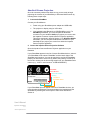
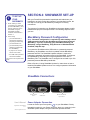
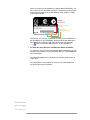
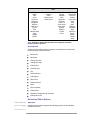
Handheld Screen Projection Once the necessary software has been set-up, you are ready to begin projecting the contents of your BlackBerry or Windows Mobile screen by following these simple steps: 1. Connect the ShowMate Connect your ShowMate to: Power using your ShowMate power adapter and USB cable; The projector or display using its VGA cable; Your handheld using Bluetooth or USB (BlackBerry only). For BlackBerry handhelds, you must complete the Bluetooth connection to your handheld before you project your screen with the Impatica Connector/ Impatica Screen Projector application. This will be explained in detail in Section 3. For Windows Mobile handhelds, you can complete the Bluetooth connection to your handheld as you project your screen from within the Impatica Screen Projector application. 2. Launch the Impatica Screen Projection Software Open the Impatica Connector/Screen Projector application on your handheld. If your ShowMate appears in the list of known ShowMate devices, select it. Your ShowMate will be named “ShowMate” and the last 6 digits of the ShowMate serial number. You may be required to provide the ShowMate passkey as described in Section 4. By default, the passkey is made up of the first four numbers in the eleven-digit segment of your ShowMate serial number (e.g., “2255” in serial number “01-AB-2255935556”). ShowMate Serial Number Default ShowMate Passkey Identifier in ShowMate Name If your ShowMate does not appear in the list of ShowMate devices, you must complete the Bluetooth connection between the handheld and the ShowMate by following the device specific instructions described in Section 4. User’s Manual Impatica ShowMate V 2.4 www.impatica.com 11