1
ownCloud User Manual, Release 7.0
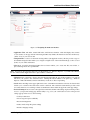
webdav://example.org/owncloud/remote.php/webdav
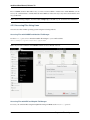
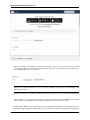
You can create a permanent link to your ownCloud server:
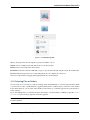
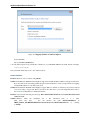
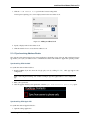
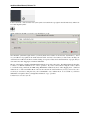
1. Open Dolphin and click “Network” in the left hand “Places” column.
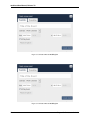
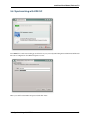
2. Click on the icon labeled Add a Network Folder. The resulting dialog should appear with WebDAV already
selected.
3. If WebDAV is not selected, select it.
4. Click Next.
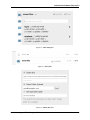
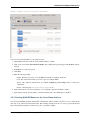
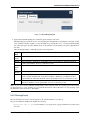
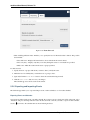
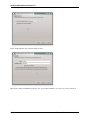
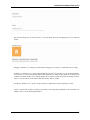
5. Enter the following settings:
• Name: The name you want to see in the Places bookmark, for example ownCloud.
• User: The ownCloud username you used to log in, for example admin.
• Server: The ownCloud domain name, for example example.org (without http:// before or directories
afterwards).
• Folder – Enter the path owncloud/remote.php/webdav.
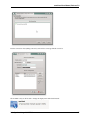
6. (Optional) Check the “Create icon checkbox” for a bookmark to appear in the Places column.
7. (Optional) Provide any special settings or an SSL certificate in the “Port & Encrypted” checkbox.
4.2.4 Creating WebDAV Mounts on the Linux Command Line
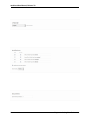
You can create WebDAV mounts from the Linux command line. This is useful if you prefer to access ownCloud the
same way as any other remote filesystem mount. The following example shows how to create a personal mount and
have it mounted automatically every time you log in to your Linux computer.
4.2. Accessing ownCloud Files Using WebDAV
17