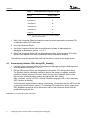
1
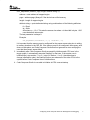
Application Report SPRA752 - May 2001 Configuring Code Composer Studio for Heterogeneous Debugging Gary Cooper Jeff Hunter Software Development Systems/Emulation Team ABSTRACT The Code Composer Studio Integrated Development Environment (IDE) provides debug support for systems with multiple processor cores connected on the same JTAG scan path. This process, sometimes referred to as co-emulation, allows the user to coordinate debugging between all of the processors. The Parallel Debug Manager (PDM) control within Code Composer Studio IDE can be used to execute the targets in parallel, i.e., stepping or running. It can also be used to configure global breakpoints. This feature allows you to designate groups of processors that halt when any member of the group halts. Global breakpoints and co-emulation are very useful when trying to debug code that provides communication or signaling between processors. By default, Code Composer Studio can provide co-emulation only when the target device driver supports all of the processors in the scan path. Since the target device drivers are generally dedicated to a single Instruction Set Architecture (ISA), it is not possible to configure normal device drivers for co-emulation when the debug targets are from different ISAs (e.g., a TMS470R1x and a TMS320C54x). The heterogeneous device driver does allow you to configure Code Composer Studio to debug multiple CPUs of different ISAs located on the same JTAG scan path. When the heterogeneous device driver is added to the Code Composer Studio configuration, heterogeneous co-emulation can be performed on any combination of CPU types for which an XDS510 device driver is installed. This application note describes how to setup Code Composer Studio using the heterogeneous device driver, and how to start debugging a target system containing heterogeneous devices using the Parallel Debug Manager. Contents 1 Installing Code Composer Studio IDE v1.2x/1.3x . . . . . . . . . . . . . . . . . . . . . . . . . . . . . . . . . . . . . . . 2 1.1 Setting Up the System . . . . . . . . . . . . . . . . . . . . . . . . . . . . . . . . . . . . . . . . . . . . . . . . . . . . . . . . . . . . 2 2 Installing Code Composer Studio IDE v2.0 . . . . . . . . . . . . . . . . . . . . . . . . . . . . . . . . . . . . . . . . . . . . . 3 2.1 Setting Up the System . . . . . . . . . . . . . . . . . . . . . . . . . . . . . . . . . . . . . . . . . . . . . . . . . . . . . . . . . . . . 3 3 Starting Multiple Debug Sessions . . . . . . . . . . . . . . . . . . . . . . . . . . . . . . . . . . . . . . . . . . . . . . . . . . . . . 4 3.1 Automatically Initialize CPUs With Code Composer Studio IDE v1.2x/1.3x . . . . . . . . . . . . . . . 5 Code Composer Studio, TMS470R1x and TMS320C54x are trademarks of Texas Instruments. All trademarks are the property of their respective owners. 1 SPRA752 4 Initializing Devices Where One Target is Held in Reset by Another . . . . . . . . . . . . . . . . . . . . . . 5 4.1 Setting Slave CPUs as BYPASS Devices . . . . . . . . . . . . . . . . . . . . . . . . . . . . . . . . . . . . . . . . . . . . 5 4.2 Automatically Initialize CPUs Using GEL_StartUp() . . . . . . . . . . . . . . . . . . . . . . . . . . . . . . . . . . . 6 List of Tables Table 1. JTAG Instruction Register Length . . . . . . . . . . . . . . . . . . . . . . . . . . . . . . . . . . . . . . . . . . . . . . . . . . . 6 1 Installing Code Composer Studio IDE v1.2x/1.3x You must install a copy of Code Composer Studio IDE v1.2x for TMS320C5000 support, and Code Composer Studio IDE v1.3x for ARM support. To configure the heterogeneous driver for TMS320C55x devices, you must install the v1.0 heterogeneous driver patch. After the first Code Composer Studio product is installed, subsequent installations detect that another Code Composer Studio product is already present. The installation program prompts you to select the merged installation option. To enable heterogeneous debugging, the merged installation option must be selected. 1.1 Setting Up the System 1. Install the XDS emulator and connect the host JTAG cable to the heterogeneous target. 2. Start Code Composer Studio Setup by double-clicking the Setup CCS desktop icon. 3. In the Import Configuration dialog box, click Clear to clear the System Configuration pane. If the heterogeneous device driver Heterogeneous Multi-Target does not appear in the Available Board/Simulator Types pane, scroll to find Heterogeneous Emulator in the Available Configurations list. Select Heterogeneous Emulator, and then click Import. Click the button labeled Save and Quit. 4. Restart Code Composer Studio Setup. Close the Import Configuration dialog box. 5. Click-and-drag the heterogeneous device driver Heterogeneous Multi-Target. from the Available Board/Simulator Types pane to the System Configuration pane. 6. In the Board Properties dialog box, no changes are required on the Board Name and Data File tab. Click Next to proceed to the Board Properties tab. In the Board Properties tab, enter the I/O port address of your emulator, then click Next to proceed to the Processor Configuration tab. 7. The heterogeneous device driver automatically queries your installation to detect all of the XDS510 capable drivers you have installed on your system. An aggregate list of all of the CPU types supported by these drivers appears in the Available Processors list on the Processor Configuration tab. Select the CPU types that are required for your target system and add them to the list of Processors On The Board. The processors must be selected in the order that the devices appear on the scan path (from TDI to TDO). If scannable logic devices exist in your scan chain, you must also add these devices to your configuration. For each of these devices, select BYPASS and enter the number of bits added to the scan chain by this device. It is a good idea to override the default CPU names and use a unique name that identifies the processor type. The CPU name is displayed in the title bar of the Code Composer Studio debug window, and this helps you identify which CPU you are debugging at any given time. TMS320C5000 and TMS320C55x are trademarks of Texas Instruments. 2 Configuring Code Composer Studio for Heterogeneous Debugging SPRA752 If you have multiple copies of a particular ISA device driver, you must uninstall all of the additional drivers except the driver that you are using to configure Code Composer Studio. For example, if the TMS320C6x drivers are installed (tixds6000.dvr and tixds6x1x.dvr), you must uninstall the driver that is not going to be used before configuring the heterogeneous driver setup. The same applies if you have two versions of the same driver (if you renamed the old driver before installing a patch with an updated driver). If both drivers are installed, the heterogeneous driver my not call the correct driver during a Code Composer Studio debug session. 8. If necessary, the order in which Code Composer Studio initializes each processor can be changed using the Init Order list. By default, the CPUs are initialized in scan path order from TDI to TDO. Changing the initialization order from the default is only necessary on systems where there is a master processor that holds the other processors in reset at power-up. If the master CPU is not first in the scan path, it may be necessary to change the initialization order to initialize it first. See section 4 for instructions on how to start Code Composer Studio when one processor is holding the others in reset. 9. Click Finish to close the Board Properties dialog and end driver setup. 10. Select File→Exit, and then click Yes to save changes to the System Configuration and exit the Setup program. NOTE: Before starting Code Composer Studio, you may need to read section 4 on how to automatically take a processor out of reset. 2 Installing Code Composer Studio IDE v2.0 You must install a copy of Code Composer Studio IDE v2.0 for each processor type you intend to debug (e.g., TMS320C6000 and TMS320C5000). Installation order is not important. See the release notes of your product for the processor combinations supported under Code Composer Studio IDE v2.0. After the first product is installed, subsequent installations detect that another Code Composer Studio product is already present. The installation program prompts you to select the merged installation option. To enable heterogeneous debugging, the merged installation option must be selected. 2.1 Setting Up the System 1. Install the XDS emulator and connect the host JTAG cable to the heterogeneous target. 2. Start Code Composer Studio Setup by double-clicking theSetup CCS desktop icon. 3. In the Import Configuration dialog box, click Clear to clear the System Configuration pane. If the heterogeneous device driver Heterogeneous Multi-Target does not appear in the Available Board/Simulator Types pane, scroll to find Heterogeneous Emulator in the list of Available Configurations. Select Heterogeneous Emulator, then click Import. Click the button labeled Save and Quit, then select No when prompted to Start Code Composer Studio on exit. 4. Restart Code Composer Studio Setup. Close the Import Configuration dialog box. TMS320C6x is a trademark of Texas Instruments. Configuring Code Composer Studio for Heterogeneous Debugging 3 SPRA752 5. Click-and-drag the heterogeneous device driver “Heterogeneous Multi-Target from the Available Board/Simulator Types pane to the System Configuration pane. 6. In the Board Properties dialog box, click Next to proceed to the Processor Configuration tab. No changes are required on the Board Name & Data File tab and the Board Properties tab. 7. The heterogeneous device driver automatically queries your installation to detect all of the XDS510 capable drivers you have installed on your system. An aggregate list of all of the CPU types supported by these drivers appears in the Available Processors list on the Processor Configuration tab. Select the CPU types that are required for the target system and add them to the list of Processors On The Board. The processors must be selected in the order that the devices appear on the scan path (from TDI to TDO). It is a good idea to override the default CPU names and use a unique name that identifies the processor type. The CPU name is displayed in the title bar of the Code Composer Studio debug window, and this helps to identify which CPU you are debugging at any given time. 8. If necessary, the order in which Code Composer Studio initializes each processor can be changed using the Init Order list. By default, the CPUs are initialized in scan path order from TDI to TDO. Changing the initialization order from the default is only necessary on systems where there is a “master” processor that holds the other processors in reset at power-up. If the master CPU is not first in the scan path, it may be necessary to change the initialization order to initialize it first. See section 4 for instructions on how to start Code Composer Studio when one processor is holding the others in reset. 9. Click Next to proceed to the Startup GEL File(s) tab. You can specify a startup file for each processor in your configuration. The GEL commands in a startup file are executed whenever a Code Composer Studio debug window is opened. Startup files can be used to initialize the associated processor and setup the debug window. See the Code Composer Studio online help for more information about startup GEL files. (Select Help→Contents→Using CCS IDE→General Extension Language (GEL)→Auto-executing GEL Functions at Startup.) 10. Click Finish to close the Board Properties dialog and end driver setup. 11. Select File→Exit, then click Yes to save changes to the System Configuration and exit the setup program. By default, Code Composer Studio is automatically started. 3 Starting Multiple Debug Sessions 1. Start Code Composer Studio by double-clicking the CCS desktop icon. The Parallel Debug Manager (PDM) control is displayed. 2. From the PDM menu bar, select Open. Open a Code Composer Studio debug session for each CPU listed on the Open menu. 3. Each CPU can now be debugged independently through its associated debug session. 4. The Code Composer Studio online help explains the proper use of PDM for coordinating simultaneous debugging between multiple targets. (Select Help→Contents→Using CCS IDE→Parallel Debug Manager (PDM)→Debugging Multiple Processors.) 4 Configuring Code Composer Studio for Heterogeneous Debugging SPRA752 3.1 Automatically Initialize CPUs With Code Composer Studio IDE v1.2x/1.3x The Code Composer Studio General Extension Language (GEL) provides functions that can be used to initialize the CPU associated with each Code Composer Studio debug session. Once you have loaded the appropriate GEL functions in a debug session, the working environment can be saved and reloaded at a later time. The GEL functions that have been loaded in the workspace automatically execute when you reload the workspace and initialize the processor. 1. From the Parallel Debug Manager (PDM) menu bar, select Open. Select the first CPU listed on the Open menu. A Code Composer Studio debug session is opened for the selected CPU. 2. In the Code Composer Studio debug session, load the desired GEL functions. 3. Repeat steps 1 and 2 for each CPU listed on the Open menu. 4. In the PDM, save your working environment by selecting File→Workspace→Save Workspace. Be sure to specify the extension .wks when saving your workspace file. To automatically load this workspace every time you start Code Composer Studio, you must name the workspace as the first command line parameter when starting the application. This parameter must end in .wks (workspace file extension); otherwise, Code Composer Studio attempts to load the file as a GEL file. 1. Right-click on the Code Composer Studio desktop icon and select Properties. 2. In the Properties dialog box, select the Shortcut tab. 3. Verify that the Target field contains the path name and file name of the Code Composer Studio executable. If Code Composer Studio is installed in the default location, the executable is located at: c:\ti\cc\bin\cc_app.exe 4. At the end of this path name, add the name of your workspace file (which must end in .wks). For example: c:\ti\cc\bin\cc_app.exe myspace.wks 4 Initializing Devices Where One Target is Held in Reset by Another Many multi-core devices are configured with one CPU core holding the other core(s) in reset at powerup. For debug purposes, some action is required (usually memory or register writes) by the master core that releases the slave core(s) from reset. By default, Code Composer does not initialize debug sessions on CPU cores that are being held in reset. An error message is displayed, stating that the target CPU could not be initialized. If you choose to ignore these errors, you are able to debug any free running CPU in the system, but you do not have debug access to CPUs in reset. There are two techniques for successfully initializing all CPU cores in these systems. 4.1 Setting Slave CPUs as BYPASS Devices Configure the system as a master CPU only system using the device driver that supports this CPU. Use Code Composer Studio Setup to configure the system. Replace the slave CPUs with a bypass device at the proper location in the scan path. Table 1 lists the JTAG instruction register length for each bypass device. Configuring Code Composer Studio for Heterogeneous Debugging 5 SPRA752 Table 1. JTAG Instruction Register Length Device Number of Bits TMS320C27x 38 TMS320C54x 8 TMS320C55x 38 TMS320C6x0x 8 TMS320C6x1x 46 TMS470 4 NOTE: For other devices, please see the device-specific user’s manual for details 1. Start Code Composer Studio and make the memory access required by the master CPU to release the slave CPUs from reset. 2. Exit Code Composer Studio. 3. Use Code Composer Studio Setup to reconfigure the system for heterogeneous debugging as described in section 1.1 or 2.1. 4. Start Code Composer Studio with the heterogeneous setup. Since the slave CPUs have already been released from reset, initialization should complete successfully. This technique must be repeated each time that the power is cycled on the target system. 4.2 Automatically Initialize CPUs Using GEL_StartUp() 1. Configure Code Composer Studio for heterogeneous debugging using the heterogeneous driver as described in section 1.1 or 2.1. 2. Edit the GEL startup file that was designated for the master CPU during system setup. The StartUp() function should be modified to perform the memory or register accesses required to release the slave CPUs from reset. See the Code Composer Studio online help for more information about creating and editing GEL files. (Select Help→Contents→Using CCS IDE→General Extension Language (GEL)→Auto-executing GEL Functions at Startup.) On devices that support different memory access sizes, it is important that the GEL file is set up correctly to allow writes to memory. The following GEL command is used in place of the GEL_MapAdd command to set up the memory map in Code Composer Studio with the proper memory access size. TMS320C27x is a trademark of Texas Instruments. 6 Configuring Code Composer Studio for Heterogeneous Debugging SPRA752 GEL_MapAddStr( address, page, length, attribute string, 0); address = start address of mapped region page = address page (Always 0 if the device has unified memory length = length of mapped region attribute string = quote delineated string using combinations of the following attributes: R = Read W = Write ASn where n = 1,2,4. This sets the access size where n is the width in bytes. AS0 uses the default access size. The last parameter is always 0. Example: GEL_MapAddStr(0xfffffb10, 0, 4, ”R|W|AS2”, 0); It is important that the memory map is configured for the proper access size prior to writing to memory locations in the GEL file. If the memory map is not configured, the memory write does not take place, and Code Composer Studio does not generate an error notifying the user that the memory access failed. 3. Immediately after Code Composer Studio successfully initializes each CPU core in the target system, it automatically executes StartUp() for that core. If the master core is initialized first, step section 1.1 or 2.1, step 8 in section 1.1 or 2.1 describes how to change initialization order), the StartUp function can release all of the other CPUs in the system before Code Composer tries to initialize them. 4. Code Composer Studio is now able to initialize all CPU cores at startup. Configuring Code Composer Studio for Heterogeneous Debugging 7 IMPORTANT NOTICE Texas Instruments and its subsidiaries (TI) reserve the right to make changes to their products or to discontinue any product or service without notice, and advise customers to obtain the latest version of relevant information to verify, before placing orders, that information being relied on is current and complete. All products are sold subject to the terms and conditions of sale supplied at the time of order acknowledgment, including those pertaining to warranty, patent infringement, and limitation of liability. TI warrants performance of its products to the specifications applicable at the time of sale in accordance with TI’s standard warranty. Testing and other quality control techniques are utilized to the extent TI deems necessary to support this warranty. Specific testing of all parameters of each device is not necessarily performed, except those mandated by government requirements. Customers are responsible for their applications using TI components. In order to minimize risks associated with the customer’s applications, adequate design and operating safeguards must be provided by the customer to minimize inherent or procedural hazards. TI assumes no liability for applications assistance or customer product design. TI does not warrant or represent that any license, either express or implied, is granted under any patent right, copyright, mask work right, or other intellectual property right of TI covering or relating to any combination, machine, or process in which such products or services might be or are used. TI’s publication of information regarding any third party’s products or services does not constitute TI’s approval, license, warranty or endorsement thereof. Reproduction of information in TI data books or data sheets is permissible only if reproduction is without alteration and is accompanied by all associated warranties, conditions, limitations and notices. Representation or reproduction of this information with alteration voids all warranties provided for an associated TI product or service, is an unfair and deceptive business practice, and TI is not responsible nor liable for any such use. Resale of TI’s products or services with statements different from or beyond the parameters stated by TI for that product or service voids all express and any implied warranties for the associated TI product or service, is an unfair and deceptive business practice, and TI is not responsible nor liable for any such use. Also see: Standard Terms and Conditions of Sale for Semiconductor Products. www.ti.com/sc/docs/stdterms.htm Mailing Address: Texas Instruments Post Office Box 655303 Dallas, Texas 75265 Copyright 2001, Texas Instruments Incorporated