1
User interface
You can find information on limit values and adjustment
parameters in the associated user manual for the controller.
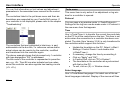
The controllers listed in the pull down menu and their abbreviations are supported by your ComfortSoft version. If
your controller is not displayed, please refer to the chapter
"Troubleshoting".
Operation
Tools menu
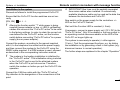
This menu item is only active if no adjustment or log window for a controller is opened.
Protocol
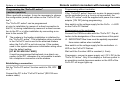
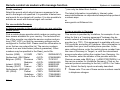
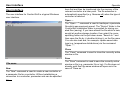
You can open a log window under >>Tools/Protocol<<.
Settings for the log can now be made under >>Protocol<<,
the new menu item that appears.
Time
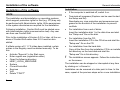
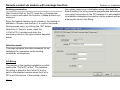
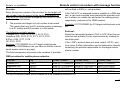
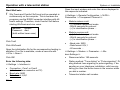
The controllers that are highlighted in black are, in part,
addressable via the bus line, i.e. reference values and/or
actual values can be read-in by the controller, modified
and transferred into the controller again.
The above example shows that at present only 1 controller
with type designation "E6" is addressed.
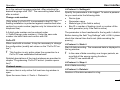
The bus code of the controller is represented in parentheses, e.g. <0>. Thus E6 can also indicate two bus codes
since this controller can also regulate two heating circuits
(<1> <2>).
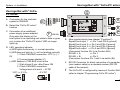
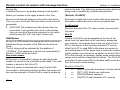
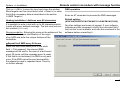
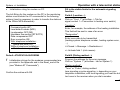
Use >>Tools/Time<< to transfer the current time and date
on the PC to all the controllers on the bus. This item is only
active when the connection to a controller has been completed. The date (from Version 3.0.4) is only transferred to
the controllers which support this function.
•
•
•
•
•
•
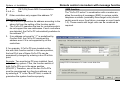
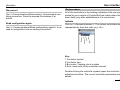
Update the time/date on the PC. Select >>Start /
Settings / Control Panel<< and double-click
>>Date/Time<<.
If necessary, change the time by overwriting it.
Click on "Apply" and "OK".
In Comfort Soft, click on "PC>>System".
The time/date on the controller are synchronized
with that on the PC.
To exit, click on (X) => Window closes.
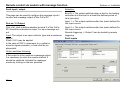
Select language
Use >>Tools/Select language<< to select one of the national languages indicated. Display of the menus will then
42