1
Application Note
Example 2: Changing bays M1 and M2 from Master only to Master and Target. This will allow
both M1 and M2 bays to be selectable when choosing a Target drive. Steps 1 through 3 connect
to the ZClone. Steps 4 and 5 navigate to the proper menu/prompt. Steps 6 and 7 delete the
configuration for bays M1 and M2. Steps 8 and 9 add bays M1 and M2 as a Master/Target
(rather than just Master). Steps 10 and 11 saves then loads the database (configuration). The
name of the database can be any other name with a .db extension. Step 12 reboots the ZClone
to make sure the correct database or configuration loads.
1. Reboot the ZClone (Important step). After the reboot, do not perform any operation
(clone, wipe, hash, etc.) on the ZClone until asked to reboot again on step 12.
2. Connect to the ZClone CLI via Telnet, SSH, or serial port as described in the user’s
manual, Section 7. Remote Operation.
3. Login using the username it and the password it.
4. From the main prompt, type command then press the enter key.
5. Type config then press the enter key.
6. Type bay del –b M1 then press the enter key.
7. Type bay del –b M2 then press the enter key.
8. Type bay add –b M1 –a then press the enter key.
9. Type bay add –b M2 –a then press the enter key.
10. Type db save m1m2.db then press the enter key.
11. Type db load m1m2.db then press the enter key.
12. Reboot the ZClone. After it reboots, M1 and M2 as Master should now be selectable as
Master or Target drives.
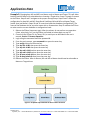
Figure 1. Graphical representation of the CLI menu structure
ZClone Command Line Interface
Page 4 of 8
October 2012
Logicube, Inc. • 19755 Nordhoff Pl.,Chatsworth, CA 91311 USA• tel:+1-818-700-8488• fax:+1-818-435-0088
www.logicube.com