1
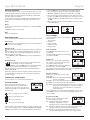
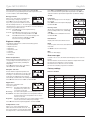
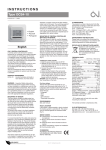
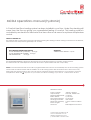
Type MCC4/MCD4 English General operation The interrupter button allows you to turn the thermostat on “I” and off “0” by sliding the button up and down. When the thermostat is switched off “0”, the relay disengages. All settings, including time and date, will be remembered. The thermostat is intuitively operated using the navigation buttons. The function of each button is indicated above the button in the display. 1. Press the OK button to activate the 4-event settings display. 2. Choose the days for which you want to change the settings, Mon-Fri or Sat-Sun using the up or down button. Press OK. 3. Now select the time and temperature for each daily event in the program. Press OK and set the start time for the event concerned. Confirm with OK. Set the temperature for this event and confirm with OK. 4. After setting the required events, select Exit in the menu to return to the initial display. Back In various parts of the menus and submenus you will find the Back menu item. Use Back to return to the last step. Temp Min 5.0°C Exit Time 25°C 40.0°C OK 06:00 Max 05:00 OK 08:00 Returns to initial dispay. User settings Operation mode The thermostat features three different modes of temperature control: Auto mode Select Auto if you want the temperature to be controlled automatically via the 4-event schedule. In the user settings menu you can change the following items: • Time and date • Child lock • Display settings • 4-event schedule • Energy monitor User settings OK Manual mode Select Manual to cancel the programmed 4-event schedule (e.g. during holidays) and to set the required temperature manually. You may, for example, want to adjust the temperature to 5°C for frost protection while you are away. • Press Manual, confirm with OK and choose the required temperature. Time and date Press OK and set the actual time in hours and minutes. The date will then be displayed. Set the date and confirm with OK. Time and date OK Child lock Comfort mode Select Comfort to set a temporary comfort temperature (so-called party mode) for a single event. • Press Comfort, confirm with OK and choose the required temperature. Then enter the required duration of comfort mode. After the set time has elapsed, the thermostat will automatically revert to Auto mode. Please note: Comfort mode is a temporary manual setting that will be automatically cancelled by the next event in the programmed 4-event schedule. Display settings When you wake up in the morning Allows you to select what is shown on the Display settings initial display. Time/day: Shows the actual time and day at OK the top of the display. Set temp.: Shows the current temperature setting. Act. temp.: Shows the actual measured temperature. Scr. saver: Switches off the display after 30 seconds if no button is pressed. Any subsequent press of a button reactivates the display. The thermostat remains on and runs the selected program. Press the OK button to select or deselect the display options. Then select Exit in the menu to return to the initial display and view your chosen settings. When you are away at work 4-event schedule Thermostat setup menus The menu allows you to select the following options: 4-event settings Allows you to have the temperature controlled automatically in accordance with a program of your own choice. You can select temperature settings for four different events during the day: 4-Event settings OK When you come home When you go to bed at night The thermostat is pre-programmed with a 4-event schedule for easy and economic heating control, see Preset schedule under Factory settings. The schedule can be easily changed in the following way: 2 Allows you to lock the thermostat settings, Child lock e.g. in public or other places where you do not want the settings changed. OK Press OK and set the child lock to On using the down button. Confirm with OK. The child lock can be unlocked by pressing both the Comfort and Manual buttons simultaneously for 5 seconds. Allows you to choose the type of weekly 4-Event schedule 4-event schedule you require. 5:2 : Monday to Friday with 4 events and OK Saturday to Sunday with 2 events. Typically used if you work from Monday to Friday. 6:1 : Monday to Saturday with 4 events and Sunday with 2 events. Typically used if you work from Monday to Saturday. 7:0 : Monday to Sunday with 4 individual events. Allows you to choose individual programs for each of the 7 days of week. © 2010 OJ Electronics A/S