1
Maintaining your account
®
The 'Search Preferences' button (1) opens up a page that displays SCC Online Web Edition's list of
databases. This is where you can select your preferences for the 'Preselected Databases' option
®
that appears throughout SCC Online Web Edition's search pages. Just click on the databases that
®
you prefer to search most often, and SCC Online Web Edition will remember your preferences until
you change them again.
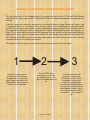
Changing the password to your account is easy. Just click on the 'Change Password' button (2), and
you will be prompted to enter your current password, a new password of your choice, and to confirm
the new password. Once you confirm the new password by clicking on the 'Change Password' button,
your password will be updated, and you can start using your new password to access your account.
To change your Login, just click on the 'Change Login ID' button (3), and you will be prompted to enter
®
the email address or mobile number that you wish to use to login to your SCC Online Web Edition
account. You can start using the new login ID as soon as you click on the 'Submit' button. Your account
details also include a password reset challenge question and answer that can be used to verify your
identity and to create a new password that you can use to access your account. Just click on the
'Change Password Question' button (4) to set a challenge question and answer of your choice that is
associated with your login ID and password - if you do forget your password, you will be shown the
question that you have added here, and, as soon as you enter the answer that you set here, a new
password will be sent to the email address or mobile number associated with your account.
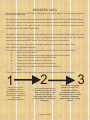
If you wish to check your login and renewal history, all you need to do is to click on the 'Login History'
(1) or 'Renewal History' (3) buttons from within the 'Account Details' on the Left Panel. You could use
®
this to monitor your usage of SCC Online Web Edition, analyse your research activities, or for any
other reason you wish to!
®
®
You can also renew your SCC Online Web Edition subscription from within the SCC Online Web
Edition itself, if you so choose. The 'Renew' button (2) within the 'Account' menu on the Top Toolbar
helps you do this, and we will look at how to manage your subscription in greater detail in the next
portion of this guide.
Copyright, SLS-NOIDA
17