1
Search Results Page: Left Section
®
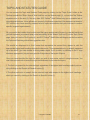
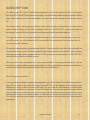
In addition to displaying your search results, SCC Online Web Edition lets you refine your search
from within the Search Results page itself. You can do this by using the options in the left-most section
of the Search Results page.
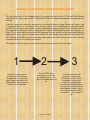
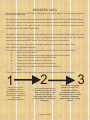
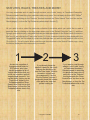
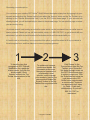
Use the 'Search within results' text box (1) to refine the list of your search results with more precision and
accuracy. Simply enter the text you want to search for in this box and press the magnifying glass icon next
®
to it - and that's it! SCC Online Web Edition will go through your search results, and create a fresh set of
results that contain your original search term and the text you entered in the 'Search within results' text
box - just like that!
The 'Results' tree (2) displays the databases that contain your search results, and the number next to
each database represents the number of results found within that database. You can choose to look at
results from particular databases by clicking on the checkboxes next to them. Clicking on the 'Only' icon
that appears next to a database when you hover your cursor over it restricts the search results displayed
to only that databases. Clicking on the 'All Results' will refresh the search results list to display all search
®
results that SCC Online Web Edition found for your search query.
You can also use the 'Year' function (3) towards the lower end of this section to narrow your search
results to a date range that you can define from the two drop-down menus that appear next to it.
Search Results Page
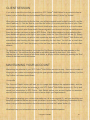
The central, or main section of the Search Results page displays the contents of each search result,
where the data of the note selected from the results list is shown.
This list has a number of details that you can use to scan through your search results even
without going through the full text of each result.
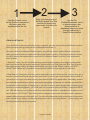
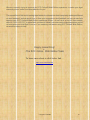
You can use the 'Sort by' drop-down menu (1) to arrange your search results in the manner you
prefer. For example, if you are looking for results from larger benches, choose the 'Coram (Largest
First) option to arrange your search results in descending order of bench strength.
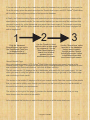
Aside from the title and a snippet from each result, this list also displays the status of the result, and
the bench strength (2). The numbers in the box represent the bench strength (coram) for each
judgment. A red circle indicates that the note has been overruled.
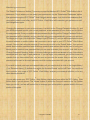
In addition, a tick mark appears next to results that you have read, so that you do not have to
duplicate your effort. The first result is olin in the section on the right, and so is ticked by default.
Copyright, SLS-NOIDA
11