1
Chapter 3: Network Settings
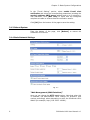
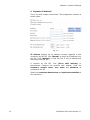
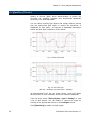
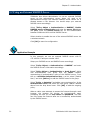
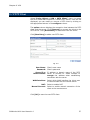
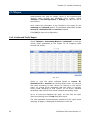
From the top of the list, select the balance mode between the two
WAN ports. The available modes include:
•
Auto:
SifoWorks
will
automatically
adjust
the
downstream/upstream bandwidth between the two WAN ports.
•
Round-Robin: SifoWorks
bandwidth in order.
•
By Traffic: Bandwidth is distributed based on the accumulative
traffic on each port.
•
By Session: Bandwidth is distributed based on the number of
connections on each port.
•
By Packet: Bandwidth is distributed based on the number of
packets and connections on each port
•
By Source IP: Bandwidth is distributed based on the source IP
of the packets.
distributes
the
WAN
download
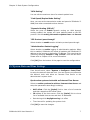
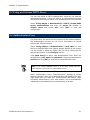
You can also select the maximum number of sessions on each WAN
port from the Saturated Connections column of the list. When
this number is reached, SifoWorks will direct subsequent
connections to the next port.
Set the port’s priority of access to the Internet from the Priority
column.
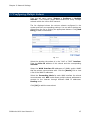
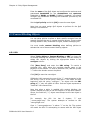
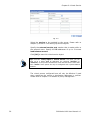
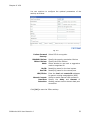
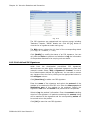
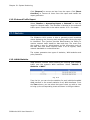
Click [Modify] to edit the configuration of the corresponding WAN
port. Note that the settings for WAN1 and WAN2 are similar except
that the WAN2 interface has an additional option of being disabled.
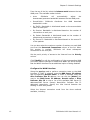
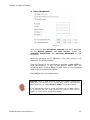
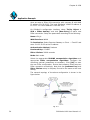
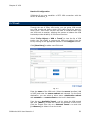
Configure the WAN Interface
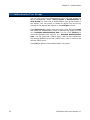
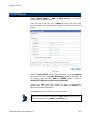
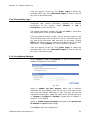
Setup the service used to perform connection tests on the WAN
interface. If “DNS” is selected, enter the DNS Server IP address
and corresponding Domain name. If “ICMP” is selected, enter the
Alive Indicator Site IP address. You can click the [Assist] link
next to the DNS Server IP Address, Domain name or Alive
Indicator Site IP to view a list of the available DNS Server IP
addresses/DNS Server Domain Name/Alive Indicator Site IP
addresses respectively. Specify the time interval between the
sending of each alive packet.
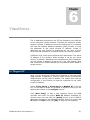
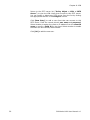
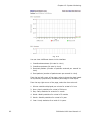
Select the Internet connection mode from the three methods
available, including:
10
SifoWorks U100 User Manual 1.0