1
•
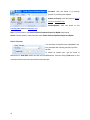
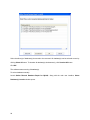
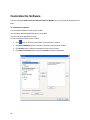
Select command(s) to be added to Quick Access Toolbar in left pane of Customize
window and click Add button. The added command(s) will be listed on the right of
Customize window.
•
If you wish to remove command(s) from Quick Access Toolbar, select command(s) on the
right of the Customize window and click Remove button.
•
Click Reset button if you wish to undo all the changes.
To assign desired keyboard shortcut to commands
•
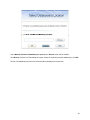
Click Customize.. button next to Keyboard shortcuts in Customize window
•
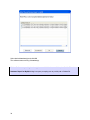
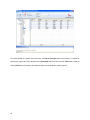
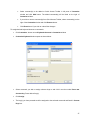
Customize Keyboard window opens as shown below:
•
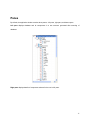
Select command you wish to assign shortcut keys to and click in text box under Press new
shortcut key. Press desired key(s).
•
Click Assign.
•
The key(s) you have pressed would be assigned to the selected command and listed in Current
Keys box.
37