1
Getting Started Guide - Chapter 2: Working in an EndNote Library
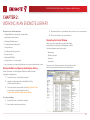
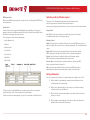
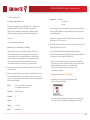
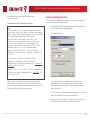
Working with EndNote Panels
Groups Panel
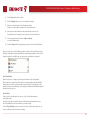
Displays various groups of references for easy retrieval such as:
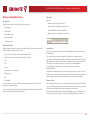
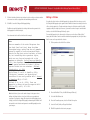
Tabs Panel
Displays:
• A Reference tab for editing a reference
• Custom groups
• A Preview tab for viewing formatted references
• Smart groups
• An Attached PDFs tab for viewing PDF files
• Combination groups
• A paper clip icon for attaching files to a reference
• Permanent groups
• Temporary groups
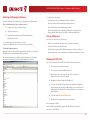
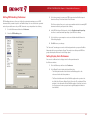
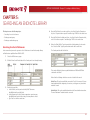
Reference List Panel
Displays a multi-column list of references. By default, the first column in the reference list
shows a Read / Unread indicator followed by:
• Paper clip icon (for references that include an attached file)
• Author’s last name, first name, initial (all names are shown)
• Year
• Title
• Rating
• Journal name or secondary title
You can see more details about a reference by highlighting the reference and selecting
the Preview tab.
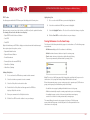
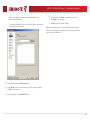
The Preview tab uses the current output style to display the selected reference as
it is formatted in a bibliography. EndNote’s output styles represent the rules for creating
bibliographies for a variety of journals and other publications. The styles determine how
your references look when you print, export, preview, or create bibliographies.
To select a different output style, go to the toolbar and select one from the
Output Styles menu.
• URL
The Output Style menu displays your “favorite” output styles, but you can choose Select
Another Style to pick from other installed files. A typical installation installs only the most
popular output styles, but more than 5,000 output styles are available in EndNote.
• Last updated
Reference Panel
• Reference type
You can change the order of the fields by using the drag-and-drop method. This is the
easiest was to change the order.
You can also change the type of fields and the order of the fields that display in the list by
going to Preferences and selecting Display Fields.
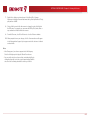
Preview Panel
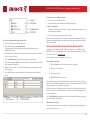
You can quickly edit your references by clicking on the Reference tab. Most functionality is
the same as working in the Reference window. Enter text in a field by clicking on the field.
All commands are available via the menus including contextual menus.
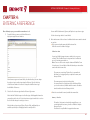
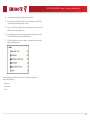
The Reference panel displays the contents of the highlighted reference. Each part of the
reference is stored in its own field. The reference type is displayed below the title bar.
2-2