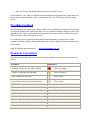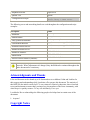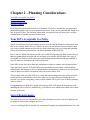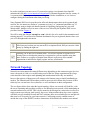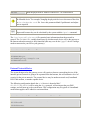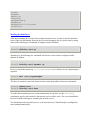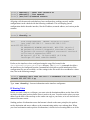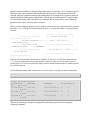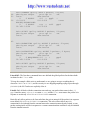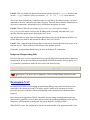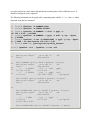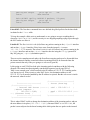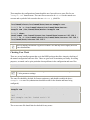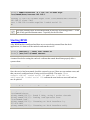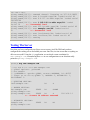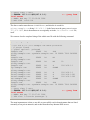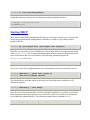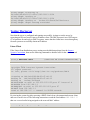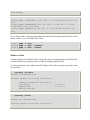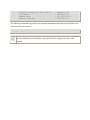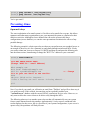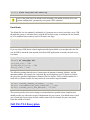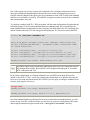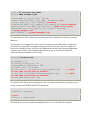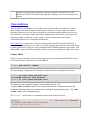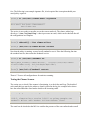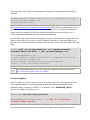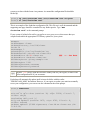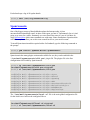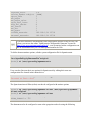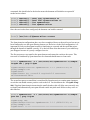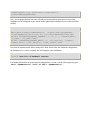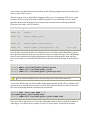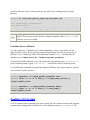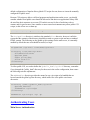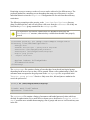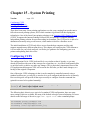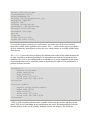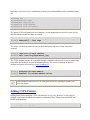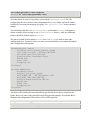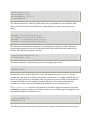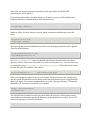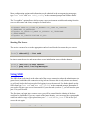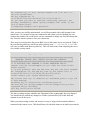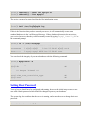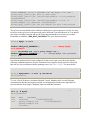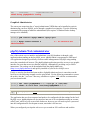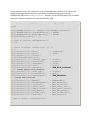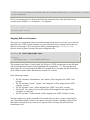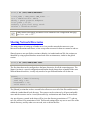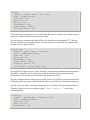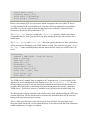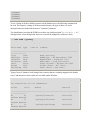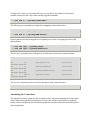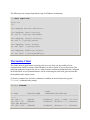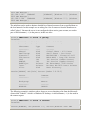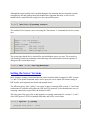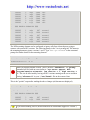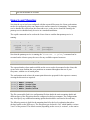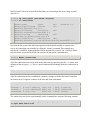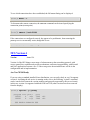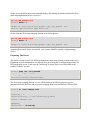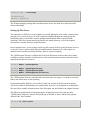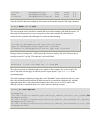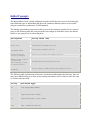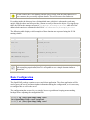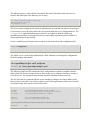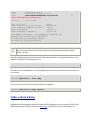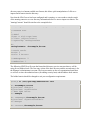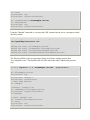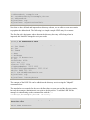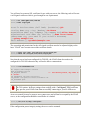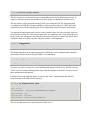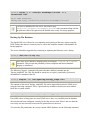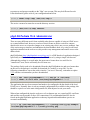
1
Chapter 1 - Introduction About This HOWTO Reader Assumptions Providing Feedback Document Conventions Acknowledgments and Thanks Copyright Notice Registered Trademarks About This HOWTO Building your own fully operational networked server can be greatly satisfying. More important, it can provide you with much freedom to do as you please without depending on someone else's systems. Manage your own email, run your own web server, host multiple websites, even operate your own database applications. Next time your ISPs email server crashes, you won't be affected. This HOWTO will explore some of the standard types of applications and services available to configure a dedicated Linux network server. This type of server configuration is perfectly suited to the home user, or can also provide the basis for a small to medium office system. The HOWTO is considered a high level document, which should provide a reason level of detail to guide your installations to a stable and secure state. Further documentation should be sought by the reader in key areas to provide detailed technical explanations. This document is developed around the Fedora Core versions of Linux, so some configuration aspects will favour Fedora Core more than other Linux distributions. However, the configuration files, scripts and concepts are kept as generic as possible for the wider audience. Reader Assumptions I have tried to keep this HOWTO as simple as possible for all users to better understand the concepts and explanations herein. To fully utilise all configuration aspects like email and web server, I've made the following assumptions: • • • • • • the reader has a basic understanding of the hierarchical structure of a Linux filesystem, the reader understands the relationship of a server/client model and the services it provides, the installer will not breach their Internet Service Provider's Acceptable Use Policy implementing this HOWTO, a registered Internet Domain Name is available for use during the installation, the reader can use a text editor (vim examples are used throughout HOWTO), at least one dedicated computer will be used as the server (possibly more for a small to medium office environment), and • there is a full time broadband Internet connection available for use. If users find the "vim" editor too difficult in manipulating the configuration files, then other text editors can be used instead like "gedit". Alternativley the "vim" GUI can be started by typing "gvim". Providing Feedback This document covers a wide range of topics, while I have attempted to provide the best possible coverage on all these areas, some errors may occur or application settings change over time with updated releases. There are also numerous hyperlinks to external resources and sites which may break over time as these sites update or move. If you find any errors or omissions throughout the documentation, or perhaps have a better solution to possible problems, then please contact me so these changes may be incorporated into the document. Send all feedback and comments to: howto (at) brennan . id . au Document Conventions This document uses the following textual conventions throughout the document as assistance to readers. Description Appearance - Warning: Things that may affect stability This is a warning. - Caution: Things that are important This is a caution. - Hint: Things that may assist This is a hint. - Note: Things that may need remembering This is a note. - File Name /etc/resolv.conf - Directory Name /var/log - Typed Command rpm -ivh package.rpm - Application Name ntpd - Command Prompt - generic user [bash]$ - Command Prompt - root user [bash]# - Command Prompt - generic user with tcsh shell [tcsh]$ - Environment Variable VARIABLE - Emphasized Word emphasized - Quoted Text "quote" - Configuration Example workgroup = WORKGROUP server string = Samba Server The following server and networking details are used throughout the configuration and script examples. Description Value - Hostname: galaxy - Domain Name: example.com - Fully Qualified Hostname: galaxy.example.com - USB Modem Interface ppp0 (as applicable) - External Network Device: eth0 (as applicable) - Internal Network Device: eth1 - Internal IP Address: 192.168.1.1 - Subnet Mask 255.255.255.0 - Private Network Address (Internal): 192.168.1.0/24 The above settings should be adjusted to suit the requirements of the individual and their networks. Where adjustments are changed, they should then be continued throughout the entire document for consistency. Acknowledgments and Thanks I first and foremost need to thank my wife Susan and our two children Caitlin and Lachlan for their support and understanding while I took time off to prepare this document. The majority of this HOWTO (the initial version for FC3) was written in a relatively short time, there was much to test and document to ensure that I presented you, the members of the Linux community, with what I hope is a quality resource. To my wife and family, I love you. I would also like to acknowledge the following people who helped me in certain areas of the document: 1. Anyone ? Copyright Notice © 2004, 2005 and 2006 - Miles Brennan This documentation is licensed under the Creative Commons deed version 2.5 Attribution-NonCommercial-ShareAlike 2.5 You are free: • • to copy, distribute, display, and perform the work to make derivative works Under the following conditions: Attribution. You must attribute the work in the manner specified by the author or licensor. Noncommercial. You may not use this work for commercial purposes. Share Alike. If you alter, transform, or build upon this work, you may distribute the resulting work only under a license identical to this one. • • For any reuse or distribution, you must make clear to others the license terms of this work. Any of these conditions can be waived if you get permission from the copyright holder. Your fair use and other rights are in no way affected by the above. This is a human-readable summary of the Legal Code (the full license). Registered Trademarks Linux is a registered trademark of Linus Torvalds. The Fedora trademark is a trademark of Red Hat, Inc. Motif and UNIX are registered trademarks of The Open Group. Windows is a registered trademark of Microsoft Corporation. SSH and Secure Shell are trademarks of SSH Communications Security, Inc. All other trademarks and copyrights referred to are the property of their respective owners. Chapter 2 - Planning Considerations Your ISP's Acceptable Use Policy Server Requirements Internet Domain Name Network Topology Every network system needs some level of planning. If you have decided that you are going to install and configure Linux as your main network server, then you have planned that, simple as it may be its still a plan. The following information is designed to provide some basic everyday considerations to expand your new network plan. Your ISP's Acceptable Use Policy Before we install our server and connect our new network onto the Internet, we must make sure that we are actually allowed to do so. Believe it or not, but the Internet Service Provider's plan you used to join the Internet may prevent you from connecting your new system and operating with a server and extra workstations - the whole intention of this HOWTO. How is this so? When you joined your ISP, you would have agreed to use their systems the way that they planned their networks and user accounts to be utilised. All ISPs draft some type of Acceptable Use Policies (AUP) which are legal binding contracts between the user and ISP, it lays out what you can and can't do with your account. Some ISPs do not allow more than one workstation at a time to connect with a particular plan. Some may block specific TCP and UDP ports in an attempt to protect their own networking infrastructure and customers, more so against hackers and spammers. Some may also do regular scans of their user's traffic to determine who is in breach of their AUP. Always check with your ISPs AUP to be certain that implementing some type of server based system and extra workstations is allowable, otherwise you may find you no longer have an account if you do the wrong thing. Always check with the ISP if you're ever in doubt, ignorance is not an excuse. If implementing this HOWTO is going to breach your ISPs AUP, please do not proceed with installing the services herein. Alternatively, your ISP may have another plan which will be more suited to your needs. Server Requirements Now that we are sure we can install servers using our Internet account, we need to plan how we are going to connect and configure our server. A server would typically be described as a networked computer providing dedicated services and resources to multiple users and clients. That being said, the key concept to remember is dedicated services. Because the server is going to provide various full time networked functions, it really needs to be a dedicated computer running a single Operating System. This allows its services to be available to authorised users any time they are required. Each distribution of Linux has an accompanying set of release notes which states the computing requirements recommended for an installed system to successfully operate its software. Installation sizes can range from 800 MB through to around 4 GB just for the operating system alone, which does not consider any file storage needs for your users or the size of which applications can grow through normal use like a networked database application. If you are planning a large network for many users, you should consider the storage requirements so your users and applications have sufficient hard drive space. Before you install your server and insert it into your network as the centre of all your systems, consider what applications and services it will be running at that time, the amount of users connecting, and the expected workload it would be subjected to. If you have a large scale network then your systems may be better distributed over several servers to reduce processor demand on a single computer. It is far more sensible (and easier) to use a system that will meet your requirements for the future than to do a system swap in a few months time. This section is not an enticement that you need to purchase the latest and biggest components on which to base your server, its just to get you thinking about sustaining your system's capabilities for the future. Most small home users can easily get away with the minimum specifications or even less, and a second hand computer will most definitely suit their needs. Internet Domain Name To be uniquely distinguished on the Internet we need one important aspect, an Internet Address. Our Internet (or IP) Address is likened to an electronic mailing address that computers and network devices use to find other networked devices on the electronic super highway, this allows the delivery of our data. That's all well and good for electrical devices, however it is too difficult for people to remember many Internet sites purely by a numerical address, so to be uniquely identified and easily located, we need a Domain Name which best suits the services we offer. A Domain Name can be linked to our unique Internet address using the Domain Name System which we will be configuring later in Chapter 8. The DNS system is historically best suited to static IP addresses. However, with the introduction of Dynamic DNS, its now even easier for home users to use a Domain Name with a dynamically changing IP address. This HOWTO provides a section on DDNS services and the ability to automate any DDNS changes on a dynamic IP account. This HOWTO is written with the assumption that you have a registered Domain Name that will be used to configure your new server. If you need to register a new domain, then InterNIC maintains this list (http://www.internic.net/origin.html) of Domain Registrars listed by country. It is recommended that you have a domain name registered before installation, as it is easier to configure during the installation rather than post fixing. Some Dynamic DNS service providers also offer sub domain names that can be registered and used for free, the names are similar to "yourname.no-ip.org" or "yourname.homelinux.org". If you are happy using a simple sub domain instead of registering (and paying for) your own domain name, then have a look at some of the services offered by the Dynamic DNS service providers listed in Chapter 5. We will be using the domain "example.com" which is free to be used for documentation and training purposes. You will need to substitute that domain for your registered domain where ever you see it throughout this document. Always have a look at several domain registrars before registering your domain, some offer extra services that you may not need for a simple network, and you can save a little money by finding the right one. Normally you do not own a Domain Name. You will be required to register it for a period of time at which point it must be re-registered so you can continue using that name. Failure to re-register a Domain Name when it expires may allow another organisation or individual to legally register and use your domain. Network Topology Networks are interconnected in many different ways depending on the connection types, devices in use, the speed of a link, or even the leasing costs of the line. Many organisations have large scale networks which require much planning and consideration before they are installed, however the majority of home users will connect to the Internet using a simple broadband type modem. The Ethernet and USB modems would be most typical for home users because of their relatively low cost and ease of use; therefore we will concentrate on their configuration. The two figures below show what the logical topology of how our network will look like, with the server separating and providing security to our internal private network, while maintaining an external connection to our ISP. This is by no means the best design for a network as it relies on a single system to provide our total security; the server. Many modems these days come complete with their own pre-installed firewall and NAT solutions, these are invaluable devices and provide that extra level of security for your home network. Configuring security enabled routers is outside the scope of this HOWTO as these instructions are detailed in the modems user manual. /----------------\ | | /------------------\ | USB Modem | | ISP / Internet |--------| (ppp0) | | | \------------------/ \----------------/ | | USB Link | /------------------\ | Home Server | /----------------\ | (eth0) |--| Network Printer | \------------------/ \----------------/ | | Internal Private Network | Subnet: 192.168.1.0/24 | /-----------------\ /--------------\ /----------------\ | Workstation 1 |----| Hub / Switch |----| Workstation N | \-----------------/ \--------------/ \----------------/ Figure 1 - USB Modem Layout The topology in figure 1 uses a single ethernet device (eth0) for connecting all the internal systems to the server, and a single USB modem (ppp0) to dial the server and pass all its data. Before choosing this setup method you should ensure your USB modem is supported by Linux or that your modem has drivers available for you to use. /----------------\ /------------------\ | | | Ethernet Modem | | ISP / Internet |--------|(Router/Firewall?)| | | \------------------/ \----------------/ | | Ethernet Link | /------------------\ | (eth0/ppp0) | | Home Server | /----------------\ | (eth1) |--| Network Printer | \------------------/ \----------------/ | | Internal Private Network | Subnet: 192.168.1.0/24 /-----------------\ | /--------------\ /-- ---------------\ | Workstation N Workstation 1 |----| Hub / Switch |----| | \-----------------/ \--------------/ \-- ---------------/ Figure 2 - Ethernet Modem Layout Similar to figure 1, the topology illustrated in figure 2 shows the same internal network design with a single ethernet device (eth1). However there is a second ethernet device (eth0) which allows the Point-to-Point Protocol connection out through the ethernet modem and onto your ISP. This is the preferred method for connection as the connection is less problematic using an ethernet modem, however it does require two network cards. The configurations and application settings used throughout this HOWTO follow the Ethernet Modem network topology as seen in Figure 2. Chapter 3 - Installing Linux Pre-Installation Requirements (Checklist) Installation Procedure (Step by Step Guide) Post Installation Tasks This chapter has Fedora Core 5 specific installation information. Pre-Installation Requirements (Checklist) In the last chapter we identified some of the planning considerations needed before we even commenced with our server installation. Now we are ready to start configuring our system, we must make sure we have all the configuration settings available during the installation process, so it runs smoothly and is trouble free. The following checklist can be used as a printable guide to document your configurations before you start your installation. It is intended as a guide only, but is typical of the information required during a system installation. Server Settings Example Values Your Parameters (as applicable) Kernel Parameters Nil ___________________ _ Install / Upgrade Install ___________________ _ Installation Type Server ___________________ _ Partitioning - Auto / Manual Auto ___________________ _ - Hard Drive 0 /dev/hda ___________________ _ - Hard Drive 1 /dev/hdb ___________________ _ - Hard Drive 2 /dev/sda ___________________ _ - DVD/CDROM /dev/hdc ___________________ _ - DVD/CD Burner /dev/hdd ___________________ _ GRUB Boot Loader Installed /dev/hda ___________________ _ External Network Device - eth0 - IP Address Dynamic ___________________ _ - Subnet Mask Dynamic ___________________ _ - IP Address 192.168.1.1 ___________________ _ - Subnet Mask 255.255.255.0 ___________________ _ - IP Address Dynamic ___________________ _ - Subnet Mask Dynamic ___________________ _ Fully Qualified Hostname galaxy.example.com ___________________ _ Gateway Nil ___________________ _ Primary DNS 127.0.0.1 ___________________ _ Secondary DNS Nil ___________________ _ Internal Network Device - eth1 Modem Settings Internet Settings Your Parameters (as applicable) ISP Name ___________________ _ ISP Account Name ___________________ _ ISP Account Password ___________________ _ Static IP / Subnet Or DHCP ___________________ _ DNS Server 1 ___________________ _ DNS Server 2 ___________________ _ DNS Server 3 ___________________ _ NTP Server ___________________ _ Helpdesk Phone Number ___________________ _ Installation Procedure (Step by Step Guide) Now that we've completed all of our system planning and our checklist has been prepared, we are now in a position to start installing the operating system and required packages on our server - finally some 'hands on' you say. The following installation procedure has been written as a step by step guide to fulfil the configuration and package requirements needed in the HOWTO, some people may find it too basic and you are welcome to skip ahead. However please review the list of packages being installed below, this may save you installing them later because they were missed. The step by step guide is written for Fedora Core 5 and may not be suitable for other Linux Distributions. 1. Once the bootable DVD/CD initialises and the installation process starts execution, you will be presented with the Fedora Core welcome page, and a "boot:" prompt will be located at the bottom of the screen. The boot prompt allows us to pass specific parameters about any hardware or configuration settings to the kernel. It also allows us to specify that we may have a driver disk for some type of hardware that is not yet supported by the kernel, like a network card or hard drive controller. You may also choose to upgrade an existing version of Fedora from the prompt. boot: linux dd noprobe acpi=off Example: The boot prompt with parameters being passed to the kernel. If you are doing a clean installation of Fedora Core, you would most likely press the <ENTER> key at the "boot:" prompt to continue. 2. If you chose to install a driver disk, you will now be prompted for the diskette. Insert the diskette and follow the directions on screen to install the extra drivers if applicable. 3. You will now be presented with an option to check the integrity of the DVD/CD media you are using to conduct the installation. It is highly advisable to test the media at this point. If your media is scratched, or the integrity of the ISO image was corrupted during its download, then it is highly likely that the installation may stall or become unstable. If in doubt check your media, it only takes a few minutes, and may save you the anguish of having to conduct a second installation attempt. You will be advised of any failed media checks during this stage, at which point you will need to correct the media problem before continuing. 4. Welcome to Fedora: The next stage in the installation is the loading of the Anaconda system installer, where you will be presented with installation options using an Xwindows frontend. We will continue to use the Anaconda interface throughout the entire installation process. The release notes will be available for you to view if you choose, which is recommended. They identify what the minimum hardware specifications are for an installation of Fedora Core, and which applications have been added, changed, or removed from the previous version. They also identify and provide solutions to any known bugs which may affect certain hardware, or installation errors that may occur during or after the installation process. After you have read the release notes, you may select <NEXT> to continue. You can choose not to use Anaconda for your installation, or you may have difficulty loading the interface if your video card is not yet supported. If this is the case, you can continue your installation using the standard text mode. The Anaconda installer provides documented help files for the remainder of the installation process. It is recommended you consult these help files when you are uncertain and require further clarification. 5. Language Selection: You will now be asked to choose the language you would like during the installation, make your selection and press <NEXT> to continue. 6. Keyboard Configuration: You are also presented with an option for keyboard, make your selection and press <NEXT> to continue. 7. If you had any previous installations of Fedora Core on the server, Anaconda will detect them and ask you if you would like to conduct a fresh installation, or you would like to upgrade your existing version of Linux. Make your selection and press <NEXT> to continue. If you have an existing version of Fedora installed, choosing to install a fresh version will destroy the existing installation depending on your configuration choices. 8. Disk Partitioning Setup: As part of our server planning considerations we should consider how we are going to partition the filesystem. If you are an experienced installer or you are doing an upgrade of some type, you may choose to partition your system manually. Otherwise choose "Remove all partitions on the selected drives and create default layout" and press <NEXT>. WARNING - This will delete all partitions currently on your server. Manual partitioning is outside the scope of this HOWTO, however you can select the "Review and modify partitioning layout" checkbox if you would like to manually configure or review your server's partitions; this is recommended. 9. Disk Setup: This page allows you to review your new partitions and the filesystem types that have been automatically chosen by the installer. There are many options available here to fully customise your hard drives with your filesystem requirements, but if you are not familiar with partitioning, then the automatic configuration should be fine. Make any changes that you need and select <NEXT> to continue. 10. Boot Loader Configuration: To boot your system when its turned on, a small application needs to be installed in the Master Boot Record to tell the computer's BIOS where to continue loading the operating system files from, this is part of the bootstrap process. Fedora uses an application called GRUB (the GRand Unified Bootloader) for this process, and if you have a standard IDE hard drive configuration, the boot loader is normally installed on "/dev/VolGroup00/LogVol00". As with step 1, the boot loader can pass extra parameters to the kernel during the boot process. If you need to pass any parameters at boot time and you would like to automate the process, then select "Configure advanced boot loader options". The GRUB configuration can be edited at a later time if needed. 11. Network Configuration: This page allows us to configure the networking requirements of our server. Depending upon the network topology being implemented, we may either have one or two network devices to install. Remembering that eth0 is connected to the external "Internet" connection; the side where hackers and nasty people lurk. Device: eth0 Parameters - Activate on Boot Yes - Configure with DHCP Yes - IP/Netmask DHCP If there is a second network device (eth1), use the following parameters to configure the device. Device: eth1 Parameters - Activate on Boot Yes - Configure with DHCP No - IP Address 192.168.1.1 - Netmask 255.255.255.0 You now need to set the fully qualified hostname of the server and other miscellaneous settings, remembering to use the host and domain names applicable to your system. Description Value - Hostname (manually) galaxy.example.com - Gateway Empty - Primary DNS <Your ISPs DNS Server Address> - Secondary DNS Empty - Tertiary DNS Empty You will get an error at this point because we have not set a gateway address for the server, this will be addressed during later configurations. If you are using a static IP address for your external device and you already know your gateway address, you can enter these details now. 12. Time Zone Selection: Use the image of the world map to select the required timezone in your nearest location. You may also choose (optional) to operate your server using the Universal Time Clock, however most people will operate using the time in the current location. 13. Set Root Password: It is important to select a secure password for the super user using a mixture of upper and lower case letters, numbers, and special keyboard characters. The stronger and more complex your root password is, the less chance your system will fall victim to a brute force type attack. 14. Default Installation: We are now going to select what programs and applications (packages) are going to be installed on our server, remove all checkboxes and select "Customise Now" to select individual packages. Select <NEXT> to continue. 15. Package Group Selection: This is the point where we can tailor the installation to our specific needs by adding or removing certain applications and packages. This HOWTO was written to cover specific applications and services that best suits a typical small network, and the installation requires the following additional customisations to meet the server's package requirements. The following list details additions on top of the packages already chosen. Do not remove packages that are not listed. Desktop Environments GNOME Desktop Environment Selected by default KDE (K Desktop Environment) Add Tick - Defaults are Suitable Applications Engineering and Scientific Add Tick - Defaults are Suitable Graphical Internet Add Tick - Additional Packages gftp thunderbird Sound and Video Add Tick - Additional Packages k3b xcdroast Development Development Tools Add Tick - Defaults are Suitable Servers DNS Name Server Add Tick - Defaults are Suitable FTP Server Add Tick - Defaults are Suitable Mail Server Add Tick - Additional Packages squirrelmail MySQL Database Add Tick - Additional Packages mod_auth_mysql php_mysql Network Servers Add Tick - Additional Packages dhcp openldap-servers Server Configuration Tools Add Tick - Additional Packages Select all (as required) Web Server Add Tick - Additional Packages mod_auth_mysql mod_authz_ldap php_ldap php_mysql Windows File Server Add Tick - Defaults are Suitable Base System Base - Additional Packages authd netconfig - REMOVE PACKAGE dhcpv6_client System Tools Add Tick - Additional Packages arpwatch gnutls-utils mrtg net-snmp-utils X Window System - Additional Packages Languages switchdesk - Select additional languages as required. Once you are satisfied with your selections you may continue. 16. About to Install: If you have selected any additional packages and have triggered a "dependency error", select the option to install the required dependencies and continue the installation process. 17. Installation Stage: The system will now go through the process of formatting your partitions and installing the selected packages. This stage may take a few minutes and is a good time for a break. If you are installing from the CD set, you will be required to change CD during the installation. 18. Installation Complete: The DVD/CD will be automatically ejected from its drive once it has finished installing all the required packages, removed the media from the drive bay and select <REBOOT>. Congratulations, the majority of the installation has been completed and the server is almost ready for configuration. Post Installation Tasks Once the Fedora Core operating system has been installed and the system has been rebooted, there are some minor configurations required before you can log into and start using the system. The firstboot process will now guide you throught the following steps. 1. Welcome: Select <FORWARD> to start the post installation process. 2. License Agreement: Read and accept the license agreement. 3. Firewall: Accept the default firewall settings here, we will configure a more detailed firewall configuration later in Chapter 6. 4. SELinux: Select the appropriate SELinux settings for your server. If you are unsure here, select "permissive" and click <FORWARD>. 5. Date and Time: Select the appropriate date and time for your server system, depending upon your earlier selection of either local or universal timezones. Do not enable Network Time Protocol yet, it will be configured in more detail later in Chapter 9. 6. Display: Configure the X Windows Server with the appropriate settings for your, monitor type, display resolution and colour depth. Being a dedicated server it does not need the latest video drivers for 3D graphics. 7. System User: Enter the details of your generic user account. It is recommended (and good practice) that you use a generic user account at all times, and only switch to the super user account when the higher privileges are needed for administrative tasks. 8. Sound Card: Make the required adjustments for your soundcard and continue. Being a dedicated server it does not need a sound card at all, however you may be able to configure some basic sound files to some of your administrative tasks or alerts to give you a warning when certain events occur. 9. Finish Setup: The entire installation process has now been completed, press <NEXT> to continue to the login screen. Automated Installation During the installation phase, the Anaconda system installer creates a "kickstart" configuration file containing all the settings used during your server's build phase. It details the partition types, network settings, packages to install, and pretty much everything that was covered throughout the last two sections. The kickstart file can be used to rebuild your entire system automatically, and is a good way to recover from a system failure. Backup the configuration file to floppy disk, label it, and store the disk in a save location hopefully you won't need to use it. [bash]# mcopy /root/anaconda-ks.cfg a: You need to be logged in as root (after installation) to backup the kickstart config file. To later rebuild your system using your kickstart configuration, you need to pass the following kernel parameters at the boot prompt. This will start an automatic installation process using your previous settings, and will stop only to prompt for partitioning information. boot: linux ks=hd:fd0/anaconda-ks.cfg For further details on using kickstart and the different build options available, visit the Red Hat Kickstart Guide. Setting Default X Windows When you log into your new server for the first time, the initial X Windows Manager that loads will be the GNOME Window Manager. You can change the default X Windows Manager display at the login screen by selecting the session tab and changing to the appropriate Window Manager. The Window Manager can also be changed at the command line interface after logging in, by typing one of the following commands at the prompt: [bash]# switchdesk gnome or [bash]# switchdesk kde Your default settings will now be saved, however you will need to restart the X Windows Server before the settings are applied. This can be done quickly by pressing CTRL+ALT+BACKSPACE. Chapter 4 - Network Configuration Loading the Drivers Internal Network Device External Network Device Starting the Interfaces IP Routing Table ZEROCONF In this chapter we will look at the configuration of ethernet networking devices, the procedures for starting and stopping the interfaces, and some basic routing principles. If you only have one computer which you are using for your server and workstation (not ideal, but possible), then you may not have a network device to configure if you are using a USB modem. Loading the Drivers An operating system needs to work effectively with the hardware on the host computer, to achieve this it communicates with the internal devices using custom software which details the device's operational parameters. This small piece of software is called the device driver, and it needs to be loaded into the kernel before the devices will function effectively. To load the network drivers automatically, they are placed into the /etc/modprobe.conf file so the modprobe application can load the drivers into the kernel in an intelligent fashion as required; normally by starting the network service. The example modprobe configuration below is loading two sets of Realtek drivers r8169 and 8139too. Both of the drivers have been assigned an alias called eth0 and eth1 respectively. It is common during manual system configuration, that the drivers may be accidentally allocated the incorrect aliases. This is a simple issue to fix by swapping which drivers are allocated to which "eth" alias. [bash]# vi /etc/modprobe.conf alias eth0 r8169 alias eth1 8139too Device drivers may be added manually as extra devices are installed. This HOWTO assumes the eth0 device will be located on the external (public) network. You may also note that both IPv4 and IPv6 are fully active on your fresh Linux installation. If you want to disable IPv6 and only run IPv4, you can add the following entry to your "/etc/modprobe.conf" file (this will require a system reboot). [bash]# vi /etc/modprobe.conf alias net-pf-10 off Internal Network Device The configuration files and initialisation scripts for all of the networking devices are located in the /etc/sysconfig/network-scripts directory, and can easily be edited to adjust the parameters for each device. The following configuration file for the eth1 device resembles a typical setup. [bash]# vi /etc/sysconfig/network-scripts/ifcfg-eth1 # Internal Ethernet Device (STATIC) DEVICE=eth1 TYPE=Ethernet IPADDR=192.168.1.1 NETMASK=255.255.255.0 ONBOOT=yes USERCTL=no BOOTPROTO=static PEERDNS=no HWADDR=00:0D:61:67:D0:B2 MAC address blank. IPV6INIT=no <-- Adjust this, or leave This device is configured with the internal parameters used for the home network. Some minor points to note about the configuration file are: ONBOOT Specifies whether the devices should start when the system starts (depending on network service) USERCTL Directs that only root, or all system users can control the device BOOTPROTO The protocol type used to initialise the device (static | dhcp | none) PEERDNS Import the DNS nameserver settings into /etc/resolv.conf (careful if running own DNS) HWADDR Binds the physical MAC address of the device - see caution below Using the HWADDR parameter may cause problems if the MAC address does not match the intended device. For example, changing the physical devices or the name of the alias in /etc/modprobe.conf file. Leave this parameter blank if problematic and adjust later as required. Some of the older style parameters like NETMASK and BROADCAST have been deprecated because they can be calculated by the system with the ipcalc command. The /etc/sysconfig/network file contains basic information about the network in general. The GATEWAYDEV variable should specify which network device will be the gateway to the Internet when the network is fully functional (this may even be the "ppp0" device if using a modem connected to your ISP as your gateway). [bash]# vi /etc/sysconfig/network # Network Details NETWORKING=yes HOSTNAME=galaxy.example.com GATEWAYDEV=eth0 External Network Device The system being used as the gateway server will require at least two networking devices if the internal (private) network is going to be separated from the Internet, this will maintain a level of security for the private network. The external device may be another network card, broadband DSL/Cable modem, or another capable device. The following configuration details the eth0 device is bound to MAC 00:00:21:E0:B8:B9, will be using the dhcp protocol, will not import the peer DNS settings, and will start up as the system boots. This configuration may be typical of a broadband modem that supplies an IP address to an internal host. [bash]# vi /etc/sysconfig/network-scripts/ifcfg-eth0 # External Ethernet Device (DYNAMIC) DEVICE=eth0 TYPE=Ethernet IPADDR= NETMASK= ONBOOT=yes USERCTL=no BOOTPROTO=dhcp PEERDNS=no HWADDR=00:00:21:E0:B8:B9 IPV6INIT=no Starting the Interfaces After the networking devices have been configured on the server, its time to start the interfaces to test if they are functioning. Network devices can be brought to the 'up' (active) state by using either of the following two commands if assigned a static IP address. [bash]# ifup eth0 [bash]# ifconfig eth0 up Alternatively, the following two commands will activate a device that is configured with a dynamic IP address. [bash]# ifup eth0 [bash]# ifconfig eth0 dynamic up Be sure to check the system log /var/log/messages to see if the devices are functioning as expected. [bash]# tail /var/log/messages The devices can also be put in the 'down' (inactive) state using either of these two commands. [bash]# ifdown eth0 [bash]# ifconfig eth0 down To enable the networking service to start automatically at boot time, use the chkconfig command to specify which runlevels the network service will be active. The service should also be tested with the initscripts by restarting the network service. You should not need to do this however, as the network service should already to configured to run at startup automatically. [bash]# chkconfig --level 2345 network on [bash]# chkconfig --list network [bash]# /etc/init.d/network restart All going well, the network cards that have been configured are working correctly and the configurations can be checked with the following commands. This will display general configuration details about the interface, like the IP address, netmask address, and various packet counters. [bash]# ifconfig eth1 [bash]# ifconfig -a eth1 Link encap:Ethernet HWaddr 00:0D:61:67:D0:B2 inet addr:192.168.1.1 Bcast:192.168.1.255 Mask:255.255.255.0 UP BROADCAST RUNNING MULTICAST MTU:1500 Metric:1 RX packets:0 errors:0 dropped:0 overruns:0 frame:0 TX packets:34 errors:0 dropped:0 overruns:0 carrier:0 collisions:0 txqueuelen:1000 RX bytes:0 (0.0 b) TX bytes:4812 (4.6 KiB) Interrupt:217 Base address:0xd000 Earlier on, the interfaces where configured using the setup files located in the /etc/sysconfig/network-scripts directory. The ifconfig command also allows the interfaces to be configured from the command line which allows quick initialisation if the configuration files are not available, or if the settings in the file need to be overridden for a short time, like in the following example. [bash]# ifconfig eth1 inet 192.168.1.1 broadcast 192.168.1.255 netmask 255.255.255.0 up Type 'man ifconfig' for more information on the interface configurator. IP Routing Table Before you send a letter to a colleague, you must write the destination address on the front of the envelope so that postal workers know where it needs to be sent. You also need to place your own address on the back of the envelope so the sender can reply to your letter, or in case it needs to be returned for some reason. Sending packets of information across the Internet is based on the same principles; the packets need a destination and source address so the communicating entities can exchange data. When your local workstation sends a packet of information, it checks its local routing table to see if the packet's destination address is directly connected to any of its interfaces, if so it sends the packet directly out the correct interface and onto that host. If the packet is not destined for the local network, then the workstation searches the routing table for a routing device (gateway) that will take the packet for further processing; possibly outside and off to the Internet. If a gateway does not exist in the routing table, then the local workstation has no option but to reject sending the packet because it does not know where to send it. Below is a basic diagram showing a server with two network devices, each connected to separate networks; eth1 to the private internal network, and eth0 to the ISP which is connected to the Internet. /-----------------------\ | Server (Routing) | /-----------------\ /-----------------\ | Private Network |------| eth1 : 192.168.1.1 | | ISP Connection | | 192.168.1.0/24 | |-----------------------| | REMOTE IP ADDR |---> INTERNET \-----------------/ | 10.214.64.253 : eth0 |-----| 10.214.64.254 | \-----------------------/ \-----------------/ If the server needs to send a data packet to address 192.168.1.15, it will deliver the packet out eth1 directly to the host in the private network. However, if the server now needs to send a packet to the 123.123.xxx.xxx network, then it can not decide which interface to send the packet, so it will be rejected. By checking the routing table on the server, we can see there is no gateway device configured. [bash]# route -n Kernel IP routing table Destination Gateway Ref Use Iface 10.214.64.0 0.0.0.0 0 0 eth0 192.168.1.0 0.0.0.0 0 0 eth1 169.254.0.0 0.0.0.0 0 0 eth1 Genmask Flags Metric 255.255.255.0 U 0 255.255.255.0 U 0 255.255.0.0 U 0 This can be fixed by providing the routing table with a known gateway device using the following command. [bash]# route add default gw 10.214.64.254 dev eth0 Kernel IP routing table Destination Gateway Genmask Ref Use Iface 10.214.64.0 0.0.0.0 255.255.255.0 0 0 eth0 192.168.1.0 0.0.0.0 255.255.255.0 0 0 eth1 169.254.0.0 0.0.0.0 255.255.0.0 0 0 eth1 0.0.0.0 10.214.64.254 0.0.0.0 0 0 eth0 <-- Default Gateway Flags Metric U 0 U 0 U 0 UG 0 The server has now been configured with a gateway device, so any packet of information that will not be delivered locally, will be transferred to the ISPs router at 10.214.64.254 for further processing. The ISPs router will then check its routing table and so forth through the Internet until the packet reaches its final destination. /-----------------------\ /-----------------\ | Server (Routing) | /-----------------\ | Private Network |------| eth1 : 192.168.1.1 | | ISP Connection | | 192.168.1.0/24 | |-----------------------| | REMOTE IP ADDR |---> INTERNET \-----------------/ | 10.214.64.253 : eth0 |-----| 10.214.64.254 | \-----------------------/ \-----------------/ gateway (eth0) = 10.214.64.245 During the configuration of the global network settings, each attached device (ethernet, modem, etc..) can be configured to act as a default gateway when the device is in the active state. ZEROCONF Most Linux distributions utilise the Zero Configuration Network (ZEROCONF) automation suite. This is an IETF workgroup that planned and coordinated a series of dynamic configuration protocols to allow many operating systems to automatically configure themselves and communicate on a network without the need of DHCP or DNS servers. ZEROCONF utilises the 169.254.0.0/16 network address to autoconfigure using a series of unanswered "ARP" queries and then assumes an address if the queries yield an empty result. A route to the ZEROCONF network is added to the routing table by the network initscripts. [bash]# route -n Kernel IP routing table Destination Gateway Genmask Flags Ref Use Iface 10.214.64.0 0.0.0.0 255.255.255.0 U 0 0 eth0 192.168.1.0 0.0.0.0 255.255.255.0 U 0 0 eth1 169.254.0.0 0.0.0.0 255.255.0.0 U 0 0 eth1 <-- ZEROCONF default IP route 0.0.0.0 10.214.64.254 0.0.0.0 UG 0 0 eth0 Metric 0 0 0 0 ZEROCONF can be turned off by adding the following entry to the "/etc/sysconfig/network" configuration file. [bash]# vi /etc/sysconfig/network NOZEROCONF=yes The value for the "NOZEROCONF" parameter can actually be set to any value, the initscripts only check to determine whether the parameter has zero length. So setting "NOZEROCONF=no" will have the same effect as setting it to "yes". You will need to comment or remove the variable to reactive ZEROCONF. The networking service will need to be restarted before the changes will take effect. [bash]# /etc/init.d/network restart Checking the network routing table again will identify the ZEROCONF route has been disabled and removed from the routing table. [bash]# route -n Kernel IP routing table Destination Gateway Ref Use Iface 10.214.64.0 0.0.0.0 0 0 eth0 192.168.1.0 0.0.0.0 0 0 eth1 0.0.0.0 10.214.64.254 Genmask Flags Metric 255.255.255.0 U 0 255.255.255.0 U 0 0.0.0.0 UG 0 0 0 eth0 ZEROCONF is also commonly referred to as IPv4 Link-Local (IPv4LL) and Automatic Private IP Addressing (APIPA). Chapter 5 - Broadband Connectivity Ethernet Modems PPPoE Configuration Dynamic DNS Services Dynamic DNS Automation Its now time to plug in our modem and dial up the information super highway, look out Internet here we come. While we are inside this chapter, we will also explore the concepts of Dynamic DNS and how it can be automated for users that have Dynamic IP accounts. Detailed technical aspects of individual modems will not be covered here, please consult your user manual for information on key modem settings. If the modem came preconfigured from your ISP, please contact them for any technical assistance. Ethernet Modems The most typical Internet connection type for home users is by means of a modem, whether it be dialup, ethernet, cable, or wireless, the concepts are all virtually the same. Today's modems are quite advanced and come with many neat security features to help protect the average user from the everyday threats out on the Internet. Broadband modems generally operate in two different modes, that of 'bridged' or 'routed'. • In routed mode the modem is configured to connect to the ISP, and the IP address which is allocated to the broadband account is provided to the modem. The modem is also connected to the computer on a separate internal network which it shields from the Internet. The modem acts as a router. • In bridged mode the modem opens a virtual tunnel to the ISP and the host computer dials a PPP connection over that virtual link. The modem operates as a dumb device while the host computer handles the connection and the related security for the Internal hosts across the link. The modem provides a link and the connection is established between the computer and ISP. The IP address is allocated to the computer, normally via the ppp0 device. There are pros and cons about both connection types, particularly if it is a modem router which is capable of stateful packet inspection and maintaining a secure state for the hosts on the private network. This HOWTO will concentrate on the bridging type connection, and provide the means for your server to establish, maintain and secure its own connection. To connect to an ethernet modem the server must be fitted with a second ethernet device; common practice is to identify your "external" public network interface as eth0 (this is also consistent with this HOWTO's documentation). The ethernet device will be configured and controlled the same way as described in the previous chapter, with one minor difference being the protocol type assigned to the device. The ethernet device (and modem) are only maintaining a virtual tunnel over which the PPP link will travel, so it needs to be configured with BOOTPROTO=none parameter. [bash]# vi /etc/sysconfig/network-scripts/ifcfg-eth0 # External Ethernet Device (BRIDGED MODE - NO PROTOCOL) DEVICE=eth0 TYPE=Ethernet ONBOOT=yes USERCTL=no BOOTPROTO=none <-- No protocol defined here. PEERDNS=no HWADDR=00:00:21:E0:B8:B9 IPV6INIT=no After the ethernet device has been configured to operate in bridged mode, use some ethernet cable to connect the modem to the eth0 device. The modem should be able to connect to the exchange (or cable service), however the link still needs to be configured with the PPPoE settings. When the ethernet "eth0" device is brought to the active state it will not be allocated (or broadcast for) an IP address and therefore not appear in the routing table as it is in "bridged" mode. PPPoE Configuration When you connect to the Internet using an old style dialup modem, your computer communicates over the telephone system and back to your ISP using PPP (Point-to-Point Protocol). The broadband system is virtually the same but now your computer uses PPPoE (Point-to-Point Protocol over Ethernet) which is a modified version designed for the newer broadband specifications. Roaring Penguin provides a free Linux PPPoE client that is already installed as a base package in many distributions. The PPPoE client is ideally suited to USB and ethernet (bridged mode) modems where a virtual link has already been established by the modem, and the PPPoE client handles the remaining dialup and authentication functions over that link. When an ethernet modem connects using the routed mode, it does so by using a similar PPPoE client preconfigured at the modem. The PPPoE configuration file is stored in the same location with the other networking device files, however it is slightly more detailed than the other files, as shown below. [bash]# vi /etc/sysconfig/network-scripts/ifcfg-ppp0 TYPE=xDSL DEVICE=ppp0 PROVIDER=ppp0 USER='[email protected]' ONBOOT=yes DEMAND=no USERCTL=no PERSIST=yes PEERDNS=no DEFROUTE=yes ETH=eth0 BOOTPROTO=dialup FIREWALL=NONE PING=. PPPOE_TIMEOUT=80 LCP_INTERVAL=20 LCP_FAILURE=3 CONNECT_TIMEOUT=60 CONNECT_POLL=6 CLAMPMSS=1412 SYNCHRONOUS=no PIDFILE=/var/run/pppoe-adsl.pid IPV6INIT=no Parameter Details DEVICE The logical name for the PPP device PROVIDER A friendly name for the ISP USER The ISP account username (password is specified in separate file) ONBOOT Specifies whether the devices should start when the system starts (depending on network service) USERCTL Directs that only root, or all system users can control the device PERSIST Will attempt to redial the connection if the link is disconnected PEERDNS Import the DNS nameserver settings into /etc/resolv.conf (careful if running own DNS) DEFROUTE Sets the device as the default gateway ETH Tells PPPoE client which network device to use BOOTPROTO The protocol type used to initialise the device (static | dhcp | none) Now that the PPPoE connection is configured, the authentication details for the account need to be stored so the client can automate the login process. You should notice in the credentials file below, that the USER and PROVIDER details specified in the above configuration file are provided as the first two fields in the file. This binds the details together so the PPPoE client knows which details belong to which ISP connection (it is possible to have multiple PPP connections listed here). [bash]# vi /etc/ppp/pap-secrets "[email protected]" "ppp0" "YOUR_ISP_PASSWORD" As with any authentication credentials, they should be kept secure from unauthorised access. This is more so if the server is accessible by other system users. [bash]# chmod 600 /etc/ppp/pap-secrets The PPPoE client implementation also uses a small server application that listens for discovery frames from the remote connection. The following settings are required for the pppoe-server. [bash]# vi /etc/ppp/pppoe-server-options require-pap login lcp-echo-interval 10 lcp-echo-failure 2 The PPPoE configuration is now completed and the connection is ready to be tested. It is assumed that your modem is properly connected and if an ethernet modem is being used, that the extra network device (eth0) is also configured and ready. The easiest way to test the interface is to restart the networking service, which will test all of the devices by stopping and then starting them using the initscripts. [bash]# /etc/init.d/network restart By checking the syslog you should be able to see if the connection was successful. If the connection was not successful, you should be provided with some error messages. Below is a successful connection. [bash]# tail /var/log/messages galaxy network: Bringing up interface eth1: succeeded galaxy pppd[10190]: pppd 2.4.2 started by root, uid 0 galaxy pppd[10190]: Using interface ppp0 galaxy pppd[10190]: Connect: ppp0 <--> /dev/pts/4 galaxy pppoe[10191]: PPP session is 5036 galaxy pppd[10190]: CHAP authentication succeeded galaxy pppd[10190]: local IP address xxx.xxx.xxx.xxx Your DHCP Address galaxy pppd[10190]: remote IP address 202.154.95.169 galaxy network: Bringing up interface ppp0: succeeded <-- Specific connection details of the ppp0 device can also be provided with the ifconfig command. This should identify the local (your) IP address, the remote IP address and other details like connection statistics. [bash]# ifconfig ppp0 ppp0 Link encap:Point-to-Point Protocol inet addr:xxx.xxx.xxx.xxx P-t-P:202.154.95.169 Mask:255.255.255.255 UP POINTOPOINT RUNNING NOARP MULTICAST MTU:1492 Metric:1 RX packets:2753 errors:0 dropped:0 overruns:0 frame:0 TX packets:2636 errors:0 dropped:0 overruns:0 carrier:0 collisions:0 txqueuelen:3 RX bytes:1470035 (1.4 Mb) TX bytes:472461 (461.3 Kb) The device can be manually controlled with the following commands, these should start to look familiar now as you use them often to control your connections. [bash]# ifup ppp0 [bash]# ifdown ppp0 Now that we are finally connected to the Internet we need to make sure we can send data using the link. Remember the configuration parameter we earlier used called DEFROUTE=yes, well that attribute should have placed a default gateway into the routing table when the ppp0 device connected, this now allows any packets that are not destined for the private network to be routed out to the Internet when the device is connected. [bash]# route -n Kernel IP routing table Destination Gateway Genmask Ref Use Iface 202.154.95.169 0.0.0.0 255.255.255.255 0 0 ppp0 <-- Remote Interface 192.168.1.0 0.0.0.0 255.255.255.0 0 0 eth1 0.0.0.0 202.154.95.169 0.0.0.0 0 0 ppp0 <-- Default Gateway Flags Metric UH 0 U 0 UG 0 The eth0 device does not get listed in the routing table, it is only providing a virtual connection for the ppp0 link to cross. Dynamic DNS Services Dynamic DNS is a service offered by many organisations that allow general Internet users to bind a Fully Qualified Domain Name to a dynamic IP address, something that is normally only achieved with a static IP address. The concept is simple, you have a fully qualified domain name that you want to point to your home computer, the only problem is that your ISP account uses dynamic IP addresses and it changes every time your server reconnects to the Internet. DDNS allows dynamic IP account users a service where their DNS records are updated if their connection (IP Address) details change, and then allows the updated information to be propagated throughout the rest of the DNS world. With an always on server and a reliable Internet account, it is technically rare for an IP address to change, so many home users are embracing the capability. Many new broadband modems are capable of supporting DDNS and automatic updates using preconfigured software internal to the modem. We will provide our own automation script a little further on. DDNS is only used with globally routed IP addresses which are external of your private network. This is not the internal private network addresses. Basic DNS principles for private networks are covered in chapter 8. To use DDNS you need the following: • • • • a registered domain name, a dynamic IP address, an account with a DDNS service provider, and a means to update the service (next section). An Internet domain name was considered as one of our planning principles in chapter 2. To fully implement our networking services for the external network, a domain name is required. InterNIC maintains this list (http://www.internic.net/origin.html) of Domain Registrars listed by country if you need to register a domain. Some Dynamic DNS service providers also offer sub domain names that can be registered and used for free, the names are similar to "yourname.no-ip.org" or "yourname.homelinux.org". If you are happy using a simple sub domain instead of registering (and paying for) your own domain name, then you should have a look at some of the services offered by the Dynamic DNS service providers. Some of the DDNS service providers are listed in the following table. Most offer free accounts that will allow the registration of a few domain names, providing the basic requirements for home users. Some providers offer extra services like backup mail server for times that your Internet connection may be offline, however these extra services may not be free. If in doubt about the services provided, please contact the relevant organisation. Organisation Website ZoneEdit http://www.zoneedit.com No-IP.com http://www.no-ip.com DynDNS.org http://www.dyndns.org DHS International http://www.dhs.org DyNS http://www.dyns.cx Cn99 http://www.3322.org DynDNS.DK http://dyndns.dk eNom, Inc http://www.enom.com TZODNS http://www.tzo.com At this point you will need to configure your registered domain name using one of the DDNS service provider accounts. Please consult their online documentation for assistance in this task. You will need to register your host (ie. galaxy.example.com) against your present dynamic IP address. You should also now add an "alias" (or CNAME) of "www" which points to galaxy.example.com - substitute for your specific domain. Be sure to set an MX (mail exchange) record for your domain if you plan on setting up a mail server for your network. Dynamic DNS Automation The key to effective Dynamic DNS is ensuring that whenever your dynamic IP address changes on your broadband account, that the changes are sent to your DDNS service promptly so they can be replicated across the entire DNS. This can be achieved by editing your ppp connection script, and placing a wget HTTP request towards the bottom of the script to execute after the dialup connection has been called. The following update is for a zoneedit.com DDNS account. [bash]# vi /etc/ppp/ip-up.local wget -O - --http-user=username --http-passwd=password --no-checkcertificate \ "https://dynamic.zoneedit.com/auth/dynamic.html?host=galaxy.example.com" Always check the wget command in a terminal window first, this allows you to debug it slightly and view (or install) any SSL certificates that are associated with the website. You should be aware that while the above communication is using the HTTPS protocol which provides some level of confidentiality for your account details, the executing command line can be viewed by any local user simply with the ps command. This is an important consideration if normal users are going to have access on the server. The output of the above command looks similar to this. [bash]# wget -O - --http-user=username --http-passwd=password --no-checkcertificate \ "https://dynamic.zoneedit.com/auth/dynamic.html?host=galaxy.example.com" --21:28:12-https://dynamic.zoneedit.com/auth/dynamic.html?host=galaxy.example.com => `-' Resolving dynamic.zoneedit.com... 69.72.142.98 Connecting to dynamic.zoneedit.com[69.72.142.98]:443... connected. WARNING: Certificate verification error for dynamic.zoneedit.com: self signed certificate WARNING: certificate common name `localhost.localdomain' doesn't match requested host name `dynamic.zoneedit.com'. HTTP request sent, awaiting response... 200 OK Length: 109 [text/html] 0% [ ] 0 --.--K/s <SUCCESS CODE="200" TEXT="Update succeeded." ZONE="example.com" HOST="galaxy.example.com" IP="xxx.xxx.xxx.xxx"> 100%[====================================================================>] 109 --.--K/s 21:28:17 (1.93 MB/s) - `-' saved [109/109] The above solution ensures that any time the ppp0 interface is brought up using the correct initialisation scripts, that an update is sent to the DDNS service. It is possible for many reasons that the ppp0 interface can be started and the DDNS update may be unsuccessful. This scenario can be addressed by using a script which is called every few hours as a precautionary measure. Create the following script to update the account details for your ZoneEdit.com account. [bash]# vi /bin/ddns-update #!/bin/sh # # DDNS Automation Script - ZoneEdit.com # File: /bin/ddns-update # Set ZoneEdit.com Account Details USER=username PASS=password HOST=galaxy.example.com [email protected] # Constants - change files if needed TMP1=/tmp/ddns_tmp1 TMP2=/tmp/ddns_tmp2 # Send update request and save results wget -O $TMP1 --http-user=$USER --http-passwd=$PASS --no-checkcertificate \ "https://dynamic.zoneedit.com/auth/dynamic.html?host=$HOST" echo ZoneEdit.com - DDNS Update > $TMP2 echo Time: `date '+%T - %e %B'` >> $TMP2 cat $TMP1 >> $TMP2 cat $TMP2 | mail -s "ZoneEdit.com - DDNS Update for $HOST" $EMAIL rm -f $TMP1 $TMP2 Next you need to make the script executable (Consider if only root or all users can read the script, and apply the appropriate permissions). [bash]# chmod +x /bin/ddns-update To test the script you should execute it manually at the command prompt to see if it is functional. If the script is suitable it can be scheduled with cron to execute on a regular basis. [bash]# crontab -e 00 */8 * * * /bin/ddns-update The above crontab entry will execute the ddns-update script every 8 hours. The script is designed to email the update query results to a particular user account. If you receive the following '707' error code, then the DDNS update script is being scheduled too often and should be relaxed. ERROR CODE="707" TEXT="Duplicate updates for the same host/ip, adjust client settings" ZONE="example.com" HOST="galaxy.example.com"> Remember the initial ip-up solution should provide adequate stability for your DDNS requirements, and the ddns-update script is only a precautionary measure; try not to over use it. Chapter 6 - Firewall Concepts Packet Forwarding Packet Filtering Network Address Translation Source NAT IP Masquerading Destination NAT Example Firewall Script With all the possible security threats roaming around the Internet today, a security firewall should be considered a mandatory necessity for any computer systems connected to the Internet. A firewall is a networking device which is used to separate private networks from external access by providing a certain level of security rules and controls. A simple firewall can be configured to block all access to certain networks, workstations and communication ports. A more complex firewall is capable of inspecting each individual packet that attempts to pass through it and ensures that they are correctly formatted and appropriate to the services provided for (or by) the internal network, this is called a packet filtering firewall. This chapter will explain some of the concepts for iptables and packet forwarding which can be used to secure your private network. The example configurations provided in each section are only designed to provide an introduction into each of those specific sections, while an example firewall script has been included which will provide simple but effective security for your networked system. Many of the newer broadband modems provide built-in firewall features that allow for stateful packet inspection and detailed network address translations, which are capable of providing a high security level for your internal network. Packet Forwarding Packet forwarding is a simple concept where the server allows data packets to pass from one network to another. As with the diagram below, packets from the private network are allowed to be forwarded through the server and out to the ISP and vice versa. /-----------------------\ /-----------------\ | Server (Routing) | /-----------------\ | Private Network |------| eth1 : 192.168.1.1 | | ISP Connection | | 192.168.1.0/24 | |-----------------------| | REMOTE IP ADDR | \-----------------/ --| 123.123.123.1 | | eth0 : 123.123.123.2 |---- \-----------------------/ \-----------------/ There are a few initial considerations. First, the server must have networks or gateways defined in its routing table so it can make an informed decision where the packet needs to be passed to. Second, the server must have packet forwarding enabled. Thirdly, if the routed packets came from an RFC1918 private subnet, they must be translated into globally routed IP addresses (NAT covered later) before they will be accepted out on the Internet. Packet forwarding can be enabled either manually as required by the superuser, or automatically when the system starts the networking service. To manually enable or disable packet forwarding, use the respective commands listed below. [bash]# echo 1 > /proc/sys/net/ipv4/ip_forward [bash]# echo 0 > /proc/sys/net/ipv4/ip_forward To enable automatic packet forwarding for whenever the network service is active, make the following changes in your /etc/sysctl.conf file. [bash]# vi /etc/sysctl.conf net.ipv4.ip_forward = 1 It is common practice for users to have manual control over packet forwarding, and to active or disable the function within their firewall control scripts. However setting packet forwarding to start automatically will be more suitable for a dedicated server. Packet Filtering Packet filtering is also a reasonably simple concept (true), however it can be very daunting for new users that don't fully understand how it works, so let's cover the basics first and build it up. In packet forwarding the kernel is either allowed to move packets between different subnets or is not, and if it is, the decisions are made from the kernel's routing table. In packet filtering an application called iptables (www.netfilter.org) stores a list of programmed rules which are individually tested against every packet that either tries to enter, pass through, or exit any of the system's network devices. Each rule is used to test the packet in a sequential order and if the packet matches any of the rules it is either accepted or rejected depending on the global policy and rule definitions. iptables is your firewall application and is one of the networking frameworks for your Linux kernel. iptables essentially has this name because it stores the rulesets into a group of three tables which each provide different capabilities depending on the rules and the order they are applied. We will only examine the filter and nat tables here, the mangle table is used for specialised packet alteration which is beyond our scope. The following table displays the filter iptables and the three built-in chains. Table Name filter Chain Name Chain Details INPUT For any packet coming into the system FORWARD For any packet that is being routed through the system OUTPUT For any packet that is leaving the system To list the filter table and its rules you can use the following command. [bash]# iptables -t filter -nvL The filter table is the default table when working with iptables, so there is no need to add '-t filter' at the command prompt. [bash]# iptables -nvL Chain INPUT (policy ACCEPT 0 packets, 0 bytes) pkts bytes target prot opt in out source destination Chain FORWARD (policy ACCEPT 0 packets, 0 bytes) pkts bytes target prot opt in out source destination Chain OUTPUT (policy ACCEPT 0 packets, 0 bytes) pkts bytes target prot opt in out source destination You should see an output similar to above, if not then stop the iptables service and output the table again. From the listing you can see the three built in chains, and their default policies are all set to ACCEPT, which means the firewall is inactive. [bash]# /etc/init.d/iptables stop The output from the top listing does not provide much information, so let's populate the table with some of our own rules. Type the following commands at the prompt then output a listing of the table again. 01- [bash]# iptables -P 02- [bash]# iptables -P 03- [bash]# iptables -P 04- [bash]# iptables -A 05- [bash]# iptables -A 06- [bash]# iptables -A ACCEPT 07- [bash]# iptables -A ACCEPT 08- [bash]# iptables -A --dport 3128 -j ACCEPT 09- [bash]# iptables -A --sport 3128 -j ACCEPT INPUT DROP FORWARD DROP OUTPUT DROP INPUT -i lo -j ACCEPT OUTPUT -o lo -j ACCEPT INPUT -i ppp0 -p tcp --sport 80 -j OUTPUT -o ppp0 -p tcp --dport 80 -j INPUT -i eth1 -s 192.168.1.0/24 -p tcp OUTPUT -o eth1 -d 192.168.1.0/24 -p tcp [bash]# iptables -nvL Chain INPUT (policy DROP 0 packets, 0 bytes) pkts bytes target prot opt in out source destination 0 0 ACCEPT all -- lo * 0.0.0.0/0 0.0.0.0/0 010 0 ACCEPT tcp -- ppp0 * 0.0.0.0/0 0.0.0.0/0 tcp spt:80 040 0 ACCEPT tcp -- eth1 * 06192.168.1.0/24 0.0.0.0/0 tcp dpt:3128 0802- 03- Chain FORWARD (policy DROP 0 packets, 0 bytes) pkts bytes target prot opt in out source destination Chain OUTPUT (policy pkts bytes target 05source 070 0 ACCEPT 090.0.0.0/0 0 0 ACCEPT 0.0.0.0/0 0 0 ACCEPT 0.0.0.0/0 DROP 0 packets, 0 bytes) prot opt in out destination all -- * lo 0.0.0.0/0 tcp -- * ppp0 0.0.0.0/0 tcp dpt:80 tcp -- * eth1 192.168.1.0/24 tcp spt:3128 The nine commands which you typed above have been numbered along with their output so they can be easily identified in the second table. Lines 01-03: The first three commands set the default (-P) policy on all the chains to DROP everything, unless suitable rules inside the chain will ACCEPT them. This is the most secure method of filtering as any packet that is now to pass through any of the chains, must have a specific rule written for it. Lines 04-05: These two commands have (-A) appended two ACCEPT rules. The OUTPUT rule (05) allows any packet to (-o) leave via the loopback device and the INPUT rule (04) allows packets to re-enter (-i) via the loopback. Because the chains are using a default DROP policy, they restrict the server from accessing any of its own services running on the local host, like DNS. A basic rule like this allows the server to access all loopback services without restriction. Lines 06-07: The next two (-A) appended rules are more specific, lets look at the outbound one first. The OUTPUT rule (07) specifies that any packet going out the (-o) ppp0 interface using (p) protocol TCP is ACCEPTed if its going to port 80. The INPUT rule (06) specifies that any packet coming in the (-i) ppp0 interface using (-p) protocol TCP is ACCEPTed if its coming from port 80. You should be able to pick this up, it says that we are allowed to access external web servers from our own server, but there are no forward rules for the internal network to surf the Internet. We should also allow our internal network the ability to access external web servers too shouldn't we? Let's look at the next rules then. Lines 08-09: The last INPUT rule (08) which has been (-A) appended to the chain allows any packets from the (-s) source network of 192.168.1.0/24 if they enter through the (-i) eth1 device and if they are the TCP (-p) protocol and are going to the (--dport) destination port of 3128. The matching OUTPUT rule (09) has been (-A) appended to the chain and allows any packets that are going out (-o) the eth1 interface to (-d) destination network 192.168.1.0/24 using the TCP (-p) protocol if it came from the (--sport) source port of 3128. These two are fairly detailed rules, they say that anyone on the internal network (192.168.1.0/24) is allowed to send packets to the squid proxy server (3128) through the internal eth1 interface and the results can be returned to the workstation. If you use a strict DROP policy like above, its important to note that you may need two rules that complement each other in order for data to flow out and back in again. A Walk Through To better understand the above filtering example, its best to walk the configuration through the same way a packet would be subject to the filtering table's definitions, one rule at a time. Remember, every packet of data has certain attributes, source/destination addresses, source/destination ports, the interfaces they are coming in and out and the type of protocol being used, the filtering will reject any packet whose attributes dont match any of the rules in our chains. A person using the workstation (in the network example below) wishes to access the resources of the web server located on the Internet, can a direct connection be established? No, all the policies are set to DROP and there is no FORWARD rules defined, so it simply can not occur. Can the proxy server access the web server on the Internet? Yes, the proxy server has the rights to access anything which is TCP based operating at port 80 out through the ppp0 link, which is to a web server. Can you see the ACCEPT rules for the packet's attributes in the complementing INPUT and OUTPUT chains? /-----------------------\ /-----------------\ | Proxy Server (3128) | /---------------\ | Workstation |------| eth1 : 192.168.1.1 | | Web Server | | 192.168.1.10 | | ppp0 : 123.123.123.2 |-----| (TCP port 80) | \-----------------/ | lo : 127.0.0.1 | \---------------/ \-----------------------/ The only way now for the workstation to access anything, is via the proxy server application running at port 3128, which in turn can access any web server resources on the Internet and return the requested information to the workstation. Are the required rules in the table? How does this work without any forwarding rules? Easy, the proxy server is an application that requests resources on behalf of a client, so the request comes into the proxy from the client, and now the request goes out to the web server from the proxy, as though it was requesting the information itself. This happens at the application layer, because its the proxy application which forwards the clients original request, so forwarding at the IP layer is not required here. Hopefully you have been able to pick up the filtering concepts mentioned above, if you have, well done. The proxy server situation was a little tricky, but was introduced to give you an understanding that particular packets and resources can still be shaped to suit your security requirements by incorporating them into your network design. Thats a brief introduction to packet filtering, the ability to write and chain together rules that selectively accept or deny any packets that do not meet the security requirements for your network. What happens to the filter table when you type these following commands? View the table's output after each one and see if you can recognise the effects of the rules, and which direction the packets can pass (i.e., are they going to an internal or external resource). View "man iptables" for further assistance. [bash]# iptables -I INPUT 2 -i ppp0 -p tcp --dport ftp -j ACCEPT [bash]# iptables -I OUTPUT 2 -o ppp0 -p tcp --sport ftp -j ACCEPT [bash]# iptables -D INPUT -i ppp0 -p tcp --sport 80 -j ACCEPT [bash]# iptables -D OUTPUT -o ppp0 -p tcp --dport 80 -j ACCEPT [bash]# iptables -A INPUT -p icmp --icmp-type any -j ACCEPT [bash]# iptables -A OUTPUT -p icmp --icmp-type any -j ACCEPT [bash]# iptables -I INPUT -m state --state INVALID -j LOG -log-prefix "INVALID Input: " [bash]# iptables -I INPUT -m state --state INVALID -j DROP [bash]# iptables -F [bash]# /etc/init.d/iptables restart Network Address Translation Network Address Translation (NAT) is the ability to change a data packets destination or source IP address on-the-fly, so the packet looks like it came from (or is going to) a different address than the original (also works on port numbers). There are many reasons why we should use NAT, here are a few: • • • • • • Frees the requirement to use large amounts of 'real' IP addresses (cheaper), Allows packets from a private (RFC1918) network to be globally routed out to the Internet, Allows packets on the Internet to be routed into a private (RFC1918) network, It masks the true amount of private workstations, as all external traffic appears to come from the one source, It allows inbound traffic to be sent to different internal hosts (bastions) depending on the resources requested, and It does not disclose any security details of the internal private network. The iptables package also provides support for NAT and has a built-in nat table just for that purpose. Below is a listing of the default chains that are found in the nat table and an explanation of how they are applied. Table Name nat Chain Name Chain Details PREROUTING For altering packets as they are entering the system (before filter INPUT) POSTROUTING For altering packets as they are exiting the system (after filter OUTPUT) OUTPUT For altering packets before leaving the local system (before the routing table) As the naming suggests, the PREROUTING and POSTROUTING chains are applied before or after any kernel routing decisions are made, so the packets can then be routed to match any new changes which have been made to the destination or source addresses. To list the contents of the nat table, issue the following command at the prompt. [bash]# iptables -t nat -nvL Source NAT Source NAT deals with changing the source address of any packets that pass through the NAT device, assuming they meet the criteria of the specified policies and chains. This allows workstations on a private network to send data packets through the NAT device which changes the source address in the packet's header before sending the packet onto the Internet. When the packet reaches its destination and is processed, the distant host returns the packet using the adjusted address as the new destination address, and delivers it back to the NAT device. The NAT device stores a list in memory of all the packets it adjusts, so when they are returned, the packets can be redirected to the real originator of the packets on the internal private network. Source NAT can be written for inbound and outbound packets, but are more commonly used for outbound. For a packet to be subject to SNAT, lets consider the following details: • • • • The packet has meet at least one rule in all three filter chains (INPUT, FORWARD, OUTPUT), The packet has been checked against the kernel routing table, and a decision on where to route has been made, As the packet leaves the NAT device, the source address is changed to the NATs external IP address, The NAT device remembers the real owner of the packet. It all sounds rather confusing, so lets go straight to an example. Type the following rules at the command prompt and then display the contents of the filter and nat tables with the last command (typed as one line). 01- [bash]# iptables -P INPUT ACCEPT 02- [bash]# iptables -P FORWARD DROP 03- [bash]# iptables -P OUTPUT ACCEPT 04- [bash]# iptables -A FORWARD -i eth1 -o ppp0 -s 192.168.1.0/24 -p tcp --dport 80 -j ACCEPT 05- [bash]# iptables -A FORWARD -i ppp0 -o eth1 -d 192.168.1.0/24 -p tcp --sport 80 -j ACCEPT 06- [bash]# iptables -t nat -A POSTROUTING -o ppp0 -s 192.168.1.0/24 -j SNAT --to-source 123.123.123.2 07- [bash]# echo 1 > /proc/sys/net/ipv4/ip_forward [bash]# iptables -nvL ; iptables -t nat -nvL Chain INPUT (policy ACCEPT 0 packets, 0 bytes) pkts bytes target prot opt in out source destination 01Chain FORWARD (policy DROP 0 packets, 0 bytes) pkts bytes target prot opt in out source destination 020 0 ACCEPT tcp -- eth1 ppp0 0.0.0.0/0 tcp dpt:80 04- 192.168.1.0/24 0 0 ACCEPT tcp -- ppp0 eth1 050.0.0.0/0 192.168.1.0/24 tcp spt:80 03Chain OUTPUT (policy ACCEPT 0 packets, 0 bytes) pkts bytes target prot opt in out source destination Chain PREROUTING (policy ACCEPT 0 packets, 0 bytes) pkts bytes target prot opt in out source destination 06Chain POSTROUTING (policy ACCEPT 0 packets, 0 bytes) pkts bytes target prot opt in out source destination 0 0 SNAT all -- * ppp0 192.168.1.0/24 0.0.0.0/0 to:123.123.123.2 Chain OUTPUT (policy ACCEPT 0 packets, 0 bytes) pkts bytes target prot opt in out source destination Lines 01-03: The first three commands have now defined the global policies for the three builtin chains for the filter table. To keep the example a little easier to understand, we are going to accept everything that is classed as INPUT or OUTPUT, and for security we are dropping anything trying to pass through (FORWARD) the NAT unless we allow it. Lines 04-05: The two forward rules are quite specific. Rule 04 says that any packet that comes in (-i) the eth1 interface and goes (-o) out the ppp0 device from the (-s) source network of 192.168.1.0/24 can be ACCEPTed if its going to (--dport) destination port 80; a web server. Rule 05 is the matching rule allowing the packet to return back through the NAT. We don't have any INPUT or OUTPUT restrictions here, so we only need to write and match rules that allow packets to pass through (FORWARD) the NAT. In the diagram below, when a HTTP(80) request comes from the private network, it is allowed to pass through the NAT and continue to the web server out on the Internet. But what are the packet's attributes? Its source address is still 192.168.1.x, so when it reaches its destination, the web server does not know where it came from because its a private non-routable RFC1918 IP address, so the server will probably just drop it. No packets will ever be returned. /-----------------------\ /-----------------\ | NAT Gateway Device | /---------------\ | Private Network |------| eth1 : 192.168.1.1 | | Web Server | | 192.168.1.0/24 | | ppp0 : 123.123.123.2 |-----| (TCP port 80) | \-----------------/ \-----------------------/ \---------------/ Line 06: This rule is our solution to the above problem. This rule is applied after the routing decisions have been made and the packet is about to depart for the web server out on the Internet. It says, any packet that goes (-o) out the ppp0 interface from the (-s) 192.168.1.0/24 network is to have the source address rewritten as 123.123.123.2. Now when the packet reaches the Internet web server, it can be processed normally and returned to 123.123.123.2 (the NAT device), where it will automatically be rewritten again and sent back to the original workstation on the internal private network. Line 07: This command tells the kernel that it is allowed to forward packets between any of its network devices. These packets are still subject to the iptables rulesets. Some important points about SNAT to remember are: • • • • SNAT is used in the POSTROUTING chain after the kernel routing decisions have been made, Forwarding rules need to be suitable to allow packets in both directions, The "--to-source" address should be the external IP address which will be visible on the packets return, and SNAT should not be used for dynamic links where the IP address is likely to change (see masquerading, next). IP Masquerading Put simply, masquerading is a form of SNAT which should be used for all dynamic interfaces where the IP address is likely to be different each time we connect. This is perfect for our dynamic IP broadband accounts, and saves having to rewrite large SNAT rules each time we connect to the Internet. SNAT remembers connection state information (to a degree) if a static connection was to drop, however using masquerading the connection state information is reset each time the interface is (de)activated. Masquerading automates SNAT for dynamic IP connections. Because masquerading is so easy (true) we are going to use some state tracking attributes in our rules. Type the following rules at the command prompt and display a listing of the filter and nat tables. 01- [bash]# iptables -P INPUT ACCEPT 02- [bash]# iptables -P FORWARD DROP 03- [bash]# iptables -P OUTPUT ACCEPT 04- [bash]# iptables -A FORWARD -i ppp0 -m state --state ESTABLISHED,RELATED -j ACCEPT 05- [bash]# iptables -A FORWARD -i eth1 -o ppp0 -s 192.168.1.0/24 -j ACCEPT 06- [bash]# iptables -t nat -A POSTROUTING -o ppp0 -s 192.168.1.0/24 -j MASQUERADE 07- [bash]# echo 1 > /proc/sys/net/ipv4/ip_forward [bash]# iptables -nvL ; iptables -t nat -nvL 01- Chain INPUT (policy ACCEPT 0 packets, 0 bytes) pkts bytes target prot opt in out source destination 02- Chain FORWARD (policy DROP 0 packets, 0 bytes) 04- pkts bytes target prot opt in out 05- source destination 0 0 ACCEPT all -- ppp0 * 03- 0.0.0.0/0 0.0.0.0/0 state RELATED,ESTABLISHED 0 0 ACCEPT tcp -- eth1 ppp0 192.168.1.0/24 0.0.0.0/0 Chain OUTPUT (policy ACCEPT 0 packets, 0 bytes) pkts bytes target prot opt in out source destination 06Chain PREROUTING (policy ACCEPT 0 packets, 0 bytes) pkts bytes target prot opt in out source destination Chain POSTROUTING (policy ACCEPT 0 packets, 0 bytes) pkts bytes target prot opt in out source destination 0 0 MASQUERADE all -- * ppp0 192.168.1.0/24 0.0.0.0/0 Chain OUTPUT (policy ACCEPT 0 packets, 0 bytes) pkts bytes target prot opt in out source destination Lines 01-03: The first three commands have now defined the global policies for the three builtin chains for the filter table. To keep the example a little easier to understand, we are going to accept everything that is classed as INPUT or OUTPUT, and for security we are dropping anything trying to pass through (FORWARD) the NAT unless we explicitly allow it. Line 04: Rule 04 deals with the connection state and says, any packet that comes in the (-i) ppp0 interface must (-m) match a certain state, and the state must ensure the packet is in response to an already RELATED or ESTABLISHED connection. Basically only allow packets to be forwarded into the private network if the packet is in response to an already RELATED or ESTABLISH connection. This rule will not allow any NEW connections to be initiated from the external network a connection must already existed, so any packet coming inside will be in response to a current connection that could have only be initiated from the internal network. Line 05: This is a simple rule that will forward any packets from the (-i) eth1 interface and out the (-o) ppp0 interface if they are from the (-s) 192.168.1.0/24 source network. This is rule does not detail any connection state so it will allow all connection types, but most important is the NEW connection state that it can pass. This rule allows internal workstations to create new connections, and matches rule 4 which allow the packets to return. Line 06: This rule does the exact same as if it were a SNAT rule, however being a MASQUERADE rule means it will use the IP address that is currently assigned to the ppp0 interface when the packet passes through the NAT device. Any packets that now pass from the internal private network out into the Internet will have its source address rewritten as the external IP address of the NAT device. Line 07: This command tells the kernel that it is allowed to forward packets between any of its network devices. These packets are still subject to the iptables rulesets. Remember, masquerading should always be used for dynamic IP connections. Dangerous Masquerading Rule Beware of this rule, it is too relaxed and does not specify which direction the packets should be masqueraded. In fact, this rule allows masquerading in BOTH directions. Always specify an (o) out interface parameter to make the rule work in one direction only. [bash]# iptables -t nat -A POSTROUTING -j MASQUERADE WARNING: The above rule is dangerous, it allows masquerading in both directions. Destination NAT Destination NAT deals with changing the destination address of any packets before they are subjected to any routing decisions. This allows specific traffic to be rewritten so it suits a particular rule and can then be redirected depending on the global policies and destinations required. In its most typical application, DNAT is normally used to change incoming packets that are destined for a particular service or host, and it rewrites the destination addresses so the packets can pass to a different host located inside the private network, normally a DMZ. When DNAT occurs, the original host (which is located external of the private network) is not aware the packets have been redirected and that the returning data is from a different server. It should be transparent to the originator. The following commands can be typed at the command prompt, and the filter and nat tables displayed using the last command. 01- [bash]# iptables -P INPUT ACCEPT 02- [bash]# iptables -P FORWARD DROP 03- [bash]# iptables -P OUTPUT ACCEPT 04- [bash]# iptables -A FORWARD -i eth1 -o ppp0 -s 192.168.1.0/24 -j ACCEPT 05- [bash]# iptables -A FORWARD -i ppp0 -o eth1 -p tcp --dport 80 -j ACCEPT 06- [bash]# iptables -t nat -A PREROUTING -i ppp0 -p tcp --dport 80 -j DNAT --to-destination 192.168.1.2:80 07- [bash]# echo 1 > /proc/sys/net/ipv4/ip_forward [bash]# iptables -nvL ; iptables -t nat -nvL Chain INPUT (policy ACCEPT 0 packets, 0 bytes) pkts bytes target prot opt in out 01source destination Chain FORWARD (policy DROP 0 packets, 0 bytes) pkts bytes target prot opt in out source destination 040 0 ACCEPT all -- eth1 ppp0 05- 192.168.1.0/24 0.0.0.0/0 0 0 ACCEPT tcp -- ppp0 eth1 03- 0.0.0.0/0 192.168.1.0/24 tcp dpt:80 02- Chain OUTPUT (policy ACCEPT 0 packets, 0 bytes) pkts bytes target prot opt in out source destination 06Chain PREROUTING (policy ACCEPT 0 packets, 0 bytes) pkts bytes target prot opt in out source destination 0 0 DNAT tcp -- ppp0 * 0.0.0.0/0 0.0.0.0/0 tcp dpt:80 to:192.168.1.2:80 Chain POSTROUTING (policy ACCEPT 0 packets, 0 bytes) pkts bytes target source prot opt in destination out Chain OUTPUT (policy ACCEPT 0 packets, 0 bytes) pkts bytes target prot opt in out source destination Lines 01-03: The first three commands have now defined the global policies for the three builtin chains for the filter table. To keep the example a little easier to understand, we are going to accept everything that is classed as INPUT or OUTPUT, and for security we are dropping anything trying to pass through the NAT unless we allow it. Line 04-05: The first FORWARD rule (04) allows any packets coming in the (-i) eth1 interface and out the (-o) ppp0 interface if they have come from the internal (-s) source 192.168.1.0/24 network. The second FORWARD rule (05) allows any packets coming in the (-i) ppp0 interface and out the (-o) eth1 interface that are using the TCP (-p) protocol if they are going to (--dport) destination port 80. These two rules complement each other, the first allows outgoing packets to be forwarded from the internal network and the second rule allows incoming packets to be forwarded into the private network but only if they are going to a web server (port 80). Is this going to work? Well lets look at the incoming packet's attributes with the following diagram. The remote host that originally sent the data requested a web page URL of "http://www.example.com" which resolved to the IP address of 123.123.123.2 and the packet was sent on its way. When it arrives at the NAT device, the destination address is still 123.123.123.2 so it must be handled by that IP address or rejected. But the web server is inside the network, what do we do? /-----------------------\ /---------------------\ | Server (Routing) | /-----------------\ | Internal Web Server |------| eth1 : 192.168.1.1 | | Remote Computer | | 192.168.1.2(80) | | ppp0 : 123.123.123.2 |-----| (Internet Zone) | \---------------------/ \-----------------------/ \-----------------/ This is where DNAT is able to change the destination address of the incoming packet, and put the new address in its place (192.168.1.2(80)). Because DNAT is PREROUTING, the packet is now subjected to the kernel routing table which points the new packet to the internal network. Lastly, there must exist a rule in the FORWARD chain which will allow the packet to pass through, and there is, rule 05. Line 06: This is a PREROUTING rule in the nat table, if any packets come in through the (-i) ppp0 interface and are (-p) TCP packets going to (--dport) destination of port 80, then they are to be rewritten and sent to the host 192.168.1.2:80 instead. Line 07: This command tells the kernel that it is allowed to forward packets between any of its network devices. These packets are still subject to the iptables rulesets. DNAT declarations are reasonably easy because the destination header can be rewritten before the routing table is queried. Some important points to remember are: • • • • • DNAT can rewrite packets as they enter the Firewall (before routing), If the new destination host is hacked, the Firewall host is not affected, Do not DNAT a packet to another system that will DNAT it back (routing loops), The "--to-destination" address does not have to be on the internal network, and DNAT can also be used internally to protect vital systems from nasty employees. Example Firewall Script The following is an example firewall script which uses all of the concepts covered already in this chapter. It should therefore be relatively easy to understand, implement and maintain. The firewall script is designed to separate and secure the private network (eth1) from the Internet traffic (ppp0), while providing some flexibility for the internal network which is being masqueraded. [bash]# vi /root/firewall.sh #!/bin/sh # # Example Firewall Script ############################################################### ### Define interfaces here EXT_DEV=ppp0 INT_DEV=eth1 INT_NET=192.168.1.0/24 ### Loading firewall modules modprobe ip_conntrack modprobe ip_conntrack_ftp ############################################################### ### Enable Packet Forwarding echo 1 > /proc/sys/net/ipv4/ip_forward ### Remove all previous rules, and delete any user defined chains iptables -F iptables -X iptables -t nat -F iptables -t nat -X ### Set the iptables -P iptables -P iptables -P default INPUT OUTPUT FORWARD policies to drop DROP DROP DROP ### Loopback device OK iptables -A INPUT -i lo -s 127.0.0.0/8 -d 127.0.0.0/8 -j ACCEPT iptables -A OUTPUT -o lo -s 127.0.0.0/8 -d 127.0.0.0/8 -j ACCEPT ### Allow all ICMP Traffic (optional) iptables -A INPUT -p icmp --icmp-type iptables -A OUTPUT -p icmp --icmp-type iptables -A FORWARD -p icmp --icmp-type IN, any any any OUT and THROUGH. -j ACCEPT -j ACCEPT -j ACCEPT ### Allow all Internal traffic to Server iptables -A INPUT -i $INT_DEV -s $INT_NET -d $INT_NET -j ACCEPT iptables -A OUTPUT -o $INT_DEV -s $INT_NET -d $INT_NET -j ACCEPT ############################################################### ### OUTBOUND Rule: Allow ALL packets out the external device iptables -A OUTPUT -o $EXT_DEV -j ACCEPT iptables -A FORWARD -i $INT_DEV -o $EXT_DEV -j ACCEPT ############################################################### ### MASQUERADING: All packets from the internal network will ### appear as if they had originated from the firewall. iptables -t nat -A POSTROUTING -o $EXT_DEV -s $INT_NET -j MASQUERADE ############################################################### ### INBOUND Rule: Allow ALL EXT packets if a connection already exists (See "NEW" Inbound Rules) iptables -A INPUT -i $EXT_DEV -m state --state RELATED,ESTABLISHED -j ACCEPT iptables -A FORWARD -i $EXT_DEV -m state --state RELATED,ESTABLISHED -j ACCEPT # ### INBOUND Rules: Allow ONLY NEW packets on these ports. # # New INBOUND Connection: FTP (with TLS) iptables -A INPUT -i $EXT_DEV -m state --state NEW -m tcp -p tcp --syn --dport 20 -j ACCEPT iptables -A INPUT -i $EXT_DEV -m state --state NEW -m tcp -p tcp --syn --dport 21 -j ACCEPT # New INBOUND Connection: Secure Shell iptables -A INPUT -i $EXT_DEV -m state --state NEW -m tcp -p tcp --syn --dport 22 -j ACCEPT # New INBOUND Connection: SMTP and SMTPS (over TLS/SSL) iptables -A INPUT -i $EXT_DEV -m state --state NEW -m tcp -p tcp --syn --dport 25 -j ACCEPT iptables -A INPUT -i $EXT_DEV -m state --state NEW -m tcp -p tcp --syn --dport 465 -j ACCEPT # New INBOUND Connection: HTTP (Plain and SSL) iptables -A INPUT -i $EXT_DEV -m state --state NEW -m tcp -p tcp --syn --dport 80 -j ACCEPT iptables -A INPUT -i $EXT_DEV -m state --state NEW -m tcp -p tcp --syn --dport 443 -j ACCEPT # New INBOUND Connection: LDAPS Server (over SSL) iptables -A INPUT -i $EXT_DEV -m state --state NEW -m tcp -p tcp --syn --dport 636 -j ACCEPT # New INBOUND Connection: IMAPS Email Clients (over SSL) iptables -A INPUT -i $EXT_DEV -m state --state NEW -m tcp -p tcp --syn --dport 993 -j ACCEPT ### # Squid Transparent Proxy: Enable rule for transparent proxy redirection # Redirect all WWW (port 80) OUTBOUNT packets to the Squid Server on port 3128 #iptables -t nat -A PREROUTING -i $INT_DEV -s $INT_NET -p tcp -dport 80 -j REDIRECT --to-port 3128 # ### INBOUND DNAT (redirection) Rules: Allow ONLY NEW packets on these ports and redirect to internal services. # ### INBOUND Rule: Redirect ALL packets to the INTERNAL workstation - HTTP #iptables -t nat -A PREROUTING -i $EXT_DEV -p tcp --dport 80 -j DNAT --to-destination wkstn1.example.com:80 #iptables -A FORWARD -i $EXT_DEV -o $INT_DEV -p tcp --dport 80 j ACCEPT ### INBOUND Rule: Redirect ALL packets to the INTERNAL workstation - HTTPS #iptables -t nat -A PREROUTING -i $EXT_DEV -p tcp --dport 443 -j DNAT --to-destination wkstn1.example.com:443 #iptables -A FORWARD -i $EXT_DEV -o $INT_DEV -p tcp --dport 443 -j ACCEPT After the firewall script has been executed and the new firewall rules are active, the iptable settings can be saved so they are automatically implemented when the firewall is next started. [bash]# sh /root/firewall.sh [bash]# /etc/init.d/iptables save You should now restart the iptables service and see if the tables and chains are the same. [bash]# /etc/init.d/iptables restart [bash]# iptables -nvL ; iptables -t nat -nvL If you intend to use the initscripts to automatically start the iptables service, then any firewall modules that are needed will have to be manually added to the init script. [bash]# vi /etc/init.d/iptables IPTABLES_MODULES="ip_conntrack ip_conntrack_ftp" You can check to see if the modules loaded automatically by listing all of modules currently being used by the kernel. [bash]# lsmod Chapter 7 - Package Management Yum Update Manager Changing Your Mirror One of the worst thoughts any system administrator can have is the possibility of unauthorised individuals gaining privileged access to their information systems. It doesn't matter how detailed and complex the security system is, but if they're running applications that have known bugs and vulnerabilities, then there is a risk. A 'bug' is the term used to define when an application or system does not perform the way it was expected to against known criteria, like when a program crashes with a system error message after you pressed the print button (normally just before you saved it). A 'vulnerability' is the term used when that bug can be exploited in a particular way, that it is possible to affect the host system. By only running the desired applications needed for the host computer to achieve its task, and by ensuring these packages are updated against known vulnerabilities, then the chances of system exploitation can be greatly reduced. Although your favourite Linux distribution may have just released its latest version, it is likely that by the time you are ready to install the operating system that there are already updated packages available. It is therefore good practice to update your packages before you continue configuring your systems and then keep them maintained on a regular basis. Yum Update Manager Versions: yum 2.6.1 yumex 0.99.13 - (Graphical User Interface for YUM) YUM is a command line application used to update the RPM packages on your Fedora system. With one command yum can update all of the installed applications on the host machine, it can also be configured to operate automatically during the night, ensuring your system stays up to date and vulnerability free. The update manager will also solve any package dependency problems during the procedure and ask for confirmation before processing, or may automatically install the dependencies as required. The yum configuration is separated into two main parts; a configuration file for the update manager (/etc/yum.conf) and separate configuration files for each repository that yum can connect to for updates, as seen below: [bash]# vi /etc/yum.conf [main] cachedir=/var/cache/yum keepcache=0 debuglevel=2 logfile=/var/log/yum.log pkgpolicy=newest distroverpkg=redhat-release tolerant=1 exactarch=1 obsoletes=1 gpgcheck=1 plugins=1 metadata_expire=1800 retries=20 The [main] section (above) details the global configuration environment for the yum package manager, while individual repositories (below) are configured in separate files which are located in the "/etc/yum.repos.d/" directory. Activating the following three repositories are the minimum requirements to implement yum effectively; they are activated by default. The fedora-core.repo file details the [core] configuration, which specifies where to locate the original installation RPMs that shipped with your version of Fedora. [bash]# vi /etc/yum.repos.d/fedora-core.repo [core] name=Fedora Core $releasever - $basearch #baseurl=http://download.fedora.redhat.com/pub/fedora/linux/core/$releaseve mirrorlist=http://fedora.redhat.com/download/mirrors/fedora-core-$releasever enabled=1 gpgcheck=1 gpgkey=file:///etc/pki/rpm-gpg/RPM-GPG-KEY-fedora file:///etc/pki/rpm-gpg/RP The fedora-updates.repo file details the [updates] configuration, which specifies the location of any updated or newer RPMs than what where originally installed from the [core] repository. [bash]# vi /etc/yum.repos.d/fedora-updates.repo [updates] name=Fedora Core $releasever - $basearch - Updates #baseurl=http://download.fedora.redhat.com/pub/fedora/linux/core/updates/$r mirrorlist=http://fedora.redhat.com/download/mirrors/updates-released-fc$rel enabled=1 gpgcheck=1 gpgkey=file:///etc/pki/rpm-gpg/RPM-GPG-KEY-fedora The fedora-extras.repo file details the [extras] configuration; this is repository of extra "niche" programs and applications that are considered external to the Fedora mainstream base applications, like "xmms" (MP3 Player) and "wine" (Windows API Emulator). [bash]# vi /etc/yum.repos.d/fedora-extras.repo [extras] name=Fedora Extras $releasever - $basearch #baseurl=http://download.fedora.redhat.com/pub/fedora/linux/extras/$release mirrorlist=http://fedora.redhat.com/download/mirrors/fedora-extras-$releasev enabled=1 gpgcheck=1 gpgkey=file:///etc/pki/rpm-gpg/RPM-GPG-KEY-fedora-extras You should note that by default these repositories are initially configured to use a list of mirrors, this load balances the repositories to ensure that individual servers are not always wearing the full load when remote clients are updating their files. Specific servers can be configured later which may provide a faster download source than a random mirrored server list; see next section. Some of the specific parameters for the repositories are: name Specifies a 'friendly' name for the repository baseurl The full URL to the packages. Can be http:// ftp:// or file:// mirrorlist Details the URL to locate a list of mirror servers enabled Sets the repository as (in)active for updates gpgcheck Confirms that all packages should be cryptographically verified highly advisable gpgkey Specifies the file and location where the cryptographic signature can be checked for each package being installed. There may be occasions where it is inconvenient to install or upgrade certain packages (if you have a custom kernel for example), then these packages can be excluded from updating using a 'space separated' exclude parameter in the configuration file. The exclude statement can be located in the main section which stops all updates, or in one of the individual repository sections to stop that server providing the updated package. [bash]# vi /etc/yum.conf [main] exclude=kernel kernel-smp samba* All Fedora packages downloaded by yum from an authorised mirror site are cryptographically (or digitally) signed by the Red Hat or Fedora Project asymmetric key pairs. What this means is that all the packages contain a digital signature to ensure what you are downloading and installing originally comes from the Fedora Project and should not have been tampered with somewhere out on the Internet. The first time that yum downloads a package from either of the core, update or extras repositories, the cryptograph key that verifies the downloaded package is installed onto the system. The cryptographic keys can be installed manually prior to use if need be, by executing each of the following commands at the command prompt. You may also wish to check the validity (fingerprint) of the public keys yourself by viewing the Fedora GPG Keys information online (the keys are also available in the root directory of your CD/DVD media). [bash]# rpm --import /etc/pki/rpm-gpg/RPM-GPG-KEY [bash]# rpm --import /etc/pki/rpm-gpg/RPM-GPG-KEY-fedora [bash]# rpm --import /etc/pki/rpm-gpg/RPM-GPG-KEY-fedora-extras This list details some of the more common yum commands you will most likely require to maintain your system. Some YUM Commands Explanations [base]# yum list List all available packages [base]# yum list http* List all packages starting with "http" [base]# yum checkupdate Check for available updates [base]# yum update Update all available packages [base]# yum update samba* Update only the samba packages [base]# yum install httpd Install the httpd package [base]# yum install xmms wine Install both the xmms and wine packages [base]# yum -y install Install package (answering yes to all httpd questions) [base]# yum provides httpd.conf List package name that provides the "httpd.conf" file [base]# yum clean all Removes cached packages and RPM headers from system [base]# yum remove http* Uninstalls all packages starting with "http" [base]# /etc/init.d/yum start Start the nightly updating service [base]# chkconfig yum on Enabling yum service on runlevels Always take care when using any automated update service. Some updated packages may have different configurations and operating requirements than the ones that are currently installed. Always check which packages you have updated to ensure they function as they were originally configured. To save time when installing individual packages, yum can be called to install, update or remove whole groups of applications all at once, this can be done using the following group commands. Some YUM Group Commands Explanations [base]# yum grouplist List all groups which have packages for installation [base]# yum groupinfo "System Tools" List all packages in the "System Tools" group [base]# yum groupinstall "System Tools" Install all of the default packages in the "System Tools" group [base]# yum groupupdate "Office/Productivity" Update all available packages within the "Office/Productivity" group Changing Your Mirror Yum is initally configured to use a mirror list, which is a listing of servers that holds a replicated set of the Fedora RPMs. When the update manager uses a mirror list, they select a random server from the list each time the execute an update, this allows many more locations from which to access the available packages, and releases the strain on the master repository servers. For some reason you may need to use a particular server for your package manager to connect, say if some of the other mirrors are busy or slow, or your local ISP has a mirror allowing for unlimited downloads against your usage quota. There are many reasons why you might wish to assign your own server, and it's relatively easy to do. The Fedora website maintains a list of all the mirror sites organised by country location. Use the list to locate a mirrored source that is closest to you, and follow the directions below to configure your particular package manager. Many ISPs provide FTP and other mirror services to their customers. Check your ISP, they may have a locally mirrored repository. It can sometimes be a little trouble for users to locate the exact baseurl to use when manually configuring a yum mirror, so here is an explanation to assist. The $releasever variable means which release you are using, so Fedora Core 5 would simply be '5'. The $basearch variable refers to the architecture of your physical computer, and will be either i386 or x86_64. To locate the [core] repository, open up your selected mirror in a browser and follow the file structure similar to "../$releasever/$basearch/os/". Inside that directory you should now see another directory called "headers" - bingo, now cut and paste the URL from your browser into your "fedora-core.repo" file (not including the headers directory). [bash]# vi /etc/yum.repos.d/fedora-core.repo [core] name=Fedora Core $releasever - $basearch baseurl=http://mirror.pacific.net.au/linux/fedora/linux/core/$releasever/$b http://mirror.optus.net/fedora/core/$releasever/$basearch/os/ #mirrorlist=http://fedora.redhat.com/download/mirrors/fedora-core-$releaseve enabled=1 gpgcheck=1 gpgkey=file:///etc/pki/rpm-gpg/RPM-GPG-KEY-fedora file:///etc/pki/rpm-gpg/RP failovermethod=priority The [updates] repository is similarly easy to locate, and should follow a file structure similar to "..updates/$releasever/$basearch/". Same as before, locate the "headers" directory then copy the URL from your browser into the "fedora-updates.repo" file (not including the headers directory). [bash]# vi /etc/yum.repos.d/fedora-updates.repo [updates] name=Fedora Core $releasever - $basearch - Updates baseurl=http://mirror.pacific.net.au/linux/fedora/linux/core/updates/$relea http://public.planetmirror.com/pub/fedora/linux/core/updates/$relea ftp://ftp.pipenetworks.com/pub/fedora/linux/updates/$releasever/$ba http://mirror.optus.net/fedora/core/updates/$releasever/$basearch/ #mirrorlist=http://fedora.redhat.com/download/mirrors/updates-released-fc$re enabled=1 gpgcheck=1 gpgkey=file:///etc/pki/rpm-gpg/RPM-GPG-KEY-fedora failovermethod=priority The [extras] repositories uses the same naming conventions as the [updates] configuration file, so you should be able to find some locally available mirrors that are easy to configure for your needs. Remember to remove or comment out the "mirrorlist" entry for the baseurl entries will not work. [bash]# vi /etc/yum.repos.d/fedora-extras.repo [extras] name=Fedora Extras $releasever - $basearch baseurl=http://mirror.pacific.net.au/linux/fedora/linux/extras/$releasever/$ http://public.planetmirror.com/pub/fedora/linux/extras/$releasever/ ftp://ftp.pipenetworks.com/pub/fedora/linux/extras/$releasever/$bas http://mirror.optus.net/fedora/extras/$releasever/$basearch/ #mirrorlist=http://fedora.redhat.com/download/mirrors/fedora-extras-$release enabled=1 gpgcheck=1 gpgkey=file:///etc/pki/rpm-gpg/RPM-GPG-KEY-fedora-extras failovermethod=priority The above two configurations now use four (baseurl) locally configured mirrors which will be randomly checked for updates. By specifying the "failovermethod=priority" option, it tells yum to query the three mirrors in the order they have been listed for the repository. Your configured repositories should now resemble the three above examples, be sure to remove the "mirrorlist" entries (or comment them out). You should now save your configuration changes and test your new yum mirrors. Chapter 8 - Domain Name System (BIND) Version: - bind 9.3.2 Initial Configuration Setting Daemon Options Adding Your Domain Starting BIND Testing The Server Configuring Dynamic DNS The Domain Name System (or Service) provides a naming resolution service that makes it easy for us humans to use the Internet, among other tasks. Every computer located on the Internet that is publicly accessible uses an unique Internet address, but these Internet addresses are numerical in nature and difficult to remember. To download the latest Linux kernel I point my browser to www.kernel.org, but the server is located at the Internet address of 204.152.191.5, I know which address I would prefer to remember. The global DNS provides listings for publicly accessible addresses. If you need to access any computer resources inside your own network and your network is using RFC1918 private address allocation, then you will not be able to use the public DNS to resolve your internal network resources. This can be fixed by introducing your own DNS for the internal network. This chapter will provide the steps necessary to configure your own DNS server to assist in internal name resolution and to provide a caching service for external domains. The Berkeley Internet Name Domain (BIND) software is installed on most Linux distributions, and is also available from the Internet Systems Consortium site. If you are using a dynamic IP address and you would like to host your own website and email servers, then you will also need to review the Dynamic DNS details in Chapter 5. Initial Configuration For a Linux host to use DNS, the system resolver must be told which name servers to use. This information is stored in the /etc/resolv.conf file. As with any configuration, we should always backup the original configuration file before editing it. [bash]# cp /etc/resolv.conf /etc/resolv.conf.original [bash]# vi /etc/resolv.conf The resolver on the new DNS server needs to be adjusted so it points to itself for name resolution. Be sure to substitute "example.com" for the domain(s) you are configuring. search example.com nameserver 127.0.0.1 The search parameter defines a list of domains that will be searched when doing hostname queries. The nameserver parameter lists the DNS servers that the host should use for name resolution, in this case itself. For more information on the system resolver, type "man resolv.conf" at the command prompt. Setting Daemon Options The name of the DNS daemon in the BIND package is funnily enough called named, and the main configuration file is located in /etc/named.conf. The configuration can be quite daunting to the new, so lets back it up before making any changes. [bash]# cp /etc/named.conf /etc/named.conf.original [bash]# vi /etc/named.conf The main configuration file is split into many sections. To configure named to only allow queries from the local server and internal network hosts, add the "listen-on" and "allowquery" options. This will restrict unwanted queries on your server. options { directory "/var/named"; dump-file "/var/named/data/cache_dump.db"; statistics-file "/var/named/data/named_stats.txt"; /* * If there is a firewall between you and nameservers you want * to talk to, you might need to uncomment the query-source * directive below. Previous versions of BIND always asked * questions using port 53, but BIND 8.1 uses an unprivileged * port by default. */ //query-source address * port 53; listen-on { 127.0.0.1; 192.168.1.1; }; allow-query { 127.0.0.1; 192.168.1.0/24; }; }; If your DNS server is located behind a firewall and is having difficulty with resolving names, you may need to uncomment this directive. query-source address * port 53; The "." zone below tells named to check this file for a list of the root name servers, so it knows where to send external queries. This enables the caching nameserver feature of BIND, by forwarding any unknown requests to the root nameservers listed in the file. This zone should already be listed in the configuration. zone "." IN { type hint; file "named.ca"; }; You may find that sending every new DNS query to the root name servers will be a little slow. This can be improved by sending all of your queries to a quicker "upstream" DNS server which will process your request for you. An upstream DNS server (like the ones at your ISP) may already have the query you're after in its cache, or it will normally have a faster backbone link to the root name servers. To use forwarders you need to have at least one upstream DNS server IP address. Forwarders are a configuration option which needs to be placed inside the "options" section (place under the "allow-query" option above). #Place INSIDE 'options' forward first; forwarders { xxx.xxx.xxx.xxx; xxx.xxx.xxx.xxx; }; <-- Add your ISP's DNS servers in here (IP addresses ONLY) Pay particular attention to the format of the configuration file, missing semicolons will cause the daemon to function irrationally, if at all. Adding Your Domain To provide resolution for the network and computer resources inside your own private network, you need to configure your DNS with your own master DNS zone. The examples below will now guide the configuration of a master zone. These examples are more designed to provide DNS for an internal private network (the home or small office user), and should be used only as a basis for a full authoritative zone. It is also suggested that you configure your domain externally for people to find you on the Internet, see DDNS Service Providers in Chapter 5 if you don't have external name resolution. Firstly we need to set the zone information in the same named configuration file we used earlier, place the following configuration settings at the bottom of the "/etc/named.conf" file. [bash]# vi /etc/named.conf The "example.com" domain name must be substituted for your domain in the following examples. zone "example.com" IN { type master; file "data/master-example.com"; allow-update { none; }; }; zone "1.168.192.in-addr.arpa" IN { type master; file "data/reverse-192.168.1"; allow-update { none; }; }; The "example.com" zone will be configured as a master using the file "masterexample.com" to store all the details about the zone entities (inside the "/var/named/chroot/var/named/data" directory). You should notice the configuration file is located inside a chroot() jail directory, this is a secure configuration typical of BIND installations. We will not cover chroot here, but be aware of the importance of the directory structure (some Linux versions may differ slightly though). [bash]# vi /var/named/chroot/var/named/data/master-example.com The following is an example FORWARD zone file for the "example.com" domain name, it is using private addressing for internal only name resolution. ; ; Zone File for "example.com" - Internal Use ONLY ; $TTL 1D @ IN SOA galaxy.example.com. sysadmin.example.com. ( 10 ; Serial 8H ; Refresh 2H ; Retry 4W 1D ) ; Expire ; Minimum ; IN NS galaxy ; Name Server for galaxy ; Mail Exchange 192.168.1.1 ; IP address for 192.168.1.1 ; IP address for galaxy ; 'galaxy' is galaxy ; 'galaxy' is 192.168.1.201 ; MANUAL IP 192.168.1.202 ; MANUAL IP the domain IN MX 10 ; example.com. IN A the domain 'example.com' galaxy IN A 'galaxy' www IN CNAME also known as www ftp IN CNAME also known as ftp ; wkstn1 IN A address entry for 'wkstn1' wkstn2 IN A address entry for 'wkstn2' The forward zone file allows name resolution from NAME to IP address. To allow name resolution from IP address to NAME, we need to configure a REVERSE zone file. [bash]# vi /var/named/chroot/var/named/data/reverse-192.168.1 The reverse zone file looks similar to the forward zone file, however you will note the IP addresses are listed first, with the names listed after the pointer directive (PTR). ; ; Reverse File for network "192.168.1.0/24" - Internal ONLY ; $TTL 1D @ IN SOA galaxy.example.com. sysadmin.example.com. ( 10 ; Serial 8H ; Refresh 2H ; Retry 4W ; Expire 1D ) ; Minimum ; IN NS galaxy.example.com. 1 IN PTR galaxy.example.com. ; 201 IN PTR wkstn1.example.com. entry for 'wkstn1' reverse delegation 202 IN PTR wkstn2.example.com. entry for 'wkstn2' reverse delegation ; MANUAL ; MANUAL When configuring the forward and reverse zone files, ensure the IP addresses and the host names are identical in both files. Also, DO NOT add DHCP names and addresses into the files, they will change over time - this can be resolved by using Dynamic DNS below. The following are some of the common parameters (and definitions) required to configure our zone files. Parameter Definition $TTL Time To Live for the zone file IN The Internet system SOA Start Of Authority to administer zone NS Name Server for the zone MX Mail Exchange for the zone (needs a priority value) A Address records for hosts / network equipment CNAME Canonical name for an alias (points to "A" record) This line specifies that the host galaxy.example.com is the SOA for the zone, and that sysadmin.example.com is the email address of the zone's technical contact ([email protected]). It is important to note that a period "." at the end of the domain names indicates they are fully qualified. @ IN SOA sysadmin.example.com. galaxy.example.com. The periods "." located at the end of fully qualified domain names are required. Failure to use periods for FQDNs will cause irregular name resolution. The following entry specifies that galaxy.example.com is the mail exchange for the zone, which has been set to priority 10. Leave this as standard unless you know what you are doing, or remove it if you are not running your own email servers. MX 10 galaxy ; Mail Exchange That completes the configuration of named and the new forward/reverse zone files for our "example.com" domain name. The zone files now need to be chown'd to the named user account and a symbolic link created to the new chroot() jailed file. [bash]# chown named.named /var/named/chroot/var/named/data/master-example.com [bash]# ln -s /var/named/chroot/var/named/data/masterexample.com /var/named/data/master-example.com [bash]# chown named.named /var/named/chroot/var/named/data/reverse-192.168.1 [bash]# ln -s /var/named/chroot/var/named/data/reverse-192.168.1 /var/named/data/reverse-192.168.1 The file naming convention is typical of Fedora Core and may differ slightly between Linux distributions. Checking Your Work There are several small programs that are in the BIND package that allow integrity checking of the named configuration and zone files. These are great tools to maintain your sanity for testing purposes, as named can be quite particular about problems in the configuration and zone files. [bash]# named-checkconf /etc/named.conf The most common errors for misconfiguration in the named file are missing semicolons ";" after parameter settings. The zone file should be checked for format consistency, and should resemble the above example.com zone file (substitutions should be made for the domain and hosts being configured). [bash]# named-checkzone -d example.com /var/named/data/masterexample.com loading "example.com" from "/var/named/master-example.com" class "IN" zone example.com/IN: loaded serial 10 OK The reverse zone file should also be checked for any errors. [bash]# named-checkzone -d 1.168.192.in-addr.arpa /var/named/data/reverse-192.168.1 loading "1.168.192.in-addr.arpa" from "/var/named/data/reverse192.168.1" class "IN" zone 1.168.192.in-addr.arpa/IN: loaded serial 10 OK The most common errors for misconfiguration in zone files are missing periods "." at the end of fully qualified domain names - especially for the SOA line. Starting BIND After BIND has been configured and there are no errors being returned from the check applications, it is time to set the runlevels and start the service. [bash]# chkconfig --level 2345 named on [bash]# /etc/init.d/named restart A manual check after setting the runlevels confirms that named should start properly after a system reboot. [bash]# chkconfig --list named Once the service has been started, check the system log to see if there are any runtime errors, and that your newly configured zone is being served successfully. The entries "zone example.com/IN: loaded serial 10" and "zone 1.168.192.inaddr.arpa/IN: loaded serial 10" confirms the zone load was successful and can now be queried. [bash]# grep named /var/log/messages galaxy named[19111]: /var/named/chroot galaxy named[19111]: galaxy named[19111]: '/etc/named.conf' galaxy named[19111]: 127.0.0.1#53 galaxy named[19111]: starting BIND 9.3.2 -u named -t found 2 CPUs, using 2 worker threads loading configuration from listening on IPv4 interface lo, listening on IPv4 interface eth1, 192.168.1.1#53 galaxy named[19111]: command channel listening on 127.0.0.1#953 galaxy named[19111]: zone 0.in-addr.arpa/IN: loaded serial 42 galaxy named[19111]: zone 0.0.127.in-addr.arpa/IN: loaded serial 1997022700 galaxy named[19111]: zone 1.168.192.in-addr.arpa/IN: loaded serial 10 <-- Successful load galaxy named[19111]: zone 255.in-addr.arpa/IN: loaded serial 42 galaxy named[19111]: zone example.com/IN: loaded serial 10 <-- Successful load galaxy named[19111]: zone localdomain/IN: loaded serial 42 galaxy named[19111]: zone localhost/IN: loaded serial 42 galaxy named[19111]: running Testing The Server Now that you have configured your Linux server to query itself for DNS and you have configured the caching server and added your own zone files, its time to test that everything we did was successful. Using the dig application we can check a name resolution for www.example.com, remembering that www in our configuration was an alias that really pointed to galaxy.example.com. [bash]# dig www.example.com ; <<>> DiG 9.3.2 <<>> www.example.com ;; global options: printcmd ;; Got answer: ;; ->>HEADER<<- opcode: QUERY, status: NOERROR, id: 48535 ;; flags: qr aa rd ra; QUERY: 1, ANSWER: 2, AUTHORITY: 1, ADDITIONAL: 0 ;; QUESTION SECTION: ;www.example.com. IN A ;; ANSWER SECTION: www.example.com. 86400 IN CNAME galaxy.example.com. galaxy.example.com. 86400 IN A <-- Correct IP address returned ;; AUTHORITY SECTION: example.com. galaxy.example.com. 86400 IN NS 192.168.1.1 ;; Query time: 3 msec ;; SERVER: 127.0.0.1#53(127.0.0.1) local server ;; WHEN: Wed May 17 21:16:38 2006 ;; MSG SIZE rcvd: 84 <-- Query from The above results return the true CNAME for www, and also the A record for galaxy.example.com being 192.168.1.1. In the footer area the query server is set as 127.0.0.1#53, this is the nameserver we originally set in the /etc/resolv.conf file, itself. We can now check a complete listing of the whole zone file with the following command. [bash]# dig example.com AXFR @localhost ; <<>> DiG 9.3.2 <<>> example.com AXFR @localhost ; (1 server found) ;; global options: printcmd example.com. 86400 IN SOA galaxy.example.com. sysadmin.example.com. 10 28800 7200 2419200 86400 example.com. 86400 IN NS galaxy.example.com. example.com. 86400 IN MX 10 galaxy.example.com. example.com. 86400 IN A 192.168.1.1 ftp.example.com. 86400 IN CNAME galaxy.example.com. galaxy.example.com. 86400 IN A 192.168.1.1 wkstn1.example.com. 86400 IN A 192.168.1.201 wkstn2.example.com. 86400 IN A 192.168.1.202 www.example.com. 86400 IN CNAME galaxy.example.com. example.com. 86400 IN SOA galaxy.example.com. sysadmin.example.com. 10 28800 7200 2419200 86400 ;; Query time: 2 msec ;; SERVER: 127.0.0.1#53(127.0.0.1) <-- Query from local server ;; WHEN: Wed May 17 21:17:21 2006 ;; XFR size: 9 records (messages 1) The most important test is that we are able to successfully resolve domain names that are listed externally to our private network, and cached from the many Internet DNS servers. [bash]# dig fedora.redhat.org ; <<>> DiG 9.3.2 <<>> fedora.redhat.org ;; global options: printcmd ;; Got answer: ;; ->>HEADER<<- opcode: QUERY, status: NOERROR, id: 2193 ;; flags: qr rd ra; QUERY: 1, ANSWER: 1, AUTHORITY: 2, ADDITIONAL: 2 ;; QUESTION SECTION: ;fedora.redhat.org. ;; ANSWER SECTION: fedora.redhat.org. ;; AUTHORITY SECTION: redhat.org. ns1.ireithost.com. redhat.org. ns2.ireithost.com. ;; ADDITIONAL SECTION: ns1.ireithost.com. ns2.ireithost.com. IN A 120 IN A 86400 IN NS 86400 IN NS 156739 156739 IN IN A A ;; Query time: 395 msec ;; SERVER: 127.0.0.1#53(127.0.0.1) local server ;; WHEN: Wed May 17 21:18:36 2006 ;; MSG SIZE rcvd: 132 65.38.107.197 65.38.107.198 65.38.109.156 <-- Query from Our last test is to confirm that reverse name lookup is available by querying the reverse delegation zone. [bash]# host 192.168.1.201 201.1.168.192.in-addr.arpa domain name pointer wkstn1.example.com. Now that the DNS set up is complete, the rest of the workstations inside the private network must be configured to use DNS 192.168.1.1 as the primary name server. For Linux clients this should be listed in /etc/resolv.conf, for Windows clients this should be configured in network settings. If your internal network is using DHCP to provide IP addresses to your workstations, then "option domain-name-servers 192.168.1.1;" should be set in your "/etc/dhcpd.conf" configuration file. Configuring Dynamic DNS As you would have noticed, configuring the forward and reverse zones for a single domain name can take some time to set up correctly and the information these zone files contain are pretty much static, ie they shouldn't change much. However when an IP address or name does change the information in the zone files also need to be changed otherwise the incorrect details will be returned from our DNS server when queried. To automate this, we use Dynamic DNS. The Internet Systems Consortium corporation (ISC) write both of the BIND and DHCP server suites that are utilised within Fedora Core, when both of these server applications are utilised together, they are able to update themselves whenever details change between DHCP and DNS. This allows an easy method for the forward and reverse DNS zone files to be updated when a dynamic host is allocated an IP address from the DHCP server. The following configuration adjustments assume you have already configured your ISC DHCP daemon in accordance with Chapter 10; please do this first. To configure Dynamic DNS, we can generate a basic set of configuration files by running the rndc-confgen application. The first half of the output goes into the "/etc/rndc.conf" file, while the remaining half of the output goes into the "/etc/named.conf" file. [bash]# rndc-confgen key "rndckey" { <-- Insert first section into /etc/rndc.conf file algorithm hmac-md5; secret "rZvmZb1cOtvkUfacVZ6oKA=="; }; options { default-key "rndckey"; default-server 127.0.0.1; default-port 953; }; <-- End of first section key "rndckey" { <-- Insert second section into /etc/named.conf file algorithm hmac-md5; secret "rZvmZb1cOtvkUfacVZ6oKA=="; }; controls { inet 127.0.0.1 port 953 allow { 127.0.0.1; } keys { "rndckey"; }; }; <-- End of second section Ensure the "include /etc/rndc.key" directive is removed (or commented out) from both the /etc/rndc.conf and /etc/named.conf files, as you have now created a new configuration. Only ensure there is only ONE "controls" directive in /etc/named.conf. To ensure that all zone updates are secure, the update requests and transfers are covered using a secure key (MD5 message hash algorithm) which can be generated easily with the dnsseckeygen application. This key then needs to be replicated and shared with the DNS and DHCP server configuration files. [bash]# dnssec-keygen -a HMAC-MD5 -b 128 -n USER DYNAMIC_DNS_KEY [bash]# cat Kdynamic_dns_key*.private Private-key-format: v1.2 Algorithm: 157 (HMAC_MD5) Key: LBxD9REd0XAEwPYOTZMS0w== MD5 Algorithm <-- Shared The "Kdynamic_dns_key*" file generated in the above step is safe to delete after the DNS and DHCP configuration files have been updated. The DNS server configuration file needs to be updated with the secure key declaration, and the zone file settings will also need to be allowed to update if they are done so with the secure key. [bash]# vi /etc/named.conf key DYNAMIC_DNS_KEY { algorithm hmac-md5; secret LBxD9REd0XAEwPYOTZMS0w==; MD5 Algorithm }; zone "example.com" IN { type master; file "data/master-example.com"; allow-update { key DYNAMIC_DNS_KEY; }; "key" update }; <-- Shared <-- Allow zone "1.168.192.in-addr.arpa" IN { type master; file "data/reverse-192.168.1"; allow-update { key DYNAMIC_DNS_KEY; }; "key" update }; <-- Allow Now the DHCP server configuration file needs to updated with the same secure key declarations. The server is also told where the primary zone files are stored (on 127.0.0.1) so they can update the DNS server. [bash]# vi /etc/dhcpd.conf key DYNAMIC_DNS_KEY { algorithm hmac-md5; secret LBxD9REd0XAEwPYOTZMS0w==; MD5 Algorithm } <-- Shared zone example.org. { primary 127.0.0.1; key DYNAMIC_DNS_KEY; "key" update } <-- Allow zone 1.168.192.in-addr.arpa. { primary 127.0.0.1; key DYNAMIC_DNS_KEY; "key" update } <-- Allow The secure key must match in both the "/etc/named.conf" and "/etc/dhcpd.conf" files otherwise Dynamic DNS will not work effectively. The DHCP server must now be configured to allow client updates, make the following two changes to your "/etc/dhcpd.conf" file. [bash]# vi /etc/dhcpd.conf # # DHCP Server Config File # ddns-update-style interim; /etc/dhcpd.conf <--- Change these in allow client-updates; /etc/dhcpd.conf <--- Change these in The DHCP daemon now needs to be configured for Dynamic DNS updates. [bash]# vi /etc/sysconfig/named OPTIONS=-4 ENABLE_ZONE_WRITE=yes ROOTDIR=/var/named/chroot For detailed information about named daemon, type "man named" at the command prompt. Now that the Dynamic DNS configurations are complete, the services need to be restarted. [bash]# /etc/init.d/dhcpd restart [bash]# /etc/init.d/named restart Allow your Dynamic DNS configuration a little time to run (enough for some DHCP clients to renew IP Addresses) and then check the syslog to see if your server is successfully updating the forward and reverse zone files with the new client information. [bash]# grep dhcpd /var/log/messages dhcpd: if wkstn3.example.com IN TXT "3168f50e8140ac8a1c8b84d809c6adbefe" rrset exists and wkstn3.example.com IN A 192.168.1.200 rrset exists delete wkstn3.example.com IN A 192.168.1.200: success. dhcpd: if wkstn3.example.com IN A rrset doesn't exist delete wkstn3.example.com IN TXT "3168f50e8140ac8a1c8b84d809c6adbefe": success. dhcpd: removed reverse map on 200.1.168.192.in-addr.arpa. dhcpd: DHCPRELEASE of 192.168.1.200 from 00:13:d4:2e:3b:d6 (wkstn3) via eth1 (found) dhcpd: DHCPDISCOVER from 00:13:d4:2e:3b:d6 via eth1 dhcpd: DHCPOFFER on 192.168.1.200 to 00:13:d4:2e:3b:d6 (wkstn3) via eth1 dhcpd: Added new forward map from wkstn3.example.com to 192.168.1.200 dhcpd: added reverse map from 200.1.168.192.in-addr.arpa. to wkstn3.example.com The named daemon will also add entries to the syslog to identify correct/successful operation. [bash]# grep named /var/log/messages named: client 127.0.0.1#32769: updating zone 'example.com/IN': adding an RR at 'wkstn3.example.com' A named: client 127.0.0.1#32769: updating zone 'example.com/IN': adding an RR at 'wkstn3.example.com' TXT named: client 127.0.0.1#32769: updating zone '1.168.192.inaddr.arpa/IN': deleting rrset at '200.1.168.192.in-addr.arpa' PTR named: client 127.0.0.1#32769: updating zone '1.168.192.inaddr.arpa/IN': adding an RR at '200.1.168.192.in-addr.arpa' PTR A forward lookup can be checked against a known DHCP client to ensure a successful lookup. [bash]# host wkstn3.example.com wkstn3.example.com has address 192.168.1.200 A reverse lookup can also be done to ensure reverse delegation can also be confirmed. [bash]# host 192.168.1.200 200.1.168.192.in-addr.arpa domain name pointer wkstn3.example.com If you have got this far, you have done well - enjoy a fully automated Dynamic DNS solution Chapter 9 - Network Time Protocol Version: - ntpd 4.2.0 Basic Configuration Starting the Server Client Configuration The Network Time Protocol is defined in RFC1305 and allows the transfer and maintenance of time functions over distributed network systems. One of the most widely used NTP servers is ntpd (ntp.isc.org), which also provides Simple NTP (RFC2030) and is a common package of most Linux distributions. The NTP server figures out how much the system clock drifts and smoothly corrects it with delicate accuracy, as opposed to large adjustments once every few hours. The following chapter details how to configure the local NTP daemon to access external time servers and to provide the clients on the internal network the ability to synchronise from the server. Basic Configuration Just like any time piece, the NTP server maintains a time service where the synchronisation and maintenance of time is paramount. Before any time services are configured, its important that the server should have an initial state which has been synchronised with another time source reference. The following command will synchronise the local system time against another server, ensuring nearest possible time is available before configuring the NTP server. [bash]# ntpdate -b pool.ntp.org Before we adjust any configuration files, its always recommended that we make a backup of the original in case things go wrong, then we can edit the file and make changes as required. [bash]# cp /etc/ntp.conf /etc/ntp.conf.original [bash]# vi /etc/ntp.conf Finding a Time Source One of the most difficult issues that people face with NTP is finding a time server that allows home and small office users to publicly synchronise off them. Enter the NTP Pooling Project located at http://www.pool.ntp.org. The NTP Pool is a collection of over 220 publicly accessible NTP servers distributed throughout different regions of the world. The DNS records for the NTP Pool are rotated hourly with different servers being allocated into each pool and region. The advantages of the NTP Pool are: • • • that all the available servers will load balance, you don't need to spend hours hunting for any public servers, and you only need to remember one set of records for all the servers. The default configuration for ntpd servers after version 4.2 uses the NTP Pool for the default server sources. server 0.pool.ntp.org server 1.pool.ntp.org server 2.pool.ntp.org If you have access to other NTP servers which are geographically closer and you can synchronise from them, you should substitute the server values above. Alternately the NTP Pools are also broken into geographical Pools which may serve as a quicker time source, see here: http://ntp.isc.org/bin/view/Servers/NTPPoolServers Access Controls The NTP server is a network application that provides a resource to other networked systems and clients, as such we need to ensure that some security measures are enforced. The NTP configuration has adjustable access controls that define all the default controls and those for allowable clients and remote servers. The following restrict statement defines the suggested access controls for all default connections. restrict default kod nomodify notrap noquery nopeer The following table lists and defines some of the more commonly used access control parameters. Parameters Definitions ignore Deny all packets and queries kod Send Kiss-Of-Death packet on access violation nomodify Deny ntpq / ntpdc queries that attempt to modify the server notrap Deny control message trap service noquery Deny all ntpq / ntpdc queries noserve Deny all queries - except ntpq / ntpdc notrust Deny access unless cryptographically authenticated (ver 4.2 onwards) nopeer Deny all packets that attempt to establish a peer association In NTP versions prior to 4.2, the notrust option meant not to trust a server/host for time. In NTP versions 4.2 and later, the notrust option means cryptographic authentication is required before believing the server/host. Unless using cryptography, do not use the notrust option, your client requests will fail. To allow full control to the localhost, add the following entry to the configuration. restrict 127.0.0.1 The NTP Pool servers have been listed as a time source already (ver 4.2 onwards), and they too need restrictions applied so the local server can synchronise from them. Ensure the access control parameters are strict enough that the remote servers can only be used for queries. restrict 0.pool.ntp.org mask 255.255.255.255 nomodify notrap noquery restrict 1.pool.ntp.org mask 255.255.255.255 nomodify notrap noquery restrict 2.pool.ntp.org mask 255.255.255.255 nomodify notrap noquery To allow all the workstations inside the internal private network to be able to query the time from your server, use the following access control rule (adjust subnet if needed). restrict 192.168.1.0 mask 255.255.255.0 nomodify notrap Finally we need the following declarations in the /etc/ntp.conf file. server fudge driftfile broadcastdelay keys 127.127.1.0 # local clock 127.127.1.0 stratum 10 /var/lib/ntp/drift 0.008 /etc/ntp/keys The above configuration parameters are as follows: server Specifies that a server is running on the host (own local clock) fudge Passes additional information to the clock driver stratum 10 Manually sets the Stratum the server should operate at (1-15) driftfile Specifies the location of the frequency file broadcastdelay Sets the propagation delay from the server when broadcasting keys Store a list of keys needed for any cryptographic links The Strata The world of NTP is hierarchical with the primary servers at the top keeping the master time, and distributing the time down to the secondary servers and so forth until your little workstation synchronises in the corner office. Each server participating in the hierarchy are allocated a stratum, with stratum 1 being the master servers, stratum 2 the secondary servers, down to the lower end of stratum 15. A stratum 1 server uses an external time source (GPS, etc..) which is introduced into the server and then used to propagate the time signals. Stratum 2 servers draw their time from the higher (1) stratum servers. When determining the stratum of your server, firstly consider who you are providing time to? If you are only using the system for yourself and passing it on to a few workstations, then your stratum can be safely left at 10. If you are using the system for a large scale network, then plan your time servers and strata effectively. Starting NTP The server is now fully configured and ready to start. If you have not already done an initial synchronisation of time (before running the daemon), you should do so now. The initial sync only needs to be done once before the server is started for the first time, not each time it starts. [bash]# ntpdate -b pool.ntp.org You should now set the runlevels required for the ntpd service, then restart it. [bash]# chkconfig --level 2345 ntpd on [bash]# /etc/init.d/ntpd restart The NTP server uses UDP packets to query time servers on port 123. Depending on your Linux configuration, the initscripts for the ntpd service may have iptables commands to allow ntpd to access the external time servers. You can check which runlevels the service will be active with the following command. [bash]# chkconfig --list ntpd To see if the service started successfully, you should check the system log file. [bash]# grep ntpd /var/log/messages galaxy ntpd[1110]: 2006 (1) galaxy ntpd[1110]: galaxy ntpd[1110]: galaxy ntpd[1110]: galaxy ntpd[1110]: galaxy ntpd[1110]: galaxy ntpd[1110]: galaxy ntpd[1110]: /var/lib/ntp/drift ntpd [email protected] Thu Feb 23 04:42:00 EST precision = 2.000 usec Listening on interface wildcard, 0.0.0.0#123 Listening on interface wildcard, ::#123 Listening on interface lo, 127.0.0.1#123 Listening on interface eth0, 192.168.1.1#123 kernel time sync status 0040 frequency initialized 0.000 PPM from You can now query the NTP server with the ntpq (query) tool. The output display after ntpd has been (re)started will be similar to the first table. As ntpd is allowed to run for a while, the table will start to fill with synchronisation details. [bash]# ntpq -pn remote refid st t when poll reach delay offset jitt =========================================================================== 80.26.104.184 .INIT. 16 u 64 0 0.000 0.000 4000. 128.95.231.7 .INIT. 16 u 64 0 0.000 0.000 4000. 64.112.189.11 .INIT. 16 u 64 0 0.000 0.000 4000. 127.127.1.0 LOCAL(0) 10 l 64 0 0.000 0.000 4000. remote refid st t when poll reach delay offset jitt =========================================================================== *80.26.104.184 217.127.32.90 2 u 66 256 377 470.247 32.058 33.4 +128.95.231.7 140.142.2.8 3 u 254 256 377 217.646 -3.832 2.7 +64.112.189.11 128.10.252.6 2 u 2 256 377 258.208 2.395 47.2 127.127.1.0 LOCAL(0) 10 l 56 64 377 0.000 0.000 0.0 The above output shows a properly synchronised time server drawing from NTP Pool allocated sources. You will notice our server is running at a stratum of 10. Your internal workstation computers will not be able to use the server as a synchronisation source until the LOCAL(0) clock has stable time. This may take up to 15 minutes after starting the NTP daemon. The server can be tested from another Linux workstation by issuing the following synchronisation command. [bash]# ntpdate 192.168.1.1 If the client computer does not get the time from the server, check that the server and client have access through any firewall settings. Client Configuration Before any client can successfully synchronise with the NTP server, the server's time must be stable. It may take a server up to 15 minutes before it can be used as a time source, after ntpd has been (re)started. Linux Client To configure a Linux client to use the new server as a time source, the configuration file for the client should at least contain the following entries. [bash]# vi /etc/ntp.conf server 192.168.1.1 restrict default ignore restrict 127.0.0.1 restrict 192.168.1.1 mask 255.255.255.255 nomodify notrap noquery driftfile /var/lib/ntp/drift The Linux client will also need to have the ntpd service started. Microsoft Client To configure a Microsoft Windows (XP) client, follow the sequence of commands below. These commands are tested on Windows XP, and may not be specific to every version of Windows. C:\>net time /setsntp:192.168.1.1 The command completed successfully. C:\>net time /querysntp The current SNTP value is: 192.168.1.1 The command completed successfully. C:\>net stop w32time && net start w32time The Windows Time service is stopping. The Windows Time service was stopped successfully. The Windows Time service is starting. The Windows Time service was started successfully. The standard time query interval for Windows (XP) is one query every 7 days, which for time critical applications and environments is ineffective. To adjust the time interval for Windows (XP), a registry value needs to be adjusted. Windows (XP) stores the following registry key in a hexadecimal format, which converted to decimal will amount to the time in seconds between time queries. Select the new time (in seconds) that you require the Windows (XP) system to poll the server, then convert it to hexadecimal (86400 seconds is 1 day). This should be the "DWORD" value. Adjusting the Windows registry may cause your computer system to become unstable, do so at your own risk. [HKEY_LOCAL_MACHINE\SYSTEM\CurrentControlSet\Services\w32time\TimeProviders "SpecialPollInterval"=dword:00093a80 The "Windows Time" service in Windows (XP) should be set to start automatically on each system boot. The event log should be viewed for any errors that may occur. See this article for more information: http://support.microsoft.com/kb/323621 If the service does not appear to be synchronising with the Linux server, ensure that the firewall is allowing any required connections. Chapter 10 - DHCP Server Version: - dhcpd 3.0.3 Basic Configuration Setting Fixed Addresses Setting Daemon Options Starting DHCP Testing The Server Dynamic Host Configuration Protocol (DHCP) is defined in RFC2131 and is basically an automated means of managing and assigning Internet IP addresses to client workstations on the network. This protocol saves the system administrator much time having to manually configure each host workstation manually, and to maintain large databases storing IP assignment details. When any of the network settings change (like allocating a new default gateway or new DNS server), then the details can be configured at the DHCP server as opposed to manually changing the settings of many client systems. This chapter will provide the means to configure the DHCPd package to provide IP assignment to your internal network. The DHCP server is installed on most Linux distributions, and is also available from the Internet Systems Consortium site. Basic Configuration The main DHCP configuration file should be located at /etc/dhcpd.conf, however it is sometimes missing. This is a configuration safeguard to stop users from accidentally starting a DHCP server without fully configuring its details. Having any unplanned DHCP servers operating on a network can result in major network problems. Therefore the administrator must create the configuration before implementing its services, a physical task to reduce error (some distributions may have the file available). [bash]# vi /etc/dhcpd.conf The following configuration file is an example for a typical home / small office network. Be sure to change parameters to suit your network and domain name. # # DHCP Server Config File # ddns-update-style none; ignore client-updates; lease-file-name "/var/lib/dhcpd/dhcpd.leases"; authoritative; option domain-name default-lease-time max-lease-time "example.com"; 86400; # 24 hours 172800; # 48 hours subnet 192.168.1.0 netmask 255.255.255.0 { option routers 192.168.1.1; option subnet-mask 255.255.255.0; option broadcast-address 192.168.1.255; option domain-name-servers 192.168.1.1; option ntp-servers 192.168.1.1; option netbios-name-servers 192.168.1.1; option netbios-node-type 8; range 192.168.1.101 192.168.1.200; } A DHCP server can be configured with more than one range (subnet) of IP addresses. The parameters specified above the "subnet" declaration are global parameters which are applied to all subnet declarations, while the parameters inside each subnet override the global parameters. The parameters specified in the above sample file are explained below. For more detailed information about the configuration options available, type "man dhcpd.conf" or "man dhcp-options" at the command prompt. Parameter Definition ddns-updatestyle Type of DDNS update to use with local DNS Server ignore clientupdates Ignore all client requests for DDNS update lease-file-name Filename that stores list of active IP lease allocations authoritative Set as master server, protects against rogue DHCP servers and misconfigured clients option domainname Specifies the Internet Domain Name to append to a client's hostname option domainname-servers The DNS servers the clients should use for name resolution default-leasetime The default time in seconds that the IP is leased max-lease-time The max time in seconds that the IP is leased option routers Specifies the Gateway for the client to use option subnetmask The subnet mask specific to the lease range option broadcastaddress The broadcast address specific to the lease range option ntpservers Network Time Protocol servers available to the clients option netbiosname-server The NetBIOS name server (WINS) option netbiosnode-type The NetBIOS name resolution method (8=hybrid) range The range of valid IP addresses available for client offer The DHCP server can be quite tricky to configure and normally does not provide any error messages when it fails to start as a service. Ensure your configuration file is formatted similar to the example above, and that semicolons complete all the parameter lines. If the network on which the DHCP server is broadcasting does not have a WINS server, then the netbios-name-server and netbios-node-type options should be removed. Setting Fixed Addresses There may be a time when it is necessary for a workstation to be assigned a fixed address, this can be easily achieved by setting the following details in the bottom of the /etc/dhcpd.conf file. host wkstn1 { hardware ethernet 00:0d:62:d7:a0:12; fixed-address 192.168.1.5; } Setting fixed addresses saves the operator time by avoiding the manual adjustments needed at each workstation. Be sure to remove the fixed address when it is no longer required, this is particularly important on larger networks where IP allocation needs careful management. Setting Daemon Options The DHCP daemon can be configured with command line options by using the /etc/sysconfig/dhcpd file. For security, DHCP can be bound to an interface so the allocation of addresses are only available to the private internal network. [bash]# vi /etc/sysconfig/dhcpd Setting this option provides queries and assignment only through this interface. # Command line options here DHCPDARGS=eth1 Starting DHCP There was no initial DHCP configuration file when we started to set up the server. Now that the file has been created and the configurations are defined, it would be a good time to make a backup of the file. [bash]# cp /etc/dhcpd.conf /etc/dhcpd.conf.original When the server provides a leased IP address to a client, the details of the transaction are stored in the dhcpd.leases file. In some distributions this file has not been provided and may need to be created before the server will function. The following command prepares the dhcpd.leases file for use. [bash]# touch /var/lib/dhcpd/dhcpd.leases The server is now fully configured and its time to determine the runlevels and start the service. [bash]# chkconfig --level 2345 dhcpd on [bash]# /etc/init.d/dhcpd restart You should always check the runlevels after they have been adjusted to confirm they will function as required. [bash]# chkconfig --list dhcpd Once the service has been started the system log should be checked to see if there are any errors. Most important is the security options we viewed earlier, which was to make sure the daemon was bound to the internal interface. The following example shows a binding to eth0. [bash]# grep dhcpd /var/log/messages galaxy dhcpd: Listening on LPF/eth1/00:40:05:51:20:e7/192.168.1.0/24 galaxy dhcpd: Sending on LPF/eth1/00:40:05:51:20:e7/192.168.1.0/24 galaxy dhcpd: Sending on Socket/fallback/fallback-net galaxy dhcpd: dhcpd startup succeeded Testing The Server Now that the server is configured and running successfully, its time to test the server by requesting an IP lease from a Linux or Windows client. The DHCP protocol uses UDP on port 67 to broadcast for and reply to DHCP requests, ensure that the clients have access through any firewall system to successfully obtain an IP address. Linux Client If the Linux client distribution you are testing uses the dhclient package from the Internet Systems Consortium, then use the following command to obtain a lease for the eth0 network device. [bash]# dhclient eth0 (EXECUTED ON CLIENT WORKSTATION) Internet Systems Consortium DHCP Client V3.0.1 Copyright 2004 Internet Systems Consortium. All rights reserved. For info, please visit http://www.isc.org/products/DHCP Listening on LPF/eth0/00:0d:62:d7:a0:12 Sending on LPF/eth0/00:0d:62:d7:a0:12 Sending on Socket/fallback DHCPDISCOVER on eth0 to 255.255.255.255 port 67 interval 4 DHCPOFFER from 192.168.1.1 DHCPREQUEST on eth0 to 255.255.255.255 port 67 DHCPACK from 192.168.1.1 bound to 192.168.1.5 -- renewal in 20509 seconds. By viewing the system log after renewing a DHCP client's lease, the transaction between client and server can be viewed. The following transaction records the fixed address 192.168.1.5 that was covered earlier being assigned to the reserved MAC address. [bash]# grep dhcpd /var/log/messages (EXECUTED ON DHCP SERVER) galaxy dhcpd: DHCPDISCOVER from 00:0d:62:d7:a0:12 via eth0 galaxy dhcpd: DHCPOFFER on 192.168.1.5 to 00:0d:62:d7:a0:12 via eth0 galaxy dhcpd: DHCPREQUEST for 192.168.1.5 (192.168.1.1) from 00:0d:62:d7:a0:12 via eth0 galaxy dhcpd: DHCPACK on 192.168.1.5 to 00:0d:62:d7:a0:12 via eth0 If your Linux client is using the pump dhcpclient, then the following commands can be used to release, obtain, or view the status of the client. [bash]# pump -i eth0 [bash]# pump -i eth0 --release [bash]# pump -i eth0 --status Windows Client Testing a Windows based DHCP client is best done from a command prompt in the DOS shell, as more information is returned to the user than the standard graphical tools. To release and renew your windows based IP address, follow these examples (expected results are provided). C:\>ipconfig /release Windows IP Configuration Ethernet adapter Local Area Connection: Connection-specific IP Address. . . . . Subnet Mask . . . . Default Gateway . . DNS . . . . . . Suffix . . . . . . . . . . . . C:\>ipconfig /renew Windows IP Configuration Ethernet adapter Local Area Connection: . . . . : : 0.0.0.0 : 0.0.0.0 : Connection-specific IP Address. . . . . Subnet Mask . . . . Default Gateway . . DNS . . . . . . Suffix . . . . . . . . . . . . . . . . : : : : example.com 192.168.1.5 255.255.255.0 192.168.1.1 The following command will provide more detailed information about the leased IP address and associated network resources. C:\>ipconfig /all Some Windows based antivirus and firewall applications restrict the local workstation from broadcasting for an IP address, and may need to be configured to allow such requests. Chapter 11 - Squid Web Proxy Version: - squid 2.5 STABLE 14 Basic Configuration Starting The Server Setting Access Controls Authenticating Users Configuring a Transparent Proxy The Squid Web Proxy Cache is a fully featured Internet caching server that handles all types of web requests on behalf of a user. When a user requests a web resource (webpage, movie clip, graphic, etc..), their request is sent to the caching server which then forwards the request to the real web server on their behalf. When the requested resource is returned to the caching server, it stores a copy of the resource in its "cache" and then forwards the request back to the original user. The next time someone requests a copy of the "cached" resource, it is delivered directly from the local proxy server and not from the distant web server (depending on age of resource etc..). Using a proxy server can greatly reduce web browsing speed if frequently visited sites and resources are stored locally in the cache. There are also financial savings to be gained if you're a large organisation with many Internet users or even a small home user that has a quota allowance for downloads. There are many ways a proxy can be beneficial to all networks. The squid proxy has so many features, access controls and other configurable items, that it is impossible to cover all of the settings here. This chapter will provide some basic configuration settings (which is all thats required) to enable the server, and provide access controls to prevent unauthorised users from gaining access to the Internet through your proxy. The configuration file has been documented extremely well by the developers and should provide enough information to assist your set up, however if you don't know what a setting does, don't touch it. Basic Configuration Many Linux distributions provide Squid as part of their available packages and are already configured to some degree. The following settings are the more commonly used ones to enable and administer the service. The configuration file for Squid is quite large which is mainly because of the detailed explanations through out and it is important that its backed up before we make any changes. If it all goes wrong theres only one thing that will save your sanity, a restored working config file. [bash]# cp /etc/squid/squid.conf /etc/squid/squid.conf.original [bash]# vi /etc/squid/squid.conf The http_port is the port number on the local server that Squid binds itself to and listens for incoming requests, its default port is 3128 but can be changed if needed (8080 is also a common cache port). Which ever port is used here, it will need to be set in all the workstations that will attach to and use the proxy; it can also be bound to only listen on the internal network IP address. #http_port 3128 #http_port 192.168.1.1:3128 The icp_port is used to send Internet Cache Protocol (RFC2186) queries to neighbouring proxy servers. The default is port 3130, however unless you are using multiple proxys inside an organisation, its safe to disable (set to "0"). icp_port 0 Some ISPs provide their customers with a proxy server to use, this provides benefits to both the user and ISP. If your ISP does has a proxy server, you can configure your own proxy to send all requests to the "upstream" server, this may provide a quicker return on your requests if the ISPs proxy has the requested objects stored in its cache. ICP is not required here, hence the "noquery" attribute. cache_peer proxy.myisp.com parent 3128 3130 no-query Squid's cache is designed to store cached objects from the Internet, however there may be a time that you don't want to store certain objects. The following settings tell the proxy not to store anything that was called through a cgi script. acl QUERY urlpath_regex cgi-bin \? no_cache deny QUERY The cache_dir tag specifies the location where the cache will reside in the filesystem. ufs identifies the storage format for the cache. The "100" specifies the maximum allowable size of the cache (in MB), and should be adjusted to suit your needs. The 16 and 256 specify the number1 of directories contained inside the first and second level cache store. cache_dir ufs /var/spool/squid 100 16 256 Squid does not have a cache store (the directories) when it is first installed and wont run without it. The cache store can be created by typing "squid -z" at the command prompt before starting the service for the first time. The following tags specify the standard log file locations. cache_access_log /var/log/squid/access.log cache_log /var/log/squid/cache.log cache_store_log /var/log/squid/store.log The log_fqdn tag tells Squid to log the Fully Qualified Domain Name of the remote web server that it is getting the resources from, this is logged in the cache_access_log. This may slow the proxy slightly if it needs to do any external DNS queries, but may be required if the logs are to be analysed. log_fqdn off When Squid proxies any FTP requests, this is the password used when logging in with an anonymous FTP account. ftp_user [email protected] The dns_nameservers specifies which DNS should be queried for name resolution. Squid will normally use the values located in the /etc/resolv.conf file, but can be overridden here. dns_nameservers 127.0.0.1 If Squid dies, it will attempt to send an email to the cache_mgr. The cache_mgr's email address is also displayed at the bottom of any error messages the proxy may display to the clients. cache_mgr [email protected] This is the name of the host server that is running the Squid service. It is also displayed at the bottom of any error messages the proxy may display to the clients. visible_hostname galaxy.example.com The server is ready to be started, however no access has been granted at this point. The server is functional but inaccessible, see access controls to start using the proxy. The localhost will have access. Starting The Server Starting the proxy server is similar to any other service, set the appropriate runlevels that it should be active at, and then check to see if they are set correctly. [bash]# chkconfig --level 345 squid on [bash]# chkconfig --list squid If this is the first time the Squid service has been started, or you have changed the cache_dir directive in some way, then the cache store needs to be (re)initialised. Squid may not start if this has not been done. squid -z The service can now be started, be sure to check the system log to see if any errors have occurred. [bash]# /etc/init.d/squid restart [bash]# grep squid /var/log/messages Setting Access Controls The initial access controls for the Squid server are fairly restrictive, with good reason too. Before anyone can use the server, the access controls must be written to allow access. Rules can be written for almost any type of requirement and can be very complex for large organisations, we will concentrate on some smaller home user types configurations. The worst thing about configuring a proxy server for a site, is when the users can change their web browser details and just exit the firewall without even using it (naughty users !). With some simple restrictions set on the firewall, we can block any outgoing request to a web server that has not come through the proxy. The following iptables rule lists all of the Safe_ports (and common ports) that Squid allows, and blocks them if they came directly from any of the internal workstations. So the only outgoing requests could have come from the proxy running on the gateway. The computers on the internal network are still allowed to send requests to the gateway proxy. You may need to change this rule depending on your network topology. iptables -I FORWARD -o ppp0 -s 192.168.1.0/24 -p tcp -m multiport \ --dports 21,23,70,80,81,82,210,280,443,488,563,591,777,3128,8080 -j DROP A iptables multiport rule can only list up to 15 port numbers for each rule. Now that all Internet browsing has been disabled, we need to allow access to the proxy server. You need to locate the following line in your configuration file, it is a placeholder telling you where you put your rules. If you put them anywhere else in the configuration file they may not work. [bash]# vi /etc/squid/squid.conf # INSERT YOUR OWN RULE(S) HERE TO ALLOW ACCESS FROM YOUR CLIENTS Rules are tested in sequential order as they appear in the configuration file. Always check the order of your "http_access deny/allow" rules to ensure they are being enforced correctly. To allow our internal network to have access to the proxy server, insert this rule. It defines an ACL called INTERNAL for all the IP address in the source range of 192.168.1.0/24. It then allows ACL INTERNAL to have access. This is the minimum rule that you require to allow your users to access the cache. Further rules should be used to tighten the restrictions. acl INTERNAL src 192.168.1.0/24 http_access allow INTERNAL This rule defines an ACL called BADPC with a single source IP address of 192.168.1.25. It then denies access to the ACL. acl BADPC src 192.168.1.25 http_access deny BADPC The following is a mixed rule, it uses two ACLs to deny access. This rule denies KIDsPC during an ACL called CLEANTIME which is in effect Monday-Friday 3-6PM. acl KIDsPC src 192.168.1.25 acl CLEANTIME MTWHF 15:00-18:00 http_access deny KIDsPC CLEANTIME When more than one ACL is used in a deny/allow rule, they are processed with the "LOGICAL AND" function. So both ACLs must be true before the rule is enforced. The following two rules will block all files that end in the file extensions ".mp3" and ".exe" respectively. The "-i" means treat them as case insensitive which matches both upper and lower case. acl FILE_MP3 urlpath_regex -i \.mp3$ http_access deny FILE_MP3 acl FILE_EXE urlpath_regex -i \.exe$ http_access deny FILE_EXE Domain Blacklists Whether you're a system administrator for a large site or simply a parent running a home network, there may come a time where access to certain domains should be controlled or blocked, this can be easily accomplished by introducing a domain blacklist. A blacklist is just a file containing all of the domain names that are considered inappropriate for the internal users to access, and Squid is configured to check each request made to ensure it is not within the blacklist. There are several sites around the Internet that have updated blacklists available for you to download and use, these lists normally contain thousands of entries. Below are the details on how to create your own blacklist. Each entry located in the "bad_domains" file should be listed on a separate line. It is also important that only root and squid users have access to the list, otherwise users may change the contents. After the blacklist has been created, populated and secured, ensure that you place the appropriate "BAD_DOMAINS" access control policy in the configuration file. [bash]# vi /etc/squid/bad_domains xxx breast .sex.com .nasty.com .naughty.com .noclothes.com [bash]# chown root.squid /etc/squid/bad_domains [bash]# chmod 640 /etc/squid/bad_domains acl BAD_DOMAINS dstdom_regex -i "/etc/squid/bad_domains" http_access deny BAD_DOMAINS Using regular expressions to match unwanted domain names may also block legitimate sites, such as "breast" blocking "www.breastcancer.com". Always check your entries to see if they may effect other domains, or use "dstdomain" instead of "dstdom_regex". Now that the proxy server has been configured to allow or deny access based on the access controls you have specified, its time to reload the configuration into Squid and test the controls. [bash]# /etc/init.d/squid reload Remember, all the rules are tested in sequential order from the top, so putting the "http_access allow INTERNAL" ACL above the others will allow full access and no other rules would be tested. As a general rule, you should put any of your DENY rules before your ALLOW rules, if things aren't working exactly as you expected, check the order of your rules. Authenticating Users Further security can be maintained over your Internet access by firstly authenticating valid users before their access is granted. Squid can be told to check for valid users by looking up their username and password details in a common text file. The password values located inside the valid user list are subject to a hashing function, so they can not be compromised by someone reading the file "over your shoulder" (social engineering). The password file can be created using the following commands. [bash]# touch /etc/squid/passwd [bash]# chown root.squid /etc/squid/passwd [bash]# chmod 640 /etc/squid/passwd The username and password pairs located in the "passwd" file could be subject to a brute force attack. Ensure that only root and squid users have access to this file (hence the "chmod"). To add users to the password list, use the htpasswd application, you will then be prompted to enter a password for the username. If you are setting up user access for an organisation, always allow the user to type their own password here, this stops the user blaming an administrator from using their account if problems arise. [bash]# htpasswd /etc/squid/passwd username The configuration file now needs to be adjusted so it checks for valid users. Locate the "INTERNAL" access control statement you used eariler, and make the following changes. This set of rules will now only allow users that have been authenticated and are located inside your private network. acl INTERNAL src 192.168.1.0/24 acl AUTHUSERS proxy_auth REQUIRED http_access allow INTERNAL AUTHUSERS The final configuration required is to tell Squid how to handle the authentication. These listings are already in the configuration file and need to be adjusted to suit your requirements. auth_param basic program /usr/lib/squid/ncsa_auth /etc/squid/passwd auth_param basic children 5 auth_param basic realm Squid - Home Proxy Server auth_param basic credentialsttl 2 hours auth_param basic casesensitive off Its time to reload Squids configuration and test it; good luck. [bash]# /etc/init.d/squid reload Configuring a Transparent Proxy Now that you have successfully configured your Squid proxy server, you will need to configure all of your workstations on your internal network to be able to use it; this may seem like a lengthy task depending on how big your internal network is. It also means that you will need to manually configure all of your applications that connect to remote web servers for information / data exchange, this includes all web browsers, virus update applications and other such utilities. Hmm, this could take a while. One great feature of Squid is that is can be used as a HTTPD accelerator, and when configured in conjunction with an iptables redirect rule, it will become transparent to your network. Why? because we will no longer need to setup all of our applications on our workstations to use the proxy, now we can redirect all HTTP requests as they come through our firewall to use our transparent proxy instead; easier administration. An important point before proceeding, transparent proxies CAN NOT be used for HTTPS connections over SSL (Port 443). This would break the server to client SSL connection dependant upon your security and confidentiality of the protocol, it could also allow a "man in the middle" attack because of captured (proxied) packets. To continue, make the following changes to your Squid configuration file. [bash]# vi /etc/squid/squid.conf httpd_accel_host virtual httpd_accel_port 80 httpd_accel_with_proxy on httpd_accel_uses_host_header on The following rule is written for our firewall script as detailed in Chapter 6. The rule directs all packets from the internal LAN address to the proxy server's active "http_port" address (default is 3128). Once the proxy server has the packet it will be processed and returned to the client as normal, the client won't even know. [bash]# vi /root/firewall.sh # Redirect all WWW (port 80) OUTBOUNT packets to the Squid Server on port 3128 iptables -t nat -A PREROUTING -i $INT_DEV -s $INT_NET -p tcp -dport 80 -j REDIRECT --to-port 3128 [bash]# /root/firewall.sh Once the Squid configuration has been adjusted, it needs to be reloaded before it will be available. [bash]# /etc/init.d/squid reload To test if the transparent proxy is functioning correctly, type the following command at a command prompt and watch for any clients using the Internet; you should see Squid access requests being logged to the screen. [bash]# tail -f /var/log/squid/access.log Further information regarding Squid transparent proxies can be found in the Squid FAQ. Chapter 12 - Sendmail Server Versions: - sendmail 8.13.6 - dovecot 1.0 - clamav 0.88.2 - clamav-milter 0.88.2 - spamassassin 3.1.3 Basic Configuration Dovecot IMAP Server Starting The Services Preventing Abuse Full SSL/TLS Encryption Clam Antivirus SpamAssassin Sending emails to multiple recipients scattered around the world these days is such an easy everyday task, that its hard to image life without it. Sending an email through the Internet uses many different protocols and applications that all work seamlessly to ensure your message reaches its end destination. This chapter will provide assistance in the configuration of your own server for sending and receiving emails, and will also provide details on some extra applications to ensure your system remains secure and relatively virus free. In chapter 13, we will configure a webmail application which provides a means to send and receive email while away from home. To make proper use of an email system requires the server to be configured with a fully registered Internet domain name; DNS is used extensively for email. In chapter 20 we will configure LDAP to provide our network with a share address book (with SSL) to be used by internal and/or roaming clients. Before we begin, here are some of the basic components that help to make up the email world: MUA: Mail User Agent The email application that a user sends/receives (thunderbird,pine,outlook) MTA: Mail Transport Agent The server agent responsible for sending the emails (sendmail,postfix,qmail) MDA: Mail Delivery Agent The server agent that accepts email from MTA, and places into users mailbox (procmail) SMTP: Simple Mail Transport Protocol MUAs and MTAs use this protocol for sending emails POP3: Post Office MUAs use this protocol for receiving their Protocol (Ver 3) emails from the final server IMAP: Internet Message Access Protocol MUAs can use this protocol to send and receive emails on the servers Procmail is normally installed and running on most systems already so it won't be covered here. The preferred email protocol for this configuration is IMAPS as all emails are stored on the main server and then replicated through to your MUA client when it connects. Because the mail files on the server and client are synchronised, the webmail application will have all the emails contained on your local workstation and vice versa, including sent emails. Basic Configuration Sendmail We are going to configure the MTA first, and the package that is most commonly used is sendmail. The configuration files for sendmail are extremely technical for new users, and should definately be backed up before making any changes, they are so complex in fact that one configuration file is actually used to configure the second file. The important thing to remember is that we will make the changes only in the sendmail.mc file, and the changes will be moved into the sendmail.cf file for us. This is the preferred method for configuring sendmail. [bash]# cp /etc/mail/sendmail.cf /etc/mail/sendmail.cf.original Do not edit sendmail's "cf" file, use the "mc" macro file to make the changes. This backup is only a precautionary measure in case everything goes bad. [bash]# cp /etc/mail/sendmail.mc /etc/mail/sendmail.mc.original [bash]# vi /etc/mail/sendmail.mc Inside the sendmail macro file, there are many lines that start and end with "dnl". This acronym stands for "delete through newline", and is used to tell the macro process to ignore the current line when building the new sendmail.cf file. This should be treated just like a standard configuration comment. When sendmail dispatches your email, it places the servers hostname behind your username, which becomes the "from address" in the email (ie. [email protected]). Normally we only want to use the domainname and not the hostname, this setting allows all outgoing emails to be "[email protected]", the preferred method. define(`confDOMAIN_NAME', `example.com')dnl FEATURE(`relay_entire_domain')dnl Email can be sent via a smarthost if the Internet connection is not on all the time. This needs configuring at your ISP or by whoever is providing your smarthost capability. This is generally not required on a dedicated link. dnl define(`SMART_HOST',`smtp.your.provider')dnl Below are some daemon options that specify (basically) who can connect and send emails. The top one (default) only allows emails to be sent from by the local server. The default options need to be adjusted before the server will accept emails from any other networked computer. DAEMON_OPTIONS(`Port=smtp,Addr=127.0.0.1, Name=MTA')dnl Only local server can send email DAEMON_OPTIONS(`Port=smtp, Name=MTA')dnl Users can now connect to send email The aliases and virtusertable ("/etc/mail/virtusertable") are lists that allow incoming emails to be redirected to other local accounts or external email addresses. See "man aliases" or README for details on these files. Many of the applications on the server are configured to send email to the root account when problems occur. It is recommended that an entry be placed into the /etc/aliases file to redirect all of root's email to the supervisors standard user account. This saves having to check the root account for emails as they can be automatically sent to another valid account. define(`ALIAS_FILE', `/etc/aliases')dnl FEATURE(`virtusertable',`hash -o /etc/mail/virtusertable.db')dnl If alias file (/etc/aliases) is adjusted, it needs to be updated with the "newaliases" command before settings are implemented. The access database ("/etc/mail/access") is a list of IP addresses and domainnames of allowable connections. Your IP subnet and other details need to be placed in here before you can send email, ensuring that you leave the localhost information as configured. FEATURE(`access_db',`hash -T<TMPF> -o /etc/mail/access.db')dnl # Example of /etc/mail/access localhost.localdomain RELAY localhost RELAY 127.0.0.1 RELAY 192.168.1 RELAY example.com RELAY Before accepting emails, sendmail can do a DNS lookup on the address of the person who is sending the email. It is recommended that this option be set up so that any email failing a DNS lookup is rejected; there is a fair chance the email was not sent from a valid domain name and possibly spoofed. Comment the following line to enable DNS lookup. dnl FEATURE(`accept_unresolvable_domains')dnl You should consult the README file for further details on available settings ("/usr/share/sendmail-cf/README"). Mail Aliases - Who gets Who's Email Sendmail includes a standard "/etc/aliases" file that can be used to redirect certain emails to a single user on the system, a group of users, or even to an email address external of the mail system (i.e. to another organisation). The basic alias file looks similar to below, it contains an alias on the left side followed by a colon and then the list of users that will receive the email, listed on the right hand side. It is important to nominate an account to redirect all the system emails to, i.e. a "root" alias. This ensures that any system orientated alerts are directed to an individual who can monitor the system's status and warning messages. [bash]# cp /etc/aliases /etc/aliases.original [bash]# vi /etc/aliases # Our Own Aliases www: root admin: root sysadmin: root webmaster: root support: helpdesk # Person who should get root's mail root: john <-- John will receive all system/security email alerts meant for root. # People who have left our organisation - Mail redirection... sarah: [email protected] tom: [email protected] Aliases can also be configured to for mutliple recipients, this is a convenient way to create generic group email accounts outside of a global address book. With this example, a file is created with a list of mail receipiants listed on one line at a time. [bash]# vi /etc/mail/mailing-list [email protected] [email protected] [email protected] The "mailing-list" alias is listed in the alias table, and the file containing the list of users is also added with the use of an "include" statement; this tests sendmail where the list of users can be found for the mailing-list. Alternatively, an alias can have several recipients listed directly aside the alias, separated by commas. [bash]# vi /etc/aliases # Our Own Aliases sysadmins: john,mark,lisa mailing-list: :include:/etc/mail/mailing-list After the alias table has been adjusted, the "newaliases" command needs to be executed before the table will be used by sendmail again. [bash]# newaliases /etc/aliases: 97 aliases, longest 31 bytes, 998 bytes total Dovecot IMAP Server Now that the sendmail server has been setup to allow the sending of emails, we need to configure a means for the user to retrieve any emails that are waiting for them on the server. One of the packages that does this is dovecot, which handles POP and IMAP mailboxes in clear text or with link encryption (POPS and IMAPS); IMAPS is the preferred mail protocol for MUAs. Dovecot is relatively easy to configure, but backing up the config file is still important. [bash]# cp /etc/dovecot.conf /etc/dovecot.conf.original [bash]# vi /etc/dovecot.conf Dovecot needs to be told which protocols it will accept for incoming client connections, the setting below is the main dovecot configuration file; note its detail for both IMAP and POP3 protocols. protocols = imap pop3 login_dir = /var/run/dovecot/login login_chroot = yes login_user = dovecot protocol imap { login_executable = /usr/libexec/dovecot/imap-login mail_executable = /usr/libexec/dovecot/imap login_greeting_capability = yes } protocol pop3 { login_executable = /usr/libexec/dovecot/pop3-login mail_executable = /usr/libexec/dovecot/pop3 pop3_enable_last = no } auth_executable = /usr/libexec/dovecot/dovecot-auth auth_process_size = 256 auth_cache_ttl = 3600 auth default { mechanisms = plain user = root ssl_require_client_cert = no passdb pam { } userdb passwd { } } If you plan on setting up SquirrelMail for your webmail requirements, you will need to have the IMAP protocol enabled. User Email Accounts When a standard user account is created on the server, that user is automatically granted access to login to the system and is also able to send and receive emails. The user now really only needs to configure their MUA with the details of the servers address and their account details, and email should be fully accessible. Creating a standard user account with a false shell stops that account from being able to log into the system (a Linux login), but still allows them to use the system for the purpose of sending and receiving emails. Creating a user account using the following example, is the easiest method for creating email only accounts for friends and family where they do not require login access to the server. [bash]# useradd -c "Alice Jones" -s /sbin/nologin alice Email only accounts forbid a user from logging in and accessing their home directories. These accounts may not be suitable if users expect access to their "public_html" directories if they are present. You may also consider placing all of the email only accounts into an appropriately named group for easy management. Starting the Services Starting the newly configured services are relatively straight forward, however if any changes have been made to the sendmail macro file or access lists, then the sendmail.cf file will need to be recompiled before any of the changes will be accepted. These days many of the initscripts handle this task automatically, however its good to do it manually just to be certain. [bash]# make -C /etc/mail The services should now be set at the appropriate runlevels and then checked to ensure they are correct. [bash]# [bash]# [bash]# [bash]# chkconfig chkconfig chkconfig chkconfig --level 2345 sendmail on --level 2345 dovecot on --list sendmail --list dovecot The services can now be started. The system logs should also be checked to ensure there are no errors. [bash]# /etc/init.d/sendmail restart [bash]# /etc/init.d/dovecot restart [bash]# grep sendmail /var/log/maillog [bash]# grep dovecot /var/log/maillog You've got email ! Preventing Abuse Open mail relays The worst exploitation of an email system is if its able to relay emails for everyone, this allows spammers and other nasty organisations to use your unprotected system as a platform for their malicious activities. Although we have defined who can use the system in the above configurations (access database), we can take extra precautions to minimise the effects of any possible damage. The following example is a basic open relay test that you can perform on your sendmail server as an example of how easy it is for a spammer to send emails through an insecured MTA. Firstly you need to telnet into your server on port 25 (SMTP) and then cut and paste the following text into the telnet session; remembering to change the "RCPT To:" address to your own email. [bash]# telnet localhost 25 (CUT AND PASTE BELOW TEXT) (Change "RCPT To:" email address) HELO example.com MAIL From: [email protected] RCPT To: [email protected] <-- Change this to your own email to see results. DATA Subject: Think we're insecure... I have a feeling our mail server is being abused... . QUIT Now if you check your email you will notice an email from "TheBoss" and you'll see how easy it is to spoof an email. If this worked, it means that you have probably enabled your "/etc/mail/access" database with the correct RELAY permissions for it to occur. However, we only want to allow the correct clients to be able to relay through the MTA. The following telnet test is an another open relay test that will automatically test your system from a remote Internet based relay attempt. Approximately 19 relay tests are conducted with results displayed as they occur, this is a good test of your systems configuration; it your server is open to relay, the spammers will find you soon. [bash]# telnet relay-test.mail-abuse.org If any of the open relay tests return serious warnings, you should seriously check your systems configuration - guaranteed your system will be exploited. Email limits The default file size for sendmail is unlimited, so if someone tries to send a tar archive over 2 GB throught the system, it will most likely crash the MTA while trying. A maximum file size should be set so sendmail knows when to reject a file that is too large. [bash]# vi /etc/mail/sendmail.mc define(`confMAX_MESSAGE_SIZE',`52428800')dnl If you are using a PHP based webmail application like SquirrelMail, you can adjust the max file size for PHP to match the same amount; this allows PHP applications to match your mail server size limits. ## ONLY NEEDED TO SUPPORT PHP WEBMAIL ## [bash]# vi /etc/php.ini post_max_size = 50M upload_max_filesize = 50M memory_limit = 64M The following settings limit the rate of connections, the amount of running 'children', and the maximum number of recipients for each email. By specifying these types of directives it limits the rate of any possible exploitation or Denial of Service attacks. These would be suitable for a small office or home network, but may need to be increased for larger demands. define(`confMAX_DAEMON_CHILDREN',`5')dnl define(`confCONNECTION_RATE_THROTTLE',`3')dnl define(`confMAX_RCPTS_PER_MESSAGE',`50')dnl This section provides a few basic settings as an introduction to possible abuse situations and should provide you with some security considerations for your system. You should always check your system logs for any signs of abuse, and do some form of test attack on your own system (from the outside of course). Full SSL/TLS Encryption One of the easiest ways for any system to be exploited is for a username and password to be intercepted whilst traveling through the Internet, the basic action of logging into your server from the external (Internet) side opens your user credentials to such a risk. Luckly both Sendmail and Dovecot can both be covered by TLS and SSL encryption systems to ensure your credentials and correspondence stay safe. To configure sendmail with TLS / SSL encryption, edit the main configuration file and make the following changes. The first setting disables plain text authentication, the second defines the trusted authentication mechanisums (to allow relaying), the third defines the SSL certificate files and the fourth enables the TLS link encryption and opens port 465 for secure emails (SMTPS). [bash]# vi /etc/mail/sendmail.mc define(`confAUTH_OPTIONS', `A p')dnl TRUST_AUTH_MECH(`EXTERNAL DIGEST-MD5 CRAM-MD5 LOGIN PLAIN')dnl define(`confAUTH_MECHANISMS', `EXTERNAL GSSAPI DIGEST-MD5 CRAMMD5 LOGIN PLAIN')dnl define(`confCACERT_PATH',`/etc/pki/tls/certs')dnl define(`confCACERT',`/etc/pki/tls/certs/ca-bundle.crt')dnl define(`confSERVER_CERT',`/etc/pki/tls/certs/sendmail.pem')dnl define(`confSERVER_KEY',`/etc/pki/tls/certs/sendmail.pem')dnl DAEMON_OPTIONS(`Port=smtps, Name=TLSMTA, M=s')dnl The bottom option causes sendmail to additionally listen for secure connections on port 465 through enforced SSL. Basic SMTP is still configured through port 25 for remote MTA connections and TLS. In our initial configuration, we allowed sendmail to accept SMTP email from all hosts (the default is only from 127.0.0.1, itself). By changing this setting back to it's default, then only the local server can send unsecured emails, this is ideal if you are going to configure webmail to run from the local Apache web server. Change This: DAEMON_OPTIONS(`Port=smtp, Name=MTA')dnl Back To: DAEMON_OPTIONS(`Port=smtp, Addr=127.0.0.1, Name=MTA')dnl Now that sendmail had been configured for encrypted connections and authentication, you will need to create your SSL certificates before you can activate your new configuration; this can be done using the automated scripts located in the "/etc/pki/tls/certs" directory. [bash]# cd /etc/pki/tls/certs [bash]# make sendmail.pem Country Name (2 letter code) [GB]:AU State or Province Name (full name) [Berkshire]:QLD Locality Name (eg, city) [Newbury]:Brisbane Organization Name (eg, company) [My Company Ltd]:Miles Brennan Organizational Unit Name (eg, section) []:Home Linux Server Common Name (eg, your name or your server's hostname) []:galaxy.example.com Email Address []:[email protected] You should now be able to send secure emails to your MTA (Sendmail) for delivery to remote addresses. The next step is to configure Dovecot so you may be able to successfully retrieve emails from your mail server using SSL encryption; sending is only half way there, the receive path also needs to be configured. Open your Dovecot configuration and make the following adjustments. A point to note is that we are configuring the Dovecot server to use the exact same SSL certificates that the Sendmail server is using. [bash]# vi /etc/dovecot.conf ssl_disable = no ssl_verify_client_cert = no ssl_parameters_regenerate = 168 ssl_cipher_list = ALL:!LOW ssl_cert_file = /etc/pki/tls/certs/sendmail.pem Can use same certificate as Sendmail ssl_key_file = /etc/pki/tls/certs/sendmail.pem Can use same certificate as Sendmail disable_plaintext_auth = yes <-- NOTE: <-- NOTE: We can also block Dovecot from allowing any insecure client connections by forcing the server to only accept secure IMAPS and POP3S connections. Change This: protocols = imap pop3 To This: protocols = imaps pop3s Now that the services have both been configured, the services will need to be restarted. [bash]# /etc/init.d/sendmail restart [bash]# /etc/init.d/dovecot restart If you have users on the external side of your firewall (i.e. on the Internet), you can allow both SMPTS (port 465) and IMAPS (port 993) connections to pass through your firewall with the following adjustments to your firewall script. Remember that port 25 (SMTP) is still required and will use TLS as required. [bash]# vi /root/firewall.sh # New INBOUND Connection: SMTP and SMTPS (over SSL) iptables -A INPUT -i $EXT_DEV -m state --state NEW -m tcp -p tcp --syn --dport 25 -j ACCEPT <-- for TLS encryption (and basic SMTP) iptables -A INPUT -i $EXT_DEV -m state --state NEW -m tcp -p tcp --syn --dport 465 -j ACCEPT <-- for SSL encryption # New INBOUND Connection: IMAPS Email Clients (Secure Link - In and Out) iptables -A INPUT -i $EXT_DEV -m state --state NEW -m tcp -p tcp --syn --dport 993 -j ACCEPT <-- for SSL encryption [bash]# /root/firewall.sh By default the Dovecot server will listen on all interfaces when we declare a protocol to be configured. However we can add the following options to the protocol declaration to define a more detailed configuration. The following Dovecot configuration causes both the secure IMAPS and POP3S protocols on be active on all network interfaces, but also allow Dovecot to operate the insecure IMAP protocol only from the localhost server, this again is an ideal configuration if you intend to run SquirrelMail on your server and it is an IMAP based application. [bash]# vi /etc/dovecot.conf protocols = imap imaps pop3s protocol imap { listen = 127.0.0.1 ssl_listen = * ssl_disable = no } The above Dovecot settings allow for the IMAP based SquirrelMail application to work on the local server without requiring TLS/SSL encryption. A remote user will still interface the HTTPS web interface through SSL, ensuring secure access through a web browser. Clam Antivirus There is really no such thing as a virus in the Linux world and what you would call a virus is really nothing more than an exploit or maliciously crafted piece of code. Some not so better operating systems however are quite susceptible to virus attacks and the number one means of virus infection is currently via the email system. Although your Linux MTA itself is quite safe from any possible virus threats, we have a duty of care to at least protect our internal workstations that may face a somewhat different fate. Clam AntiVirus is an opensource antivirus scanning toolkit for UNIX systems. Effectively it runs as its own independent service with its own suite of applications, these need to be interfaced by other applications in order to use the scanning facilities. Sendmail interfaces into clamav with whats called a milter (Mail Filter), and the results are returned to sendmail for further processing. Clamav-Milter Firstly we need to install the clamav suite of applications, this command will install the clamav server and the milter required to work with Sendmail. [bash]# yum install clamav* The clam daemon configuration file should be backed up before any adjustments are made. [bash]# cp /etc/clamd.d/milter.conf /etc/clamd.d/milter.conf.original [bash]# vi /etc/clamd.d/milter.conf The following is an example of a typical clamd configuration file. The "/etc/clam.d/clamd.conf" file is well documented with configuration options and further detailed information can be obtained from reading the supporting man page. Type "man clamd.conf" at the command prompt. The "Example" option must be commented out before the daemon will start. #Example out before the daemon will function LogFile /var/log/clamd.milter <-- This must be commented LogFileMaxSize 5M LogTime DatabaseDirectory /var/lib/clamav LocalSocket /var/run/clamd.milter/clamd.sock FixStaleSocket #TCPAddr 127.0.0.1 #TCPSocket 3310 User clamilt ScanMail ScanHTML DetectBrokenExecutables ArchiveBlockEncrypted On one side we have a running MTA (Sendmail) and the other side we have a fully functional antivirus system, clamav-milter is the glue that binds it all together. As an email is passed onto the MTA, the milter redirects it to the antivirus server and awaits the results. The following parameters detail how the milter will act and respond between the other two systems; should it just drop all infected email, should it notify the recipient or the sender, should it inform the administrator; there are numerous available options. You should consult the man page to configure the settings that will best suit your needs. Type "man clamav-milter" at the command prompt for more details. [bash]# cp /etc/sysconfig/clamav-milter /etc/sysconfig/clamavmilter.original [bash]# vi /etc/sysconfig/clamav-milter CLAMAV_FLAGS="--local \ --bounce \ --advisory \ --force-scan \ --dont-wait \ --dont-log-clean \ --max-children=2 \ --server=localhost \ [email protected] \ --config-file=/etc/clamd.d/milter.conf \ --pidfile=/var/run/clamav-milter/milter.pid \ --signature-file=/etc/mail/clamav-email-signature \ local:/var/run/clamav-milter/clamav.sock " CLAMAV_USER='clamilt' In the above sample configuration we are placing a footer (signature-file) on all the emails that successfully pass thru the system, as an assurance to the end recipients that the email is virus free. The following is an example signature file, it isn't required but is an option should your email policy require it. [bash]# vi /etc/mail/clamav-email-signature _________________________________ This email has been ClamScanned ! www.clamav.net The service is now ready to run after we set the correct runlevels. The clamav-milter logs directly to "/var/log/maillog" when it processes an email, which can be checked after all the configurations are complete. [bash]# chkconfig --level 2345 clamav-milter on [bash]# chkconfig --list clamav-milter [bash]# /etc/init.d/clamav-milter restart Now that the milter is running, we need to tell sendmail to use it. Place the following line into the sendmail.mc file, then restart the Sendmail service. [bash]# vi /etc/mail/sendmail.mc INPUT_MAIL_FILTER(`clamav-milter', `S=local:/var/run/clamavmilter/clamav.sock, F=T,T=S:4m;R:4m;E:10m') [bash]# make -C /etc/mail [bash]# /etc/init.d/sendmail restart Thats it !! You are all configured now for antivirus scanning. Testing the Clamav Scanner The easiest way to check if the scanner is functioning, is to check the mail logs. The details of each email that gets sent by the milter to clamd is placed in the log, the example below shows how the milter added the extra header details to the incoming email. [bash]# grep Milter /var/log/maillog sendmail: Milter add: header: X-Virus-Scanned: ClamAV version 0.88.2, clamav-milter version 0.88.2 on galaxy.example.com sendmail: Milter add: header: X-Virus-Status: Clean The email can be checked at the MUA to confirm the presence of the extra milter headers on all of the incoming emails. This is confirmation that the system is configured and functioning as expected. X-Virus-Scanned: ClamAV version 0.88.2, clamav-milter version 0.88.2 on galaxy.example.com X-Virus-Status: Clean The European Institute for Computer Antivirus Research (EICAR) have created an antivirus test signature that can be used to test many antivirus programs. Your new Sendmail configuration can be tested by sending the EICAR test signature through as an email and check to see if Clamav identified and labelled the email as an infected message. Issue the following command at the command line interface, ensuring that you change the email address to your own (or one you can access). When the email arrives at the email address you inserted, you can check the headers within the email and see if Clamav has inserted the following flags. [bash]# echo 'X5O!P%@AP[4\PZX54(P^)7CC)7}$EICAR-STANDARDANTIVIRUS-TEST-FILE!$H+H*' | mail [email protected] To: [email protected] X-Virus-Scanned: ClamAV version 0.88.2, clamav-milter version 0.88.2 on galaxy.example.com X-Virus-Status: Infected with Eicar-Test-Signature Subject: [Virus] Eicar-Test-Signature More information about the EICAR test antivirus signature can be seen at this site: http://www.eicar.org/anti_virus_test_file.htm Freshclam updates The Clam Antivirus system is only as effective as its latest copy of the virus definitions, these can be updated using the freshclam application. Make the following adjustments to your freshclam settings, ensuring you ADD a "#" (comment) to the "FRESHCLAM_DELAY" directive, this enables the update service. [bash]# vi /etc/sysconfig/freshclam FRESHCLAM_MOD=180 #FRESHCLAM_DELAY=disabled-warn (enable) clamav updates <-- Update interval in minutes <-- Add "#" to activate The main antivirus functions are now running and freshclam can be configured to keep the system up to date with the latest virus patterns. As normal the configuration file should be backed up. [bash]# cp /etc/freshclam.conf /etc/freshclam.conf.original [bash]# vi /etc/freshclam.conf This is an example of the freshclam configuration file. This file too is well documented and the supporting man page should be consulted for any further queries. Type "man freshclam.conf" at the command prompt. If your system is behind a firewall or you prefer to use a proxy server, then ensure that you complete and enable the appropriate HTTPProxy options for your system. #Example DatabaseOwner clamav DatabaseDirectory /var/lib/clamav Checks 24 MaxAttempts 5 UpdateLogFile /var/log/freshclam.log DNSDatabaseInfo current.cvd.clamav.net DatabaseMirror db.??.clamav.net DatabaseMirror database.clamav.net #HTTPProxyServer galaxy.example.com #HTTPProxyPort 3128 #HTTPProxyUsername username #HTTPProxyPassword password ### <-- See Note. Replace "??" (above) with the two letter country code for your region, or remove line from configuration file if you are unsure. Freshclam will automatically update itself at intervals define with the earlier "FRESHCLAM_MOD" declaration. However, if you require to update your antivirus manually to test your configuration, you can execute the command at the xterm prompt. [bash]# freshclam ClamAV update process started at Sun May 21 12:01:57 2006 main.cvd is up to date (version: 38, sigs: 51206, f-level: 7, builder: tkojm) Downloading daily.cvd [*] daily.cvd updated (version: 1472, sigs: 4793, f-level: 8, builder: arnaud) Database updated (55999 signatures) from db.au.clamav.net (IP: 61.8.0.16) Freshclam keeps a log of all update details. [bash]# tail /var/log/freshclam.log SpamAssassin One of the biggest wastes of bandwidth throughout the Internet today is from unwanted/unsolicitated bulk email, in other words spam; we hate it. Unfortunately for us it isn't going to go away for a while, fortunately we can at least filter some of it out of our Inbox by using SpamAssassin which comes standard now with many Linux distributions. SpamAssassin will at the very least allow you to take some control back over your email account. To install SpamAssassin and the required milter for Sendmail, type the following command at the prompt. [bash]# yum install spamass-milter spamassassin SpamAssassin has many plugins written and available for use, they can be enabled in the "/etc/mail/spamassassin/v310.pre" plugin file. The plugins file is the first configuration to be loaded by SpamAssassin. [bash]# cp /etc/mail/spamassassin/v310.pre /etc/mail/spamassassin/v310.pre.original [bash]# vi /etc/mail/spamassassin/v310.pre loadplugin loadplugin loadplugin loadplugin loadplugin loadplugin loadplugin loadplugin loadplugin Mail::SpamAssassin::Plugin::DCC Mail::SpamAssassin::Plugin::Pyzor Mail::SpamAssassin::Plugin::Razor2 Mail::SpamAssassin::Plugin::SpamCop Mail::SpamAssassin::Plugin::AWL Mail::SpamAssassin::Plugin::AutoLearnThreshold Mail::SpamAssassin::Plugin::WhiteListSubject Mail::SpamAssassin::Plugin::MIMEHeader Mail::SpamAssassin::Plugin::ReplaceTags The "/etc/mail/spamassassin/local.cf" file is the main global configuration file for the whole server and can be configured like so. [bash]# cp /etc/mail/spamassassin/local.cf /etc/mail/spamassassin/local.cf.original [bash]# vi /etc/mail/spamassassin/local.cf required_score rewrite_header subject report_safe use_bayes use_bayes_rules bayes_auto_learn skip_rbl_checks use_razor2 use_dcc use_pyzor trusted_networks internal_networks 5.0 [SPAM] 1 1 1 1 0 1 1 1 192.168.1/24 127/8 192.168.1/24 127/8 If you need assistance in determining which configuration options are the best for your system, you can use the online "SpamAssassin Configuration Generator" located at: "http://www.yrex.com/spam/spamconfig.php". your customised online configuration can then be downloaded into your /etc/mail/spamassassin/local.cf file. To define daemon runtime options, edit the system configuration file for SpamAssassin. [bash]# cp /etc/sysconfig/spamassassin /etc/sysconfig/spamassassin.original [bash]# vi /etc/sysconfig/spamassassin SPAMDOPTIONS="-d -c -l -m5 -H" Users can also fine tune their own options for SpamAssassin by editing their own user configuration files located in their home drives. [/home/miles]$ vi ~/.spamassassin/user_prefs executed as basic user <-- The SpamAssassin mail filter (milter) can then be configured with runtime options. [bash]# cp /etc/sysconfig/spamass-milter /etc/sysconfig/spamassmilter.original [bash]# vi /etc/sysconfig/spamass-milter SOCKET=/var/run/spamass-milter/spamass-milter.sock EXTRA_FLAGS="-r 15" The daemons need to be configured to start at the appropriate runlevels using the following commands, this should also be checked to ensure the daemons will initialise at expected if needed at next reboot. [bash]# [bash]# [bash]# [bash]# chkconfig chkconfig chkconfig chkconfig --level 2345 spamassassin on --level 2345 spamass-milter on --list spamassassin --list spamass-milter Once the services has been configured, the daemons can both be restarted. [bash]# /etc/init.d/spamassassin restart [bash]# /etc/init.d/spamass-milter restart The SpamAssassin configurations have now been completed, however the mail server has not yet been configured to use the spam filtering daemon yet. Before we do the final configuration, it is important to firstly test that SpamAssassin is functioning as expected and the email that passes through the daemon is handled correctly. If we don't do these tests then some of your email may just disappear because of a poorly configured service. The first test passes a test email to the spam daemon and returns the results to the screen. This test email is considered by SpamAssassin to be clean and should return a clean result. [bash]# spamassassin -t < /usr/share/doc/spamassassin-3*/samplenonspam.txt | grep X-Spam X-Spam-Checker-Version: SpamAssassin 3.1.1 (2006-03-10) on galaxy.example.com X-Spam-Level: X-Spam-Status: No, score=0.0 required=5.0 tests=none autolearn=unavailable The second test passes an email that is considered by SpamAssassin to contain spam signatures, as such the test should return a positive result to the test. You should note the "X-Spam-Flag: YES" flag that SpamAssassin inserts into the email's headers, this will allow users an easily way to identify and automatically sort spam affected emails into junk email folders as they arrive in their Inboxes. [bash]# spamassassin -t < /usr/share/doc/spamassassin-3*/samplespam.txt | grep X-Spam X-Spam-Flag: YES X-Spam-Checker-Version: SpamAssassin 3.1.1 (2006-03-10) on galaxy.example.com X-Spam-Level: ************************************************** X-Spam-Status: Yes, score=1000.0 required=5.0 tests=GTUBE,NO_RECEIVED, Once you are happy that the outcomes of both your spam and non-spam tests are successful, Sendmail can be configured to pass emails to the SpamAssassin daemon by use of the mail filter (milter). [bash]# vi /etc/mail/sendmail.mc INPUT_MAIL_FILTER(`spamassassin', `S=unix:/var/run/spamassmilter/spamass-milter.sock, F=, T=C:15m;S:4m;R:4m;E:10m')dnl define(`confMILTER_MACROS_CONNECT',`t, b, j, _, {daemon_name}, {if_name}, {if_addr}')dnl define(`confMILTER_MACROS_HELO',`s, {tls_version}, {cipher}, {cipher_bits}, {cert_subject}, {cert_issuer}')dnl Now that the SpamAssassin milter settings have been inserted into the Sendmail configuration, the Sendmail server can be restarted; this will complete your installation. [bash]# make -C /etc/mail [bash]# /etc/init.d/sendmail restart For further information on SpamAssassin configuration, you can view the following man pages: "Mail::SpamAssassin::Conf" and "Mail::SpamAssassin". Chapter 13 - Apache Web Server Version: - httpd 2.2.0 - squirrelmail 1.4.6 Basic Configuration Starting the Server Creating a Favicon User Directories Enabling CGI Scripts Authenticating Users Virtual Hosts Using SSL Certificates Webmail Configuration The Apache web server is a highly scalable product capable of running on many platforms and serving thousands of pages a minute. It provides a stable and secure environment for the host server, and is the industry leader in the web server market. The server package comes bundled with most Linux distributions and only requires little configuration changes (if any) to be up and serving pages immediately. If you're serious about your web development and its a fully dynamic hosting environment you need, then Apache, PHP and MySQL are perfectly suited together, and are also provided with most distributions. The Apache server configuration can be a little scary because its a large file containing three main sections (Global Environment, Main Server Configuration and Virtual Hosts). In fact, the configuration has been broken even further so that any additional modules have their own configuration files, which are located in a different directory. Confused? Don't be, its relatively easy to understand once you start playing with it. Configuration File Dir: /etc/httpd/conf Extra Module Files Dir: /etc/httpd/conf.d This chapter will cover some of the more common configuration details so you can get the Apache server running and also provide you with some more advanced steps to enable user directories, authentication, and SSL so you can tailor the server to your needs. The Apache web server comes complete with its own user manual detailing many configuration scenarios, FAQs and even HOWTOs. To access the manuals (once your server is running) goto http://localhost/manual. Basic Configuration The initial configuration file for Apache already provides enough details to get the server running straight away and if you only want the basics in hosting, it will probably be all you need. But like most individuals, we want to tailor it to suit our needs. Before we start, lets backup the original configuration so we have a good file to restore from if everything turns bad. If you are not one hundred percent sure what a particular configuration directive does, then its advised not to change it. [bash]# cp /etc/httpd/conf/httpd.conf /etc/httpd/conf/httpd.conf.original [bash]# vi /etc/httpd/conf/httpd.conf The ServerRoot directive is where the configuration files, error logs, and access files are stored (normally the log and error directories are symbolic links to another location), you probably don't want to change this setting. ServerRoot "/etc/httpd" DO NOT add a trailing slash "/" to the directory names when making changes. If they are already there (like cgi-bin), then leave them. The Listen directive specifies the port number and IP address (optional) that the server should bind and listen to. Listen 80 All clients can connect (preferred) Listen 192.168.1.1:80 Only clients on the internal network can connect The Apache server has many modules that have been written to support certain events, like allowing users to have their own websites running from the main server. These modules must be declared and loaded inside the configuration file before the functions required from the module can be used. Not having a particular module loaded when you need it can be quite frustrating when you are debugging your server, always have a quick look at the Module Index in the manual for further details and assistance (http://localhost/manual/mod). LoadModule userdir_module modules/mod_userdir.so LoadModule cgi_module modules/mod_cgi.so LoadModule rewrite_module modules/mod_rewrite.so These are examples, of LoadModule - do not adjust unless needed. This Include statement allows any separate configuration files in the "/etc/httpd/conf.d" directory, to be loaded with the main configuration during start/reload time. The separate configuration files must end in the .conf file extension. Include conf.d/*.conf The server provides some basic real-time status information while its operating, some further details can be provided by setting the ExtendedStatus to "on". ExtendedStatus On The User and Group values specify the local user and group accounts that Apache should run as. User apache Group apache This directive provides a contact email address for any error messages that a user might receive from the server. ServerAdmin [email protected] Remember that our real server's hostname is galaxy.example.com, but people out on the Internet are accessing our server with the URL of www.example.com because we have set up an alias (CNAME) in the DNS. Setting the ServerName directive allows the server to handle redirections easier. The ServerName is also displayed in any error messages that a user might receive from the server. If you set the ServerName directive, you should also set the UseCanonicalName directive to "On" (recommended for both). ServerName www.example.com:80 UseCanonicalName On For DNS, the servers real name is galaxy, the www name is an alias (CNAME) which points to the real galaxy hostname. The DocumentRoot is where all of your new web pages need to be placed so Apache can serve them to connecting users. DocumentRoot "/var/www/html" The DirectoryIndex details the name of the default page which is displayed when someone connects to the server. The default page is checked in sequential order as they are listed, so index.html would be served before index.html.var if they both existed in the same directory. If you have extra modules loaded like PHP, they may have their own DirectoryIndex directives within their own configuration files (in conf.d directory). Always check the other configurations before adding your own, you may find its unnecessary. DirectoryIndex index.html index.html.var The AccessFileName specifies the first file read each time a user enters a directory. The filename (normally .htaccess) can contain extra configuration settings that are applied to the directory where it resides. The .htaccess file is commonly used to specify any access restrictions or user authentication details for the directory (see Authenticating Users). AccessFileName .htaccess It is widely known that Apache uses the filename ".htaccess" as the default file for basic authentication. It is recommended that you change the name of the file as any serious attacker will definitely target that filename. The file should be safe, but the extra precaution won't hurt. Keep with ".ht" for start of filename. Setting HostnameLookups tells the server to do a reverse DNS lookup for every IP address that connects to it, then the resulting hostname is logged in the access log. Unless you are doing detailed log file analysis, you shouldn't need this feature. HostnameLookups Off Any error messages generated by the server can have an additional footer added with contains information about the server. The "Email" value configures the footer informatiion to contain the "ServerAdmin" email address. ServerSignature Email This setting tells Apache which character set should be used as the default for any content that is defined in the HTTP headers. AddDefaultCharset UTF-8 The server-status provides real-time status information about the active Apache server. Access restrictions can be applied similar to the example. This is accessible by typing http://localhost/server-status. <Location /server-status> SetHandler server-status Order deny,allow Deny from all Allow from .example.com Allow from 127.0.0.1 192.168.1.0/24 </Location> The server-info provides real-time configuration information about the active Apache server. Access restrictions can be applied similar to the example. This is accessible by typing http://localhost/server-info. <Location /server-info> SetHandler server-info Order deny,allow Deny from all Allow from .example.com Allow from 127.0.0.1 192.168.1.0/24 </Location> We have only covered some of the more common settings here. Remember the provided manual is the best source of information to assist with further configuration and detailed assistance, assuming you get your server running. Starting the Server The Apache server runs under the "httpd" service name, so lets set the appropriate runlevels and then confirm they are correct. [bash]# chkconfig --level 345 httpd on [bash]# chkconfig --list httpd The server can now be started and the system log should be checked for any initialisation or runtime errors. [bash]# /etc/init.d/httpd restart [bash]# grep httpd /var/log/messages [bash]# tail /var/log/httpd/error_log Creating a Favicon Most of the latest web browsers now support the use of favicons, which are a small image (icon) file located in your DocumentRoot directory. When a clients browser requests a web page, it also requests the favicon and if its available, displays the favicon in the address field next to the web sites URL. The favicon is able to store a few different sizes in the one image, this allows it to display the appropriate size image when your web site is bookmarked or saved as a desktop shortcut. There are a few sites on the Internet that have free favicons available for download, or you can generate your own to provide a more personal feel for your site. Creating your own favicon can be a bit fiddly, so we'll automate the process with a small propose written script. Firstly we need to install the netpbm image manipulation applications using the following command. [bash]# yum install netpbm-progs Now we can create our "makefavicon" shell script. This script will convert any size image file into the three standard 16x16, 32x32 and 48x48 files required to create a standard favicon file. The default image files that will be excepted by the script are PAM, PNM, PPM, PGM and PBM; other images files can be easily converted to the required image format by using one of the many image tools available in the netpbm-progs suite of applications (there are approx 200 apps, mostly image conversion). Type "man netpbm" at the command prompt for more info on the other applications available in netpbm. [bash]# vi /bin/makefavicon #!/bin/sh if [ -z $1 ] ; then echo -e "\\nUsage: \"makefavicon <image_filename.png>\"\\n" echo -e "Suitable file types are: PAM, PNM, PPM, PGM, or PBM.\\n" exit fi rm -f favicon.ico pamscale -linear -xsize=48 -ysize=48 $1 > tmp_logo48.ppm pamscale -linear -xsize=32 -ysize=32 $1 > tmp_logo32.ppm pamscale -linear -xsize=16 -ysize=16 $1 > tmp_logo16.ppm pnmquant 256 tmp_logo48.ppm > tmp_logo48x48.ppm pnmquant 256 tmp_logo32.ppm > tmp_logo32x32.ppm pnmquant 256 tmp_logo16.ppm > tmp_logo16x16.ppm ppmtowinicon tmp_logo16x16.ppm tmp_logo32x32.ppm tmp_logo48x48.ppm -output favicon.ico rm -f tmp_logo*.ppm Once we have created our script, we need to grant execution permissions on the file. [bash]# chmod +x /bin/makefavicon The script is executed at the command prompt with the image to be converted to a favicon listed as an argument to the script. [bash]# makefavicon image_file.ppm To convert a PNG file to a favicon, execute the following command which firstly converts the file to PNM format, then it can be converted with the script. [bash]# pngtopnm -mix pic_file.png > file_to_convert.pnm [bash]# makefavicon file_to_convert.pnm The icon file now needs to be placed inside the Apache server's document root directory. [bash]# cp favicon.ico /var/www/html/ The favicon.ico file will be automatically passed to remote web browsers as they connect to your server (no need to edit html pages), however you are able to manually place inline references to the favicon if required; this would mainly be done if you wish your pages to use different favicon sets. [bash]# vi /var/www/html/index.html <link rel="icon" href="favicon.ico" type="image/x-icon"> <link rel="shortcut icon" href="favicon.ico" type="image/x-icon"> User Directories The Apache server is capable of serving web pages straight from the directories of your system user accounts. This allows all the system users the ability to run their own web sites which are hosted off the main server. This is exactly the same way that many ISPs provide websites for their customers and its relatively easy to enable. The important thing to be aware of firstly, is that a site hosted from a users home directory needs to have a tilde "~" placed in front of the users name like in the following two examples. Username Home Directory Users URL alice /home/alice/public_html http://www.example.com/~alice bob /home/bob/public_html http://www.example.com/~bob To enable the public folders for the users, locate the following section in the configuration file and make the adjustments required similar to the example. The "public_html" value identifies the directory name inside the users home directory where the files will be served from. This value can be changed if you feel its easier for your users to understand and if you do change it, make the change early in the servers configuration and not after all your users have already established their web sites. This may save some later problems. [bash]# vi /etc/httpd/conf/httpd.conf <IfModule mod_userdir.c> # UserDir disable UserDir public_html </IfModule> <Directory /home/*/public_html> AllowOverride FileInfo AuthConfig Limit Options MultiViews Indexes SymLinksIfOwnerMatch IncludesNoExec <Limit GET POST OPTIONS> Order allow,deny Allow from all </Limit> <LimitExcept GET POST OPTIONS> Order deny,allow Deny from all </LimitExcept> </Directory> File Permissions One of the biggest problems that most people face when setting up public html folders, is the permissions required for the server to access and serve the pages. The server does not have access to the users home directories by default, so the following changes need to be made by the user (or root) to allow access. The best way for users to upload their webpages to the server is by using the FTP service on the localhost. If FTP is going to be made available for public access, ensure that users are chroot jailed inside their own home directories, this prevents unwanted users wondering around the filesystem (See chap 14 for FTP details). Permissions Resource chmod 701 /home/* chmod 705 /home/*/public_html chmod 604 /home/*/public_html/*.html chmod 705 /home/*/public_html/cgi-bin chmod 705 /home/*/public_html/cgi-bin/*.cgi (or *.pl) It can be time consuming for the local administrator to create all the public html folders and set the required permissions, or the user may not know how or set them correctly. This configuration process can be automated by making adjustments to the local skeleton profile, then when any new user accounts are created all of the directories and permissions are already set and ready for use. [bash]# [bash]# [bash]# [bash]# mkdir mkdir chmod chmod /etc/skel/public_html /etc/skel/public_html/cgi-bin 705 /etc/skel/public_html 705 /etc/skel/public_html/cgi-bin/ Not all Linux distributions have the skeleton profile located in the same area. A very basic HTML page can also be added to the skeleton profile which will be available to the Apache server as soon as a new account is created. This is not necessarily needed, but can assist new users by showing them the location of the relevant file. [bash]# echo 'Test User Page !' > /etc/skel/public_html/index.html [bash]# chmod 604 /etc/skel/public_html/index.html Some users like to run their own CGI scripts which allows them to interact with the localhost to some degree. As with the above example, a basic CGI script can be created for the skeleton profile to assist new users. It also provides the user with a basic working script for testing purposes. [bash]# vi /etc/skel/public_html/cgi-bin/test.cgi #!/usr/bin/perl print "Content-type: text/html\n\n"; print "Hello, World."; [bash]# chmod 705 /etc/skel/public_html/cgi-bin/test.cgi Setting cgi-bin files, directories and permissions in the skeleton profile DOES NOT enable CGI for local users, this must be configured manually in the httpd.conf file before the service is available. Forbidden Errors (SELinux) You may experience a "forbidden error" when attempting to access a users public web site (http://localhost/~alice), this is generally because the permissions are either set incorrectly, or SELinux is set to "Enforcing" mode which blocks the standard suexec call needed by the Apache server. Common error is the "/home/username" permissions. To temporarily disable SELinux so you can test the access permissions, type "setenforce 0" at the command prompt. Typing "setenforce 1" sets SELinux back to Enforcing mode. Use the following commands to permanently adjust the SELinux file security context so Apache can access user's public web sites. ### SELinux ONLY - Enable User Website [bash]# setsebool -P httpd_enable_homedirs true [bash]# chcon -v -R -h -u user_u -t httpd_user_content_t /home/*/public_html ### SELinux ONLY - Disable User Website [bash]# setsebool -P httpd_enable_homedirs false [bash]# chcon -v -R -h -u user_u -t user_home_t /home/*/public_html Enabling CGI Scripts A CGI (Common Gateway Interface) provides a means for web content to interact with programs or applications running on the localhost server, like calling the current date or uptime. The default configuration of Apache allows global CGI scripts for root, however it must be manually configured for public users. Because CGI scripts are able to call local programs and applications on the server, you should consider whether local public users should be allowed to run their own applications. Many ISPs do not allow their customers to execute CGI on their servers for fear of malicious code or content, and for good reason. Some smaller or more trusted environments may allow public CGI scripts, so this is how we set them up. [bash]# vi /etc/httpd/conf/httpd.conf The ScriptAlias directive is similar to the standard Alias directive, however it tells the system that the contents of the directory should be treated as system scripts and not as standard HTML content. The following are the global cgi-bin settings for the main server, it is normally enabled by default because root should be trusted, we hope. ScriptAlias /cgi-bin/ "/var/www/cgi-bin/" <Directory "/var/www/cgi-bin"> AllowOverride None Options None Order allow,deny Allow from all </Directory> To allow public CGI, we need to define the "public_html/cgi-bin" directory, remember if you changed the "public_html" directory for the users in the earlier configuration, then ensure the following suits the adjustments. The AddHandler directive provides the means for any cgi-scripts to be handled that are located outside the global cgi-bin directory, which in this case is the public users home directories. <Directory /home/*/public_html/cgi-bin> Options ExecCGI SetHandler cgi-script </Directory> AddHandler cgi-script .cgi .pl Authenticating Users Main Server Authentication Restricting access to resources on the web server can be achieved a few different ways. The preferred method for controlling access throughout the main server filesystem, is to place individual directives into the httpd.conf configuration file for each area that needs any restrictions. The following example provides security to the /var/www/html/private directory (http://localhost/private), and will only allow valid users from the authusers file if they are listed in the private group contained in the authgroups file. It is important to note that the authorisation files are not located inside the "DocumentRoot" structure, otherwise they could be downloaded if not properly secured. # Provides security for "http://www.example.com/private" <Directory "/var/www/html/private"> # AuthType Basic AuthName "Private Area - Authorisation Required" AuthUserFile /etc/httpd/conf/authusers AuthGroupFile /etc/httpd/conf/authgroups Require group private Require valid-user Options Indexes FollowSymLinks AllowOverride None </Directory> The authgroups file contains a listing of users that have been placed into logical groups depending on the areas of access they will be granted. When a users authorisation is check, the username must correspond to the group name in the authgroups file, as specified in the "Require group private" directive. Only users alice, bob and jane are authorised to access the private area. [bash]# vi /etc/httpd/conf/authgroups private: alice bob jane friends: mark linda andrew superusers: linda bob The authusers file contains a listing of usernames and hashed password values which are checked for authorisation. For a small office or home server, the directive "Require validuser" would be more suitable than managing a list of groups and users as it will match any user in the file. [bash]# touch /etc/httpd/conf/authusers [bash]# htpasswd /etc/httpd/conf/authusers alice You should always use the touch command to create a username/password file, using the wrong command line option (-c) will overwrite an existing file. User (public_html) Authentication General users must manage their authentication slightly differently because they don't have access to the main configuration file for the server, this is where the AccessFileName (.htaccess) directive comes into play. The user needs to place a .htaccess file into the directory they intend on securing, and then placing the authorisation directives into the file like in the example. [bash]$ vi .htaccess AuthType Basic AuthName "Alice's Private Area" AuthUserFile .htauthusers Require valid-user The .htauthusers file is now used to contain the username and password details, so the system can check for authentication. [bash]$ touch .htauthusers [bash]$ htpasswd .htauthusers alice You should notice the difference in the second example, where the authorisation directive is now simply "Require valid-user", no large group files are necessary. If problems occur and the authentication module is not being enforced for public_html directories, ensure the following directive has been specified in the main configuration file for public web sites. AllowOverride AuthConfig You should be aware there is a possibility that usernames and passwords are able to be intercepted during authentication by malicious users. This can be secured by using encryption techniques like SSL and TLS. Virtual Hosts Virtual hosting is the ability of a single server to host more than one website and maintaining the appearance that they are two entirely different servers. There are two different types of virtual hosting: • • IP based, where the server has multiple IP addresses allocated to it and a corresponding domain name is match against each IP address, and Name based, where the server has one IP address allocated to it and several domain names are associated with the one address. There are pros and cons about both types, however for a home set up we are more concerned with a single IP address, so we will cover name based virtual hosting. Its also the easiest. When working with virtual hosts, its always a good idea to set up your own DNS server for testing (if you're not already running one). This allows you to create your own new domain zone which is internal to your own network, if everything falls down during development, then the rest of the Internet will not be effected by any zones that you have configured. You can also easily add a new domain zone for each new virtual host you need to test. The last section of the httpd.conf file is dedicated to virtual hosting, so lets edit the file and head south. [bash]# vi /etc/httpd/conf/httpd.conf The following example shows two different domains (example.org and example.net) being hosted from the main server. Both hosts are using a separate directory as the DocumentRoot, and are also logging to different access and error logs. Including the servers original domain of example.com, thats now three domains the server is hosting. NameVirtualHost *:80 #Virtual Host 1 - EXAMPLE.ORG <VirtualHost *:80> ServerName www.example.org ServerAdmin [email protected] DocumentRoot /var/webhosts/www.example.org CustomLog logs/www.example.org-access_log common ErrorLog logs/www.example.org-error_log </VirtualHost> #Virtual Host 2 - EXAMPLE.NET <VirtualHost *:80> ServerName www.example.net ServerAdmin [email protected] DocumentRoot /var/webhosts/www.example.net CustomLog logs/www.example.net-access_log common ErrorLog logs/www.example.net-error_log </VirtualHost> Name based virtual hosting relies on a domain name being passed to the server when a web page is requested, the server sees the domain name in the request and serves the page from the virtual host matching the domain name. The most important aspect is there must be a valid DNS entry for the virtual host, otherwise a client won't be able to send the proper request to the server. Using SSL Certificates Sending usernames and passwords in cleartext over the Internet risks the possibility that they may be intercepted, also doing online banking or other financial transactions using clear text is a major gamble that your details will be captured. By encrypting our communication so that only the user and the server are able to access the information, we stand a far greater chance of ensuring our details will not be disclosed to some unknown third parties. The Apache server utilises the Secure Sockets Layer (SSL) to create a secure link between itself and the connecting web brower, so that any information being passed is hidden from view. This does not stop any data from being captured, but it changes the information using cryptographic algorithms which would take an attacker an awfully long time to decrypt. There are a few points you need to be aware of before implementing SSL certificates: • • • • • • SSL uses Public Key (asymmetric) Cryptography (there are two keys - public and private) You need to keep your private key safe (someone could impersonate you if they have your key) SSL communicates to the server through TCP port 443 Name based virtual hosts can not use SSL (only one certificate for the main site) Some countries do not allow the use of cryptography (be careful where you employ it) You need to read MUCH more than this howto to fully understand SSL Apache uses the SSL module which in-turn accesses the OpenSSL libraries needed to implement the cryptographic mechanisms. Being a module, the configuration file is located in a separate area from the main configuration. Configuration File: /etc/httpd/conf.d/ssl.conf To enable SSL we need to generate an asymmetric key pair. This means there are two keys generated (public and private) which are mathematically matched to complement each other; only the public key can encrypt/decrypt anything from (or to) the private key, and vice versa. The private key must be kept secure, while the public key can be given to anyone that needs it, thats why its called the public key. Now that we are going to be making cryptographic keys, we need a secure environment in which to create and store them. The following is suitable for a home environment. [bash]# mkdir /root/SSL_Certs [bash]# chmod 600 /root/SSL_Certs [bash]# cd /root/SSL_Certs Step 1: This following command creates a private key for the server. It also creates a certificate signing request file which contains a copy of your public key and some personal details that identify you and the server. If your web site is going to be used to offer public services or e-commerce applications, the digital certificate should be signed by a proper Certifying Authority (CA). The "certsignreq.csr" file can now be sent to a CA so it can be signed; there is a fee involved for this server. The contents of the "certsignreq.csr" file can be read by anyone (its public information), so copying and pasting the details into a CAs website is not a security risk. [bash]# openssl req -newkey rsa:1024 -keyout private.key -out certsignreq.csr Generating a 1024 bit RSA private key .....++++++ .++++++ writing new private key to 'private.key' Enter PEM pass phrase: ENTER PASSPHRASE HERE Verifying - Enter PEM pass phrase: ENTER PASSPHRASE HERE ----You are about to be asked to enter information that will be incorporated into your certificate request. What you are about to enter is what is called a Distinguished Name or a DN. There are quite a few fields but you can leave some blank For some fields there will be a default value, If you enter '.', the field will be left blank. ----Country Name (2 letter code) [GB]:AU State or Province Name (full name) [Berkshire]:QLD Locality Name (eg, city) [Newbury]:Brisbane Organization Name (eg, company) [My Company Ltd]:Miles Brennan Organizational Unit Name (eg, section) []:Home Linux Server Common Name (eg, your name or your server's hostname) []:www.example.com Email Address []:[email protected] Please enter the following 'extra' attributes to be sent with your certificate request A challenge password []:secretword An optional company name []: The servers name inside the certificate should be the fully qualified hostname that a user is connecting to, otherwise the web browser will throw the user a warning message. If the servers name is galaxy.example.com but has an alias to www.example.com which is used for people to connect, then the certificate should have the name of www.example.com. Step 2: If you intend on using SSL simply for your own use, and only your friends and family are going to connect, then you can create your own self-signed digital certificate for this purpose; you don't need a CA signed cert file. Using your own self-signed digital certificate causes the browser to query the certificate when a user connects to the website, the certificate must be manually accepted before the user can proceed. In this example we are creating a self-signed certificate with a five year life (-days 1825). [bash]# openssl rsa -in private.key -out signingkey.key [bash]# openssl x509 -in certsignreq.csr -out selfsigned_digicert.crt -req -signkey signingkey.key -days 1825 Step 3: The original private key that was created used a passphrase to provide it with extra protection in case someone was to gain physical access to the key file. When the Apache server starts, it asks for the passphrase for the private key; this extra precaution stops someone being able to impersonate your website if they get a copy of your private key. If the server needs to be restarted and no one is available to enter the passphrase for the server, then it will simply wait and the server will not start. This passphrase checking can be removed using the following sequence of commands, remember to secure the file so only the root user can access it. [bash]# mv private.key private.key.withpassphrase [bash]# openssl rsa -in private.key.withpassphrase -out private.key [bash]# chmod 0400 private.key Step 4: After the keys and certificate have been prepared, they can be copied across to the location where the Apache server will load them automatically at runtime. [bash]# cp private.key /etc/pki/tls/private/localhost.key [bash]# cp selfsigned_digicert.crt /etc/pki/tls/certs/localhost.crt Step 5: If you configured your server with a self-signed certificate as a temporary measure, then the temporary certificate can be easily replaced with the real one when it is returned from the CA. [bash]# cp CAsigned_digicert.crt /etc/httpd/conf/ssl.crt/server.crt The certificate signing request can be deleted after the CA has returned your new digital certificate. If your private key file is ever compromised or lost, you will need to regenerate new keys starting from step one again. Forcing SSL Mode Now that the server is enabled with SSL, all interactions with the server that deal in usernames, passwords, financial or personal details can (and should) be sent using the protocol. This is most simply done by typing https in the address bar instead of http, this can also be coded into any webpages to automate the process. But things go wrong and the little 's' gets forgotten. The server has another module called "mod_rewrite" which allows an incoming URL request to be rewritten before the server responds with any web pages. The rewrite module now provides a way to force any incoming connection request to the SSL protocol, assuming some predefined criteria like a secure server directory. [bash]# vi /etc/httpd/conf.d/mod-rewrite.conf This small rewrite code can be placed in its own file (so all rewrite rules can be grouped together), then any request that gets sent to the "webmail" folder will be forced into SSL mode and your users can enter their details in confidentiality. The rewrite log can be used for debugging if need be. # Rewrite Rules. RewriteEngine On RewriteCond %{HTTPS} !=on RewriteRule ^/webmail/(.*) https://%{SERVER_NAME}/webmail/$1 [R,L] #Debug Rewrite Rules #RewriteLog /var/log/httpd/rewrite_engine_log #RewriteLogLevel 3 For more information on the rewrite module, refer to the URL Rewriting Guide in the provided Apache manual: http://localhost/manual/misc/rewriteguide.html The SSL protocol does have some CPU overheads, so only use it where its most practical. Don't force it for the whole server unless you are providing a particular service to customers. Webmail Configuration SquirrelMail is a PHP based web application that runs on the Apache server and allows your users the ability to log in and read their email from a remote location, its webmail. The application only supports 'imap' mailboxes and not POP3, so your email server needs to provide access using imap (POP3 can still be used for standard mail readers). The dovecot package supports both protocols and also supports TLS encryption. SquirrelMail has many extra plugin modules that have been written for it, and its simply a matter of downloading the plugin and running a configuration script; its that easy. The package has two configuration files, one that enables the application for Apache and another containing the main PHP settings. The Apache configuration details an alias that points to the location of the main SquirrelMail directory, this would be viewed at http://localhost/webmail. Configuration File: /etc/httpd/conf.d/squirrelmail.conf Alias /webmail /usr/share/squirrelmail The main PHP configuration file should be backed up before making any changes. [bash]# cp /etc/squirrelmail/config.php /etc/squirrelmail/config.php.original [bash]# vi /etc/squirrelmail/config.php The PHP settings are fairly easy to understand just by looking at them. You should only need to worry about the domain name ($domain), where the imap mailboxes are located ($imapServerAddress), and where to send outgoing emails for processing ($smtpServerAddress). If the webmail application is being run on the email server (like we're doing), then leave the settings for localhost. $domain = 'example.com'; $imapServerAddress = 'localhost'; $imapPort = 143; <-- plain IMAP protocol running on localhost (server) $useSendmail = true; $smtpServerAddress = 'localhost'; $smtpPort = 25; $sendmail_path = '/usr/sbin/sendmail'; $pop_before_smtp = false; $imap_server_type = 'uw'; One of the big queries that always gets asked about any webmail system, is how to change the size of the file attachments users can send. Then look no further, this in fact is a PHP setting. You need to change the setting in the main PHP ini file, and it should be set to the same value the mail server is configured to accept. [bash]# vi /etc/php.ini ## NEEDED TO SUPPORT PHP WEBMAIL LARGE FILE UPLOADS ## post_max_size = 50M upload_max_filesize = 50M memory_limit = 64M Your webmail application should now be configured. If you are accessing webmail from outside your network, use SSL where possible. If you receive an error from squirrelmail stating "Error connecting to IMAP server: localhost", it means that IMAP is not running on the local server using port 143. This is because we only allowed SSL connections during our mail server configuration (Chapter 12), the following adjustment to Dovecot can be made to allow IMAP on the localhost server. This setting only allows insecure (plain) IMAP connections from the localhost server, which is ideal for webmail access. All other mail orientated connections are forced to use either IMAPS or POP3S, both secure protocols. [bash]# vi /etc/dovecot.conf protocols = imap imaps pop3s protocol imap { listen = 127.0.0.1 ssl_listen = * ssl_disable = no } Once Squirrel Mail has been installed, it can be configured on the server by using the configuration perl script. This script can be used to configure the many plugins available for Squirrel Mail, including the configuration of an LDAP shared address book; conveniently documented in Chapter 20. [bash]# cd /usr/share/squirrelmail/config [bash]# ./conf.pl Chapter 14 - FTP Server Version: - vsftpd 2.0.4 Initial Configuration Starting The Server Controlling User Access Enabling TLS/SSL Encryption File Transfer Protocol (RFC959) has been around for many years as one of the older more reliable methods for transferring data files and is still being used extensively by many organisations today. The Very Secure FTP Daemon (vsftpd) is one of the more popular and robust FTP servers available for the Linux community. The vsftpd server has had one major design rule from its initial development, enforcing high security requirements. The server can operate in a chroot jail and now supports TLS/SSL encryption (from Version 2). The initially installed configuration provides full download access for anonymous users. This chapter will cover some of the basic configuration parameters for the server and identify some settings to improve security for authorised access only. It will also look at enabling TLS/SSL encryption to provide a level of safety for your transfer requirements. FTP Security Extensions are discussed in RFC2228. Initial Configuration The original configuration file for vsftpd is perfectly suited to a secure anonymous FTP server and makes a good basis to start customising, It should be backed up to ensure any errors can be restored quickly from a known good file. [bash]# cp /etc/vsftpd/vsftpd.conf /etc/vsftpd/vsftpd.conf.original [bash]# vi /etc/vsftpd/vsftpd.conf To display a welcome banner to every new user that connects, set the banner_file parameter and place a suitable welcome message inside the designated file. banner_file=/etc/vsftpd/welcome.banner Using the ftpd_banner parameter allows you to quickly set a single line welcome string for when new users connect. ftpd_banner=Welcome to my vsFTPd Server. If the banner_file and ftpd_banner are both enabled, then the banner_file is displayed before the ftpd_banner. If you are doing any FTP mirroring and you host files from several different organisations, you can set an individual message that will be displayed when the user lists the contents of each different directory. dirmessage_enable=YES The default message file for each directory is ".message", adjust this setting if you wish to use a different filename. message_file=.message If a banner file and directory message are enabled in the FTP server's document root (/var/ftp), then the banner will be displayed immediately followed by the directory message. The vsftpd server can run in standalone mode or be supported by inetd/xinetd. To enable standalone mode set "listen=YES" (default). listen=YES To disable inetd/xinetd server, set "tcp_wrappers=NO" (default). tcp_wrappers=NO The umask parameters define the "chmod" value (permissions) of the files when they are uploaded to the FTPs filesystem. To calculate the permission value, start at 777, then substract the umask value. So if a anon_umask value is set at 077, then the file will have the permissions of 700 on the file system (this may prevent the file from later being downloaded depending on filesystem permissions). anon_umask=077 local_umask=022 The default account for anonymous access, if another system account is needed it can be specified here. nopriv_user=ftp This directive puts the FTP server into active mode for the data connection, the default is passive mode ("YES"). pasv_enable=YES Adjust these to enable transfer logging. xferlog_enable=YES xferlog_file=/var/log/xferlog Specify the name that the Pluggable Authentication Module is to use. pam_service_name=vsftpd This is the 'root' directory where your FTP files should be located. It should be an empty directory, and not writeable by "ftp" user (unless you are configuring anonymous upload). anon_root=/var/ftp For further configuration details, type "man vsftpd.conf" at the command prompt. Starting The Server Now that the FTP server has been configured, the runlevels should be set and checked to ensure the server will start as required. [bash]# chkconfig --level 345 vsftpd on [bash]# chkconfig --list vsftpd The vsftpd daemon can now be started. Besure the check the system log for any initialisation errors. [bash]# /etc/init.d/vsftpd restart [bash]# grep vsftpd /var/log/messages Controlling User Access In vsftpd's initial state anonymous users are are allowed full download access to all the resources available through the FTP server, and adjustments to the configuration are required to enforce a more secure environment. Anonymous Users The default setting for allowing anonymous users is YES. To disable anonymous access it is not enough to comment out the following parameter, it MUST be changed to NO, otherwise anonymous still has access. anonymous_enable=YES anonymous_enable=NO If the FTP server is going to be accessible to the general public, then the anonymous account can be granted the rights to upload files to the server and create new directories inside the FTP root directory. Give serious consideration to these abilities before implementing them. #anon_upload_enable=YES #anon_mkdir_write_enable=YES Always avoid where possible, allowing anonymous users the ability to upload files to the FTP server. This has the potential to allow users of pirate software to abuse your system for further distribution. Always check the files on a regular basis for any sign of abuse. To restrict the upload rate of connected anonymous users, set the anon_max_rate to an appropriate value for your connection. The rate at which system account users can upload can also be restricted using the local_max_rate parameter. Rates are in bytes per second, "0" is disabled. anon_max_rate=10485760 local_max_rate=0 You may for some reason decide to limit the amount of users that connect to your server at anytime, and how many simultaneous connections can be maintained from each IP address. max_clients=500 max_per_ip=4 System Accounts Normally any user that has an account on the local system can log in using their account details and access their files. As a security measure, not all system accounts should be allowed to do this. Any user account that is listed in the /etc/vsftpd.ftpuser file will not be granted log in access through the server daemon. This file is normally used for system accounts (root, bin etc..) and bad people. Do not put anonymous in /etc/vsftpd.ftpuser file, it does nothing. Anonymous access must be disabled with "anonymous_enable=NO" parameter. To create a selective list for system user accounts that can access the FTP server. userlist_enable=YES userlist_file=/etc/vsftpd/user_list If you need to stop all system user accounts from being able to log in to the FTP, then disable the following. local_enable=YES write_enable=YES System user accounts normally have the ability to browse the complete filesystem as though they were logged onto the terminal (depending on directory permissions). To block all users from this activity, they can be chroot jailed into their home directories. This means they will be locked inside their own home directories and can't view or access the rest of the filesystem. chroot_local_user=YES Using chroot_local_user is handy for allowing users to access their "public_html" directories on a publicly shared web server. Users can also be selectively jailed to their home directories. chroot_list_enable=YES chroot_list_file=/etc/vsftpd/chroot_list If "chroot_list_enable=YES", then the /etc/vsftpd.chroot_list file contains a selective list of users that are jailed to their home directories. If "chroot_local_user=YES" is also set, then the entries in the /etc/vsftpd.chroot_list are users that are not jailed; the opposite effect. Enabling TLS/SSL Encryption The release of vsftpd version 2 brought some major updates to the FTP package and the most notable is the inclusion of TLS/SSL encryption for securing authentication and data transfers between clients and server. You should only enable TLS/SSL if you really need it. If you only intend to cater for anonymous users on your server, then you should not implement encryption. To enable the TLS/SSL security controls, the vsftpd version must have been compiled with its support. To find out if your version has been compiled with SSL support, execute the following command at the prompt. [bash]# ldd /usr/sbin/vsftpd | grep ssl If the command displays the libssl line in its output, then your version is ready to support TLS/SSL. If libssl is not in the output then your version of vsftpd does not support encryption, you will either have to recompile the source code yourself, or convince your distribution developers to consider it for inclusion. libssl.so.6 => /lib/libssl.so.6 (0x001bf000) Before the server is able to do any encryption, it requires the generation of a private key and a digital certificate. During the key generation process you will be asked several questions in regards of server name, organisational name, country code. PREFERRED METHOD.. [bash]# cd /etc/pki/tls/certs [bash]# make vsftpd.pem ALTERNATE METHOD.. [bash]# openssl req -x509 -nodes -days 730 -newkey rsa:1024 \ -keyout /etc/pki/tls/certs/vsftpd.pem \ -out /etc/pki/tls/certs/vsftpd.pem Both commands above are suitable for creating your certificates. The bottom command creates an X509 SSL certificate with a life of 2 years (-days 730). Country Name (2 letter code) [GB]:AU State or Province Name (full name) [Berkshire]:QLD Locality Name (eg, city) [Newbury]:Brisbane Organization Name (eg, company) [My Company Ltd]:Miles Brennan Organizational Unit Name (eg, section) []:Home Linux Server Common Name (eg, your name or your server's hostname) []:galaxy.example.com Email Address []:[email protected] If you are using the server for legitimate business use and you want to provide a level of security assurance to your customers, then you should use a key that has been signed by a Certificate Authority. The contents of the /etc/pki/tls/certs/vsftpd.pem file should be checked to ensure is has a private key and digital certificate. If any of the identifying details in the X509 change or have been entered incorrectly, you can easily regenerate new keys until the details are correct. The vsftpd.pem file should also be secured so only root has access to the file. This does not affect the server if it is running as a non privileged account, as the keys are loaded before dropping into non privileged mode. [bash]# cat /etc/pki/tls/certs/vsftpd.pem [bash]# openssl x509 -in /etc/pki/tls/certs/vsftpd.pem -noout text [bash]# chmod 600 /etc/pki/tls/certs/vsftpd.pem The configuration file now needs to be adjusted to include the support for TSL/SSL encryption. The following details are the recommended parameters required, details of each parameter can be obtained from the "man vsftpd.conf" file. [bash]# vi /etc/vsftpd/vsftpd.conf ssl_enable=YES allow_anon_ssl=NO force_local_data_ssl=NO force_local_logins_ssl=YES ssl_tlsv1=YES ssl_sslv2=NO ssl_sslv3=NO rsa_cert_file=/etc/pki/tls/certs/vsftpd.pem The service should now be restarted for the changes to take effect. [bash]# /etc/init.d/vsftpd restart For TLS/SSL encryption to be fully implemented, the FTP client application also needs to support secure connections. TLS/SSL Enabled FTP Clients The Linux based gFTP client is enabled for TLS/SSL connections, however it initially rejects self-signed server certificates. This can be fixed by disabling the "Verify SSL Peer" setting in options. When making connections, be sure to select the FTPS protocol. The Windows based SmartFTP client is also enabled for TLS/SSL connections. The FTP server firstly needs to be configured as a "Favourite Site", then the properties need to adjusted to use the "FTP over SSL Explicit" protocol. Save the changes and connect. Chapter 15 - System Printing Version: - cups 1.2.1 Configuring CUPS Adding CUPS Printers Installing The Driver File There have been many Linux printing applications over the years, ranging from sneaker net to full scale network printing systems, all of which continue to get better with developing new technologies. One of the latest Linux printing solutions is the Common UNIX Printing System (CUPS), it supports the Internet Printing Protocol (IPP) and provides a complete platform independent printing solution for most networking environments. The CUPS server is able to be administered remotely using a web browser, which makes it ideal for a 'headless server'. The initial installation of CUPS only allows access from the host computer and also only supports around twenty different print drivers. This chapter will configure the CUPS daemon so it is accessible for your whole network, it will also give guidance for configuring your own printers and updating their driver files. Configuring CUPS The configuration file for CUPS looks and feels very similar to that of Apache, so you may already be familiar with some of the concepts for accept/deny etc.. As with all configuration files we need to back it up before we make any changes. This is particularly important as most of the GUI applications that support CUPS will overwrite the files after you have made changes, so a backup of the original is important. One of the major CUPS advantages is that it can be completely controlled remotely using a standard web browser, so really all we need to do is get it configured and then access it remotely. However this guide will provide all the steps necessary to configure from the command line (print drivers need to be updated manually). [bash]# cp /etc/cups/cupsd.conf /etc/cups/cupsd.conf.original [bash]# vi /etc/cups/cupsd.conf The following basic directives are typical of a standard CUPS configuration, there are many more settings which are available, but most of the default values do not need adjusting. For more details on the full range of directives, type "man cupsd.conf" at the command prompt. ServerName galaxy.example.com ServerAdmin [email protected] AccessLog /var/log/cups/access_log DataDir /usr/share/cups DefaultCharset utf-8 DefaultLanguage en ErrorLog /var/log/cups/error_log MaxLogSize 10485760 LogLevel info Printcap /etc/printcap RequestRoot /var/spool/cups ServerBin /usr/lib/cups ServerRoot /etc/cups User lp Group sys Listen 127.0.0.1:631 Listen 192.168.1.1:631 To access the resources remotely via a web browser, we need to specify the access controls (deny/allow) which will be applied to each resource. The "/" (root) resource may be provided to all users without any authentication so they may view which printers are available and the status of the queues. The "admin" resource has been configured for authentication so that all the administration tasks are only accessible to authorised personnel. It is important to note that no encryption has been established for CUPS in our configuration (it is optional), so if you are administering the system via an untrusted network, be aware that your user details may be captured. This should not be a problem for home networks. <Location /> Require valid-user Order Deny,Allow Deny From All Allow From 127.0.0.1 Allow From 192.168.1.0/24 </Location> <Location /admin> Require group printer-admins Order Deny,Allow Deny From All Allow From 127.0.0.1 Allow From 192.168.1.0/24 </Location> CUPS is a full networking solution and it is capable of browsing the network and discovering other CUPS servers. Depending on the configuration, this allows full administration of all your network printers so they can be centrally managed from the one location. The default for browsing is on, however for a small home network you would probably prefer to turn this feature off. Browsing Off BrowseProtocols cups BrowseOrder Deny,Allow BrowseAllow from @LOCAL BrowseAllow from @IF(eth1) The initial CUPS configuration is now complete. Set the appropriate run levels for your service and then check to make sure they are correct. [bash]# chkconfig --level 2345 cups on [bash]# chkconfig --list cups The service can now be started, be sure to check the system log to see if any errors have occurred. [bash]# /etc/init.d/cups restart [bash]# tail /var/log/cups/error_log The CUPS daemon can now be controlled through a standard web browser if you are connecting from either the localhost, or from the internal network. The service is running on port 631 (default) and can be accessed here: http://localhost:631. [bash]# groupadd printer-admins [bash]# usermod -G printer-admins miles Printers and their drivers need to be configured before any printing is possible, see below for details. Adding CUPS Printers Adding a new printer using the CUPS web interface is very easy, however we are going to configure our printers manually through the configuration files. Firstly we need to make our backup configurations. [bash]# cp /etc/cups/printers.conf /etc/cups/printers.conf.original [bash]# vi /etc/cups/printers.conf All of the details for each of our printers is stored in the "printers.conf" file. The configuration directives needed in the configuration file are very simple, and can be further explained by accessing the man page by typing "man printers.conf" at the command prompt. You should note that there is a DefaultPrinter and standard Printer configuration (below example), there can only be one DefaultPrinter directive while any additional printers should be defined simply as Printer. The names for both of these printers (laser and bubblejet) are used in some other configuration areas. So ensure which ever name you choose that they are constant throughout your configuration of that printer. <DefaultPrinter laser> AllowUser miles @laser_printer_group Info Laser Printer - Brother HL-1430 DeviceURI parallel:/dev/lp0 Location Main Conference Room Shared Yes State Idle Accepting Yes </Printer> <Printer bubblejet> AllowUser miles DenyUser @no_print_group Info Bubblejet - HP PhotoSmart-7260 DeviceURI usb:/dev/usb/lp0 Location Administration Office Shared Yes State Idle Accepting Yes </Printer> The DeviceURI (Uniform Resource Identifiers) specifies the device that is assigned to the printer. Below are some of the possible DeviceURI types and examples. Each printer that is defined in the configuration file must have a DeviceURI specified. Example DeviceURI Types #DeviceURI parallel:/dev/plp #DeviceURI serial:/dev/ttyd1?baud=38400+size=8+parity=none+flow=soft #DeviceURI scsi:/dev/scsi/sc1d6l0 #DeviceURI socket://hostname:port #DeviceURI tftp://hostname/path #DeviceURI ftp://hostname/path #DeviceURI http://hostname[:port]/path #DeviceURI ipp://hostname/path #DeviceURI smb://hostname/printer In the initial configuration of the CUPS daemon we specified the allow/deny directives for the "/" (root) and "admin" resources. If access to the "/" (root) resource is restricted to only the localhost, then the printer queues will need to be adjusted so that all of the workstations on the internal network can access and print to the queues. If everyone does have access to the "/" (root) resource, then adding the following details anyway does not matter. [bash]# vi /etc/cups/cupsd.conf <Location /printers/laser> Order Deny,Allow Deny From All Allow From 127.0.0.1 Allow From 192.168.1.0/24 </Location> <Location /printers/bubblejet> Order Deny,Allow Deny From All Allow From 127.0.0.1 Allow From 192.168.1.0/24 </Location> Now that the printers have been configured, the service needs to be restarted so the changes can take effect. [bash]# /etc/init.d/cups restart [bash]# tail /var/log/cups/error_log All of the internal workstations are now able to connect to the printer queues that you have configured. Your print jobs can now be sent straight to "http://www.example.com:631/printers/laser" or "http://192.168.1.1:631/printers/bubblejet", or which ever URL you have configured. Remember you still need to configure your driver file before printing. Installing The Driver File When you send a print job to the server it is placed into the desired print queue and then waits to be printed. If the printer understands the format of the file in the queue it will be printed without any problem, however if the format of the file is unknown then the printer will very likely print pages and pages of hieroglyphics; we all hate that ! The printer file we are going to install is a PostScript Printer Description (PPD) file which interprets the file as it gets sent to the print queue, the PPD file details the printers capabilities and ensures that the incoming print job is properly formatted for the printer. CUPS only has built in support for about 20 generic printers so we need to install extra PPD files for each of the print queues we need to set up. There are two ways to set up the files, an individual PPD for each printer, or by downloading a complete set of PPD files into the CUPS printer list. Individual Driver Files To install the individual PPD files we need to head over to LinuxPrinting.org (http://www.linuxprinting.org/printer_list.cgi) and select the printer that we are configuring from the online database. When we have located the correct printer from the database we will be presented with an option to "Download PPD". Download a copy of the PPD file to your local server. Earlier when we were configuring the print queues in the printers.conf file, we specified two printers which we named laser and bubblejet respectively. To set the correct PPD file with the correct printer, place a copy of the downloaded PPD file into the /etc/cups/ppd directory with the filenames matching the names of the queues, similar to the examples below. <DefaultPrinter laser> /etc/cups/ppd/laser.ppd <Printer bubblejet> /etc/cups/ppd/bubblejet.ppd You should restart the cups service for the PPD files to be loaded. [bash]# /etc/init.d/cups restart Complete Driver Set To configure the complete PPD file set, head over to LinuxPrinting.org (http://www.linuxprinting.org/download/foomatic) and download the latest ("current") foomatic filter tarball. Using the following commands, extract the tarball file and install the PPD files into CUPS. Once the files have been installed the service should be restarted. [bash]# wget -O /tmp/foomatic-filters-ppds-current.tar.gz \ http://www.linuxprinting.org/download/foomatic/foomaticfilters-ppds-current.tar.gz -U "" [bash]# tar -xzvf /tmp/foomatic-filters-ppds*.tar.gz -C /tmp [bash]# cd /tmp/foomatic-filters-ppds* [bash]# ./install --gzip [bash]# /etc/init.d/cups restart [bash]# tail /var/log/cups/error_log [bash]# cd / [bash]# rm -Rf /tmp/foomatic-filters-ppds* The CUPS server may take a few minutes to restart while it imports all the new PPD files, this is normal and the extracted archive is safe to delete once the files have been imported. Chapter 16 - Secure Shell Version: - openssh 4.3p2 SSH Daemon Using SSH Secure File Transfers One of the most important aspects of any networked computing system is the ability to fully administer it from a remote location as though you were sitting at the actual terminal. This saves an administrator any travel time to and from a site, where the time needed to complete a simple task may only be a minute or two; this is just not time effective. There are older style applications like telnet, rcp, and rlogin that addressed these issues, however these applications send all of the users authentication details and commands to the remote host in plain text, this is a major security risk. OpenSSH is a suite of replacement applications that provides an encrypted link between the administrators workstation and the remote host, this ensures that any login details and commands remain confidential. This chapter will explore some of the configuration settings for the SSH daemon and SSH client applications. It will also provide some information and commands for secure copy (scp) and sftp (secure ftp) which runs as a subsystem to the OpenSSH daemon. SSH Daemon The SSH daemon acts as the 'server' that listens for, and handles incoming client connections. In its default configuration the daemon handles all the requirements for cryptographic key generation and rotation, so we are only going to be adjusting the operational parameters of the server here and not the keys. As with all our configuration files we need to make our backups before we proceed. [bash]# cp /etc/ssh/sshd_config /etc/ssh/sshd_config.original [bash]# vi /etc/ssh/sshd_config SSH operates on port 22 by default and listens on all networking devices, they can be adjusted here if you need to change them. The openssh daemon also supports versions 1 and 2 of the ssh protocol which are both normally loaded by default. Version 1 of the SSH protocol is vulnerable to a known security exploit where an attacker may be able to insert malicious data into a secure link, it is therefore suggested that only protocol 2 be used for sshd, while protocol 1 be disabled. Port 22 Protocol 2 #AddressFamily any AddressFamily inet #ListenAddress 0.0.0.0 #ListenAddress :: The following details are where the public and private cryptographic keys are stored for sshd, these are the default values and should not be adjusted unless you really know what you are doing. # HostKey for protocol version 1 #HostKey /etc/ssh/ssh_host_key # HostKeys for protocol version 2 #HostKey /etc/ssh/ssh_host_rsa_key #HostKey /etc/ssh/ssh_host_dsa_key The ssh daemon automatically regenerates its cryptographic key pairs every hour if they have been used, this ensures the keys are 'fresh' and prevents replay attacks from any captured data packets. The default key strength is 786 bits. KeyRegenerationInterval 1h ServerKeyBits 1024 The daemon should be configured to log all access attempts, good or bad. SyslogFacility AUTHPRIV LogLevel INFO By default the root account is allowed to use the ssh daemon for remote access, it is also the account that is the main focus of all external attacks against a site. It is highly advisable that you ban all root login privileges, particularly if the root password is weak and offers little protection. You would do better to create a single account for ssh access only, then switch to the root account after you have successfully authenticated with the server and gained access. The LoginGraceTime directive is the amount of time that a connected user has to login after establishing a connection to the server. If the user has not successfully logged in during this time they will be disconnected (default is 120s). PermitRootLogin no LoginGraceTime 30s MaxAuthTries 4 The following directives specify that only these users or groups are allowed to do remote logins. Only valid user and group names are permitted, while any numerical UID and GID representations will be ignored. By specifying either of the two 'allow' directives, all other user access will be denied unless explicitly listed here, comment these to allow all users access. AllowUsers sshconnect AllowGroups sshusers Similar to 'allow', the deny directives specify which accounts are not allowed to access the server. DenyUsers alice bob DenyGroups sshdeny These specify that password authentication will be used, and empty passwords will be ignored. These are default settings. PasswordAuthentication yes PermitEmptyPasswords no The AuthorizedKeysFile directive identifies the filename located in each users home directory which is used to store their public key when accessing the server. You can assist users by creating the empty "/etc/skel/.ssh/authorized_keys" file so that newly created accounts have this file available if they need it. AuthorizedKeysFile .ssh/authorized_keys When users attempt to connect to the server the banner is displayed before they attempt to log into the system, this should be used to inform connecting users that all access is logged and any other legal details. You can also configure the server so the "message of the day" (/etc/motd) is displayed to the user after successful access is granted. Banner /etc/ssh/banner PrintMotd yes The sftp (SSH File Transfer Protocol) subsystem allows the copying of files between remote server and host workstation using the ssh daemons encryption system for security. Secure FTP and Secure copying are covered a little lower. Subsystem sftp /usr/libexec/openssh/sftp-server More configuration options and information can be obtained in the accompanying man pages, type "man sshd" and "man sshd_config" at the command prompt from further details. The "AcceptEnv" option allows sshd to export a users enviroment variables and setting from the server to the remote ssh client, examples are listed below. AcceptEnv LANG LC_CTYPE LC_NUMERIC LC_TIME LC_COLLATE LC_MONETARY LC_MESSAGES AcceptEnv LC_PAPER LC_NAME LC_ADDRESS LC_TELEPHONE LC_MEASUREMENT AcceptEnv LC_IDENTIFICATION LC_ALL Starting The Server The service can now be set to the appropriate runlevels and checked to ensure they are correct. [bash]# chkconfig --level 2345 sshd on [bash]# chkconfig --list sshd Its time to start the service and ensure there are no initialisation errors with the daemon. [bash]# /etc/init.d/sshd restart [bash]# grep sshd /var/log/messages Using SSH The SSH client is obviously at the other end of the secure connection where the administrator (or general user) establishes the connection to log in from. Because this is only a home user howto, we will only look at the basics needed for logging in over the network. For further details on the SSH client type "man ssh" and "man ssh_config" at the command prompt. Remember if you need to log into your server from outside of your network (work etc..), you will need to open port 22 in your firewall. The first time you login into a remote server you will be warned that the identity of the host could not be established. If you are certain of the hosts identity, you can accept the cryptographic certificate which a copy of gets placed into your "~/.ssh/known_hosts" file in case you access the site again. [bash]# ssh [email protected] The authenticity of host 'galaxy.example.com (192.168.1.1)' can't be established. RSA key fingerprint is cd:3e:99:ef:5a:e6:6e:40:a4:25:79:a1:50:31:4b:7a. Are you sure you want to continue connecting (yes/no)? yes Warning: Permanently added 'galaxy.example.com' (RSA) to the list of known hosts. [email protected]'s password: After you have successfully authenticated, you will be presented with a shell prompt for the remote host. You can now execute any command on the remote system as though you were sitting at the terminal. Be careful not to execute commands or change any firewall settings that may cause the remote system to close your connection. There may be occasion where the private RSA keys for the remote server are replaced. If this is the case then the public key which was earlier stored in your "~/.ssh/known_hosts" file will cause a conflict with the new public key. This will result in the client suspecting the server of a possible security attack. [bash]# ssh [email protected] @@@@@@@@@@@@@@@@@@@@@@@@@@@@@@@@@@@@@@@@@@@@@@@@@@@@@@@@@@@ @ WARNING: REMOTE HOST IDENTIFICATION HAS CHANGED! @ @@@@@@@@@@@@@@@@@@@@@@@@@@@@@@@@@@@@@@@@@@@@@@@@@@@@@@@@@@@ IT IS POSSIBLE THAT SOMEONE IS DOING SOMETHING NASTY! Someone could be eavesdropping on you right now (man-in-themiddle attack)! It is also possible that the RSA host key has just been changed. The fingerprint for the RSA key sent by the remote host is 8e:ed:e3:45:50:5e:13:33:58:0e:d5:eb:e6:fc:ef:43. Please contact your system administrator. Add correct host key in /home/alice/.ssh/known_hosts to get rid of this message. Offending key in /home/alice/.ssh/known_hosts:14 RSA host key for galaxy.example.com has changed and you have requested strict checking. Host key verification failed. The above warning message identifies the 'fingerprint' of the cryptographic keys has changed. You should always confirm any changes to a remote system before you fix this fault and continue to access the server. When you connect using a remote ssh session it is easy to forget which terminal window is connected to the remote server. This should always be checked whenever in doubt to prevent the wrong commands being sent to the wrong hosts. The session can be checked with the following simple command. [bash]# uname -n galaxy.example.com Type "exit" to close the remote connection. Windows Client The secure shell daemon provides platform independence, which means you are able to use a different type of operating system to access the server, assuming that the application supports the ssh protocols. PuTTY is a free SSH (and telnet) windows based client written and maintained by Simon Tatham, it provides similar functionality to the Linux client. The client and source code (if needed) are available for download here: http://www.chiark.greenend.org.uk/~sgtatham/putty. I recommend you download a copy of PuTTY and make it available on your FTP server, because that day will come when you need access to your system and the windows based client may prove quite useful if you are outside of your standard environment. Secure File Transfers The SSH daemon is able to run a subsystem of other applications which can take advantage of the secure environment provided by the cryptographic protocols, one of these subsystems is sftp (SSH File Transfer Protocol). The sftp server provides the ability for users and administrators to log in from remote systems so they can copy files in a confidential manner. Many ISPs now provide their users with some form of secure ftp so that their user details are secure when they log in to upload their public webpages. The access controls are inherited from the main sshd_config file. The sftp server should not be confused with FTPS available in vsftpd, which is the original FTP with security extensions as discussed in chapter 14. Both systems are capable of providing a secure service and both offer different advantages about how they can be implemented. There is nothing wrong with having both systems running at the same time, then you can simply use the one that suits your needs the best. To start sftp in interactive mode, type the following at the command prompt. This command would open an interactive SSH FTP session to the galaxy.example.com server for alice's account. See "man sftp" for further details. [bash]# sftp [email protected] Secure copy (scp) is a replacement to the older remote copy (rcp) application that allows files to be copied from one system to another in the same fashion as though you were copying files between directories on your own filesystem. The secure copy application allows for quicker noninteractive commands. [bash]# scp filename [email protected]:/home/alice • Copy "filename" into alice's home directory on the remote galaxy.example.com server [bash]# scp [email protected]:/home/bob/* /officeusers/bob • Copy all the files from bob's home directory on the remote galaxy.example.com server, to the local "/officeusers/bob" directory [bash]# scp -r /home/alice/public_html/* [email protected]:~/public_html • Recursively copy all of alice's public webpages on the local computer, to alice's public_html directory on the remote "myisp.com" server [bash]# scp -r -P 1234 [email protected]:~/* /home/bob • Recursively copy all of bob's files from the remote.com server (on port 1234), to bob's home directory on the local computer [bash]# scp -r [email protected]:/etc/* [email protected]:/etc/ • Recursively copy the contents of /etc directory from workstation1 to workstation2 using a shared superuser account Windows Client Secure copy and SSH FTP also cater for platform independence as both allow for windows based applications to connect as the remote client. WinSCP is a freeware opensourced windows based SCP and SFTP client and allows for easy transfer between windows platforms and SSH servers. The WinSCP application is available for download at http://winscp.sourceforge.net. Chapter 17 - MySQL Server Versions: - mysql-server 5.0.21 - mysql-administrator 1.1.6 - phpMyAdmin-2.8.1 Initial Configuration Setting Root Password phpMyAdmin Web Administrator Databases are a great way to store information, they can store your personal contact list, your financial records, your household inventory, or even a listing of your favourite websites. Databases are able to store large amounts of useful information in a logical structure that allows for quick retrieval in any user defined format. Community libraries are renowned for their use of large database systems to store the mass amounts of usable information that they collect and share. Databases also play a major role in todays web applications by storing complete inventories of products and services and making these accessible through a programmed web frontend. A database has the ability to provide dynamic content to a web shop by providing the content to web pages as an online shopper browses through the catalogue; a simple adjustment in the database can provide a 10% discount across the whole product line, instantly. Many Linux distributions implement PHP, MySQL, and Apache as a perfect combination for full featured dynamic web content. This chapter will provide guidance to establish your MySQL (http://www.mysql.com) database server and also the steps necessary to configure a web based administration tool (phpMyAdmin) for remote management. This chapter will not be an introduction to the Structured Query Language (SQL), there are already many tutorials available on the Internet. Initial Configuration Configuring the server is not too difficult but one point to remember is there are three levels of configuration files, each having precedence over the following file. The main configuration file (/etc/my.cnf) contains all of the global options for the server, what ever is defined here will dominate the subordinate files. Likewise the server-specific configuration will dominate any user specified options, if the files exist. The following table details the configuration files. Order: File Location: Description: 1. For setting global options /etc/my.cnf 2. /var/lib/mysql/my.cnf For setting server-specific options 3. ~/my.cnf For setting user-specific options (if applicable) Depending on your Linux distribution your MySQL server may already be configured with a minimum configuration file and is ready to run, otherwise you may need to create a configuration file before the server can be activated. This is not a big problem as some sample configuration files have been provided that are already tuned to a particular purpose depending on the role of the server. Sample File: Used For: my-huge.cnf Large site, fully dedicated mysql server, 1-2GB RAM my-large.cnf Large site, mostly dedicated mysql server, ~512MB RAM my-medium.cnf Medium site, shared server running mysql, > 64MB RAM my-small.cnf Small site, shared server running mysql, < 64MB RAM File Locations: /usr/share/doc/mysql-server-?.??.?? You need to check if you have the global options file (/etc/my.cnf) installed, if you don't have the file you should copy one of the sample files that best suits your requirements into that position, if you do have the global file then you should copy one of the sample files into the server-specific options location. Remember that we should backup the main configuration first if it exists. [bash]# cp /etc/my.cnf /etc/my.cnf.original [bash]# cp /usr/share/doc/mysql-server-?.??.??/my-small.cnf /var/lib/mysql/my.cnf Copy the sample file that best suits your system and requirements. A configuration that is over tuned for your system may waste resources unnecessarily. Now that the configuration files are in place, the runlevels should be configured and checked. You should ensure that the runlevels match those of Apache if you are using the MySQL server as a backend to a dynamic website. [bash]# chkconfig --level 345 mysqld on [bash]# chkconfig --list mysqld The service can now be started and checked for initialisation errors. [bash]# /etc/init.d/mysqld restart [bash]# tail /var/log/mysqld.log If this is the first time that you have started your server, it will automatically create some standard databases in the /var/lib/mysql directory. If these database directories do not exist or you received an error, then they can be manually created by typing "mysql_install_db" at the command prompt. [bash]# ls -l /var/lib/mysql drwx-----srwxrwxrwx drwx------ 2 mysql mysql 4096 Dec 22 04:41 mysql 1 mysql mysql 0 Dec 22 04:41 mysql.sock 2 mysql mysql 4096 Dec 22 04:41 test You can check the integrity of your new databases with the following command. [bash]# mysqlcheck -A mysql.columns_priv mysql.db . . *** Output Trimmed *** . mysql.time_zone_transition_type mysql.user OK OK OK OK Setting Root Password Your sql server should now be configured and running, however the initial setup creates a root user with a blank password which should be changed to protect your databases. The system log also confirms that the server is running, and warns the user to change their root password. [bash]# /etc/init.d/mysqld restart PLEASE REMEMBER TO SET A PASSWORD FOR THE MySQL root USER ! galaxy mysql_install_db: This is done with: galaxy mysql_install_db: /usr/bin/mysqladmin -u root password 'new-password' galaxy mysql_install_db: /usr/bin/mysqladmin -u root -h galaxy.example.com password 'new-password' galaxy mysql_install_db: See the manual for more instructions. The sql root account should not be confused with the Linux system superuser account, it is only for access to the sql server so the passwords can be different if you need them to be. You should now select a suitable password and use the following commands to secure the root account. Remember to substitute "NEW_ROOT_PASSWORD" for your chosen password. [bash]# mysql -u root mysql> SET PASSWORD FOR 'root'@'localhost' = PASSWORD('NEW_ROOT_PASSWORD'); <-- change MySQL root password mysql> SET PASSWORD FOR 'root'@'galaxy.example.com' = PASSWORD('NEW_ROOT_PASSWORD'); <-- change MySQL root password mysql> quit Now that the passwords have been configured for the root account, you will need to add the following command options to all your commands when using the mysql client, the client will then ask you for your password before granting access. See "man mysql" for more details. Now Need: "-u root -p" [bash]# mysqladmin -u root -p variables Enter password: To view a list of all the user accounts within the "mysql" database table, use the following command, note that the passwords are stored as a message digest hash (secure algorithm) to prevent someone from simply "dumping" them out with this command. [bash]# echo "select USER,HOST,PASSWORD from user" | mysql -u root -p -D mysql Enter password: USER root root HOST PASSWORD localhost 31218f0c48d3e60f galaxy.example.com 31218f0c48d3e60f galaxy.example.com localhost pma localhost 3cf4e95402cfe1cd added duing phpMyAdmin config <-- Graphical Administrator The extras yum respository has a "mysql-administrator" RPM that can be installed to assist in administering your new MySQL server through a graphical user interface. Type the following command at the prompt to install the administrator (this requires X Windows and a desktop manager to be installed). [bash]# yum install mysql-admin* mysql-gui* [bash]# mysql-administrator & administrator <-- To execute GUI phpMyAdmin Web Administrator One of the easiest ways to interface and administer your SQL database is through a web application thats running on the local SQL server. phpMyAdmin is an opensource PHP based web application designed specifically to allow remote management of MySQL using nothing more that a standard web browser. The phpMyAdmin application provides an easy to use graphic interface for users that are not too familiar with SQL commands by providing easy to follow instructions. The package can be downloaded from the phpMyAdmin site (http://www.phpmyadmin.net) and quickly installed on your local web/SQL server. Firstly we need to download the latest archive of phpMyAdmin and save it somewhere on the local server, the following example uses the gzip format. Use the following commands to extract the archive into the "/var/www" directory, remember to replace ?.?.? with the version number you have downloaded. [bash]# tar -xzvf phpMyAdmin-?.?.?.tar.gz -C /var/www/ [bash]# chown -R root.root /var/www/phpMyAdmin-?.?.? Replace phpMyAdmin-?.?.? with the version number that you are installing. The application has now been extracted and needs to be configured with the settings for the local MySQL server. phpMyAdmin will also interface into one of its own databases using an account called "pma" which we will create a little further on, however you will need to place a password into the configuration file for the pma account; remember it for later use. When you configured your Apache web server you created an SSL certificate and used the rewrite module to force SSL connections. It is recommended that you also force SSL on your phpMyAdmin application so that any logon details and database queries are executed confidentially. Ensure the 'PmaAbsoluteUri' directive uses the HTTPS protocol if you intend using SSL, otherwise substitute it for the standard URL path. [bash]# vi /var/www/phpMyAdmin-?.?.?/config.inc.php <?php $cfg['PmaAbsoluteUri'] = 'https://www.example.com/mysql'; $cfg['PmaAbsoluteUri_DisableWarning'] = FALSE; $cfg['PmaNoRelation_DisableWarning'] = FALSE; $cfg['blowfish_secret'] = ''; /* Start of servers configuration */ $i = 0; /* Server localhost (config:root) [1] */ $i++; $cfg['Servers'][$i]['host'] = 'localhost'; $cfg['Servers'][$i]['port'] = '3306'; $cfg['Servers'][$i]['socket'] = '/var/lib/mysql/mysql.sock'; $cfg['Servers'][$i]['connect_type'] = 'socket'; $cfg['Servers'][$i]['extension'] = 'mysqli'; $cfg['Servers'][$i]['compress'] = false; $cfg['Servers'][$i]['user'] = 'root'; $cfg['Servers'][$i]['password'] = 'NEW_ROOT_PASSWORD'; <-- change MySQL root password $cfg['Servers'][$i]['auth_type'] = 'config'; $cfg['Servers'][$i]['controluser'] = 'pma'; $cfg['Servers'][$i]['controlpass'] = 'PMA_PASSWORD'; <-- change PMA password $cfg['Servers'][$i]['pmadb'] = 'phpmyadmin'; $cfg['Servers'][$i]['bookmarktable'] = 'pma_bookmark'; $cfg['Servers'][$i]['relation'] = 'pma_relation'; $cfg['Servers'][$i]['table_info'] = 'pma_table_info'; $cfg['Servers'][$i]['table_coords'] = 'pma_table_coords'; $cfg['Servers'][$i]['pdf_pages'] = 'pma_pdf_pages'; $cfg['Servers'][$i]['column_info'] = 'pma_column_info'; $cfg['Servers'][$i]['history'] = 'pma_history'; /* End of servers configuration */ ?> Replace "PMA_PASSWORD" and "NEW_ROOT_PASSWORD" with the appropriate passwords for those accounts. The local MySQL server now needs to be configured with the tables and access rights so phpMyAdmin can connect to it. These steps can vary depending upon the version of MySQL you are running, and may result in error if the wrong commands are issued. Use the following mysqladmin command below to confirm the version of MySQL you are using before continuing to configure the server. [bash]# mysqladmin -u root -p version Server version 5.0.21 You can now create the tables needed for phpMyAdmin depending on the server version you are running. You will need to enter your 'root' password when prompted (substituting ?.?.? where needed). WARNING>>>> ONLY FOR SQL VERSIONS ABOVE 4.1.2 [bash]# mysql -u root -p < /var/www/phpMyAdmin?.?.?/scripts/create_tables_mysql_4_1_2+.sql If the above command was successful you will now see the new database structure located in the servers data directory. [bash]# ls -l /var/lib/mysql/ drwx-----srwxrwxrwx drwx-----drwx------ 2 1 2 2 mysql mysql mysql mysql mysql 4096 Dec 22 02:50 mysql 0 Dec 22 06:02 mysql 4096 Dec 22 06:17 mysql 4096 Dec 22 02:50 mysql mysql.sock phpmyadmin test We now need to use the mysql command line client to configure the correct access controls for the pma control account and database. The following commands can be cut and pasted into the mysql client when the "mysql>" prompt is available. Remember to replace "PMA_PASSWORD" with the correct password. WARNING>>>> ONLY FOR SQL VERSIONS ABOVE 4.1.2 [bash]# mysql -u root -p mysql> _ GRANT USAGE ON mysql.* TO 'pma'@'localhost' IDENTIFIED BY 'PMA_PASSWORD'; <-- change PMA password GRANT SELECT ( Host, User, Select_priv, Insert_priv, Update_priv, Delete_priv, Create_priv, Drop_priv, Reload_priv, Shutdown_priv, Process_priv, File_priv, Grant_priv, References_priv, Index_priv, Alter_priv, Show_db_priv, Super_priv, Create_tmp_table_priv, Lock_tables_priv, Execute_priv, Repl_slave_priv, Repl_client_priv ) ON mysql.user TO 'pma'@'localhost'; GRANT SELECT ON mysql.db TO 'pma'@'localhost'; GRANT SELECT ON mysql.host TO 'pma'@'localhost'; GRANT SELECT (Host, Db, User, Table_name, Table_priv, Column_priv) ON mysql.tables_priv TO 'pma'@'localhost'; quit Replace "PMA_PASSWORD" with the appropriate password for the pma control account. The tarball archive for the phpMyAdmin application was originally extracted into the "/var/www/phpMyAdmin-?.?.?", while the Apache web server has its "DocumentRoot" directive set to "/var/www/html" which means the phpMyAdmin application is located outside of the "DocumentRoot" and the contents are not accessible directly by the web server. We can create a configuration file for the phpMyAdmin application so Apache can access the resources that are required. The configuration below is using the AuthType directive ensuring that the access is restricted to only those users that have a valid username and password. [bash]# vi /etc/httpd/conf.d/phpMyAdmin.conf Alias /mysql "/var/www/phpMyAdmin-?.?.?" <Location "/mysql"> AuthType Basic AuthName "Private Area - MySQL Administrator" AuthUserFile /etc/httpd/conf/authusers AuthGroupFile /etc/httpd/conf/authgroups Require group sqlusers # Require valid-user </Location> If you have created SSL certificates for your Apache web server, then you should force the phpMyAdmin application into SSL mode to keep it secure. This configuration uses the rewrite module configuration we created in Chapter 13. [bash]# vi /etc/httpd/conf.d/mod-rewrite.conf RewriteRule ^/mysql/(.*) https://%{SERVER_NAME}/mysql/$1 [R,L] The Apache web server needs to be restarted before the settings will be used. [bash]# /etc/init.d/httpd restart If everything has gone well you should now be able to access the phpMyAdmin application on the local server at: https://localhost/mysql. Chapter 18 - Samba Version: - samba 3.0.22 Setting Global Options Creating User Accounts Sharing Network Directories Adding Network Printers The Microsoft Client The Samba Client Samba is a suite of opensource applications that support the Server Message Block (SMB) and Common Internet File System (CIFS) protocols used by Microsoft operating systems. This allows the Samba applications to interface into Microsoft networks to provide interoperability across normally different networking systems. The biggest advantage of Samba is its ability to be configured as a Windows NT style domain controller/server allowing it to be used as a central server for many Microsoft based workstations. All of the printing resources, share permissions, and user account details can be maintained by the Linux Samba server. This provides a cost effective server system that can be deployed into many small, medium, or even large networking environments. Samba is also able to operate its own Windows Internet Naming Service (WINS) to provide full NetBIOS naming resolution. Samba provides many configurable capabilities for many different deployment options, however being a home server guide, this chapter will provide only the requirements to establish a standalone server which is suitable for a small peer-to-peer network. The guide will provide the examples necessary to allow Samba to maintain all the files, share, and resource permissions for the connecting workstations. The chapter will not cover advanced options for interfacing with any real Windows Domain or Active Directory Servers. Setting Global Options The configuration file for Samba is relatively easy to interpret as there are ample comments throughout the file for guidance. There are also some very well documented man pages available to further assist with your configuration requirements. The main Samba configuration file should be backed up before any settings are changed, so we can at least restore a good file when problems occur. [bash]# cp /etc/samba/smb.conf /etc/samba/smb.conf.original [bash]# vi /etc/samba/smb.conf The configuration file really only has one main section. The [global] section and its directives provide all the options and parameters required for the Samba daemon (smbd) and NetBIOS daemon (nmbd) to operate within the network. This (in a nutshell) is how your server will operate and be seen on the network. All other sections of the smb.conf file which are specified with square brackets "[something]", is start of a share definition and contain all of the options and parameters that pertain only to the resource that is being shared. Any directives that are specified within a share will override any directives that are specified in the global section. The following directives define the start of the global configuration options and more importantly, provides the options that identify the server on the network, they are the names for your networking environment. [global] workgroup = WORKGROUP netbios name = GALAXY server string = Samba Server These directives are networking orientated and define which networking interfaces to operate on and which subnetworks are allowed to connect to your server. These are important to specify so the server it protected from any possible connections that are attempted from the external network. interfaces = eth1 lo hosts allow = 192.168.1. 127.0.0.1 socket options = TCP_NODELAY SO_RCVBUF=8192 SO_SNDBUF=8192 You should specify a log file for the server. Here the "%m.log" definition means that each workstation connecting to the server will have its own log file. log file = /var/log/samba/%m.log max log size = 50 Some windows clients before Windows 98 and Windows NT (SP3) do not support encrypted passwords, you may need to adjust this if you are using very old Microsoft clients. Samba will store passwords in encrypted format by default. encrypt passwords = yes smb passwd file = /etc/samba/smbpasswd The following options detail how your Samba server will behave on your network. The "security" directive determines whether the server will function as a Windows Domain Controller or as a simple standalone server for a peer-to-peer system, the "user" option is the default mode. The "wins support" option tells the server to run its own WINS server for name resolution, this is typical of many Microsoft networks. "dns proxy" is not required for a small network and can be disabled. The remaining settings determine if the server will advertise itself as a master browser on the network, this will cause the server to participate in network browser elections and attempt to become the master browser. security = user local master = Yes os level = 33 domain master = Yes preferred master = Yes wins support = Yes dns proxy = No passdb backend = smbpasswd passdb expand explicit = No The mask directives determine the local file permissions for any new files or directories that are created in any of the shared resources. These global values can be overriden for each share, allowing for finer control of permissions. create mask = 0644 directory mask = 0755 Using all of the above configurations, the Samba server will now be configured to run on the appropriate network and can be seen from your Windows based clients, however no network shares or user access has been granted yet. Samba provides a small test application that reads the configuration file and tests it for any errors, this ensures that the new configuration should be excepted by the server. Any errors should be fixed before restarting the server and loading the faulty configuration. The following testparm output is from a configuration file that contains only the [global] section (as per all of the above settings), no other share sections have yet been defined. [bash]# testparm Load smb config files from /etc/samba/smb.conf Loaded services file OK. Server role: ROLE_STANDALONE Press enter to see a dump of your service definitions The appropriate runlevels that the service will operate at can now be set and checked. [bash]# chkconfig --level 345 smb on [bash]# chkconfig --list smb All of the global section options have now been specified for your configuration and the server can now be started. Be sure to check all the log files to ensure the server started cleanly and there are no errors. [bash]# [bash]# [bash]# [bash]# /etc/init.d/smb restart tail -n 50 /var/log/messages cat /var/log/samba/smbd.log cat /var/log/samba/nmbd.log If any of the server's networking parameters have been adjusted, it may take a few minutes before the server can be seen from the Windows client after restarting the smb service. Both of the smbd and nmbd daemons are started by the initscripts. Any command line options that need to be specified for the daemons can be listed in the "/etc/sysconfig/samba" file. [bash]# vi /etc/sysconfig/samba The following list of man pages can provide further information to assist with configuration or debugging requirements. Man Pages: samba smb.conf smbstatus smbd smbclient findsmb nmbd smbmount testparm Resolving Hostnames If the Samba server was configured to provide WINS support ("wins support = Yes"), then the WINS server is able to provide name resolution for all of the hosts that are not listed in the /etc/hosts file or within the DNS. [bash]# vi /etc/nsswitch.conf hosts: files dns wins Making this adjustment in the Name Service Switch configuration file (/etc/nsswitch.conf) allows the Linux system to query the WINS server for local name resolution. This saves manual adjustments to host files. Creating User Accounts Before the Samba server can be accessed across the network, access must be granted to users and any shared resources which are going to be provided by the server. Basically, for a user to be granted access to the server they need to have a valid UNIX account and a separate Samba password which is stored in the "smb password file", so infact a users password for their UNIX account may be different to their Samba account. In the following example a UNIX account is being created for Alice. It details her full name (c), her home directory (-d) and prevents her from logging into the Linux server by allocating her a false shell (-s). This account type will only allow Alice to access the server via the Samba network. This entry is located in the /etc/passwd file. [bash]# useradd -c "Alice Jones" -d /home/alice -s /sbin/nologin alice Alice now needs to be allocated a password for accessing the Samba server. Remember, this is a separate password to her UNIX account any may be different if necessary. [bash]# smbpasswd -a alice New SMB password: Retype new SMB password: Added user alice. The above command adds (-a) an entry into the "smb password file" and encrypts the password. Type "smbpasswd alice" to simply change passwords. Alice can now access the server over the network, however there are still no shares defined. [bash]# grep alice /etc/samba/smbpasswd alice:4732:01FC5A6BE7BC6929AAD3B435B51404EE:0CB6948805F797BF2A82807973B89537 ]:LCT-41CFEFD8: If Alice's account needs to be deleted, the following command can be used. Alternatively her account can be disabled (-d) or enabled (-e) as required. [bash]# smbpasswd -x alice Deleted user alice. Mapping Different Usernames There may be a requirement where the samba username being used to access the server does not match the same UNIX account username, or you would like to force a change between the two different account types. This can easily be done by implementing the "username map" directive into the [global] section of the main configuration file. [bash]# vi /etc/samba/smb.conf [global] username map = /etc/samba/smbusers The username map feature is fairly simple, the file takes a UNIX account name on the left hand side and Samba account names on the right hand side (separated by "="). The username map allows those NT accounts listed on the RHS to be granted the access rights and file permissions of the UNIX account on the LHS when they connect to a resource. In the following example: • • • • • The NT usernames "administrator" and "admin" will be mapped to the UNIX "root" account, The NT usernames "guest", "pcguest" and "smbguest" will be mapped to the UNIX "nobody" account, The NT username "alice" will be mapped to the UNIX "alice.jones" account, All four NT Users (glen, fred, terry and sarah) will be mapped to the single UNIX "readonly" account, and The NT username "Lachlan Smith" will be mapped to the UNIX "lachlan" account. The last example uses quotes around the NT username because there is a space separating the user's first and last names. Failure to use quotes on an NT username containing a space means that Samba will treat the user's name as two separate UNIX accounts; this will course the connections to fail. [bash]# vi /etc/samba/smbusers # Unix_name = SMB_name1 SMB_name2 ... root = administrator admin nobody = guest pcguest smbguest alice.jones = alice readonly = glen fred terry sarah lachlan = "Lachlan Smith" Further details on mapping usernames can be obtained in the configuration man page, type "man smb.conf". Sharing Network Directories The main purpose of setting up a Samba server is to provide networked resources to your Microsoft workstations and clients, so lets set up some resources for them to connect to and use. Shared resources are specified as sections within the /etc/samba/smb.conf file, the sections are identified by using squared brackets around each of the section names, similar to the global section. [bash]# vi /etc/samba/smb.conf The first share that can be configured are the home directories for all the connecting users. The [homes] section is a special configuration and Samba already knows how to handle all the users different home directories, it really only needs to be specified and Samba will do the rest. [homes] comment = Home Directory read only = No browseable = No valid users = %S The [Shared] section that we have created below allows access to all of the files and directories within the /samba/shared local directory. The resource can be written to by all guest and public users and the resource can be viewed (browseable) by workstations and clients on the network. Any new directory created in the share will be given the directory permissions of 777, and any new file will have file permissions of 666. These mask settings allow any user to save files to the shared directory, and any other user can read, write or delete the files. [Shared] comment = Global Share - All Users path = /samba/shared read only = No guest ok = Yes public = Yes browseable = Yes create mask = 0666 directory mask = 0777 The [SmallGroup] example section is not allowed to have guest or public access, but the resource can be viewed by networked workstations and clients. Any new directory created in the share will be given the directory permissions of 777, and any new file will have file permissions of 666. The only valid user accounts that can connect to this resource are peter, paul, and mary. [SmallGroup] comment = Small Share - Few Users path = /samba/smallgroup read only = No guest ok = No browseable = Yes create mask = 0666 directory mask = 0777 valid users = peter, paul, mary The [Financial] example resource can be viewed by all networked workstations and clients but is not publicly accessible. Any new directory created in the share will be given the directory permissions of 770, and any new file will have file permissions of 660. The only valid users that are allowed to access this resource are UNIX user accounts listed in the UNIX group file (/etc/groups) called "financial". This is specified by the "@finanical" parameter. Any file or directory that is created on the shared resource will have the (forced) group name of "financial" applied to it, this is similar to typing "chgrp financial *" at the Linux command prompt. [Financial] comment = RESTRICTED - Financial Cell path = /samba/financial read only = No guest ok = No browseable = Yes create mask = 0660 directory mask = 0770 valid users = @financial force group = financial Below is an example [FTP-Server] resource which is mapped to the root of the FTP Server (/var/ftp) running on the local Samba server. The share has been configured so it is publicly accessible to everyone on the network, but the filesystem is read only. All new files and directories will have the file permissions of 755. The "write list" directive overrides the "read only" directive, which means in this example that the two users (john and fred) can fully manage all the files and resources like a normal share. The "force group" and "force user" directives specify that any new files or directories will be processed as belonging to the UNIX ftp user account. This is similar to typing "chown ftp.ftp *" at the command prompt and also makes the files readily accessible by the FTP server. [FTP-Server] comment = READ ONLY - Corp FTP Server path = /var/ftp read only = Yes guest ok = Yes browseable = Yes create mask = 0755 directory mask = 0755 write list = john, fred force group = ftp force user = ftp The [WEB-Server] example share is mapped to the "document root" (/var/www/html) of the Apache web server running on the local Samba server. The "browseable = No" directive tells the Samba server not to tell any networked workstations and clients that the resource is available, this requires that a connecting client must already know the resource is shared as "WEB-Server". In effect the resource is available to the valid users but is hidden from view. The filesystem has also be marked as read only but can be fully administered by the UNIX user account called fred. All files and directories written to the networked share will be forced to belong to the root group and user accounts. This is a fairly powerful share as the effective user (fred) will have root privileges to the filesystem located under the /var/www/html directory. It also allows fred (the local webmaster) to add or update any web pages as required. [WEB-Server] comment = HIDDEN - Corp Web Server path = /var/www/html read only = Yes guest ok = No browseable = No create mask = 0644 directory mask = 0755 write list = fred force group = root force user = root Before any configuration changes are implemented, the configuration file should be tested to ensure it is free from any errors and that the new configuration will be accepted by the server. Any errors should be fixed before restarting the server and loading the faulty configuration. [bash]# testparm Load smb config files from /etc/samba/smb.conf Processing section "[homes]" Processing section "[Shared]" Processing section "[SmallGroup]" Processing section "[Financial]" Processing section "[FTP-Server]" Processing section "[WEB-Server]" Loaded services file OK. Server role: ROLE_STANDALONE Press enter to see a dump of your service definitions Still Getting "Access Denied" Errors You may have successfully created all of your shares for the Samba server and they may all be publicly accessible to the client workstation, however you may still be getting "Access Denied" errors on your Windows workstation. This normally occurs when the underlying file and directory permissions on the Linux filesystem are not appropriate to what the user has been granted. The [Shared] section which we declared earlier in our set up has been configured to allow full permissions for everyone to access the shared resource. For Samba to fully support the requirements here, the "/samba/shared" directory must be assigned the directory permissions of 777, the default directory permissions of 755 would not allow all world users to create new files, regardless of the two "mask" declarations. Similary the [Financial] section is only available to valid users of the UNIX "financial" group and should therefore have the directory permissions of 770 assigned to the "/samba/financial" directory. The group allocation should also be changed with the "chgrp financial /samba/financial" command, this allows the valid users to access the resource with the finanical group permissions. The incorrect assignment of file and directory permissions are the main reason why "Access Denied" errors occur when accessing the system with a valid user account. You should always confirm what permissions a resource is to be allocated, and ensure the "[section]" and filesystem permissions are assigned correctly. Adding Network Printers In chapter 15 we configured CUPS to handle our network printing requirements, but just like any other shared resource, Samba can also be configured to provide access to any locally attached printers allowing another centrally managed printing system for the remote workstations. Configuring printing shares in Samba is quite easy, but it does assume that printers have already been configured through CUPS first. If you would prefer your network printers to only be accessible through Samba, then CUPS should be configured so only the localhost (127.0.0.1) has access to the printers. This way print jobs must be sent to the Samba server, which passes them onto the local CUPS server on behalf of the user. We now need to add the printing sections into the main configuration file. [bash]# vi /etc/samba/smb.conf To enable Samba to process your printing requirements, the follow directives must be added under the [global] section of the configuration file. These directives only load printing support into the server, they do not share any attached printers, they still need to be declared with their own configuration section and controls. [global] load printers = yes printing = cups printcap name = cups cups options = raw The following [printers] section is another "built-in" configuration that is natively supported by Samba. This section automatically loads all of the attached printers and makes them all individually available from the server, so if you had three CUPS printers then the following example would make all three available to the network users. The "admin users" directive below is allowing any user listed in the UNIX "printadmins" group to fully administer all of the network printers. It is a good idea to configure a group of printing admins, as a print job that has been scheduled by one normal user account can not be managed or deleted by another normal user account; this can cause problems if a print job has stalled the printing queue and the owner is not available to delete the faulty print job. The "use client driver" allows non root/admin users to view the contents of the print queue on the remote server. This fixes the "Access denied, unable to connect" error that many Windows clients suffer when connecting to Samba printers. [printers] comment = Network Printers path = /var/spool/samba browseable = No public = Yes guest ok = Yes writable = No printable = Yes admin users = @printadmins use client driver = Yes The following command can be used to create a UNIX "printadmins" group for administering the network printers. Users can be added into the printadmins group by using the usermod command, or by manually editing the /etc/group file. [bash]# groupadd printadmins [bash]# usermod -G printadmins alice [bash]# usermod -G printadmins bob [bash]# vi /etc/group There may be a requirement for you to control different access restrictions to your printers, like allowing everyone access to the black and white laser printer, but restricting the colour bubblejet to only a few select users. If different access controls are required for your printing environment, then you should remove the standard [printers] section and create a new section for each of your individual printers. This way options can be specified to suit each individual printer. [laser] comment = Brother HL-1430 Laser Printer path = /var/spool/samba admin users = @printadmins read only = No guest ok = Yes printable = Yes printer name = laser use client driver = Yes [bubblejet] comment = HP PhotoSmart 7200 Series path = /var/spool/samba admin users = @printadmins read only = No valid users = mary @printadmins printable = Yes printer name = bubblejet use client driver = Yes All configuration changes should be tested with the testparm command before implemention. [bash]# testparm Load smb config files from /etc/samba/smb.conf Processing section "[homes]" Processing section "[laser]" Processing section "[bubblejet]" Loaded services file OK. Server role: ROLE_STANDALONE Press enter to see a dump of your service definitions The Microsoft Client The server is now fully configured and operating on the network and all that is waiting now, is for the workstations and clients to connect. The Microsoft Windows clients all use a graphical network viewer for displaying the available resources on the network. This may be all that a user requires in a small office or home environment to connect and use the Samba shares, however the following MSDOS commands can be typed at the command prompt to automate any procedures. The "net view" command provides a list of all the workstations that are grouped together in the same workgroup or domain. C:\>net view Server Name Remark -----------------------------------------------------------------------------\\GALAXY Server \\WINBOX1 \\WINBOX2 \\WINBOX3 \\WINBOX4 To see a listing of all the available resources on the Samba server, the following command can be used. The output is a listing of all the networked shares, the type of share it is, and a description that was defined in the share's "comment" parameter. You should notice here that the WEB-Server share was configured with "browseable = No" which prevents it from being listed, however it can still be mapped by valid users (fred). C:\>net view \\galaxy Shared resources at \\galaxy Share name Type Used as Comment -----------------------------------------------------------------------------alice Disk Home Directory bubblejet Print Bubblejet - HP PhotoSmart-7260 Financial Disk RESTRICTED - Financial Cell FTP-Server Disk READ ONLY - Corp FTP Server laser Print Laser Printer - Brother HL-1430 Shared Disk Global Share - All Users SmallGroup Disk Small Share - Few Users Typing "net use" obtains a local listing of the resources that are currently mapped to the Samba server, and their drive letters which are accessible under Windows. C:\>net use New connections will be remembered. Status Local Remote Network -----------------------------------------------------------------------------OK E: \\galaxy\Financial Microsoft Windows Network OK F: \\galaxy\FTP-Server Microsoft Windows Network OK G: \\galaxy\SmallGroup Microsoft Windows Network To map a drive letter to a users home directory we can specify the windows %username% variable which stores the value of the currently logged in username. C:\>net use h: \\galaxy\%username% The following two commands are simple drive mappings to shared directories. C:\>net use i: \\galaxy\shared C:\>net use w: \\galaxy\WEB-Server Remote printers can also be mapped to local printer ports, below is a mapping for both of the shared printers. C:\>net use lpt1 \\galaxy\laser C:\>net use lpt2 \\galaxy\bubblejet The "net use" command can be used again to see that status of our newly connected shares. C:\>net use OK Windows OK Windows OK Windows OK Windows H: Network I: Network W: Network LPT1: Network \\galaxy\alice Microsoft \\galaxy\Shared Microsoft \\galaxy\WEB-Server Microsoft \\galaxy\laser Microsoft The "net use" command can also be used to disconnect from a shared resource. C:\>net use w: /delete Automating the Connections The Microsoft windows clients are able to automate drive and printer mappings by using a login script. When connecting MS workstations in a large scale network, login scripts are normally always used to configure the local workstations and user accounts to meet the needs and policies of the organisation. The following is an example login batch script for Windows workstations. C:\>edit login.bat @echo off cls echo Mapping Network Resources... echo Mapping: Home Directory net use h: \\galaxy\%username% echo Mapping: Shared Directory net use s: \\galaxy\shared echo Mapping: Laser Printer net use lpt1: \\galaxy\laser echo Mapping: Bubblejet Printer net use lpt2: \\galaxy\bubblejet The Samba Client The Samba suite of applications are not just for server use, they can also enable a Linux workstation the ability to mount a shared Windows resource as part of its own filesystem. The smbclient application requires the use of a valid username and password that has been configured on the Microsoft server/workstation that it will be connecting too, unless the guest account has been enabled on the target system. To obtain a complete list of all the workstations available on the local network, type the "findsmb" command at the prompt. [bash]# findsmb *=DMB +=LMB IP ADDR NETBIOS NAME WORKGROUP/OS/VERSION -------------------------------------------------------------------192.168.1.1 GALAXY *[MYGROUP] [Unix] [Samba 3.0.10-2] 192.168.1.101 WINBOX1 [WINBOX1] [Windows 5.1] [Windows 2000 LAN Manager] 192.168.1.102 WINBOX2 [WINBOX2] [Windows 5.1] [Windows 2000 LAN Manager] 192.168.1.103 WINBOX3 2000 LAN Manager] 192.168.1.104 WINBOX4 2000 LAN Manager] [WINBOX3] [Windows 5.1] [Windows [WINBOX4] [Windows 5.1] [Windows The smbclient can be used to obtain a detailed list of shared resources from a specified host on the local network. In this example we are asking for a list of resources from the Samba server called "galaxy". Because the server is not configured with an active guest account, we need to pass a valid username (-U) in the process, in this case alice. [bash]# smbclient -U alice -L galaxy Password: Domain=[GALAXY] OS=[Unix] Server=[Samba 3.0.10-2] Sharename --------Shared SmallGroup Financial FTP-Server IPC$ ADMIN$ bubblejet laser alice Type ---Disk Disk Disk Disk IPC IPC Printer Printer Disk Comment ------Global Share - All Users Small Share - Few Users RESTRICTED - Financial Cell READ ONLY - Corp FTP Server IPC Service (Samba Server) IPC Service (Samba Server) HP PhotoSmart 7200 Series Brother HL-1430 Laser Printer Home Directory Domain=[GALAXY] OS=[Unix] Server=[Samba 3.0.10-2] Server --------- Comment ------- Workgroup --------MYGROUP Master ------GALAXY The following example is similar to above, however we are obtaining a list from the Microsoft client called "winbox1" which is a Windows XP desktop. A valid username (-U) is also used in the remote request. [bash]# smbclient -U alice -L winbox1 Password: Domain=[WINBOX1] OS=[Windows 5.1] Server=[Windows 2000 LAN Manager] Sharename --------E$ IPC$ D$ ADMIN$ C$ Shared Type ---Disk IPC Disk Disk Disk Disk Comment ------Default share Remote IPC Default share Remote Admin Default share Full Share for ALL !!! Domain=[WINBOX1] OS=[Windows 5.1] Server=[Windows 2000 LAN Manager] Server --------- Comment ------- Workgroup --------- Master ------- After you have browsed the network computers and found a valid resource to connect to, the smbmount command can be used to mount the remote share into the filesystem of your Linux workstation. This command is assuming there is guest access available on the winbox1 windows computer. [bash]# smbmount //winbox1/Shared /media/winbox1/shared -o guest The following two commands are essentially exactly the same, they are both connecting the remote "C" drive to the /media/winbox1/cdrive mount point. They are also connecting as the remote "administrator" account and being prompted for the accounts password. [bash]# smbmount //winbox1/C$ /media/winbox1/cdrive -o username=administrator Password: [bash]# mount -t smbfs //winbox1/C$ /media/winbox1/cdrive -o username=administrator Password: This command is the same as the two above commands, however the password is being declared on the command line. This command can be used to automate a connection using shell scripts, however it may also disclose the username and password combination to unauthorised users. [bash]# smbmount //winbox1/C$ /media/winbox1/cdrive -o username=administrator,password="secret" To disconnect a remote resource from its mount point, use the following "umount" command. [bash]# umount /media/winbox1/cdrive To view all the currently active connections, you can view the contents of the "/etc/mtab" file. [bash]# cat /etc/mtab //winbox1/C$ /media/winbox1/cdrive smbfs 0 0 To automate SMB connections during system startup, an entry similar to the example below can be placed into the "/etc/fstab" file. You should be aware that the /etc/fstab file is world readable. [bash]# vi /etc/fstab //winbox1/Shared /media/winbox1/shared smbfs noauto,user,username=alice,password=secret 0 0 The file permissions for the /etc/fstab file are world readable, therefore any local user on the Linux system can view the username and password combination inside the file. For further details on automatically mounting remote SMB shares, type "man fstab" at the command prompt. Chapter 19 - Network File System Version: - nfs-utils-1.0.8 Setting the Exports Starting and Testing Selecting the Server Version Imports and Mounting NFS Version 4 The Network File System (NFS) was originally developed by SUN Microsystems as a protocol that allowed communications between different computing environments. The NFS enables a UNIX workstation to mount an exported share from the server into its own filesystem, thus giving the user and the client the appearance that the sub filesystem belongs to the client; it provides a seamless network mount point. The NFS protocol has been around for a few years now and has undergone many advancements and revisions. The initial NFS server implementations only supported UDP packets, while the later versions support stateful TCP connections; there are pros and cons for using both protocols. NFS support has been compiled into the Linux kernel now for a while, with NFS versions 2, 3 (RFC 1813) and 4 (RFC 3530) being supported by the 2.6 kernel for both UDP and TCP protocols. This chapter will describe how to prepare and export shares for users and workstations from the Linux server, it will also cover the steps needed for the Linux client to view and mount those exports into its own filesystem. NFS Versions 2 and 3 are similar in implementation, while Version 4 is slightly different and detailed further in its own section. The following list of man pages can provide further information to assist with configuration or debugging requirements. Man Pages: nfs mount fstab mountd exports rpcinfo exportfs rpc.nfsd portmap rpc.mountd Setting the Exports When a user and client workstation connect to an NFS server, the server firstly checks to ensure that a connection can be established from the workstation. If the connection is allowed, then the user that is logged onto the workstation is then authenticated against their account located on the server to determine if they are an authorised user. If both checks confirm valid access, then they will be granted their normal permissions which also include any restrictions placed on the exported share. The users UID and GID must match between the client and the server. The "/etc/exports" file contains the configuration settings for the servers exports, it may need to be created if it does not already exist. The following example displays a listing of the exported filesystems and the access restrictions that apply to each export. [bash]# vi /etc/exports 1. 2. 3. 4. 5. /home linuxwkstn*(rw,sync) /tmp/fileswap *(rw,no_root_squash,async) /filestore 192.168.1.0/24(rw,no_root_squash,sync) /var/ftp 192.168.1.0/24(ro,all_squash,async) /home/alice admin(rw,all_squash,sync,anonuid=567,anongid=567) The following details examine each of the entries which have been specified in the above exports file. 1. The "/home" directory is accessible from ALL workstations whose hostnames start with "linuxwkstn". The export has read / write permissions and the data transfer is synchronous in nature. 2. The "/tmp/fileswap" directory is accessible from ALL workstations (regardless of name). The export has read / write permissions and data transfer is asynchronous. The root account on the local workstation will have root permission on the remote servers filesystem through the export. 3. The "/filestore" directory is accessible to all hosts in the 192.168.1.0/24 subnet. The export has read / write permissions and data transfer is synchronous. The root account on the local workstation will have root permission on the remote servers filesystem through the export. 4. The "/var/ftp" directory is accessible to all hosts in the 192.168.1.0/24 subnet. The export is read only, and all connecting users will be forced to connect as the "nobody" account (squashed). Data transfers are asynchronous. 5. Alice's home directory "/home/alice" is only accessible from the "admin" host workstation. The export has read / write permissions and data transfers are synchronous. All connecting users will be forced to connect as the UID and GID 567. This assumes the account in Alice's name on the server is UID/GID 567. The following are some of the basic exporting options, type "man exports" to see more information. Options: Description: rw Allows read and write access to the share ro Only allows read access, writing is blocked all_squash Forces all connecting users to "nobody" account and permissions no_root_squash Allows root account on client to access export share on server as the root account anonuid Forces all anonymous connections to predefined UID on server anongid Forces all anonymous connections to predefined GID on server After the exports have been defined, the changes need to be passed through to the NFS mounting daemon (mountd) which stores a list of available exports in the /var/lib/nfs/etab (or xtab) file. Any adjustments are added or removed to synchronise the files. [bash]# exportfs -rv 1. 2. 3. 4. 5. exporting exporting exporting exporting exporting linuxwkstn*:/home *:/tmp/fileswap 192.168.1.0/24:/filestore 192.168.1.0/24:/var/ftp admin.example.com:/home/alice Both the nfs and portmap services need to be restarted for new exports to be available to the client. Starting and Testing The nfs and portmap services should be set and checked for the appropriate runlevels. The portmap service should already be running on most standard Linux installations, but its save to check. [bash]# chkconfig --level 345 nfs on [bash]# chkconfig --level 345 portmap on [bash]# chkconfig --list nfs [bash]# chkconfig --list portmap Although the export settings can be pushed through to the mounting daemon using the exportfs command, the nfs and portmap initscripts handle other important functions, so the services should both be restarted before trying to use the exported filesystem. [bash]# /etc/init.d/nfs restart [bash]# /etc/init.d/portmap restart The available list of exports can be seen using the "showmount -e" command (for local or remote use). [bash]# showmount -e galaxy 1. 2. 3. 4. 5. Export list for galaxy: /home linuxwkstn* /tmp/fileswap * /filestore 192.168.1.0/24 /var/ftp 192.168.1.0/24 /home/alice admin.example.com The system logs should also be checked for any initialisation errors or events. The system log will normally contain any mounting or disconnecting calls and should be checked regularly to debug any NFS connections errors. [bash]# tail -n 50 /var/log/messages Setting the Server Versions In the chapter's opening, I mentioned that the Linux kernel has built-in support for NFS versions 2, 3 and 4. The rpcinfo command can be used to query the server which will return a listing of RPC details, most important are the nfs and mountd entries. The following query of the "galaxy" server tells us that it is running NFS versions 2, 3 and 4 and connections are available using either the UDP and TCP protocols, it also identifies the server is accepting connections on port 2049; the default for NFS. The lower part of the query tells us that mountd is accepting connections for versions 1, 2, and 3 of the NFS protocol, NFSv4 is handled differently and will be covered later. [bash]# rpcinfo -p galaxy program vers proto port 100003 100003 100003 100003 100003 100003 . . . 2 3 4 2 3 4 udp udp udp tcp tcp tcp 2049 2049 2049 2049 2049 2049 nfs nfs nfs nfs nfs nfs ### EXCESS REMOVED ### 100005 100005 100005 100005 100005 100005 1 1 2 2 3 3 udp tcp udp tcp udp tcp 997 1000 997 1000 997 1000 mountd mountd mountd mountd mountd mountd The NFS mounting daemon can be configured to ignore calls from clients that are trying to connect with certain NFS versions. The following details in the "/etc/sysconfig/nfs" file instructs the mounting daemon to ignore versions 1 and 2. Type "man rpc.mountd" at the command prompt for further details on the mounting daemon. [bash]# vi /etc/sysconfig/nfs RPCMOUNTDOPTS="-N 1 -N 2" When you disable mountd versions 1 and 2, then the "showmount -e galaxy" command will fail with an error similar to: "rpc mount export: RPC: Program/version mismatch; low version = 3, high version = 3". This can be alleviated by leaving all NFS versions running on the server and then forcing "nfsvers=3" in your "/etc/fstab" file on the remote client. This is the "rpcinfo" output after making the above changes (nfs daemon not displayed). [bash]# rpcinfo -p galaxy program vers proto . . . port ### EXCESS REMOVED ### 100005 100005 3 3 udp tcp 997 1000 mountd mountd If you intend running NFSv4, then mountd must at least handle support for version 3; you can not disable all versions. Imports and Mounting Now that the server has been configured with the exported filesystem, the Linux workstations need to be configured so they can connect to the remote resources for mounting. The portmap service handles the call between the client and server, so the service should be running; the portmap service should already be active in a standard installation. The rcpinfo command can be used on the Linux client to confirm that portmap service is running. [bash]# rpcinfo -p linuxwkstn01 program vers proto 100000 2 tcp 100000 2 udp port 111 111 portmapper portmapper Now that the portmap service is running, the "showmount -e galaxy" command can be executed on the client to query the server for any available exported resources. [bash]# showmount -e galaxy The exports that have been made available on the server need to be mounted on the client, this occurs in the same fashion that your partitions are mounted throughout the rest of your filesystem; with the use of mount points. The workstation needs to have the mount point directories prepared for the exports to connect, creating the directories as required. [bash]# [bash]# [bash]# [bash]# mkdir mkdir mkdir mkdir /shared /workfiles /media/ftp /media/alice The file system table (fstab) is a configuration file that details the static mounting details and different types of the filesystems that are configured on the host computer. The configurations may also specify any additional mounting options that should be associated with each entry. The following entries in fstab list the mounting details for the local workstation that where declared earlier on the NFS server. The filesystem type declared is "nfs" which handles versions 2 and 3 of the protocol. The default version (depending on the server) is version 2, so the entries labeled 2 and 5 below have explicitly defined they are connecting to the server using version 3 (nfsvers=3). [bash]# cp /etc/fstab /etc/fstab.original [bash]# vi /etc/fstab 1. 2. 3. 4. 5. galaxy:/home /home nfs defaults 0 0 galaxy:/tmp/fileswap /shared nfs defaults,nfsvers=3,tcp 0 0 galaxy:/filestore /workfiles nfs defaults,rsize=8192,wsize=8192 0 0 galaxy:/var/ftp /media/ftp nfs sync,auto,ro,noexec,hard,intr 0 0 galaxy:/home/alice /media/alice nfs defaults,nfsvers=3,tcp,retry=30,rsize=8192,wsize=8192 0 0 Now that the file system table has been populated with the details needed to connect to the server, the connections can be made by calling the "mount" command. This example says activate the "/workfiles" mount point specified in the fstab file, which is line 3. Because all the relevant details are located in the file, the system will just mount it automatically. [bash]# mount /workfiles All of the connections can also be made at the same time by specifying the all (-a) option, and defining all the nfs types (-t). This is a quick command for mounting all the nfs connections at once. [bash]# mount -a -t nfs After the connection has been established, a directory listing reveals the directories located on the remote server. It appears seamless to the user and client workstation. [bash]# ls -l /workfiles drwxrwx--drwxrwx--drwxrwxrwx 4 root financial 4096 Jan 3 root adminstaff 4096 Jan 4 root root 4096 Jan 1 06:07 financial 1 06:07 adminstaff 1 06:07 shared The connections can also be typed manually on the command line using the following example. [bash]# mount -t nfs galaxy:/var/ftp /tmp/ftp -o ro,sync,auto,hard,intr To see which connections have been established, the full mount listing can be displayed. [bash]# mount -l To disconnect the remote connection, the unmount command can be issued specifying the connection point (mount point). [bash]# umount /media/ftp [bash]# umount /workfiles If the connections are configured correctly but appear to be problematic, then restarting the portmap service can normally assist; though this is rare. [bash]# /etc/init.d/portmap restart NFS Version 4 Version: - kernel 2.6 Version 4 of the NFS brings a new range of advancements to the networking protocol, with access control lists, sophisticated security mechanisms, and better interoperability with firewall and NAT applications to name a few. To the average user the main difference will be in the configuration and its implementation. Are You NFS4 Ready If you are using a standard installed Linux distribution, you can easily check to see if it supports version 4. Assuming the nfs service is running on the server, the following "rcpinfo" command can be issued which returns the version numbers and protocols supported by the servers kernel; in this case version 4 is supported with both UDP and TCP (other versions have been removed from the display). [bash]# rpcinfo -p galaxy program vers proto 100003 4 udp 100003 4 tcp . . port 2049 2049 ### EXCESS REMOVED ### nfs nfs On the server the following mount command displays the running nfs daemon and also the ID to name mapping daemon (new to version 4). ### ON THE SERVER ### [bash]# mount -l sunrpc on /var/lib/nfs/rpc_pipefs type rpc_pipefs (rw) nfsd on /proc/fs/nfsd type nfsd (rw) On the client the ID to name mapping daemon must also be present. ### ON THE CLIENT ### [bash]# mount -l sunrpc on /var/lib/nfs/rpc_pipefs type rpc_pipefs (rw) Assuming these small checks are satisfied, your systems should be capable of implementing NFSv4. Preparing The Server The earlier versions (2 and 3) of NFS map anonymous users to the nobody account on the server. Depending on your distribution it may already have an account that is configured specifically for NFS anonymous access, in this case the "nfsnobody" account. If not, leave the default as the standard "nobody" account. [bash]# grep nfs /etc/passwd nfsnobody:x:65534:65534:Anonymous NFS User:/var/lib/nfs:/sbin/nologin The ID to name mapping daemon is a new enhancement to the NFSv4 protocol, it passes usernames between the client and server after mapping them from (and back to) UID and GID. [bash]# vi /etc/idmapd.conf [General] Verbosity = 0 Pipefs-Directory = /var/lib/nfs/rpc_pipefs Domain = example.com [Mapping] Nobody-User = nfsnobody Nobody-Group = nfsnobody [Translation] Method = nsswitch The ID name mapping settings that are defined on the server also need to be replicated to the client workstations. Setting Up The Server The exports for an NFSv4 server are handled very much differently to the earlier versions of the protocol. For a version 4 server, all of the exports are handled through one export point (the pseudofilesystem), with all other exports grouped underneath the master export. Sounds confusing? All of the exports must be put into the one master directory, even if the original directories are located elsewhere in the filesystem. In our example below, we are going to export several sections of the servers filesystem, however we need to create a master export point (pseudofilesystem), then place all of the exports we intend to share into that one master directory, then we export everything. The "/NFS4exports" directory will hold all of our local filesystem resources that will be made available as exports, the three sub directories are the actual exported resources which need to be mapped back to the real resources. [bash]# mkdir /NFS4exports [bash]# mkdir /NFS4exports/ftp [bash]# mkdir /NFS4exports/home [bash]# mkdir /NFS4exports/filestore The "/NFS4exports" directory and other three sub directories are empty so we need to create the links to the actual areas we are exporting. Using mount and the fstab file, we are able to "bind" one section of the filesystem to another. This works similar in functionality to a symbolic link, however it is configured as a bind and the files are fully accessible in both sections of the filesystem, not just linked to the original location. The following configuration is bind mounting the original directories (left) into the main "/NFS4exports" directory. Note the filesystem type is defined as "none" and the only options defined is the "bind" method. [bash]# vi /etc/fstab ## BIND Mounting The Filesystem ## /var/ftp /home /filestore /NFS4exports/ftp /NFS4exports/home /NFS4exports/filestore none none none bind bind bind 0 0 0 0 0 0 After the fstab file has been configured, the mounts can be binded using the following command. [bash]# mount -a -t none The active mounts can be checked to confirm the successful mounting of the bind directories. At this point the filesystems have two access points to the same locations, this should not be confused with a symbolic link (although it is similar in understanding). [bash]# mount -l | grep bind /var/ftp on /NFS4exports/ftp type none (rw,bind) /home on /NFS4exports/home type none (rw,bind) /filestore on /NFS4exports/filestore type none (rw,bind) Doing a directory listing of the "/NFS4exports/ftp" directory displays the "pub" directory that is actually located in "/var/ftp". This indicates a successful bind. [bash]# ls -l /NFS4exports/ftp drwxr-xr-x 3 root root 4096 Dec 9 15:49 pub The exports can now be defined for the server, similar to the examples for version 2 and 3. Be sure to check the nfs man page for NFSv4 specific export options. Type "man nfs" at the command prompt. The most important configuration setting here is the "fsid=0" option which tells the server that this is the pseudofilesystem and that all other directories are contained within this one. Another important setting here is the anonuid and anongid values, they are set to 65534 which is the nfsbody account we identified earlier (if it exists, otherwise nobody account). [bash]# vi /etc/exports /NFS4exports 192.168.1.0/24(rw,insecure,sync,wdelay,no_subtree_check,no_root_squash,fsid /NFS4exports/ftp 192.168.1.0/24(ro,insecure,sync,wdelay,no_subtree_check,nohide,all_squash,a /NFS4exports/filestore 192.168.1.0/24(rw,insecure,sync,wdelay,no_subtree_check,nohide,no_root_squa /NFS4exports/home 192.168.1.0/24(rw,insecure,sync,wdelay,no_subtree_check,nohide,no_root_squa Starting and Testing As with the normal configuration, the services need to be configured at the appropriate runlevels and checked. [bash]# chkconfig --level 345 nfs on [bash]# chkconfig --level 345 portmap on [bash]# chkconfig --list nfs [bash]# chkconfig --list portmap The services should be restarted. [bash]# /etc/init.d/nfs restart [bash]# /etc/init.d/portmap restart The exports that are available from the server can be checked with the following commands. [bash]# exportfs -v [bash]# showmount -e localhost Setting Up The Client Before the client can be configured, we need to confirm the exports can be seen and are accessible to the client workstation. The following output displays the psuedofilesystem and the three subordinate exports. [bash]# showmount -e galaxy Export list for galaxy: /NFS4exports 192.168.1.0/24 /NFS4exports/ftp 192.168.1.0/24 /NFS4exports/home 192.168.1.0/24 /NFS4exports/filestore 192.168.1.0/24 Similar to the servers earlier configuration, the client also needs to be configured with the ID to name mapping daemon. These settings should be the same as earlier defined on the server. [bash]# vi /etc/idmapd.conf [General] Verbosity = 0 Pipefs-Directory = /var/lib/nfs/rpc_pipefs Domain = example.com [Mapping] Nobody-User = nfsnobody Nobody-Group = nfsnobody [Translation] Method = nsswitch The major difference for the NFSv4 client is the way the export is going to be mounted. All of the shares are located under one main export; the pseudofilesystem which is the only one that needs to be mounted. We now need to create the mount point for our connection. [bash]# mkdir /media/galaxy The client needs to detail the mounting configurations and options in the fstab file. The noticeable difference below is the explicit setting for "nfs4", if this is missed then the client will attempt to connect with an earlier NFS version. All of the exports on the server are located under "/NFS4exports", however when the connection is made, the configuration needs to specify the root connection of "galaxy:/" and not "galaxy:/NFS4exports". Using the "/" (root) mount instructs the client to connect to the pseudofilesystem which was earlier configured on the server with the "fsid=0" option. [bash]# vi /etc/fstab galaxy:/ /media/galaxy nfs4 auto,rw,nodev,sync,_netdev,proto=tcp,retry=10,rsize=32768,wsize=32768,hard, 0 0 The mounting options for NFSv4 are different to earlier versions, type "man nfs" at the command prompt to see the options available for all versions. Now that the connection is configured on the client, the mount can be established with the following command. [bash]# mount /media/galaxy The mount can also be detailed and connected manually by typing a similar command at the prompt. [bash]# mount -t nfs4 192.168.1.11:/ /mnt/testing \ -o async,auto,exec,_netdev,nodev,rw,retry=5,rsize=32768,wsize=32768,proto=tcp,h A listing of the mounted filesystem determines whether the connection was successful. [bash]# mount -l galaxy:/ on /mnt/galaxy type nfs4 (rw,addr=galaxy) Doing a directory listing of the mounted filesystem on the local client returns all of the subordinate mounts on the remote server. [bash]# ls -l /media/galaxy drwxr-xr-x drwxr-xr-x drwxr-xr-x 4 root root 4096 Jan 3 root root 4096 Jan 4 root root 4096 Jan 1 06:07 filestore 1 06:07 ftp 1 06:07 home The systems are now all configured with the NFSv4 protocol. Chapter 20 - Shared Address Book (LDAP) Version: - openldap-servers 2.3.19 - phpLDAPadmin 1.0.1 Initial Concepts Basic Configuration Address Book Entries TLS Link Encryption phpLDAPadmin Web Administrator Email Client Settings Many individuals throughout professional organisations will consider their list of personal and professional contacts as one of their most important assets. Similarly at home keeping our contact details of friends, relatives and professional service providers like physicians is also equally important, however maintaining that contact list across several computers can be very time consuming; even frustrating if it is lost. Using the Lightweight Directory Access Protocol (LDAP) we can configure a centrally managed address book that can be shared by all the of computer workstations throughout the network (for many large organisations this is a fundamental design concept). A central (or shared) address book allows easy management of all contact details, it can be backed up and restored very easily, and it can also be made available through a secure web interface so it can be accessed remotely from where ever the user may be. This chapter will detail the procedures necessary to configure the OpenLDAP (http://www.openldap.org) directory service that will provide the basis for our address book and make it available to our network users. We will also look at populating the address book and provide security access controls so that only authenticated users can access the information. Not all email clients are able to write to the address book (although reading is fine), this is normally due to the functionality of the email client and not a problem with the directory service. Therefore, we will also configure the web server with a web based administration application which will allow full control of the address book; this also allows the remote access if needed. The following list of man pages can provide further information to assist with configuration or debugging requirements. Man Pages: ldap slapd slapcat ldap.conf slapd.conf slapadd ldapadd slapd.access slappasswd ldapsearch slaptest ldif Initial Concepts The shared address book is being configured using the LDAP directory services which basically stores different types of information and objects in a database and these entries are accessible using its own directory architecture (X.500 standard). The naming conventions used to traverse this system can be extremely complex for new users to grasp, so the following table has been provided as an example of what these objects are and the names we are going to use in referencing them. Description String Value (DN) Base Domain dc=example,dc=com Admin User cn=Manager,dc=example,dc=com Authorised users located here ou=users,dc=example,dc=com Authorised user account (example) uid=alice,ou=users,dc=example,dc=com Address book entries located here Also used by client as "Search Base" ou=addressbook,dc=example,dc=com Address book entry (example) cn=Tom Thumb,ou=addressbook,dc=example,dc=com The following table explains some of the basic acronyms used throughout the directory, there are many more than this that go to make up the naming conventions, however these are the only ones we will be concerned with. String Attribute Type dn Distinguished Name cn Common Name o Organisational Name ou Organisational Unit Name dc Domain Component uid User Identification Do not confuse the X.500 naming scheme used in LDAP with the email addresses of your contacts, they are totally separate details. This will become clear further on. Everything inside the directory has a distinguished name (dn) this is what makes each entry unique from the others and also provides a means to easily reference the object. Viewing the top table, the DN for the manager account is "cn=Manager,dc=example,dc=com", while all of the address book entries are contained in the DN of "ou=addressbook,dc=example,dc=com". The following table displays valid examples of how domains are expressed using the X.500 naming scheme. Example Domain Names String Value home.lan dc=home,dc=lan example.com dc=example,dc=com example.org dc=example,dc=org domain.org.au dc=domain,dc=org,dc=au sub.domain.org.au dc=sub,dc=domain,dc=org,dc=au more.sub.domain.org.au dc=more,dc=sub,dc=domain,dc=org,dc=au If the LDAP server is simply being configured as a shared address book and not for any real networking requirement, then it is acceptable to use a simple domain similar to "home.lan" Basic Configuration The OpenLDAP package contains a server and client application. The client application will be used to query the server and insert/update information during the configuration, so it is necessary to configure this as well as the server. The configuration that we need is very simple, however good house keeping means making backups before adjusting the configuration file. [bash]# cp /etc/openldap/ldap.conf /etc/openldap/ldap.conf.original [bash]# vi /etc/openldap/ldap.conf The following entry is really all that is needed for the client. It identifies where the server is located, and which part of the directory tree to query. URI ldap://galaxy.example.com:389 BASE dc=example,dc=com TLS_REQCERT allow The server can be configured with a built-in administrator account that has global root privileges, it is necessary to store the password for the root account inside the server configuration file. The "slappasswd" application allows passwords to be encrypted (or hashed) which stops unauthorised users from viewing the password, or intercepting a plaintext password while it is being transmitted over the network. Create a suitable password for the root account so it can be placed into the configuration file. [bash]# slappasswd {SSHA}RZmBkCh3WwEMNhdANh/l3OynzHSifPzF The LDAP server is called slapd (Stand-Alone LDAP Daemon), lets backup the configuration file before making adjustments. [bash]# cp /etc/openldap/slapd.conf /etc/openldap/slapd.conf.original [bash]# vi /etc/openldap/slapd.conf The following slapd.conf file contains the basic configurations required to establish a shared address book on a secure network, however there are no access controls yet defined; security is covered later on. The encrypted root password should be substituted where necessary. The five lines that are commented below are not needed to configure our simple address book. However they be needed if you wish to advance your LDAP requirements so they have been left as comments only; they may be removed if need be. include include include #include /etc/openldap/schema/core.schema /etc/openldap/schema/cosine.schema /etc/openldap/schema/inetorgperson.schema /etc/openldap/schema/nis.schema pidfile argsfile /var/run/openldap/slapd.pid /var/run/openldap/slapd.args ############################################################# database bdb suffix "dc=example,dc=com" rootdn "cn=Manager,dc=example,dc=com" rootpw {SSHA}RZmBkCh3WwEMNhdANh/l3OynzHSifPzF insert generated root password here directory <-- /var/lib/ldap index objectClass #index ou,cn,mail,surname,givenname #index uidNumber,gidNumber,loginShell #index uid,memberUid #index nisMapName,nisMapEntry eq,pres eq,pres,sub eq,pres eq,pres,sub eq,pres,sub # DB_CONFIG Settings - For SleepyCat Berkeley DB dbconfig set_cachesize 0 10485760 0 dbconfig set_lg_regionmax 262144 dbconfig set_lg_bsize 2097152 It is possible to run multiple databases using the one OpenLDAP server, however we are only concerned with one for the time being. Consult the documentation for further details if needed. After the configuration has been adjusted it can be checked before it is implemented. Any errors should be fixed before restarting the server. [bash]# /etc/init.d/ldap configtest The LDAP service should now be set at the appropriate runlevels and checked to ensure they are set correctly. [bash]# chkconfig --level 345 ldap on [bash]# chkconfig --list ldap The service can now be started with the following command. [bash]# /etc/init.d/ldap restart Address Book Entries Information can be imported and exported into an LDAP directory service using the LDAP Data Interchange Format (LDIF) as defined in RFC2849. An LDIF file specifies the contents of a directory entry in a human readable text format, this allows quick manipulation of a file to reimport similar entries into the directory. Now that the LDAP server has been configured and is running, we can conduct a simple search of the naming context to see our directory information before we start to import our entries. The "namingContexts" should be similar to the example below. [bash]# ldapsearch -x -b '' -s base '(objectclass=*)' namingContexts # # # # # # extended LDIF LDAPv3 base <> with scope base filter: (objectclass=*) requesting: namingContexts dn: namingContexts: dc=example,dc=com # search result search: 2 result: 0 Success # numResponses: 2 # numEntries: 1 The following LDIF file will create the hierarchical directory service structure that we will be using for our address book. The first entry is that of the base directory and the second entry is for the Manager's (administrator) account. The last two entries are the two organisational units that we will use to store the authorised users (for adding security later) and the address book entries. The bolded entries should be changed to suit your configuration requirements. [bash]# vi /etc/openldap/addressbook.ldif dn: dc=example,dc=com objectclass: dcObject objectclass: organization o: Home LDAP Server dc: example dn: cn=Manager,dc=example,dc=com objectclass: organizationalRole cn: Manager dn: ou=users,dc=example,dc=com ou: users objectClass: top objectClass: organizationalUnit dn: ou=addressbook,dc=example,dc=com ou: addressbook objectClass: top objectClass: organizationalUnit Using the "ldapadd" command we can enter the LDIF contents into the server, creating our initial directory scheme. [bash]# ldapadd -x -D 'cn=Manager,dc=example,dc=com' -W -f /etc/openldap/addressbook.ldif Enter LDAP adding new adding new adding new adding new Password: entry "dc=example,dc=com" entry "cn=Manager,dc=example,dc=com" entry "ou=users,dc=example,dc=com" entry "ou=addressbook,dc=example,dc=com" The following LDAP search is requesting a listing of all entries starting from the base "dc=example,dc=com". This should return all of the entries that where added in the previous step. [bash]# ldapsearch -x -b 'dc=example,dc=com' '(objectclass=*)' # example.com dn: dc=example,dc=com objectClass: top objectClass: dcObject objectClass: organization o: Home LDAP Network dc: example # Manager, example.com dn: cn=Manager,dc=example,dc=com objectClass: organizationalRole cn: Manager # users, example.com dn: ou=users,dc=example,dc=com ou: users objectClass: top objectClass: organizationalUnit # addressbook, example.com dn: ou=addressbook,dc=example,dc=com ou: addressbook objectClass: top objectClass: organizationalUnit Now that we have defined and imported our directory scheme, we are able to create user entries to populate the addressbook. The following is a simple example LDIF entry for a contact. The first line (dn:) designates where about in the directory the entry will belong when its imported, this should be changed to suit your needs. [bash]# vi newcontact.ldif dn:cn=Tom Thumb,ou=addressbook,dc=example,dc=com cn: Tom Thumb gn: Tom sn: Thumb o: Home l: Brisbane street: 12 Banana Ave st: QLD postalCode: 4100 pager: 5555 1111 homePhone: 5555 1234 telephoneNumber: 5555 1235 facsimileTelephoneNumber: 5555 1236 mobile: 0400 123 123 mail: [email protected] objectClass: top objectClass: inetOrgPerson The contents of the LDIF file can be added into the directory service using the "ldapadd" command below. The standard access controls for the server defines that everyone can read the directory entries, but only the manager (administrator) can write to the directories. To add the LDIF file the manager is authenicating on the command line with the "-D 'cn=Manager,dc=example,dc=com' -W" string. [bash]# ldapadd -x -D 'cn=Manager,dc=example,dc=com' -W -f newcontact.ldif Enter LDAP Password: adding new entry "cn=Tom Thumb,ou=addressbook,dc=example,dc=com" Now that the first entry has been successfully added to the directory server, the file can be copied so more entries can be added. Alternatively, extra entries can be added to the same file ensuring that a blank line is used to separate each different entry. TLS Link Encryption The standard security settings for the LDAP server allows everyone to connect (bind) to the server and read the entire directory contents, while only the administrative account can make changes or add new entries. For your small home network you may find this entirely suitable in its current format, however the following details will provide some extra security configurations to make it less accessible, this is also important if you wish to access your home server from beyond your home network. The access controls are defined within the servers main configuration file. [bash]# vi /etc/openldap/slapd.conf The following details are typical of the security settings that you may consider implementing. The first section details any link encryption using TLS/SSL and it also enforces which actions can be done on the server depending on the level of link security that has been implemented. The second section details the access controls based on the users authentication and basic anonymous access. The default access controls (below) have been defined to deny everyone access, however people are allowed to bind to the server to authenticate. All authenticated users are allowed to change their own details, and all of the entries in the "ou=addressbook,dc=example,dc=com" directory; anonymous access it disallowed. TLSCACertificateFile /etc/pki/tls/certs/ca-bundle.crt TLSCertificateFile /etc/pki/tls/certs/slapd.pem TLSCertificateKeyFile /etc/pki/tls/certs/slapd.pem security ssf=1 update_ssf=112 simple_bind=64 disallow bind_anon access to * by self write by anonymous auth by users read access to dn.subtree="ou=addressbook,dc=example,dc=com" by users write The term "users" defines those people that have successfully authenticated with the server. You will need to create an SSL certificate for use with your server, the following code will create a self-signed certificate which is good enough for our requirements. [bash]# cd /etc/pki/tls/certs [bash]# make slapd.pem Country Name (2 letter code) [GB]:AU State or Province Name (full name) [Berkshire]:QLD Locality Name (eg, city) [Newbury]:Brisbane Organization Name (eg, company) [My Company Ltd]:Miles Brennan Organizational Unit Name (eg, section) []:Home Linux Server Common Name (eg, your name or your server's hostname) []:galaxy.example.com Email Address []:[email protected] The ownership and permissions for the self-signed certificate need to be adjusted slighty so the basic "LDAP" user account can read the certificate details. [bash]# chown root.ldap /etc/pki/tls/certs/slapd.pem [bash]# chmod 640 /etc/pki/tls/certs/slapd.pem Now that the server has been configured for TLS/SSL, the LDAP client also needs to be configured for TLS/SSL otherwise they will not be able to communicate. [bash]# vi /etc/openldap/ldap.conf URI ldaps://www.example.com:636 BASE dc=example,dc=com TLS_REQCERT demand <-- see warning below, may need to be "allow" TLS_CACERTDIR /etc/pki/tls/certs/ TLS_CACERT /etc/pki/tls/certs/ca-bundle.crt TLS_CRLCHECK peer Refer to "man ldap.conf" and "man slapd.conf" for the exact meanings of the TLS options. Incorrect settings when working with a "self signed" PEM certificate may prevent your LDAP client from successfully connecting to your SLAPD server. An access control list may be prone to user syntax errors and will not be accepted by the LDAP server, so the configuration should be tested before it is loaded. [bash]# /etc/init.d/ldap configtest If the configuration passes integrity testing, the server can be restarted. [bash]# /etc/init.d/ldap restart The new security access controls now prevent unauthorised access to the directory service, so simple user objects must be prepared that will allow people to authenticate with the server. The user objects will be imported into the LDAP server using an LDIF file. Remember that everything in an LDIF file is human readable so plain text passwords are a VERY BAD idea, especially if you are following this guide for an organisation; no plain text passwords please. The slappasswd application can be used to create a hashed value of a users password, these are saved to store in a text file. This does not mean they are completely safe, it just means they can not be easily read. An attacker can still subject the password value to a brute force attack, but it would take them an awfully long time. Physical security is still important. [bash]# slappasswd {SSHA}RZmBkCh3WwEMNhdANh/l3OynzHSifPzF The default algorithm for the hashed password is SSHA, this can be changed at the command line to other formats; the default type (SSHA) is recommended. [bash]# slappasswd -h {MD5} {MD5}poocSzW4TMBN3fOtmVOQHg== The basic user object can now be created and imported into the LDAP server. This file uses the "UID" (User ID) string to distinguish the object and the contents are all that we need to create a basic authentication mechanism. It should also be noted that this object is stored in the "users" organisational unit, which is located outside of the address book directory. [bash]# vi useraccount.ldif dn:uid=alice,ou=users,dc=example,dc=com uid: alice userPassword: {MD5}poocSzW4TMBN3fOtmVOQHg== objectClass: top objectClass: account objectClass: simpleSecurityObject The user account can now be entered into the LDAP server. [bash]# ldapadd -x -D 'cn=Manager,dc=example,dc=com' -W -f useraccount.ldif Enter LDAP Password: adding new entry "uid=alice,ou=users,dc=example,dc=com" For Alice to authenticate to the server, she needs to pass "uid=alice,ou=users,dc=example,dc=com" as her username along with the the plain text value of her password, the hashed value is only for storage purposes. Backing Up The Database The OpenLDAP server allows for easy importing and exporting of directory entries using the LDIF format, this makes it extremely easy to extract the complete contents of the database for backup purposes. The service should be stopped before extracting or importing the directory service listing. [bash]# /etc/init.d/ldap stop The LDAP server should be stopped before executing the "slapcat" or "slapadd" commands. This prevents the possibility of data corruption and ensures database integrity is maintained. The following "slapcat" command will extract the entire database contents into the "backup_slapd.ldif" file. This file should be stored in a save place, particularly if password information is contained in the file. [bash]# slapcat -vl /etc/openldap/backup_slapd.ldif The contents of the stored "backup_slapd.ldif" file can be imported back into the LDAP server using the following command. This is a quick and easy method to rebuild your entire address book after a system rebuild. [bash]# slapadd -vl /etc/openldap/backup_slapd.ldif If an LDIF restore is being done on a new LDAP server, there is a possibility that the database directory has not been configured correctly for the ldap user account. If this is the case then the server may not start correctly because the file permissions are incorrect. To restore the file permissions on a newly restored LDAP database, use the following command to grant user and group ownership to the "ldap" user account. This may be different for each Linux distribution, please refer to your configuration details first. [bash]# chown ldap.ldap /var/lib/ldap/* The service can now be started to access the directory services. [bash]# /etc/init.d/ldap restart phpLDAPadmin Web Administrator There are many different email clients available today that are capable of using an LDAP server as a central address book, however even less of these clients are able to write new contacts details to the server or even make changes to an existing entry (this is not a server problem). One of the easiest mays to interface and administer the shared address book is by using a web based application installed on the web server; this provides easy management and remote access to the address book. phpLDAPadmin (http://phpldapadmin.sourceforge.net/) is a PHP based web application designed specifically to allow remote management of an LDAP server by using a simple web browser. Although this package is covered under the open source license there is a small fee for "commercial" users, but its still totally free for home use. The package firstly needs to be downloaded from the phpLDAPadmin site and saved somewhere on the server; the package is available for download as a 'tarball' (a .tar.gz file). Use the following commands to extract the archive into the "/var/www" directory, remember to replace ?.?.? with the version number you have downloaded. [bash]# tar -xzvf phpldapadmin-?.?.?.tar.gz -C /var/www/ [bash]# chown -R root.root /var/www/phpldapadmin-?.?.?/ The application has now been extracted and needs to be configured with the details of the local LDAP server. Normally there is only an example configuration file available in the package, this should be copied over as the main configuration file, then adjusted to suit your needs. When when configured the Apache web server a few chapters ago, we created an SSL certificate and used the rewrite module to force SSL connections. It is recommended that SSL also be forced on the phpLDAPamin application so that any logon details and database queries are executed confidentially. [bash]# cp /var/www/phpldapadmin-?.?.?/config/config.php.example /var/www/phpldapadmin-?.?.?/config/config.php The following details in the configuration file are the basic requirements needed for simple LDAP access and administration by the web application. There are further details which can be configured, but not needed for simple address book management; you may configure these further options if you would like to use them though. [bash]# vi /var/www/phpldapadmin-?.?.?/config.php <?php //$config->custom->debug['level'] = 255; //$config->custom->debug['file'] = '/tmp/pla_debug.log'; /*********************************************/ /* Define your LDAP servers in this section */ /*********************************************/ $i=0; $ldapservers = new LDAPServers; $ldapservers->SetValue($i,'server','name','My LDAP Server'); $ldapservers->SetValue($i,'server','host','127.0.0.1'); $ldapservers->SetValue($i,'server','port','389'); $ldapservers>SetValue($i,'server','base',array('dc=example,dc=com')); $ldapservers->SetValue($i,'server','auth_type','config'); $ldapservers>SetValue($i,'login','dn','cn=Manager,dc=example,dc=com'); $ldapservers->SetValue($i,'login','pass','password'); <-- set your Manager password here $ldapservers->SetValue($i,'server','tls',true); <-- set to false if not using SSL certs ?> The archive for the phpLDAPadmin application was originally extracted into the "/var/www/phpldapadmin", while the Apache web server has its "DocumentRoot" directive set to "/var/www/html" which means the phpLDAPadmin application is located outside of the "DocumentRoot" and the contents are not yet accessible to the web server. We can create a configuration file for the phpLDAPadmin application so Apache can access the resources that are required. The configuration below is using the AuthType directive from Apache, ensuring that the access is restricted to only those users that have a valid username and password. [bash]# vi /etc/httpd/conf.d/phpLDAPadmin.conf Alias /ldap "/var/www/phpldapadmin-?.?.?" <Location "/ldap"> AuthType Basic AuthName "Private Area - LDAP Administrator" AuthUserFile /etc/httpd/conf/authusers AuthGroupFile /etc/httpd/conf/authgroups Require group ldapusers Require valid-user </Location> If SSL certificates where created for the Apache web server, then it should be configured to force the phpLDAPadmin application into SSL mode to keep it secure. This configuration uses the rewrite module configuration we created in Chapter 13. [bash]# vi /etc/httpd/conf.d/mod-rewrite.conf RewriteRule ^/ldap/(.*) https://%{SERVER_NAME}/ldap/$1 [R,L] The Apache web server needs to be restarted before the settings will be implemented. [bash]# /etc/init.d/httpd restart If everything has gone well you should now be able to access the phpLDAPadmin application on the local server at: https://localhost/ldap. Email Client Settings The last steps in setting up the shared address book is to configure the users email clients to access the LDAP server. The following table contains some of the information needed to configure the client applications. Note the username will need to be written as the complete "distinguished name" value so the server knows which object to authenticate. Remember, not all clients can write to the address book, so use the phpLDAPadmin application to add and manage the entries as needed. LDAP Server: galaxy.example.com:389 Search Base: ou=addressbook,dc=example,dc=com Login Method: use distinguished name (if listed) Username: uid=alice,ou=users,dc=example,dc=com Password: As entered in useraccount.ldif file (plain text version) Secure Connection: Never (unless encryption has been configured) If you configured SquirrelMail on your server during Chapter 13, you will be pleased to hear that SquirrelMail is able to be configured to use an LDAP address book. You can use the following commands to configure SquirrelMail to use your new LDAP address book. [bash]# cd /usr/share/squirrelmail/config [bash]# ./conf.pl The following list of client configurations should be used as a guide only, they may differ between versions and operating systems. If you are aware of extra client settings that are not listed below, please send me the connection details to have them added. Linux Clients - Evolution (Ver 2.0): (can read and write) 1. Press "CTRL+SHIFT+B", this opens "Add Address Book" 2. Select "Type: On LDAP Servers" 3. Enter configuration details then save and close - Thunderbird (Ver 1.5x): (read only) 1. Press "CTRL+2", this opens "Add Address Book" 2. Select "Edit" --> "Preferences" --> "Composition" --> "Addressing" 3. Select "Directory Server" check box, then click "Edit Directories" 4. Enter configuration details then save and close Microsoft Clients - Microsoft Outlook 2003: (read only) 1. Select "Tools" --> "E-mail Accounts" --> "Add a new directory or address book" --> "Internet Directory Service (LDAP)" 2. Enter configuration details then select "More Settings.." 3. Enter the search base then save and close - Microsoft Outlook Express (Version 6.0): (read only) 1. Select "Tools" --> "Accounts" --> "Add" --> "Directory Service" 2. Enter simple configuration details from wizard 3. Highlight the new address book, select "Properties" 4. Enter login and search base details, save and close - Mozilla Thunderbird (Ver 1.0): (read only) 1. Select "Tools" --> "Options" --> "Composition" 2. Under "Address Autocompletion", tick "Directory Server", then select "Edit Directories" 3. Select "Add", enter configuration details then save and close Other Clients ??? Anyone ? Chapter 21 - Virtual Private Networking !!! WARNING - THIS CHAPTER IS IN DRAFT - WARNING !!! Version: - ???? Initial Concepts Basic Configuration Intro speal Initial Concepts Basic Configuration Chapter 22 - Multi Router Traffic Grapher !!! WARNING - THIS CHAPTER IS IN DRAFT - WARNING !!! Versions: - mrtg 2.13.2 - webalizer 2.01_10-29 Initial Concepts Basic Configuration M Initial Concepts [bash]# cp /etc/mrtg/mrtg.cfg /etc/mrtg/mrtg.cfg.original Basic Configuration [bash]# vi /etc/mrtg/mrtg.cfg ###################################################################### # Multi Router Traffic Grapher # # Host: galaxy.example.com # Descr: Linux Home Server # Dated: 10 June 2006 # Contact: Miles Brennan ([email protected]) # Location: brisbane.qld.au ###################################################################### HtmlDir: /var/www/mrtg ImageDir: /var/www/mrtg LogDir: /var/lib/mrtg ThreshDir: /var/lib/mrtg Options[_]: WithPeak[_]: XSize[_]: YSize[_]: growright, bits ymw 500 135 Refresh: #Interval: 300 5 ###################################################################### Target[ppp0]: 4:myHomeServer@localhost SetEnv[ppp0]: MRTG_INT_IP="???.???.???.???" MRTG_INT_DESCR="ppp0" MaxBytes[ppp0]: 3072000 PNGTitle[ppp0]: Traffic Analysis - ppp0 (External ADSL - EXETEL) LegendI[ppp0]: <B>IN:</B> LegendO[ppp0]: <B>OUT:</B> BodyTag[ppp0]: <BODY vlink=blue alink=blue><CENTER> PageFoot[ppp0]: </CENTER> Title[ppp0]: Traffic Analysis - ppp0 (External ADSL - EXETEL) PageTop[ppp0]: <A href="/mrtg"><H2>Traffic Analysis - ppp0 (External ADSL2+ Connection)</H2></A> <TABLE WIDTH="450" ALIGN="CENTER"> <TR><TD WIDTH="200">System:</TD> <TD>RedHat - Fedora Core 5 (Linux)</TD></TR> <TR><TD>Maintainer:</TD> <TD>Miles Brennan</TD></TR> <TR><TD>Description:</TD> <TD>Externel ADSL2+ Connection</TD></TR> <TR><TD>Interface Name:</TD> <TD>ppp0</TD></TR> <TR><TD>Max Speed:</TD> <TD>24576 kBytes/s</TD></TR> <TR><TD>IP Address:</TD> <TD>???.???.???.???</TD></TR> </TABLE> Target[eth1]: 3:myHomeServer@localhost SetEnv[eth1]: MRTG_INT_IP="192.168.1.1" MRTG_INT_DESCR="eth1" MaxBytes[eth1]: 1250000 PNGTitle[eth1]: Traffic Analysis - eth1 (Internal LAN - Wired) LegendI[eth1]: <B>IN:</B> LegendO[eth1]: <B>OUT:</B> BodyTag[eth1]: <BODY vlink=blue alink=blue><CENTER> PageFoot[eth1]: </CENTER> Title[eth1]: Traffic Analysis - eth1 (Internal LAN - Wired) PageTop[eth1]: <A href="/mrtg"><H2>Traffic Analysis - eth1 (Internal LAN)</H2></A> <TABLE WIDTH="450" ALIGN="CENTER"> <TR><TD WIDTH="200">System:</TD> <TD>RedHat - Fedora Core 5 (Linux)</TD></TR> <TR><TD>Maintainer:</TD> <TD>Miles Brennan</TD></TR> <TR><TD>Description:</TD> <TD>Internal Network Device 1</TD></TR> <TR><TD>Interface Name:</TD> <TD>eth1</TD></TR> <TR><TD>Max Speed:</TD> <TD>10/100 MBs (auto)</TD></TR> <TR><TD>IP Subnet:</TD> <TD>192.168.1.1/24</TD></TR> </TABLE> [bash]# vi /var/www/mrtg/index.html <HTML> <HEAD> <TITLE>Network Traffic Analysis - www.example.com</TITLE> <META HTTP-EQUIV="Refresh" CONTENT="300"> </HEAD> <BODY vlink=blue alink=blue> <CENTER> <H2>MRTG - Network Traffic Analysis<BR> (Host: <A href="http://galaxy.example.com/">galaxy.example.com</A>)</H2> <H4>System Type: <A href="http://fedora.redhat.com/">RedHat Fedora Core 5</A></H4> <TABLE BORDER=0 CELLPADDING=0 CELLSPACING=20> <tr> <td align=center> <B>Traffic Analysis - ppp0<BR>(External ADSL2+ Connection)</B><P> <A HREF="ppp0.html"><IMG SRC="ppp0-day.png" ALT="Click for PPP0 Statistics..." BORDER=0></A><BR> </td> </tr> <tr> <td align=center> <B>Traffic Analysis - eth1<BR>(Internal LAN)</B><P> <A HREF="eth1.html"><IMG SRC="eth1-day.png" ALT="Click for ETH1 Statistics..." BORDER=0></A><BR> </td> </tr> </TABLE> </CENTER> </BODY> </HTML> [bash]# cp /etc/snmp/snmpd.conf /etc/snmp/snmpd.conf.original [bash]# vi /etc/snmp/snmpd.conf # Configure basic Read-Only community string. rocommunity myHomeServer # Mapping from Community to Security. com2sec myLoopNet localhost myHomeServer com2sec myExtNet ???.???.???.???/255.255.255.255 myHomeServer <-- Place external IP Address in here. com2sec myIntNet 192.168.1.0/255.255.255.0 myHomeServer # Mapping from Security group myROGroup group myROGroup group myROGroup Group to Security Name. v1 myLoopNet v1 myExtNet v1 myIntNet # Define the view. view all-mibs included .1 80 # Grant Access From the Security Model to MIB View. access myROGroup v1 noauth 0 all-mibs none none [bash]# chkconfig --level 2345 snmpd on [bash]# chkconfig --list snmpd [bash]# /etc/init.d/snmpd restart [bash]# grep snmp /var/log/messages [bash]# snmpwalk -v 1 -c myHomeServer localhost interface | grep Descr IF-MIB::ifDescr.1 IF-MIB::ifDescr.2 IF-MIB::ifDescr.3 IF-MIB::ifDescr.4 = = = = STRING: STRING: STRING: STRING: lo eth0 eth1 ppp0 [bash]# vi /etc/mrtg/mrtg.cfg Target[ppp0]: 4:myHomeServer@localhost Target[eth1]: 3:myHomeServer@localhost [bash]# rm -f /var/lib/mrtg/* Chapter 23 - System Backup !!! WARNING - THIS CHAPTER IS IN DRAFT - WARNING !!! - tar 1.15.90 - mutt 1.4.2 Versions: Initial Concepts Basic Configuration Initial Concepts Basic Configuration Based on IOMEGA REV Drive 35/90GB UDF Drive [bash]# vi /etc/fstab /dev/hdd 0 /media/revdrive udf pamconsole,exec,noauto,user 0 [bash]# vi /bin/backup-script #!/bin/sh # # Test if Iomega Rev Drive has a cartridge inserted and is already mounted, otherwise mount it. # TESTMOUNT1=`grep /dev/hdd /etc/mtab` if [ -z "$TESTMOUNT1" ] ; then mount /media/revdrive fi TESTMOUNT2=`grep /dev/hdd /etc/mtab` if [ -z "$TESTMOUNT2" ] ; then echo -e The backup script on the server failed because the cartridge in the Iomega REV Drive could not be mounted... \\n\\n \ Please ensure a cartridge is inserted securely into the REV Drive. | mail -s \ "Please Insert Cartridge into Iomega REV Drive..." -c sysadmin exit fi # # # # Start 'tar' command. Full backup excluding none required contents. echo Backup script initiated at `date '+%H:%M:%S'`. > /tmp/tempmailfile rm -Rf /media/revdrive/* /bin/tar -cpjvf /tmp/Backup_for_`date '+%Y_%B_%d'`.tar.bz2 -totals --directory / \ --exclude=dev \ --exclude=lost+found \ --exclude=misc \ --exclude=media \ --exclude=mnt/cdrom \ --exclude=mnt/floppy \ --exclude=opt \ --exclude=proc \ --exclude=samba \ --exclude=selinux \ --exclude=sys \ --exclude=tmp \ --exclude=usr/bin \ --exclude=usr/lib \ --exclude=usr/share \ --exclude=usr/src \ --exclude=usr/X11R6 \ --exclude=var/cache/yum \ --exclude=var/lib \ --exclude=var/spool/squid \ --exclude=RESTORE \ /* \ | tee "/tmp/Backup set created on `date '+%Y %B %d'`.doc" ALLFILES=`du -h --exclude=dev --exclude=lost+found --exclude=misc --exclude=media --exclude=mnt/cdrom --exclude=mnt/floppy --exclude=opt --exclude=proc --exclude=samba --exclude=selinux --exclude=sys --exclude=tmp --exclude=usr/bin --exclude=usr/lib --exclude=usr/share --exclude=usr/src --exclude=usr/X11R6 --exclude=var/cache/yum --exclude=var/lib --exclude=var/spool/squid --exclude=RESTORE / | grep /$ | cut -f1` \ \ \ \ \ \ \ \ \ \ \ \ \ \ \ \ \ \ \ \ \ \ mv -f "/tmp/Backup set created on `date '+%Y %B %d'`.doc" /samba/backups/Filelists/ mv -f "/tmp/Backup_for_`date '+%Y_%B_%d'`.tar.bz2" /media/revdrive echo Backup script finished at `date '+%H:%M:%S'`. /tmp/tempmailfile echo /tmp/tempmailfile echo /tmp/tempmailfile echo Total size of ALL files in the archive: /tmp/tempmailfile echo $ALLFILES /tmp/tempmailfile echo /tmp/tempmailfile echo >> >> >> >> >> >> >> /tmp/tempmailfile echo Total size of the compressed archive: /tmp/tempmailfile >> du -h /media/revdrive/Backup_for_`date '+%Y_%B_%d'`.tar.bz2 >> /tmp/tempmailfile echo >> /tmp/tempmailfile echo >> /tmp/tempmailfile echo Backup file list may be located at '\\Galaxy\Backups' >> /tmp/tempmailfile echo >> /tmp/tempmailfile echo >> /tmp/tempmailfile echo Remember: "/samba" directory is not backed up...... >> /tmp/tempmailfile cat /tmp/tempmailfile | mail -s "Backup Script (`date '+%d %B %Y'`)" root rm -f /tmp/tempmailfile cat /bin/backup-script.done | mail -s "System Back Has Occurred..!!!" -c sysadmin # # # Finish up and eject cartridge. cd / umount /media/revdrive sleep 60 eject /dev/hdd # EOF [bash]# vi /bin/backup-script.done The system backup has occurred ..... Remember to change Cartridges and store the 'ejected' one in a safe place. DON'T FORGET TO CHANGE THE TAPE... !! [bash]# chmod +x /bin/backup-script [bash]# crontab -e # ----------------------------------------------------------------------------# Crontab file looks something like this. # # First digits indicate time in MINUTES. # Second digits indicate time in HOURS. # Third digits indicate DAY OF MONTH. # Fourth digits indicate MONTH OF YEAR. # Fifth digits indicate DAY OF WEEK. # # 15:00 every day would be indicated like: # 00 15 * * * /runthisprogram. # # 04:30 every Saturday would be indicated like; # 30 04 * * 06 /runthisprogram. # # 12:45 Monday 23 July, would be indicated like; # 45 12 23 07 01 /runthisprogram. # (This could be a problem if 23 July was not a Monday!) # # ----------------------------------------------------------------------------30 04 * * 02 /bin/backup-script