1
Part II.
Styles of Objects
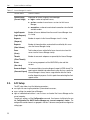
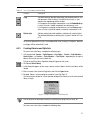
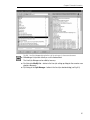
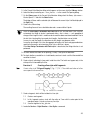
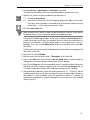
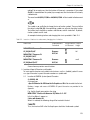
1. Call the command Service — Style Libraries — Line Styles..., Service — Style Libraries —
Hatch Styles..., or Service — Style Libraries — Text Styles... depending on the type of
objects whose styles you want to work with.
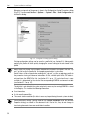
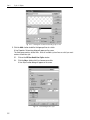
2. Click the Show Set button.
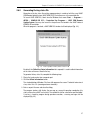
3. In the appeared Style Set Operation dialog press the New button.
4. In the Name Set dialog, which appears on the screen, enter a set name and click the OK button.
Both dialogs will be closed, while the Style Operation dialog will remain on screen. The active
preview window for the Style Operation dialog will be cleared since the newly created set is
empty.
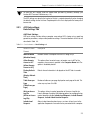
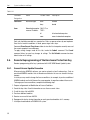
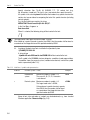
Using the Create Style button, you can create new styles in a library or in a set.
Using the Copy button, you can copy into a library or a set already existing styles. To do this,
in a neighboring window you must open a required source of styles — a library, a set or a
document — for copying.
6.2.2.
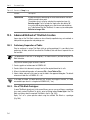
General Technique of Creating Styles
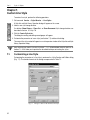
To create a new style, complete the following steps.
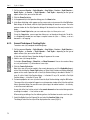
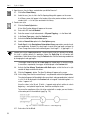
1. Call the command Service — Style Libraries — Line Styles..., Service — Style Libraries —
Hatch Styles..., or Service — Style Libraries — Text Styles... depending on the type of
objects whose styles you want to work with.
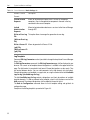
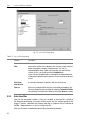
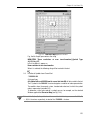
A Style Set and Style Library Operation dialog will appear on the screen.
2. Select a new style storage location.
Use buttons Show Library..., Show Set... or Show Document. You can also create a library
or a set (see Section 6.2.1) for location of a new style.
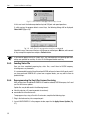
3. Click the Create Style button.
Note that a new style can be created in the current document or set if the Embedded page is
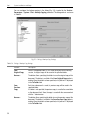
active. After clicking the Create Style button, an Object Style Creation and Editing dialog will
appear on the screen. Operation with a Line Style Creation dialog is described in Section 7.1
on p. 82, with a Hatch Style Creation dialog — in Section 8.1 on p. 92, and with a Text Style
Creation dialog — in Section 9.1 on p. 106.
4. Customize properties of a new style and close the Style Creation dialog using the OK button.
The name of the style created will appear in an active preview window of the Style Set and Style
Library Operation dialog. You can edit a new style or copy it to another location — to a library,
a set or the current document.
A new style of the line, hatches or text in the current document can be created during creation
or editing of an object — line, hatches or text.
When creating or editing a line, the following actions shall be done to create a new line style:
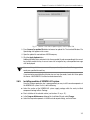
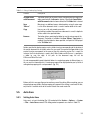
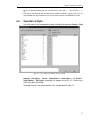
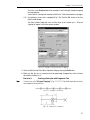
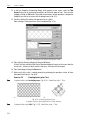
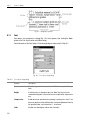
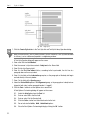
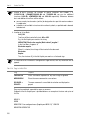
1. Unfold the Style list on the Property Bar and select the Another Style string.
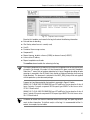
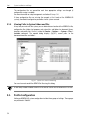
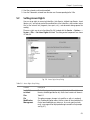
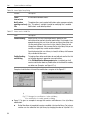
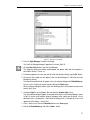
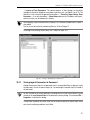
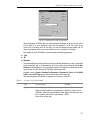
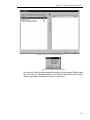
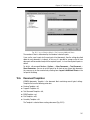
The dialog to select the line style will be displayed on the screen (Fig. 6.3).
74