1
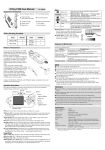
Fun 50/512/524 Digital Mobile Magnifier/Microscope User’s manual ViTiny World, Nothing is Tiny Controls ViTiny FUN50,512,524 User Manual Ver.070705 ViTiny Packing Contents Zoom Wheel and Picture-button Name Quantity Name Special Effects Button Power Button Quantity Aiming Mark ViTiny 1 Anti-slide Pads 2 Power Adaptor 1 Installation CD Disk 1 Mini-USB Cable 1 Cleaning Cloth 1 Manual 1 AAA Ni-MH Rechargeable Battery 3 Wrist Strap 1 Distance Dial Setting Button Save/Compare /Confirm Button Display Screen Light Control Button Return/Preview Button Zoom Wheel and Picture-button: This wheel zooms in/out. Also, pressing down on the wheel saves the image to ViTiny memory. Distance Dial: Clear plastic dial changes distance from ViTiny lens to surface and stops the lens from touching target surface. This focusing mechanism is used to get a clear observation image. Aiming Mark: Circular mark on back of case to show position of lens. Helps locate lens over target. Special Effects: Press this button to select different image effects. Power: Hold this button 2 seconds to turn on/off ViTiny. Settings: Press this button to enter the Setting Mode. Save/Compare/Confirm: Press this button to save the current Operation Pressing the power button for 2 seconds will put ViTiny into the normal Observation Mode. The magnified images will be shown on the screen. Put the Aiming Mark on the back of the ViTiny case approximately over the target object. Use the display screen to center the image. You may touch the clear plastic lens protector to the area around the target. Press the save button or zoom wheel to capture image to memory. 1 image into ViTiny memory. You can also save by pressing down on the Zoom wheel. In Preview Mode, press this button to compare images. In Setting Mode, press this button to confirm. Light Control: Press this button to change white LED brightness. Four levels are available. Return/Preview: In normal mode, press this button to enter Preview Mode. In other modes, press this button to return to normal mode. system is not used, to maintain battery life. For long storage, remove batteries to prevent damage from battery leakage. ViTiny can also use alkaline batteries. Do not mix battery types. Do not recharge alkaline batteries. Accessories Anti-slide Pads: Two anti-slide pads are included. If desired, remove back-tape from anti-slide pads and stick to ViTiny where you want, like in this picture. Power-adapter: Plugs into a wall socket and into the USB cable. It will accept from 100V to 240V AC and output 5V DC. Mini-USB cable: USB to mini-USB cable. Carries data between ViTiny and PC. Also carries power from PC or power-adapter to ViTiny for operation and recharging batteries. Power Supply ViTiny includes three Ni-MH rechargeable batteries. ViTiny can run from batteries or from the USB cable. The Ni-MH batteries will recharge automatically, without removing the batteries, if you use the USB cable to connect ViTiny to your computer or the USB power adapter. When recharging in power-off status the white LEDs will flash twice in every three seconds. If recharging in power-on status, the icon will show on the screen. When charging complete in power-off status, the white LEDs will flash once in every three seconds. If charging complete in power-on status, the icon will show on the screen. Recharge Ni-MH batteries every several months, even if Settings Power Saving: Sets the time ViTiny waits before automatically turning off the power. Status Display: Turn screen status display icons on/off. 2 Status Brightness: Set brightness of display screen. White Balance: Turn on/off automatic white correction. Delete all pic: Delete all pictures in memory. Factory Default: Return to original settings. Battery Low This icon means battery power is low. N: Normal Mode G: Gray Mode I: Image Effect Inverse Mode E: Emboss Mode D: Dual Window View Mode Image Effects Magnifying Gray (G): Removes color, creates a grayscale image for easier object discrimination. Inverse (I): Reverses color and/or grayscale values. Useful to accentuate some image features. Emboss (E): Normal emboss algorithm. Useful to accentuate some image features. Dual Window View (D): Creates two windows, with current image in right window and center of that image magnified at the highest magnification in left window. Ruler: Hold the effects button for 2 seconds to show ruler on bottom of screen. Value on right side of ruler is the length of the complete ruler and will change when you zoom. For example, this picture shows the ruler length is 0.5mm, so each small scale is 0.05mm, but these distances are not reliable because of issues like exact distance from lens to image, which can change as the user holds ViTiny. So remember that this ruler is intended for user convenience, not scientific accuracy. LED Brightness The current magnifying rate is shown. LED brightness has four adjustable states. Frame-center Hold the Effect button for 2 seconds to switch between frame-center mark and ruler. Ruler Power Supply By USB or Using USB power shows this icon. adapter Charging 3 Battery recharging shows this icon. ViTiny-to-PC Connection You can send ViTiny images to your PC by the USB port, and also from your PC to ViTiny. Step 1: Connect ViTiny with your PC by the mini-USB cable. Step 2: The Windows add-new-hardware wizard will start automatically. Step 3: Direct the wizard to the ViTiny CD. Find the “Drivers” folder and then choose the right operating system for your computer. ViTiny currently supports only Windows. Support for Windows Vista is pending. Check the ViTiny website for the latest software. load picture data to or from your ViTiny, just run the FUN50.exe program. Step 7: When you start FUN50.exe and click the “connect” button, you will see the following on your computer screen. Click “OK” on the “ViTiny Found” window. Step 8: Click the “download” button and the ViTiny image memory will be copied to RAM memory on your PC. Also, a list of the file names and their sizes will be seen in the window. Step 9: You can preview images in the right side of the window. You can save to permanent memory by clicking the “save” button. Step 10: Images uploaded PC-to-ViTiny are limited to 320X240 pixels standard jpg compressed mode. The “Delete” and “Delete All” function will erase image files inside the ViTiny’s Flash-Memory. Step 4: Install the driver. Step 5: Copy the small FUN50.exe program to your PC’s hard drive from the “Application” folder on your ViTiny CD disk. Step 6: You can now remove the CD. Whenever you want to 4 Safety ViTiny is non-waterproof, so keep ViTiny dry. Do not use in humid place like bathrooms. A dry environment will extend ViTiny life. Use ViTiny only at -5C~ 50C. Sudden temperature change may form dew inside ViTiny, like entering a warm room in cold winter. Put ViTiny inside a handbag or plastic bag to slow temperature changes. Do not let the ViTiny lens face the sun or strong light for a long time. Powerful light may hurt the light-sensitive electronics. Avoid touching the lens. The white LEDs which illuminate the microscope target field are very bright. Do not stare directly into these LEDs because it may damage your eyes. The clear plastic distance shell sometimes picks up dirt or toxic material from a microscopically observed surface. Be careful touching this to the human skin. Wash carefully or disinfect as needed. Do not remove power/batteries when ViTiny is on. This may cause information loss or circuit damage. Specifications: ViTiny Fun5XX series Sensing element 300,000 pixels CMOS Lens High sensitivity lens Auxiliary light White LED × 3 with super high brightness LCD screen 1.8” TFT color LCD screen Memory 2MB Data FLASH -- capacity ~ 60 pictures Linker USB2.0 Magnifying rate 5x~ 20x(FUN50), 12x~48x(FUN512), 24x~90x(FUN524) Plug DC IN terminal (mini USB plug) Power 3 x AAA, RO3, 1.5V alkaline batteries or 3 x 1.2V Ni-MH rechargeable batteries. AC transformer (Output: DC 5.0V/1000mA; Input: AC 100-240V 50/60Hz). Current maximum = 220mA (with LEDs on at consumption highest illumination) Size 120 × 56 × 25 mm Weight approximately 70 grams (not including batteries) Operation -5ºC ~ 50ºC temperature Environment Below 85% (no dew) humidity: 5 LIMITED WARRANTY MICROLINKS TECHNOLOGY CORP warrants ViTiny to be free against defects in materials and workmanship at time of purchase and, assuming normal reasonable use, for a period of one year after time of purchase. For this period, free repair/replacement of ViTiny can be had directly from Microlinks. A dated proof of purchase is required at such time. Shipping costs are paid by the owner. Software included with ViTiny is “as is” and is used solely at the risk of the user, with no warranty of the user’s computer or the data within. 6 Usage Model: FUN524,324,300 Zoom:24X Example 1: Anti-Counterfeit from DataDot (http://www.datadotdna.com/) Example 2: Anti-Counterfeit from Microseal (http://www.microseal.com.tw/) Usage Model: FUN524,324,300 Zoom:24X Example 3: Biological Specimen Rabbit Blood Vessel Lime Tree 兔動靜脈血管 椴木橫切 Usage Model: FUN50,512,524,30,312,324,300 Zoom:5X,12X,24X Example 3: Electronic Industrial 0603 SMD LED 5X 0603 SMD Resistor 5X PCB BGA Pad 5X 0603 SMD LED 12X 0603 SMD Resistor 12X PCB BGA Pad 12X 0603 SMD LED 24X 0603 SMD Resistor 24X PCB BGA Pad 24X Usage Model: FUN524,324,300 Zoom: 24X Example 4: Electronic Industrial TFT Inspection A B C D Usage Model: FUN50, FUN30 Zoom:5X Example 5: Check Money NTD A B C D Usage Model: FUN50, FUN30 Zoom:5X Example 5: Check Money RMB A B C D Usage Model: FUN50, FUN30 Zoom:5X Example 6: Check Cloth A B C D Usage Model: FUN50, FUN30 Zoom:5X Example 8: Human Body Scalp (頭皮 1) Scalp (頭皮 2) Skin (皮膚) Fingerprint (指紋)