1
Learning QuickBooks
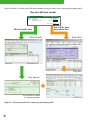
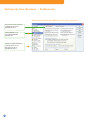
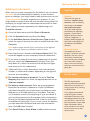
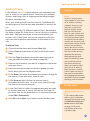
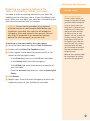
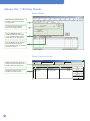
Viewing Help for a window you have open
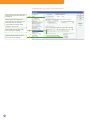
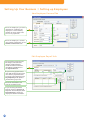
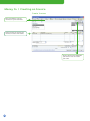
If you are unsure how to use a particular QuickBooks window, press F1. (You can also click the
Help button in the window, if one is present.)
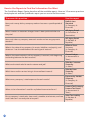
These Help topics provide answers to questions such as:
• What can I use this form for?
• What does this button do?
• What kind of information is displayed in this column?
• What happens when I select this option?
• How do I complete the task?
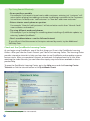
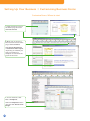
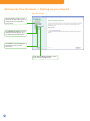
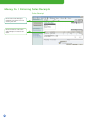
Information you’ll find in the Relevant Topics tab
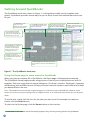
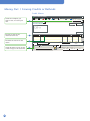
Each time you open a new QuickBooks window, the links in the Relevant Topics tab change so
that they apply to the active window.
Relevant Help topics will explain how to use the window, and can include:
• Tutorials that show you how to complete tasks
• Business process overviews
• Step-by-step instructions
• Planning and best practice suggestions
• Troubleshooting information
If you don’t see the information you need in the Relevant Topics tab, try using the Search tab
to find the topic.
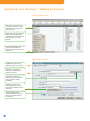
Using Help Search to find information
QuickBooks in-product Help is quite extensive. If you don’t see your issue in the Relevant Topics
list, you can use Search to find answers to your questions quickly:
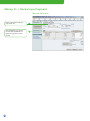
• Click the Search tab.
• In the Search field, type a short phrase (containing a noun and verb) that describes the
information you want. For example, “add a customer” or “How do I add a customer?”
• Click the search arrow. Search will return a maximum of 15 topics based on the words you
entered. (If you don’t see the information you want, follow the tips below for using search
effectively.)
15