1
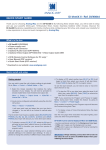
CONTROL
6- If necessary, select [Test Pattern] in the Output menu
5- Control or adjust your display device
4- On Format line, select the display’s native resolution
3- Press [Output format]
To adjust Blanking, use the Auto-Centering or Blanking adjustments in the
Image menu.
NOTE: To adjust input Size or Pos, use the [Layer] Menus.
5- For a manual input setup, press the EXIT/MENU button:
a) Press [Input],
b) Select the right input from Input #1 up to SDI #4, then
c) Select [Type].
4- For a comprehensive Input Setup, please refer to user’s Manual
3- If the acquisition has failed, check all connections and perform a manual setup
2- Press [Input] and [Autoset ALL]
1- Press the EXIT/MENU button from the Home menu [all functions must be
FRQ¿UPHGE\WKHENTER button]
1- Press the EXIT/MENU button from the Home menu
>DOOIXQFWLRQVPXVWEHFRQ¿UPHGE\WKHENTER button]
2- Press [Output]
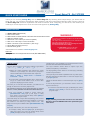
INPUT SETUP
OUTPUT SETUP
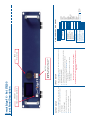
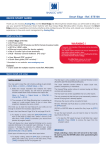
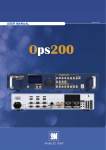
EXIT/MENU: Home Menu or back one level
ENTER: Validates the menu or command
KNOB
Menu scroll knob
STAND-BY
Hold for 3 seconds for stand-by Mode
Smart Edge FX - Ref. STE200
Front Panel Description
The Menu allows to improve the thresKROGRIWKHFRPE¿OWHU
0% means no adjustments and 100%
is the max. The setting is manual with
a visual correction.
The result is the removal of the aliasing in the moving picture.
* Motion Correction
(R1) Analog Computer Input
(R2) Analog Input
(R3) Video Input
(R4) EDTV/HDTV Input
(R5) RGB or YUV or YC or CV
(R6) NTSC Input
(R7) Interlaced 50 Hz
(R8) Interlaced 60 Hz
(R9) SDTV
(A3) displayed when an
input is active
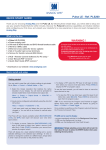
IMAGE (A3)
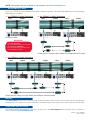
HOME MENU (extract)
Reset settings
Force 4:3 (R9)
3:2 Pulldown (R8)
2:2 Pulldown (R7)
Advanced (R2)
Colorimetry
Aspect OUT
Aspect IN
Under/Over (R3)
Optimize (R1)
Cropping (R2)
Blanking Adjust (R2)
Auto Centering (R1)
Motion Correct. (R11) *
H position
V position
H size
V size...
H position
V position
H size
V size...
Phase
H Total
Underscan
Overscan
Native
LetterBox_1_78
LetterBox_2_35
Anamorphic
Pillar Box
Full screen
Centered
Cropped
1_1
Brightness
Contrast
Color
Hue (R6)
Component Level (R2)
HOW TO ADJUST A SOURCE?
Red Level (R5)
Green Level (R5)
Blue Level (R5)