1
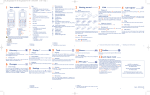
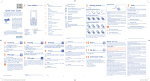
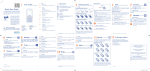
Know Your Phone 5. CLR/BACK Key It is used to erase input information, or cancel operating, exit to previous interface. 6. EXT PWR Lights on when the phone is connected to external power supply. 7. MESSAGE key This is the shortcut key to enter message menu. ZTE WP833 CDMA Wireless Phone User Guide There are two ZTE WP833 models. One needs UIM card inserted in and the other does not need. Section or function marked with “★”is only available to the model with UIM card. Otherwise, it is available to both models. Key Instruction Key Copyright © 2010 by ZTE Corporation All rights reserved. No part of this publication may be excerpted, reproduced, translated or utilized in any form or by any means, electronic or mechanical, including photocopying and microfilm, without the prior written permission of ZTE Corporation. The manual is published by ZTE Corporation. We reserve the right to make modifications on print errors or update specifications without prior notice. The information on the package is only for your reference. Images are for you reference only. ZTE Plaza, Keji Road South, Hi-tech Industrial Park, Nanshan District, Shenzhen, P.R.China Zip Code: 518057 Service Hotline: +86-755-26779999 Http://www.zte.com.cn E-mail: [email protected] 1 Description 1. MENU/SELECT key It is used to enter main Menu, select or confirm options in Menu, or confirm the character chosen in condition of character input. 2. Number keys Use the number keys to enter numbers and characters. 3. # key, * key It differs in different mode, option or function menu. In standby state, hold the # key to enable the keypad lock. 4. Scrolling keys Press these keys to scroll cursor to the left, right, up or down when inputting characters or selecting items. In standby state, press Left key to enter Recent Calls menu, press Right key to listen to FM radio, press down key to view information of the last call, hold Up key to enable the Silence all function. Press Up/Down key to adjust the conversation volume during a call. 2 8. EXIT Key It is used to power on/power off or exit from any window interface to standby state. 9. CALL/REDIAL key In condition of off-hook or hands-free, press this key to make a call after having entered the telephone number intended for calling or entered the last called telephone number. 10. Hands-free If you are using the handset to call and want to transfer the call to the speakerphone, press Hands-free key key and hang up the handset to put conversation on the speakerphone. Interface Icons Icon Description Icon Description Signal strength Mute Keypad lock New Message Incoming call or calling New Voice Mail Alarm clock Power Indicator Missed call Installation 4. UIM card“★” Power off phone, open the bottom cover of the UIM card before insert or removing the UIM card. Slide the UIM card into the UIM slot. Make sure that the metal connector is facing downwards. And the beveled corner matches with the UIM slot. Close the UIM card holder back to fix the UIM card and press the cover back. 5. Connect to computer Connect the data cable to computer and phone’s DATA interface. With relative software installing in computer, you can access network. Note: Do not insert or remove data cable when power is on. How to power on/off Switch the power toggle switch (BATT) to “ON” side which located key to at the phone’s back to power on the battery. Hold the power on the phone. key to power off the In state of power-on, press and hold the phone. ※ As usual, suggest make use of external power supply. When power down or unavailable power supply nearby, you can use battery for backup. How to Make a Call 1. Pick up the phone receiver or press the Hands-free key. 2. Enter the telephone number by using the Number keys (add the area code when making a long distance call) or select from Contacts. 3. Press the CALL/REDIAL Key to make the call or wait for seconds to send automatically. Voice Mail 1. Phone Connect phone set and handset with the phone cord. 2. Antenna Install antenna to antenna connector ANT. Hold the plastic stick of the antenna and rotate the metal screw cap in clockwise direction to fix it up. Do not rotate antenna directly. 3. External power adapter Plug the external power adapter to the external AC socket. Before using Voicemail, please consult with service provider to confirm that the voice mailbox has been activated. The system automatically sends a message to your phone informing a new voice message. Read the message and then dial voice mail box number to listen to your voice message. To read your voice mail, hold “1” key to dial voice mail box number in standby state. 3 4 How to Access Network Power on the phone. Connect the phone to the computer via data cable. The system will prompt you to install the ZTE dial-up software. Install the software follow the prompt. Then you can access network by ZTE dial-up software. Message Select Menu Messages. Select Create Message to create new message: key in receiver’ s phone number or select in Contacts list, select Continue to input message text, and then select Continue to Send the message or Save the message in OutBox. Select InBox to view messages received. Select OutBox to view the stored messages. (“★”)Select UIM to view the messages saved in UIM card. Select Erase Messages to erase certain messages. Select Voice Mail to read the messages and dial voice mail number to listen to the voice message following guide prompt. Select Preformatted Messages to send the Preformatted Messages. Select Message Settings to make necessary message settings. Select Send To Multi to edit and send one message to the multi receiver. Speed Dial List In standby state, you can make a Speed Dial of stored number by keying in digit (2-9). 1. Select Menu Contacts Find/View All to search for the record you want to set as speed dial number, press MENU/SELECT key. 2. Move to number in window, press MENU/SELECT key. 3. Scroll to select Add to Speed Dial. 4. Select a slot in list, press MENU/SELECT key. 2. Only phone speaker is supported to listen to FM radio. FM radio key enabled. Hook on the will intermit if handset off hooked or handset or press key again, the FM radio plays sequentially. To receive FM radio, you should: 1. Select Menu Extra Radio or press the Right key in standby mode to activate the radio. 2. Press Up/Down key to select the channel you saved. You can set volume, set frequency or rename the channel from Option menu. Select Option Set Volume, press Up/Right key to increase volume, and press Down/Left key to decrease volume. Select Option Auto Tuning, press Up/Down key to search the next available channel automatically. Select Option Manual Tuning, 0.1MHz is increased or decreased each time you press Up/Down key. Select OK to save the frequency in current channel, you can save maximum 10 channels. Select Back to return back to Option list. To set frequency manually, select Option Set Frequency, input frequency number from keypad, select OK to confirm. Select Rename to reedit the channel name. ※ The listening quality of FM radio is closely related to FM signal strength. Change the exposure or position of the phone when the listening quality is not perfect. It is recommended to use battery to power your phone and disconnect the external power supply when listening to the FM radio. Phone Lock Code Phone lock prevent keys on you phone keypad from being accidentally pressed. The default phone password is 0000. Please change it to your own phone password as soon as possible. PIN code and PUK code Your phone set support FM radio function. The features of the FM function described as follow: 1. Frequency range: 87.5MHz~108MHz. PIN Code is used to encrypt the security settings menu. Input right PIN code to enter security settings menu. For “without UIM card” phone model, the default PIN code is 0000. Three consecutive inputting wrong PIN code can cause restarting of phone. “★” For “with UIM card” phone model, three consecutive inputting wrong PIN code can cause locking of UIM card. To unblock, you need PUK. PIN code and PUK code may be offered together with the UIM card. If not, contact with network operator. 5 6 How to Receive FM Radio Text Input Operation Input Letters Input Words Menu Function Method Multitap Input—“ABC” or “abc”, press the corresponding letter/digit key till the letter appears. Press * key to switch between capitalization and lowercase. Press * key twice to enter capitalization case, perss * key again to get back to lowercase. eZiText Input—“Eng”, press the letter/digit keys corresponding to the word one by one until the word appears on the screen. If the word displayed is not the word you want, press Up/Down key to look for another matching word. Then press MENU/SELECT key to confirm. Hereinafter are brief instructions on menu functions of the phone. Function Description Selection MenuContactsAdd New Volume Set the volume of Ringer/ Handfree/Handset MenuSettingsSoundVolume Ringer/Handfree/Handset View records View the corresponding records in list MenuContactsView All/Busi- ness/Personal/ Speed Dial List Menu/ Time Format Set format of Menu/ Time MenuSettings Display Menu/Time Format Memory Status View the number of saved MenuContacts records and maximum number Memory Status of records capacity in phone and UIM(“★”) Alarm Option Set workday, alarm interval and alarm times. MenuSettings Alarm Option Voice Mail Receive and listen to Voice messages Preformatted Messages Some common used messages MenuMessagesPreformatted preformatted Messages Send messages to Multi-receivers MenuMessages Voice Mail In Symbols input mode, press the number keys and Up/Down key to select corresponding symbol. In Multitap Input mode, press “1” key till the symbol (common symbols) appears. Recent calls View or dial recent calls Erase all the characters Hold CLR/BACK key till all the characters to be erased. Move cursor Press Scrolling key. Change input mode Select input text mode listed in, and press MENU/ SELECT Key to confirm. Or press # key to change input mode. 7 Menu SettingsSupp. Services Call Forwarding MenuContactsFind Input Symbol Press CLR/BACK key. Call Forwarding Forward an incoming call to a designated phone number Save phone number Send To Multi Erase Character Selection Add contact Numbers Input—“123”, press digit key once. Press “0” key, except for being in numbers and symbols mode. Description Put the current call on hold to Menu SettingsSupp. answer the other incoming call Services Call waiting Search contact Search for a contact record Input Digits Input Space Function Call Waiting MenuMessagesSend To Multi MenuRecent CallsAll/ Missed/ Incoming/Outgoing Calls Call Timers View and reset call duration MenuRecent CallsCall Timers of calls Radio Set and utilize radio Functions Menu Extra Radio Alarm clock Set alarm alert time Menu Extra Alarm Calculator Execute basic math calculation MenuExtraCalculator World Clock View the time of cities in the world Hotline Set the phone to automatically MenuExtraHotline dial out the hotline number, when pick up the receiver or press Hands-free key and wait for certain time Autodial Timer Set the time for Autodial after MenuExtra Autodial Timer keying in phone number in condition of off-hook or hands-free Phone Info Edit and list the number information of your phone MenuExtraWorld Clock 8 MenuPhone Info Phone Reset Restore Factory Default MenuSettingsSecurity Phone Reset InComingCall Bar MenuSettingsSecurity InComingCall Bar Barring certain incoming number PIN Change Change the PIN code Menu SettingsSecurity PIN Change Lock Code Set or change the Keypad Lock Code MenuSettingsSecurity Lock Code IDD PIN Set the IDD PIN code (the MenuSettingsSecurity default IDD PIN code is 0000) IDD PIN Call Limit Barring certain call MenuSettingsSecurity Call Limit Warning and Maintenance Some electronic devices are susceptible to electromagnetic interference sent by the phone if inadequately shielded. Keep using the phone at least 20 cm or as far away as you can from TV sets, radio and other automated office equipment so as to avoid electromagnetic interference Operating the phone may interfere with medical devices like hearing aides and pacemakers, or other medical devices in hospital. Consult a physician or the manufacturer of the medical device before using the phone. Be aware of the usage limitation when using the phone at places such as oil warehouses, or chemical factories, where there are explosive gases or explosive products being processed, because even if your phone is in 9 idle state, it still transmits radio frequency (RF) energy. Therefore, power off your phone if required. Do not touch the antenna while calling. Keep the phone out of the reach of small children. The phone may cause injury if used as a toy. Do not put other things on the terminal to avoid overlaying radiator. Keep the antenna free from obstructions and position the antenna straight up. This will ensure best call quality. Use original accessories or accessories that are authorized by the manufacturer. Using any unauthorized accessories may affect your phone’ s performance, and violate related national regulations about telecom terminals, or even endanger your body. As your phone can produce electromagnetic field, do not place it near magnetic items such as computer disks. Do not expose your phone to direct sunlight or store it in hot areas. High temperatures can shorten the life of electronic devices. Prevent liquid from leaking into your phone. Disconnect external power supply and do not use your phone during thunderstorm. Unplug the external power adapter or remove battery when your phone is not in use, esp. for a long period of time. It is highly recommended to charge the battery before initial use. The battery might have been discharged during storage and delivery. Do not unplug the connector of the data cable from the phone, and not install or remove battery, when the power is on. Do not attempt to disassemble the phone by yourself. Non-expert handling of the devices may damage them. The phone is non-waterproof, keep it dry and store in shady and cool place. If you want to clean your phone, please use clean fabric that is a bit wet or anti-static. Do not use harsh chemical cleaning solvents or strong detergents to clean your phone, such as alcohol, dilution agent and benzene. Power-off your phone before you clean it. 10 Limited Warranty Troubleshooting The warranty does not apply to defects or errors in the product caused by: (a) Reasonable abrasion. (b) Misuse including mishandling, physical damage, improper installation, unauthorized disassembly of the product. (c) Water or any other liquid damage. (d) Any unauthorized repair or modification. (e) Power surges, lightning damage, fire, flood or other events outside ZTE’s reasonable control. (f) Use of the product with any unauthorized third party products such as generic chargers. (g) Any other cause beyond the range of normal usage for products. End User shall have no right to reject, return, or receive a refund for any product from ZTE under the above-mentioned situations. This warranty is end user’s sole remedy and ZTE’s sole liability for defective or nonconforming items, and is in lieu of all other warranties, expressed, implied or statutory, including but not limited to the implied warranties of merchantability and fitness for a particular purpose, unless otherwise required under the mandatory provisions of the law. If ZTE WP833 appears following phenomenon in the process of application, please read following relative information at first. If the problems still can not be solved, please contact with the distributor or service provider. Limitation of Liability ZTE shall not be liable for any loss of profits or indirect, special, incidental or consequential damages resulting from or arising out of or in connection with using of this product, whether or not ZTE had been advised, knew or should have known of the possibility of such damages, including, but not limited to lost profits, interruption of business, cost of capital, cost of substitute facilities or product, or any downtime cost. 11 Problem No Dial Tone when off-hook. No corresponding response from the interface of keypad system (After several attempts). Incorrect display of system time. No display on screen when disconnect external power supply. Press CALL/REDIAL key, but no number is sent. There is incoming call, but no prompt ring tone is heard. There is no prompt tone when the alarm clock has reached the time. Certain call cannot be received. Cannot send short message. Other abnormal phenomenon. Check Point Hook on and hook off receiver again. Power off and then power on again. Check whether the system signal is too weak. Check whether the battery has electricity, or it is damaged; or power on the phone again. Check whether you have hooked off (Notice: Be sure to hook off before sending the number when making a call.) Please check the mute mode and the volume of ring tone. Please check whether the alarm clock is enabled or not. Check whether the number is restricted in incoming list. Please check the network condition. Please first refer to user manual, then check whether the power is connected correctly or not, if there are no problems, please power off and re-start the phone. 12