1
First time Auto
Tuning
Automatically sets up the TV and searches for available
TV channels when the TV is turned on for the first time.
● These steps are not necessary if the setup has been
completed by your local dealer.
● Please complete connections (p. 8 - 10) and settings
(if necessary) of the connected equipment before
starting Auto Tuning. For details of settings for
the connected equipment, read the manual of the
equipment.
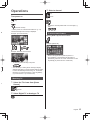
1
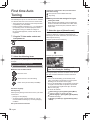
Plug the TV into mains socket and
turn power on
● Takes a few seconds to be displayed.
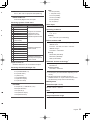
Tick the TV signal mode to tune, and then select
[Start Auto Tuning]
O
: tune (search for the available channels)
: skip tuning
■ When you select the analogue TV signal,
T
select your area.
● When selecting [CATV/Other], press the OK button,
and then select the Channel Plan from Indian CATV,
South Africa, American System, American CATV or
Japan CATV.
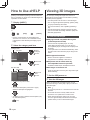
3
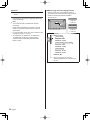
Select the type of [Home Screen]
The demonstration to explain how to use [my Home
Screen] is displayed. Confirm the demonstration by
following the on-screen instructions, and then select the
desired [Home Screen].
o
●
T
E
Example: [Home Screen Selection]
E
2
Select the following items
Example: [TV Home Screen]
Set up each item by following the on-screen instructions.
Example:
●
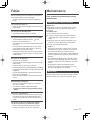
Please select your viewing environment.
Home
Shop
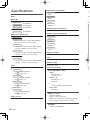
■ How to use remote control
Auto Tuning is now complete and
your TV is ready for viewing.
Move the cursor
If tuning has failed, check the connection of the network,
RF cable, and then follow the on-screen instructions.
Access the item / store the setting
● The TV will automatically go into Standby mode
when no operation is performed for 4 hours if [Auto
Standby] in the Timer Menu is set to [On].
● The TV will automatically go into Standby mode when
no signal is received and no operation is performed
for 10 minutes if [No signal Power off] in the Timer
Menu is set to [On].
● To retune all channels
[Auto Tuning] in [Tuning Menu] (Setup Menu)
● To add the available TV signal mode later
[Add TV Signal] in [Tuning Menu] (Setup Menu)
● To initialise all settings
[Shipping Condition] in [System Menu] (Setup
Menu)
●
Note
Return to the previous item (if available)
Select the language
Select [Home]
Select [Home] viewing environment to use in your home
environment.
● [Shop] is for shop display.
● To change viewing environment later on, you will
need to initialise all settings by accessing Shipping
Condition.
Set up the network connection
14
English
1
2