1
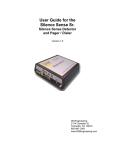
User Guide for the
Silence Sense Sr.
Silence Sense Detector
and Pager / Dialer
Version R3
DM Engineering
2174 Chandler St.
Camarillo, CA 93010
805-987-7881
www.DMEngineering.com
Theory of Operation
The Silence Sense Sr. is a microprocessor-based device that senses the
presence of audio from a single ended input over a wide range of input levels.
A user adjustable input control and timeout duration control are used to set the
input sensitivity and timeout duration. When the audio input ceases for a
predetermined user selectable period, (approximately 3 seconds to 1 minute
maximum time out or 6 seconds to 4 minutes maximum time out, jumper
selectable), a pre determined phone number and tone or paging sequence is
transmitted over a standard telephone line. If set to “chain”, a second phone
number and tone or paging sequence will be processed automatically. Reapplication of audio automatically resets the silence sense detector. If the
“chain” feature is not used, the Pager/Dialer section has an additional input that
may be connected by the user for any purpose of their choice. A contact
closure or logic low will activate this second input channel. Power indication is
indicated by a green LED, which turns amber during dialing and paging
sequences. Audio presence and timeout indication is indicated by a green/red
bi-color LED for ease of setup and monitoring the device. Programming is
accomplished using the “HyperTerminal” program supplied with Microsoft
Windows. A male-female serial programming cable, modular telephone cable,
power supply and a 9V back-up battery are all provided with the unit. Memory
for the programmed codes is saved in non-volatile e²prom. Battery back up is
provided to assure operation when the AC power fails.
Connections
1. Audio input…A single ended audio source is attached to the I/O connector as
marked.
2. Phone Line…A standard RJ11 phone line connection is made with the supplied
cable connected to the “Telco” jack.
3. Power input…Connect the “wall wart” DC output connector to the coaxial power
input jack on the unit. Plug the “wall wart” into a convenient 117VAC outlet.
(DC input is not polarity sensitive.)
4. Programming input…A DB9 female connector is provided for interface with a
computer serial port using the supplied cable. See Programming instructions.
5. Chain connector…By placing the supplied shorting jumper across the 2 pins on
the chaining connector, the device will automatically dial both numbers and
send both codes programmed into the device in the same sequence that the
particular inputs were activated.
6. Activation inputs…The left most input screw connector, “Input 1”, is dedicated to
the Silence Sense function, but may be used for another function if desired by
removing the yellow wire connected to it. This will disable the Silence Sense
function from activating the dialing portion of the circuit. If the “Chaining” feature
has not been selected, the second input, “Input 2”, and “common” screw
connectors may be used for any contact closure or logic low application the user
desires, and will activate the unit with the phone number and code programmed
into the second channel of memory.
2
7. Battery Installation… (to be completed after setup and programming) Open the
rear door on the cabinet and install the supplied alkaline 9V battery in the
battery compartment. The use of alkaline batteries is recommended and the
battery should be changed annually.
Setup and programming
PROGRAMMING
1. Connect the DB-9 cable to the computer serial port of your choice using the
supplied cable.
2. Disconnect any alarm inputs previously connected, including the jumper wire
from the “SS OUT” terminal to the “CKT. 1” terminal, the telephone cable and
9V back-up battery from the Pager-Dialer if installed.
3. Connect the AC power adapter to the power input jack of the Pager-Dialer and
connect the power adapter to the wall AC socket.
4. Power up your computer and using Microsoft Windows™. On the desktop go to
Start, Programs, Accessories, Communications, HyperTerminal. Select
HyperTerminal and enter whatever name and select an icon at the prompt that
you desire to record the programming sequence for this device. Click OK.
5. In the connect to dropdown box click on Connect Using or Direct to COM 1
(or COM 2), indicating whichever serial port you are connecting to. Click OK.
6. In the Com Configure or Properties / Port Settings window, set the Bits per
second to 9600, the Data bits to 8, the Parity to None, the Stop bits to 1, and
Flow control to None. Click Apply and OK to close the Com Properties
window.
7. Click File, Settings or Properties. Click on the Settings tab, then the ASCII
Setup box. Check Echo typed characters locally and Append line feeds to
incoming line ends. Check OK twice. Leave any other checked boxes as
they are.
8. You are now in Terminal mode. TURN THE CAPS LOCK ON YOUR
KEYBOARD ON.
9. Type D1 and then type the phone or pager number to dial for the first alert input
port, followed by Enter. Your entries may NOT echo on the terminal screen.
Do not put any spaces, dots or dashes or other characters in the string. Valid
characters are 0 through 9, *, #, and W. A “W” will insert a 2.5 second delay
between dialed characters and is considered a character in itself. A maximum
of 15 characters are allowed for phone numbers and 15 characters maximum
for alert codes for each input.
10. After entering the phone number press a down arrow key to start a new line. ?
may appear on a line and the cursor will be on a new line. Now type D1
followed by Enter. The terminal screen should now verify your input by
displaying the phone or pager number entered. If you make an error at any time
just press Enter to exit the inputting string and retype the D1 or the appropriate
programming command followed by Enter again to reprogram. This is true for
any of the programming strings to follow.
11. Type P1 followed by Enter, and type the code you want to use for the pager
display or telephone audible. For paging, it is mandatory that the last
3
character in the P1 or P2 pager alert code be the # symbol of the paging
function will not work. Telephone audible tones may end with any character.
12. After entering the programming code press a down arrow key to start a new
line. ? may appear on a line and the cursor will be on a new line. Type P1 and
enter to verify the alert code you entered.
13. Repeat steps 9-12 for the 2nd alert input pager or telephone number and code
number, using D2 and P2 instead of D1 and P1 to program this input.
14. Your programming setup is now complete. Disconnect the Power and
programming cable from the Pager-Dialer, and shut down HyperTerminal on
your computer. You will be prompted to save the session and it is advisable to
do so in the event you wish to reprogram the device without having to retype all
of the setup information
15. If you wish to have both programmed telephone numbers dialed sequentially if a
silence period is detected, place the “Chain” switch to the “ON” position. There
will be a 10 second pause between the completion of the first call and the
beginning of the second call. To have each alert input dial separately place the
“Chain” switch to the off position and connect your other alert input to circuit 2
after set-up is completed.
SILENCE SENSE SETUP
16. The Silence Sense Sr. is shipped with the multi-turn audio gain control set
to maximum or the fully clockwise position, and the multi-turn delay
control to the minimum or counter clockwise position. (19 turn
potentiometers) Do not re-connect the “SS OUT” to “CKT 1” jumper wire at
this time.
17. With audio present at the input, adjust the gain adjust control in the counter
clockwise direction until the “Audio Activity” green LED lights during low audio
passages. Depending on your programming, this level may need to be
readjusted for reliable audio detection later.
18. The Silence Sense Sr. is provided with the maximum timeout set to the 4 minute
range. For shorter timeout periods of less than one minute and higher
resolution of the multi-turn delay potentiometer, an internal jumper must be
reset. To set the maximum timeout to the one minute range it will be necessary
to open the cabinet by removing the 4 screws on the bottom side of the cabinet
and carefully separate the bottom and top of the cabinet. Locate the jumper on
the silence detector circuit as shown in figure 1 below, and move the jumper to
the “Left” position. Reassemble the cabinet being careful to not pinch any of the
connecting wires in the cabinet sides.
Fig. 1-Jumper Shown in the “4” minute maximum time-out position
4
19. Adjust the multi-turn “Delay” set potentiometer to the desired timeout period.
Fully counter-clockwise is approximately 5 (3) seconds, mid-setting is 2 minutes
(30 seconds), and fully clockwise is 4 minutes (1 minute). You may set the
control to any position desired. Note that after any duration adjustment is made
the audio must be applied and then removed or power must momentarily be
turned off and reapplied to reset the microprocessor timing. This is true any
time the delay set adjustment is changed. The “Silence Time-out” indicator LED
will turn red when the delay timeout has been reached. When the desired
timeout delay period has been set reconnect the wire jumper between “SS
OUR” and “CKT 1” inputs on the terminal block.
Operation and test
To test the Silence Sense Sr., make sure power is applied, the back-up battery
has been installed, the “SS Out” to the “CKT 1” jumper wire is connected, and
audio is present at a sufficient level to light the green “Audio Activity” indicator
LED. Remove the audio input and wait for the indicator LED to show red, and
the power LED to switch to amber indicating dialing activation. To test the
battery back-up operation, simply disconnect the DC power. The Silence Sense
Sr. should continue to function normally. That’s it… the Silence Sense Sr. is
now ready and waiting to monitor your audio.
Remember that the back-up battery is in use whenever the DC power connection is
removed or whenever there is no AC power from the wall to the AC power adapter.
If the unit is not in use, disconnect the back-up battery.
Hints
Some programming has pauses from time to time that may last for 30 seconds
or more, especially if you are broadcasting Sunday morning church services.
Experience has taught that 45-60 seconds or more is the best selection if you
don’t want to receive false alarms. Also, take time in setting the input levels.
Wait and watch the green indicator LED through different types of programming
or selections of music and speech to assure that the sensitivity is set correctly.
Specifications
• Audio Input: Impedance: 10K ohms minimum, single ended
• Audio Input Level: -30 to +10 dbm, input adjustable
• Silence Detect Time: approximately 3-58 seconds or 6-210 seconds, user
adjustable and dependent on the time-out range selected. Factory default
setting is the 4 min. max timeout range
• Activation input: N.O. Contact closure or logic low (+5VDC pull up voltage is
internally supplied between CKT 1 and 2 inputs and common screw terminals)
• Output: DTMF supplied by an RJ11 connector and cable
5
• Programming: PC serial connection using “HyperTerminal” application
program supplied with Microsoft Windows or equivalent communications
program (M-F Serial cable supplied)
• Power Requirements: Power adapter, 115 VAC to 9-12 VDC, 100-500 ma.
5.1 x 2.5mm coaxial connector (supplied)
• Battery Back-up Requirements: 9 VDC alkaline battery, NEDA 1604A
(supplied)
• Size: 5.1 x 5.7 x 1.7
• Shipping Weight: Approximately 2 lbs.
Warranty Information:
The DM Engineering Silence Sense Sr. is warranted for a period of one year from the
date of purchase. This warranty covers materials and workmanship only. Any
misapplication, physical or electrical damage from outside sources or by the customer
is not covered. For factory warranty repairs, the customer must pay shipping costs to
the factory, and DME will pay standard ground transportation shipping costs to return
the warranted equipment to the customer. Any priority shipping costs are to be the
responsibility of the customer as ground service is standard. Please contact the
factory for an RMA number prior to any returns. Items returned without an RMA may
be sent back to the customer unopened.
Technical Support
If you have questions, experience difficulties with the product or require further
information please contact DME at: 805-987-7881, toll free 800-249-0487, or E-mail
technical support at: [email protected], or visit www.DMEngineering.com
for the latest User Guide.
6