1
Dome setup > set dome scan
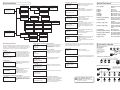
Keyboard Menu
Keyboard setup
Set KB Parameter
1、Set KB Parameter
1、Set KB ID:
2、About keyboard
2、Set baudrate
Set baudrate
Set KB ID
1、2400 bps
2、4800 bps
3、9600 bps
4、19200 bps
Input KB ID:
3、Joy_calibrate
1、Keyboard setup
2、Dome setup
About keyboard
3、Protocol select
1、Joy is free then
Press PREV to back
Press ENTER
Dome setup
Dome setup >Set dome pattern
Set dome preset
1、Set dome preset
1、Save preset
2、Set dome scan
2、Show preset
3、Set dome pattern
3、Clear preset
Preset num:
1. Pattern num:_
2. Set pattern
3. Run pattern
Press prev to back
4、Set dome tour
Set dome scan
Set left limit
1、Set left limit
Set right limit
Press enter sure
Press enter sure
Press prev to back
Press prev to back
3、Run scan
Set dome pattern
Set pattern
1、Pattern num:
2、Set pattern
3、Run pattern
Success!
Insert preset
Run tour
Set dome tour
Exit menu
CamID:001 MonID:001
Protocol:Pelco-P
Baudrate:9600
1、Tour num:
1、Preset num:
2、Insert preset
2、Speed:
3、Run tour
3、Dwell:
Success!
1、Pelco matrix
2、Dome
Success!
2、Pelco-P
3、Pelco-D
4、B02
Main Menu
1.Keyboard setup
2.Dome setup
3.Protocol select
4.Exit menu
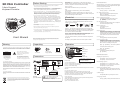
In main menu, you can select the
items by pressing the digit key, or use
joystick to navigate through the items.
For returning to upper menu level,
press [PREV] key. Use the [ENTER]
key to confirm the changes. The display will show “SUCCESS” when
changes are accepted.
Keyboard Setup
1. Set KB Parameter
2. About keyboard
Initial setup for the keyboard, such as
keyboard ID, and baud-rate. Press
digit key to enter.
Keyboard Setup > Set KB Parameter
Setup keyboards ID, Baud-rate and
1. Set KB ID
calibrates the joystick.
2. Set baudrate
Joystick up/down to select item
3. Joy_calibrate
[ENTER] to enter the sub-menu
[PREV] return to upper level.
Keyboard Setup > Set KB Parameter> Set KB ID
Use the digit keys to enter the ID, and
Input KB ID:
press [ENTER] to confirm. LCD will
(1 - 64)
show “SUCCESS” when accepted, or
“ERROR” if the ID input exceeds the
range.
1. Tour num:_
2. Insert preset
3. Run tour
1: Press the digit and [ENTER] to select
the tour number.
2: Add defined preset position to the tour
3: start the selected tour
Dome setup >Set dome tour> Insert preset
1. Preset num:_ select the defined preset
1. Preset num:_
position ( 1 - 80)
2. Speed:
2. Speed: PTZ moving speed to this
3. Dwell:
preset, 1 - 8 ( fastest)
3. Dwell: Stop time on this preset. Max. 60
seconds.
Dome
To enter the keyboard’s setup menu, keep the [SET]-Key pressed for 2
seconds, To navigate through the menu items, use the joystick with “up”
and “down” to move between the items. Use “right” to enter the item or
confirm changes. Use “left” to leave the item or discard changes”
Dome setup >Set dome tour
Success!
1、Factory
Enter the keyboard menu
Dome setup >Set dome pattern > Set pattern
Press 1 to start the pattern recording. The
Press 1 to start
dome will now memorize your PTZ
Press 0 to stop
operation. When finished, press 0 to stop
Press PREV to back
the recording. Press [PREV] to exit the
menu
Pelco matrix
Matrix
Protocol select
1、Matrix
Run pattern
Press 1 to start
Press 0 to stop
Press prev to back
1: Press the digit and [ENTER] to select
the pattern number.
2: Sub-menu for pattern setup.
3: start the selected pattern
Run scan
Success!
2、Set right limit
Keyboard Setup > Set KB Parameter> set baudrate
Available baud rate. Move joystick “up’ or
2400 bps
“down” to select the setting and press
4800 bps
[ENTER] to confirm.
9600 bps
Press [PREV] to return to upper level.
19200 bps
Use the digit keys to change the value on every option, and press [ENTER]
to complete the insert action. The LCD will show “SUCCESS” to confirm the
preset, and returns to upper menu level.
1. Matrix
2. Dome
Select the connected
device
[TELE]
Zoom-In
[WIDE]
Zoom-Out
[FAR]
Manual focus far
[NEAR]
Manual focus near
[CLOSE]
Manual iris close
[OPEN]
Manual iris open
[SET]+[N]+[PRESET] Store current PTZ
position as preset
[N]+[PRESET]
Recall stored preset
position
[SET]+[1]+[SCAN]
Define current position
as the left limit for scan
[SET]+[2]+[SCAN]
define current position
as the right limit for
scan
[1]+[SCAN]
Start the scan
[SET]+[N]+[PATTERN] Start pattern recording
[SET]+[0]+[PATTERN] Stop the pattern
recording and store.
[N]+[PATTERN]
Start recorded pattern
[N]+[TOUR]
Start the defined tour.
Connection sample
Star-Connection with
RS-Distributor
Protocol select
Keyboard Setup > Set KB Parameter> Joy_calibrate
Release the joystick, and press [ENTER]
Joystick is free
to confirm the calibrate of zero-point .
then
Press [PREV] to return to upper level.
Quick Reference
[N] + [CAM]
Dome setup >set dome scan> set left, right limit
Move the Joystick to the desired position
Press ENTER sure
and press [ENTER] for confirmation.
Joy_calibrate
Version:1.00
KB ID:008
Protocol:Factory
Baudrate:2400
4、Exit menu
Setup the 2-Points scan, select 1. And 2.
To define the left and right limit. Select
option nr. 3. To run the scan
1. Set left limit
2. Set right limit
3. Run Scan
1. Matrix: Matrix Mode
2. Dome: Setup Dome Protocol
press Enter
Max. 32 devices
(Keyboard and camera)
can be connected to a
RS-485 chain. E.g with 1
keyboard, you can max.
Connect 31 Speed
Domes.
RS-485
Distributor
Termination
Activated
on every dome
Protocol select >Matix
Keyboard Setup > About keyboard
Information about current keyboard
Version: 1.00
setting. Press[PREV] to return.
KB ID: 001
Protocol: B01
Baudrate: 9600 bps
1. Pelco Matrix
Currently only pelco protocol is supported
in the matrix mode. Press [ENTER] to exit.
Termination on RS-485 chain
RS 485+
RS 485-
Protocol > Dome
Keyboard
Dome setup
1. Set dome preset
2. Set dome scan
3. Set dome pattern
4. Set dome tour
Configure and setup the PTZ related
functions, such as preset, pattern... Etc.
1. Factory protocol
2. Pelco-P protocol
3. Pelco-D protocol
4. B02
Termination
On
Termination
Off
Termination
Off
Termination
On
Multiple device connection
For a multiple connection, you can
attach max. 4 keyboards to the
network. Make sure that every
keyboard has an unique ID.
Dome setup > Set dome preset
Save, recall and clear the preset points.
Keyboard
Keyboard
1. Save preset
2. Show preset
3. Clear preset
Keyboard
Dome setup > Set dome preset> Save, show or clear preset
Enter the preset number with the digit key,
Preset num:
For saving preset, move the joystick and
press [ENTER]. To show or clear the
Press PREV to back
preset, enter the preset number and press
[ENTER], or press [PREV] to exit.
DO NOT CONNECT THE RJ-45 PORT
TO ANY COMPUTER NETWORK
INTERFACE, as this may cause serious
damage to the keyboard.
Dome 1
Dome 2
Dome 3
Dome 4
Dome 5
Dome 6
Dome 7
Dome 8
Keyboard