1
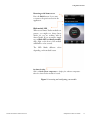
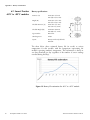
Configuring missions Graph Tap on the graph tab to see a summary graph of the readings in the current mission. Zoom in by swiping diagonally (left to right) with your finger anywhere in the graph. Zoom out by swiping diagonally right to left. Data For a list of all the readings, events, and alarms related to the current mission, tap on Data. Map If the option Location Services is enabled on your mobile device (Settings Restrictions), the location is stored when Smart-Tracker reads the Smart-Tracker module. Tap on Map to view a Google Map showing the locations at which the Smart-Tracker module was programmed, read, and stopped. 20 Smartphone-Tablet User Guide Thermo Scientific™ Smart-Tracker™