1
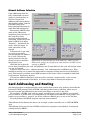
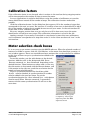
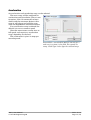
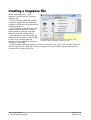
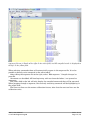
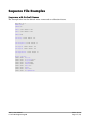
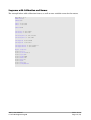
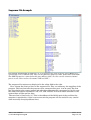
Calibration factors If the calibration factor is not changed, what is written in the text box during stepping motion will be interpreted as the number of steps to move the motor. In many applications it might be desirable to write the number of millimeter or turns the motor should move instead of the number of steps. The calibration function makes this possible. Click the calibration button. In the dialog box that appears, fill in the number of steps that corresponds to the unit you want. For instance: If a motion of one turn is desirable fill in 400 if this is the number of steps that is needed for one turn off your motor. In the unit text box fill in the word "Turns" and then click OK. For every stepping motion from now you only have to fill in how many turns the motor should move and not how many steps. This calibration information is saved in the file. Another example: If your motor is attached to a mechanical system that uses millimeters and 1 millimeter corresponds to 56 steps then write 56 in the factor text box and "mm" in the unit text box. Motor selection check boxes It is very easy to get motors running using the SMCP software. When the selected number of motors are visible on screen, click the New Motion at the motor that should get a motion. A new window appears. There are nine different basic motions that can be selected. In addition to this, four of them can get a synchronization added to the command. To use this window, put the radio button at the desired function. Add the value in the designated field. Press Execute command or Save Command depending on the desired function. These buttons are often used a in the way that the motion is first tested with the Execute button, and if the motion is the right one, push the save button for the tested and now selected motion. To get a synchronized motion the check-box called Synch. must be checked. A synchronization ID number must be added in the text-box above. To get the synchronized motion the Start selected sync. radio button must be used. When Execute command is pressed all motors with the same synchronization ID will act at the same time. Illustration 6: To create a sequence, select View sequence from the Edit sequence menu SMCP User Manual © OLTOM Engineering AB 2010-11-08 Page 11 (21)