1
ArcMap Mapping Link
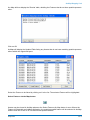
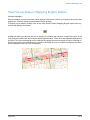
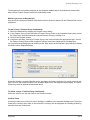
3. The Save Named Selection form will appear. Populate the fields on this form and click on the OK
button.
The Named Selection is now available for Asset selection purposes within Confirm.
For more information regarding Named Selections, refer to the Confirm user manual.
Note: Assets can only be saved as Named selections if they belong to a registered layer.
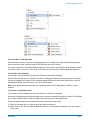
To Confirm - Select Features
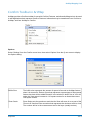
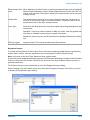
To switch back to Confirm and display the Feature Export form so that Confirm Features may be selected for viewing or updating in the map, use Select Features from the Confirm Tools menu.
To Confirm - Request Delete
(This option is only available if at least one Feature is selected in ArcMap)
Request Delete allows you to request Confirm to flag as Dead, the selected features within ArcMap
and optionally allows you to delete the selected spatial features.
To request a delete, follow the steps below:
1. Within ArcMap, select the features that you wish to flag as dead.
2. From the Confirm Tools menu, select Request Delete.
3. Confirm will take focus and display a form named Features to be flagged as dead. This form contains
a list of the selected features and asks if want to flag the listed features as dead. Click on the OK
button to proceed.
4. ArcMap will then take focus and ask you if wish to delete the selected features. Click 'Yes' to proceed.
Note: You must have the appropriate security access in Confirm for flagging Features as dead and
appropriate access to the spatial data in ArcMap to use this functionality.
To Confirm - Refresh Geography
(This option is only available if at least one Feature is selected in ArcMap)
Refresh Geography allows you to update the Geography details of an Asset held in Confirm. This
functionality would normally be used after you have altered a spatial representation of an Asset geographically
To update the Geography details in Confirm, follow the steps below:
1. In ArcMap, select the assets you wish to update.
2. Select 'Refresh Geography' from the Confirm Tools menu.
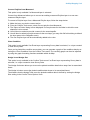
Assets can only have their Geography updated if:
• They belong to a Registered Layer.
• You have sufficient permissions within Confirm.
• The mapping link is configured to display Map Feature details in the either the Feature or Section
forms in Confirm.
Switch to Confirm
Switch to Confirm allows you to switch to Confirm and automatically display the Feature Export form.
From this form, you can then select a new group of Assets to be viewed, updated or deleted within
ArcMap.
To display the Feature Export form in Confirm, either click on the Switch to Confirm button or select
Switch to Confirm from the Confirm Tools menu.
Pitney Bowes
17 of 19