1
ASTO Control User’s Guide - 1.0
13
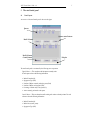
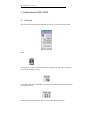
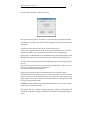
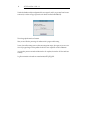
Clicking on the Config button a window will come up:
Here we decide which period we want to retrieve. An automatic check is performed on the dates.
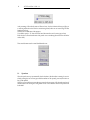
After selecting the period the “Start ADS” button will highlight. Clicking it we will start a dhs-subscribe process.
The start-up procedure selects the latest log file, and discard the old errors.
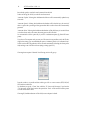
If a new error is logged the icon turns red, this is just to warn the operator that an error occurred.
Check the log using the “Show Log” button then click on the icon: it will turn green again.
Before starting a new dhsSubscriber process, dataSubscriberAsto verifies that the repository of data
(DHS_DATA) is empty, if not it executes post command on each file found under the repository.
The “Stop” button when pushed, stops all the dhs subscriber processes, by executing the appropriate script.
Like in the start-up procedure, the stop procedure verifies that DHS_DATA is empty, if not a window pops up asking if we want to process the data now.
It is warmly recommended to process the data.
During normal operations the existence of dhsSubscribe processes is constantly checked.
If dhsSubscribe dies, but its watchdog is alive, the icon turns red and the GUI waits for the watchdog to revive the process. If, after 300 seconds the process is not alive the icon turns grey and everything is stopped. If the “death” of both the processes (dhsSubscribe and watchdog) is detected the
GUI stops everything without waiting.
REMEMBER: quitting dataSubscriberAsto doesn’t kill dhsSubscriber, the correct way to shutdown
the subscriber is by using the Stop button.
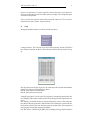
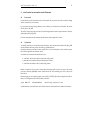
By clicking on “Show Log” a window will come up showing the current log. The log showed is the
one with the current date and “lying” under $DHS_LOG (remember that the log name changes every day.