1
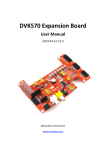
DVK522 Expansion Board
User Manual
2014.06.17 V1.1
Waveshare Electronics
www.wvshare.com
Copyright Statement
The ownership of this user manual is Shenzhen Waveshare Electronics Co., Ltd.
Any manner or form of modifying, distributing or copying any parts of this document
without permission is forbidden, otherwise offender will have to suffer all the
consequences.
Version update records
Version
Date
Description
V1.1
2014.06.17
Initial Release
Shenzhen Waveshare Electronics Co., Ltd.
www.waveshare.com
I
Content
Copyright Statement ...................................................................................................................................................I
Version update records ..............................................................................................................................................I
Document formatting convention ........................................................................................................................1
1.
Overview ...............................................................................................................................................................1
2.
What’s on board .................................................................................................................................................1
2.1.
Core interface ..............................................................................................................................1
2.2.
Component...................................................................................................................................2
2.3.
Jumper ...........................................................................................................................................3
3. Preparation ...............................................................................................................................................................3
3.1
Firmware burning..........................................................................................................................3
3.2
USB to serial port driver installation .....................................................................................4
4. Starting mode ...........................................................................................................................................................5
4.1.
TF Card starting .........................................................................................................................5
4.2.
Nand starting ..............................................................................................................................5
5. Type of system .........................................................................................................................................................5
5.1
Ubuntu ................................................................................................................................................5
5.2
Debian .................................................................................................................................................5
6. Demos ..........................................................................................................................................................................5
6.1.
Display Demo ..............................................................................................................................6
6.2.
LED Demo .....................................................................................................................................7
6.3.
Buzzer Demo ...............................................................................................................................7
6.4.
DS18B20 Demo ..........................................................................................................................8
6.5.
AD Keypad Demo.......................................................................................................................8
6.6.
AT45DB Read/Write Demo ...................................................................................................9
6.7.
MAG3110 Demo ...................................................................................................................... 10
6.8.
UART Interface Demo ........................................................................................................... 11
6.9.
RS485 Demo ............................................................................................................................. 11
6.10.
GPS Demo ............................................................................................................................. 13
6.11.
ZIGBEE Demo ...................................................................................................................... 13
6.12.
RTC Demo ............................................................................................................................. 13
6.13.
USB Camera Demo ............................................................................................................ 14
6.14.
WIFI Demo ........................................................................................................................... 17
Shenzhen Waveshare Electronics Co., Ltd.
www.waveshare.com
II
Document formatting convention
1. Commands on PC ubuntu terminal: preceding with '#', here root user privileges
is requested.
Commands on the board terminal: preceding with '$'
2. This Manual is for API demo on Ubuntu and Debian system.
1. Overview
DVK522 is an expansion board designed for Cubieboard1/2, integrates various
components and interfaces for connecting external accessory boards, complete
sample codes will also be offered, users can easily develop your own products with it.
2. What’s on board
2.1.
Core interface
1)
CUBIEBOARD1/2 socket
for connecting CUBIEBOARD1/2
Shenzhen Waveshare Electronics Co., Ltd.
www.waveshare.com
1
2)
3)
4)
5)
6)
7)
8)
9)
10)
11)
12)
13)
14)
15)
16)
17)
2.2.
CUBIEBOARD1/2 expansion connector
For expanding IOs
TVOUT interface
video CVBS output, for connecting display devices like TV
VGA interface
for connecting VGA display Module
7inch capacitive LCD RGB interface
for connecting 7inch capacitive LCD with RGB interface
7inch capacitive LCD LVDS interface
for connecting 7inch capacitive LCD with LVDS interface
7inch resistive LCD RGB interface
for connecting 7inch resistive LCD with RGB interface
CAMERA interface
for connecting OV7670 Camera Module
ZIGBEE connector
for connecting ZigBee modules like Core2530, supports working with
ZB501
UART interface
easily connects to UART modules, such as RS485 Board (3.3V)、GPS
module, etc.
ONEWIRE interface
easily connects to ONE-WIRE devices (TO-92 package), such as
temperature sensor (DS18B20), etc.
SPI0/I2C1 interface
easily connects to SPI or I2C modules such as MAG3110 Board、
AT45DBXX Dataflash, etc.
Arduino interface
for connecting compatible Arduino modules
UART interface(PL2303TA)
for connecting to UART0 interface on CUBIEBOARD1/2
USB interface
USB TO UART(PL2303TA)
ICSP interface
ICSP interface for Arduino
5V/3.3V power input/output
usually used as power output, also common-grounding with other
user board
Component
18)
12M crystal
for PL2303TA
Shenzhen Waveshare Electronics Co., Ltd.
www.waveshare.com
2
19)
20)
21)
22)
23)
24)
25)
26)
2.3.
PL2303TA
USB TO UART MCU
RTC backup battery
3.3V battery
32.768KHZ crystal
for PCF8563
PCF8563
RTC board MCU
Buzzer
AD keys
3 common Android keys:
VOL+、VOL-、ESC
User LED
8 user LEDs
Power indicator
Jumper
27)
28)
29)
30)
31)
32)
33)
34)
35)
TVOUT selection jumper
CAMERA power selection jumper
RTC selection jumper
RTC power selection jumper
ONEWIRE、buzzer and AD key selection jumper
Arduino Port selection jumper
easily controlling the Arduino connection
User LED selection jumper
Arduino AD selection jumper
short the right: while connecting Arduino ADC shield;
short the left: while connecting Arduino I2C shield.
Arduino UART selection jumper
short the right: while connecting Arduino UART shield
short the left: while connecting Arduino microcontroller board
3. Preparation
3.1 Firmware burning
Burning corresponding firmware: cbx-dvk-xxxx.img is needed when testing DVK522 ,
download it from :
http://dl.cubieboard.org/parteners/waveshare/Image/,
detail please refer to “Burning Firmware”.
Shenzhen Waveshare Electronics Co., Ltd.
www.waveshare.com
3
Note:
1.Note:Firmware with “sdcard”marking is TF card firmware;with “nand” marking is
nand firmware.
2.Firmware version of v1.1 or above is suitable for testing DVK522, version v1.0 is
compatible for old version DVK521.
3.2 USB to serial port driver installation
Connect UART connector of DVK522 to UART0 connector of cubieboard 1/2 via 4-pin
or 2-pin wires, connect USB TO UART connector of DVK522 to PC via mini USB wire.
Launch PL2303_Prolific_DriverInstaller_v1.8.0.exe to install the driver. After installed,
launch the serial debugging assistant and check putty.exe, configure like below, then
click “open”.
Note: Check your computer’s “Device Manager”to see what the COM is.
Shenzhen Waveshare Electronics Co., Ltd.
www.waveshare.com
4
4. Starting mode
4.1.
TF Card starting
Insert the burned firmware TF card to the DATA CARD slot of the Cubieboard1/2,
connect to electricity for starting.
4.2.
Nand starting
After burned firmware, connect to electricity for starting directly.
5. Type of system
5.1 Ubuntu
Input "enter" at the terminal to enter Bash Shell development environment with root
user privileges.
5.2 Debian
Reboot the system, input user name and password:
User:root
Password:123456
Then enter Bash Shell development environment with root user privileges.
Note: If it is not root user privilege, switch to root user!
6. Demos
Note:
Shenzhen Waveshare Electronics Co., Ltd.
www.waveshare.com
5
1.Ensure the system firmware is provided by us, otherwise the test could not be
operated!
2.Reboot the system, find all the testing sample under root of
/home/waveshare_demo/API.
6.1.
Display Demo
Different display demo must use corresponding firmware!
1) LCD demo
Connect connector of LCD to connector of DVK522 via 40pin wires like below:
LCD(connector)
DVK522(connector)
RGB
CTP_RGB
LVDS
CTP_LVDS
a) Connect the RGB connector on the LCD to DVK522 via CTP_RGB connector :
b) Connect the LVDS connector on the LCD to DVK522 via CTP_LVDS connector :
Note:
Our standard 7"TFT LCD is capacitive touch screen, the controller is FT5X06,
resolution is 1024x600, with RGB and LVDS connector.
It requests to make hardware configuration on LCD board( detail please check on
Shenzhen Waveshare Electronics Co., Ltd.
www.waveshare.com
6
back side of the LCD board) when using different connector:
1) RGB connector:R24=10K,R25=NC,the 40PIN FFC connect to the RGB
connector;
2) LVDS connector: R24=NC,R25=10K,the 40PIN FFC connect to the LVDS
connector.
Default is RGB conector.
2) VGA demo
Connect the display LCD to the DVK522 onboard VGA connector via VGA wire.
3) HDMI demo
Connect the display to the cubieboard1/2 onboard HDMI connector via HDMI
wire.
6.2.
LED Demo
Short the onboard LED jumper(set by default, following are the same)
Enter the following command:
$ test_led
8 leds blinking:
Press “Ctrl+C” to stop.
6.3.
Buzzer Demo
Short the onboard BUZZER jumper
Enter the following command:
Shenzhen Waveshare Electronics Co., Ltd.
www.waveshare.com
7
$test_buzzer
The buzzer will start to make sound.
6.4.
DS18B20 Demo
Insert the DS18B20 into the ONEWIRE socket, short the onboard ONEWIRE jumper
Enter the following command:
$ls /sys/bus/w1/devices/
There's a folder with the name looks like "28-0000054a5bec " (the last 7 characters is
an unique device ID of every different DS18B20, in this case, the device ID is
57c5948)
Enter the following command:
$test_ds18b20 57c5948
The current environment temperature will be printed on the console terminal.
As shown in the figure below:
6.5.
AD Keypad Demo
Short the ADKEY jumper
Enter the following command:
$ test_key event3
Note:
1.What the event* is depended on the actual situation, please check directory
“/dev/input”;
Shenzhen Waveshare Electronics Co., Ltd.
www.waveshare.com
8
2. Please perform: modprobe sun4i-keyboard and put sun4i-keyboard into listing
/etc/modules if the keypad driver is not insmod.
Press 3 keypads respectively, then related key value that were pressed or released
will be displayed on the console terminal:
Press “ Ctrl+C “ to stop.
6.6.
AT45DB Read/Write Demo
Connect the AT45DBXX DataFlash Board to the onboard SPI0 interface
Enter the following command:
$ test_at45db
Data written and read will be displayed on the console terminal:
Shenzhen Waveshare Electronics Co., Ltd.
www.waveshare.com
9
6.7.
MAG3110 Demo
Connect the MAG3110 Board to the onboard I2C1 interface,
Enter the following command:
$test_mag3110
Rotate the module for a circle in the same plane to record the maximum and
minimum mean parameter. When the correction finished, the correct guide angle
will be displayed on the console terminal:
Press “ Ctrl+C” to stop.
Shenzhen Waveshare Electronics Co., Ltd.
www.waveshare.com
10
6.8.
UART Interface Demo
Short RXD and TXD of the UART
Enter the following command:
$ test_uart ttyS1
If the serial port can receive and send automatically, it means the UART can work
normally.
Note:
UART3 interface corresponds to ttyS1,
UART4 interface corresponds to ttyS2,
6.9.
RS485 Demo
Connect the two RS485 Boards to the onboard UART3 and UART4 interface. Connect
the A, B side of one RS485 module to the A, B side of the other RS485 module using
connecting wires. Users can also use their own RS485 for testing.
The two RS485 devices can optionally regarded as a receiver or transmitter, the
receiver should firstly be in receiving status, then the transmitter begin to send.
Open two console terminals, one enter the following command:
$ test_485_uart3 -d /dev/ttyS1 -b 115200
The other enter the following command:
$ test_485_uart4 -d /dev/ttyS2 -b 115200
1) Select "2" for the receiver, before select "3" to stop receiving, the receiver remain
Shenzhen Waveshare Electronics Co., Ltd.
www.waveshare.com
11
in the status of receiving ,
As shown in the figure below:
2) Select "1" for the receiver, enter information that you want to send, such as
"hello", before select "3" to stop sending, the transmitter remain in the status of
loop sending, keep sending data,
As shown in the figure below:
Press Ctrl+C to stop.
Shenzhen Waveshare Electronics Co., Ltd.
www.waveshare.com
12
6.10. GPS Demo
Connect the UART GPS module to the onboard UART3 interface,
Enter the following command:
Note:
1.The GPS module demo must be operated outdoor, otherwise it can not receive the
satellite data.
2.The testing program is compatible with GPS module with baud rate 9600.
$ test_gps ttyS1
User can analyze corresponding data according to their needs. Press Ctrl+C to stop.
Detail for how to use the UART GPS module please refer to:
http://www.wvshare.com/aspx/search.aspx?keywords=GPS
6.11. ZIGBEE Demo
Interface of onboard ZIGBEE only compatible with configured Core2530 board.
When burning program for the core board or other corresponding configure, it may
need support from ZB501. Detail development package please refer to:
http://www.wvshare.com/product/ZB501.htm
6.12.
RTC Demo
Test onboard DVK522 RTC, enter corresponding demand on the console terminal:
Note:
This demo must be sure to use button battery, that is short RTC_PWR JMP to
“2-3’, BAT side.
1) Add device:
$ echo pcf8563 0x51 > /sys/class/i2c-adapter/i2c-1/new_device
Note:
Please execute: modprobe rtc-pcf8563 if RTC driver did not load and add rtc-pcf8563
to the list of /etc/modules
2) Read the system time
$ date
3) Configure the system time:
$ date 061717502014.23
4) Set the hardware of RTC time:
$ hwclock -w -f /dev/rtc1
5) Read time of RTC hardware:
$ hwclock -r -f /dev/rtc1
6) Time of RTC hardware synchronized to the system time:
$ hwclock -s -f /dev/rtc1
Shenzhen Waveshare Electronics Co., Ltd.
www.waveshare.com
13
7) Cut off the power and restart, read the time of RTC hardware and synchronized
to the system time, enter the following command:
$ echo pcf8563 0x51 > /sys/class/i2c-adapter/i2c-1/new_device
$ hwclock -r -f /dev/rtc1
$ hwclock -s -f /dev/rtc1
$ date
Now, time of the software and hardware are synchronized, the RTC works normally.
6.13. USB Camera Demo
Connect our standard USB Camera to the onboard Cubieboard1/2 USB Host interface,
connect the network cable( to ensure access to the Internet), enter corresponding
command:
Note:Users can directly start from step 5) as the firmware we provided already
finished step 1)- step 4).
1) Install corresponding tool
$apt-get install libv4l-dev
$apt-get install libjpeg8-dev
$apt-get install subversion
$apt-get install imagemagick
$apt-get install make
$apt-get install vim
2) Download mjpg-streamer source code
Shenzhen Waveshare Electronics Co., Ltd.
www.waveshare.com
14
$cd /
$svn co https://svn.code.sf.net/p/mjpg-streamer/code/ mjpg-streamer
It will download automatically after executed the command, after finish
download, the mijpg-streamer document will appeared in the current directory.
3) Modify the configuration file
$vi mjpg-streamer/mjpg-streamer/plugins/input_uvc/input_uvc.c
Modify:
int width = 640, height = 480, fps = 5, format = V4L2_PIX_FMT_MJPEG, i;
to:
int width = 320, height = 240, fps = 5, format = V4L2_PIX_FMT_YUYV, i;
Exit after save it.
4) Compile
$cd /mjpg-streamer/mjpg-streamer
$make clean
$make
5) Check the assigned ip address:
$ ifconfig eth0
The ip address is 192.168.1.244.
6) Check the assigned ip address:
$cd /mjpg-streamer/mjpg-streamer
$ ./ start.sh
Shenzhen Waveshare Electronics Co., Ltd.
www.waveshare.com
15
7) Open the browser on a computer which is connected to the same subnet( or
directly on the LCD display which is connected to DVK522), enter the following
address:http://192.168.1.244:8080/javascript.html
You can see the captured video stream. Press Ctrl+C to stop.
Shenzhen Waveshare Electronics Co., Ltd.
www.waveshare.com
16
6.14. WIFI Demo
Insert our standard USB WIFI to the Cubieboard1/2 onboard USB Host connector,
enter corresponding command on the console terminal:
1) Install corresponding tools
$apt-get install wifi-radar
$apt-get install linux-firmware
When finished,reboot the system.
2) After rebooted the system, turn off the Ethernet card and open WIFI card.
$ifconfig eth0 down
$ifconfig wlan0 up
Note: It may be “wlan1” in different system, according to the actual situation.
3) Check the network status:
$ifconfig
4) Scan the wireless router:
$ iwlist wlan0 scan
to find available wireless network.
Shenzhen Waveshare Electronics Co., Ltd.
www.waveshare.com
17
5) Configure wlan0:
$vi /etc/network/interfaces
Acquire the IP configuration dynamically as following:
#auto lo eth0
#iface lo inet loopback
#iface eth0 inet dhcp
auto wlan0
iface wlan0 inet dhcp
pre-up ip link set wlan0 up
pre-up iwconfig wlan0 essid waveshareNet
wpa-ssid waveshareNet
wpa-psk 123456
Acquire the IP configuration statically as following:
#auto lo eth0
#iface lo inet loopback
#iface eth0 inet dhcp
auto wlan0
iface wlan0 inet static
address 192.168.1.121
Shenzhen Waveshare Electronics Co., Ltd.
www.waveshare.com
18
netmask 255.255.255.0
gateway 192.168.1.1
pre-up ip link set wlan0 up
pre-up iwconfig wlan0 essid waveshareNet
wpa-ssid waveshareNet
wpa-psk 123456
Exit after save it.
Note: Configure ESSID and PSK properly according to the scan result.
6) Restart the network:
$/etc/init.d/networking restart
7) Restart the network:
$ ping www.baidu.com
Note:
Users can connect WIFI directly on graphical interface.
Shenzhen Waveshare Electronics Co., Ltd.
www.waveshare.com
19