1
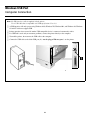
Windows USB Port
Driver Installation, Windows XP
Install the Printer Driver
□ Click Yes to confirm printing of the test page, then click
OK and close the Printers dialog box.
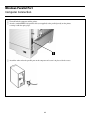
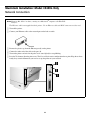
□ Make sure the USB cable is connected to your printer
and PC and your printer is turned OFF.
Model C5400n Only: To Install
the Second Driver as Well
□ Insert the Driver CD supplied with your printer into
your CD-ROM drive. The CD will autorun. (If it
doesn’t, click Start → Run → Browse. Browse to
your CD-ROM drive and double-click Install.exe, click
OK.)
□ With the Menu Installer Software Installation dialog
box open, click the Printer Driver Installer button.
□ Select Local printer. Click Next.
□ The License Agreement appears. Click Next.
□ Select LPT1 temporarily. Click Next.
□ Select your language.
□ Select the emulation to install. Click Next.
□ Click the Printer Driver Installer button.
□ Follow the on-screen instructions to complete the
□ Click Local printer. Click Next.
installation.
□ Select the USB port. Click Next.
□ Click Finish.
□ Model C5400: Click Next.
Note: If you will be installing the utilities, leave the Menu
Model C5400n: Select the emulation to install—the
Postscript (PS) emulation is the default—then click
Next.
Installer dialog box open.
When the installation is complete:
□ The printer driver installs.
□ Click Start → Settings → Printers.
□ The Connect cable dialog box displays.
□ Right click the printer icon for the emulation you just
□ Switch your printer ON.
installed, then click Properties.
□ The Add New Hardware wizard starts. Click Next.
□ On the Ports tab, select USB01 port in the Print to the
following port drop-down list.
□ Select “Search for the best driver for your device.”
□ Click OK, then close the Printers dialog box.
Click Next.
□ Select CD-ROM drive. Clear other choices. Click Next.
When you’re done installing
drivers, skip to page 17 for:
□ The USB driver is located. Click Next. Click Finish.
□ Click Finish.
•
•
•
•
Note: If you will be installing the second driver (Model
C5400n only) or the utilities, leave the Menu
Installer dialog box open.
Print a Test Page
□ Click Start → Settings → Printers.
□ Right-click the printer icon.
□ Click Properties.
□ Click the Print Test Page button.
11
Printer Software Utilities
Activating the Optional Accessories
Manuals
Readme File