1
est
ractices
B P
2012-2013
A+
Michigan Student Data System (MSDS)
Reporting for Trouble-free
Accountability Data
Steps
to
SUCCESS
Pre-Identification through
Students Not Tested
Submitting accurate data in the Michigan Student Data
System (MSDS) is critical to clean assessment reporting and accountability data. There are some important
steps to success that districts can follow to help ensure
data quality in the time period before, during, and after
state assessments.
Step 1 – Pre-Identify Students for
State Assessments
Pre-identify students for state assessments using MSDS
Early Roster or the Bureau of Assessment & Accountability (BAA) Secure Site to receive student barcode
labels. Please note that all students in tested grades are
expected to test. Fall assessment pre-ID runs from May
through September each year.
Submit Early Roster Collection
√ Receive student barcode labels with accurate
UIC (when Early Roster is used to pre-ID, UIC
conflicts between enrolled data and tested data are avoided).
√ The Early Roster file must contain a valid “Test Type” in the BAA Component denoting which assessment a student should take in each tested subject. (Test Type can be changed later through the BAA Secure Site.)
√ Make sure students expected to advance to the next grade in the fall have their grade level “promoted” in the file you submit to Early Roster.
For spring assessments, BAA pre-identifies students using the most recent certified MSDS data. This occurs in
December. All grade 11 (and eligible grade 12) students
are pre-identified for the Michigan Merit Examination
(MME); if the alternate assessment is appropriate, reassign the student(s) to the MI-Access test cycle in the
BAA Secure Site.
BAA Secure Site User Manual pgs. 18 - 63
Step 2 – Submit Accurate General
Collection Data in MSDS
District assessment coordinators must work with
MSDS authorized users to ensure UICs used to pre-ID
students are the same UICs submitted for students in
the general collection. When students are submitted
in the Fall/Spring MSDS General Collection, the data
submitted should reflect the most recent student demographics and program participation/eligibility. Data
from the MSDS General Collections are used to build
the base student demographic file used for accountability calculations. The base file can be altered by submitting Student Record Maintenance (Step 5).
Step 3 – Verify Tested Roster
Tested Roster opens after the state receives a file of
assessment results from the scoring contractor and
links those results to MSDS data from the Fall/
Spring General Collection. The data is then loaded
in the BAA Secure Site and displayed for schools
and districts. Verifying Tested Roster is critical:
check to make sure all student answer documents
appear on the tested roster. Missing answer documents (or missing students) must be reported at
this time.
Verifying Tested Roster:
√ Verify prohibited behavior (PB) and non standard accommodation (NS) flags are
set accurately. The result of PB and NS is
invalid test scores.
√ Verify students marked “Out of Level”
are accurate. This occurs when a
student takes a different grade level test than the grade in which
they were reported in MSDS.
√ Submit “Combine” requests for
students displaying on multiple
rows.
√ Submit “Move” requests for
students listed that your school
did not test.
For MME only: all three answer documents must
be coded to the same school for a student to get a
valid score. The “sending” school can either submit a
“Move” request to get the student’s Day 1, 2, or 3 answer document(s) moved out, or the “receiving” school
can submit a “Missing Test” request to get the missing
answer document(s) moved in.
During the assessment window, document the reason a
student did not take one or more of the required gradelevel assessments, but do NOT submit these reasons
during Tested Roster. Report this information during
the Students Not Tested window (Step 6).
BAA Secure Site User Manual pgs. 73 - 95
Step 4 – Review Students Expected to
Test Report
The Students Expected to Test Report is available at the
same time as Tested Roster and indicates which students your school will be held accountable for participation in state assessments. Verifying the Students
Expected to Test Report is critical. The report displays student demographics as reported in the Fall/
Spring General Collection.
Verifying Students Expected to Test:
√ Verify student demographics,
including grade level.
√ Check for missing UICs
√ Check for students with an Enrolled UIC/Tested UIC conflict.
√ Check for new students and exited
students. Submit an enrollment or exit record in MSDS if needed.
√ Verify students with MI-Access or MEAP-Access answer
documents are flagged as
Special Education.
√ Changes to the Students Expected
to Test Report can only be
accomplished through MSDS by
submitting SRM.
BAA Secure Site User Manual pgs. 98 103
Step 5 – Submit Needed Student Record
Maintenance in MSDS
Submit a Student Record Maintenance (SRM) record
to update student demographics or enrollment changes
that happened after the Fall/Spring student count day.
√ It is vital that student exits/expulsions are
reported; otherwise you will be held
accountable for these students.
√ Demographic and enrollment changes are only
taken from MSDS – un-assigning a student in
the BAA Secure Site does not mean you are no
longer accountable for that student – you must
submit an SRM record to make these changes.
√ SRM must have an “AS OF” date within a
specific date range and submitted before the SRM deadline for accountability purposes.
√ For fall assessments: “AS OF” date is 10/26/12; SRM deadline 12/4/12
√ For spring assessments: “AS OF” date is 3/21/13; SRM deadline is unavailable
at this time.
Step 6 – Complete Students Not Tested
The Students Not Tested window is the time for schools
and districts to submit reasons as to why a student did
not test. It occurs after the Tested Roster window has
closed. Not Tested reasons are reviewed for possible
accountability exemptions and are required for federal
reporting.
Verifying Students Not Tested:
Submit a “not tested” reason for all students with a red
“N” in the record.
√ Records with red N’s remaining at the close
of the Students Not Tested window are
automatically assigned a reason of “Absent”.
√ Student demographics/roster can no longer
be changed during the Students Not Tested
window.
BAA Secure Site User Manual pgs. 104 - 115
Best Practices:
Michigan Student Database System (MSDS)
Reporting for Trouble-free Accountability Data
The purpose of this document is to give districts
an understanding of how data submitted in the
Primary Education Providing
Entity (PEPE)
accountability calculations and provide some
Why It Matters: PEPE is used to calculate
Michigan Student Data System (MSDS) impacts
specific student examples. For accountability, the
focus on accurate MSDS data should be placed
on student demographics (including grade level)
and enrollment/exit dates. The demographic
characteristics that impact accountability are
detailed in the Student Demographics section on
page 6.
For the 2012-2013 school year, the Bureau of
Assessment and Accountability (BAA) will use
student data from the Fall 2012 and Spring 2013
MSDS General Collection. Districts may also
submit student record maintenance (SRM) to update
or correct demographic information submitted
in a general collection. To be considered in
accountability calculations, SRM must have an “AS
OF” date within a specific date range and must be
certified before the published deadline. Please see
the “AS OF” Date and Certification Date sections
below for the specific dates and deadlines for 20122013.
This guide outlines the data variables used in
accountability calculations and explains how “AS
OF” dates, certification dates, unique identification
codes, and the assignment of the Primary Education
Providing Entity (PEPE) can impact accountability
designations.
4
feeder school and full academic year (FAY), and
is also used in attributing graduation cohort and
accountability determinations to a particular entity.
The PEPE is the entity that bears primary
responsibility for a student’s educational outcomes
and is the only entity that can update a student’s
MSDS core data such as UIC, Name, Date of Birth,
Gender. The Center for Educational Performance
and Information (CEPI) calculates a PEPE district
and PEPE building for every public school student
submitted in MSDS using the PEPE assignment
process. For more information about PEPE
assignment, or requesting a PEPE change, please
select the link in the reference section on the next
page.
Note on Shared Time Students: PEPE is not assigned
for homeschooled and nonpublic school students;
therefore, a public school in which a nonpublic or
homeschooled students attends part time will be
that student’s PEPE by default – unless the public
school ensures the correct Student Residency code is
entered for these students in MSDS.
Reference:
A+
2012-2013 MSDS Collection
Details Manual
MSDS Best Practices
• For fall 2012 assessments,
Certification Date
the “AS OF” date is between
10/3/2012 – 10/26/2012
A certification date is applied when the authorized
• For spring 2013 assessments,
MSDS user approves the data submitted for a
the “AS OF” date is between
general collection. SRM is certified automatically
2/13/2013 – 3/21/2013
upon its submission.
To be applied to accountability calculations,
SRM with an appropriate “AS OF” date must be
Reference:
A+
submitted and certified by the deadline. Records
certified after the deadline will not considered in
accountability calculations.
• For the fall collection,
the certification deadline is 12/4/12
• For the spring collection,
the certification deadline is TBD
Reference:
A+
2012-2013 MSDS Collection
Details Manual
2012-2013 MSDS Collection
Details Manual
Unique Identification Code
(UIC)
Why It Matters: The American Recovery and
Reinvestment Act (ARRA) requires that states
have the capability of linking assessment data to
student demographics and program participation
data and requires states to track student data over
time (longitudinally). Michigan meets these federal
and state legislative requirements through its use of
MSDS as the source system for student data, and
its use of the UIC to uniquely identify students.
“AS OF” Date
All public school students must have a UIC in
The “AS OF” date is submitted with each Student
MSDS, and now, must have a UIC to be pre-
the date that the record being reported became
the number of missing UICs and inconsistencies
Record Maintenance (SRM) collection. It is
identified on the BAA Secure Site, so we hope
effective.
between the UIC the student tested under and the
For accountability calculations, BAA will pull
ensure you have resolved all UIC issues, please
collections as a base file, and will update the base
detailed instructions on how to use the Students
“AS OF” date (and certified by the deadline).
please visit the link included in the reference
UIC listed in MSDS will be greatly reduced. To
MSDS data from the fall and spring general
use the Students Expected to Test Report. For
file with any SRM submitted with an appropriate
Expected to Test Report to identify these students,
MSDS Best Practices
section below.
5
The lack of a UIC, or an incorrect UIC, will
Primary Education Providing Entity (PEPE). For
which will result in inaccurate reporting and
based on a submission from any entity (not just the
prevent the updating of student demographics
inaccurate accountability information. It will also
prevent the verification of the student’s grade level
which will cause the student’s tests to be marked
out-of-level and his/her scores will be invalidated.
References:
A+
BAA Secure Site User Manual
p. 98-103
other fields, BAA will update the demographics
PEPE). Please see the table below. This means if
a student is identified as a student with a disability
(SWD), LEP, economically disadvantaged,
homeless, or migrant by ANY district, BAA
will apply the flag to the student’s record even
if the PEPE does not identify him/her with that
characteristic. This change is intended to procure
more accurate data for accountability, especially
in reference to SWDs, so that test scores for
Student Demographics
Why it matters: Reporting student demographics
accurately is important for ensuring that the school
data reflects the actual student population for
accountability purposes. Inaccurate reporting may
result in inaccurate identification of accountability
subgroups.
students who took an alternate assessment are not
invalidated simply because the PEPE entity did
not submit the special education component, but
another entity did.
Each of these demographic characteristics are
detailed later in this guide. Student demographics
will be uploaded to the BAA Secure Site as
indicated above just prior to the Tested Roster
The demographic data that will be loaded from
MSDS to the BAA Secure Site is based on the
student’s unique identification code (UIC), and
includes the data in the table below. For certain
fields, the demographic data will come from the
review period. For fall, Tested Roster for MEAP,
MEAP-Access, and MI-Access will open
November 28, 2012 once BAA has imported data
from MSDS after the MSDS team has run closeout
procedures on the certified data.
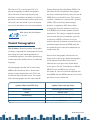
Updates Taken from PEPE Only
Updates Takes from Any Entity
Grade Level
Limited English Proficient (LEP)
Gender
Migrant Status
Race/Ethnicity
Students with Disabilities (SWD)
Economically Disadvantaged
Homeless
6
MSDS Best Practices
For accurate assessment reporting and
Race/Ethnicity
student demographics, enrollment and exit dates
Race/ethnicity is used to determine student
accountability calculations, BAA needs accurate
through the “AS OF” date that represents the
end of the testing window (for fall this date is
10/26/12; for spring this date is 3/21/12). An
SRM record should only be needed to add students
to your enrollment, submit exit dates, or change
demographics for students who were erroneously
reported in the fall general collection, or who had a
demographic status change between the count day
and the “AS OF” date (for fall this is 10/3/12 –
10/26/12; for spring this date is 2/13/13 – 3/21/13).
Timelines: For accurate assessment reporting
and accountability calculations, BAA needs clean
student demographics (including grade level), and
student enrollment/exit dates through the “AS OF”
date that represents the end of the testing window
(for fall this date is 10/26/12; for spring this date is
3/21/13). An SRM record should only be needed
to add students to your enrollment, to submit exit
dates, or to change demographics that were either
erroneously reported in the general collection, or
for those students who had a demographic change
between the count date and the “AS OF” date.
membership in one of the racial/ethnic subgroups
identified in current accountability systems. These
subgroups are:
√ Black or African American
√ Asian
√ American Indian or Alaska Native
√ Native Hawaiian or Pacific Islander
√ Hispanic or Latino
√ White
√ Multiracial
Students may belong only to one of the ethnic
subgroups. Students reported in the MSDS as
more than one race/ethnicity will be automatically
included in the Multiracial subgroup. Students
reported in MSDS as having more than one race/
ethnicity where one of the ethnicities reported
is Hispanic or Latino will be included in the
Hispanic or Latino subgroup only. The second
reference below has actual MSDS coding
examples for various racial/ethnic reporting
scenarios. For accountability purposes, the race/
ethnicity categories listed above will be used. For
an explanation of how the categories reported in
MSDS correspond to the new federal race/ethnicity
categories, please visit the “interpretation”
document provided in reference section below.
MSDS Best Practices
7
accountability calculations until the school is no
longer considered the Primary Education Providing
Examples:
John Smith is reported in the MSDS with
the racial/ethnic code for Black or African
American (001000). He will be placed in
the Black or African American subgroup for
accountability calculations.
Sally Jones is reported in the MSDS with
the racial/ethnic codes for Asian and White
(010010). She will be placed in the Multiracial
subgroup for accountability calculations.
Ralph Wiggum is reported in the MSDS with
the racial/ethnic codes for White and Hispanic
or Latino (000011). He will be placed in the
Hispanic or Latino subgroup for accountability
calculations.
Reference:
A+
2012-2013 MSDS Collection
Details Manual
Interpretation of Race and
Ethnicity Data from School
Districts
Limited English Proficient (LEP)
When a student is reported as being eligible for
LEP services, the student is considered LEP
Entity (PEPE) for that student. If a student is not
exited using the LEP Exit Reason code of “50”, the
district must re-report the student in the following
school year. Failure to re-report the student
will not remove the student from the district’s
accountability calculations; however, it will
negatively impact the district’s funding allocations
(the rules for determining allocations and other
funding sources are not contained in this manual).
Examples:
Mike Chang is reported in the LEP component
of MSDS with a LEP Instructional Program as
participating in English As a Second Language
(ESL) Instruction (code 09). No data are
submitted in the LEP Exit Reason or LEP Exit
date fields. This student would be placed in the
LEP subgroup for accountability calculations.
Yuri Gagarin is reported in the LEP component
of MSDS with a LEP Instructional Program
as Refused Services (code 16). Yuri is also
reported as exiting LEP on September 27, 2012
because of a Parent Request (code 52). Yuri
would be placed in the LEP subgroup because
the exit reason was not “Student scored in the
proficient range on the ELP test” (code 50).
for the entire school year in which they were
reported, and will continue to be considered LEP
until he/she is exited from LEP services using an
LEP Exit Reason code of “50” (Proficient). All
Reference:
A+
2012-2013 MSDS Collection
Details Manual
other LEP Exit Reason codes do not remove a
student’s LEP status. Students with Exit Reason
codes of “51” or “53” (Student Left School,
Student Graduated) will still count in the school’s
8
MSDS Best Practices
STUDENT S W ITH DISABILITIES (S WD )
Why it matters: Reporting students with
disabilities accurately is important for ensuring
that student test scores are not invalidated when a
student takes an alternate assessment and that the
correct students are included in the SWD subgroup
for accountability.
Students are considered SWD when they
are reported in the MSDS Special Education
Component with a Primary Disability. A primary
disability is required for students with an
Individualized Educational Program (IEP). Section
52 or Section 53 Full-Time Equivalent (FTE)
values are not used in determining a student’s
SWD status. This means a student reported with a
primary disability code “10” (Speech and Language
Impairment) with a full 1.0 general education FTE
would still be considered part of the Students with
Examples:
Jessica Brown is reported in the Special
Education Component of the MSDS with a
Primary Disability of Speech and Language
Impairment (code 10). Her most recent IEP
was held on June 1. She is only receiving
support services for Speech and Language
Impaired (code 290). The school decides to
assign all of Jessica’s FTE to general education
and her MSDS record shows no Section 52 or
53 FTE. This student is placed into the Students
with Disabilities subgroup for accountability
calculations because she has been reported
with a primary disability.
Paul Harris is reported with a primary disability
in the Special Education Component of the
MSDS for the fall 2012 collection. He is
reported with a Special Education Exit Date
of October 7, 2012. He would not be placed
into the Students with Disabilities subgroup
because he was no longer receiving services at
the time of testing.
Disabilities subgroup.
If a student exits special education services, the
student’s record in MSDS must contain a Special
Education Exit Reason and a Special Education
Reference:
A+
2012-2013 MSDS Collection
Details Manual
Exit Date. Students must have an exit date before
the start of the testing window to be excluded
from the Students with Disabilities subgroup
for accountability. For fall testing, this date is
10/9/2012; for spring testing, this date is 3/5/2013.
MSDS Best Practices
9
Economically Disadvantaged
State assessments exist for grades 3 – 9
Students are identified as Economically
(administered each spring). Students must
(administered each fall), and for grade 11
Disadvantaged in three ways:
participate in the assessment(s) appropriate for
1) Supplemental Nutrition Eligibility
the required 95% participation rate.
3) Categorical Eligibility
Out-of-Level: If a student’s reported grade in
she took, the student is considered to have tested
2) Direct Certification
• Migrant
• Homeless
Once a student has been identified as Economically
Disadvantaged, they remain as such through the
rest of the school year.
MSDS is different from the grade level test he/
“out of level” and the test score will be invalidated.
Students with invalidated scores count as not
tested.
Note on MME: Districts are responsible for
accurate reporting of grade 11 students whether
Example:
local grade-assignment policy is based on credits
Rebecca Smith is reported in the MSDS as
having Transitional Housing (code 11) as her
primary nighttime residence. She is considered
homeless and would be placed into the
Economically Disadvantaged subgroup for the
entire school year.
earned or number of years. Some grade 12 students
will be required to take the Michigan Merit
Examination (MME). For grade 12 eligibility
questions, please see the Frequently Asked
Question (FAQ) link provided in the reference
section below.
In MSDS, students can be reported in Kindergarten
Reference:
A+
their grade level. Students not tested count against
2012-2013 MSDS Collection
Details Manual
(code 00) through grade 12 (code 12) as well as
grades 14 (ungraded program – special education
only), 20 (adult education), and 30 (early
childhood). Students reported with codes of 00-
Grade Level
Why it matters: Reporting student grades
appropriately is necessary to ensure students are
administered the appropriate grade level tests and
to ensure student scores are not invalidated due to
a conflict between tested grade and enrolled grade.
10
02 (Kindergarten through second grade), 10, 20
and 30 are not used in accountability calculations
because there currently are no state assessments
for those grades/settings. Schools reporting grade/
setting codes 00-14 that are the PEPE for even one
student are expected to fulfill state accreditation
system requirements.
MSDS Best Practices
Students reported with a code of 14 are
into a
grade level based on their age as
of December 1 of the current school year. The
table below indicates the computed grade level for
students reported with a code of 14. The computed
grade indicates which grade level assessments
must be administered to the student. The decision
about which assessment is appropriate for a
student (MEAP, MEAP-Access, or MI-Access) is a
decision for the student’s Individualized Education
Program (IEP) Team.
Example:
Michael Washington is reported in the MSDS
Fall General Collection with a date of birth
of January 4, 2002. He is also reported with a
code of 14 for grade level. This student would
have a computed age of 9 years for the 201213 state assessments. He would be expected to
take the third grade state assessments.
Example:
Jennifer Hughes is enrolled at Adams High
School as a sophomore. By January, Jennifer
has earned enough credits to be considered
a junior, and takes the MME in March. In the
spring 2013 general collection, she is still
reported as grade 10. This student would
appear on the MME Tested Roster as “out-oflevel” and the district would need to submit an
SRM record (with an “AS OF” date on or before
3/21/2013) prior to the Spring SRM deadline.
If SRM to report her in grade 11 is not
submitted, her MME score will be invalidated
as “out-of-level”.
References:
A+
2012-2013 MSDS Collection
Details Manual
High School Grade Assignment
for Accountability Calculations
(FAQ)
Student Age in Ungraded Program
(as of Dec. 1 of current school year)
Computed Grade
9 years
Third Grade
10 years
Fourth Grade
11 years
Fifth Grade
12 years
Sixth Grade
13 years
Seventh Grade
14 years
Eighth Grade
15 years
Ninth Grade
16 years
Tenth Grade
17 years
Eleventh Grade
18 years
Twelfth Grade
MSDS Best Practices
11
ENROLLMENT
AND
EXIT R ECORD S
Why it matters: Reporting student enrollment and
exit records is important so that the appropriate
school is held accountable for the students it
provided instruction to. Without timely enrollment
and exit records for a student, a school could be
held accountable for his/her assessments and
results.
Students are only dropped from a district’s
Example:
Mary Johnson is reported in the fall MSDS by
District A with a District Exit Date of October
1, and by District B as enrolled as of October 5.
This student would not be expected to
participate in fall testing at District A because
she exited prior to the start of the fall testing
window; however, she may count in District A’s
proficiency calculations if she had attended
District A for the prior full academic year
(FAY).
enrollment when a district exit record exists for
that student with an exit status other than code 19
(Expected to continue in the same school district)
and a District Exit Date before the beginning of the
testing window. For fall, this date is 10/9/2012; for
spring it is 3/5/2013.
Students who are expelled from the district without
receiving further services must have an exit
record with a reported status of 10 (permanently
expelled), and a valid exit date.
Helpful Hint: if a student is changing schools
FAY is calculated by examining the three
most recent MSDS collections (for 2012-2013
accountability, this equals fall 2011, spring 2012,
and end-of-year 2012). If a student was reported
as enrolled in all three collections with the same
PEPE District, the student will be included in the
districts accountability calculations for
References:
A+
2012-2013 MSDS Collection
Details Manual
within the same district, a District Exit Reason and
District Exit Date are not required; however, the
school receiving the student may wish to submit
R ESIDENCY C ODES
new student. Doing so will ensure the student is
The vast majority of students enrolled in public
purposes.
codes that hold the public school and district
an SRM enrollment record in MSDS to report the
attributed to the correct building for accountability
12
schools and districts are reported with residency
accountable for student achievement.
MSDS Best Practices
There are two types of students who may attend a
public school and take non-essential curriculum or
advanced placement courses, and who, if reported
correctly, will be excluded from accountability
calculations. These two student types are homeschooled students and nonpublic students.
Nonpublic and home-schooled students only attend
public schools.
If your school has home-schooled or nonpublic
students enrolled, it is essential that their MSDS
record is reported with a residency code of:
• “04” (Non-Resident Nonpublic Student)
• “08” (Resident Nonpublic Student) or
• “07” (Non-Resident Home-Schooled)
• “15” (Resident Home-Schooled)
Example:
Melinda Jones is reported in the fall MSDS
by District ABC with a resident code of “14”
(All other resident students). The school she
is enrolled in does not administer the MEAP
test to her because she is a home-schooled
student who attends the public school only for
music and computer classes. Melinda would be
included in accountability calculations because
the district reported her with a code of 14 (All
Other Resident Students) instead of code 15
(Home-Schooled Resident).
Reference:
A+
2012-2013 MSDS Collection
Details Manual
**Failure to report homeschooled or nonpublic
school students with the correct residency code
the past, FTE had to be used to determine which
Shared Educational Entities/
Specialized Shared Educational
Entities (SEEs/S2E2s)
has been fully implemented, the PEPE is the
SEEs are schools that enroll specific groups of
PEPE is assigned only to public school students,
provides educational services in a single location.
accurately reported to exclude homeschooled and
that provide educational services in multiple
calculations**
cooperative agreement between two or more
will result in the students’ inclusion in district
and school accountability, regardless of FTE. In
entity was accountable; however, now that PEPE
“accountable entity”, regardless of FTE. Since
students from more than one district. A SEE
it is imperative that the residency codes are
S2E2s are non-instructional ancillary facilities
nonpublic school students from accountability
classrooms inside of existing schools under a
districts. For more information about SEEs or
S2E2s, please see the link in the reference section
on the next page.
MSDS Best Practices
13
Students enrolled in a SEE need to be reported in
MSDS in the school where they are enrolled and
Example:
receive services.
Disney District offers Special Education
services to all districts within the Magic
Kingdom ISD. Tommy Thompson is a resident
of Epcot District, but requires special services
and attends school in a classroom in Cheerful
Elementary (building code 55555) within the
Disney District. The districts sending students
to the Disney District Special Education
Program decide to participate in the Sending
Scores Back program. Therefore, they work
with the districts within the Magic Kingdom
ISD to establish the Disney District Special
Education Program as a Specialized Shared
Educational Entity, and are assigned a code
of 98765 for this S2E2. Disney District
continues to report Tommy Thompson in
Cheerful Elementary; however they also report
Tommy with the S2E2 code in the new S2E2
characteristic that indicates scores for this
student will be sent back to the resident district
(in Tommy’s case this would be Epcot District).
Students participating in an S2E2 agreement need
to be reported in the school where they receive
their instruction, not at the S2E2. Additionally,
these students need to have the S2E2 building
code reported in the new S2E2 characteristic in
MSDS. Please see the S2E2 reporting document in
reference section below for more information.
Example:
Sally Smith is a student in the Awesome
Alternative Education School, building code
12345. Awesome Alternative Education
School serves students from five districts, and
all five districts agree to establish Awesome
Alternative Education as a SEE. The SEE
building code remains 12345.
Reference:
Shared Educational Entity
Information
A+
S2E2 Student Reporting
Guidance
14
Example
Last
Name
First
Name
School
Facility
Number
Operating
District
Code
Resident
District
Code
Specialized
SEE Code
(S2E2)
A
Smith
Sally
12345
00001
00003
This MSDS
field will
remain empty
(the building
code is
designated as
a SEE).
B
Thompson
Tommy
55555
00224
00333
98765
MSDS Best Practices
Notes
MSDS Best Practices
15
A+
Questions or comments about this document
should be directed to:
E-mail: [email protected]
Contact: 517-560-8378/option 6