1
Chapter 6
Creating Embroidery Designs
Contents:
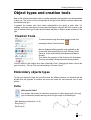
Object types and creation tools ....................................................................... 3
Creation Tools................................................................................... 3
Embroidery objects types ................................................................... 3
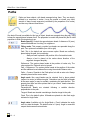
Paths............................................................................................ 3
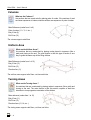
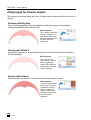
Columns ....................................................................................... 4
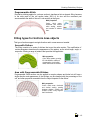
Uniform Area................................................................................. 4
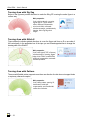
Turning Areas................................................................................ 4
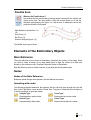
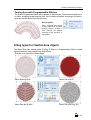
Flexible Area ................................................................................. 5
Elements of the Embroidery Objects .................................................... 5
Main Reference .............................................................................. 5
Nodes........................................................................................... 5
Area Directions ............................................................................ 12
Entry and Exit points .................................................................... 13
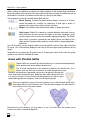
Holes.......................................................................................... 14
Emboss line................................................................................. 14
Cut line....................................................................................... 15
Basic Stitch Filling Types .............................................................................. 16
Filling types for Path objects.......................................................... 16
Filling types for Column objects ..................................................... 18
Filling types for Uniform Area objects ............................................. 19
Filling types for Turning Area objects.............................................. 21
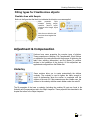
Filling types for Flexible Area objects .............................................. 23
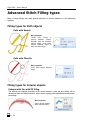
Advanced Stitch Filling types......................................................................... 24
Filling types for Path objects.......................................................... 24