1
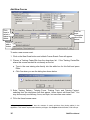
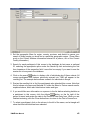
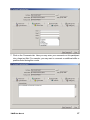
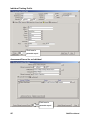
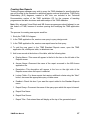
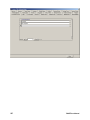
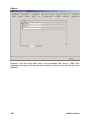
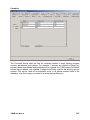
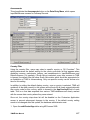
Creating New Reports Training program managers may wish to query the TIMS database for specific data that are not provided in the standard or additional reports sections listed above. TIMS Entity Relationship (E-R) diagrams, created in MS Visio, are included in the Technical Documentation section of the TIMS installation CD, for the purpose of teaching programmers the table structures and relationships of the TIMS database. Note: Only advanced Visual Basic and MS Access programmers should attempt to use this feature of TIMS, because it involves opening and modifying the TIMS application file. The process for creating new reports would be: 1. Study the TIMS E-R diagram. 2. In the TIMS application file, create a new query in query design mode. 3. In the TIMS application file, create a new report based on that query. 4. To add the new report to the TIMS Standard Reports menu, open the TIMS application file, ztblReports table, in datasheet view. 5. Add a new record at the bottom of the table, with the following data: a. Display Name—This name will appear in the list in the box on the left side of the Reports screen. b. Access Name—Document the name of the report as saved in the MS Access application file. c. Description—This description will appear in the box on the right side of the Reports screen when this report is selected. d. Lookup Table—For those reports that require additional criteria using the “Next” button, document the appropriate query or table name. e. Enabled—Check this box if you want the report added to the Standard Reports menu. f. Report Query—Document the name of the query upon which this report is based. g. Report Row Name h. Report Row Source i. Report Title—Text entered here will display at the top of the generated report. TIMS User Manual 87