1
6)
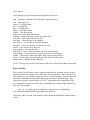
Use Log File (useLogFile) – This flag indicates whether all output should be
logged to a file or not. It is highly recommended to leave this set to true, unless of course
there is a good reason not to have a log file.
7)
Display Output Window (displayOutputWindow) – By default, an output
window is displayed (on non-headless environments) as the console process runs when
set to true. Any standard output messages (and fed input messages) appear in this
window. For performance reasons, if the console program can execute unmonitored (so
it only logs), this flag should be set to false.
8)
Show Settings Dialog (showGUI) - If true, the console process engine
settings dialog will be displayed at execution time.
9)
Capture Sequences – If set to true (default), the engine will automatically
capture any input typed into the display console window (if visible and enabled) and save
the input/output values for the next execution. This makes it easy to simply execute the
program one time, type the appropriate characters, and save the settings for any future
execution. The capture will only save once the console program terminates.
10)
Force Terminate Timeout (forceTerminateTimeout) – This is the number of
milliseconds to wait before trying to force terminate the executed program process. If set
to 0, force termination is disabled.
11)
Output/Input Values (values) – This is the entire block for all the standard
‘input’ and ‘output’ values for reading/writing. Any time an item in the output/input tree
is selected, the ‘Output’, ‘Input’, and ‘Base 64 Encoded’ fields will dynamically update.
The ‘Output:Input’ node at the top of the tree should be ignored. It’s required to use the
‘Add’ button to create new root output/input values. It will not be used in any way by the
Console Process Engine.
12)
Output (output) – A value to look for in order to feed input. The button next
to this field with the ‘…’ brings up a file dialog in order to browse for a file that contains
the exact output data desired. When this button is used, the data will automatically be
base 64 encoded for convenience.
13)
Input (input) – The input to feed in based on finding the processed output
value. This field also has a ‘…’ button to browse for a file. This applies to the input that
will be fed however.
14)
Base 64 Encoded (base64Encoded) – This should only be used if nondisplayable characters must be passed to standard ‘input’. The ‘newline’ or ‘endline’ is a
good example. So is a ‘null’, which is ASCII character 0. The ‘output’ value would then
be a string that was base 64 encoded. In the sample demonstrated in Figure 1, base 64